PiAPI
Workflows by PiAPI
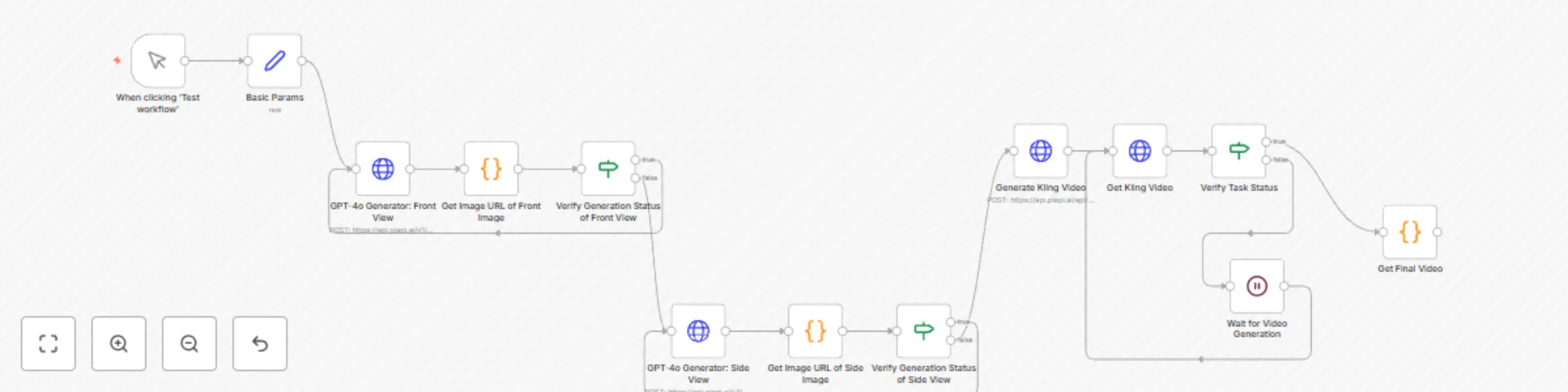
Convert 3-view drawings to 360° videos with GPT-4o-Image and Kling API
### What this workflow does? This workflow converts orthographic three-view drawings into 360° rotation videos through [**PiAPI**](https://piapi.ai)'s GPT-4o-Image and Kling APIs (unofficial). The workflow could be set with our [**3D Figurine Orthographic Views**](https://creators.n8n.io/workflows/3628) workflow for generation. ### Who is the workflow for? - **Designers**: Generate inspiration into 3D designs and make them spin to gain concrete details in a efficient way. - **Online shoppers**: Show protential products from all angles in videos and preview overall texture of models. - **Content Creators** (including toy bloggers): Make fun videos of collectible models. ### Step-by-step Instructions 1.Fill in basic params with your X-API-Key of your PiAPI account and 3-View image url.  2.Click test workflow. 3.Get the final video in the last node. ### Use Case Input Image  Output Video 
Create animated stories using GPT-4o-mini, Midjourney, Kling and Creatomate API
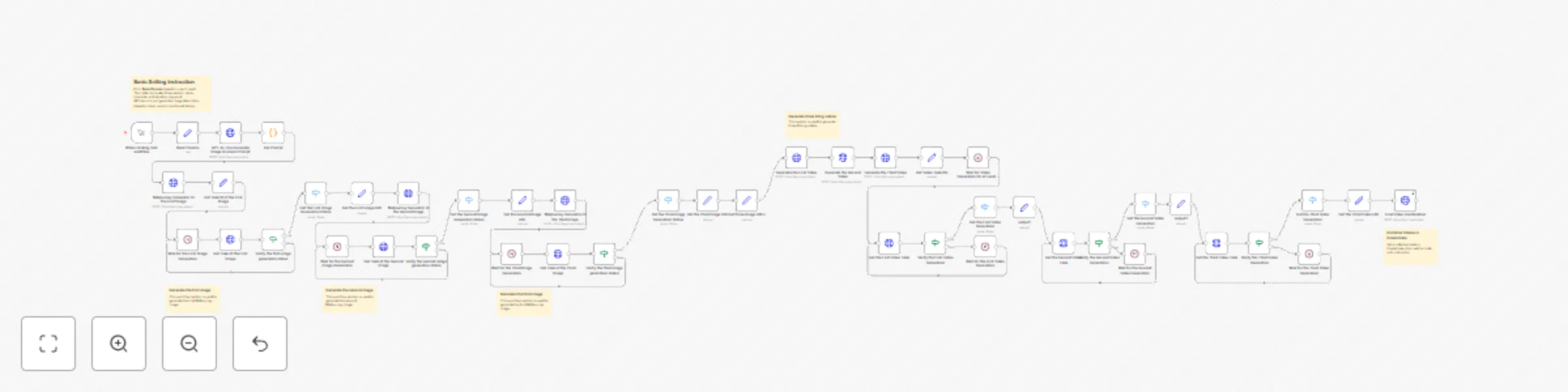
### What does the workflow do? This workflow is designed to generate high-quality short videos, primarily uses GPT-4o-mini (unofficial), Midjourney (unofficial) and Kling (unofficial) APIs from [**PiAPI**](https://piapi.ai) and [**Creatomate API**](https://creatomate.com) mainly for **content creator**, **social media bloggers** and **short-form video creators**. Through this short video workflow, users can quickly validate their creative ideas and focus more on enhancing the quality of their video concepts. ### Who is the workflow for? 1. **Social Media Influencers**: produce content videos based on inspiration efficiently. 2. **Vloggers**: generate vlogs based on inspiration. 3. **Educational Creators**: explain specific topics via animated short videos or demonstrate a specific imagined scenario to students for enhanced educational impact. 4. **Advertising Agencies**: generate short videos based on specific products. 5. **AI Tool Developers**: automatically generate product demo videos. ### Step-by-step Instructions 1. Fill in X-API-key of PiAPI account in Basic Params node. 2. Fill in the scenario of the image and video prompt. 3. Set a video template on Creatomate and make an API call in the final node with core and processing modules provided in Creatomate. Before full video generation, you can first use basic assets in Creatomate for a prototype demo, then integrate with n8n after verifying the expected results.  4. Fill in your Creatomate account settings following the image guildline. 5. Click Test Workflow and wait for a generation (within 10~20min). In this workflow, we've established a basic structure for image-to-video generation with subtitle integration. You can further enhance it by adding music nodes using either PiAPI's [audio models](https://piapi.ai/workspace/mmaudio) or your preferred music solution. All video elements will ultimately be composited through Creatomate. For best practice, please refer to **PiAPI**'s official [API documentation](https://piapi.ai/docs/overview) or **Creatomate**'s [API documentation](https://creatomate.com/docs/api/introduction) to comprehend more use cases. ### Use Case **Params Settings** - style: a children’s book cover, ages 6-10. --s 500 --sref 4028286908 --niji 6 - character: A gentle girl and a fluffy rabbit explore a sunlit forest together, playing by a sparkling stream - situational_keywords: Butterflies flutter around them as golden sunlight filters through green leaves. Warm and peaceful atmosphere **Output Video** <video src="https://static.piapi.ai/n8n-instruction/short-video/example1.mp4" controls />
3D figurine orthographic views with Midjourney and GPT-4o-image API
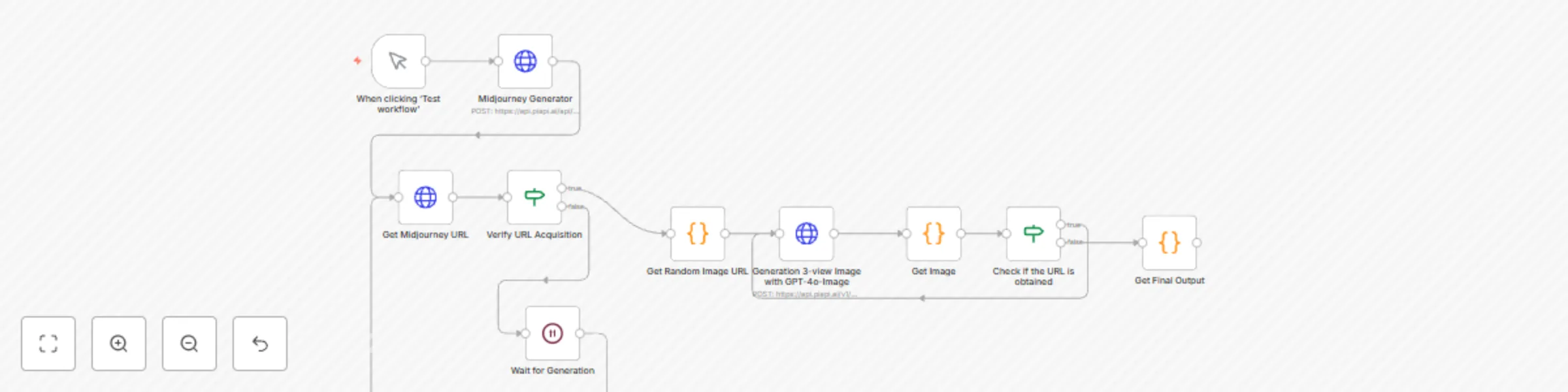
### What this workflow does? This workflow primarily uses the GPT-4o API from [**PiAPI**](https://piapi.ai) and automatically creates front/side/top views of 3D models from commands. ### Who is this for? - 3D Designers: Quickly generate standardized orthographic views for design review - E-commerce Operators: Create multi-angle product display images - 3D Modeling Beginners: Instantly produce basic reference views ### Step-by-step Instruction 1. Fill in X-API-Key of your PiAPI account and the image prompt based on your inspiration. 2. Click Test workflow. 3. Get the image url in the final node. ### OutPut  
Generate graphic wallpaper with Midjourney, GPT-4o-mini and Canvas APIs
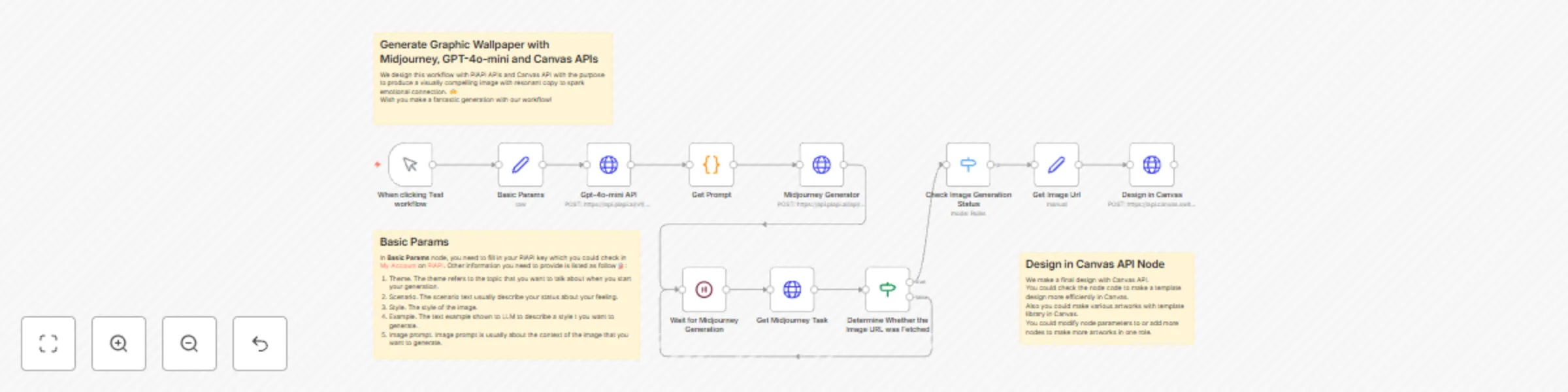
### Who is the template for? This workflow is specifically designed for **content creators** and **social media professionals**, enabling **Instagram and X (Twitter) influencers** to produce highly artistic visual posts, empowering **marketing teams** to quickly generate event promotional graphics, assisting **blog authors** in creating featured images and illustrations, and helping **knowledge-based creators** transform key insights into easily shareable card visuals. ### Set up Instructions 1. Fill in your [API key](https://piapi.ai/workspace/key) from PiAPI. 2. Fill in **Basic Params** Node following the sticky note guidelines. 3. Set up a design template in [Canvas Switchboard](https://www.switchboard.ai). 4. Make a simple template in Switchboard.  5. Click Crul and get the API code to fill in JSON of **Design in Canvas**.  6. Click Test Workflow and get a url result. ### Use Case Here we will provide some setting examples to help users find a proper way to use this workflow. User could change these settings based on specific purposes. **Basic Params Setting**: 1. **theme**: Hope 2. **scenario**: Don't know about the future, confused and feel lost with tech-development. 3. **style**: Cinematic Grandeur, Sci-Tech Aesthetic, 3D style 4. **example**: 1. March. Because of your faith, it will happen. 2. Something in me will save me. 3. To everyone carrying a heavy heart in silence. You are going to be okay. 4. Tomorrow will be better. 5. **image prompt**: A cinematic sci-fi metropolis where Deep Neural Nets control a hyper-connected society. Holographic interfaces glow in the air as robotic agents move among humans, symbolizing Industry 4.0. The scene contrasts organic human emotion with cold machine precision, rendered in a hyper-realistic 3D style with futuristic lighting. Epic wide shots showcase the grandeur of this civilization’s industrial evolution. **Output Image:**  ### More Example Results for Reference 
Create animated illustrations from text prompts with Midjourney and Kling API
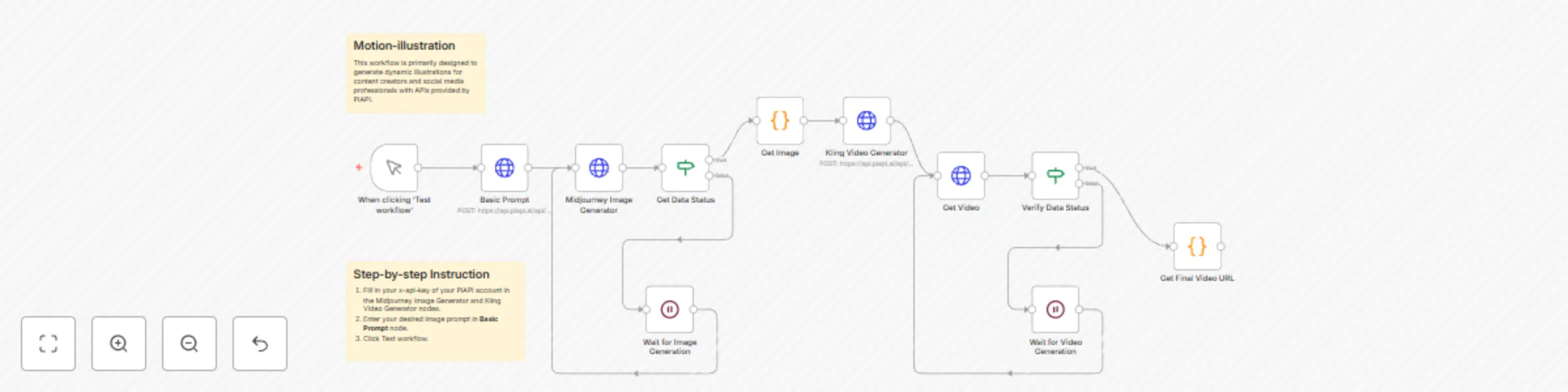
### What does the workflow do? This workflow is primarily designed to generate animated illustrations for content creators and social media professionals with Midjourney (unoffcial) and Kling (unofficial) API served by [**PiAPI**](https://piapi.ai). PiAPI is an API platform which provides professional API service. With service provided by PiAPI, users could generate a fantastic animated artwork simply using workflow on n8n without complex settings among various AI models. ### What is animated illustration? An animated illustration is a digitally enhanced artwork that combines traditional illustration styles with subtle, purposeful motion to enrich storytelling while preserving its original artistic essence. ### Who is this workflow for? 1. **Social Media Content Creators**: Produces animated illustrations for social media posts. 2. **Digital Marketers**: Generates marketing materials with motion graphics. 3. **Independent Content Producers**: Creates animated content without specialized animation skills. ### Step-by-step Setting Instructions To simplify workflow settings, usually users just need to change basic prompt of the image and the motion of the final video following the instrution below: 1. Sign in your PiAPI account and get your [X-API-Key](https://piapi.ai/workspace/key). 2. Fill in your [X-API-Key](https://piapi.ai/workspace/key) of PiAPI account in Midjourney and Kling nodes. 3. Enter your desired image prompt in the Prompt node. 4. Enter the motion prompt in Kling Video Generator node. For more complex or customization settings, users could also add more nodes to get more output images and generate more videos. Also, they could change the target image to gain a better result. As for recommendation, users could change the video models for which we would recommend live-wallpaper LoRA of [Wanx](https://piapi.ai/docs/wanx-lora/use-case). Users could check API doc to see more use cases of video models and image models for best practice. ### Use Case **Input Prompt** A gentle girl and a fluffy rabbit explore a sunlit forest together, playing by a sparkling stream. Butterflies flutter around them as golden sunlight filters through green leaves. Warm and peaceful atmosphere, 4K nature documentary style. --s 500 --sref 4028286908 --niji 6 **Output Video** <video src="https://static.piapi.ai/n8n-instruction/motion-illustration/example1.mp4" controls /> ### When there is troubleshooting 1. Check if the X-API-Key has been filled in nodes needed. 2. Check your task status in Task History in [**PiAPI**](https://piapi.ai) to get more details about task status.  ### More Generation Case for Reference <video src="https://static.piapi.ai/n8n-instruction/motion-illustration/example2.mp4" controls />
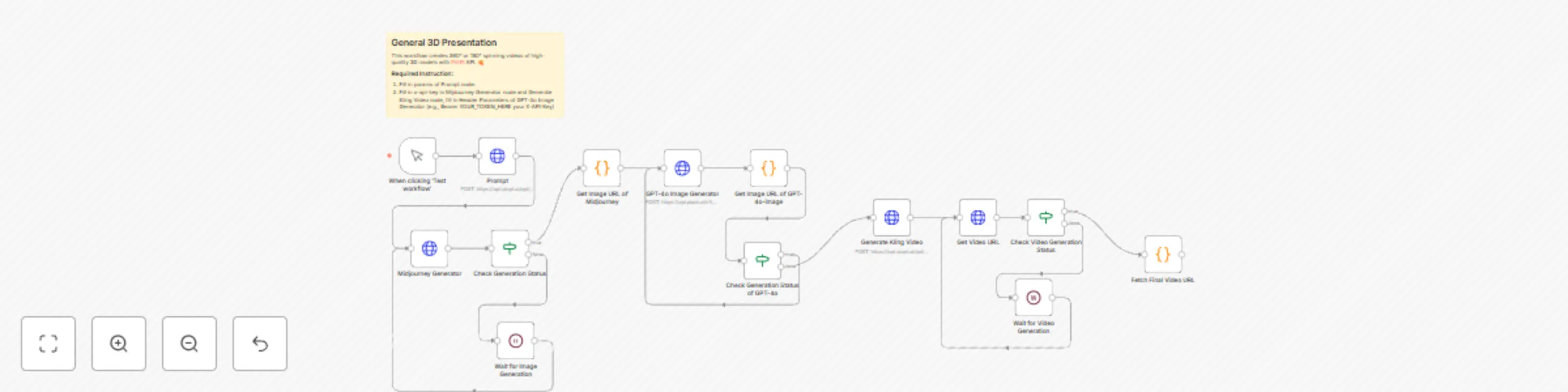
General 3D presentation workflow with Midjourney, GPT-4o-image and Kling APIs
### Who is this template for? This workflow creates 360° or 180° spinning videos of high-quality 3D models with [PiAPI](https://piapi.ai) API. **Good for:** - **Designers**: Generate inspiration into 3D designs and make them spin to gain concrete details in a efficient way. - **Online shoppers**: Show protential products from all angles in videos and preview overall texture of models. - **Content Creators** (including toy bloggers): Make fun videos of collectible models. - **3D beginners:** Get simple spinning animations easily and make fun with them in a convenient way. ### How to customize this workflow to your need? To use this workflow, usually we need four steps: 1. Fill in x-api-key in Mijdourney Generator node and Generate Kling Video node, fill in Header Parameters of GPT-4o Image Generator (e.g., Bearer + your X-API-Key) 2. Enter your model prompt based on your inspiration. 3. Click Test Workflow. 4. Get the video URL in the last node. ### Use Case The prompt node concludes the main features of creations. An example for users' reference is listed as follow: #### Input Prompt A blind box character design, in the chibi style, a super cute little girl wearing a white long-sleeved dress and pearl earrings with her head bowed in a prayer pose, facing upwards, wearing an oversized off-white dress with large round pearls on the shoulders, minimalist simple dress with Ruffles, against a beige background, a full-body shot in a three-quarter profile view, with a black, blue, and gray color scheme, soft lighting, 3D rendering, clay material, high detail, in the Pixar style. Clean white skin, brown renaissance braided bun. --ar 1:1 --niji 6 ### Output Video An Example for your reference. <video src="https://static.piapi.ai/n8n-instruction/general-3d-presentation/example1.mp4" controls /> ### More Example Results for Reference <video src="https://static.piapi.ai/n8n-instruction/general-3d-presentation/example3.mp4" controls />
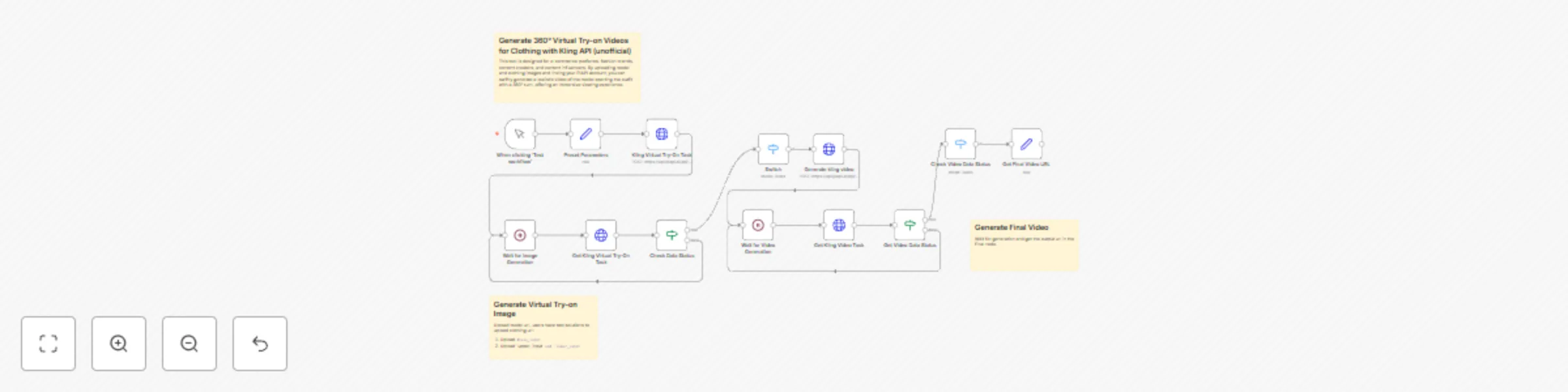
Generate 360° virtual try-on videos for clothing with Kling API (unofficial)
### What's the workflow used for? Leverage this Kling API (unofficial) provided by [**PiAPI**](https://piapi.ai) workflow to streamline virtual try-on video creation. This tool is designed for **e-commerce platforms**, **fashion brands**, **content creators** and **content influencers**. By uploading model and clothing images and linking PiAPI account, users can swiftly generate a realistic video of the model sporting the outfit with a 360° turn, offering an immersive viewing experience. ### Step-by-step Instruction For basic settings of virtual try-on, check [API doc](https://piapi.ai/docs/kling-api/virtual-try-on-api) to get best practice. 1. Fill in your X-API-Key of your PiAPI account in Preset Parameters node. 2. Upload the model photo and provide target clothing image urls. 2. Click **Test Workflow** to generate virtual try-on image. 3. Get the video output in the final node. ### Param Settings 1. If you want to change into a dress, input the `model_input` URL and the `dress_input` URL in the parameters. 2. If you want to change into separates, input `model_input` URL, `upper_input` URL and `lower_input` URL in **Preset Parameters**.  ### Use Case Input images:   **Output Video** <video src="https://static.piapi.ai/n8n-instruction/virtual-try-on/example1.mp4" controls /> The output demonstrates that the model is wearing the clothing from the specified image and showcases a rotating runway-style view. This workflow enables you to efficiently test garment-on-model presentation effects while reducing business model validation costs to a certain extent.