P

Peliqan

3
Workflows

Workflows by Peliqan
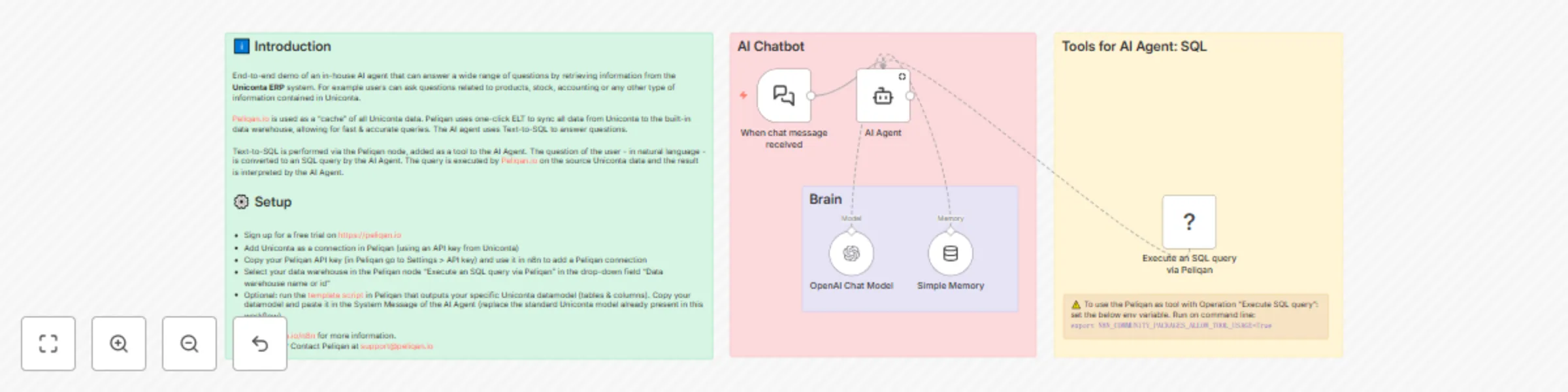
Workflow preview: Query business data from Uniconta ERP with OpenAI chatbot via Peliqan
Free intermediate

Query business data from Uniconta ERP with OpenAI chatbot via Peliqan

![Peliqan n8n Uniconta AI Agent.png](fileId:2107) ## How it works This template is an end-to-end demo of an in-house AI agent that can answer a wide range of questions by retrieving information from the Uniconta ERP system. For example users can ask questions related to products, stock, accounting or any other type of information contained in Uniconta. Peliqan.io is used as a "cache" of all Uniconta data. Peliqan uses one-click ELT to sync all data from Uniconta to the built-in data warehouse, allowing for fast & accurate queries. The AI agent uses Text-to-SQL to answer questions. Text-to-SQL is performed via the Peliqan node, added as a tool to the AI Agent. The question of the user - in natural language - is converted to an SQL query by the AI Agent. The query is executed by Peliqan.io on the source Uniconta data and the result is interpreted by the AI Agent. ## Preconditions * You signed up for a [Peliqan.io free trial account](https://app.eu.peliqan.io) * You have a Uniconta ERP system ## Set up steps * Sign up for a [free trial on peliqan.io](https://peliqan.io) * Add Uniconta as a connection in Peliqan (using an API key from Uniconta) * Copy your Peliqan API key (in Peliqan go to Settings > API key) and use it in n8n to add a Peliqan connection * Select your data warehouse in the Peliqan node "Execute an SQL query via Peliqan" in the drop-down field "Data warehouse name or id" * Optional: run the [template script](https://help.peliqan.io/build-ai-agents-with-n8n-and-peliqan#block-2401aa9b387980cf8b2ff069588dd3dc) in Peliqan that outputs your specific Uniconta datamodel (tables & columns). Copy your datamodel and paste it in the System Message of the AI Agent (replace the standard Uniconta model already present in this workflow) Visit [peliqan.io/n8n](https://peliqan.io/n8n) for more information. Need help ? Contact Peliqan at [[email protected]]([email protected]) _Disclaimer: This template contains a community node and therefore only works for n8n self-hosted users._

P
Peliqan
Internal Wiki
14 Aug 2025
243
0
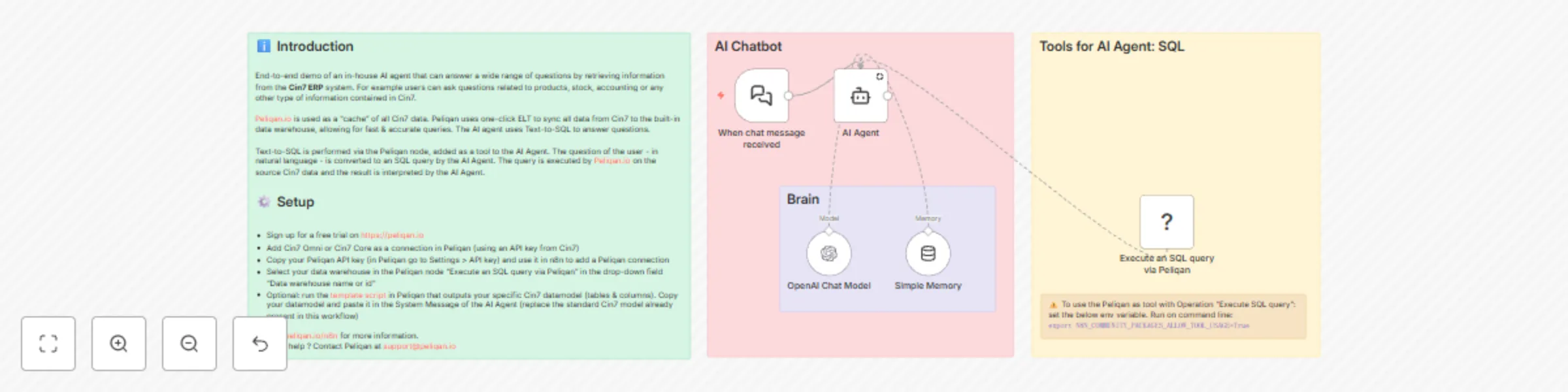
Workflow preview: Query business data from Cin7 ERP with OpenAI chatbot via Peliqan
Free intermediate

Query business data from Cin7 ERP with OpenAI chatbot via Peliqan

![Peliqan n8n template Cin7 AI Chatbot.png](fileId:2065) ## How it works This template is an end-to-end demo of an in-house AI agent that can answer a wide range of questions by retrieving information from the Cin7 ERP system. For example users can ask questions related to products, stock, accounting or any other type of information contained in Cin7. Peliqan.io is used as a "cache" of all Cin7 data. Peliqan uses one-click ELT to sync all data from Cin7 to the built-in data warehouse, allowing for fast & accurate queries. The AI agent uses Text-to-SQL to answer questions. Text-to-SQL is performed via the Peliqan node, added as a tool to the AI Agent. The question of the user - in natural language - is converted to an SQL query by the AI Agent. The query is executed by Peliqan.io on the source Cin7 data and the result is interpreted by the AI Agent. ## Preconditions * You signed up for a [Peliqan.io free trial account](https://app.eu.peliqan.io) * You have a Cin7 Omni or Cin7 Core ERP system ## Set up steps * Sign up for a [free trial on peliqan.io](https://peliqan.io) * Add Cin7 Omni or Cin7 Core as a connection in Peliqan (using an API key from Cin7) * Copy your Peliqan API key (in Peliqan go to Settings > API key) and use it in n8n to add a Peliqan connection * Select your data warehouse in the Peliqan node "Execute an SQL query via Peliqan" in the drop-down field "Data warehouse name or id" * Optional: run the [template script](https://help.peliqan.io/build-ai-agents-with-n8n-and-peliqan#block-2401aa9b387980cf8b2ff069588dd3dc) in Peliqan that outputs your specific Cin7 datamodel (tables & columns). Copy your datamodel and paste it in the System Message of the AI Agent (replace the standard Cin7 model already present in this workflow) Visit [peliqan.io/n8n](https://peliqan.io/n8n) for more information. Need help ? Contact Peliqan at [[email protected]]([email protected]) _Disclaimer: This template contains a community node and therefore only works for n8n self-hosted users._

P
Peliqan
Internal Wiki
13 Aug 2025
231
0

Workflow preview: Query business data with OpenAI chatbot using RAG and text-to-SQL via Peliqan
Free advanced

Query business data with OpenAI chatbot using RAG and text-to-SQL via Peliqan

![Peliqan n8n chatbot with RAG and Text-To-SQL](https://images.spr.so/cdn-cgi/imagedelivery/j42No7y-dcokJuNgXeA0ig/99465134-7cb5-46cd-a26c-c44c11a3317e/Peliqan_n8n_AI_Agent_template_with_RAG_and_Text_to_SQL/w=1920,quality=90,fit=scale-down) ## How it works This template is an end-to-end demo of a chatbot using business data from multiple sources (e.g. Notion, Chargebee, Hubspot etc.) with RAG + SQL. Peliqan.io is used as a "cache" of all business data. Peliqan uses one-click ELT to sync all your business data to its built-in data warehouse, allowing for fast & accurate RAG and "Text to SQL" queries. The workflow will write source data to Supabase as a vector store, for RAG searches by the chatbot. The source URL (e.g. the URL of a Notion page) is added in metadata. The AI Agent will decide for each question to use either RAG or Text-to-SQL or a combination of both. Text-to-SQL is performed via the Peliqan node, added as a tool to the AI Agent. The question of the user in natural language is converted to an SQL query by the AI Agent. The query is executed by Peliqan.io on the source data and the result is interpreted by the AI Agent. RAG is typically used to answer knowledge questions, often on non-structured data (Notion pages, Google Drive etc.). Text-to-SQL is typically used to answer analytical questions, for example "Show list of customers with number of open support tickets and add customer revenue based on invoiced amounts". ## Preconditions * You signed up for a Peliqan.io free trial account * You have one or more data sources, e.g. a CRM, ERP, Accounting software, files, Notion, Google Drive etc. ## Set up steps * Sign up for a free trial on peliqan.io: https://peliqan.io * Add one or more sources in Peliqan (e.g. Hubspot, Pipedrive...) * Copy your Peliqan API key under settings and use it here to add a Peliqan connection * Run the "RAG" workflow to feed Supabase, change the name of the table in the Peliqan node "Get table data". * Update the list of tables & columns that can be used for SQL in the System Message of the AI Agent. Visit https://peliqan.io/n8n for more information. Disclaimer: This template contains a community node and therefore only works for n8n self-hosted users.

P
Peliqan
Internal Wiki
30 Jul 2025
469
0