P

panyanyany

5
Workflows

Workflows by panyanyany
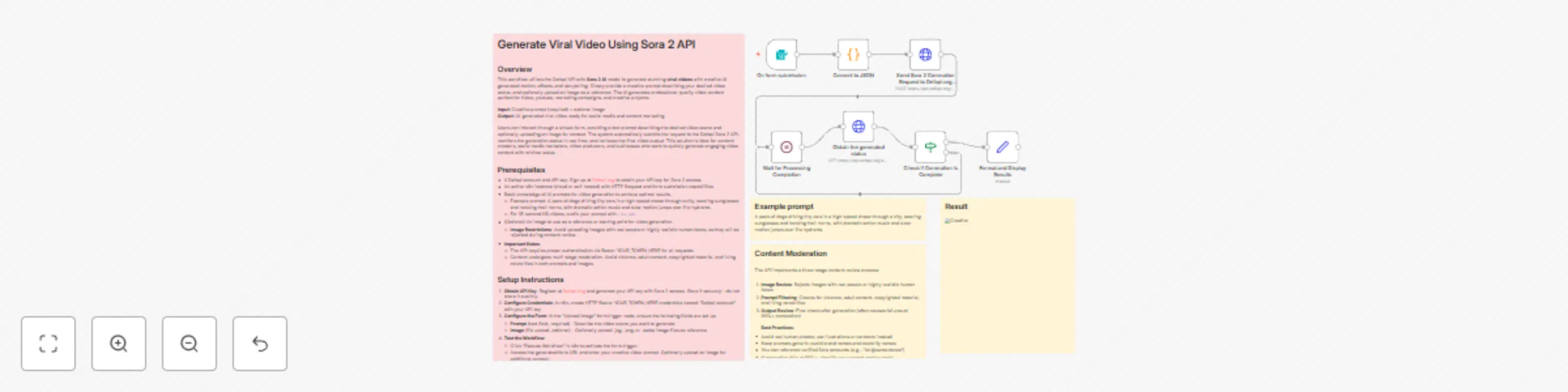
Workflow preview: Create social media videos with Sora 2 AI for marketing & content creation
Free intermediate

Create social media videos with Sora 2 AI for marketing & content creation

## Overview This workflow utilizes the Defapi API with **Sora 2 AI** model to generate stunning **viral videos** with creative AI-generated motion, effects, and storytelling. Simply provide a creative prompt describing your desired video scene, and optionally upload an image as a reference. The AI generates professional-quality video content perfect for tiktok, youtube, marketing campaigns, and creative projects. **Input:** Creative prompt (required) + optional image **Output:** AI-generated viral video ready for social media and content marketing Users can interact through a simple form, providing a text prompt describing the desired video scene and optionally uploading an image for context. The system automatically submits the request to the Defapi Sora 2 API, monitors the generation status in real time, and retrieves the final video output. This solution is ideal for content creators, social media marketers, video producers, and businesses who want to quickly generate engaging video content with minimal setup. ## Prerequisites - A Defapi account and API key: Sign up at [Defapi.org](https://defapi.org) to obtain your API key for Sora 2 access. - An active n8n instance (cloud or self-hosted) with HTTP Request and form submission capabilities. - Basic knowledge of AI prompts for video generation to achieve optimal results. - Example prompt: A pack of dogs driving tiny cars in a high-speed chase through a city, wearing sunglasses and honking their horns, with dramatic action music and slow-motion jumps over fire hydrants. - For 15-second HD videos, prefix your prompt with `(15s,hd)`. - (Optional) An image to use as a reference or starting point for video generation. - **Image Restrictions**: Avoid uploading images with real people or highly realistic human faces, as they will be rejected during content review. - **Important Notes**: - The API requires proper authentication via Bearer token for all requests. - Content undergoes multi-stage moderation. Avoid violence, adult content, copyrighted material, and living celebrities in both prompts and images. ## Setup Instructions 1. **Obtain API Key**: Register at Defapi.org and generate your API key with Sora 2 access. Store it securely—do not share it publicly. 2. **Configure Credentials**: In n8n, create HTTP Bearer Auth credentials named "Defapi account" with your API key. 3. **Configure the Form**: In the "Upload Image" form trigger node, ensure the following fields are set up: - **Prompt** (text field, required) - Describe the video scene you want to generate - **Image** (file upload, optional) - Optionally upload .jpg, .png, or .webp image files as reference 4. **Test the Workflow**: - Click "Execute Workflow" in n8n to activate the form trigger. - Access the generated form URL and enter your creative video prompt. Optionally upload an image for additional context. - The workflow will process any uploaded image through the "Convert to JSON" node, converting it to base64 format. - The request is sent to the Sora 2 API endpoint at Defapi.org. - The system will wait 10 seconds and then poll the API status until video generation is complete. 5. **Handle Outputs**: The final "Format and Display Results" node formats and displays the generated video URL for download or embedding. ## Workflow Structure The workflow consists of the following nodes: 1. **Upload Image** (Form Trigger) - Collects user input: creative prompt (required) and optional image file 2. **Convert to JSON** (Code Node) - Converts any uploaded image to base64 data URI and formats prompt 3. **Send Sora 2 Generation Request to Defapi.org API** (HTTP Request) - Submits video generation request to Sora 2 API 4. **Wait for Processing Completion** (Wait Node) - Waits 10 seconds before checking status 5. **Obtain the generated status** (HTTP Request) - Polls API task query endpoint for completion status 6. **Check if Image Generation is Complete** (IF Node) - Checks if status equals 'success' 7. **Format and Display Results** (Set Node) - Extracts and formats final video URL output ## Technical Details - **API Endpoint**: `https://api.defapi.org/api/sora2/gen` (POST request) - **Model Used**: Sora 2 AI video generation model - **Video Capabilities**: Supports 15-second videos and high-definition (HD) output - **Status Check Endpoint**: `https://api.defapi.org/api/task/query` (GET request) - **Wait Time**: 10 seconds between status checks - **Image Processing**: If an image is uploaded, it is converted to base64 data URI format (`data:image/[type];base64,[data]`) for API submission - **Authentication**: Bearer token authentication using the configured Defapi account credentials - **Request Body Format**: ```json { "prompt": "Your video description here", "images": ["data:image/jpeg;base64,..."] } ``` Note: The `images` array can contain an image or be empty if no image is provided - **Response Format**: The API returns a task_id which is used to poll for completion status. Final result contains `data.result.video` with the video URL. - **Accepted Image Formats**: .jpg, .png, .webp - **Specialized For**: Viral video content, social media videos, creative video marketing ## Customization Tips - **Enhance Prompts**: Include specifics like: - Scene description and action sequences - Character behaviors and emotions - Camera movements and angles (e.g., slow-motion, dramatic zoom) - Audio/music style (e.g., dramatic, upbeat, cinematic) - Visual effects and atmosphere - Timing and pacing details - **Enable 15s and HD Output**: To generate 15-second high-definition videos, start your prompt with `(15s,hd)`. For example: `(15s,hd) A pack of dogs driving tiny cars in a high-speed chase through a city...` ## Content Moderation The API implements a three-stage content review process: 1. **Image Review**: Rejects images with real people or highly realistic human faces 2. **Prompt Filtering**: Checks for violence, adult content, copyrighted material, and living celebrities 3. **Output Review**: Final check after generation (often causes failures at 90%+ completion) **Best Practices:** - Avoid real human photos; use illustrations or cartoons instead - Keep prompts generic; avoid brand names and celebrity names - You can reference verified Sora accounts (e.g., "let @sama dance") - If generation fails at 90%+, simplify your prompt and try again ## Example Prompts - "A pack of dogs driving tiny cars in a high-speed chase through a city, wearing sunglasses and honking their horns, with dramatic action music and slow-motion jumps over fire hydrants." - "(15s,hd) Animated fantasy landscape with floating islands, waterfalls cascading into clouds, magical creatures flying, golden sunset lighting, epic orchestral music." - "(15s,hd) Product showcase with 360-degree rotation, dramatic lighting changes, particle effects, modern electronic background music." ## Use Cases - **Social Media Content**: Generate eye-catching videos for Instagram Reels, TikTok, and YouTube Shorts - **Marketing Campaigns**: Create unique promotional videos from product images - **Creative Projects**: Transform static images into dynamic storytelling videos - **Content Marketing**: Produce engaging video content without expensive production costs - **Viral Content Creation**: Generate shareable, attention-grabbing videos for maximum engagement

p
panyanyany
Content Creation
7 Oct 2025
2540
0

Workflow preview: Batch ID photo converter & enhancer with Google Drive & Nano Banana API
Free advanced

Batch ID photo converter & enhancer with Google Drive & Nano Banana API

## Overview This n8n workflow automatically converts and enhances multiple photos into professional ID-style portraits using Gemini AI (Nano Banana). It processes images in batch from Google Drive, applies professional ID photo standards (proper framing, neutral background, professional attire), and outputs the enhanced photos back to Google Drive. **Input:** Google Drive folder with photos **Output:** Professional ID-style portraits in Google Drive output folder The workflow uses a simple form interface where users provide Google Drive folder URLs and an optional custom prompt. It automatically fetches all images from the input folder, processes each through the Defapi API with Google's **nano-banana** model, monitors generation status, and uploads finished photos to the output folder. Perfect for HR departments, recruitment agencies, or anyone needing professional ID photos in bulk. ## Prerequisites - A Defapi account and API key (Bearer token configured in n8n credentials): Sign up at [Defapi.org](https://defapi.org) - An active n8n instance with Google Drive integration - Google Drive account with two **public** folders: - **Input folder**: Contains photos to be processed (must be set to public/anyone with the link) - **Output folder**: Where enhanced photos will be saved (must be set to public/anyone with the link) - Photos with clear faces (headshots or upper body shots work best) ## Setup Instructions ### 1. Prepare Google Drive Folders - Create two Google Drive folders: - One for input photos (e.g., `https://drive.google.com/drive/folders/xxxxxxx`) - One for output photos (e.g., `https://drive.google.com/drive/folders/yyyyyy`) - **Important**: Make both folders **public** (set sharing to "Anyone with the link can view") - Right-click folder → Share → Change "Restricted" to "Anyone with the link" - Upload photos to the input folder (supported formats: `.jpg`, `.jpeg`, `.png`, `.webp`) ### 2. Configure n8n Credentials - **Defapi API**: Add HTTP Bearer Auth credential with your Defapi API token (credential name: "Defapi account") - **Google Drive**: Connect your Google Drive OAuth2 account (credential name: "Google Drive account"). See https://docs.n8n.io/integrations/builtin/credentials/google/oauth-generic/ ### 3. Run the Workflow - Execute the workflow in n8n - Access the form submission URL - Fill in the form: - **Google Drive - Input Folder URL**: Paste your input folder URL - **Google Drive - Output Folder URL**: Paste your output folder URL - **Prompt** (optional): Customize the AI generation prompt or leave blank to use the default ### 4. Monitor Progress The workflow will: - Fetch all images from the input folder - Process each image through the AI model - Wait for generation to complete (checks every 10 seconds) - Download and upload enhanced photos to the output folder ## Workflow Structure The workflow consists of the following nodes: 1. **On form submission** (Form Trigger) - Collects Google Drive folder URLs and optional prompt 2. **Search files and folders** (Google Drive) - Retrieves all files from the input folder 3. **Code in JavaScript** (Code Node) - Prepares image data and prompt for API request 4. **Send Image Generation Request to Defapi.org API** (HTTP Request) - Submits generation request for each image 5. **Wait for Image Processing Completion** (Wait Node) - Waits 10 seconds before checking status 6. **Obtain the generated status** (HTTP Request) - Polls API for completion status 7. **Check if Image Generation is Complete** (IF Node) - Checks if status is not "pending" 8. **Format and Display Image Results** (Set Node) - Formats result with markdown and image URL 9. **HTTP Request** (HTTP Request) - Downloads the generated image file 10. **Upload file** (Google Drive) - Uploads the enhanced photo to the output folder ## Default Prompt The workflow uses this professional ID photo generation prompt by default: ``` Create a professional portrait suitable for ID documentation with proper spacing and composition. Framing: Include the full head, complete shoulder area, and upper torso. Maintain generous margins around the subject without excessive cropping. Outfit: Transform the existing attire into light business-casual clothing appropriate for the individual's demographics and modern style standards. Ensure the replacement garment appears natural, properly tailored, and complements the subject's overall presentation (such as professional shirt, refined blouse, contemporary blazer, or sophisticated layered separates). Pose & Gaze: Position shoulders square to the camera, maintaining perfect frontal alignment. Direct the gaze straight ahead into the lens at identical eye height, avoiding any angular deviation in vertical or horizontal planes. Expression: Display a professional neutral demeanor or subtle closed-lip smile that conveys confidence and authenticity. Background: Utilize a solid, consistent light gray photographic background (color code: #d9d9d9) without any pattern, texture, or tonal variation. Lighting & Quality: Apply balanced studio-quality illumination eliminating harsh contrast or reflective artifacts. Deliver maximum resolution imagery with precise focus and accurate natural skin color reproduction. ``` ## Customization Tips for Different ID Photo Types Based on the default prompt structure, here are specific customization points for different use cases: ### 1. **Passport & Visa Photos** **Key Requirements**: Most countries require white or light-colored backgrounds, neutral expression, no smile. **Prompt Modifications**: - **Background**: Change to `Plain white background (#ffffff)` or `Light cream background (#f5f5f5)` - **Expression**: Change to `Completely neutral expression, no smile, mouth closed, serious but not tense` - **Framing**: Add `Head size should be 70-80% of the frame height. Top of head to chin should be prominent` - **Outfit**: Change to `Replace with dark formal suit jacket and white collared shirt` or `Navy blue blazer with light shirt` - **Additional**: Add `No glasses glare, ears must be visible, no hair covering the face` ### 2. **Corporate Employee ID / Work Badge** **Key Requirements**: Professional but approachable, company-appropriate attire. **Prompt Modifications**: - **Background**: Use company color or standard `#e6f2ff` (light blue), `#f0f0f0` (light gray) - **Expression**: Keep `Soft closed-mouth smile — confident and approachable` - **Outfit**: Change to specific dress code: - Corporate: `Dark business suit with tie for men, blazer with blouse for women` - Tech/Startup: `Smart casual polo shirt or button-down shirt without tie` - Creative: `Clean, professional casual clothing that reflects company culture` - **Framing**: Use default or add `Upper chest visible with company badge area clear` ### 3. **University/School Student ID** **Key Requirements**: Friendly, youthful, appropriate for educational setting. **Prompt Modifications**: - **Background**: Use school colors or `Light blue (#e3f2fd)`, `Soft gray (#f5f5f5)` - **Expression**: Change to `Friendly natural smile or pleasant neutral expression` - **Outfit**: Change to `Replace with clean casual clothing — collared shirt, polo, or neat sweater. No logos or graphics` - **Framing**: Keep default - **Additional**: Add `Youthful, fresh appearance suitable for educational environment` ### 4. **Driver's License / Government ID** **Key Requirements**: Strict standards, neutral expression, specific background colors. **Prompt Modifications**: - **Background**: Check local requirements — often `White (#ffffff)`, `Light gray (#d9d9d9)`, or `Light blue (#e6f2ff)` - **Expression**: Change to `Neutral expression, no smile, mouth closed, eyes fully open` - **Outfit**: Use `Replace with everyday casual or business casual clothing — collared shirt or neat top` - **Framing**: Add `Head centered, face taking up 70-80% of frame, ears visible` - **Additional**: Add `No glasses (or non-reflective lenses), no headwear except religious purposes, natural hair` ### 5. **Professional LinkedIn / Resume Photo** **Key Requirements**: Polished, confident, approachable. **Prompt Modifications**: - **Background**: Use `Soft gray (#d9d9d9)` or `Professional blue gradient (#e3f2fd to #bbdefb)` - **Expression**: Keep `Confident, warm smile — professional yet approachable` - **Outfit**: Change to: - Executive: `Premium business suit, crisp white shirt, tie optional` - Professional: `Tailored blazer over collared shirt or elegant blouse` - Creative: `Smart business casual with modern, well-fitted clothing` - **Framing**: Change to `Show head, full shoulders, and upper chest. Slightly more relaxed framing than strict ID photo` - **Lighting**: Add `Soft professional lighting with slight catchlight in eyes to appear engaging` ### 6. **Medical/Healthcare Professional Badge** **Key Requirements**: Clean, trustworthy, professional medical appearance. **Prompt Modifications**: - **Background**: Use `Clinical white (#ffffff)` or `Soft medical blue (#e3f2fd)` - **Expression**: Change to `Calm, reassuring expression with gentle smile` - **Outfit**: Change to `Replace with clean white lab coat over professional attire` or `Medical scrubs in appropriate color (navy, ceil blue, or teal)` - **Additional**: Add `Hair neatly pulled back if long, clean professional appearance, no flashy jewelry` ### 7. **Gym/Fitness Membership Card** **Key Requirements**: Casual, recognizable, suitable for athletic environment. **Prompt Modifications**: - **Background**: Use `Bright white (#ffffff)` or gym brand color - **Expression**: Change to `Natural friendly smile or neutral athletic expression` - **Outfit**: Change to `Replace with athletic wear — sports polo, performance t-shirt, or athletic jacket in solid colors` - **Framing**: Keep default - **Additional**: Add `Casual athletic appearance, hair neat` ### General Customization Parameters **Background Color Options**: - White: `#ffffff` (passport, visa, formal government IDs) - Light gray: `#d9d9d9` (default, versatile for most purposes) - Light blue: `#e6f2ff` (corporate, professional) - Cream: `#f5f5dc` (warm professional) - Soft blue-gray: `#eceff1` (modern corporate) **Expression Variations**: - **Strict Neutral**: "Completely neutral expression, no smile, mouth closed, serious but relaxed" - **Soft Smile**: "Very soft closed-mouth smile — confident and natural" (default) - **Friendly Smile**: "Warm natural smile with slight teeth showing — approachable and professional" - **Calm Professional**: "Calm, composed expression with slight pleasant demeanor" **Clothing Formality Levels**: - **Formal**: "Dark suit, white dress shirt, tie for men / tailored suit or blazer with professional blouse for women" - **Business Casual** (default): "Light business-casual outfit — clean shirt/blouse, lightweight blazer, or smart layers" - **Smart Casual**: "Collared shirt, polo, or neat sweater in solid professional colors" - **Casual**: "Clean, neat casual top — solid color t-shirt, casual button-down, or simple blouse" **Framing Adjustments**: - **Tight Crop**: "Head and shoulders only, face fills 80% of frame" (passport style) - **Standard Crop** (default): "Entire head, full shoulders, and upper chest with balanced space" - **Relaxed Crop**: "Head, shoulders, and chest visible, with more background space for professional portraits"

p
panyanyany
File Management
3 Oct 2025
621
0

Workflow preview: Generating vintage Polaroid style photos with Gemini AI
Free intermediate

Generating vintage Polaroid style photos with Gemini AI

## Overview This workflow uses the Defapi API with Google's **Gemini AI** to transform digital photos into authentic Polaroid-style vintage photographs. Upload your photos, provide a creative prompt, and get AI-generated vintage effects with that distinctive instant camera charm. **Input:** Digital photos + creative prompt + API key **Output:** Polaroid-style vintage photographs The system provides a simple form interface where users submit their images, prompt, and API key. It automatically processes requests through Defapi API, monitors generation status, and delivers the final vintage photo output. Ideal for photographers, content creators, and social media enthusiasts looking to add vintage charm to their digital photos. ## Prerequisites - A Defapi account and API key: Sign up at [Defapi.org](https://defapi.org/model/google/gemini-2.5-flash-image) - An active n8n instance (cloud or self-hosted) with HTTP Request and form submission capabilities - Digital photos for transformation (well-lit photos work best) - Basic knowledge of AI prompts for vintage photo generation **Example prompt:** Take a picture with a Polaroid camera. The photo should exhibit rich saturation and vintage color cast, with soft tones, low contrast, and vignetting. The texture features distinct film grain. Do not change the faces. Replace the background behind the two people with a white curtain. Make them close to each other with clear faces and normal skin color. ## Setup Instructions 1. **Obtain API Key**: Register at Defapi.org and generate your API key. Store it securely. 2. **Configure the Form**: Set up the "Upload 2 Images" form trigger with: Image 01 & Image 02 (file uploads), API Key (text field), and Prompt (text field). 3. **Test the Workflow**: - Click "Execute Workflow" in n8n - Access the form URL, upload two photos, enter your prompt, and provide your API key - The workflow processes images, sends the request to Defapi API, waits 10 seconds, then polls until generation is complete 4. **Handle Outputs**: The final node displays the generated image URL for download or sharing. ## Workflow Structure The workflow consists of the following nodes: 1. **Upload 2 Images** (Form Trigger) - Collects user input: two image files, API key, and prompt 2. **Convert to JSON** (Code Node) - Converts uploaded images to base64 and formats data 3. **Send Image Generation Request to Defapi.org API** (HTTP Request) - Submits generation request 4. **Wait for Image Processing Completion** (Wait Node) - Waits 10 seconds before checking status 5. **Obtain the generated status** (HTTP Request) - Polls API for completion status 6. **Check if Image Generation is Complete** (IF Node) - Checks if status equals 'success' 7. **Format and Display Image Results** (Set Node) - Formats final image URL output ## Technical Details - **API Endpoint**: `https://api.defapi.org/api/image/gen` (POST request) - **Model Used**: `google/gemini` (**Gemini AI**) - **Status Check Endpoint**: `https://api.defapi.org/api/task/query` (GET request) - **Wait Time**: 10 seconds between status checks - **Image Processing**: Uploaded images are converted to base64 format for API submission - **Authentication**: Bearer token authentication using the provided API key - **Specialized For**: Polaroid-style vintage photography and instant camera effects ## Customization Tips - **Enhance Prompts**: Include specifics like vintage color cast, film grain texture, vignetting, lighting conditions, and atmosphere to improve AI photo quality. Specify desired saturation levels and contrast adjustments. - **Photo Quality**: Use well-lit, clearly exposed photos for best results. The AI can simulate flash effects and vintage lighting, but quality input produces better output. Note that generated photos may sometimes be unclear or have incorrect skin tones - try multiple generations to achieve optimal results.

p
panyanyany
Content Creation
24 Sep 2025
249
0
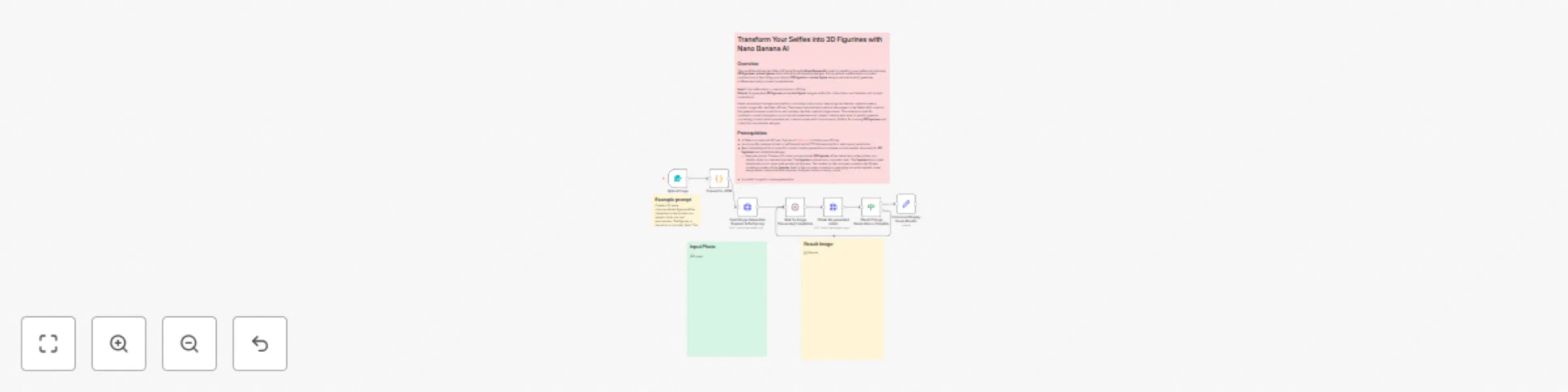
Workflow preview: Transform your selfies into 3D figurines with Nano Banana AI
Free intermediate

Transform your selfies into 3D figurines with Nano Banana AI

# Transform Your Selfies into 3D Figurines with Nano Banana AI ## Overview This workflow utilizes the Defapi API with Google's **Nano Banana AI** model to transform your selfies into stunning **3D figurines**, **action figures**, and collectible merchandise designs. Simply upload a selfie photo, provide a creative prompt describing your desired **3D figurine** or **action figure** design, and watch as AI generates professional-quality product visualizations. **Input:** Your selfie photo + creative prompt + API key **Output:** AI-generated **3D figurine** and **action figure** designs perfect for collectibles, merchandise, and product visualization Users can interact through a simple form, providing a text prompt describing the desired creative scene, a product image URL, and their API key. The system automatically submits the request to the Defapi API, monitors the generation status in real time, and retrieves the final creative image output. This solution is ideal for marketers, product designers, e-commerce businesses, and content creators who want to quickly generate compelling product advertisements and creative visuals with minimal setup. Perfect for creating **3D figurines** and collectible merchandise designs. ## Prerequisites - A Defapi account and API key: Sign up at [Defapi.org](https://defapi.org/model/google/nano-banana) to obtain your API key. - An active n8n instance (cloud or self-hosted) with HTTP Request and form submission capabilities. - Basic knowledge of AI prompts for product creative generation to achieve optimal results, especially for **3D figurines** and collectible designs. - Example prompt: Create a 1/7 scale commercialized **3D figurine** of the characters in the picture, in a realistic style, in a real environment. The **figurine** is placed on a computer desk. The **figurine** has a round transparent acrylic base, with no text on the base. The content on the computer screen is the Zbrush modeling process of this **figurine**. Next to the computer screen is a packaging box with rounded corner design and a transparent front window, the figure inside is clearly visible. - A product image for creative generation. - **Important Note**: Avoid using dark photos as input, as the generated **3D figurine** will also appear dark. ## Setup Instructions 1. **Obtain API Key**: Register at Defapi.org and generate your API key. Store it securely—do not share it publicly. 2. **Configure the Form**: In the "Upload Image" form trigger node, ensure the following fields are set up: Image (file upload), API Key (text field), and Prompt (text field). 3. **Test the Workflow**: - Click "Execute Workflow" in n8n. - Access the generated form URL, upload your product image, enter your prompt, and provide your API key. - The workflow will process the image through the "Convert to JSON" node, then send the request to the Defapi API. - The system will wait 10 seconds and then poll the API status until the image generation is complete. 4. **Handle Outputs**: The final "Format and Display Image Results" node formats and displays the generated creative image URL for download or embedding. ## Workflow Structure The workflow consists of the following nodes: 1. **Upload Image** (Form Trigger) - Collects user input: image file, API key, and prompt 2. **Convert to JSON** (Code Node) - Converts uploaded image to base64 and formats data 3. **Send Image Generation Request to Defapi.org API** (HTTP Request) - Submits generation request 4. **Wait for Image Processing Completion** (Wait Node) - Waits 10 seconds before checking status 5. **Obtain the generated status** (HTTP Request) - Polls API for completion status 6. **Check if Image Generation is Complete** (IF Node) - Checks if status equals 'success' 7. **Format and Display Image Results** (Set Node) - Formats final image URL output ## Technical Details - **API Endpoint**: `https://api.defapi.org/api/image/gen` (POST request) - **Model Used**: `google/nano-banana` (**Nano Banana AI**) - **Status Check Endpoint**: `https://api.defapi.org/api/task/query` (GET request) - **Wait Time**: 10 seconds between status checks - **Image Processing**: Uploaded images are converted to base64 format for API submission - **Authentication**: Bearer token authentication using the provided API key - **Specialized For**: **3D figurines**, collectible merchandise, and product visualization ## Customization Tips - **Enhance Prompts**: Include specifics like scene setting, lighting, style (e.g., realistic, artistic, cinematic), product placement, and visual elements to improve AI creative image quality. For **3D figurines**, specify scale, materials, and display context. - **Form Fields**: The form accepts image files (image/*), API key (text), and prompt (text) as required fields. - **Error Handling**: The workflow includes conditional logic to check for successful completion before displaying results. - **Best Practices for **Nano Banana AI****: Use detailed descriptions for **figurine** designs, specify lighting conditions, and include environmental context for realistic **3D figurine** generation. - **Photo Quality Tips**: Use well-lit photos for best results. Avoid dark images as they will make the generated **3D figurine** appear dark too.

p
panyanyany
Content Creation
14 Sep 2025
713
0

Workflow preview: Generate product creative images with Google Nano-Banana model via Defapi
Free intermediate

Generate product creative images with Google Nano-Banana model via Defapi

## Overview This workflow utilizes the Defapi API with Google's Nano-Banana model to generate AI-powered product creative images from text prompts and product images. Users can interact through a simple form, providing a text prompt describing the desired creative scene, a product image URL, and their API key. The system automatically submits the request to the Defapi API, monitors the generation status in real time, and retrieves the final creative image output. This solution is ideal for marketers, product designers, e-commerce businesses, and content creators who want to quickly generate compelling product advertisements and creative visuals with minimal setup. ## Prerequisites - A Defapi account and API key: Sign up at [Defapi.org](https://defapi.org) to obtain your API key. - An active n8n instance (cloud or self-hosted) with HTTP Request and form submission capabilities. - Basic knowledge of AI prompts for product creative generation to achieve optimal results. - A product image URL for creative generation. ## Setup Instructions 1. **Obtain API Key**: Register at Defapi.org and generate your API key. Store it securely—do not share it publicly. 2. **Configure the Form**: In the "Submit Image for Creative Generation" node, ensure the following fields are set up: prompt (creative scene description), img_url (product image URL), api_key. 3. **Test the Workflow**: - Click "Execute Workflow" in n8n. - Access the generated form URL, submit your prompt, image URL, and API key. - The workflow will wait 10 seconds and then poll the API status until the image generation is complete. 4. **Handle Outputs**: The final node formats and displays the generated creative image URL for download or embedding. ## Customization Tips - **Enhance Prompts**: Include specifics like scene setting, lighting, style (e.g., realistic, artistic, cinematic), product placement, and visual elements to improve AI creative image quality.

p
panyanyany
Content Creation
11 Sep 2025
1766
0