L

Luke

2
Workflows

Workflows by Luke
Workflow preview: Automatically document and backup N8N workflows
Free advanced

Automatically document and backup N8N workflows

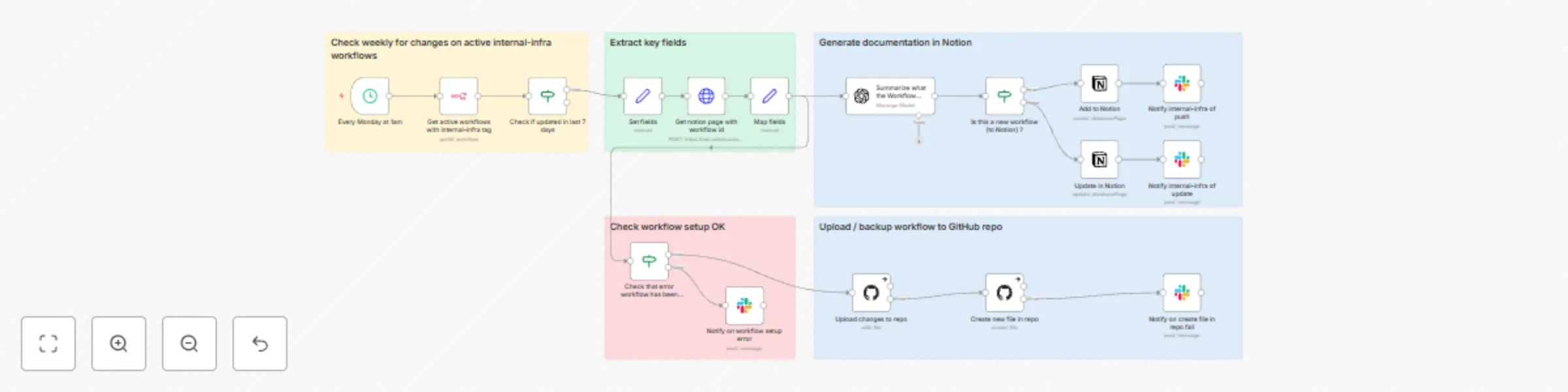
Automatically backs up your workflows to Github and generates documentation in a Notion database. - Weekly run, uses the "internal-infra" tag to look for new or recently modified workflows - Uses a Notion database page to hold the workflow summary, last updated date, and a link to the workflow - Uses OpenAI's 4o-mini to generate a summarization of what the workflow does - Stores a backup of the workflow in GitHub (recommend a private repo) - Sends notification to Slack channel for new or updated workflows ## Who is this for - Anyone seeking backup of their most important workflows - Anyone seeking version control for their most important workflows ## Credentials required - N8N: You will need an N8N credential created so the workflow can query the N8N instance to find all active workflows with the "internal-infra" tag - Notion: You will need an Notion credential created - OpenAI: You will need an OpenAI credential, unless you intend on rewiring this with your AI of choice (ollama, openrouter, etc.) - GitHub: You will need an GitHub credential - Slack: You will require an Slack credential, recommend a Bot / access token configuration ## Setup #### Notion - Create a database with the following columns. Column type is specified in [type]. - Workflow Name [text] - isActive (dev) [checkbox] - Error workflow setup [checkbox] - AI Summary [text] - Record last update [date/time] - URL (dev) [text/url] - Workflow created at [date/time] - Workflow updated at [date/time] #### Slack - Create a channel for updates to be posted into #### Github - Create a private repo for your workflows to be exported into #### N8N - Download & install the template - Configure the blocks to use your N8N, Notion, OpenAI & Slack credentials for your own - Edit the "Set Fields" block and change the URL to that of your N8N instance (cloud or self-hosted) - Edit the "Add to Notion" action and specify the Database page you wish to update - Edit the Slack actions to specify the Channel you want slack notifications posted to - Edit the GitHub actions to specify the Repository Owner & Repository Name **Sample output in Notion**![Autodoc_backup_workflows_NotionOutput.png](fileId:1072) **Workflow diagram**![Autodoc_backup_workflows_N8NEditorView.png](fileId:1071)

L
Luke
DevOps
30 Mar 2025
1706
0
Workflow preview: Summarize Microsoft 365 outage alerts with ChatGPT and send to Slack
Free intermediate

Summarize Microsoft 365 outage alerts with ChatGPT and send to Slack

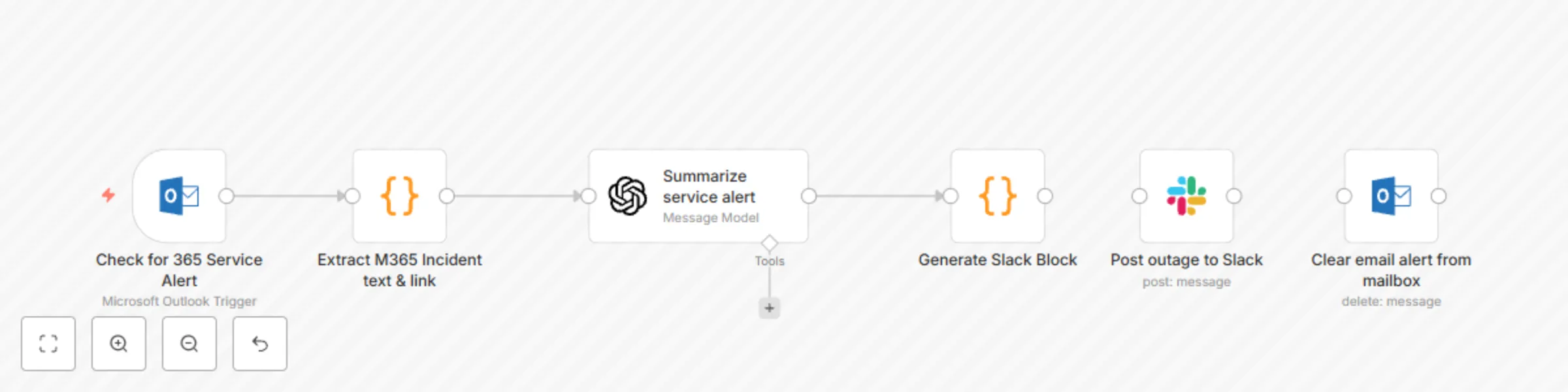
Built this for a dedicated Slack outage-notifications channel — works well on both desktop and mobile. This is for: * IT Administrators & small MSPs looking to streamline M365 alerts from one or multiple mailboxes into a single or specific Slack channels * IT Admins who prefer ChatOps over management-by-email ## What does it do * Scans for M365 outage alerts emails (every 1 min) * Checks if it impacts a specific user region (if the alert calls it out, countries have to be manually set) * Summarizes the incident using OpenAI o4-mini (cheap model - or you can swap for local Ollama) * Sends a Slack Block to your outage channel with incident link (can be extended) * Deletes the original alert email after successful delivery ## Credentials #### Outlook: * Create an Outlook credential (OAuth2.0) to point to the mailbox (regular or shared) where M365 service alerts will be received #### Slack: * Create a Slack bot credential with access to the slack channel you want updates posted to #### OpenAI: * Create a OpenAI credential that has access to the GPT-4O-MINI model. * Recommend you use projects in OpenAI so that you may set a per-project-budget and not impact other projects. [Review this OpenAI documentation for more info on managing Projects in the API portal](https://help.openai.com/en/articles/9186755-managing-projects-in-the-api-platform). Expect this to consume no more than 1-2 cents per month on average. ## Setup 1. Download & import the workflow 2. Modify the first Outlook block (Check for 365 Service Alert) to use the Outlook credential 3. Modify the OpenAI block's system prompt to call out the countries your users reside in ie. *"- Assume the organization has users primarily in the U.S. and Australia. If those regions are affected, state: "*Your users may have been affected.*" Otherwise, add: "*No impact expected for your user base.*""* **← swap U.S. & Australia for desired countries** 4. Modify the Slack block (Post outage to Slack) to specify the channel updates will be posted to ![Screenshot 20250506 163031.png](fileId:1289) **Sample Slack Output** ![Screenshot 20250506 162940.png](fileId:1288) **Workflow Diagram**

L
Luke
DevOps
30 Mar 2025
1704
0