OwenLee
Workflows by OwenLee
Create free Slack Pro alternative with AI summaries & Google Drive archiving
## Description 💸💬 Slack Pro is powerful — but the price hurts, especially for growing teams. This workflow is designed as a **low-cost alternative solution** that provides some Slack Pro functions (**searchable history + AI summaries**) while you stay on the **free Slack plan (or minimal paid seats)**. What is the advantage? - 🧠 **AI Slack assistant on demand** – @mention the bot in any channel to get clear summaries of recent discussions (“yesterday”, “last 7 days”, “this week”, etc.). - 🗄️ **External message history** – recent messages are routinely saved into Google Drive, so important conversations live outside Slack’s 90-day / 10k-message limit. - 💰 **Cost-efficient setup** – rely on Slack free plan + a little Google Drive storage + low-cost AI API, instead of paying Slack Pro ($8.75 USD per user / month). - 📚 **Business value** – you keep the benefits you wanted from Slack Pro (memory, context, easy catch-up) while avoiding a big monthly bill. --- ## 🧠 Upgrade your Slack for free with AI chat summaries & history archiving ### **👥 Who’s it for** - 💰 **Teams stuck on Slack Free because Pro is too expensive** (e.g. founders, small teams) - Want longer history and better context, but can’t justify per-seat upgrades. - Need “Pro-like” benefits (search, memory, recap) in a **budget-friendly way**. ### **⚙️ How it works** - 📝 **Slack stays as your main chat tool**: People talk in channels the way they already do. - 🤖 **You add a bot powered by this workflow**: When someone @mentions it with something like (*@SlackHistoryBot summarize this week*). - 📆 **On a schedule (e.g. monthly), it backs up channels**: Walks through channels the bot can access and saves recent messages (e.g. last 30 days) as a CSV file into Google Drive. ### **🛠️ How to set up** 1. **🔑 Connect credentials (once)** - **Slack (Bot / App)**: [recommend other tutorial video](https://www.youtube.com/watch?v=3q2unQEvjcQ) - Create and configure a bot. - Create a credential. - Invite the bot to channels you want to cover. - **Google Drive** - Connect a Google account for storage. - Create a folder like `Slack History (Archived)` in Drive and select it in the workflow. - **AI Provider (e.g. DeepSeek)** - Grab any LLM API key. - Plug it into the AI node so summaries use that model. 2. **🚀 Quick Start** - Import the JSON workflow. - Attach your credentials. - Save and activate the workflow. - Try a real-world test: - In a test channel, have a short conversation. - Then try `@(your bot name) summarize today`. - Check that archives appear: - Manually trigger the “archive” part from your automation tool. - You should see files named after your channels and time period in Google Drive. ## 🧰 **How to Customize the Workflow** 1. **Limit where it runs** - Only invite the bot to “high value” channels (projects, clients, leadership). - This keeps both AI and storage usage under control. 2. **Adjust archive frequency** ⏰ - Monthly is usually enough; weekly only for critical channels. - Less frequent archives = fewer operations = lower cost. 1. **Customize the summary style (system prompt) **📃 - What language to use (e.g. Chinese by default, or English, or both). - How to structure the summary (topics, bullets, separators). - What to focus on (projects, decisions, tasks, risks, etc.). ### 📩 Help & customize other slack function **Contact:** [email protected]
Multi-modal expense tracking with Telegram, Gemini AI & Google Sheets
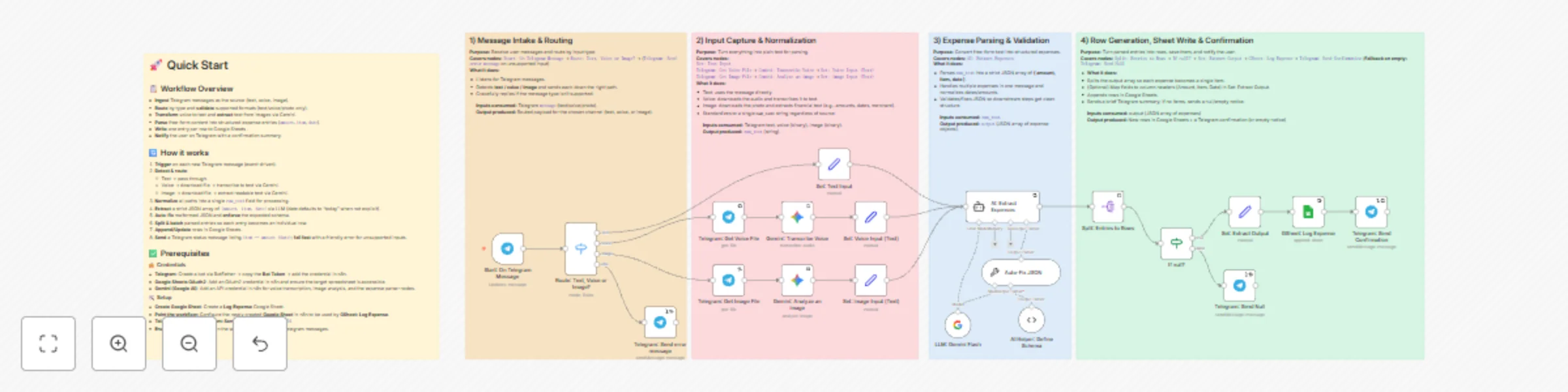
## 🤯 Problem of Traditional Bookkeeping - 🔀 **Context switch kills the habit**: Because bookkeeping lives outside the apps you use every day, you postpone it → **forget to log**. - 🧱 **High input friction**: You’re forced to fill rigid fields (amount/category/date/notes…), which is slow and discouraging for quick capture. - 🎙️💸 **Weak or pricey natural-language options**: A few tools support voice/chat, but they’re often **expensive**, and the experience is hit-or-miss. - 🔒📦 **Limited data ownership**: Records live on third-party servers, so **privacy and control** are diluted. ## 📲 How This Workflow Fixes It - 💬 **Put the capture back where you already are**: Log expenses directly inside **Telegram** (or other channels) in a **familiar chat**—no new app to learn. - ⚡ **Ultra-low-friction, unstructured input**: Send **text**, a **voice note**, or a **receipt photo**—the flow extracts **amount · item · date**, supports multiple languages and relative dates, and can **split multiple expenses** from one message. - 🗂️📝 **Your data, your sheet**: Final records are written to **your own Google Sheet** (columnar fields or a JSON column). You keep **full control**. ### 🔗 Demo Google Sheet: [click me](https://docs.google.com/spreadsheets/d/18PmxJov2VszEtUlK3IB4Jfbm37hRQbS8D90SSscvoW8/edit?usp=drive_link) --- ## 👥 Who Is This For - 😤 **Anyone fed up with traditional bookkeeping** but curious about an AI-assisted, chat-based way to log expenses. - 🤖 **People who tried AI bookkeeping apps** but found them pricey, inflexible, or clunky. - 💵 **Bookkeeping beginners** who want frictionless capture first, simple review and categorize later. --- ## 🧩 How It Works - 💬 Captures expenses from **Telegram** (text, voice note, or receipt photo). - 🔎 Normalizes inputs into **raw text** (uses Gemini to transcribe voice and extract text from images). - 🧠 Parses **amount · item · date** with an LLM expense parser. - 📊 Appends tidy rows to **Google Sheets**. - 🔔 Sends a **Telegram confirmation** summarizing exactly what was recorded. --- ## 🛠️ How to Set Up ### 1) 🔑 Connect credentials (once) - TELEGRAM_BOT_TOKEN - LLM_API_KEY - GOOGLE_SHEETS_OAUTH ### 2) 🚀 Quick Start - **Setup:** Create a Google Sheet to store **Log Expense** data and configure it in n8n. - **Telegram:** Fill in and verify the **Telegram chatId**. - ***Remember enable the workflow!*** --- ## 🧰 How to Customize the Workflow - 📝 **Other user interaction channels**: Add Gmail, Slack, or a website Webhook to accept email/command/form submissions that map into the same parser. - 🌍 **Currency**: Extract and store **`currency`** in its own column (e.g., `MYR`, `USD`); keep **`amount` numeric** only (no symbols). - 🔎 **Higher-accuracy OCR / STT to reduce errors** --- ### 📩 Help **Contact:** [email protected]
Automated academic paper metadata & variable extraction with Gemini to Google Sheets
### 📚In the social and behavioral sciences (e.g., psychology, sociology, economics, management), researchers and students often need to normalize academic paper metadata and extract variables before any literature review or meta-analysis. ### 🧩This workflow automates the busywork. Using an LLM, it processes CSV/XLSX/XLS files (exported from WoS, Scopus, EndNote, Zotero, or your own spreadsheets) into normalized metadata and extracted variables, and writes a neat table to Google Sheets. #### 🔗 Example Google Sheet: [click me](https://docs.google.com/spreadsheets/d/1WiFj0MwieQiSmFyMU2oyaCzbl273sTyknOa80dl8sUA/edit?usp=sharing) --- ## 👥 Who is this for? - 🎓 Undergraduate and graduate students or researchers in soft-science fields (psychology, sociology, economics, business) - ⏱️ People who don’t have time to read full papers and need quick overviews - 📊 Anyone who wants to automate academic paper metadata normalization and variable extraction to speed up a literature review --- ## ⚙️ How it works 1. 📤 Upload an **academic paper file** (CSV/XLSX/XLS) in chat. 2. 📑 The workflow creates a Google Sheets **spreadsheet** with two tabs: `Checkpoint` and `FinalResult`. 3. 🔎 A structured-output LLM normalizes **core metadata** (title, abstract, authors, publication date, source) from the uploaded file and writes it to `Checkpoint`; 📧 a Gmail notification is sent when finished. 4. 🧪 A second structured-output LLM uses the metadata above to **extract variables** (Independent Variable, Dependent Variable) and writes them to `FinalResult`; 📧 you’ll get a second Gmail notification when done. --- ## 🛠️ How to set up ### 🔑 Credentials - **Google Sheets OAuth2** (read/write) - **Gmail OAuth2** (send notifications) - **Google Gemini (or any LLM you prefer)** ### 🚀 Quick start 1. Connect **Google Sheets**, **Gmail**, and **Gemini (or your LLM)** credentials. 2. Open `File Upload Trigger` → upload your **CSV/XLSX/XLS** file and type a **name** in chat (used as the Google Sheets spreadsheet title). 3. Watch your inbox for status emails and open the Google Sheets spreadsheet to review **Checkpoint** and **FinalResult**. --- ## 🎛 Customization - 🗂️ **Journal lists:** Edit the **Journal Rank Classifier** code node to add/remove titles. The default list is for business/management journals—swap it for a list from your own field. - 🔔 **Notifications:** Replace Gmail with Slack, Teams, or any channel you prefer. - 🧠 **LLM outputs:** Need different metadata or extracted data? Edit the LLM’s **system prompt** and **Structured Output Parser**. --- ## 📝 Note - 📝 **Make sure your file includes abstracts.** If the academic paper data you upload doesn’t contain an abstract, the extracted results will be far less useful. - 🧩 **CSV yields no items?** Encoding mismatches can break the workflow. If this happens, convert the CSV to `.xls` or `.xlsx` and try again. --- ## 📩 Help **Contact:** [email protected]
Bulk YouTube channel content analysis with Apify & DeepSeek AI to Google Sheets
#### 🎓📺 Watching top YouTubers is now a mainstream way to learn, but watching dozens—or even hundreds—of videos isn’t realistic. This workflow gives learners a fast way to grasp an entire creator’s catalog at a glance. #### 📄🔗 Demo Google Sheet: [click me](https://docs.google.com/spreadsheets/d/1UmIi1jvRIMGm6PnHOkoC8SHPS93yD0buZ81sQjFlCi4/edit?usp=sharing) --- ## 🧠🔍 YouTube Channel Research & Summarization Workflow ### **👥 Who’s it for** * 📚 Learners and educators who want a fast overview of a creator’s entire catalog. * 🧩 Research, SEO, and content ops teams building an intelligence layer on top of YouTube channels. ### **⚙️ How it works** * 📝 Collects parameters via a **Form Trigger**. * 🕷️ Launches an **Apify YouTube Scraper**, polls for completion, and fetches the final dataset. * 💾 Saves the raw JSON to **Google Drive**, reloads it, and processes records in **batches**. * 🗣️ Auto-selects **English** subtitles when available, extracts core metadata, and feeds transcript + metadata to an **AI Summarization Agent**. * 📧 Sends a **Gmail** completion notification when done. ### **🛠️ How to set up** 1. **🔑 Connect credentials (once)** * 🗂️ Google Drive * 📊 Google Sheets (OAuth enabled) * ✉️ Gmail * 🧠 DeepSeek API (or alternative LLM); **Apify API** (YouTube scraper actor) 2. **📝 Configure the form** * 🔗 `Youtuber_MainPage_URL` (e.g., `https://www.youtube.com/@n8n-io`) * 🔢 `Total_number_video` (tip: use the channel’s current total to crawl all) * 🏷️ `Storing_Name` (used for the Drive filename & the Sheet tab) * 🔑 `Apify_API` (Apify provides $5 free credit per month, which can crawl ~1,000 YouTube videos → [https://console.apify.com/](https://console.apify.com/)) * 📧 `Email` 3. **📁 Point Sheets & Drive** * 🔗 Create a Google Sheet and link it to all Google Sheets–related nodes. * 💽 Select a Drive folder to save raw CSV backups (optional). ### **🎛️ How to customize the workflow** * **🈯 Subtitle logic:** Extend the language selector `Select_Subtitle_Language` to choose English, Mandarin, or another language. * **🔔 Notifications:** Customize the Gmail subject/body, or add Slack/Teams alerts on success/failure with basic run stats. 📬 Need help? Contact me <[email protected]>