N

Nishant Rayan

1
Workflow

Workflows by Nishant Rayan

Workflow preview: Generate AI avatar videos from text with HeyGen and upload to YouTube
Free advanced

Generate AI avatar videos from text with HeyGen and upload to YouTube

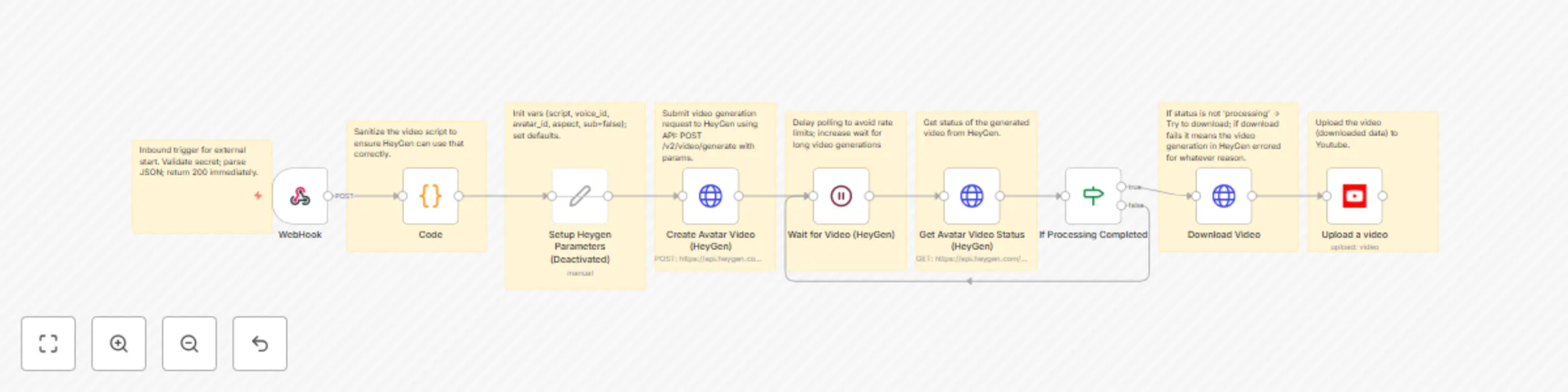
# Create Video with HeyGen and Upload to YouTube ## Overview This workflow automates the process of creating an AI-generated avatar video using **HeyGen** and directly uploading it to **YouTube**. By sending text input via a webhook, the workflow generates a video with a chosen avatar and voice, waits for processing, downloads the completed file, and publishes it to your configured YouTube channel. This template is ideal for automating **content creation pipelines**, such as daily news updates, explainer videos, or narrated scripts, without manual intervention. --- ## Use Case - **Marketing teams**: Automate explainer or promotional video creation from text input. - **Content creators**: Generate AI-based avatar videos for YouTube directly from scripts. - **Organizations**: Streamline video generation for announcements, product updates, or tutorials. Instead of recording and editing videos manually, this template allows you to **feed text content into a webhook** and have a ready-to-publish video on your YouTube channel within minutes. --- ## How It Works 1. **Webhook Trigger**: The workflow starts when text content and a title are sent to the webhook endpoint. 2. **Code Node**: Cleans and formats the input text by removing unnecessary newlines and returns it with the title. 3. **Set Node**: Prepares HeyGen parameters, including API key, avatar ID, voice ID, title, and content. 4. **HeyGen API Call**: Sends the request to generate a video with the provided avatar and voice. 5. **Wait Node**: Pauses briefly to allow HeyGen to process the video. 6. **Video Status Check**: Polls HeyGen to check whether the video has finished processing. 7. **Conditional Check**: If the video is still processing, it loops back to wait. Once complete, it moves forward. 8. **Download Node**: Retrieves the generated video file. 9. **YouTube Upload Node**: Uploads the video to your YouTube channel with the provided title and default settings. --- ## Requirements - **HeyGen API Key**: Required to authenticate with HeyGen’s video generation API. - **HeyGen Avatar & Voice IDs**: Unique identifiers for the avatar and voice you want to use. - **YouTube OAuth2 Credentials**: Connected account for video uploads. --- ## Setup Instructions 1. **Import the Workflow**: Download and import this template JSON into your n8n instance. 2. **Configure the Webhook**: Copy the webhook URL from n8n and use it to send requests with `title` and `content`. - Example payload: ```json { "title": "Tech News Update", "content": "Today’s top story is about AI advancements in video generation..." } ``` 3. **Add HeyGen Credentials**: - Insert your HeyGen API key in the **Set Node** under `x-api-key`. - Provide your chosen `avatar_id` and `voice_id` from HeyGen. - To find your HeyGen `avatar_id` and `voice_id`, first retrieve your API key from the [HeyGen dashboard](https://app.heygen.com/). With this key, you can use HeyGen’s API to look up available options: run a GET request to `https://api.heygen.com/v2/avatars` to see a list of avatars along with their `avatar_id`, and then run a GET request to `https://api.heygen.com/v2/voices` to see a list of voices with their `voice_id`. Once you’ve identified the avatar and voice you want to use, copy their IDs and paste them into the **Set HeyGen Parameters** node in your n8n workflow. 4. **Set Up YouTube Credentials**: - Connect your YouTube account in n8n using OAuth2. - Ensure proper permissions are granted for video uploads. - To set up YouTube credentials in n8n, go to the [Google Cloud Console](https://console.cloud.google.com/), enable **YouTube Data API v3**, and create an **OAuth Client ID** (choose *Web Application* and add the redirect URI: `https://<your-n8n-domain>/rest/oauth2-credential/callback`). Copy the **Client ID** and **Client Secret**, then in n8n create new credentials for **YouTube OAuth2 API**. Enter the values, authenticate with your Google account to grant upload permissions, and test the connection. Once complete, the YouTube node will be ready to upload videos automatically. 5. **Activate the Workflow**: Once configured, enable the workflow. Sending a POST request to the webhook with title and content will trigger the full process. --- ## Notes - You can adjust **video dimensions** (default: 1280x720) in the HeyGen API request. - Processing time may vary depending on script length. The workflow uses a **wait-and-poll loop** until the video is ready. - Default YouTube upload category is **Education (28)** and region is **US**. These can be customized in the YouTube node. ---

N
Nishant Rayan
Content Creation
16 Sep 2025
1895
0