A

Adrian

4
Workflows

Workflows by Adrian
Workflow preview: Automatic Instagram content creation with OpenAI, Nano Banana and Telegram check
Free advanced

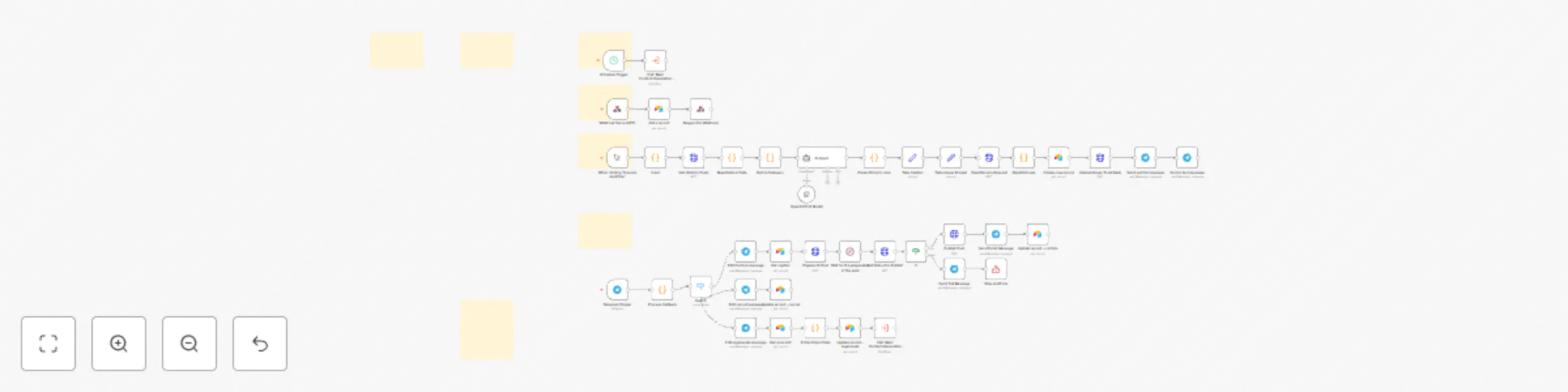
Automatic Instagram content creation with OpenAI, Nano Banana and Telegram check

|Overview |Sample| |-|-| |This template is the first of its kind: it **automatically generates both the caption and the image for your Instagram posts by analysing your existing feed**, with zero spreadsheets or manual steps. Once configured, the workflow runs on a schedule, fetches your past posts, and uses a custom AI agent to craft a new caption and image prompt. Then creates the image via OpenRouter (Nano Banana) and stores everything in Airtable. A Telegram message gives you one‑tap control to **confirm, regenerate or cancel**; if confirmed, the post is published directly to Instagram. **Perfect for creators and marketers** who want fresh, on‑brand content without daily manual effort. | ![Preview](https://i.imgur.com/xcNLCbf.gif)| --- ## Good to Know - **Fully hands‑off:** No need to prepare datasets or manually upload assets. The workflow reads your Instagram history via the Graph API and generate new content. - **AI‑powered creativity:** Uses OpenAI for caption generation and Nano Banana via OpenRouter for image synthesis. - **Privacy‑friendly:** Your content stays within your Airtable and n8n instance; only the AI models receive anonymised prompts. - **Nano Banana:** Currently the gemini-2.5-flash-image-preview model is used but you can use any available in Open Route. --- ## How It Works 1. **Scheduling:** A schedule trigger initiates the workflow at your chosen time. 2. **Feed Analysis:** The workflow uses your Instagram business account ID and access token to fetch past posts. 3. **AI Content Generation:** A custom AI agent analyses your captions, applies category tag, and writes a new caption and a detailed image prompt. If there is no content it will be based on the category to create something new. 4. **Image Creation:** The prompt is sent to the Nano Banana model on OpenRouter to generate a new image. The binary is converted to JPEG and stored in Airtable wih the caption and prompt. 5. **Approval via Telegram:** A Telegram bot sends you the generated image, caption and three inline buttons: **Confirm**, **Regenerate** and **Cancel**. - ✅ *Confirm*: Uploads the image to Instagram via a Graph API call. - ♻️ *Regenerate*: Re‑runs just the AI ​​creation steps, generating a different title and image. - ❌ *Cancel*: Updates the Telegram message to note the cancellation and removes the buttons. 6. **Publishing:** When confirmed, the workflow uses the image’s public URL (generated in Airtable and served via an n8n webhook) to create and publish the post on Instagram. --- ## How to Use 1. **Prepare your accounts:** - Instagram Business Account connected to a Facebook Page (get your IG Business ID and a long‑lived Graph API access token). - Airtable base and table with fields: `id`, `img_prompt`, `caption`, `data_binary`, `action`, `mime_type`, `created_at`. - Personal access token for Airtable, Telegram bot token and chat ID, OpenAI and OpenRouter API keys. 2. **Create workflows:** Four workflows are included: schedule trigger, webhook to serve the image, main content‑generation workflow and Telegram response workflow. 3. **Replace placeholders:** Fill in your account IDs, token values, n8n instance URL and webhook paths. 4. **Define Category:** Adjust the `Define Category` node to steer the content theme (e.g. *natural landscapes*, *urban fashion*). 5. **Activate and test:** - Activate the workflows **"ebhook to serve the image** and **Telegram response workflow**. - Configure **Schedule Trigger** workflow to call the **Main Content-Generation Workflow**. - Run the **Main Content-Generation Workflow** once to create a sample post and test the Telegram buttons. - Activate the schedule for the generation of automatic posts. --- ## Requirements - Instagram Business account & Facebook Graph API (tokens with `instagram_basic` and `instagram_content_publish` permissions) - Airtable base & personal access token - Telegram bot (token & chat ID) - OpenAI API key - OpenRouter API key --- ## Customization - **Caption tone:** Modify the AI Agent prompt to change tone (flirtatious, motivational, mysterious). - **Schedule:** Set your preferred posting time via the schedule trigger. - **Additional fields:** Expand the Airtable schema and 'Take Caption' node to include hashtags, analysis summaries or performance metrics. ---

A
Adrian
Content Creation
20 Dec 2025
56
0

Workflow preview: Plant care reminder with OpenWeather, Sheets and Telegram
Free advanced

Plant care reminder with OpenWeather, Sheets and Telegram

This workflow automates plant care reminders and records using Google Sheets, Telegram, and OpenWeather API. It checks when each plant needs watering or fertilizing, sends a personalized reminder, and lets you confirm the task with a single button. When confirmed, it updates your Google Sheet and shows a confirmation HTML page. ## Who is it for? Home gardeners who want to automate watering and fertilizing schedules. Anyone managing a plant collection, greenhouse, or garden and wanting a lightweight, no-code reminder system. ## How it works 1. Schedule Trigger starts the workflow once per day. 2. Read Settings (Google Sheets) checks if vacation_mode is active. 3. Read Plants (Google Sheets) retrieves all plants with columns such as id, plant, last_water, water_freq, etc. 4. DecideDue (Code Node) compares today’s date with the last watering/fertilizing date and marks which plants are due. 5. OpenWeather Request (optional) fetches local forecast for plants with coordinates and weather_delay = true. 6. WeatherGate (Code Node) skips or delays watering if it recently rained or if rain is expected soon. 7. Telegram Send Message sends a reminder for each due task. 8. The message contains an inline button “Mark as done” linking to your webhook URL (opens confirmation window). 9. Webhook – Confirm Done receives the click, update dates on Google Sheets, appends an optional log entry, and returns an HTML confirmation page. ## Setup steps Principal Workflow 1. Spreadsheet- Create a Google Sheets document with: 1. plants sheet: (id, plant, last_water, water_freq, last_fert, fert_freq, lat, lon, weather_delay , indoor, thirst_level) 2. settings sheet: (vacation_mode, timezone) 3. log sheet: (ts, plant_id, action message_id) 2. Connect your Google account 3. Configure the Schedule Trigger 4. Enable weather integration (Get a free OpenWeather API key) and add it to the HTTP Request node parameters **appid**. **https://openweathermap.org/api** 5. Configure Telegram with your credential and your chat id on **{YOUR_CHAT_ID}**. 6. Configure "Send Dues" node with your custom url https://**{YOUR_PROJECT_URL}**.app.n8n... ## Setup steps Sub-Workflow (Webhook) 1. Trigger: Configure your custom Path. 2. Google Sheets: Connect your Google Account and Map sheets and columns. ## Requirements · A Google account with access to Google Sheets. . A spreadsheet containing three sheets with headers matching the field names used in the workflow. . A telegram bot. . OpenWeather API key for climate-aware watering. ## How to customise it Add plant photos: Include a photo URL column and show it in the Telegram message. Extend actions: Add pruning, repotting or any other periodic task by duplicating the existing logic.

A
Adrian
Personal Productivity
21 Oct 2025
240
0
Workflow preview: Automate random chore assignments with Google Sheets and Gmail notifications
Free advanced

Automate random chore assignments with Google Sheets and Gmail notifications

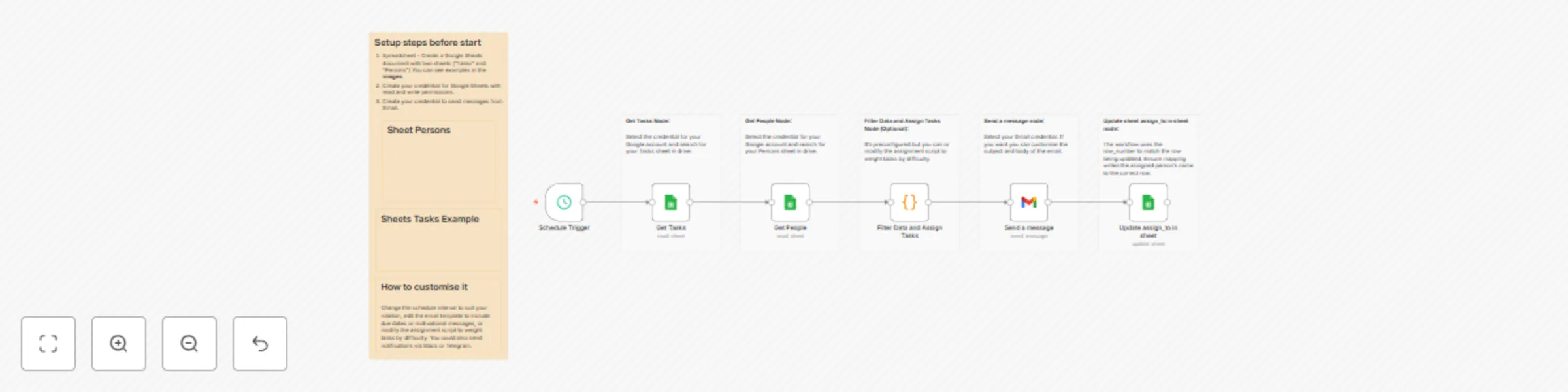
This workflow automates the assignment of household chores. It reads tasks and a list of people from Google Sheets, pairs each task with someone, updates the spreadsheet with the assignments and emails each person their chores. Each run makes a random assignment so you don’t have to decide who does what. By running on a schedule, it keeps your chore rotation automated. ## Who is it for? Designed for families, roommates, flat‑shares or property managers who want to keep track of recurring chores without endless group chats or arguments. It’s also helpful for anyone coordinating a team of cleaners or volunteers and wishing to automate a fair distribution of tasks. ## How it works 1. A Schedule Trigger starts the workflow at a regular interval (default every seven days). 2. Google Sheets node reads the “Tasks” sheet from your spreadsheet. Each row contains a chore with a task. 3. Another Google Sheets node reads the “Persons” sheet to obtain the list of people available to do chores. 4. Next a Code node filters out any people without an email address and any tasks without a task name, then selects a random person for each task. 5. A Gmail node sends each person an email summarising the chore they’ve been assigned. 6. The last Google Sheets node updates the “Tasks” sheet, writing the assigned person’s name into the assigned_to column. ## Setup steps 1. Spreadsheet – Create a Google Sheets document with two sheets. The first sheet “Tasks” should have columns for task, description, assigned_to and a “hidden row_number”. The second sheet “Persons” should have columns for name and email and “hidden row_number”. Fill them with your current chores and household members. 2. Connect your Google account – In the Get Tasks and Get People nodes, select the credential for your Google account and search for your sheets. 3. Configure the Schedule Trigger – Set the trigger interval (for example, every seven days on a Sunday evening). 4. Edit the assignment logic (optional) – The Code node is preconfigured to filter data and assign tasks randomly. You can modify this script if you prefer a round‑robin approach, weighting by difficulty, or any other logic. 5. Configure Gmail – In the Send a message node, select your Gmail credential. If you want you can customise the subject and body of the email. 6. Update sheet mapping – In the Update assign_to node, ensure the assigned_to column mapping writes the assigned person’s name back to the correct row. The workflow uses the row_number to match the row being updated. 7. Test and activate – Run the workflow manually to verify it reads your sheets, assigns tasks and sends emails. Once satisfied, activate the schedule so it runs automatically. ## Requirements · A Google account with access to Google Sheets and Gmail. · A spreadsheet containing two sheets as described above (see images), with headers matching the field names used in the workflow. ## How to customise it Change the schedule interval to suit your rotation, edit the email template to include due dates or motivational messages, or modify the assignment script to weight tasks by difficulty. You could also send notifications via Slack or Telegram.

A
Adrian
Personal Productivity
9 Oct 2025
42
0

Workflow preview: Daily NASA APOD Images to Instagram with Telegram Notifications
Free intermediate

Daily NASA APOD Images to Instagram with Telegram Notifications

This workflow fetches NASA’s Astronomical Picture of the Day (APOD), prepares a caption combining the title and explanation, publishes the image to Instagram and sends you a Telegram notification with the result. It runs on a schedule so you can share inspiring space images without manual effort. ## Who is it for? Designed for science communicators, educators, astronomy fans and social media managers who want to share the APOD each day without searching for content. It’s also helpful for anyone looking to automate daily posts while receiving clear success or failure notifications. ## How it works 1. A Schedule Trigger fires every day at 18:00 (adjustable) to start the workflow. 2. The Get APOD HTTP request node calls https://api.nasa.gov/planetary/apod using your NASA API key and retrieves the image URL, title and explanation. 3. The Prepare Caption node builds a caption by concatenating the title and explanation, and extracts the image URL. 4. Prepare IG Post node sends a POST request to https://graph.facebook.com/v23.0/{YOUR_APP_ID}/media with the image URL and caption to create a media container on Instagram. 5. A Wait node pauses the workflow while Instagram processes the media. 6. The Get Status for Publish request checks the status of the media; the If node proceeds only when the status_code equals FINISHED. 7. When ready, the Publish Post node calls to https://graph.facebook.com/v23.0/{YOUR_APP_ID}/media_publish endpoint with the creation_id to publish the photo on Instagram. 8. On success, a Telegram node sends a message such as “PUBLISH STATUS: FINISHED” to your chat; on failure, another Telegram node notifies you that the upload failed and the workflow stops with an error. ## Setup steps 1. ++Node Get APOD:++ Configure Query Auth with your own Nasa credential. 2. ++Node: Prepare IG Post:++ Create a Facebook app and generate an access token with instagram_basic and pages_manage_posts permissions; Configure the url with you ID from you Meta Graph {YOUR_APP_ID}. Configure Facebook Graph API Credential Type with your token, you can generate in your API Graph Explorer 3. ++Node Get Status For Publish:++ Configure your Facebook Graph API token like before. 4. ++Node Publish Post:++ Configure your Facebook Graph API token like before and configure the url with you ID from you Meta Graph {YOUR_APP_ID}. 5. ++Node Send Finish Message:++ Configure your token from Telegram API and your Telegram Chat ID {YOUR_CHAT_ID}. 6. ++Node Send Fail Message:++ Configure your token from Telegram API and your Telegram Chat ID {YOUR_CHAT_ID}. 6. Test the workflow to ensure the image posts correctly and that the Telegram notifications reflect the status. ## Requirements · NASA APOD API key from api.nasa.gov. · Instagram account linked to a Facebook page and a valid Facebook Graph API token with the appropriate permissions. · Telegram bot token and chat ID. ## How to customise it You can change the posting time or frequency, edit the caption template to include hashtags or links, or send success/failure notifications via email or Slack instead of Telegram. You might also save the images to cloud storage or cross‑post to other platforms, and adjust the error handling logic based on your needs.

A
Adrian
Social Media
7 Oct 2025
125
0