M

Muhammad Bello

4
Workflows

Workflows by Muhammad Bello

Workflow preview: Automate sales call research and follow-ups with GPT-4, Tavily, Google Sheets
Free advanced

Automate sales call research and follow-ups with GPT-4, Tavily, Google Sheets

## Description This n8n template automates **prospect research** and **personalized follow-up writing** right after a sales call is booked. It gathers **company background, tech stack, and updates**; suggests **relevant solutions**; and then drafts a **handcrafted email, subject line, and SMS**, all saved back into Google Sheets. --- ## Benefits * Always show up to calls with **prepared context**. * Ensure **no follow-up slips through the cracks**. * Keep all notes, research, and outreach in a **single system of record**. * Scale personalized outreach without losing the **human touch**. --- ## Use cases * Prep for sales calls with **richer prospect context**. * Save hours writing **personal follow-ups**. * Keep sales records neatly in **one shared sheet**. --- ## Requirements * Google Sheets with: * **Meeting Data** → prospect info + enrichment fields * **Success Stories** → testimonials (company, industry, results, solution used) * Tavily API key * OpenAI API key (GPT-4.1 or later recommended) * n8n account with Google Sheets + LangChain enabled --- ## Google Sheets Template You’ll need **two sheets** inside one Google Spreadsheet: ### 1. Meeting Data (input + output) Columns: * `Name` * `Email` * `Company` * `Website` * `Job Title` * `Meeting Date` * `Company Overview` (AI-filled) * `Tech Stack` (AI-filled) * `Company Updates` (AI-filled) * `Primary Solution` (AI-filled) * `Solution 2` (AI-filled) * `Solution 3` (AI-filled) * `Email Subject` (AI-filled) * `Follow-up Email` (AI-filled) * `Follow-up SMS` (AI-filled) ### 2. Success Stories (for testimonials) Columns: * `Company` * `Industry` * `Results` * `Solution Used` You can copy this structure into a fresh Google Spreadsheet before starting. --- ## How it works 1. **Trigger** → Pulls new rows from Google Sheets (or connects to your booking system). 2. **Research Agent** → Uses Tavily for company overview, tech stack, and updates. 3. **Product Suggestions** → Pulls from Product List sheet to propose 3 tailored solutions. 4. **Save Research** → Updates the row with the six research fields. 5. **Sales Writing Assistant** → Drafts subject, email, and SMS using context + testimonials. 6. **Update Sheet** → Writes final outputs (subject, email, SMS) into Google Sheets. --- ## Setup Steps 1. **Prepare Google Sheets** * Create a new spreadsheet with the **Meeting Data** and **Success Stories** tabs. * Add the required columns (see template above). * Fill in at least one success story for the workflow to use. 2. **Connect Google Sheets in n8n** * Add Google Sheets credentials under **Settings → Credentials**. * Make sure n8n has access to your spreadsheet. 3. **Add API Keys** * In n8n, create credentials for **OpenAI** (GPT-4.1 or later). * Create credentials for **Tavily**. 4. **Import the workflow** * Load the JSON file (this template) into n8n. * Replace any placeholder spreadsheet IDs with your own. * Map the correct sheet/tab names. 5. **Test the Research Agent** * Run the workflow manually. * Check that `Company Overview`, `Tech Stack`, and `Company Updates` populate. 6. **Test the Writing Assistant** * Ensure the workflow uses at least one testimonial from **Success Stories**. * Run it again and confirm `Email Subject`, `Follow-up Email`, and `SMS` are written. 7. **Automate** * Replace the **Manual Trigger** with your preferred trigger: * Google Calendar / Calendly → Google Sheets * CRM → Google Sheets * Directly from n8n integrations --- ## Customization This workflow is designed as a flexible foundation. Here are ways to adapt it: * **Change AI prompts** * Update the **Research Agent** prompt to focus on specific industries or data points. * Edit the **Sales Writing Assistant** to match your tone of voice. * **Swap success stories** * Add more detailed case studies to the **Success Stories** sheet for stronger personalization. * **Add integrations** * Send follow-up emails automatically with **Gmail** or **Outlook** nodes. * Push SMS directly via **Twilio**. * Sync enriched data into **HubSpot, Salesforce, or Notion**. * **Error handling** * Add retry logic for API calls. * Include a notification node (Slack/Email) if the workflow fails. --- ## Tips & Troubleshooting * If research doesn’t update → confirm **Email** is the matching column in your Update Sheet nodes. * If follow-up copy is blank → ensure at least one testimonial exists in **Success Stories**. * Use **Debug Mode** to inspect AI Agent or Sales Writing Assistant outputs. ---

M
Muhammad Bello
Lead Nurturing
17 Aug 2025
526
0

Workflow preview: Turn YouTube comments into content ideas with GPT-4.1-mini, Tavily & Apify
Free advanced

Turn YouTube comments into content ideas with GPT-4.1-mini, Tavily & Apify

## Description This n8n template demonstrates how to turn raw YouTube comments into **research-backed content ideas** complete with **hooks and outlines**. Use cases include: * Quickly mining a competitor’s audience for video ideas. * Generating hooks and outlines for your own channel’s comments. * Validating content opportunities with live audience feedback. **Good to know** * Apify is used to scrape YouTube comments (requires an API token). * GPT-4.1-mini is used for both filtering and content generation. * Tavily provides fresh research to ground the AI’s responses. * All outputs are stored in Google Sheets, making it easy to manage and track ideas. --- ## How it works 1. **Trigger** – Paste a YouTube URL into the chat trigger. 2. **Scrape Comments** – Apify fetches all comments and metadata. 3. **Filter** – GPT-4.1-mini decides if each comment could inspire a content idea. 4. **Store** – Comments and “Yes/No” decisions are appended to Google Sheets. 5. **Research & Enrich** – For “Yes” comments, Tavily provides context, and GPT generates a topic, hook, and outline. 6. **Update Sheet** – The same row in Google Sheets is updated with enriched fields. --- ## Google Sheets Setup Your Google Sheet should include these columns (in this order): id | text | author | likes | isIdea | topic | research | hook | outline - **id** – unique identifier for each comment - **text** – the full YouTube comment - **author** – commenter’s name/handle - **likes** – number of likes on the comment - **isIdea** – “Yes” or “No” depending on GPT filter - **topic** – extracted video topic - **research** – 300–500 word background from Tavily - **hook** – engaging opening sentence for a video - **outline** – structured video outline --- ## Setup Steps * Connect your **Apify**, **OpenAI**, **Tavily**, and **Google Sheets** credentials in n8n. * Point the Google Sheets nodes to your own document and ensure the above headers exist. * Replace sample API keys with your own stored in n8n Credentials. **Time to set up:** \~15–25 minutes for a first-time n8n user (less if you already have credentials handy). --- ## Customizing this workflow * **Filter logic** – Loosen the GPT filter to allow borderline ideas, or tighten it to only accept the best ones. * **Research depth** – Change Tavily’s search depth (e.g., `depth: basic` vs `depth: advanced`) to control how detailed the background research is. * **Notification channels** – Send new “Yes” ideas directly to **Slack** (`#content-ideas`), **Notion** (your content board), or **Email** (notify the content manager instantly). * **Alternative outputs** – Instead of hooks/outlines, generate: - A **script draft** for YouTube Shorts. - **Blog post angles** based on the same audience comments. - A **poll question** for community engagement.

M
Muhammad Bello
Content Creation
17 Aug 2025
513
0
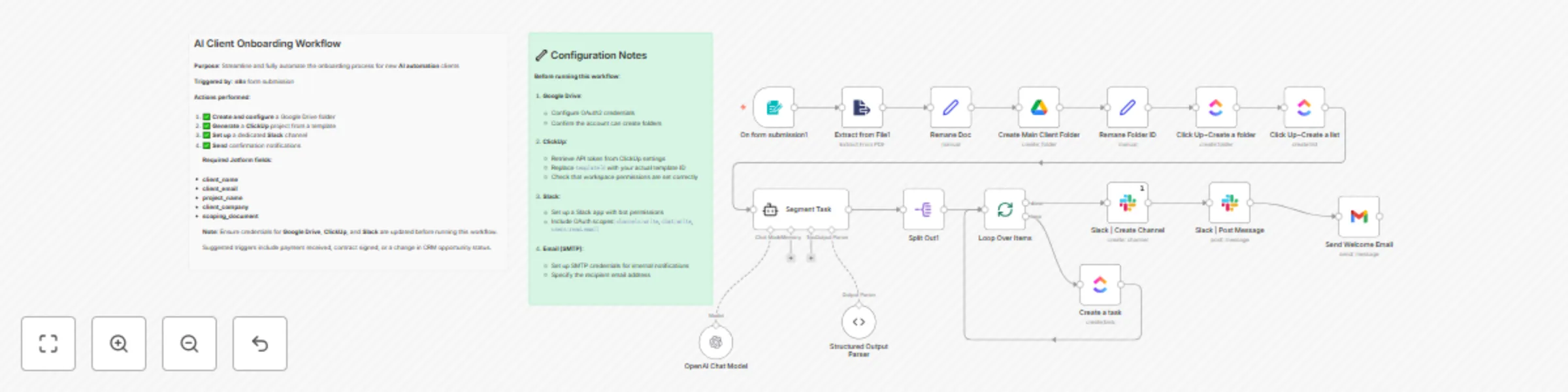
Workflow preview: Automate client onboarding with GPT-4, Google Drive, ClickUp & Slack
Free advanced

Automate client onboarding with GPT-4, Google Drive, ClickUp & Slack

**Description** This automation streamlines client onboarding by instantly processing a submitted form, extracting key details from an uploaded proposal, and using GPT-4 to generate a full onboarding task list. It then sets up the client workspace across Google Drive, ClickUp, and Slack, and sends a personalized welcome email completing in under a minute from submission. **Setup Steps** 1. Connect your Google Drive, ClickUp, Slack, Gmail, and OpenAI accounts. 2. Customize the form fields and system prompt to match your business. 3. Test the workflow with a sample client submission to confirm all outputs. **Estimated Setup Time:** \~30–45 minutes for a first-time user familiar with n8n integrations.

M
Muhammad Bello
Project Management
13 Aug 2025
756
0

Workflow preview: Ai-powered email inbox manager with GPT-4, Gmail, and Slack integration
Free advanced

Ai-powered email inbox manager with GPT-4, Gmail, and Slack integration

## Email Inbox Manager System ### Categories - Email Automation - AI-Powered Operations - Internal Productivity Tools This workflow builds a fully automated AI-powered email categorization and response assistant. It intelligently processes, categorizes, labels, and drafts replies to incoming Gmail messages in real time using AI with zero manual involvement. Perfect for support, sales, finance, and internal operations. ### Benefits - **Automated Email Triage** – Every unread email is instantly read, analyzed, and classified - **AI-Powered Categorization** – Uses GPT-4 to understand content and apply correct labels - **Smart Response Generation** – Automatically drafts accurate replies based on category - **Slack Notifications** – Instantly notifies your team about internal or sales-related messages - **Seamless Gmail Integration** – Labels, drafts, and marks emails directly in your inbox - **Custom Classification Rules** – Tailored to internal, support, sales, finance, and promotional needs ### How It Works **Gmail Trigger:** - Monitors Gmail inbox in real-time for new **unread** messages - Triggers the workflow every minute with no need for manual refresh **Smart Classification:** - Feeds email body to AI-powered **Text Classifier** - Categories include: Internal, Customer Support, Promotions, Admin/Finance, and Sales Opportunity - Classification based on sender domain, keywords, and context **AI-Based Labeling:** - Applies appropriate Gmail label based on classification result - Helps keep inbox clean, organized, and easily searchable **AI Reply Generation:** - Specialized GPT-4 agents generate replies tailored to each category: - **Internal:** Polished team replies - **Customer Support:** Clear and professional customer responses - **Promotions:** Summarizes and evaluates promotional value - **Admin/Finance:** Extracts invoice/payment information - **Sales Opportunity:** Drafts personalized replies and sales notifications **Auto-Drafting + Slack Alerts:** - Replies are saved as Gmail drafts, ready for review or direct send - Sends Slack notifications for Internal or Sales Opportunities - Includes subject lines and quick message previews **Smart Decision-Making:** - Promotional emails are evaluated with AI for usefulness - Only valuable offers are flagged or responded to - Automatically marks emails as read after processing ### Business Use Cases - **Customer Support Teams** – Automatically categorize and prep replies to client messages - **Sales Reps** – Instantly receive drafted responses to new inquiries - **Operations Managers** – Keep internal comms clear and responsive - **Finance Departments** – Auto-extract and review payment/invoice messages - **Founders** – Never miss an important email while your AI sorts and replies for you **Difficulty Level:** Intermediate **Estimated Build Time:** 2–4 hours **Monthly Operating Cost:** $20–80 (depending on OpenAI usage and Slack volume) ### Required Setup 1. Gmail Integration 3. Set up Gmail OAuth2 connection 5. Create labels: Internal, Customer Support, Promotions, Admin/Finance, Sales Opportunity 7. OpenAI Integration 9. Connect GPT-4 or GPT-4o account 11. Configure role-based prompts for each email category 13. Output structured response data (subject, body, notification) 15. Slack Integration 17. Set up Slack OAuth2 connection 19. Configure target Slack channel Notify team when important categories are triggered ### System Architecture The workflow follows a powerful 6-stage automation: **Trigger** – Poll Gmail for new unread emails **Classify** – AI categorizes the email into the right bucket **Label** – Applies Gmail label for search and visibility **Generate Reply** – GPT-4 crafts draft email reply **Draft Email** – Saves response in Gmail **Notify** – Optional Slack message alerts for priority emails ### Why This System Works **Inbox Clarity** – Keeps your inbox categorized and organized **Human Quality Replies** – AI-generated messages sound professional and personalized **Time-Saving Automation** – Handles support, sales, internal ops, and finance without touching your inbox **Multi-Agent Architecture** – Each email type is handled by a specialized GPT-4 prompt **Real Time Reactions** – From email receipt to Slack notification in under a minute

M
Muhammad Bello
Ticket Management
5 Aug 2025
1365
0