Dahiana
Workflows by Dahiana
Find low-competition keyword opportunities with DataForSEO
## 🔍 Low competition keyword finder **What it does:** Discovers all keywords a domain ranks for and analyzes their difficulty, trends, and intent. Identifies opportunities based on actual ranking data rather than suggestions. **How it works:** 1. Reads domain seeds from Google Sheets (with location/language settings) 2. Fetches all keywords the domain ranks for (Keywords For Site API) 3. Gets keyword difficulty scores for each keyword (Bulk Keyword Difficulty API) 4. Combines data with search trends, intent classification, and backlink metrics 5. Writes comprehensive results to keywords_opportunities sheet **Setup Requirements:** - DataForSEO API credentials (Basic Auth) - Google Sheets with input columns: seed, location_name, language_name, limit - Output sheet: keywords_opportunities **Data Captured:** - Keyword & Search Volume - Monthly/Quarterly/Yearly Trends - Keyword Difficulty (0-100) - Search Intent (main + foreign) - Average Backlinks - Last Updated Time - SE Type & Location/Language codes **Best For:** - Competitor keyword analysis - Content gap identification - Monitoring domain keyword portfolio - Finding keywords you already rank for
Generate structured article summaries with Telegram, Claude AI & Jina Reader
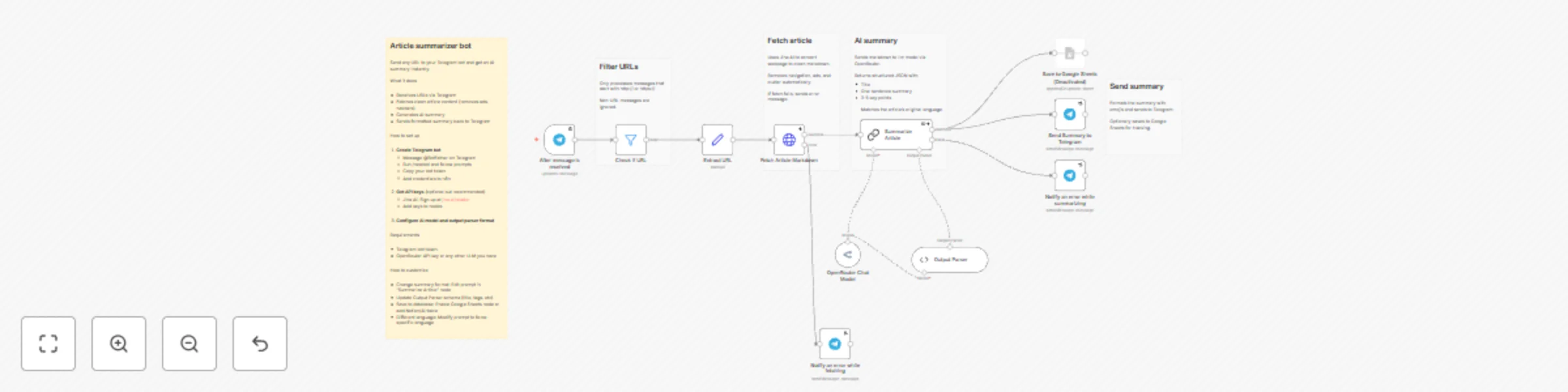
## Article summarizer bot Send any URL to your Telegram bot and get an AI summary instantly. What it does - Receives URLs via Telegram - Fetches clean article content (removes ads, navbars) - Generates AI summary - Sends formatted summary back to Telegram How to set up 1. **Create Telegram bot** - Message @BotFather on Telegram - Run /newbot and follow prompts - Copy your bot token - Add credentials to n8n 2. **Get API keys** (optional but recommended) - Jina AI: Sign up at jina.ai/reader - Add keys to nodes 3. **Configure AI model and output parser format** Requirements - Telegram bot token - OpenRouter API key or any other LLM you have How to customize - Change summary format: Edit prompt in "Summarize Article" node - Update Output Parser schema (title, tags, etc) - Save to database: Enable Google Sheets node or add Notion/Airtable - Different language: Modify prompt to force specific language
Generate blog posts from YouTube videos with OpenAI GPT for WordPress & Webflow
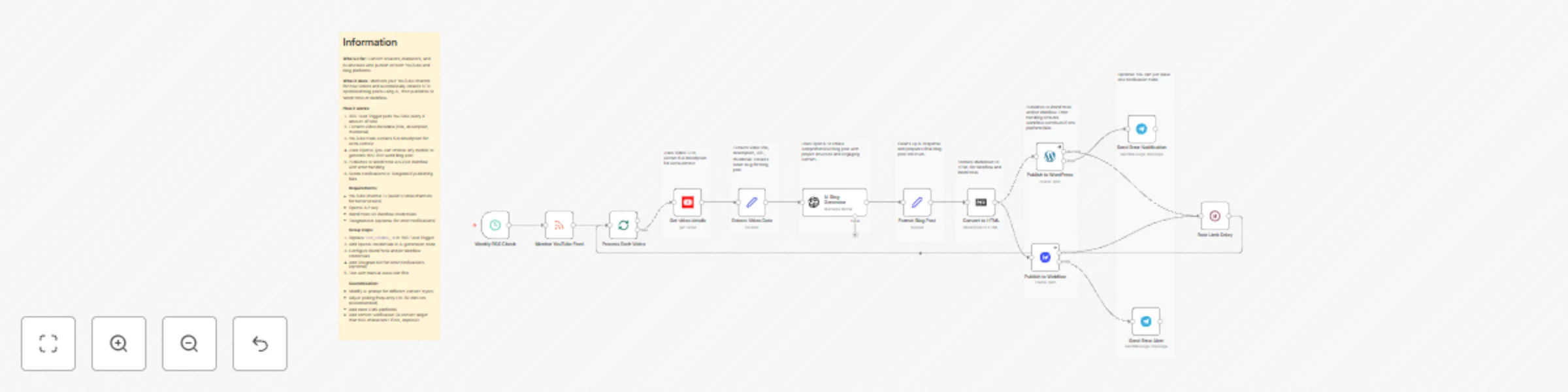
# Description **Who's it for:** Content creators, marketers, and businesses who publish on both YouTube and blog platforms. **What it does:** Monitors your YouTube channel for new videos and automatically creates SEO-optimized blog posts using AI, then publishes to WordPress or Webflow. **How it works:** 1. RSS Feed Trigger polls YouTube videos (every X amount of time) 2. Extracts video metadata (title, description, thumbnail) 3. YouTube node extracts full description for extra context 4. Uses OpenAI (you can choose any model) to generate 600-800 word blog post 5. Publishes to WordPress AND/OR Webflow with error handling 6. Sends notifications to Telegram if publishing fails **Requirements:** - YouTube channel ID (avoid tutorial channels for better results) - OpenAI API key (or similar) - WordPress OR Webflow credentials - Telegram bot (optional, for error notifications) **Setup steps:** 1. Replace `YOUR_CHANNEL_ID` in RSS Feed Trigger 2. Add OpenAI credentials in AI generation node 3. Configure WordPress and/or Webflow credentials 4. Add Telegram bot for error notifications (optional). If you choose to set up Telegram, you need to input your channel ID. 5. Test with manual execution first **Customization:** - Modify AI prompt for different content styles - Adjust polling frequency (30-60 minutes recommended) - Add more CMS platforms - Add content verification (is content larger than 600 characters? if not, improve)
Send weekly personalized pet health tips with GPT-4o-mini, Gmail and Google Sheets
## Send personalized pet care tips from Google Sheets with AI Automate weekly pet wellness emails with AI-generated, location and age-specific advice. ## Who's it for Pet care businesses, veterinary clinics, pet subscription services, and animal shelters sending regular wellness content to pet owners. ## How it works 1. **Loads pets data** from Google Sheets 2. **Filters** pets who haven't received email in 7+ days 3. **Calculates age** from birthdate (formats as "2 years and 3 months") 4. **AI generates tip** - GPT-4o-mini creates climate-aware, veterinary-aligned advice based on pet type, age, and location 5. **Sends email** via Gmail or SendGrid 6. **Updates timestamp** in sheet to prevent duplicates 7. **Logs activity** to tracking sheet ## Requirements **APIs:** - Google Sheets, Airtable, Typeform or similar - OpenAI (GPT-4o-mini) - Gmail OAuth2 OR SendGrid, you can use Brevo, Mailchimp or any other. **Google Sheet Structure:** **Sheet 1: `Pets`** | Email | Owner_Name | Pet_Name | Pet_Type | Date_of_Birth | Country (ISO) | Status | Last_Email_Sent | |-------|------------|----------|----------|---------------|---------------|--------|-----------------| **Sheet 2: `Email_Log`** | Timestamp | Parent_Email | Pet_Name | Tip_Category | Status | |-----------|--------------|----------|--------------|--------| ## How to set up 1. **Create Google Sheet** with structure above, add 2-3 test pets. 2. **Import workflow** and add credentials. 3. **Update nodes:** - "Load Pet Info": Set your Sheet ID - "Update Last_Email_Sent Date": Set Sheet ID - "Log to Email_Log Sheet": Set Sheet ID 4. **Test manually** with 1 active pet 5. **Enable schedule** (default: Mondays 9am) ## How to customize **Switch email provider:** - Enable "Send via SendGrid" node - Disable "Send Health Tip using Gmail" node - Update template ID **Modify AI prompt:** - Edit "Generate Personalized Tip" node - Adjust temperature - Add/remove categories ## Use cases beyond pets Same workflow works for: - **Plant care** (growth stage tips) - **Baby milestones** (age-based parenting advice) - **Fitness coaching** (experience level workouts) - **Language learning** (study streak motivation) Just update sheet columns and AI prompt. ## Notes - Choose only one mailing service. - Country codes use ISO format (US, UK, AU, CA, etc.) - AI considers location for seasonal advice.
Generate blog posts from keywords to Webflow
### Who's it for Content marketers and SEO specialists who need to generate multiple SEO-optimized articles targeting keyword variations. Ideal for affiliate sites, niche blogs, or service-based businesses creating location/product-specific landing pages. ### How it works This workflow automates bulk content creation from keyword list to Webflow draft: 1. **Loads keywords** from Google Sheets with structured format (main keyword + slug) 2. **AI generates articles** - Creates 600+ word content following SEO best practices 3. **Creates custom images** - Calls a sub-workflow using Gemini 2.5 Flash to generate relevant featured images 4. **Quality validation** - Ensures minimum word count; expands content if needed 5. **HTML conversion** - Transforms markdown to Webflow-ready HTML 6. **Result tracking** - Logs success/errors to separate Google Sheets The workflow includes automatic content expansion, error handling, and uses a separate sub-workflow as a tool for AI image generation. **Important**: The subworkflow should be created as an individual one. Then, in the Agent Tool node, you need to select it as the tool. DON'T try to run it inside the same workflow. ### Requirements - OpenAI API key (for content generation) - OpenRouter API key or similar (for Gemini image generation via sub-workflow) - Google Sheets with three tabs: `keywords`, `content_created`, `webflow_error_logs` - Webflow site with CMS collection configured - Google Drive folder for image storage - **Companion workflow**: "AI image generation for automatic content creation" (imported separately and called as a tool) ### How to set up **1. Import both workflows separately:** - Main workflow: "Bulk SEO content generation and Webflow draft creation with AI images" - Sub-workflow: "AI image generation for automatic content creation" **2. Configure your Google Sheet** with the recommended structure Required sheets: - `keywords`: id, main keyword, head terms, modifiers, slug, status - `content_created`: id, slug, meta description, content, generatedAt, updated on - `webflow_error_logs`: keyword, error, timestamp, status **3. Add API credentials:** - OpenAI API - OpenRouter API with Gemini access or similar (for image generation) - Webflow OAuth2 API (see Webflow setup instructions in sticky note) - Google Sheets - Google Drive **4. Update workflow configuration:** - Google Sheets: Update document IDs in all Google Sheets nodes - Webflow: Set your Site ID and Collection ID in Create/Update Post nodes - Google Drive: Set folder ID in the image generation sub-workflow - AI Image Tool: Verify the "AI Image Generation Tool1" node points to your imported sub-workflow **5. Test with a single keyword:** **6. Schedule for production:** - Enable the Schedule Trigger (currently set to monthly) ### How to customize **Content customization:** - Adjust article length in AI Agent prompt (currently 600-800 words) - Modify article structure/sections in the system prompt - Change content tone by editing the AI Agent system message - Add/remove content sections in the prompt template **Image customization:** - Change AI model in sub-workflow (currently Gemini 2.5 Flash) - Modify image style/prompt in the AI Image Generation Tool parameters - Update Google Drive destination folder **Webflow customization:** - Add custom CMS fields by updating Create/Update Post nodes - Modify field mappings to match your Webflow collection structure - Change draft behavior or add auto-publish logic **Workflow behavior:** - Adjust batch size in Loop Over Items node - Modify quality threshold (currently 600 words minimum) - Change error handling/retry logic - Update scheduling frequency in Schedule Trigger
Monitor website performance with PageSpeed Insights and send alerts
# Monitor website performance with PageSpeed Insights and save to Google Sheets with alerts This n8n template automatically monitors website performance using Google's PageSpeed Insights API, compiles detailed reports, and tracks performance trends over time in Google Sheets. **Use cases:** Agency client monitoring, competitor analysis, performance regression detection, SEO reporting, site migration monitoring, A/B testing performance impact, and maintaining performance SLAs. ## Who's it for - Digital agencies monitoring client websites - SEO professionals tracking site performance - DevOps teams maintaining performance SLAs - Business owners wanting automated site monitoring ## How it works - **Automated Testing:** Scheduled audits of multiple websites using PageSpeed Insights API - **Core Web Vitals:** Tracks LCP, FID, CLS, and overall performance scores - **Historical Tracking:** Maintains performance history for trend analysis - **Alert System:** Sends notifications when performance drops below thresholds - **Detailed Reporting:** Captures specific recommendations and optimization opportunities ## Two Workflow Paths 1. **Scheduled Audit:** Automatically tests all URLs from Google Sheet on schedule 2. **On-Demand Testing:** Webhook endpoint for immediate single-URL testing ## How to set up 1. Get a free PageSpeed Insights API key from Google Cloud Console 2. Create Google Sheet with columns: URL, Site Name, Category, Alert Threshold, Last_Processed_Date and Device. 3. Set up Google Sheets API credentials 4. Configure notification preferences (Slack, email, etc.) 5. Set audit schedule (daily, weekly, or custom) 6. Define performance thresholds for alerts ## Requirements - Google PageSpeed Insights API key (free) - Google Sheets API access - n8n instance (cloud or self-hosted) - Optional: Slack/email for notifications ## Google Sheet Structure **Input Sheet ("sites"):** - URL, Site_Name, Category, Alert_Threshold, Last_Processed_Date and Device. **Results Sheet ("audit_results"):** - Date, URL, Site_Name, Device, Performance_Score, LCP, FID, CLS, Recommendations, Full_Report_URL ## API Usage (On-Demand) POST to webhook: ```json { "url": "https://example.com", "site_name": "Example Site", "alert_threshold": 75 } ``` ## How to customize - Add custom performance thresholds per site - Include additional metrics (accessibility, SEO, best practices) - Connect to other dashboards (Data Studio, Grafana) - Add competitor benchmarking - Integrate with project management tools for issue tracking - Set up different notification channels based on severity - Sample Google Sheet Included
Generate diverse names for UX/UI mockups with OpenAI
This template demonstrates how to build an AI-powered name generator that creates realistic names perfect for UX/UI designers, developers, and content creators. **Use cases:** User persona creation, mockup development, prototype testing, customer testimonials, team member listings, app interface examples, website content, accessibility testing, and any scenario requiring realistic placeholder names. ## How it works - **AI-Powered Generation:** Uses any LLM to generate names based on your specifications - **Customizable Parameters:** Accepts gender preferences, name count, and optional reference names for style matching - **UX/UI Optimized:** Names are specifically chosen to work well in design mockups and prototypes - **Smart Formatting:** Returns clean JSON arrays ready for integration with design tools and applications - **Reference Matching:** Can generate names similar in style to a provided reference name ## How to set up 1. Replace "Dummy API" credentials with your preferred language model API key 2. Update webhook path and authentication as needed for your application 3. Test with different parameters: gender (masculine/feminine/neutral), count (1-20), reference_name (optional) 4. Integrate webhook URL with your design tools, Bubble apps, or other platforms ## Requirements - LLM API access (OpenAI, Claude, or other language model) - n8n instance (cloud or self-hosted) - Platform capable of making HTTP POST requests ## API Usage POST to webhook with JSON body: ```json { "gender": "masculine", "count": 5, "reference_name": "Alex Chen" // optional } ``` Response: ```json { "success": true, "names": ["Marcus Johnson", "David Kim", "Sofia Rodriguez", "Chen Wei", "James Wilson"], "count": 5 } ``` ## How to customize - Modify AI prompt for specific naming styles or regions - Add additional parameters (age, profession, cultural background) - Connect to databases for persistent name storage - Integrate with design tools APIs (Figma, Sketch, Adobe XD) - Create batch processing for large mockup projects
Extract YouTube transcripts via Google Sheets or API webhook
# YouTube Transcript Extractor This n8n template demonstrates how to extract transcripts from YouTube videos using two different approaches: automated Google Sheets monitoring and direct webhook API calls. **Use cases:** Content creation, research, accessibility, meeting notes, content repurposing, SEO analysis, or building transcript databases for analysis. ## How it works - **Google Sheets Integration:** Monitor a sheet for new YouTube URLs and automatically extract transcripts - **Direct API Access:** Send YouTube URLs via webhook and get instant transcript responses - **Smart Parsing:** Extracts video ID from various YouTube URL formats (youtube.com, youtu.be, embed) - **Rich Metadata:** Returns video title, channel, publish date, duration, and category alongside transcript - **Fallback Handling:** Gracefully handles videos without available transcripts ## Two Workflow Paths 1. **Automated Sheet Processing:** Add URLs to Google Sheet → Auto-extract → Save results to sheet 2. **Webhook API:** Send POST request with video URL → Get instant transcript response ## How to set up 1. Replace "Dummy YouTube Transcript API" credentials with your YouTube Transcript API key 2. Create your own Google Sheet with columns: "url" (input sheet) and "video title", "transcript" (results sheet) 3. Update Google Sheets credentials to connect your sheets 4. Test each workflow path separately 5. Customize the webhook path and authentication as needed ## Requirements - YouTube Transcript API access (youtube-transcript.io or similar) - Google Sheets API credentials (for automated workflow) - n8n instance (cloud or self-hosted) - YouTube videos ## How to customize - Modify transcript processing in the Code nodes - Add additional metadata extraction - Connect to other storage solutions (databases, CMS) - Add text analysis or summarization steps - Set up notifications for new transcripts
Summarize content from URLs, text & PDFs using OpenAI
# AI Content Summarizer Suite This n8n template collection demonstrates how to build a comprehensive AI-powered content summarization system that handles multiple input types: URLs, raw text, and PDF files. Built as 4 separate workflows for maximum flexibility. Use cases: Research workflows, content curation, document processing, meeting prep, social media content creation, or integrating smart summarization into any app or platform. ## How it works - Multi-input handling: Separate workflows for URLs (web scraping), direct text input, and PDF file processing - Smart PDF processing: Attempts text extraction first, falls back to OCR.Space for image-based PDFs - AI summarization: Uses OpenAI's GPT-4.1-mini with customizable length (brief/standard/detailed) and focus areas (key points/numbers/conclusions/action items) - Language support: Multi-language summaries with automatic language detection - Flexible output: Returns clean markdown-formatted summaries via webhook responses - Unified option: The all-in-one workflow automatically detects input type and routes accordingly ## How to use 1. Replace webhook triggers with your preferred method (manual, form, API endpoint) 2. Each workflow accepts different parameters: URL, text content, or file upload 3. Customize summary length and focus in the AI prompt nodes Authentication is optional - switch to "none" if running internally 4. Perfect for integration with Bubble, Zapier, or any platform that can make HTTP requests ## Requirements - OpenAI API key or OpenRouter Keys - OCR.Space API key (for PDF fallback processing) - n8n instance (cloud or self-hosted) - Any platform that can make HTTP requests. ## Setup Steps 1. Replace "Dummy OpenAI" with your OpenAI credentials 2. Add your OCR.Space API key in the OCR nodes is not mandatory. 3. Update webhook authentication as needed 4. Test each workflow path individually