K

Krishna Kumar Eswaran

3
Workflows

Workflows by Krishna Kumar Eswaran
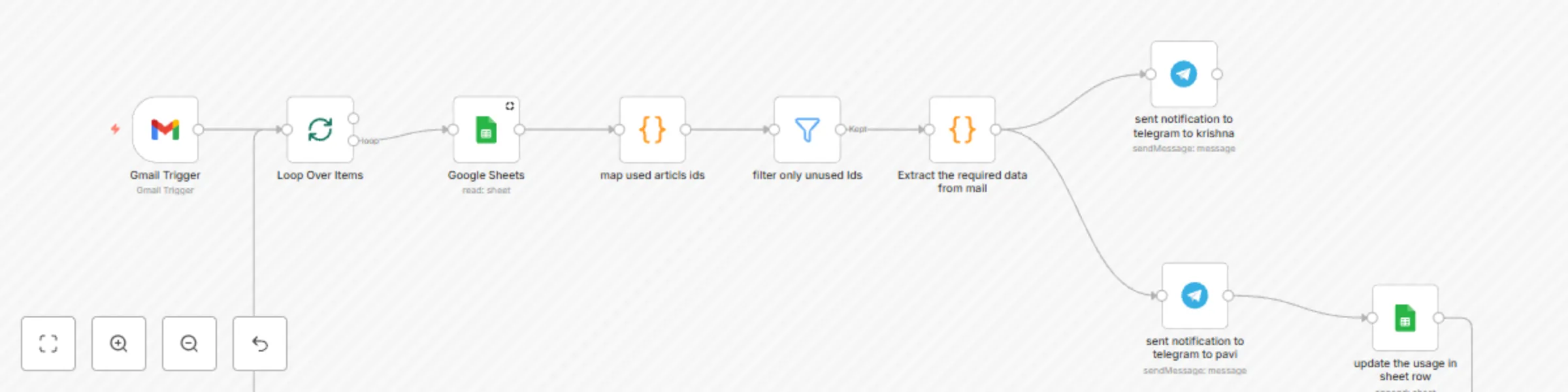
Workflow preview: Track HDFC credit card transactions with Google Sheets and Telegram notifications
Free intermediate

Track HDFC credit card transactions with Google Sheets and Telegram notifications

🧠 Problem This Solves Managing credit card expenses can be tricky, especially when you want to stay transparent and keep your spouse in the loop. Most banks don't offer real-time notification sharing with family members, and manually updating expenses takes time and effort. This n8n workflow automates the entire process: tracking your HDFC credit card usage, logging it in Google Sheets, and sending an instant Telegram notification to your spouse. 👥 Who This Template Is For Couples who want shared visibility of credit card spending Individuals looking for automated personal finance tracking Anyone using HDFC Credit Card with email alerts enabled n8n users who want to integrate Gmail, Google Sheets, and Telegram ⚙️ Workflow Breakdown Here’s how the automation works: Gmail Trigger – Monitors your Gmail inbox for credit card transaction alerts from HDFC Bank. Email Parser – Extracts transaction details like amount, merchant name, date, and card type. Google Sheets Node – Logs the parsed transaction data into a structured Google Sheet for record-keeping. Telegram Node – Sends a message to your wife’s Telegram account with transaction details for instant notification. 🛾 Step-by-Step Setup Instructions 1. Prerequisites An HDFC Credit Card with email alerts enabled A Gmail account connected to n8n A Google Sheet created with columns like Date, Amount, Merchant, Card, etc. A Telegram Bot and your wife’s Telegram Chat ID 2. Set up Gmail Trigger Use the Gmail Trigger Node to monitor incoming emails from [email protected] or similar. Filter emails with subject line containing keywords like Credit Card Transaction Alert. 3. Extract Email Content Use the HTML Extract or Regex node to parse out transaction amount, merchant name, date, and card number from the email body. 4. Log to Google Sheets Connect your Google Sheets account in n8n Use the Append Row node to add each transaction as a new row in your finance sheet. 5. Send Telegram Message Set up a Telegram Bot and get the Chat ID of your wife’s Telegram account Format a message like: "💳 HDFC Transaction Alert: ₹5,000 at Amazon on 17 May via XXXX1234" Send it via the Telegram node 🛠️ Customization Tips 💡 Add Spending Limits: Add a condition node to alert only if the transaction exceeds a certain amount. 🧾 Category Mapping: Use additional logic to classify expenses (e.g., Shopping, Dining) based on keywords. 📊 Weekly Summary: Create another workflow that sends a weekly Telegram summary using data from Google Sheets. 🔐 Security Tip: Mask part of the card number before sending the Telegram message for added security.

K
Krishna Kumar Eswaran
Personal Productivity
17 May 2025
543
0
Workflow preview: Auto-post Medium.com articles to LinkedIn with Telegram alerts
Free advanced

Auto-post Medium.com articles to LinkedIn with Telegram alerts

**🧠 Problem This Solves** Manually sharing Medium articles to LinkedIn daily can be repetitive and time-consuming. This automation: Fetches the latest Medium articles based on a tag (e.g., android) Posts them on LinkedIn twice daily Uses Airtable to prevent duplicates Sends a confirmation to Telegram once posted Stay consistently active on LinkedIn without lifting a finger. **👥 Who This Template Is For** Developers who write or follow Medium content Tech creators or founders looking to grow an audience Community or page managers needing regular curated posts Busy professionals who want hands-free LinkedIn engagement **⚙️ Workflow Breakdown** This automation runs at 9:00 AM and 7:00 PM daily and performs these steps: Fetch articles from MediumAPI.com by tag Check Airtable to prevent reposting the same article Post on LinkedIn if it’s new Store the article ID in Airtable Send a Telegram message after successful posting **🧾 Step-by-Step Setup Instructions** ✅ 1. Airtable Configuration Create a base with: Table Name: PostedArticles Column: ArticleID (Single line text – to track posted articles) 🔗 2. MediumAPI Setup Go to https://mediumapi.com Sign up and generate your API key from the dashboard Use this API endpoint in an HTTP node: GET https://mediumapi.com/api/tag/YOUR_TAG/latest Headers: Authorization: Bearer YOUR_API_KEY Replace YOUR_TAG with a topic like android, ai, webdev, etc. 💬 3. Telegram Bot Setup Go to @BotFather and create a new bot Save the bot token Use @userinfobot to get your Telegram chat ID Add a Telegram node in n8n with the token + chat ID 🔗 4. LinkedIn Setup Create a LinkedIn Developer App Connect it via OAuth2 in n8n Choose to post on your profile or company page 🧱 5. n8n Workflow Structure Node Type Description Cron Triggers the flow twice a day HTTP Request Fetches articles from MediumAPI.com Airtable Search Checks if article ID already exists IF Node Skips duplicates LinkedIn Post Publishes to your LinkedIn profile/page Airtable Create Stores posted article ID Telegram Node Sends success notification 🛠️ Customization Tips Change the tag in the API URL to match your niche Add hashtags or personal comments to the LinkedIn message Schedule different posting times in the Cron node Filter Medium posts based on length or title keywords (optional)

K
Krishna Kumar Eswaran
Social Media
8 May 2025
1188
0

Workflow preview: Auto-post Dev.to articles to LinkedIn with Airtable tracking & Telegram alerts
Free intermediate

Auto-post Dev.to articles to LinkedIn with Airtable tracking & Telegram alerts

**🧠 Problem This Solves:** For developers and creators, consistently posting quality content on LinkedIn can be time-consuming. This workflow automates the process by: Fetching the latest Dev.to articles Posting them to LinkedIn twice daily Preventing duplicates using Airtable Sending success alerts to Telegram This ensures you're always active on LinkedIn, with zero manual effort. **👥 Who This Template Is For** Developers who want to build their presence on LinkedIn Tech creators or solo founders looking to grow an audience Community/page managers who want regular, curated content Busy professionals aiming for consistent LinkedIn engagement without doing it manually **⚙️ Workflow Breakdown** This automation runs twice a day (9:00 AM and 7:00 PM) and performs the following steps: Fetches Dev.to articles based on a tag Checks Airtable to avoid reposting the same article Posts to LinkedIn if it’s new Sends a Telegram message after posting successfully **🧩 Step-by-Step Setup Instructions** ✅ 1. Airtable Configuration Create a new base in Airtable with just one table and one column: Table Name: PostedArticles Column: ArticleID (Single line text – stores the unique ID of each Dev.to article posted) This column is used to track posted articles and prevent duplicates. 🔗 2. Dev.to API Setup Use the following endpoint in the HTTP Request node: arduino Copy Edit https://dev.to/api/articles?tag=YOUR_TAG_HERE&per_page=10 Replace YOUR_TAG_HERE with a tag like android, webdev, ai, etc. 💬 3. Telegram Bot Setup Open @BotFather in Telegram and create a new bot Save the bot token Get your chat ID using @userinfobot or via Telegram API Add a Telegram node in n8n using this token and chat ID This will notify you when a post is successfully published. 🧾 4. LinkedIn Setup Create a LinkedIn Developer App Use OAuth2 to connect it in n8n Choose to post on either a user profile or a company page 🧱 5. n8n Workflow Structure Here’s the basic structure of the workflow: Cron Node – Triggers at 9:00 AM and 7:00 PM daily HTTP Request – Fetches latest articles from Dev.to Airtable Search – Checks if ArticleID already exists IF Node – Filters new vs. already-posted articles LinkedIn Post – Publishes new article Airtable Create – Saves the new ArticleID Telegram Message – Sends success confirmation **🛠️ Customization Tips** Change the Dev.to tag in the API URL Modify LinkedIn post format (add hashtags, emojis, personal notes) Adjust posting times in the Cron node Use additional filters (e.g., only post articles with a cover image or certain word count)

K
Krishna Kumar Eswaran
Social Media
6 May 2025
823
0