Mohan Gopal
Workflows by Mohan Gopal

Voice-driven travel itinerary generator using ElevenLabs, GPT-4o & Pinecone
# Overview This release introduces a Voice-Enabled Tour Recommendation System that leverages n8n, ElevenLabs Voice Agent, OpenAI GPT-4o, and Pinecone Vector DB to deliver personalized travel itineraries based on spoken input. Users speak their preferences to the ElevenLabs voice agent, which then triggers an n8n workflow that returns a tailored tour plan. ## Features 1. Voice interaction with AI-powered travel agent via ElevenLabs 2. Uses ChatGPT-4o for contextual understanding and generation 3. Dynamic query handling with vector-based search using Pinecone 4. Fast response generation using n8n webhook 5. Modular agent memory and role design for scalable enhancement ## Pre-requisites 1. n8n account with workflow creation access 2. ElevenLabs account with agent and webhook setup 3. OpenAI API key (GPT-4o access) 4. Pinecone account for vector database 5. A list of vectorized tour packages using this n8n embedder (https://creators.n8n.io/workflows/5085) ## Setup Instructions **Step 1:** Configure the Voice Agent Webhook in ElevenLabs Use POST method Webhook URL: https://... **Breakdown voice input into:** Destination Type of tour Number of days Number of passengers **Step 2:** Set Up the AI Agent Prompt in ElevenLabs Use a conversational style with summaries, clarifying questions, and affirmations. Example Prompt: “You use a natural speech style and periodically summarize... Your goal is to help callers create a personalized tour plan.” **Step 3:** Select LLM LLM: GPT-4o Mini Memory window: Up to 5 contexts **Step 4:** Integrate Tools Use Custom Tool: n8n ID: tool_xxxxxx Tool Description: “Generates travel plan once the details are collected” **Step 5:** Build n8n Workflow Trigger: Webhook (POST) Process user input: Tour Recommendation AI Agent Use OpenAI Chat Model (GPT-4o) for reasoning Query Pinecone Vector Store using Tour Builder Q&A node Respond with structured Itinerary Plan via webhook response ## How to use: 1. Execute the n8n workflow (the webhook waits for the voice trigger from elevenlabs) 2. Start the Elevenlabs Voice Agent  3. Request for a tour plan to any destination giving the details of your tour preferences. 4. Wait for the Voice Agent to respond back with tour package suggestions after fetching the tour details from the n8n workflow. 5. Close the conversation. | Area | Improvement | | ------------------ | ----------------------------------------------------- | | 🔉 Voice UX | Natural-sounding travel agent using ElevenLabs | | 💡 Personalization | ChatGPT-4o adapts based on travel style & preferences | | 📚 Knowledge Base | Pinecone-powered vector retrieval of real tour data | | 🔁 Reusability | Modular workflow with reusable embedding tools | | ⚙️ System Design | Separation of memory, logic, and data layers | ## Who is this for? **Travel Agencies & DMCs** Offer ultra-personalized packages based on customer queries. Let AI do the matching. **Tour Package Aggregators** Auto-curate and send matching packages from your catalog — no manual searching needed. **Content & Marketing Teams** Craft customized tour recommendations for email campaigns and newsletters. **Tech-enabled Travel Startups** Embed this intelligence in your workflows, CRMs, or chatbots to delight customers.
Personalized tour package recommendations with GPT-4o, Pinecone & Lovable UI
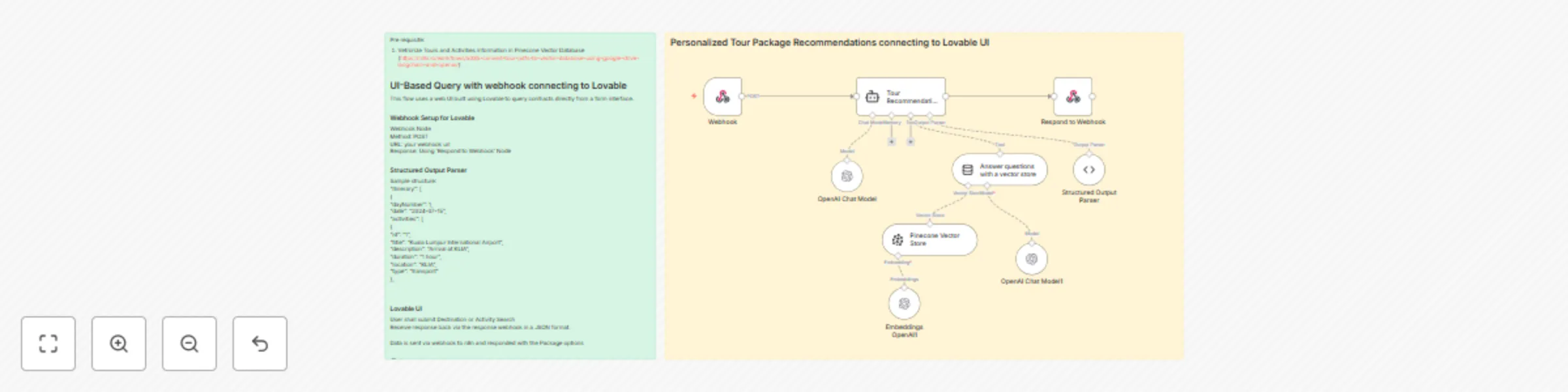
# Personalized Tour Package Recommendations via n8n + Pinecone + Lovable UI I've created an intelligent Travel Itinerary Planner that connects a Lovable front-end UI with a smart backend powered by n8n, Pinecone, and OpenAI to deliver personalized tour packages based on natural language queries.  ### What It Does Users type in their travel destination and duration (e.g., "Paris 5 days trip" or "Bali Trip for 7 Days, would love water sports, adventures and trekking included, also some historical monuments") through a Lovable UI. This triggers a webhook in n8n, which processes the request, searches vectorized tour data in Pinecone, and generates a personalized itinerary using OpenAI’s GPT. The results are then structured and sent back to the frontend UI for display in an interactive, reorderable format. ### Workflow Architecture Lovable UI ➝ Webhook ➝ Tour Recommendation Agent ➝ Vector Search ➝ OpenAI Response ➝ Structured Output ➝ Response to Lovable #### Tools & Components Used **Webhook** Acts as the entry point between the Lovable frontend and n8n. Captures the user query (destination, duration) and forwards it into the workflow. **OpenAI Chat Model** To interpret the user query. To generate a user-friendly, structured tour package from the matched results. **Simple Memory** Keeps chat state and context for follow-up queries (extendable for future features like multi-step planning or saved itineraries). Question Answering with Vector Store Searches vector embeddings of pre-loaded tour data. Finds the most relevant tour packages by comparing query embeddings. **Pinecone Vector Store** Stores tour packages and activity data in vectorized format. Enables fast and scalable semantic search across destinations, themes (e.g., "adventure", "cultural"), and duration. **OpenAI Embeddings** Embeds all tour and activity documents stored in Pinecone. Converts input user queries into embedding vectors for semantic search. **Structured Output Parser** Parses the final OpenAI-generated response into a consistent, frontend-consumable JSON format. **Frontend (Lovable UI)** User types in destination or their travel package needs in the Tour Search. Lovable queries the n8n workflow. Displays beautifully structured, editable itineraries. ### How to Set It Up 1. Webhook Setup in n8n Create a POST webhook node. Set Webhook URL and connect it with Lovable frontend. 2. Pinecone & Embeddings Convert your static tour package documents (PDFs, JSON, CSV, etc.) into embeddings using OpenAI. Store the embeddings in a Pinecone namespace (e.g., kuala-lumpur-3-days). 3. Configure “Answer with Vector Store” Tool Connect the tool to your Pinecone instance and pass query embedding for matching. 4. Connect to OpenAI Chat Use the GPT model to process query + context from Pinecone to generate an engaging itinerary description. Optionally chain a second model to format it into UI-consumable output. 5. Output Parser & Return Use Structured Output Parser to parse the response and pass it to Respond to Webhook node for UI display. ### Ideal Use Cases Smart itinerary planning for OTAs or DMCs Personalized travel recommendations in chatbots or apps Travel advisors and agents automating package generation ### Benefits Highly relevant, contextual travel suggestions Natural query understanding via OpenAI Seamless frontend-backend integration via Webhook If you’re building personalized experiences for travelers using AI, give this approach a try! Let me know if you’d like the JSON for this workflow or help setting up the Pinecone data pipeline.
Document Q&A system with OpenAI GPT, Pinecone Vector DB & Google Drive integration
*This workflow contains community nodes that are only compatible with the self-hosted version of n8n.* # 🤖 AI-Powered Document QA System using Webhook, Pinecone + OpenAI + n8n This project demonstrates how to build a Retrieval-Augmented Generation (RAG) system using n8n, and create a simple Question Answer system using Webhook to connect with User Interface (created using Lovable): 🧾 Downloads the pdf file format documents from Google Drive (contract document, user manual, HR policy document etc...) 📚 Converts them into vector embeddings using OpenAI 🔍 Stores and searches them in Pinecone Vector DB 💬 Allows natural language querying of contracts using AI Agents ## 📂 Flow 1: Document Loading & RAG Setup This flow automates: Reading documents from a Google Drive folder Vectorizing using text-embedding-3-small Uploading vectors into Pinecone for later semantic search ### 🧱 Workflow Structure A [Manual Trigger] --> B[Google Drive Search] B --> C[Google Drive Download] C --> D[Pinecone Vector Store] D --> E[Default Data Loader] E --> F[Recursive Character Text Splitter] E --> G[OpenAI Embedding] #### 🪜 Steps Manual Trigger: Kickstarts the workflow on demand for loading new documents. Google Drive Search & Download Node: Google Drive (Search: file/folder) Downloads PDF documents #### Apply Recursive Text Splitter: Breaks long documents into overlapping chunks Settings: Chunk Size: 1000 Chunk Overlap: 100 #### OpenAI Embedding Model: text-embedding-3-small Used for creating document vectors #### Pinecone Vector Store Host: url Index: index Batch Size: 200 #### Pinecone Settings: Type: Dense Region: us-east-1 Mode: Insert Documents ## 💬 Flow 2: Chat-Based Q&A Agent This flow enables chat-style querying of stored documents using OpenAI-powered agents with vector memory. ### 🧱 Workflow Diagram A[Webhook (chat message)] --> B[AI Agent] B --> C[OpenAI Chat Model] B --> D[Simple Memory] B --> E[Answer with Vector Store] E --> F[Pinecone Vector Store] F --> G[Embeddings OpenAI] ### 🪜 Components Chat (Trigger): Receives incoming chat queries AI Agent Node #### Handles query flow using: Chat Model: OpenAI GPT Memory: Simple Memory Tool: Question Answer with Vector Store Pinecone Vector Store: Connected via same embedding index as Flow 1 Embeddings: Ensures document chunks are retrievable using vector similarity Response Node: Returns final AI response to user via webhook ## 🌐 Flow 3: UI-Based Query with Lovable This flow uses a web UI built using Lovable to query contracts directly from a form interface. ### 📥 Webhook Setup for Lovable Webhook Node Method: POST URL:url Response: Using 'Respond to Webhook' Node ### 🧱 Workflow Logic A[Webhook (Lovable Form)] --> B[AI Agent] B --> C[OpenAI Chat Model] B --> D[Simple Memory] B --> E[Answer with Vector Store] E --> F[Pinecone Vector Store] F --> G[Embeddings OpenAI] B --> H[Respond to Webhook] ### 💡 Lovable UI Users can submit: Full Name Email Department Freeform Query: User can enter any freeform query.  Data is sent via webhook to n8n and responded with the answer from contract content. ### 🔍 Use Cases Contract Querying for Legal/HR teams Procurement & Vendor Agreement QA Customer Support Automation (based on terms) RAG Systems for private document knowledge ### ⚙️ Tools & Tech Stack  📌 Final Notes Pinecone Index: package1536 Dimension: 1536 Chunk Size: 1000, Overlap: 100 Embedding Model: text-embedding-3-small Feel free to fork the workflow or request the full JSON export. Looking forward to your suggestions and improvements!
AI-powered accounting reports from Sabre EDI with GPT-4 and Pinecone RAG
This workflow automates the process of reading EDI files generated by Sabre, parsing them using an AI Agent, and producing structured accounting reports like: 📌 Accounts Receivable (AR) Summary 📌 Tax and Surcharges Report It also uses Retrieval-Augmented Generation (RAG) to vectorize the Sabre Interface User Record (IUR)—a 154-page technical document—so that the AI agent can reference it when clarification is required while generating reports. **⚙️ Tools & Integrations Used** Component:Tool/Service:Purpose:Workflow Engine:n8n:Automation & orchestration LLM Model:OpenAI GPT-4 / Chat Model:Natural language understanding and parsing Embeddings Model:OpenAI Embeddings:Convert text into semantic vector format Vector Database:Pinecone:Store and retrieve document chunks semantically Storage:Google Drive:Source of raw EDI text files and PDF documentation DataLoader + Splitter:n8n Node + Recursive Splitter:Loads and prepares documents for embedding AI Agents:n8n AI Agent Node:Runs context-aware prompts and parses reports **🧱 Workflow Breakdown** **🧠 1. Vectorizing the Sabre IUR Document (RAG Setup)** 📘 Objective: Enable the AI Agent to refer to the IUR document (154 pages) for detailed explanations of EDI terms, formats, and rules. Flow Steps: Google Drive Search + Download – Find and pull the IUR PDF file. Default Data Loader – Load the file and preprocess it for semantic splitting. Recursive Character Splitter – Break down large pages into meaningful chunks. OpenAI Embeddings – Vectorize each chunk. Pinecone Vector Store – Save into a Pinecone namespace for future retrieval. ✅ Result: The IUR is now searchable via semantic queries from the AI Agent. **📁 2. Reading and Extracting Data from EDI Files** 📘 Objective: Parse raw EDI files for financial records and summaries. Flow Steps: **Trigger** – Manual or scheduled execution of the workflow. **Google Drive Search** – Finds all new .edi or .txt files. **Download File Contents** – Loads content of each file into memory. **Extract from File** – Raw text extraction. **📊 3. Report Generation Using AI Agents** **📘 Objective:** AI Agents parse the extracted data to generate structured accounting reports. **a. Accounts Receivable Report Agent** The extracted text is passed to an AI Agent. Model is connected to: OpenAI Chat Model (LLM) Pinecone Vector DB (IUR reference) Outputs a structured AR Summary Report. **b. Tax and Surcharges Report Agent** Same steps as above. Prompts adjusted to extract tax, fees, surcharges, and amounts. ✅ Output Format: Can be mapped to columns and inserted into a Google Sheet or exported as a CSV/JSON. 📑 Sample Reports You Can Build Already implemented: ✅ Accounts Receivable (AR) Summary Report ✅ Tax and Surcharges Report Can be extended to: 3. Accounts Payable (AP) 4. Passenger Revenue 5. Daily Sales 6. Commission Report 7. Net Profit Margin (if supplier cost + commission is available) **💡 Key Advantages** ✅ No-code automation with n8n ✅ Semantic reasoning using AI + Vector DB (RAG) ✅ Can work with various Sabre outputs without manual parsing ✅ Modular: Easy to add new report types ✅ Cloud-integrated (Drive, Pinecone, OpenAI) **🧪 Potential Improvements** Area Suggestions Testing Add a “Preview” step to validate extracted data before writing Scalability Batch mode + Google Sheet batching for multiple reports Audit Trail Log every file name, timestamp, report type in a Google Sheet Notification Send Slack/Email when a new report is generated Multi-model support Add Claude/Gemini fallback if OpenAI usage limit is hit
GPT-4o, RunwayML, ElevenLabs for Social Media
# 🎥 AI Tour Video Generator with GPT-4o, RunwayML & ElevenLabs for Social Media' This **n8n workflow** generates 20-second faceless videos for social media by combining **AI-generated images, audio, and video clips** for a given tour destination. The output is a ready-to-publish video file, which can be pushed to social platforms and logged in a tracking sheet. --- ## ⚙️ Workflow Overview This system is divided into **4 main sections**: - 🧠 **Generate Image Prompts** - 🎨 **Generate Media (Images, Videos, Audio)** - 🛠️ **Render & Upload** - 📈 **Future Enhancements** --- ## 🔌 Integration Setup Table | Integration | Service Used | Setup Instruction | |--------------------|----------------------------|------------------------------------------------------------------------------------| | **OpenAI** | GPT-4o (Prompt Generation) | [Get API Key](https://platform.openai.com/account/api-keys) and configure in n8n | | **Google Sheet** | Idea I/O tracking | Connect Google account with OAuth/Credentials in n8n | | **Piapia API** | AI Image Generation | [Sign up at piapia.ai](https://piapia.ai) and get API key | | **Runway API** | AI Video Generation | [Register at runwayml.com](https://runwayml.com) for access | | **ElevenLabs** | AI Voice Generation | [Sign up at elevenlabs.io](https://www.elevenlabs.io/) for API key | | **CreateMate API** | Render Final Video | [Visit createmate.ai](https://createmate.ai) to access API | | **Google Drive** | Upload/Share Final Video | Use n8n Google Drive node to configure credentials | --- ## ✅ Required Services & Tools Ensure you have active accounts with the following tools and services: - ✅ OpenAI (GPT-4o + Embeddings) - ✅ Google Sheets (for destination ideas and tracking) -  - ✅ Piapia API (Image generation) - ✅ RunwayML API (Video generation) - ✅ ElevenLabs API (Voiceover TTS) - ✅ Google Drive (Storage & Sharing) - ✅ CreateMate (Video Rendering) - ✅ Social Media Scheduler (Optional - Zapier, Buffer, Make.com) --- ## 🧠 1. Generate Image Prompts > **Purpose**: Prepares the content idea and generates visual prompts. | Step | Node Name | Function | |--------------|------------------------|-----------------------------------------------| | 🔁 Trigger | Schedule or Manual | Starts the workflow | | 📥 Grab Idea | Read Sheet | Pulls destination idea from Google Sheet | | ✍️ Set Content | Manual Input | Adds structure/narrative to the idea | | 🔀 Split | Split Out | Breaks input into chunks | | 🤖 GPT Agent | Image Prompt Agent | Uses GPT-4o to generate creative image prompts| | 🧹 Clean | Remove \n | Cleans up formatting | | 📌 Save | Set Prompts | Finalizes prompts for next stage | --- ## 🖼️ 2. Generate Media ### 🎨 Generate Images | Step | Function | |----------------|-----------------------------------------------------------| | Generate Image | Calls Piapia API with AI-generated prompts | | Wait | Adds delay for rendering (90 sec) | | Get Images | Retrieves final images for video | ### 🎥 Generate Videos | Step | Function | |----------------|-----------------------------------------------------------| | Generate Video | Calls RunwayML to generate video clips from the prompts | | Wait | 2-minute delay to allow video generation | | Get Videos | Fetches completed video clips | ### 🔊 Generate Audio | Step | Function | |------------------|----------------------------------------------------------| | Update Status | Logs progress in Google Sheet | | Sound Agent | Gemini or GPT generates narration text | | Set Audio | Formats narration for voice synthesis | | Generate Audio | Uses ElevenLabs for realistic voiceover | | Upload to Drive | Saves final audio to Google Drive | | Share File | Creates sharable URL for audio file | --- ## 🛠️ 3. Render & Upload > **Purpose**: Combines all elements (image, video, audio) into a single output and prepares for social media. | Step | Function | |-----------------|----------------------------------------------------------------| | Merge | Combines images, videos, and audio | | Split Out Parts | Breaks content for rendering | | Render Video | Uses CreateMate to render the final 20-second video | | Wait | Short delay to complete rendering | | Download Video | Saves output video locally or on Drive | | Update Sheet | Logs final video URL/status in Google Sheet | | Social Upload | (Coming Soon) Post to Instagram, YouTube Shorts, TikTok, etc. | --- ## 🧩 Pre-Conditions Before running the workflow: - ✅ Google Sheet should be created with destination ideas - ✅ All API keys must be configured in n8n - ✅ Google Drive folder must exist for output videos - ✅ Sufficient credit/quota must be available on AI platforms - ✅ Internet access must be stable for external API calls --- ## 🚀 Outcome - A polished **20-second travel destination video** - Combines **AI visuals**, **short clips**, and **AI narration** - Ready for **instant social media upload** - **Fully automated** from idea to video file --- ## 🧠 Tech Stack Summary | Component | Tools Used | |-----------------|-------------------------------| | Language Model | GPT-4o (OpenAI), Gemini (Google) | | Image Generator | Piapia API | | Video Generator | RunwayML | | Audio Generator | ElevenLabs | | Storage | Google Drive | | Video Composer | CreateMate API | | Orchestration | n8n | --- ## 📈 Future Enhancements ### ✅ Smart Enhancements - Dynamic hashtags & captions via AI - Auto-post to TikTok, Instagram, YouTube via Buffer/Zapier - Scene detection + matching B-roll - Multilingual narration (e.g., Arabic, French, Malay) - A/B testing of video versions to analyze performance ### 🧪 Testing Add-ons - Add preview screen before upload - Error tracking & retry flow - Manual override before publishing --- ## 🧰 Customization Guide | Element | How to Customize | |----------------------|-------------------------------------------------------------------| | ✏️ Prompt Format | Change structure inside Set Content or Prompt Agent | | 🌍 Destination Ideas | Modify Google Sheet for different destinations/categories | | 🎨 Image Style | Customize prompt to Piapia (e.g., “in Pixar style”, “3D render”) | | 🎙️ Voiceover Script | Adjust tone/structure in the Sound Agent | | 📆 Posting Schedule | Use Zapier/Buffer for timed posting | | 🎯 Target Duration | Adjust number of clips or frame duration | --- ## 🙌 Community Value This workflow is ideal for: - 📸 **Travel content creators** - 🌍 **Destination marketers** - 🏛️ **Tourism boards** - 🧳 **Travel SMEs looking for automation** Feel free to **fork, remix, or request a JSON export** in the comments below!
Generate personalized tour itineraries via email with GPT-4o and Pinecone
# **🏖️ AI-Based Tour Itineraries via Email Using OpenAI & Pinecone Vector Search** ## **Overview** This workflow automates the process of handling new tour package requests received via email, analyzes the request, and provides personalized tour package recommendations using AI and a vector database. It’s designed to streamline customer interactions and deliver quick, relevant responses. ## **Precondition** 1. Create a Embedded Tour Package Database (refer to the link below): [Pinecone Database setup](https://creators.n8n.io/workflows/5085) 2. Register and create API Keys for OpenAI, Pinecone Database. 3. Copy Mail Credentials to access Email Inbox from n8n node  This workflow automates the process of extracting tour information from PDF files stored in a Google Drive folder, processes and vectorizes the extracted data, and stores it in a Pinecone vector database for efficient querying. This is especially useful for building AI-powered search or recommendation systems for travel packages. ## **🛠️ Tools & Nodes Used** **Email Trigger (IMAP):** Monitors the inbox for new tour package requests. **Text Classifier:** Categorizes incoming emails (e.g., New Request, Follow-up, Other). **Code Node:** Extracts and structures relevant data from the email (subject, sender, content, etc.). **Tour Recommendation AI Agent:** An AI agent that interprets the request and formulates a prompt for package recommendations. **OpenAI & OpenRouter Chat Models:** Used for natural language understanding and generating responses. **Simple Memory:** Maintains context for ongoing conversations. **Pinecone Vector Store:** Stores and retrieves tour packages using semantic search. **Embeddings (OpenAI):** Converts text data into vector embeddings for similarity search. **Answer Questions with a Vector Store:** Retrieves the most relevant packages from Pinecone. **Send Email:** Sends the AI-generated recommendations back to the customer. ### **🔄 Process & Flow** **Email Reception:** The workflow starts with the Email Trigger (IMAP) node, which listens for new emails in the inbox. **Classification:** The Text Classifier node determines if the email is a new tour package request. **Data Extraction:** The Code node parses the email, extracting key details like sender, subject, and content. **AI Agent Processing:** The Tour Recommendation AI Agent receives the structured request and crafts a prompt for package recommendations. **Vector Search:** The agent queries the Pinecone Vector Store, which holds previously created tour packages, using OpenAI embeddings for semantic matching.  **Recommendation Generation:** The AI agent selects the top 3 most relevant packages and generates a friendly, personalized response. **Response Delivery:** The Send Email node sends the recommendations back to the customer. **🚀 Recommendations & Improvements for Next Version** **Error Handling:** Add error handling nodes to manage failed email parsing or AI response issues. **Logging & Analytics:** Integrate logging to track requests, recommendations, and customer responses for continuous improvement. **Personalization:** Enhance the AI agent to consider customer history or preferences for even more tailored recommendations. **Multi-language Support:** Add language detection and translation for international customers. **Feedback Loop:** Include a mechanism for customers to rate recommendations, feeding this data back into the system for improved future suggestions. **Attachment Handling:** Enable the workflow to process attachments (e.g., customer itineraries or preferences). **Scalability:** Consider batching or queueing requests if email volume increases. ### **💡 Conclusion** This workflow demonstrates how n8n, combined with AI and vector databases, can automate and personalize customer service in the travel industry. With a few enhancements, it can become even more robust and customer-centric!
Convert tour PDFs to vector database using Google Drive, LangChain & OpenAI
# **🧩 Workflow:** Process Tour PDF from Google Drive to Pinecone Vector DB with OpenAI Embeddings ## **Overview** This workflow automates the process of extracting tour information from PDF files stored in a Google Drive folder, processes and vectorizes the extracted data, and stores it in a Pinecone vector database for efficient querying. This is especially useful for building AI-powered search or recommendation systems for travel packages. ## **Setup:** ### Prerequisites A folder in Google Drive with PDF tour package brochures. Pinecone account + API key OpenAI API key n8n cloud or self-hosted instance ## **Workflow Setup Steps** #### Trigger Manual Trigger (When clicking 'Test workflow'): Used for manual testing and execution of the workflow. #### Google Drive Integration **Step 1: Store Tour Packages in PDF Format** Upload your curated tour packages containing the tours, activities and sight-seeings in PDF format into a designated Google Drive folder. **Step 2: Search Folder** Node: PDF Tour Package Folder (Google Drive) This node searches the designated folder for files (filter by MIME type = application/pdf if needed). **Step 3: Download PDFs** Node: Download Package Files (Google Drive) Downloads each matching PDF file found in the previous step. #### Process Each PDF File **Step 4: Loop Through Files** Node: Loop Over each PDF file Iterates through each downloaded PDF file to extract, clean, split, and embed. #### Data Preparation & Embedding **Step 5: Data Loader** Node: Data Loader Reads each PDF’s content using a compatible loader. It passes clean raw text to the next node. Often integrated with document loaders like pdf-loader, Unstructured, or pdfplumber. **Step 6: Recursive Text Splitter** Node: Recursive Character Text Splitter Splits large chunks of text into manageable segments using overlapping window logic (e.g., 500 tokens with 50 token overlap). This ensures contextual preservation for long documents during embedding. **Step 7: Generate Embeddings** Node: Embeddings OpenAI Uses text-embedding-3-small model to vectorize the split chunks. Outputs vector representations for each content chunk. #### Store in Pinecone **Step 8: Pinecone Vector Store** Node: Pinecone Vector Store - Store... Stores each embedding along with its metadata (source PDF name, chunk ID, etc.). This becomes the basis for fast, semantic search via RAG workflows or agents. ## **🛠️ Tools & Nodes Used** Google Drive (Search & Download) Searches for all PDF files in a specified Google Drive folder. Downloads each file for processing. SplitInBatches (Loop Over Items) Loops through each file found in the folder, ensuring each is processed individually. Default Data Loader (LangChain) Reads and extracts text from the PDF files. Recursive Character Text Splitter (LangChain) Splits the extracted text into manageable chunks for embedding. OpenAI Embeddings (LangChain) Converts each text chunk into a vector using OpenAI’s embedding model. Pinecone Vector Store (LangChain) Stores the resulting vectors in a Pinecone index for fast similarity search and querying. ## **🔗 Workflow Steps Explained** ### **Trigger:** The workflow starts manually for testing or can be scheduled. ### **Google Drive Search:** Finds all PDF files in the specified folder. ### **Loop Over Files:** Each file is processed one at a time using the SplitInBatches node. ### Download File: Downloads the current PDF file from Google Drive. ### **Extract Text:** The Default Data Loader node reads the PDF and extracts its text content. ### **Text Splitting: ** The Recursive Character Text Splitter breaks the text into chunks (e.g., 1000 characters with 50 overlap) to optimize embedding quality. ### **Vectorization: **Each chunk is sent to the OpenAI Embeddings node to generate vector representations. ### **Store in Pinecone:** The vectors are inserted into a Pinecone index, making them available for semantic search and recommendations. ## **🚀 What Can Be Improved in the Next Version?** #### **Error Handling: ** Add error handling nodes to manage failed downloads or extraction issues gracefully. #### **File Type Filtering:** Ensure only PDF files are processed by adding a filter node. #### **Metadata Storage:** Store additional metadata (e.g., file name, tour ID) alongside vectors in Pinecone for richer search results. #### **Parallel Processing: ** Optimize for large folders by processing multiple files in parallel (with care for API rate limits). #### **Automated Triggers:** Replace manual trigger with a time-based or webhook trigger for full automation. #### **Data Validation:** Add checks to ensure extracted text contains valid tour data before vectorization. #### **User Feedback:** Integrate notifications (e.g., email or Slack) to inform when processing is complete or if issues arise. ## **💡 Summary** This workflow demonstrates how n8n can orchestrate a powerful AI data pipeline using Google Drive, LangChain, OpenAI, and Pinecone. It’s a great foundation for building intelligent search or recommendation features for travel and tour data. Feel free to ask for more details or share your improvements! Let me know if you want to see a specific part of the workflow or need help with a particular node!
Automate travel agent outreach with web scraping, OpenAI, and Google Sheets
🔧 Automated Workflow: Scrape Travel Agent Contacts and Send Personalized Survey Emails This workflow is designed to automate the process of scraping travel agent contact data, standardizing the information, storing it, and then sending out personalized survey emails using AI. It’s especially useful for outreach campaigns, research, or lead generation. ⚙️ Workflow Breakdown 📍 Part 1: Scraping and Storing Travel Agent Data 1. HTTP Scrape Website Type: HTTP Request (POST) Function: Calls a third-party scraping API (https://api.firecrawl.dev...) to scrape data from a travel agent listing site. Purpose: Extract raw HTML or structured data from a website containing contact info. 2. OpenAI Standardise Data Type: OpenAI Message Model Function: Uses AI to clean and standardize the raw scraped data into structured JSON (e.g., name, email, agency, location). Purpose: Ensures uniformity in formatting, making data easier to process downstream. 3. Split Out Type: Item Splitter Function: Splits the standardized array of agent records into individual items. Purpose: Allows appending each agent as a separate row in Google Sheets. 4. Google Sheet - Data Store Type: Google Sheets (Append) Function: Stores each individual record in a spreadsheet. Purpose: Maintains a centralized and accessible log of scraped and processed contacts. 📍 Part 2: Read Records and Send Personalized Survey Emails Triggered Manually – when “Test Workflow” button is clicked. 1. Trigger – When clicking 'Test workflow' Type: Manual Trigger Function: Starts the second part of the workflow manually. Use Case: Testing or running the outreach email process on demand. 2. Google Sheet Data Store (Read) Type: Google Sheets (Read) Function: Reads the stored travel agent records from the spreadsheet. Purpose: Retrieves contact details and context for personalized messaging. 3. OpenAI Mail Composer Type: OpenAI Message Model Function: Generates a custom email for each agent using their details. Purpose: Creates human-like, engaging emails that include a survey link (optional input). 4. Google Sheet Update Records Type: Google Sheets (Update) Function: Optionally marks the record as "emailed" or logs the date of outreach. Purpose: Prevents duplicate outreach and helps track campaign status. 5. Send Email Type: Email Node (SMTP or integrated service) Function: Sends the personalized email generated by OpenAI. Purpose: Delivers the survey to each travel agent with contextually relevant messaging. 🧠 Use Case: Targeted email outreach to travel agents. Collect insights or feedback via survey links. Use personalized messaging to improve response rates. 📌 Benefits: ✅ Fully automated scraping and processing. ✅ Personalized at scale using OpenAI. ✅ Easily repeatable for different domains or campaigns. ✅ Centralized recordkeeping in Google Sheets. 🛠️ Tech Stack: n8n: Automation and workflow management OpenAI: AI-based text standardization and email generation Firecrawl (or similar): Web scraping API Google Sheets: Data storage and tracking Email Node: Survey email delivery