T

Toshiya Minami

4
Workflows

Workflows by Toshiya Minami

Workflow preview: Analyze customer survey feedback with AI, Google Sheets & Slack reports
Free advanced

Analyze customer survey feedback with AI, Google Sheets & Slack reports

Here’s a clean, English-only **template description** you can paste into the n8n “Description” field. --- ## Overview This workflow analyzes customer survey responses, groups them by sentiment (positive / neutral / negative), generates themes and insights with an AI agent, and delivers a consolidated report to your destinations (Google Sheets, Slack). It runs on a daily schedule and uses batch-based AI analysis for accuracy. **Flow:** Schedule → Fetch from Sheets → Group & batch (Code) → AI analysis → Aggregate → Save/Notify (Sheets, Slack) ## What You’ll Need * A survey data source (Google Sheets recommended) * AI model credentials (e.g., OpenAI or OpenRouter) * Optional destinations: Google Sheets (summary sheet), Slack channel ## Setup 1. **Data source (Google Sheets)** * In **Get Survey Responses**, replace `YOUR_SHEET_ID` and `YOUR_SHEET_NAME` with your sheet details. * Ensure the sheet includes columns like: `満足度 (Rating)`, `自由記述コメント (Comment)`, `回答日時 (Timestamp)`. 2. **AI model** * Add credentials to your preferred LLM node (OpenAI/OpenRouter). * Keep the prompt’s **JSON-only** requirement so the structured parser can consume it reliably. 3. **Destinations** * **Save to Sheet**: set your output `documentId` / `sheetName`. * **Slack**: set the target `channelId` on the Slack node. ## How It Works 1. **Daily Schedule Trigger** — starts the workflow at your chosen time. 2. **Get Survey Responses (Sheets)** — reads survey data. 3. **Group & Prepare Data (Code)** — classifies by rating (`>=4: positive`, `=3: neutral`, `<3: negative`) and creates batches (max 50 per batch). 4. **Loop Over Batches** — feeds each sentiment batch to the AI separately for cleaner signals. 5. **Analyze Survey Batch (AI Agent)** — returns structured JSON: themes, insights, recommendations. 6. **Add Metadata (Code)** — attaches original sentiment and item counts to each AI result. 7. **Aggregate Results (Code)** — merges all batches; outputs Top Themes, Key Insights, Priority Recommendations, and an Executive Summary. 8. **Save to Sheet / Slack** — appends the summary to a sheet and posts highlights to Slack. ## Data Assumptions (Columns) Your source should include at least: * `満足度 (Rating)` — integer 1–5 * `自由記述コメント (Comment)` — string * `回答日時 (Timestamp)` — ISO string or date ## Outputs * **Consolidated summary** containing: * Top themes (with example quotes) * Key insights * Priority recommendations * Executive summary * **Destinations**: Google Sheets (one row per run) and Slack (high-level highlights) ## Customize * Adjust sentiment thresholds (e.g., require `>=5` for positive) or batch size (default 50) in the Code node. * Tailor the AI prompt or the output JSON schema to your domain. * Add more outputs (CSV export, database insert, additional channels) in parallel after the Aggregate step. ## Before You Run (Checklist) * [ ] Add credentials for Sheets / AI / Slack in **Credentials** * [ ] Update `documentId`, `sheetName`, and Slack `channelId` * [ ] Confirm your column names match the Code node references * [ ] Verify schedule time and timezone (e.g., Asia/Tokyo) ## Troubleshooting * **Parser errors on AI output**: ensure the model response is **JSON-only**; reduce temperature or simplify schema if needed. * **Only some batches run**: check batch size in Loop and ensure each sentiment bucket actually contains responses. * **No output to Sheets/Slack**: verify credentials, IDs, and required fields; confirm permissions. ## Security & Template Notes * Do **not** include credentials in the template file. Users add their own after import. * Use Sticky Notes to document Overview, Setup, Processing Logic, and Output choices. This template already includes guideline-friendly notes.

T
Toshiya Minami
Market Research
17 Oct 2025
105
0
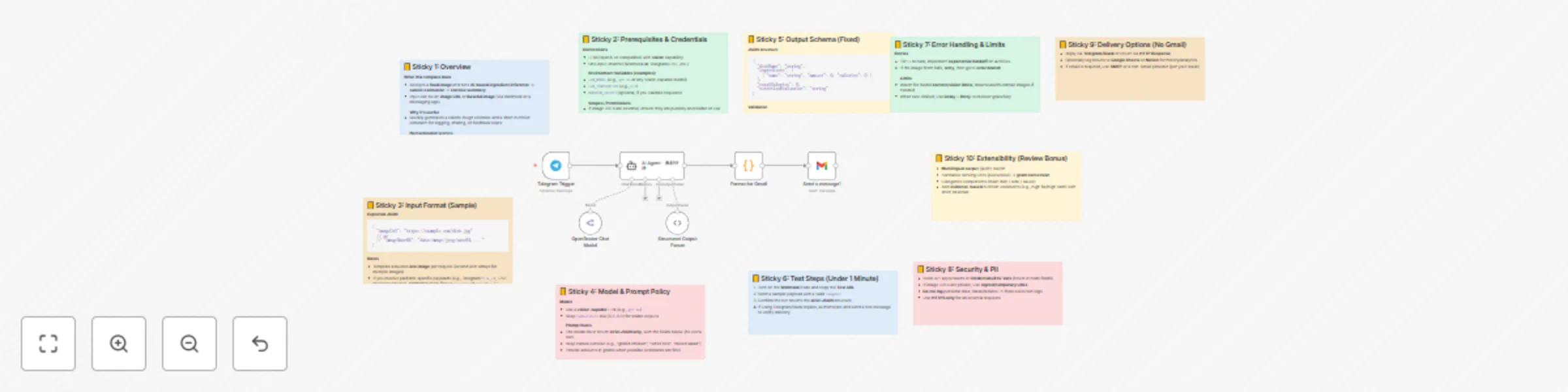
Workflow preview: Food image analysis for calorie estimation with Vision AI and Telegram
Free advanced

Food image analysis for calorie estimation with Vision AI and Telegram

## Who’s it for Teams building health/fitness apps, coaches running check-ins in chat, and anyone who needs quick, structured nutrition insights from food photos—without manual logging. ## What it does / How it works This workflow accepts a food image (URL or Base64), uses a vision-capable LLM to infer likely ingredients and rough gram amounts, estimates per-ingredient calories, and returns a strict JSON summary with total calories and a short nutrition note. It normalizes different payloads (e.g., Telegram/LINE/Webhook) into a common format, handles transient errors with retries, and avoids hardcoded secrets by using credentials/env vars. ## Requirements * Vision-capable LLM credentials (e.g., `gpt-4o` or equivalent) * One input channel (Webhook, Telegram, or LINE) * Environment variables for model name/temperature and optional request validation ## How to set up 1. Connect your input channel and enable the Webhook (copy the test URL). 2. Add LLM credentials and set `LLM_MODEL` and `LLM_TEMPERATURE` (e.g., `0.3`). 3. Turn on the workflow, send a sample payload with `imageUrl`, and confirm the strict JSON output. 4. (Optional) Configure a reply node (Telegram/Slack or HTTP Response) and a logger (Google Sheets/Notion). ## How to customize the workflow * **Outputs**: Add macros (protein/fat/carb) or micronutrient fields. * **Units**: Convert portion descriptions (piece/slice) to grams with your own mapping. * **Languages**: Toggle multilingual output (ja/en). * **Policies**: Tighten validation (reject low-confidence parses) or add manual review steps. * **Security**: Use signed/temporary URLs for private images; mask PII in logs. ## Data model (strict JSON) ```json { "dishName": "string", "ingredients": [{ "name": "string", "amount": 0, "calories": 0 }], "totalCalories": 0, "nutritionEvaluation": "string" } ``` ## Notes Rename all nodes clearly, include sticky notes explaining the setup, and never commit real IDs, tokens, or API keys.

T
Toshiya Minami
Content Creation
14 Oct 2025
455
0
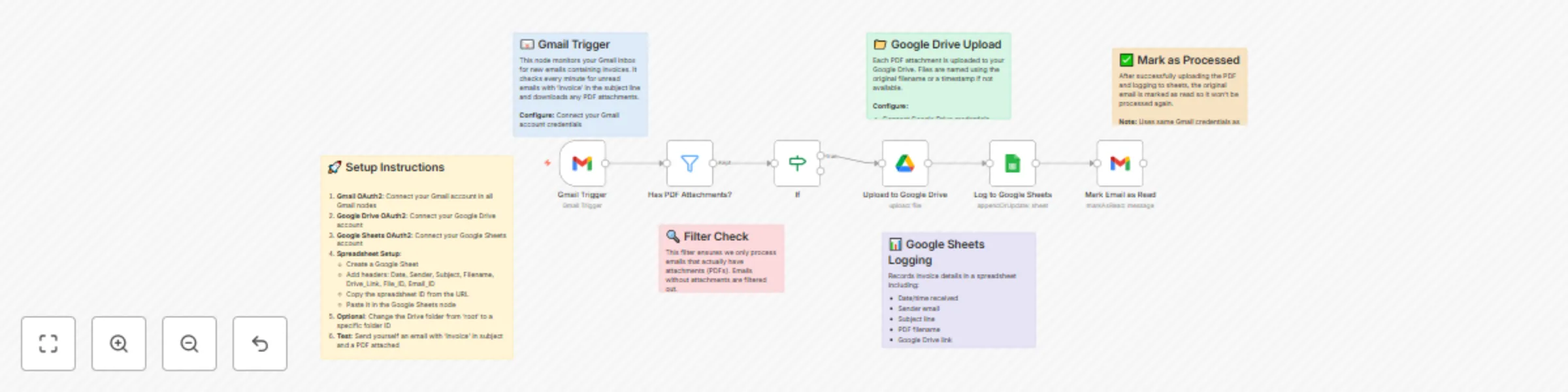
Workflow preview: Automatic Gmail invoice PDF upload to Google Drive with spreadsheet logging
Free intermediate

Automatic Gmail invoice PDF upload to Google Drive with spreadsheet logging

## Sort invoice PDFs from Gmail to Google Drive and Google Sheets ## Who’s it for Freelancers, finance teams, and small businesses that receive invoice PDFs by email and want them automatically saved to Google Drive and logged in Google Sheets—without manual downloading or copy-pasting. ## How it works / What it does This workflow watches your Gmail inbox for unread messages that match an invoice pattern (e.g., `subject:invoice filename:pdf`). For each email, it checks for attachments, uploads each PDF to a chosen Google Drive folder, and appends a new row to a Google Sheet with useful metadata: received time, sender, subject, filename, Drive link, and IDs. Finally, it marks the original email as read to avoid duplicates. ## How to set up 1. Open the **Config (Set)** node and fill in: * `drive_folder_id` (or leave blank for root) * `spreadsheet_id` (from the Sheet URL) * `sheet_name` (e.g., `Invoices`) 2. Connect credentials for **Gmail**, **Google Drive**, and **Google Sheets** in each node. 3. Adjust the Gmail search query if needed (language/vendor terms). 4. Run once manually to verify data mapping, then activate. ## Requirements * n8n with valid credentials for Gmail, Google Drive, and Google Sheets. * A Google Sheet with appropriate headers (or let the workflow write new columns). ## How to customize the workflow * Replace Gmail with **IMAP** or **Microsoft Outlook** if you don’t use Gmail; remove the “mark as read” step accordingly. * Add parsing (e.g., extract invoice totals or vendor names via PDF/AI nodes) before the Sheets step. * Route based on vendor: create subfolders dynamically in Drive and write to different tabs. * Notify your team by adding Slack/Email nodes after logging to Sheets.

T
Toshiya Minami
Invoice Processing
14 Oct 2025
557
0

Workflow preview: Prioritize Todoist tasks with OpenRouter AI and send daily summaries to Slack
Free intermediate

Prioritize Todoist tasks with OpenRouter AI and send daily summaries to Slack

## Title **Prioritize Todoist tasks and send a daily summary to Slack** ## Who’s it for Busy professionals, team leads, and freelancers who want a plug-and-play, AI-assisted morning briefing that turns messy task lists into a clear, actionable plan. ## What it does / How it works At **08:00** every morning, the workflow pulls open tasks from **Todoist**. An **AI agent** scores and ranks them by urgency, importance, dependencies, and effort, then produces a concise plan. You receive the summary in **Slack** (Markdown). Overdue or critical items are highlighted with **warnings**. ## How to set up 1. Connect OAuth for **Todoist** and **Slack**. 2. Select your posting channel in **Send to Slack**. 3. Adjust the time in **Morning Schedule Trigger** (default **08:00**). 4. Run once to verify the parser output and Slack preview, then set the workflow **Active**. ## Requirements * n8n (cloud or self-hosted) * Todoist account / Slack workspace * LLM provider connected in the AI node (**do not** hardcode keys in HTTP nodes) ## How to customize the workflow * Edit the prompt in **AI Task Analyzer** to tweak prioritization rules. * Adjust **Format AI Summary** to match your tone and structure. * Add filters in the Todoist node (e.g., due today). * (Optional) Log results to Google Sheets or a database for analytics. ## Disclaimer (community node) This template uses a community **LangChain** node for AI features and is intended for **self-hosted** n8n. Add a workflow image at the top of your submission page for a clearer preview.

T
Toshiya Minami
Personal Productivity
13 Oct 2025
116
0