M

Matt Chong | n8n Creator

10
Workflows

Workflows by Matt Chong | n8n Creator

Workflow preview: Declutter Gmail: archive inactive emails with GPT-4 classification
Free intermediate

Declutter Gmail: archive inactive emails with GPT-4 classification

## Who is this for? This workflow is for professionals, entrepreneurs, or anyone overwhelmed by a cluttered Gmail inbox. If you want to automatically archive low-priority emails using AI, this is the perfect hands-free solution. ## What does it solve? Your inbox fills up with old, read emails that no longer need your attention but manually archiving them takes time. This workflow uses AI to scan and intelligently decide whether each email should be archived, needs a reply, or is spam. It helps you: - Declutter your Gmail inbox automatically - Identify important vs. unimportant emails - Save time with smart email triage ## How it works 1. A scheduled trigger runs the workflow (you set how often). 2. It fetches all **read emails older than 45 days** from Gmail. 3. Each email is passed to an AI model(GPT-4) that classifies it as: - **Actionable** - **Archive** 4. If the AI recommends **archiving**, the workflow archives the email from your inbox. 5. All other emails are left untouched so you can review them as needed. ## How to set up? 1. Connect your **Gmail (OAuth2)** and **OpenAI API** credentials. 2. Open the "Schedule Trigger" node and choose how often the workflow should run (e.g., daily, weekly). 3. Optionally adjust the Gmail filter in the “List Old Emails” node to change which emails are targeted. 4. Start the workflow and let AI clean up your inbox automatically. ## How to customize this workflow to your needs - **Change the Gmail filter**: Edit the query in the Gmail node to include other conditions (e.g., `older_than:30d`, specific labels, unread only). - **Update the AI prompt**: Modify the prompt in the Function node to detect more nuanced categories like “Meeting Invite” or “Newsletter.” - **Adjust schedule frequency**: Change how often the cleanup runs (e.g., hourly, daily).

M
Matt Chong | n8n Creator
AI Summarization
24 Aug 2025
389
0
Workflow preview: Extract invoice data from Gmail with GPT-4o and send Slack notifications
Free intermediate

Extract invoice data from Gmail with GPT-4o and send Slack notifications

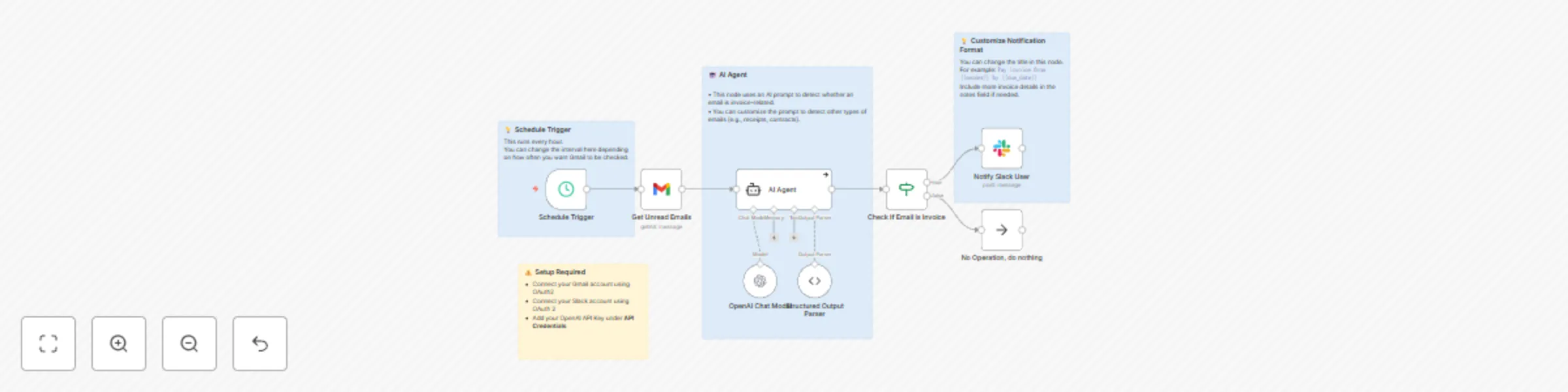
## Who is this for? This workflow is ideal for freelancers, accountants, and finance teams who receive invoices in Gmail and want to automate their tracking process with AI. If your inbox fills up with invoice-related messages and you want to automate how they’re handled, this AI-powered solution is for you. ## What does it solve? - Automatically detects and processes invoices from your Gmail inbox. - Uses OpenAI GPT-4o to extract payment amount, due date, subject line, and sender details. - Sends real-time Slack notifications so you never miss a payment. - Eliminates manual sorting of invoice-related emails. - Great for improving productivity and ensuring timely payment tracking. ## How it works - Every hour, the workflow checks for unread emails in your Gmail inbox. - It sends the email content to OpenAI to determine if it's invoice-related email. - If it is: - It extracts key fields like due date, amount due, subject, and sender. - Then sends a Slack message with these details. - If it's not invoice-related, it simply ignores the email. ## How to setup? 1. **Connect these accounts:** - Gmail using OAuth2 - Slack using OAuth2 - OpenAI (API Key under credentials) 2. **Customize the Slack message (optional):** - In the Slack node, you can modify the text to show more fields or personalize the formatting. 3. **Adjust the schedule:** - By default, the workflow runs hourly. You can change the frequency in the **Schedule Trigger** node. 4. **Modify the AI logic (optional):** - Update the AI Agent prompt to detect additional types like receipts or payment confirmations. ### How to customize this workflow to your needs - **Notify a Slack channel instead of a user:** Just switch the recipient in the Slack node. - **Add labels in Gmail:** Add nodes to label or archive invoice emails once detected. - **Expand detection:** Modify the AI prompt to detect other financial or transactional emails.

M
Matt Chong | n8n Creator
Content Creation
22 Aug 2025
214
0
Workflow preview: Auto-categorize Gmail emails with AI and send prioritized Slack alerts
Free intermediate

Auto-categorize Gmail emails with AI and send prioritized Slack alerts

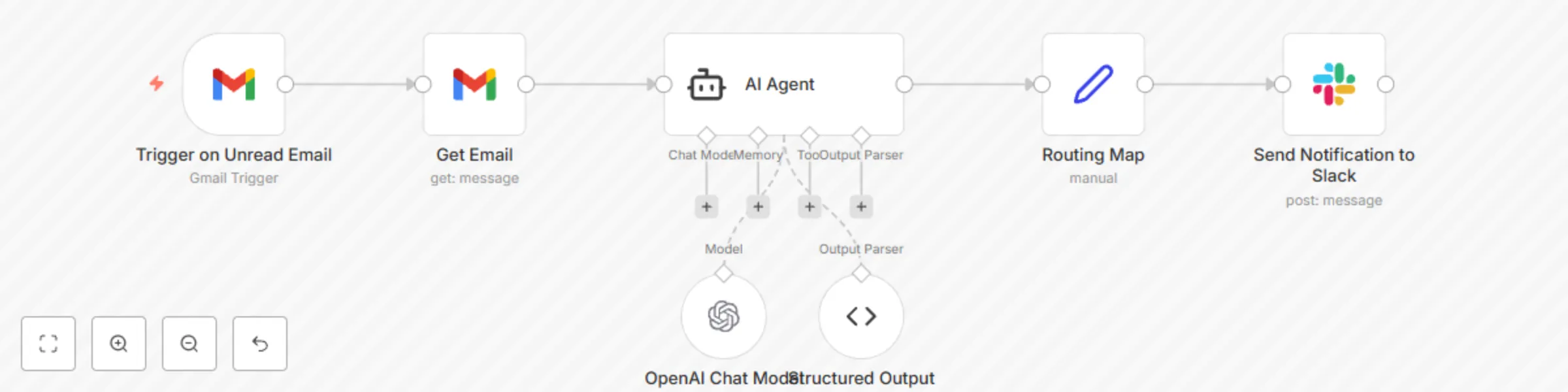
### Who is this for? - Teams using Gmail and Slack who want to streamline email handling. - Customer support, sales, and operations teams that want emails sorted by topic and priority automatically. - Anyone tired of manually triaging customer emails. ### What does it solve? - Stops important messages from slipping through the cracks. - Automatically identifies the nature and urgency of incoming emails. - Routes emails to the right Slack channel with a clear, AI-generated summary. ### How it works - The workflow watches for unread emails in your Gmail inbox. - It fetches the full email content and passes it to OpenAI for classification. - The AI returns structured JSON with the email’s category, priority, summary, and sender. - Based on the AI result, it assigns a label and Slack channel. - A message is sent to the right Slack channel with the details. ### How to setup? 1. **Connect credentials:** - Gmail (OAuth2) - Slack (OAuth2) - OpenAI (API Key) 2. **Adjust email polling:** - Open the Gmail Trigger node and set how frequently it should check for new emails. 3. **Verify routing settings:** - In the “Routing Map” node, update Slack channel IDs for each category if needed. 4. **Customize AI behavior (optional):** - Tweak the AI Agent prompt to better match your internal categorization rules. ### How to customize this workflow to your needs - **Add more categories:** Update the AI prompt and the schema in the “Structured Output Parser.” - **Change Slack formatting:** Modify the message text in the Slack node to include links, emojis, or mentions. - **Use different routing logic:** Expand the Routing Map to assign based on keywords, domains, or even sentiment. - **Add escalation workflows:** Trigger follow-up actions for high-priority or complaint emails.

M
Matt Chong | n8n Creator
AI Summarization
20 Aug 2025
412
0
Workflow preview: Smart Gmail auto-replies while out of office with AI
Free advanced

Smart Gmail auto-replies while out of office with AI

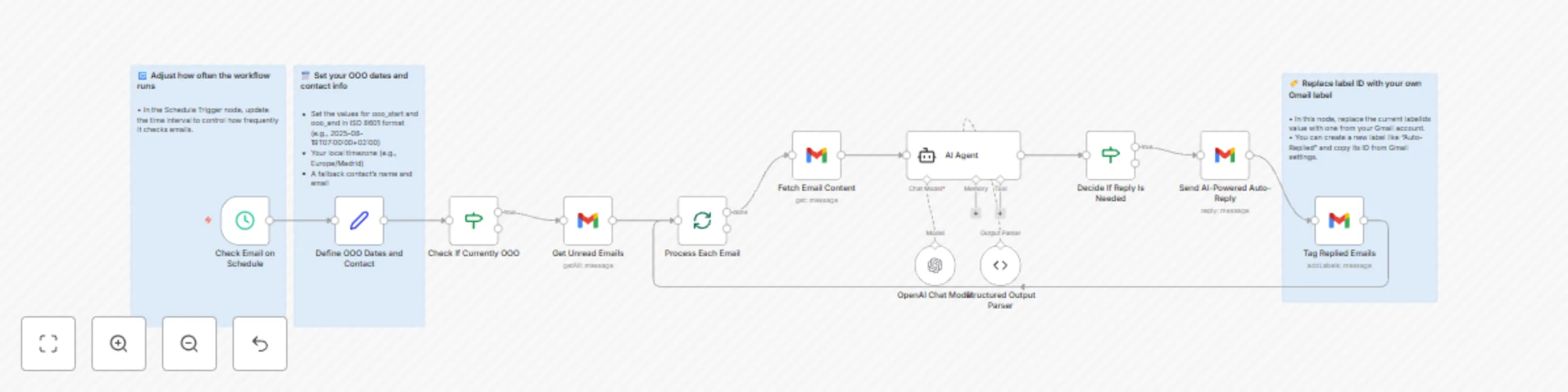
### Who is this for? If you're going on vacation or away from work and want your Gmail to respond to emails intelligently while you're out, this workflow is for you. It's perfect for freelancers, professionals, and teams who want a smarter, more personal out-of-office reply powered by AI. ### What does it solve? No more generic autoresponders or missing urgent emails. This AI-powered workflow: - Writes short, polite, and personalized replies while you're away. - Skips replying to newsletters, bots, or spam. - Helps senders move forward by offering an alternate contact. - Works around your specific time zone and schedule. ### How it works 1. The workflow runs on a schedule (e.g., every 15 minutes). 2. It checks if you are currently out of office (based on your defined start and end dates). 3. If you are, it looks for unread Gmail messages. 4. For each email: - It uses AI to decide if a reply is needed. - If yes, it generates a short, friendly out-of-office reply using your settings. - It sends the reply and labels the email to avoid duplicate replies. ### How to setup? 1. In the **Set node**: - Define your out-of-office start and end times in ISO 8601 format (e.g., `2025-08-19T07:00:00+02:00`). - Set your timezone (e.g., `Europe/Madrid`). - Add your backup contact's name and email. 2. In the **Gmail nodes**: - Connect your Gmail account using OAuth2 credentials. - Replace the label ID in the final Gmail node with your own label (e.g., "Auto-Replied"). 3. In the **Schedule Trigger node**: - Set how often the workflow should check for new emails (e.g., every 15 minutes). ### How to customize this workflow to your needs - Adjust the prompt in the AI Agent node to change tone or add more rules. - Switch to a different timezone or update the return dates as needed. This workflow ensures you stay professional, even while you're offline and saves you from coming back to an email mess.

M
Matt Chong | n8n Creator
Multimodal AI
20 Aug 2025
375
0
Workflow preview: Send AI-summarized unread email alerts to Slack using GPT-4o and Gmail
Free intermediate

Send AI-summarized unread email alerts to Slack using GPT-4o and Gmail

### Who is this for? If you’re overwhelmed with incoming emails but only want to be notified about the essentials, this workflow is for you. Perfect for busy professionals who want a short AI summary of new emails delivered directly to Slack. ### What does it solve? Reading every email wastes time. This workflow filters out the noise by: - Automatically summarizing each unread Gmail email using AI - Sending you just the sender and a short summary to Slack - Helping you stay focused without missing key information ### How it works - Every minute, the workflow checks Gmail for unread emails - When it finds one, it: - Extracts the email content - Sends it to OpenAI’s GPT model for a 250-character summary - Delivers the message directly to Slack ### How to setup? 1. **Connect your accounts:** - Gmail (OAuth2) - OpenAI (API key or connected account) - Slack (OAuth2) 2. **Edit the Slack node:** - Choose the Slack user/channel to send alerts to 3. **Optional:** Adjust the AI prompt in the “AI Agent” node to modify the summary style 4. **Optional:** Change polling frequency in the Gmail Trigger node ### How to customize this workflow to your needs - Edit the AI prompt to: - Highlight urgency - Include specific keywords - Extend or reduce summary length - Modify the Slack message format (add emojis, tags, or links)

M
Matt Chong | n8n Creator
AI Summarization
20 Aug 2025
312
0
Workflow preview: Automatically rename Gmail attachments with GPT-4o and save to Google Drive
Free intermediate

Automatically rename Gmail attachments with GPT-4o and save to Google Drive

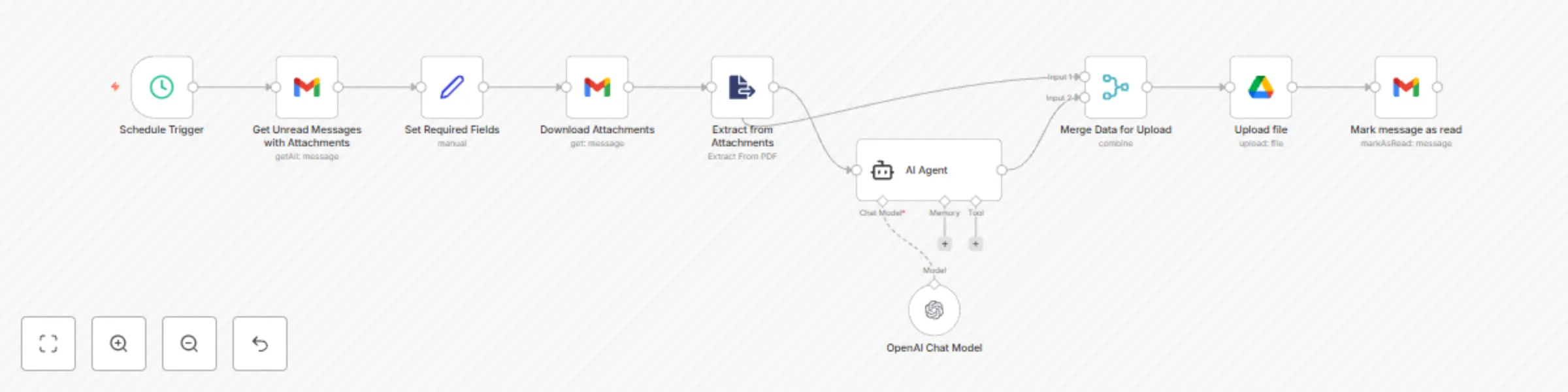
## Automatically Rename Gmail Attachments with AI and Save to Google Drive ### Who is this for? This workflow is perfect for anyone who regularly receives important email attachments like reports, invoices, or PDFs and wants them: - Renamed using clean AI generated filenames - Automatically saved to a specific Google Drive folder - Neatly organized without manual work It is ideal for freelancers, business owners, accountants, and productivity enthusiasts. ### What does it solve? Manually naming and organizing email attachments takes time and often leads to messy files. This workflow solves that by: - Automatically downloading unread Gmail attachments - Using AI to understand the content and generate clean, consistent filenames - Saving the renamed files to your chosen Google Drive folder - Marking emails as read after processing No more confusing filenames like "Attachment 1.pdf". ### How it works 1. The workflow runs on a scheduled interval (every hour by default) 2. It checks Gmail for any unread emails with attachments. 3. For each email: - Downloads attachments - Extracts and reads PDF content - Uses AI to generate a new filename in the format: `YYYYMMDD-keyword-summary.pdf` 4. Saves the file to Google Drive with the new name 5. Marks the email as read to avoid duplicates ### How to set up? 1. Connect these accounts in your n8n credentials: - Gmail (OAuth2) - Google Drive (OAuth2) - OpenAI (API key) 2. Update the folder URL in the Google Drive node to your target folder 3. Optional: adjust the trigger interval if you want it to run more or less often ### How to customize this workflow to your needs - Change the AI prompt to create different naming rules, such as including sender or topic - Dynamically set Drive folders based on email sender or subject

M
Matt Chong | n8n Creator
AI Summarization
19 Aug 2025
1098
0
Workflow preview: Gmail auto-reply generator with ChatGPT
Free intermediate

Gmail auto-reply generator with ChatGPT

*This workflow contains community nodes that are only compatible with the self-hosted version of n8n.* ## Gmail Auto-Reply with AI Automatically draft smart email replies using ChatGPT. Reclaim your time typing the same responses again and again. --- ### Who is this for? If you're overwhelmed with emails and constantly repeating yourself in replies, this workflow is for you. Whether you're a freelancer, business owner, or team lead, it saves you time by handling email triage and drafting replies for you. --- ### What does it solve? This workflow reads your unread Gmail messages and uses AI to: - Decide whether the email needs a response - Automatically draft a short, polite reply when appropriate - Skip spam, newsletters, or irrelevant emails - Save the AI-generated reply as a Gmail draft (you can edit it before sending) It takes email fatigue off your plate and keeps your inbox moving. --- ### How it works 1. **Trigger on New Email**: Watches your Gmail inbox for unread messages. 2. **AI Agent Review**: Analyzes the content to decide if a reply is needed. 3. **OpenAI ChatGPT**: Drafts a short, polite reply (under 120 words). 4. **Create Gmail Draft**: Saves the response as a draft for you to review. 5. **Label It**: Applies a custom label like `Action` so you can easily find AI-handled emails. --- ### How to set up? 1. **Connect credentials**: - Gmail (OAuth2) - OpenAI (API key) 2. **Create the Gmail label**: - In your Gmail, create a label named `Action` (case-sensitive). --- ### How to customize this workflow to your needs - **Change the AI prompt**: Add company tone, extra context, or different reply rules. - **Label more intelligently**: Add conditions or labels for “Newsletter,” “Meeting,” etc. - **Adjust frequency**: Change how often the Gmail Trigger polls your inbox. - **Add manual review**: Route drafts to a team member before sending.

M
Matt Chong | n8n Creator
Multimodal AI
17 Aug 2025
1305
0
Workflow preview: Automatic invoice detection & reminder creation with Gmail & Google Tasks
Free intermediate

Automatic invoice detection & reminder creation with Gmail & Google Tasks

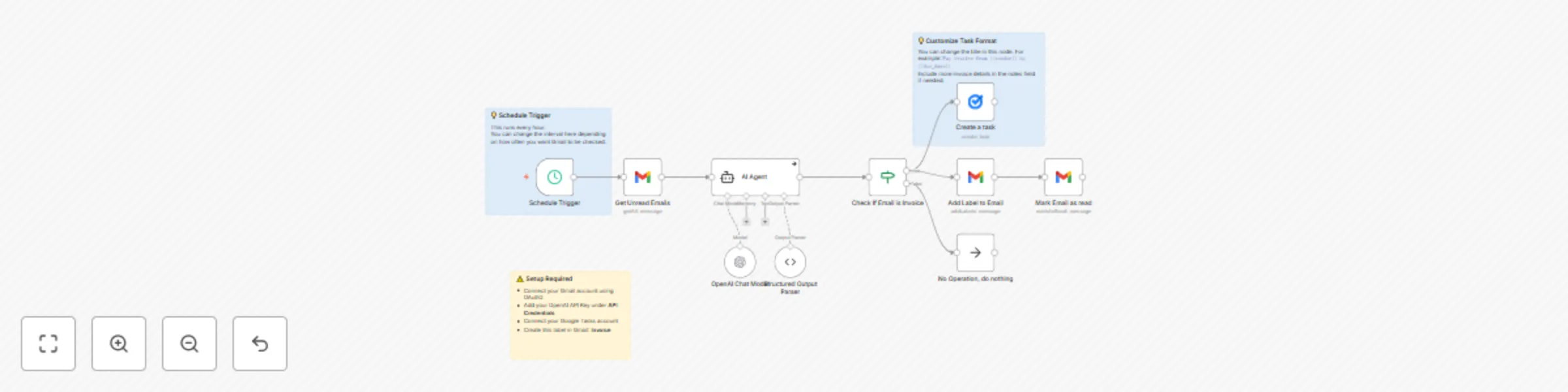
*This workflow contains community nodes that are only compatible with the self-hosted version of n8n.* ## Who is this for? This workflow is for anyone who receives invoices by email and wants to stay on top of payment deadlines without manual tracking. ## What problem is this workflow solving? Invoices often get buried in your inbox. This workflow uses AI to find them, extracts key details, and adds a task to remind you to pay before it’s overdue. No more missed payments. No more manual tracking. ## How it works? 1. This workflow is triggered on a schedule (By default, every hour). 2. It checks your Gmail inbox for unread messages. 3. Each email is passed to an AI agent (using OpenAI), which decides whether it’s an invoice. 4. If an invoice is found: - A task is created in your Google Tasks with the payment reminder and due date. - The email is labeled (for tracking) and marked as read. 5. If not an invoice: - The email is skipped (no action taken). ## How to set up? 1. **Connect these services** in your n8n credentials: - Gmail (OAuth2) - OpenAI - Google Tasks 2. **Create Gmail label** Go to Gmail and create a label named `Invoice`. This label will be applied to processed invoice emails. 3. **Choose your Google Task list** In the task creation node, select the correct task list for your reminders. 4. **Set the schedule** In the Schedule Trigger node, choose how often it should check your inbox. ## How to customize this workflow to your needs? - **Change the Gmail label** Update the label applied to emails after they are processed. - **Edit the AI prompt** Adjust the system prompt in the OpenAI node if your invoices follow a unique format. - **Update the task format** Modify the task title and notes to suit how you like your reminders to look. - **Adjust the schedule** Run it more or less frequently based on how many invoices you receive.

M
Matt Chong | n8n Creator
Invoice Processing
11 Jul 2025
1480
0
Workflow preview: Automatic Gmail categorization and labeling with AI
Free advanced

Automatic Gmail categorization and labeling with AI

*This workflow contains community nodes that are only compatible with the self-hosted version of n8n.* ## Who is this for? If your inbox is full of unread emails, this workflow is for you. Instead of reading through them one by one, let AI do the sorting. It reads your emails and flags only what needs action. ## What does it solve? This workflow reads your unread Gmail emails and uses AI to decide what’s important — and what’s not. It labels emails that need your attention, identifies receipts, and trashes everything else. No more manual reading. Just an inbox that uses AI to take care of itself. ## How it works 1. Every hour, the workflow runs automatically. 2. It searches for unread emails in your Gmail inbox. 3. For each email: - It extracts the content and sends it to OpenAI. 4. The AI returns one of four labels: `Action`, `Receipt`, `Informational` or `Spam`. 5. Based on the label: - Emails are marked with the appropriate label. - Or moved to trash it is `spam`. 6. It marks the email as read once processed. ## How to set up? 1. Connect these services in your n8n credentials: - Gmail (OAuth2) - OpenAI (API key) 2. Create the Gmail labels: - In your Gmail account, create these labels exactly as written: `Action`, `Receipt`, and `Informational` - The workflow will apply these labels based on AI classification. ## How to customize this workflow to your needs - Change the AI prompt to detect more types of emails like `Meeting` or `Newsletter`. - Add more branches to the Switch node to apply custom logic. - Change the schedule to fit your workflow. By default, it runs every hour, but you can update this in the Schedule Trigger node.

M
Matt Chong | n8n Creator
Personal Productivity
9 Jul 2025
4897
0
Workflow preview: AI auto-save Gmail receipts to Google Sheets + Google Drive
Free intermediate

AI auto-save Gmail receipts to Google Sheets + Google Drive

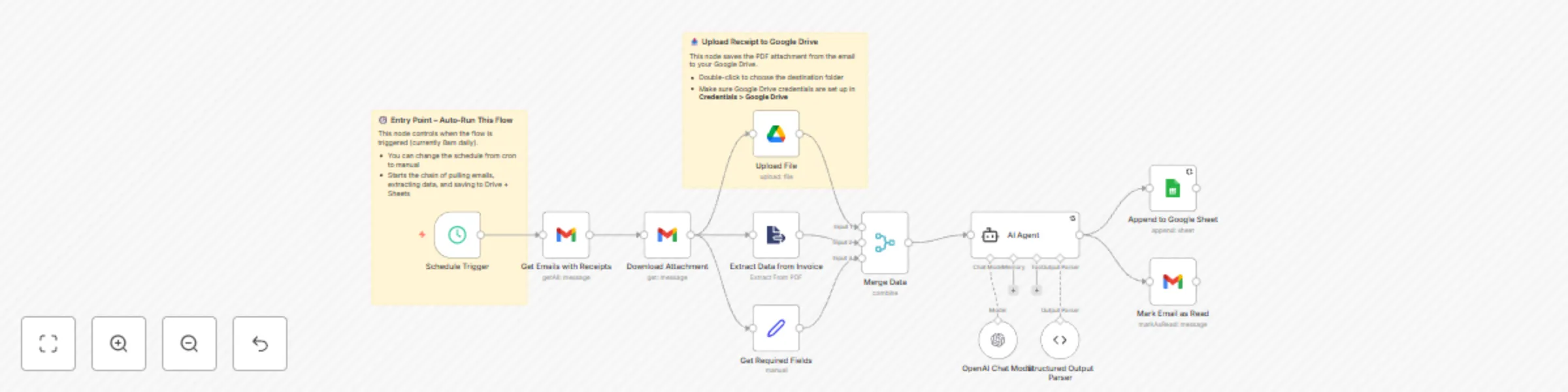
## Who is this for? This workflow is ideal for: - For freelancers, business owners, and finance teams who receive receipts via Gmail - Automatically logs expenses for tax, - bookkeeping and year-end audits ## What problem is this workflow solving? When tax season hits, missing receipts create panic. This workflow keeps everything in one place. It uses AI to extract details from Gmail attachments, logs them in a Google Sheet, and stores the PDFs in Google Drive. No digging. No copying. Just everything where it should be. ## How it works? 1. Apply the label `receipt` to any incoming Gmail email. Do not mark it as read. 2. On a schedule (e.g. daily at 8:00 AM), the workflow triggers. 3. It searches for unread emails with the label `receipt`. 4. For each matching email, it downloads the attached receipt file. 5. It extracts text content from the receipt file. 6. It uploads the original receipt file to a specified folder in Google Drive. 7. It merges the extracted text with email metadata. 8. It sends this combined data to OpenAI. OpenAI extracts structured fields: - `date` - `merchant` - `category` - `description` - `subtotal` - `tax` - `total` 9. The extracted data is appended as a new row in the specific Google Sheet. 10. Finally, the email is marked as read to prevent it from being processed again. ## How to set up? 1. **Connect these services** in your n8n credentials: - Gmail (OAuth2) - Google Drive - Google Sheets - OpenAI 2. **Configure the Google Drive upload**: - In the “Upload File” node, select the target folder where you want receipt PDFs stored. 3. **Set your execution schedule**: - Open the “Schedule Trigger” node and choose when it should run (default is once daily at 8:00 AM). 4. **Choose your Google Sheet and tab**: - In the “Append to Google Sheet” node, select your document and tab - Ensure the sheet contains these columns: `Date`, `Merchant`, `Category`, `Description`, `Subtotal`, `Tax`, `Total`. ## How to customize this workflow to your needs? - **Change the Gmail label or search filter** to match your needs. - **Modify the OpenAI schema** to extract additional fields like `currency`, `project`, or `notes`.

M
Matt Chong | n8n Creator
Invoice Processing
29 Jun 2025
1331
0