Mariela Slavenova
Workflows by Mariela Slavenova
Generate personalized cold email openers with website scraping using Claude & GPT-4
**This template enriches a lead list by analyzing each contact’s company website and auto-generating a single personalized cold-email opener. Drop a spreadsheet into a Google Drive folder → the workflow parses rows, fetches website content via Jina AI, uses OpenAI to check if the site contains valid business info, then calls Anthropic to craft a one-liner. It writes both the website summary and personalized opener back to Google Sheets, and finally sends you a Telegram confirmation with the file link.** ## What it does Turns a CSV/Google Sheet of leads into tailored cold-email openers. For each lead, the workflow fetches the company website, writes a 300-word business summary, then crafts a one-sentence, emotionally engaging opening line. Results are written back to the same Sheet, and you get a Telegram ping when processing finishes. ## How it works (high-level) 1. Trigger: Watches a Google Drive folder. When a new Sheet is added, the flow starts. 2. Parse: Reads rows (expects columns like First Name, Last Name, Email, domain). 3. Enrich: An AI Agent calls Jina “r.jina.ai/{url}” to fetch page markdown, then produces a structured website summary. 4. Validate: An OpenAI step checks if the fetched content is a real business page (hasWebsite: true/false). 5. Personalize: • If true → Anthropic crafts a bespoke opener using the summary. • If false → Fallback prompt creates a strong opener using domain + universal lead-gen pains. 6. Update: Writes websiteSummary and personalization back to the Sheet (matching on domain). 7. Notify: Sends a Telegram message with the file name + link when done. ## What you need • Google Drive (folder to watch) • Google Sheets (the uploaded Sheet to enrich) • Jina HTTP header auth (for the markdown fetch tool) • OpenAI (JSON check for website validity) • Anthropic (Claude Sonnet 4 for copy quality) • Telegram Bot (to receive completion alerts) ## Inputs & expected schema • A Google Sheet with at least: First Name, Last Name, Email, domain • Optional columns are preserved; rows are processed in batches. ## Outputs • New/updated columns per row: • websiteSummary — concise, structured business overview • personalization — a single, high-impact opening sentence • Telegram confirmation with file name and link. ## Customization tips • Tweak the system prompts for tone or length. • Add scoring (e.g., ICP fit) before personalization. • Expand validation (e.g., handle multi-page sites or language detection). • Swap/parallel LLMs to balance quality, cost, and speed. ## Nodes & key logic • Google Drive Trigger → Google Drive (Download) → Spreadsheet File (parse) → Split in Batches • LangChain Agent with: HTTP Tool (Jina) + Think • OpenAI (JSON validator) → If (website present?) • Anthropic Chat (with + without website branches) • Edit Fields (Set) → Google Sheets (Update) → Telegram ## Great for Sales teams, SDRs, and founders who want fast, high-quality personalization at scale without manual research. ## **Need help customizing?** Contact me for consulting and support: [LinkedIn](https://www.linkedin.com/in/mariela-ceo-founder/)
From sitemap crawling to vector storage: Creating an efficient workflow for RAG
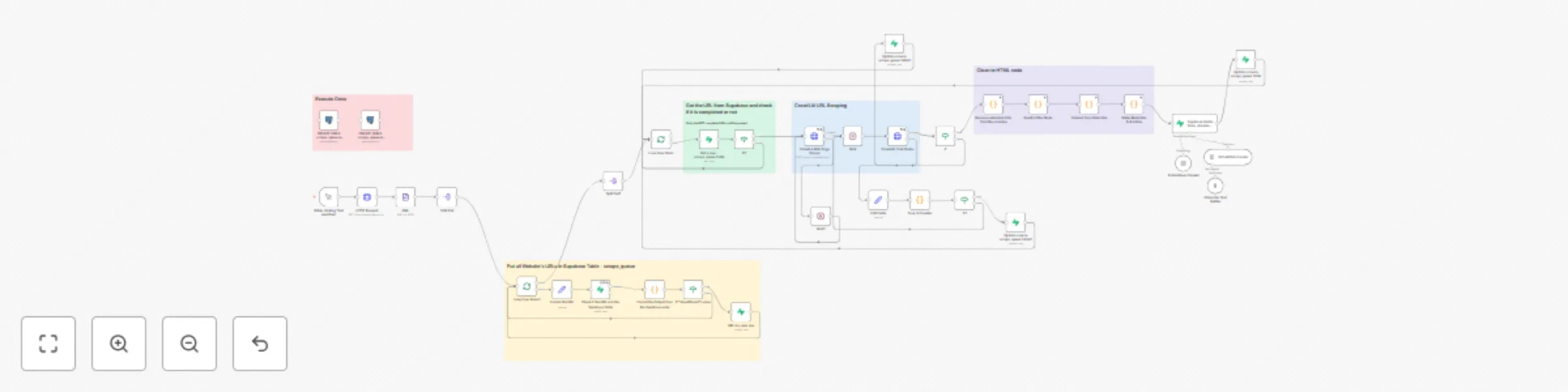
**This template crawls a website from its sitemap, deduplicates URLs in Supabase, scrapes pages with Crawl4AI, cleans and validates the text, then stores content + metadata in a Supabase vector store using OpenAI embeddings. It’s a reliable, repeatable pipeline for building searchable knowledge bases, SEO research corpora, and RAG datasets.** ⸻ ## **Good to know** • Built-in de-duplication via a scrape_queue table (status: pending/completed/error). • Resilient flow: waits, retries, and marks failed tasks. • Costs depend on Crawl4AI usage and OpenAI embeddings. • Replace any placeholders (API keys, tokens, URLs) before running. • Respect website robots/ToS and applicable data laws when scraping. ## **How it works** 1. Sitemap fetch & parse — Load sitemap.xml, extract all URLs. 2. De-dupe — Normalize URLs, check Supabase scrape_queue; insert only new ones. 3. Scrape — Send URLs to Crawl4AI; poll task status until completed. 4. Clean & score — Remove boilerplate/markup, detect content type, compute quality metrics, extract metadata (title, domain, language, length). 5. Chunk & embed — Split text, create OpenAI embeddings. 6. Store — Upsert into Supabase vector store (documents) with metadata; update job status. ## **Requirements** • Supabase (Postgres + Vector extension enabled) • Crawl4AI API key (or header auth) • OpenAI API key (for embeddings) • n8n credentials set for HTTP, Postgres/Supabase ## **How to use** 1. Configure credentials (Supabase/Postgres, Crawl4AI, OpenAI). 2. (Optional) Run the provided SQL to create scrape_queue and documents. 3. Set your sitemap URL in the HTTP Request node. 4. Execute the workflow (manual trigger) and monitor Supabase statuses. 5. Query your documents table or vector store from your app/RAG stack. ## **Potential Use Cases** This automation is ideal for: - Market research teams collecting competitive data - Content creators monitoring web trends - SEO specialists tracking website content updates - Analysts gathering structured data for insights - Anyone needing reliable, structured web content for analysis ## **Need help customizing?** Contact me for consulting and support: [LinkedIn](https://www.linkedin.com/in/mariela-ceo-founder/)
LinkedIn lead personalization with Google Drive, Apify & AI
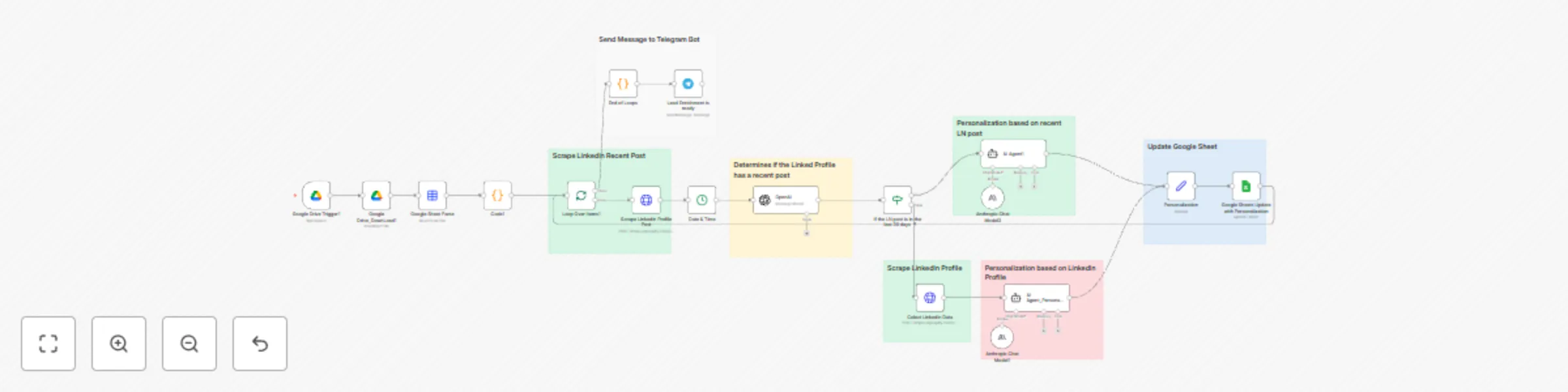
**This template enriches a lead list by analyzing each contact’s LinkedIn activity and auto-generating a single personalized opening line for cold outreach. Drop a spreadsheet into a Google Drive folder → the workflow parses rows, fetches LinkedIn content (recent post or profile), uses an LLM to craft a one-liner, writes the result back to Google Sheets, and sends a Telegram summary.** ⸻ ## **Good to know** • Works with two paths: • Recent post found → personalize from the latest LinkedIn post. • No recent post → personalize from profile fields (headline, about, current role). • Requires valid Apify credentials for LinkedIn scrapers and LLM keys (Anthropic and/or OpenAI). • Costs depend on the LLM(s) you choose and scraping usage. • Replace all placeholders like [put your token here] and [put your Telegram Bot Chat ID here] before running. • Respect the target platform’s terms of service when scraping LinkedIn data. ## **What this workflow does** 1. **Trigger (Google Drive)** – Watches a specific folder for newly uploaded lead spreadsheets. 2. **Download & Parse** – Downloads the file and converts it to structured items (first name, last name, company, LinkedIn URL, email, website). 3. **Batch Loop** – Processes each row individually. 4. **Fetch Activity** – Calls Apify LinkedIn Profile Posts (latest post) and records current date for recency checks. 5. **Recency Check (LLM)** – An OpenAI node returns true/false for “post is from the current year.” 6. **Branching** • If TRUE → AI Agent (Anthropic) crafts a single, natural reference line based on the recent post. • If FALSE → Apify LinkedIn Profile → AI Agent (Anthropic) crafts a one-liner from profile data (headline/about/current role). 7. **Write Back (Google Sheets)** – Updates the original sheet by matching on email and writing the personalization field. 8. **Notify (Telegram)** – Sends a brief completion summary with sheet name and link. ## **Requirements** • Google Drive & Google Sheets connections • Apify account + token for LinkedIn scrapers • LLM keys: Anthropic (Claude) and/or OpenAI (you can use one or both) • Telegram bot for notifications (bot token + chat ID) ## **How to use** 1. Connect credentials for Google, Apify, OpenAI/Anthropic, and Telegram. 2. Set your folder in the Google Drive Trigger to the one where you’ll drop lead sheets. 3. Map sheet columns to the expected headers (e.g., First Name, Last Name, Company Name for Emails, Person Linkedin Url, Email, Website). 4. Replace placeholders ([put your token here], [put your Telegram Bot Chat ID here]) in the respective nodes. 5. Upload a test spreadsheet to the watched folder and run once to validate the flow. 6. Review results in your sheet (new personalization column) and check Telegram for the completion message. ## **Setup** 1. Connect credentials - Google Drive/Sheets, Apify, OpenAI and/or Anthropic, Telegram. 2. Configure the Drive trigger - Select the folder where you’ll upload your lead sheets. 3. Map columns - Ensure your sheet has: First Name, Last Name, Company Name for Emails, Person Linkedin Url, Email, Website. 4. Replace placeholders - In HTTP nodes: Bearer [put your token here]. In Telegram node: [put your Telegram Bot Chat ID here] 5. (Optional) Adjust the recency rule - Current logic checks for current-year posts; change the prompt if you prefer 30-day windows. ## **How to use** 1. Upload a test spreadsheet to the watched Drive folder. 2. Execute the workflow once to validate. 3. Open your Google Sheet to see the new personalization column populated. 4. Check Telegram for the completion summary. ## **Customizing this template** • Data sources: Add company news, website content, or X/Twitter as fallback signals. • LLM choices: Use only Anthropic or only OpenAI; tweak temperature for tone. • Destinations: Write to a CRM (HubSpot/Salesforce/Airtable) instead of Sheets. • Notifications: Swap Telegram for Slack/Email/Discord. ## **Who it’s for** • Sales & SDR teams needing authentic, scalable personalization for cold outreach. • Lead gen agencies enriching spreadsheets with ready-to-use openers. • Marketing & growth teams improving reply rates by referencing real prospect activity. ## **Limitations & compliance** • LinkedIn scraping may be rate-limited or blocked; follow platform ToS and local laws. • Costs vary with scraping volume and LLM usage. ## **Need help customizing?** Contact me for consulting and support: [LinkedIn](https://www.linkedin.com/in/mariela-ceo-founder/)