S

Sascha

3
Workflows

Workflows by Sascha
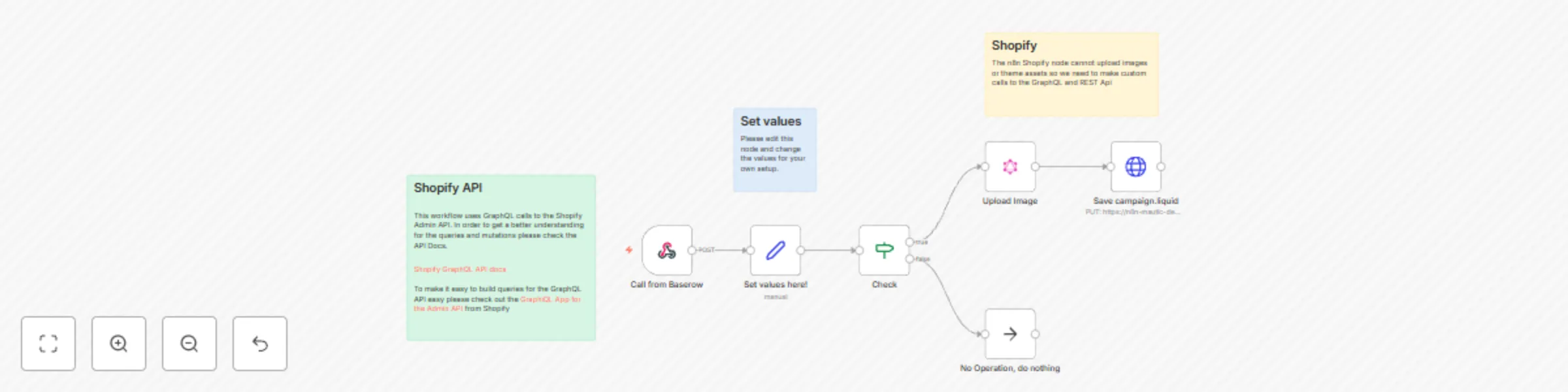
Workflow preview: Baserow campaign database to Shopify with image upload & dynamic template update
Free intermediate

Baserow campaign database to Shopify with image upload & dynamic template update

Automating your marketing campaign management process can streamline your workflow and save you valuable time. With the combination of Baserow and n8n, you can efficiently handle your campaign data and seamlessly publish content to your Shopify store. In this workflow template, I demonstrate how to leverage Baserow as a centralized platform for organizing your marketing campaign assets, including copy and images. By utilizing n8n, we automate the process of fetching images and campaign descriptions from Baserow and uploading them directly to your Shopify store. With this automated solution, you can expedite the publishing process, ensuring that your campaigns are launched swiftly across your sales channels. Additionally, this workflow serves as a foundational step towards further automation in campaign management, allowing you to dynamically generate and upload content to your Shopify store with ease. ## This template will help you: 1. Use n8n to get images for marketing campaigns from Baserow and upload them to your Shopify media library 2. Dynamically inject data from Baserow into a template file 3. Upload a template file to your Shopify theme ## This template will demonstrate the follwing concepts in n8n: - use the **Webhook node** - use the **IF node** to control the execution flow of the workflow - do time calculation using expressions and javascript - use the **GraphQL node** to upload images to your Shopify media files - create a dynamic template file for your Shopify theme - use the **HTTP Reqest node** to upload your template file to your Shopify store ## How to get started? 1. Create a custom app in Shopify get the credentials needed to connect n8n to Shopify This is needed for the Shopify Trigger 2. Create **Shopify Acces Token API** credentials n n8n for the Shopify trigger node 3. Create **Header Auth** credentials: Use **X-Shopify-Access-Token** as the name and the Acces-Token from the Shopify App you created as the value. The Header Auth is neccessary for the GraphQL nodes. 4. You will need a running Baserow instance for this. You can also sign up for a free account at [https://baserow.io/](https://baserow.io/) Please make sure to read the notes in the template. For a detailed explanation please check the corresponding video: [https://youtu.be/Ky-dYlljGiY](https://youtu.be/Ky-dYlljGiY)

S
Sascha
File Management
20 Mar 2024
1293
0
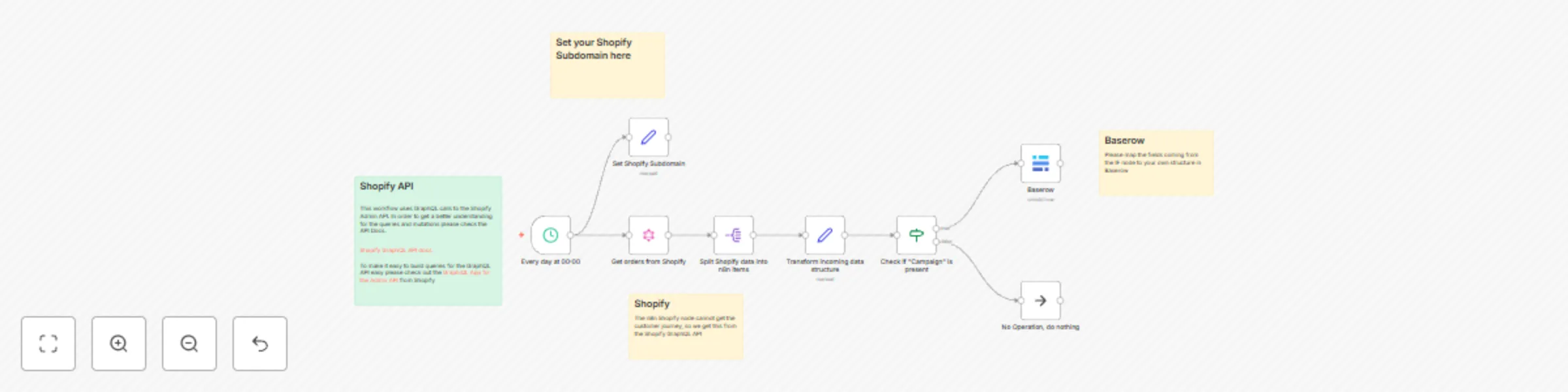
Workflow preview: Automate your UTM campaign tracking: Shopify, n8n to Baserow
Free intermediate

Automate your UTM campaign tracking: Shopify, n8n to Baserow

Campaign tracking is pivotal; it enables marketers to evaluate the efficacy of various strategies and channels. UTM parameters are particularly essential as they provide granular details about the source, medium, and campaign effectiveness. However, when this data is not automatically integrated into a centralized system, it can become a tedious and error-prone process to manually collate and analyze it. Retrieving UTM data from Shopify and storing it in Baserow enables oy to do more with this data. For example you could build a campaign database in Baserow and automatically add campaign revenue to it using this workflow template. ![20240223_11h48m44s_grim.png](fileId:744) ## This template will help you: 1. Automatically retrieve UTM parameters from Shopify orders using the Shopify Admin API 2. Process marketing data through n8n 3. Store this data into Baserow, providing you with a dynamic, responsive base for campaign tracking and decision-making ## This template will demonstrate the follwing concepts in n8n: - use the **Schedule trigger node** - use the **GraphQL node** to call the Shopify Admin API - split larger incoming datasets into n8n items with the **Split node** - transform the data structure with the **Set node** - control flow with the **If node** - store data in Baserow with the **Baserow node** ## How to get started? 1. Create a custom app in Shopify get the credentials needed to connect n8n to Shopify This is needed for the Shopify Trigger 2. Create **Shopify Acces Token API** credentials n n8n for the Shopify trigger node 3. Create **Header Auth** credentials: Use **X-Shopify-Access-Token** as the name and the Acces-Token from the Shopify App you created as the value. The Header Auth is neccessary for the GraphQL nodes. 4. You will need a running Baserow instance for this. You can also sign up for a free account at [https://baserow.io/](https://baserow.io/) Please make sure to read the notes in the template. For a detailed explanation please check the corresponding video: [https://youtu.be/VBeN-3129RM](https://youtu.be/VBeN-3129RM)

S
Sascha
Market Research
23 Feb 2024
1447
0

Workflow preview: Sync customer email subscriptions between Shopify and Mautic
Free advanced

Sync customer email subscriptions between Shopify and Mautic

Having a seamless flow of customer data between your online store and your marketing platform is essential. By keeping your systems synchronized, you can ensure that your marketing campaigns are accurately targeted and effective. The integration between Shopify, a leading e-commerce platform, and Mautic, an open-source marketing automation system, is not available out-of-the-box. However, with a n8n workflow you can bridge this gap with. ## This template will help you: 1. enhance accuracy in marketing lists by ensuring that subscription changes in Shopify are instantly updated in Mautic. 2. improve compliance with data protection laws by respecting users' subscription preferences across platforms 3. achieve integration without the need for additional plugins or software, minimizing complexity and potential points of failure. ## This template will demonstrate the follwing concepts in n8n: - working with Shopify in n8n - control flow with the IF node - use Webhooks - validate Webhooks with the Crypto node - use the GraphQL node to call the Shopify Admin API ## The template consists of two parts: 1. Sync Email Subscriptions from Shopify to Mautic 2. Sync Email Subscriptions from Mautic to Shopify ## How to get started? 1. Create a custom app in Shopify get the credentials needed to connect n8n to Shopify This is needed for the Shopify Trigger 2. Create **Shopify Acces Token API** credentials n n8n for the Shopify trigger node 3. Create **Header Auth** credentials: Use **X-Shopify-Access-Token** as the name and the Acces-Token from the Shopify App you created as the value. The Header Auth is neccessary for the GraphQL nodes. 4. Enable the Mautic API under Configuration/API Settings, After the settings are saved you will have an additional entry in your settings menu to create API credentials for n8n 5. Create Mautic credentials in n8n Please make sure to read the notes in the template. For a detailed explanation please check the corresponding video: [https://youtu.be/x63rrh_yJzI](https://youtu.be/x63rrh_yJzI)

S
Sascha
Social Media
16 Feb 2024
1518
0