L

Lucas Walter

11
Workflows

Workflows by Lucas Walter

Workflow preview: AI video generator for eCommerce product catalogs with Veo 3.1
Free advanced

AI video generator for eCommerce product catalogs with Veo 3.1

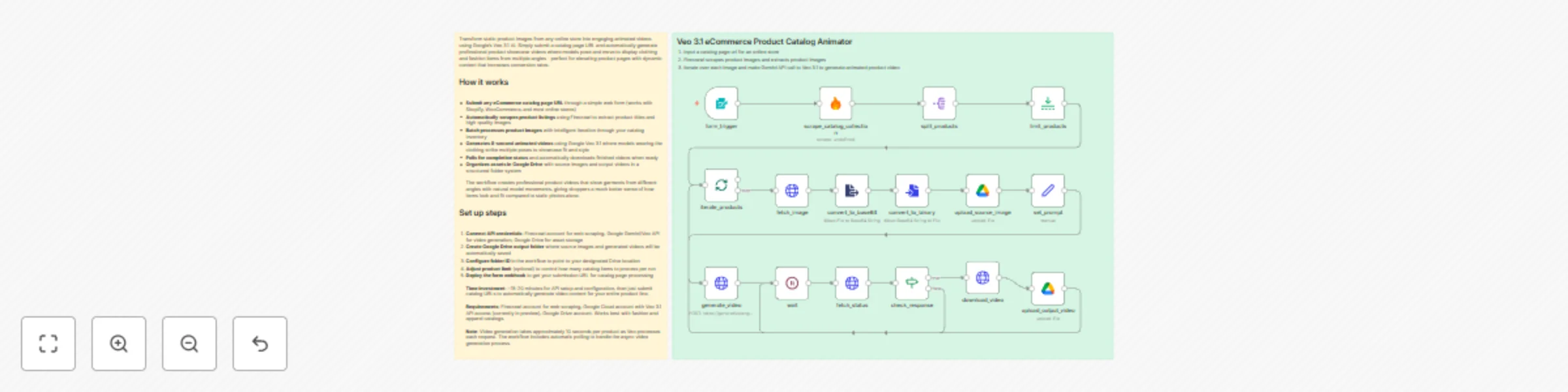
# AI Video Generator for eCommerce Product Catalogs Transform static product images from any online store into engaging animated videos using Google's Veo 3.1 AI. Simply submit a catalog page URL and automatically generate professional product showcase videos where models pose and move to display clothing and fashion items from multiple angles - perfect for elevating product pages with dynamic content that increases conversion rates. ## How it works * **Submit any eCommerce catalog page URL** through a simple web form (works with Shopify, WooCommerce, and most online stores) * **Automatically scrapes product listings** using Firecrawl to extract product titles and high-quality images * **Batch processes product images** with intelligent iteration through your catalog inventory * **Generates 8-second animated videos** using Google Veo 3.1 where models wearing the clothing strike multiple poses to showcase fit and style * **Polls for completion status** and automatically downloads finished videos when ready * **Organizes assets in Google Drive** with source images and output videos in a structured folder system The workflow creates professional product videos that show garments from different angles with natural model movements, giving shoppers a much better sense of how items look and fit compared to static photos alone. ## Set up steps 1. **Connect API credentials**: Firecrawl account for web scraping, Google Gemini/Veo API for video generation, Google Drive for asset storage 2. **Create Google Drive output folder** where source images and generated videos will be automatically saved 3. **Configure folder ID** in the workflow to point to your designated Drive location 4. **Adjust product limit** (optional) to control how many catalog items to process per run 5. **Deploy the form webhook** to get your submission URL for catalog page processing **Time investment**: ~15-20 minutes for API setup and configuration, then just submit catalog URLs to automatically generate video content for your entire product line. **Requirements**: Firecrawl account for web scraping, Google Cloud account with Veo 3.1 API access (currently in preview), Google Drive account. Works best with fashion and apparel catalogs. **Note**: Video generation takes approximately 10 seconds per product as Veo processes each request. The workflow includes automatic polling to handle the async video generation process.

L
Lucas Walter
Content Creation
23 Oct 2025
1935
0
Workflow preview: Generate UGC marketing videos for eCommerce with Sora 2 and Gemini
Free advanced

Generate UGC marketing videos for eCommerce with Sora 2 and Gemini

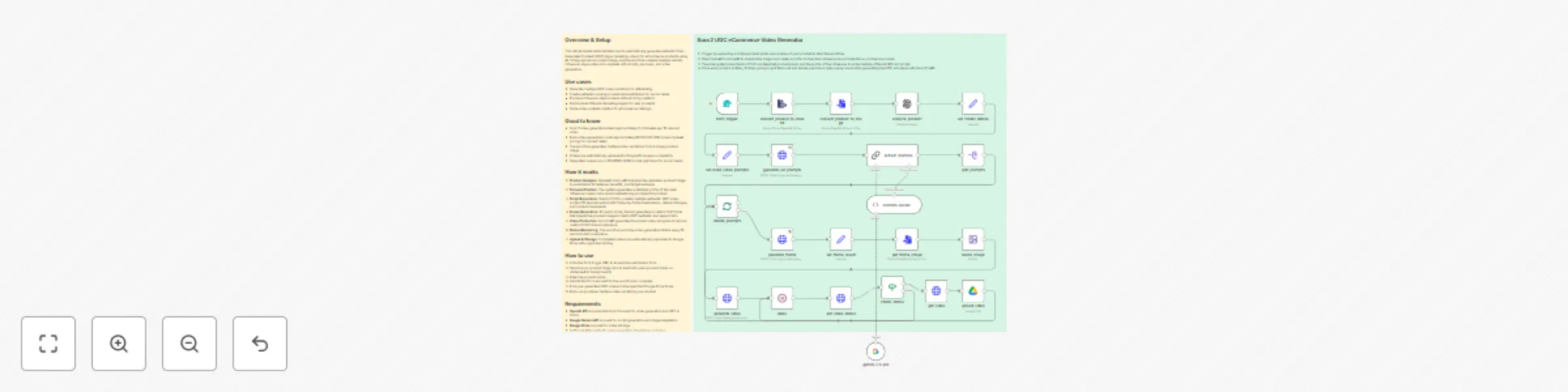
## Overview & Setup This n8n template demonstrates how to automatically generate authentic User-Generated Content (UGC) style marketing videos for eCommerce products using AI. Simply upload a product image, and the workflow creates multiple realistic influencer-style video ads complete with scripts, personas, and video generation. ## Use cases * Generate multiple UGC video variations for A/B testing * Create authentic-looking product demonstrations for social media * Produce influencer-style content without hiring creators * Quickly test different marketing angles for new products * Scale video content creation for eCommerce catalogs ## Good to know * Sora 2 video generation takes approximately 2-3 minutes per 12-second video * Each video generation costs approximately $0.50-1.00 USD (check OpenAI pricing for current rates) * The workflow generates multiple video variations from a single product image * Videos are automatically uploaded to Google Drive upon completion * Generated videos are in 720x1280 (9:16) format optimized for social media ## How it works 1. **Product Analysis**: OpenAI's vision API analyzes the uploaded product image to understand its features, benefits, and target audience 2. **Persona Creation**: The system generates a detailed profile of the ideal influencer/creator who would authentically promote this product 3. **Script Generation**: Gemini 2.5 Pro creates multiple authentic UGC video scripts (12 seconds each) with frame-by-frame breakdowns, natural dialogue, and camera movements 4. **Frame Generation**: For each script, Gemini generates a custom first frame that adapts the product image to match UGC aesthetic and aspect ratio 5. **Video Production**: Sora 2 API generates the actual video using the script and custom first frame as reference 6. **Status Monitoring**: The workflow polls the video generation status every 15 seconds until completion 7. **Upload & Storage**: Completed videos are automatically uploaded to Google Drive with organized naming ## How to use 1. Click the form trigger URL to access the submission form 2. Upload your product image (works best with clean product shots on white/neutral backgrounds) 3. Enter the product name 4. Submit the form and wait for the workflow to complete 5. Find your generated UGC videos in the specified Google Drive folder 6. Each run produces multiple video variations you can test ## Requirements * **OpenAI API** account with Sora 2 access for video generation and GPT-4 Vision * **Google Gemini API** account for script generation and image adaptation * **Google Drive** account for video storage * Sufficient API credits for video generation (budget accordingly) ## Customizing this workflow * Adjust the **video duration** in the generate_video node (currently set to 12 seconds) * Modify the **persona prompt** in analyze_product node to target different audience demographics * Change the **script style** in set_build_video_prompts node for different UGC aesthetics (excited discovery, casual recommendation, etc.) * Update the **Google Drive folder** in upload_video node to organize videos by campaign * Add **additional processing** nodes for video editing, subtitle generation, or thumbnail creation * Modify the **aspect ratio** in resize_image node for different platforms (1:1 for Instagram feed, 16:9 for YouTube, etc.)

L
Lucas Walter
Content Creation
10 Oct 2025
6819
0
Workflow preview: Clone & customize competitor Facebook ads with Gemini AI and Apify
Free advanced

Clone & customize competitor Facebook ads with Gemini AI and Apify

# Nano Banana Ad Cloning System This n8n template demonstrates how to automatically clone and adapt competitor Facebook ads for your own product using AI. Simply provide a Facebook Ad Library URL and your product image, and the workflow scrapes competitor ads, analyzes their design and messaging, then generates new versions featuring your product while maintaining the original ad's style and effectiveness. ## Use cases * Adapt successful competitor ad creatives for your own products * Test proven ad formats without starting from scratch * Quickly produce multiple ad variations based on high-performing competitors * Scale ad creative production by leveraging competitor insights * A/B test different visual approaches inspired by market leaders ## Good to know * The workflow processes up to 20 ads from the provided Facebook Ad Library URL * Gemini's image generation may occasionally flag content as prohibited (workflow handles this automatically) * Generated ads maintain the original style while swapping product branding and packaging * All competitor reference ads and generated clones are automatically saved to Google Drive * Image generation takes approximately 10-30 seconds per ad ## How it works 1. **Form Submission**: User submits a Facebook Ad Library URL and uploads their product image 2. **Product Processing**: The product image is converted to base64 for AI processing 3. **Ad Scraping**: Apify's Facebook Ad Library Scraper extracts up to 20 ads from the provided URL 4. **Iteration Setup**: The workflow processes each scraped ad individually 5. **Image Download**: Each competitor ad image is downloaded and converted to base64 6. **Reference Storage**: Original competitor ads are uploaded to Google Drive for reference 7. **Prompt Generation**: Gemini 2.5 Pro analyzes both images and creates detailed instructions for cloning the ad while replacing competitor branding with your product 8. **Ad Generation**: Gemini 2.5 Flash Image Preview generates the new ad image based on the instructions 9. **Content Filter**: Checks if generation was blocked for prohibited content 10. **Upload & Loop**: Successfully generated ads are uploaded to Google Drive, then the workflow moves to the next ad ## How to use 1. Click the form trigger URL to access the submission form 2. Enter a Facebook Ad Library URL (e.g., from a competitor's page showing active ads) 3. Upload your product image with clear branding and packaging 4. Submit the form and wait for processing to complete 5. Find your cloned ads and reference images organized in Google Drive folders 6. Review generated ads and select the best performers for your campaigns ## Requirements * **Apify** account for Facebook Ad Library scraping * **Google Gemini API** account for ad analysis and image generation * **Google Drive** account for storing reference ads and generated clones * Valid Facebook Ad Library URL with accessible ads ## Customizing this workflow * Adjust the **number of ads scraped** in the scrape_ads node (currently set to 20 per source) * Modify the **prompt instructions** in build_prompt node to emphasize different aspects (e.g., color schemes, layouts, text placement) * Change the **Google Drive folders** in upload_ad_reference and upload_image nodes to organize by campaign or product line * Add **text overlay generation** to include custom headlines or CTAs on generated images * Implement **quality scoring** to automatically filter and rank generated ad variations * Add **Slack/email notifications** when ad generation completes or fails * Include **metadata extraction** to capture ad copy and targeting insights from scraped adsRetryClaude does not have the ability to run the code it generates yet.

L
Lucas Walter
Market Research
9 Sep 2025
793
0
Workflow preview: Generate unlimited e-commerce ad creative with Nano Banana Image Generator
Free intermediate

Generate unlimited e-commerce ad creative with Nano Banana Image Generator

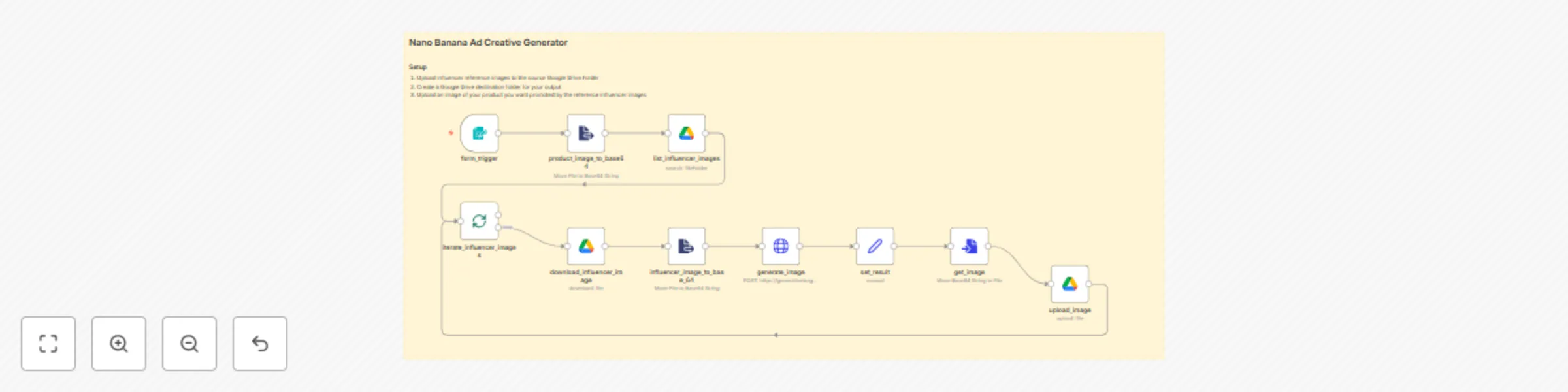
# AI Influencer Ad Creative Generator Generate authentic-looking influencer marketing content by automatically combining your product images with reference photos of potential brand ambassadors. This workflow uses Google's Gemini AI to create realistic promotional images showing influencers naturally using your products in casual settings, perfect for social media campaigns and marketing materials. ## How it works * **Upload your product image** through a simple web form interface * **Automatically processes reference influencer photos** stored in your Google Drive folder * **AI generates realistic promotional images** using Gemini 2.5 Flash, showing each influencer naturally holding/using your product in cafe settings * **Saves all generated images** to your designated Google Drive output folder with organized naming * **Batch processes multiple influencer images** to create a complete campaign asset library The workflow creates candid, authentic-looking photos that appear as if a friend took a picture of the influencer enjoying your product - perfect for social media advertising that doesn't look overly promotional. ## Set up steps 1. **Connect Google Drive account** to n8n for accessing influencer reference images and saving outputs 2. **Set up Google Gemini API credentials** for AI image generation capabilities 3. **Create two Google Drive folders**: one for storing your reference influencer photos, another for generated campaign assets 4. **Configure folder IDs** in the workflow nodes to point to your specific Drive locations 5. **Upload reference influencer images** to your source folder (headshots or casual photos work best) 6. **Deploy the form trigger** to get your webhook URL for product image uploads **Requirements**: Google Drive account, Google Cloud account with Gemini API access, collection of reference influencer photos.

L
Lucas Walter
Content Creation
3 Sep 2025
3947
0
Workflow preview: Voice agent for dental appointment booking with Gemini AI
Free intermediate

Voice agent for dental appointment booking with Gemini AI

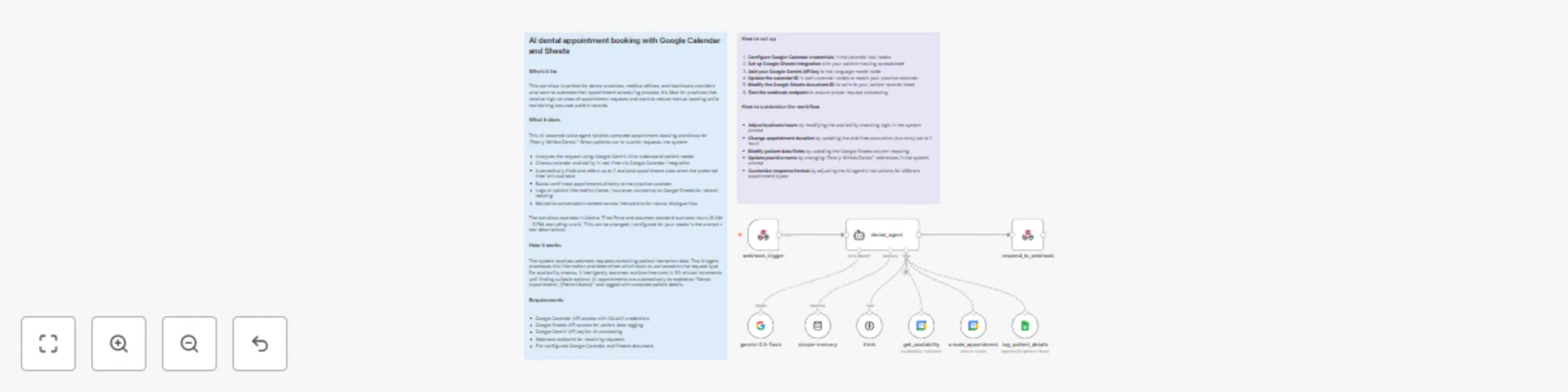
*This workflow contains community nodes that are only compatible with the self-hosted version of n8n.* # AI dental appointment booking with Google Calendar and Sheets ## Who's it for This workflow is perfect for dental practices, medical offices, and healthcare providers who want to automate their appointment scheduling process. It's ideal for practices that receive high volumes of appointment requests and want to reduce manual booking while maintaining accurate patient records. ## What it does This AI-powered voice agent handles complete appointment booking workflows for "Pearly Whites Dental." When patients call or submit requests, the system: - Analyzes the request using Google Gemini AI to understand patient needs - Checks calendar availability in real-time via Google Calendar integration - Automatically finds and offers up to 2 available appointment slots when the preferred time isn't available - Books confirmed appointments directly to the practice calendar - Logs all patient information (name, insurance, concerns) to Google Sheets for record-keeping - Maintains conversation context across interactions for natural dialogue flow The workflow operates in Central Time Zone and assumes standard business hours (8 AM - 5 PM, excluding lunch). ## How it works The system receives webhook requests containing patient interaction data. The AI agent processes this information and determines which tools to use based on the request type. For availability checks, it intelligently searches multiple time slots in 30-minute increments until finding suitable options. All appointments are automatically formatted as "Dental Appointment | [Patient Name]" and logged with complete patient details. ## Requirements - Google Calendar API access with OAuth2 credentials - Google Sheets API access for patient data logging - Google Gemini API key for AI processing - Webhook endpoint for receiving requests - Pre-configured Google Calendar and Sheets document ## How to set up 1. **Configure Google Calendar credentials** in the calendar tool nodes 2. **Set up Google Sheets integration** with your patient tracking spreadsheet 3. **Add your Google Gemini API key** to the language model node 4. **Update the calendar ID** in both calendar nodes to match your practice calendar 5. **Modify the Google Sheets document ID** to point to your patient records sheet 6. **Test the webhook endpoint** to ensure proper request processing ## How to customize the workflow - **Adjust business hours** by modifying the availability checking logic in the system prompt - **Change appointment duration** by updating the end time calculation (currently set to 1 hour) - **Modify patient data fields** by updating the Google Sheets column mapping - **Update practice name** by changing "Pearly Whites Dental" references in the system prompt - **Customize response format** by adjusting the AI agent's instructions for different appointment types

L
Lucas Walter
Support Chatbot
19 Jul 2025
15920
0
Workflow preview: Clone viral TikTok & Instagram reels with Apify and Gemini 2.5 Pro
Free advanced

Clone viral TikTok & Instagram reels with Apify and Gemini 2.5 Pro

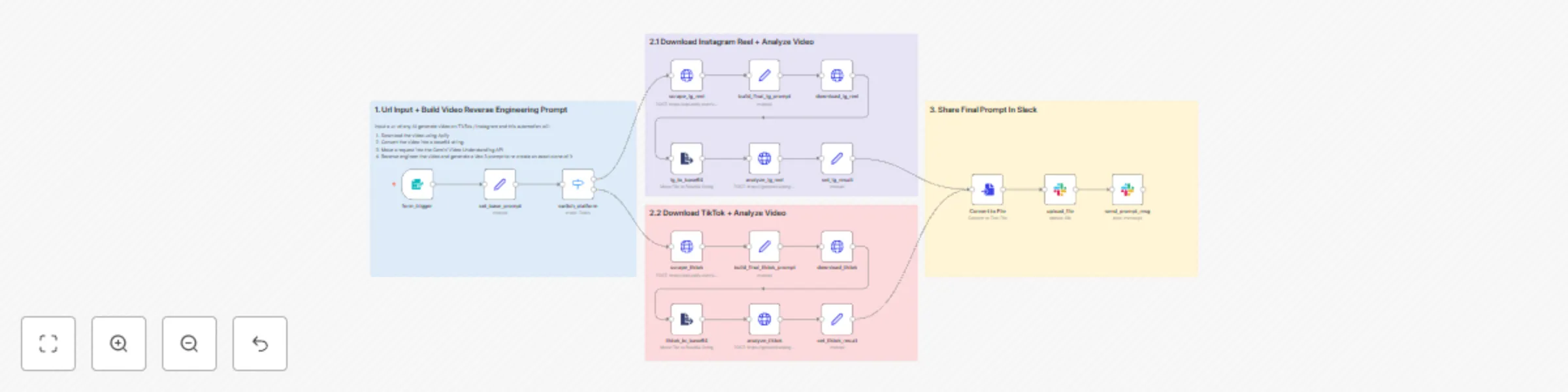
# Reverse engineer short-form videos from Instagram and TikTok using Gemini AI ## Who's it for Content creators, AI video enthusiasts, and digital marketers who want to analyze successful short-form videos and understand their production techniques. Perfect for anyone looking to reverse-engineer viral content or create detailed prompts for AI video generation tools like Google Veo or Sora. ## How it works This automation takes any Instagram Reel or TikTok URL and performs a forensic analysis of the video content. The workflow downloads the video, converts it to base64, and uses Google's Gemini 2.5 Pro vision API to generate an extremely detailed "Generative Manifest" - a comprehensive prompt that could be used to recreate the video with AI tools. The analysis includes: - Visual medium identification (film stock, camera sensor, lens characteristics) - Color grading and lighting breakdown - Shot-by-shot deconstruction with precise timing - Camera movement and framing details - Subject description and action choreography - Environmental and atmospheric details ## How to set up 1. **Configure API credentials:** - Add your Apify API key for video scraping - Set up Google Gemini API authentication 2. **Set up Slack integration (optional):** - Configure Slack OAuth for result sharing - Update the channel ID where results should be posted 3. **Access the form:** - The workflow creates a web form where you can input video URLs - Form accepts both Instagram Reel and TikTok URLs ## Requirements - **Apify account** with API access for video scraping - **Google Cloud account** with Gemini API enabled - **Slack workspace** (optional, for sharing results) - Videos must be publicly accessible (no private accounts) ## How to customize the workflow - **Modify the analysis prompt:** Edit the "set_base_prompt" node to adjust the depth and focus of the video analysis - **Add different platforms:** Extend the switch node to handle other video platforms - **Integrate with other tools:** Replace Slack with email, Discord, or other notification systems

L
Lucas Walter
Content Creation
18 Jul 2025
3141
0
Workflow preview: Generate viral TikTok/IG reel clips from YouTube videos with Vizard AI
Free intermediate

Generate viral TikTok/IG reel clips from YouTube videos with Vizard AI

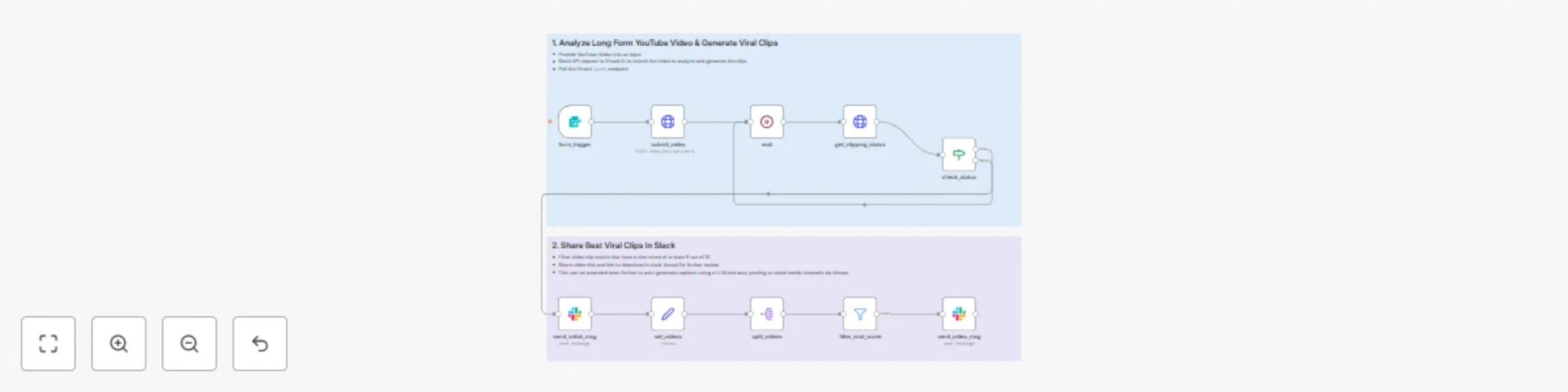
## Who's it for Content creators, social media managers, and marketing teams who want to automatically extract the most engaging clips from long-form YouTube videos and identify content with high viral potential. ## What it does This workflow analyzes any YouTube video using Vizard AI's clipping technology and automatically generates up to 8 short clips with viral score ratings. It then filters for the highest-scoring clips (9/10 or above) and posts them to a designated Slack channel for team review and distribution. ## How it works 1. **Video submission**: Enter a YouTube URL through a user-friendly form 2. **AI analysis**: Submits the video to Vizard AI for automated clipping and viral score analysis 3. **Smart polling**: Waits for processing completion and retrieves results 4. **Quality filtering**: Only surfaces clips with viral scores of 9/10 or higher 5. **Team notification**: Posts results to Slack with clip titles, scores, and download links ## Requirements - Vizard AI API credentials (sign up at vizard.ai) - Slack workspace with OAuth app configured ## How to set up 1. **Configure Vizard AI credentials**: Add your Vizard AI API key to the HTTP Request nodes 2. **Set up Slack integration**: Configure the Slack OAuth2 credentials and select your target channel 3. **Customize filtering**: Adjust the viral score threshold in the filter node (currently set to 9/10) 4. **Test the workflow**: Submit a test YouTube URL to ensure everything works properly ## How to customize the workflow - **Adjust clip quantity**: Modify the `maxClipNumber` parameter (currently 8) in the initial API request - **Change viral score threshold**: Update the filter condition to match your quality standards - **Extend with automation**: Connect to social media posting tools or caption generation workflows for full automation - **Add scheduling**: Integrate with webhook triggers, scheduled triggers, or RSS feeds for batch processing videos

L
Lucas Walter
Content Creation
16 Jul 2025
3338
0
Workflow preview: Scrape public email addresses from any website using Firecrawl
Free intermediate

Scrape public email addresses from any website using Firecrawl

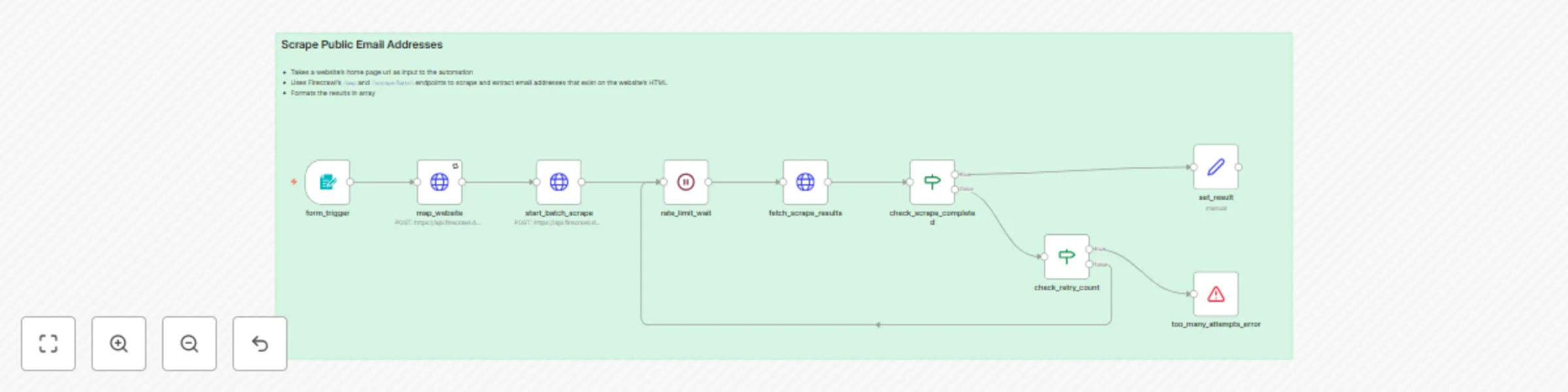
## Who's it for This template is perfect for sales professionals, marketers, and business developers who need to quickly gather contact information from company websites. Whether you're building prospect lists, researching potential partners, or collecting leads for outreach campaigns, this automation saves hours of manual email hunting. ## What it does This workflow automatically discovers and extracts email addresses from any website by: - Taking a website URL as input through a simple form - Using Firecrawl's mapping API to find relevant pages (about, contact, team pages) - Batch scraping those pages to extract email addresses - Intelligently handling common email obfuscations like "(at)" and "(dot)" - Returning a clean, deduplicated list of valid email addresses The automation handles rate limiting, retries failed requests, and filters out invalid or hidden email addresses to ensure you get quality results. ## How to set up 1. **Get Firecrawl API access**: Sign up at [firecrawl.dev](https://firecrawl.dev) and obtain your API key 2. **Configure credentials**: In n8n, create a new HTTP Header Auth credential named "Firecrawl" with: - Header Name: `Authorization` - Header Value: `Bearer YOUR_API_KEY` 3. **Import the workflow**: Copy the workflow JSON into your n8n instance 4. **Test the form**: Activate the workflow and test with a sample website URL ## How to customize the workflow **Search parameters**: Modify the `search` parameter in the map_website node to target different page types (currently searches for "about contact company authors team") **Extraction limits**: Adjust the `limit` parameter to scrape more or fewer pages per website **Retry logic**: The workflow includes retry logic with a 12-attempt limit - modify the `check_retry_count` node to change this **Output format**: The `set_result` node formats the final output - customize this to match your preferred data structure **Email validation**: The JSON schema in `start_batch_scrape` defines how emails are extracted - modify the prompt or schema for different extraction rules The workflow is designed to be reliable and handle common edge cases like rate limiting and failed requests, making it production-ready for regular use.

L
Lucas Walter
Lead Generation
9 Jul 2025
3331
0
Workflow preview: Find the best favicon from multiple sources with GPT-4 vision analysis
Free advanced

Find the best favicon from multiple sources with GPT-4 vision analysis

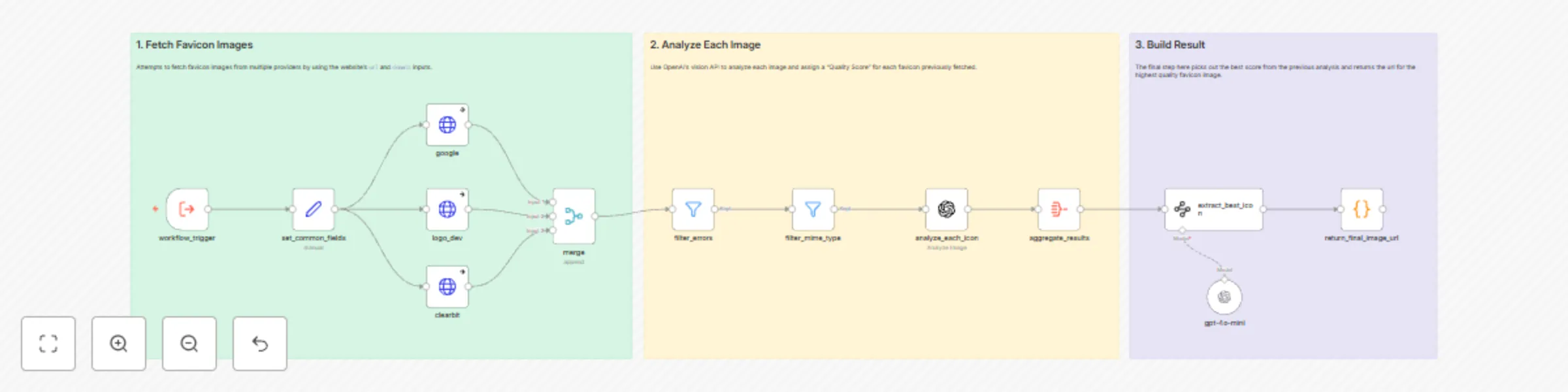
## Who's it for This workflow is perfect for directory site creators, content managers, and developers who need to automatically find and select the highest quality favicon or logo for websites they're showcasing. Instead of manually hunting down brand assets or settling for blurry default icons, this workflow does the heavy lifting by fetching multiple options and using AI to pick the best one. ## How it works The workflow takes a website URL and domain as input, then intelligently fetches favicon images from three different sources: 1. **Google's Favicon API** - Gets the site's actual favicon 2. **Logo.dev** - Provides high-quality brand logos 3. **Clearbit** - Alternative logo source for business websites Once all images are collected, the workflow uses OpenAI's vision model to analyze each icon based on: - Image quality and resolution (minimum 256x256) - Brand authenticity (avoiding generic framework icons) - Visual clarity without artifacts or blur - Professional presentation suitable for directory listings The AI assigns quality scores from 0.0 to 1.0, and the workflow automatically returns the URL of the highest-scoring favicon. ## Requirements - OpenAI API key (for image analysis) - Logo.dev API key (free tier available) ## How to set up 1. **Configure API credentials:** - Add your OpenAI API key to n8n credentials - Sign up for Logo.dev and add your API token - The Clearbit and Google APIs require no authentication 2. **Test the workflow:** - Use the pinned test data (Fyxer AI example) or replace with your own - Ensure all HTTP nodes can successfully fetch images - Verify the AI analysis is working by checking the quality scores 3. **Customize input format:** - Modify the workflow trigger to accept your preferred input format - Adjust the domain extraction logic if needed for your use case ## How to customize the workflow **For different quality criteria:** - Edit the AI prompt in the "analyze_each_icon" node to emphasize different aspects (transparency, size, style preferences) **For additional favicon sources:** - Add more HTTP Request nodes pointing to other favicon/logo APIs - Update the merge node to handle additional inputs - Modify the final URL construction logic to handle new sources **For batch processing:** - Wrap this workflow in a loop to process multiple websites at once - Add error handling for failed requests or AI analysis timeouts The workflow is designed to be reliable and handles errors gracefully - if one favicon source fails, it continues with the available options and still provides the best result possible.

L
Lucas Walter
Document Extraction
2 Jul 2025
498
0
Workflow preview: Scrape AI news from multiple sources to Markdown & Google Drive with RSS.app
Free advanced

Scrape AI news from multiple sources to Markdown & Google Drive with RSS.app

# AI News Scraping System This n8n workflow automates the process of pulling in breaking AI-related headlines from curated RSS feeds, scraping their full content, and saving readable Markdown versions directly to Google Drive. Use cases include: - Creating a personal newsletter curation system - Automating blog post research workflows - Archiving news content for later summarization or AI use --- ## How it Works 1. **Scheduled Triggers** The workflow runs every 3–4 hours using multiple `Schedule Trigger` nodes. Each trigger targets a different news source (e.g., Google News, OpenAI Blog, Hugging Face, etc.). 2. **Fetch and Parse Feeds** RSS feeds are fetched via the `HTTP Request` node. Items from the feed are split into individual entries using the `Split Out` node. 3. **Scrape Article Content** Each article URL is sent to the Firecrawl API with a prompt to extract only the main content in Markdown. The scraping skips navigation, headers, footers, and ads. 4. **Convert and Save** The extracted Markdown is converted into a `.md` file using the `Convert to File` node. The file is then uploaded to a Google Drive folder. --- ## Good to Know - This workflow uses the Firecrawl API for web scraping. Be sure to configure a Generic HTTP Header credential with your API key. - Output files are saved in Markdown format - You can add more `Schedule Trigger` + `HTTP Request` pairs to extend this workflow to additional feeds. --- ## Requirements - Firecrawl API account for scraping - Google Drive account (OAuth2 credentials must be configured in n8n) - n8n instance (self-hosted or cloud) --- ## Customization Ideas - Replace or extend RSS feeds with sources relevant to your niche - Load up scraped news stories into a prompt to create new content like TikToks and Reels - Add a summarization step using an LLM like GPT or Claude - Send the Markdown files to Notion, Slack, or a blog CMS --- ## Example Feeds | Feed Name | URL | |------------------|----------------------------------------------------------------------| | Google News (AI) | https://rss.app/feeds/v1.1/AkOariu1C7YyUUMv.json | | OpenAI Blog | https://rss.app/feeds/v1.1/xNVg2hbY14Z7Gpva.json | | Hugging Face | https://rss.app/feeds/v1.1/sgHcE2ehHQMTWhrL.json |

L
Lucas Walter
Market Research
28 Jun 2025
2993
0
Workflow preview: Generate viral Bigfoot vlog videos with Veo 3
Free advanced

Generate viral Bigfoot vlog videos with Veo 3

Transform simple ideas into viral-ready Bigfoot vlogs! This automated workflow creates charming 8-scene video content featuring "Sam" the Bigfoot - a lovable, outdoorsy character inspired by popular YouTube adventure channels. **How It Works** The workflow transforms your creative concept into professional video content through three automated stages: 1. Story Generation - AI creates an 8-scene narrative arc featuring Sam the Bigfoot, complete with character-consistent dialogue and engaging plot development 2. Human Approval - Review and approve the generated storyline via Slack before proceeding to video production 3. Video Production - Each scene is automatically converted into 8-second video clips using Google's VEO 3 AI, then uploaded to Google Drive for easy access **Required Credentials** - Anthropic API - Add your Claude API key for story generation - FAL API - Configure your FAL.ai key for VEO 3 video generation - Slack OAuth - Set up Slack app with channel permissions for approvals - Google Drive OAuth - Connect your Google Drive for video storage **Configuration Steps** 1. Import the workflow into your n8n instance 2. Update Slack channel ID in the notification nodes to match your desired channel 3. Set Google Drive folder - Update the folder ID where videos should be stored 4. Test the form trigger - The workflow starts with a web form for video ideas 5. Customize character (optional) - Modify Sam's personality in the narrative prompts

L
Lucas Walter
Content Creation
26 Jun 2025
4743
0