L

Lucas Peyrin

30
Workflows

Workflows by Lucas Peyrin

Workflow preview: 🛠️ Re-Access Binary Data from Any Previous Node
Free intermediate

🛠️ Re-Access Binary Data from Any Previous Node

## How it works Ever had binary data (like images, PDFs, or files) disappear in your n8n workflow after an intermediate node processed it? This workflow provides a powerful solution by demonstrating how to re-access and re-attach binary data from *any* previous node, even if it was dropped along the way. Think of it like having a reliable backup copy of your file always available, no matter what happens to the original as it moves through your workflow. Here's how this template works step-by-step: 1. **Initial Binary Fetch:** The workflow starts by fetching a binary image (the n8n logo) from a URL using an `HTTP Request` node. This is our original binary data. 2. **Simulated Data Loss:** A `Set` node then processes this data. Crucially, by default, `Set` nodes (and many others) do not pass binary data to subsequent nodes. This step intentionally simulates a common scenario where your binary data might seem to "disappear" from the workflow's output. 3. **Re-Access and Re-Attach:** The core of the solution is a `Code` node. It uses a specific n8n expression (`$(nodeName).item`) to reach back to the *original* node that produced the binary data (`Get n8n Logo (Binary)`). It then retrieves that binary data and uses `this.helpers.prepareBinaryData()` to correctly re-attach it to the current item, making it available for all subsequent nodes. ## Set up steps **Setup time: 0 minutes!** This is a self-contained tutorial workflow, so no external accounts or credentials are required. 1. Simply click the **"Execute Workflow"** button to run it. 2. Observe the output of the `Re-Access Binary Data from Previous Node` to see the binary data successfully re-attached. 3. **Important for Customization:** If you adapt this technique to your own workflows, remember to update the `previousNodeName` variable within the `Re-Access Binary Data from Previous Node` (Code node) to match the exact name of the node that originally produced the binary data you wish to retrieve.

L
Lucas Peyrin
Content Creation
20 Sep 2025
1139
0
Workflow preview: 🤖 Self Improving Email AI Support with Human-in-the-Loop
Free advanced

🤖 Self Improving Email AI Support with Human-in-the-Loop

## How it works This workflow creates a sophisticated, self-improving customer support system that automatically handles incoming emails. It's designed to answer common questions using an AI-powered knowledge base and, crucially, to learn from human experts when new or complex questions arise, continuously expanding its capabilities. Think of it like having an AI assistant with a smart memory and a human mentor. Here's the step-by-step process: 1. **New Email Received:** The workflow is triggered whenever a new email arrives in your designated support inbox (via Gmail). 2. **Classify Request:** An AI model (`Google Gemini 2.5 Flash Lite`) first classifies the incoming email to ensure it's a genuine support request, filtering out irrelevant messages. 3. **Retrieve Knowledge Base:** The workflow fetches all existing Question and Answer pairs from your dedicated Google Sheet knowledge base. 4. **AI Answer Attempt:** A powerful AI model (`Google Gemini 2.5 Pro`) analyzes the customer's email against the entire knowledge base. It attempts to find a highly relevant answer and drafts a complete HTML email response if successful. 5. **Decision Point:** An `IF` node checks if the AI found a confident answer. * **If Answer Found:** The AI-generated HTML response is immediately sent back to the customer via Gmail. * **If No Answer Found (Human-in-the-Loop):** * **Escalate to Human:** The customer's summarized question and original email are forwarded to a human expert (you or your team) via Gmail, requesting their assistance. * **Human Reply & AI Learning:** The workflow waits for the human expert's reply. Once received, another AI model (`Google Gemini 2.5 Flash`) processes both the original customer question and the expert's reply to distill them into a new, generic, and reusable Question/Answer pair. * **Update Knowledge Base:** This newly created Q&A pair is then automatically added as a new row to your Google Sheet knowledge base, ensuring the system can answer similar questions automatically in the future. ## Set up steps **Setup time: ~10-15 minutes** This workflow requires connecting your Gmail and Google Sheets accounts, and obtaining a Google AI API key. Follow these steps carefully: 1. **Connect Your Gmail Account:** * Select the `On New Email Received` node. * Click the **Credential** dropdown and select **`+ Create New Credential`** to connect your Gmail account. Grant the necessary permissions. * Repeat this for the `Send AI Answer` and `Ask Human for Help` nodes, selecting the credential you just created. 2. **Connect Your Google Sheets Account:** * Select the `Get Knowledge Base` node. * Click the **Credential** dropdown and select **`+ Create New Credential`** to connect your Google account. Grant the necessary permissions. * Repeat this for the `Add to Knowledge Base` node, selecting the credential you just created. 3. **Set up Your Google Sheet Knowledge Base:** * **Create a new Google Sheet** in your Google Drive. * Rename the first sheet (tab) to `QA Database`. * In the first row of `QA Database`, add two column headers: `Question` (in cell A1) and `Answer` (in cell B1). * Go back to the `Get Knowledge Base` node in n8n. In the **Document ID** field, select your newly created Google Sheet. Do the same for the `Add to Knowledge Base` node. 4. **Get Your Google AI API Key (for Gemini Models):** * Visit Google AI Studio at [aistudio.google.com/app/apikey](https://aistudio.google.com/app/apikey). * Click **"Create API key in new project"** and copy the key. * In the workflow, go to the `Google Gemini 2.5 Pro` node, click the **Credential** dropdown, and select **`+ Create New Credential`**. * Paste your key into the **API Key** field and **Save**. * Repeat this for the `Google Gemini 2.5 Flash Lite` and `Google Gemini 2.5 Flash` nodes, selecting the credential you just created. 5. **Configure Human Expert Email:** * Select the `Ask Human for Help` node. * In the **Send To** field, replace the placeholder email address with the actual email address of your human expert (e.g., your own email or a team support email). 6. **Activate the Workflow:** * Once all credentials and configurations are set, activate the workflow using the toggle switch at the top right of your n8n canvas. **Start Learning!** Send a test email to the Gmail account connected to the `On New Email Received` node. Observe how the AI responds, or how it escalates to your expert email and then learns from the reply. Check your Google Sheet to see new Q&A pairs being added!

L
Lucas Peyrin
Support Chatbot
20 Sep 2025
1998
0
Workflow preview: 🤖 Automate Lead Qualification & Multi-Channel Follow-up with AI (BANT)
Free advanced

🤖 Automate Lead Qualification & Multi-Channel Follow-up with AI (BANT)

## How it works This workflow is your automated sales assistant, designed to intelligently qualify incoming leads and route them to the most appropriate follow-up channel. It uses the powerful **BANT (Budget, Authority, Need, Timing)** framework, powered by Google Gemini AI, to score leads as 'hot', 'mid', or 'cold', ensuring your sales team focuses on the most promising opportunities. Here's a step-by-step breakdown: 1. **Lead Capture:** A public `Form Trigger` collects essential lead information, including their name, email, what they want to build, their budget, desired start time, and job role. These questions are specifically designed to gather BANT data. 2. **AI Lead Scoring:** The collected data is sent to **Google Gemini**. A detailed prompt instructs the AI to act as a Lead Scoring Expert, evaluating each BANT component individually and then assigning an overall 'hot', 'mid', or 'cold' score based on predefined criteria. 3. **Intelligent Routing:** A `Switch` node acts as the central router. Based on the AI's 'hot', 'mid', or 'cold' score, the workflow directs the lead down one of three distinct follow-up paths. 4. **Hot Leads (Calendar Booking):** For highly qualified 'hot' leads, the workflow immediately redirects them to your calendar booking link, making it easy for them to schedule a direct conversation. 5. **Mid Leads (WhatsApp Engagement):** For 'mid' priority leads, **Google Gemini** generates a personalized, pre-filled WhatsApp message summarizing their inquiry. The lead is then redirected to a WhatsApp chat with your sales team, allowing for quick, informal engagement. 6. **Cold Leads (Nurturing Email):** For 'cold' leads who might be in an early research phase, **Google Gemini** crafts a helpful, non-salesy follow-up email. This email provides valuable resources (like templates or community links) and is sent via Gmail, keeping them engaged without pressure. ## Set up steps **Setup time: ~10-15 minutes** This workflow requires connecting your Google AI and Gmail accounts, and customizing several nodes to fit your sales process. 1. **Get Your Google AI API Key:** * Visit Google AI Studio at [aistudio.google.com/app/apikey](https://aistudio.google.com/app/apikey). * Click **"Create API key in new project"** and copy the key. * In the workflow, select the **`Score Lead`** node. Click the **Credential** dropdown and select **`+ Create New Credential`**. * Paste your key into the **API Key** field and **Save**. * Repeat this for the **`Write Placeholder WA Message`** and **`Write Follow up Email`** nodes, selecting the credential you just created. 2. **Connect Your Gmail Account:** * Select the **`Send Follow up Email with Gmail`** node. * Click the **Credential** dropdown and select **`+ Create New Credential`** to connect your Google account. Follow the prompts to grant n8n access. 3. **Customize Lead Scoring Criteria:** * Go to the **`Score Lead`** node. * In the **Text** parameter, carefully review and adapt the `BANT Criteria Mapping` and `Scoring Logic` to align with your specific sales process and ideal customer profile. This is crucial for accurate lead qualification. 4. **Configure Follow-up Channels:** * **Hot Leads:** Select the **`Calendar Booking Link`** node. Update the `redirectUrl` parameter with **your personal or team's calendar booking link** (e.g., Calendly, Chili Piper). * **Mid Leads:** Select the **`Phone Number`** node. Set the `whatsapp_phone` value to **your company's WhatsApp phone number** (e.g., `+15551234567`). You can also customize the pre-filled WhatsApp message by adjusting the prompt in the **`Write Placeholder WA Message`** node. * **Cold Leads:** Select the **`Redirect to Website`** node. Update the `redirectUrl` parameter to **your company's main website or a relevant resource page** (e.g., a free templates page, a blog post). You can also customize the email content and resources shared by adjusting the prompt in the **`Write Follow up Email`** node. 5. **Activate and Test:** * Activate the workflow using the toggle at the top right. * Go to the **`Lead Contact Form`** node and click the **"Open Form URL"** button. * Submit several test applications with different answers (e.g., one "hot" lead, one "mid", one "cold") to ensure the AI scores them correctly and they are routed to the appropriate follow-up action. Start qualifying and engaging your leads more effectively!

L
Lucas Peyrin
Lead Nurturing
20 Sep 2025
2824
0
Workflow preview: 🤖 Automate CV screening with AI candidate analysis
Free advanced

🤖 Automate CV screening with AI candidate analysis

## How it works This workflow automates your initial hiring pipeline by creating an AI-powered CV scanner. It collects job applications through a web form, uses AI to analyze the candidate's CV against your job description, and neatly organizes the results in a Google Sheet. Here’s the step-by-step process: * **The Application Form:** A `Form Trigger` provides a public web form for candidates to submit their name, email, and CV (as a PDF). * **Initial Logging:** As soon as an application is submitted, the candidate's name and email are added to a Google Sheet. This ensures every applicant is logged, even if a later step fails. * **CV Text Extraction:** The workflow uses **Mistral's OCR** model to accurately extract all the text from the uploaded CV PDF. * **AI Analysis:** The extracted text is sent to **Google Gemini**. A detailed prompt instructs the AI to act as a hiring assistant, scoring the CV against the specific requirements of your job role and providing a detailed explanation for its score. * **Structured Output:** A `JSON Output Parser` ensures the AI's analysis is returned in a clean, structured format, making the data reliable. * **Final Record:** The AI-generated qualification score and explanation are added to the candidate's row in the Google Sheet, giving you a complete, analyzed list of applicants. ### Set up steps **Setup time: ~15 minutes** You'll need API keys for Mistral and Google AI, and to connect your Google account. 1. **Get Your Mistral API Key:** * Visit the Mistral Platform at [console.mistral.ai/api-keys](https://console.mistral.ai/api-keys). * Create and copy your API key. * In the workflow, go to the **`Extract CV Text`** node, click the **Credential** dropdown, and select **`+ Create New Credential`**. * Paste your key into the **API Key** field and **Save**. 2. **Get Your Google AI API Key:** * Visit Google AI Studio at [aistudio.google.com/app/apikey](https://aistudio.google.com/app/apikey). * Click **"Create API key in new project"** and copy the key. * In the workflow, go to the **`Gemini 2.5 Flash Lite`** node, click the **Credential** dropdown, and select **`+ Create New Credential`**. * Paste your key into the **API Key** field and **Save**. 3. **Connect Your Google Account:** * Select the **`Create 'CVs' Spreadsheet`** node. * Click the **Credential** dropdown and select **`+ Create New Credential`** to connect your Google account. * Repeat this for the **`Log Candidate Submission`** and **`Add CV Analysis`** nodes, selecting the credential you just created. 4. **Create Your Spreadsheet:** * Click the "play" icon on the **`Start Here`** node to run it. This will create a new Google Sheet in your Google Drive named "CVs" with the correct columns. 5. **Customize the Job Role:** * Go to the **`AI Qualification`** node. * In the **Text** parameter, find the `job_requirements` section and replace the example job description with your own. Be as detailed as possible for the best results. 6. **Start Screening!** * Activate the workflow using the toggle at the top right. * Go to the **`Application Form`** node and click the **"Open Form URL"** button. * Fill out the form with a test application and upload a sample CV. Check your Google Sheet to see the AI's analysis appear within moments

L
Lucas Peyrin
HR
16 Aug 2025
17985
0
Workflow preview: Build your first AI agent
Free intermediate

Build your first AI agent

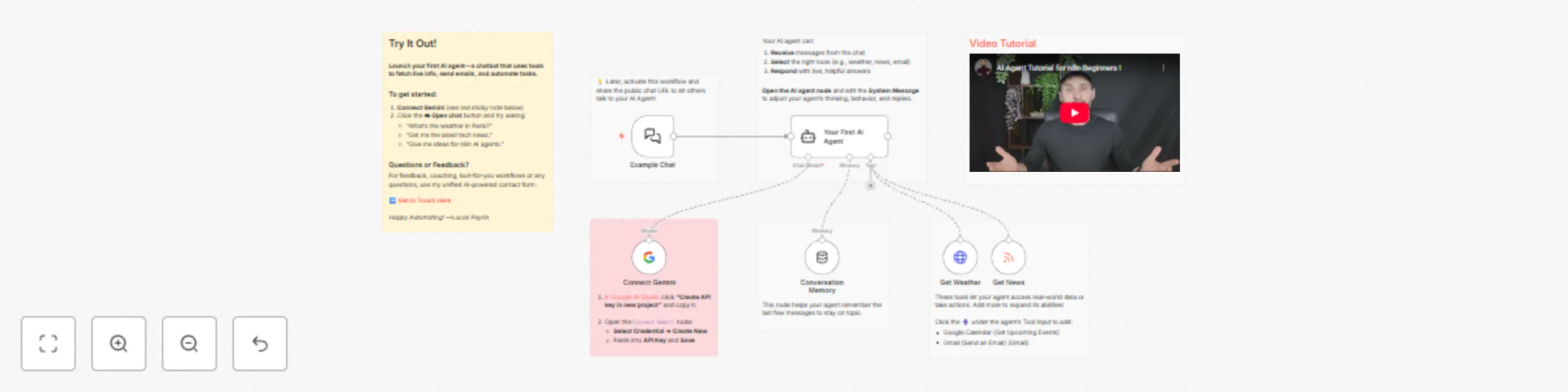
## How it works This template launches your very first **AI Agent** —an AI-powered chatbot that can do more than just talk— it can take action using tools. Think of an AI Agent as a smart assistant, and the tools are the apps on its phone. By connecting it to other nodes, you give your agent the ability to interact with real-world data and services, like checking the weather, fetching news, or even sending emails on your behalf. This workflow is designed to be the perfect starting point: * **The Chat Interface:** A `Chat Trigger` node provides a simple, clean interface for you to talk to your agent. * **The Brains:** The `AI Agent` node receives your messages, intelligently decides which tool to use (if any), and formulates a helpful response. Its personality and instructions are fully customizable in the "System Message". * **The Language Model:** It uses **Google Gemini** to power its reasoning and conversation skills. * **The Tools:** It comes pre-equipped with two tools to demonstrate its capabilities: 1. **Get Weather:** Fetches real-time weather forecasts. 2. **Get News:** Reads any RSS feed to get the latest headlines. * **The Memory:** A `Conversation Memory` node allows the agent to remember the last few messages, enabling natural, follow-up conversations. ### Set up steps **Setup time: ~2 minutes** You only need one thing to get started: a free Google AI API key. 1. **Get Your Google AI API Key:** * Visit Google AI Studio at [aistudio.google.com/app/apikey](https://aistudio.google.com/app/apikey). * Click **"Create API key in new project"** and copy the key that appears. 2. **Add Your Credential in n8n:** * On the workflow canvas, go to the **`Connect your model`** (Google Gemini) node. * Click the **Credential** dropdown and select **`+ Create New Credential`**. * Paste your API key into the **API Key** field and click **Save**. 3. **Start Chatting!** * Go to the **`Example Chat`** node. * Click the **"Open Chat"** button in its parameter panel. * Try asking it one of the example questions, like: *"What's the weather in Paris?"* or *"Get me the latest tech news."* That's it! You now have a fully functional AI Agent. Try adding more tools (like Gmail or Google Calendar) to make it even more powerful.

L
Lucas Peyrin
Personal Productivity
22 Jul 2025
432789
0
Workflow preview: 🛠️ State Management System for Long-Running Workflows with Wait Nodes
Free advanced

🛠️ State Management System for Long-Running Workflows with Wait Nodes

## How it works This template is a powerful, reusable utility for managing **stateful, long-running processes**. It allows a main workflow to be paused indefinitely at "checkpoints" and then be resumed by external, asynchronous events. This pattern is essential for complex automations and I often call it the **"Async Portal"** or **"Teleport"** pattern. The template consists of two distinct parts: 1. **The Main Process (Top Flow):** This represents your primary business logic. It starts, performs some actions, and then calls the Portal to register itself before pausing at a `Wait` node (a "Checkpoint"). 2. **The Async Portal (Bottom Flow):** This is the state-management engine. It uses **Workflow Static Data** as a persistent memory to keep track of all paused processes. When an external event (like a new chat message or an approval webhook) comes in with a specific `session_id`, the Portal looks up the corresponding paused workflow and "teleports" the new data to it by calling its unique `resume_url`. This architecture allows you to build sophisticated systems where the state is managed centrally, and your main business logic remains clean and easy to follow. ## When to use this pattern This is an advanced utility ideal for: * **Chatbots:** Maintaining conversation history and context across multiple user messages. * **Human-in-the-Loop Processes:** Pausing a workflow to wait for a manager's approval from an email link or a form submission. * **Multi-Day Sequences:** Building user onboarding flows or drip campaigns that need to pause for hours or days between steps. * **Any process that needs to wait for an unpredictable external event** without timing out. ## Set up steps This template is a utility designed to be copied into your own projects. The workflow itself is a live demonstration of how to use it. 1. **Copy the Async Portal:** In your own project, copy the entire **Async Portal** (the bottom flow, starting with the `A. Entry: Receive Session Info` trigger) into your workflow. This will be your state management engine. 2. **Register Your Main Process:** At the beginning of your main workflow, use an `Execute Workflow` node to call the Portal's trigger. You must pass it a unique `session_id` for the process and the `resume_url` from a `Wait` node. 3. **Add Checkpoints:** Place `Wait` nodes in your main workflow wherever you need the process to pause and wait for an external event. 4. **Trigger the Portal:** Configure your external triggers (e.g., your chatbot's webhook) to call the **Portal's entry trigger**, not your main workflow's trigger. You must pass the same `session_id` so the Portal knows which paused process to resume. **To see it in action, follow the detailed instructions in the "How to Test This Workflow" sticky note on the canvas.**

L
Lucas Peyrin
Engineering
22 Jul 2025
1984
0
Workflow preview: 🎓 Optimize Speed-Critical Workflows Using Parallel Processing (Fan-Out/Fan-In)
Free advanced

🎓 Optimize Speed-Critical Workflows Using Parallel Processing (Fan-Out/Fan-In)

## How it works This template is a hands-on tutorial for one of the most advanced and powerful patterns in n8n: **asynchronous parallel processing**, also known as the **Fan-Out/Fan-In** model. **When should you use this?** Use this pattern when **speed is your top priority** and you have multiple independent, long-running tasks. Instead of running them one after another (which is slow), this workflow runs them all at the same time and waits for them all to finish. We use a **Construction Project** analogy to explain the architecture: * **The Main Workflow (Top):** This is the **Project Manager**. It defines the project, assigns all the tasks to specialist teams, and then pauses, waiting for a final report. * **The Sub-Workflow (Bottom):** This represents the **Specialist Teams**. It's a single, reusable workflow that can perform any task it's assigned. * **Static Data (The Brains):** A hidden **Project Dashboard** is used to track the status of every task in real-time. The process follows three key phases: 1. **Fan-Out:** The Project Manager starts multiple sub-workflows at once *without* waiting for them to finish. 2. **Asynchronous Execution:** Each Specialist Team works on its task independently and in parallel. When a team finishes, it updates its status on the Project Dashboard. 3. **Fan-In:** The Project Manager, which has been paused by a `Wait` node, is only resumed when the Project Dashboard confirms that *all* tasks are complete. It then receives the aggregated results from all the parallel tasks. ## Set up steps **Setup time: < 1 minute** This workflow is a self-contained tutorial. The only setup required is to configure the AI model. 1. **Configure Credentials:** * Go to the **`The AI Specialist`** node in the sub-workflow (bottom flow). * Select your desired AI credential (Gemini in that case). 2. **Execute the Workflow:** * Click the **"Execute Workflow"** button on the `Start Project` node. 3. **Explore and Learn:** * Follow the execution path to see how the main workflow fans out, and how the sub-workflow is called multiple times. * Click on each node and read the detailed sticky notes to understand its specific role in this advanced pattern.

L
Lucas Peyrin
Engineering
22 Jul 2025
2230
0
Workflow preview: 🧑‍🎓 Test your data access techniques with progressive expression challenges
Free advanced

🧑‍🎓 Test your data access techniques with progressive expression challenges

## How it works This template is a hands-on, practical exam designed to help you master **n8n Expressions**—the key to accessing and manipulating data in your workflows. If the `🎓 Expressions Tutorial Template` was the theory lesson, this is the **practical driving test**. You'll learn how to navigate through complex data structures to get the exact piece of information you need. All challenges will reference a single **"Source Data"** node, which acts as our data "map". The test is a series of six sequential challenges that build in complexity: 1. **Basic Access:** Getting a simple value from an object. 2. **Array Access:** Targeting a specific item in a list. 3. **Nested Object Access:** Reaching data inside another object. 4. **Array of Objects:** Combining array and object skills to get a specific value from a list of objects. 5. **Using JavaScript:** Applying simple JavaScript functions (like `.toUpperCase()`) to your data. 6. **Combining Text & Expressions:** Creating dynamic strings that mix static text with data from previous nodes. For each challenge, you'll write an expression in a "Test" node. When you execute the workflow, an `IF` node will instantly validate your answer, giving you a green path for success or a red path with a hint if you need to try again. ## Set up steps **Setup time: < 1 minute** This workflow is a self-contained test and requires no setup or credentials. 1. Read the instructions on the main sticky note to understand the goal. 2. Start with the first challenge, **"Test - Basic Access"**. Modify the node by writing the correct expression in the value field, according to the instructions on the purple sticky note. 3. Click **"Execute Workflow"**. 4. If the execution path is green, you've passed! The next "Test" node in the sequence will automatically be enabled for you to continue. If the path is red, read the hint in the error message and try again. 5. Repeat the process until you reach the final success message and become an expressions pro. **Good Luck!**

L
Lucas Peyrin
Engineering
21 Jul 2025
1933
0
Workflow preview: 🧑‍🎓 Test Your JSON Skills with Interactive Challenges and Instant Feedback
Free advanced

🧑‍🎓 Test Your JSON Skills with Interactive Challenges and Instant Feedback

## How it works This template is a hands-on, practical exam designed to test your understanding of the fundamental JSON data types. It's the perfect way to solidify your knowledge after learning the basics. Think of it as the **"driver's test"** that comes after the "theory lesson". You'll be given a series of tasks, and the workflow will automatically check your answers, providing instant feedback. The test is broken down into six sequential challenges, each focusing on a core data type: 1. **String:** Writing text values correctly. 2. **Number:** Using integers and decimals. 3. **Boolean:** Working with `true` and `false`. 4. **Null:** Representing a non-existant value. 5. **Array:** Creating ordered lists of data. 6. **Object:** Building nested key-value structures. For each challenge, you'll modify a `Set` node with the correct JSON syntax. When you execute the workflow, a corresponding `IF` node will validate your input. A green path means you passed and can move to the next challenge. A red path means you need to try again! ## Set up steps **Setup time: < 1 minute** This workflow is a self-contained test and requires no setup or credentials. 1. Read the instructions on the main sticky note to understand the goal. 2. Start with the first challenge, **"Test - String"**. Activate and modify the node according to the instructions on the purple sticky note next to it. 3. Click **"Execute Workflow"**. 4. If the execution path is green, you've passed! You can move on to the next "Test" node in the sequence to continue. If the path is red, read the hint in the error message and try again. 5. Repeat the process until you reach the final success message. **Good luck!**

L
Lucas Peyrin
Miscellaneous
21 Jul 2025
4483
0
Workflow preview: 🤖 Build a Documentation Expert Chatbot with Gemini RAG Pipeline
Free advanced

🤖 Build a Documentation Expert Chatbot with Gemini RAG Pipeline

## How it works This template is a complete, hands-on tutorial for building a **RAG (Retrieval-Augmented Generation)** pipeline. In simple terms, you'll teach an AI to become an expert on a specific topic—in this case, the official n8n documentation—and then build a chatbot to ask it questions. Think of it like this: instead of a general-knowledge AI, you're building an **expert librarian**. The workflow is split into two main parts: 1. **Part 1: Indexing the Knowledge (Building the Library)** This is a one-time process you run manually. The workflow automatically scrapes all pages of the n8n documentation, breaks them down into small, digestible chunks, and uses an AI model to create a special numerical representation (an "embedding") for each chunk. These embeddings are then stored in n8n's built-in **Simple Vector Store**. This is like a librarian reading every book and creating a hyper-detailed index card for every paragraph. **Important:** This in-memory knowledge base is temporary. It will be erased if you restart your n8n instance, and you will need to run the indexing process again. 2. **Part 2: The AI Agent (The Expert Librarian)** This is the chat interface. When you ask a question, the AI agent doesn't guess the answer. Instead, it uses your question to find the most relevant "index cards" (chunks) from the knowledge base it just built. It then feeds these specific, relevant chunks to a powerful language model (Gemini) with a strict instruction: **"Answer the user's question using ONLY this information."** This ensures the answers are accurate, factual, and grounded in your provided documents. ## Set up steps **Setup time: ~2 minutes (plus ~15-20 minutes for indexing)** This template uses n8n's built-in tools, removing the need for an external database. Follow these simple steps to get started. 1. **Configure Google AI Credentials:** * You will need a Google AI API key for the Gemini models. * In your n8n workflow, go to any of the three `Gemini` nodes (e.g., `Gemini 2.5 Flash`). * Click the **Credential** dropdown and select `+ Create New Credential`. * Enter your Gemini API key and save. 2. **Apply Credentials to All Nodes:** * Your new Google AI credential is now saved. Go to the other two `Gemini` nodes (`Gemini Chunk Embedding` and `Gemini Query Embedding`) and select your newly created credential from the dropdown list. 3. **Build the Knowledge Base:** * Find the `Start Indexing` manual trigger node at the top-left of the workflow. * Click its **"Execute workflow"** button to start the indexing process. * ⚠️ **Be Patient:** This will take **15-20 minutes** as it scrapes and processes the entire n8n documentation. You only need to do this once per n8n session. If you restart n8n, you must run this step again. 4. **Chat with Your Expert Agent:** * Once the indexing is complete, **Activate** the entire workflow using the toggle at the top of the screen. * Open the **`RAG Chatbot`** chat trigger node (bottom-left) and copy its **Public URL**. * Open the URL in a new tab and start asking questions about n8n! For example: "How does the IF node work?" or "What is a sub-workflow?".

L
Lucas Peyrin
Internal Wiki
18 Jul 2025
17247
0
Workflow preview: 🤖 Create Your First AI Agent with Weather & Web Scraping (Starter Kit)
Free advanced

🤖 Create Your First AI Agent with Weather & Web Scraping (Starter Kit)

*This workflow contains community nodes that are only compatible with the self-hosted version of n8n.* ## How it works This template is your personal launchpad into the world of AI-powered automation. It provides a fully functional, interactive AI chatbot that you can set up in minutes, designed specifically for those new to AI Agents. **What is an AI Agent?** Think of it as a smart assistant that doesn't just talk—it **acts**. You give it a set of "tools" (like other n8n tool nodes), and it intelligently decides which tool to use to answer your questions or complete your tasks. This starter kit comes with a pre-built "toolbox" of superpowers, allowing your agent to: * **Get the Weather:** Ask for the forecast anywhere in the world. * **Get the News:** Fetch the latest headlines from n8n, CNN, and others. The workflow is designed to be a hands-on learning experience, with detailed sticky notes explaining every component, from the chat interface to the agent's "brain" and "memory." ## Set up steps **Setup time: ~2-3 minutes** This workflow is designed to be incredibly easy to start. You only need one free API key to get it working. 1. **Add Your AI Key:** * The workflow uses Google's Gemini model by default. You will need a **free Gemini API key**. * Find the **`Gemini`** node on the canvas. The sticky note right below it (`How to Get Google Gemini Credentials`) provides a link and simple instructions to get your key. * In the `Gemini` node, click the **Credential** dropdown and select `+ Create New Credential` to add your key. 2. **Activate the Workflow:** * At the top-right of the screen, click the **"Inactive"** toggle switch. It will turn green and say **"Active"**. Your agent is now live! 3. **Start Chatting:** * Open the **`Example Chat Window`** node (it has a 💬 icon). * In its parameter panel, you will see a **Chat URL**. Click the link to copy it. * Paste the URL into a new browser tab and start asking your agent questions! **Optional:** The template also includes disabled OpenAI chat model node and tools for Google Calendar, and Gmail. You can enable and configure these later to change the underlying AI model or give your agent even more superpowers!

L
Lucas Peyrin
Personal Productivity
16 Jul 2025
11499
0
Workflow preview: 🎓 Learn Data Synchronization: Warehouse Inventory Audit Tutorial
Free advanced

🎓 Learn Data Synchronization: Warehouse Inventory Audit Tutorial

## How it works This template is a hands-on tutorial for one of n8n's most powerful data tools: the **Compare Datasets** node. It's the perfect next step after learning basic logic, showing you how to build robust data synchronization workflows. We use a simple **Warehouse Audit** analogy to make the concept crystal clear: * **Warehouse A:** Our main, "source of truth" database. This is the master list of what our inventory *should* be. * **Warehouse B:** A second, remote database (like a Notion page or Google Sheet) that we need to keep in sync. * **The Compare Datasets Node:** This is our **Auditor**. It takes both inventory lists and meticulously compares them to find any discrepancies. The Auditor then sorts every item into one of four categories, which correspond to the node's four outputs: 1. **In A only:** New products found in our main warehouse that need to be **added** to Warehouse B. 2. **Same:** Products that match perfectly in both warehouses. **No action needed!** 3. **Different:** Products that exist in both places but have different details (e.g., stock count). These need to be **updated** in Warehouse B. 4. **In B only:** Extra products found in Warehouse B that aren't in our master list. These need to be **deleted**. This pattern is the foundation for any two-way data sync you'll ever need to build. ## Set up steps **Setup time: 0 minutes!** This workflow is a self-contained tutorial and requires no setup or credentials. 1. Click **"Execute Workflow"** to start the audit. 2. Explore the two `Set` nodes ("Warehouse A" and "Warehouse B") to see the initial data we are comparing. 3. Click on **"The Auditor" (Compare Datasets node)** to see how it's configured to use `product_id` as the matching key. 4. Follow the outputs to the four `NoOp` nodes to see which products were sorted into each category. 5. Read the sticky notes next to each output—they explain exactly why each item ended up there.

L
Lucas Peyrin
Engineering
14 Jul 2025
2205
0
Workflow preview: 🎓 Learn Workflow Logic with Merge, IF & Switch Operations
Free advanced

🎓 Learn Workflow Logic with Merge, IF & Switch Operations

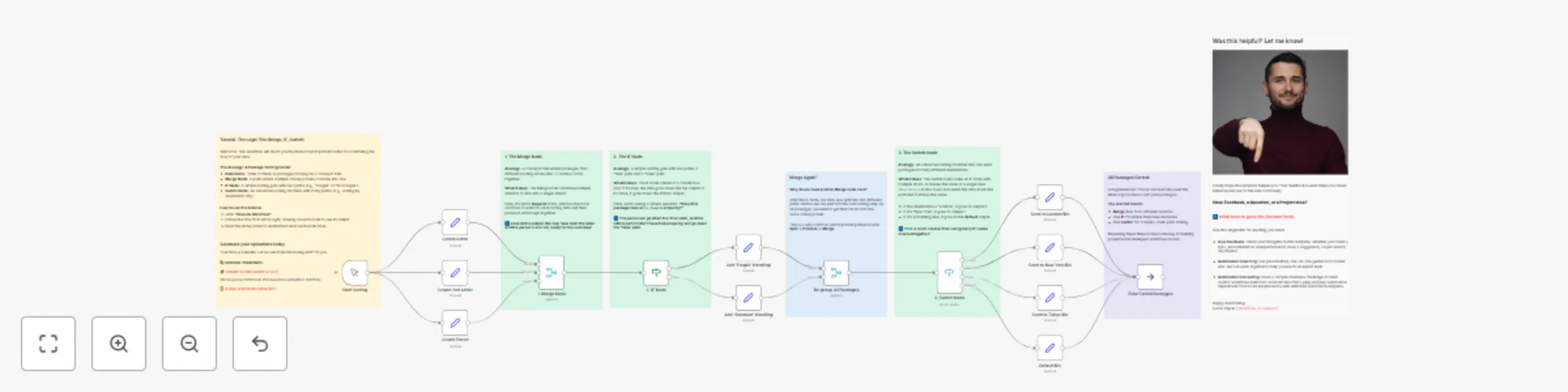
## How it works Ever wonder how to make your workflows smarter? How to handle different types of data in different ways? This template is a hands-on tutorial that teaches you the three most fundamental nodes for controlling the flow of your automations: **Merge**, **IF**, and **Switch**. To make it easy to understand, we use a simple **package sorting center** analogy: * **Data Items** are packages on a conveyor belt. * The **Merge Node** is where multiple conveyor belts combine into one. * The **IF Node** is a simple sorting gate with two paths (e.g., "Fragile" or "Not Fragile"). * The **Switch Node** is an advanced sorting machine that routes packages to many different destinations. This workflow takes you on a step-by-step journey through the sorting center: 1. **Creating Packages:** Three different "packages" (two letters and one parcel) are created using Set nodes. 2. **Merging:** The first **Merge** node combines all three packages onto a single conveyor belt so they can be processed together. 3. **Simple Sorting:** An **IF** node checks if a package is fragile. If `true`, it's sent down one path; if `false`, it's sent down another. 4. **Re-Grouping:** After being processed separately, another **Merge** node brings the packages back together. This **"Split > Process > Merge"** pattern is a critical concept in n8n! 5. **Advanced Sorting:** A **Switch** node inspects each package's `destination` and routes it to the correct output (London, New York, Tokyo, or a Default bin). By the end, you'll see how all packages have been correctly sorted, and you'll have a solid understanding of how to build intelligent, branching logic in your own workflows. ## Set up steps **Setup time: 0 minutes!** This template is a self-contained tutorial and requires **zero setup**. 1. There are no credentials or external services to configure. 2. Simply click the **"Execute Workflow"** button. 3. Follow the flow from left to right, clicking on each node to see its output and reading the detailed sticky notes to understand what's happening at each stage.

L
Lucas Peyrin
Engineering
14 Jul 2025
3831
0
Workflow preview: 🤖 Create a Documentation Expert Bot with RAG, Gemini, and Supabase
Free advanced

🤖 Create a Documentation Expert Bot with RAG, Gemini, and Supabase

## How it works This template is a complete, hands-on tutorial for building a **RAG (Retrieval-Augmented Generation)** pipeline. In simple terms, you'll teach an AI to become an expert on a specific topic—in this case, the official n8n documentation—and then build a chatbot to ask it questions. Think of it like this: instead of a general-knowledge AI, you're building an **expert librarian**. The workflow is split into two main parts: 1. **Part 1: Indexing the Knowledge (Building the Library)** This is a one-time process you run manually. The workflow automatically scrapes all the pages of the n8n documentation, breaks them down into small, digestible chunks, and uses an AI model to create a special numerical representation (an "embedding") for each chunk. These embeddings are then stored in your own private knowledge base (a Supabase vector store). This is like a librarian reading every book and creating a hyper-detailed index card for every paragraph. 2. **Part 2: The AI Agent (The Expert Librarian)** This is the chat interface. When you ask a question, the AI agent doesn't guess the answer. Instead, it uses your question to find the most relevant "index cards" (chunks) from the knowledge base it just built. It then feeds these specific, relevant chunks to a powerful language model (like Gemini) with a strict instruction: **"Answer the user's question using ONLY this information."** This ensures the answers are accurate, factual, and grounded in your provided documents. ## Set up steps **Setup time: ~15-20 minutes** This is an advanced workflow that requires setting up a free external database. Follow these steps carefully. 1. **Set up Supabase (Your Knowledge Base):** * You need a free [Supabase](https://supabase.com/) account. * Follow the detailed instructions in the large `Workflow Setup` sticky notes in the top-right of the workflow to: 1. Create a new Supabase project. 2. Run the provided SQL query in the SQL Editor to prepare your database. 3. Get your **Project URL** and **Service Role Key**. 2. **Configure n8n Credentials:** * In your n8n instance, create a new **Supabase credential** using the Project URL and Service Role Key from the previous step. * Create a new **Google AI credential** with your Gemini API key. 3. **Configure the Workflow Nodes:** * Select your new **Supabase credential** in the three `Supabase` nodes: `Your Supabase Vector Store`, `Official n8n Documentation` and `Keep Supabase Instance Alive`. * Select your new **Google AI credential** in the three `Gemini` nodes: `Gemini Chunk Embedding`, `Gemini Query Embedding` and `Gemini 2.5 Flash`. 4. **Build the Knowledge Base:** * Find the `Start Indexing` manual trigger node at the top-left. * Click its "Execute workflow" button to start the indexing process. **This will take several minutes** as it scrapes and processes the entire n8n documentation. You only need to do this once. 5. **Chat with Your Expert Agent:** * Once the indexing is complete, **Activate** the entire workflow. * Open the **`RAG Chatbot`** chat trigger node and copy its **Public URL**. * Open the URL in a new tab and start asking questions about n8n! For example: "How does the IF node work?" or "What is a sub-workflow?".

L
Lucas Peyrin
Internal Wiki
14 Jul 2025
31676
0
Workflow preview: 🤖 Build an interactive AI agent with chat interface and multiple tools
Free advanced

🤖 Build an interactive AI agent with chat interface and multiple tools

## How it works This template is a complete, hands-on tutorial that lets you build and interact with your very first AI Agent. Think of an AI Agent as a standard AI chatbot with **superpowers**. The agent doesn't just talk; it can **use tools** to perform actions and find information in real-time. This workflow is designed to show you exactly how that works. 1. **The Chat Interface (Chat Trigger):** This is your window to the agent. It's a fully styled, public-facing chat window where you can have a conversation. 2. **The Brain (AI Agent Node):** This is the core of the operation. It takes your message, understands your intent, and intelligently decides which "superpower" (or tool) it needs to use to answer your request. The agent's personality and instructions are defined in its extensive system prompt. 3. **The Tools (Tool Nodes):** These are the agent's superpowers. We've included a variety of useful and fun tools to showcase its capabilities: * Get a random joke. * Search Wikipedia for a summary of any topic. * Calculate a future date. * Generate a secure password. * Calculate a monthly loan payment. * Fetch the latest articles from the n8n blog. 4. **The Memory (Memory Node):** This gives the agent a short-term memory, allowing it to remember the last few messages in your conversation for better context. When you send a message, the agent's brain analyzes it, picks the right tool for the job, executes it, and then formulates a helpful response based on the tool's output. ## Set up steps **Setup time: ~3 minutes** This template is nearly ready to go out of the box. You just need to provide the AI's "brain." 1. **Configure Credentials:** This workflow requires an API key for an AI model. Make sure you have credentials set up in your n8n instance for either **Google AI (Gemini)** or **OpenAI**. 2. **Choose Your AI Brain (LLM):** * By default, the workflow uses the **Google Gemini** node. If you have Google AI credentials, you're all set! * If you prefer to use **OpenAI**, simply **disable the Gemini node** and **enable the OpenAI node**. You only need one active LLM node. Make sure it is connected to the Agent parent node. 3. **Explore the Tools:** Take a moment to look at the different tool nodes connected to the `Your First AI Agent` node. This is where the agent gets its abilities! You can add, remove, or modify these to create your own custom agent. 4. **Activate and Test!** * Activate the workflow. * Open the **public URL** for the `Example Chat Window` node (you can copy it from the node's panel). * Start chatting! Try asking it things like: * "Tell me a joke." * "What is n8n?" * "Generate a 16-character password for me." * "What are the latest posts on the n8n blog?" * "What is the monthly payment for a $300,000 loan at 5% interest over 30 years?"

L
Lucas Peyrin
Personal Productivity
9 Jul 2025
48693
0
Workflow preview: 🎓 Learn Code Node (JavaScript) with an Interactive Hands-On Tutorial
Free intermediate

🎓 Learn Code Node (JavaScript) with an Interactive Hands-On Tutorial

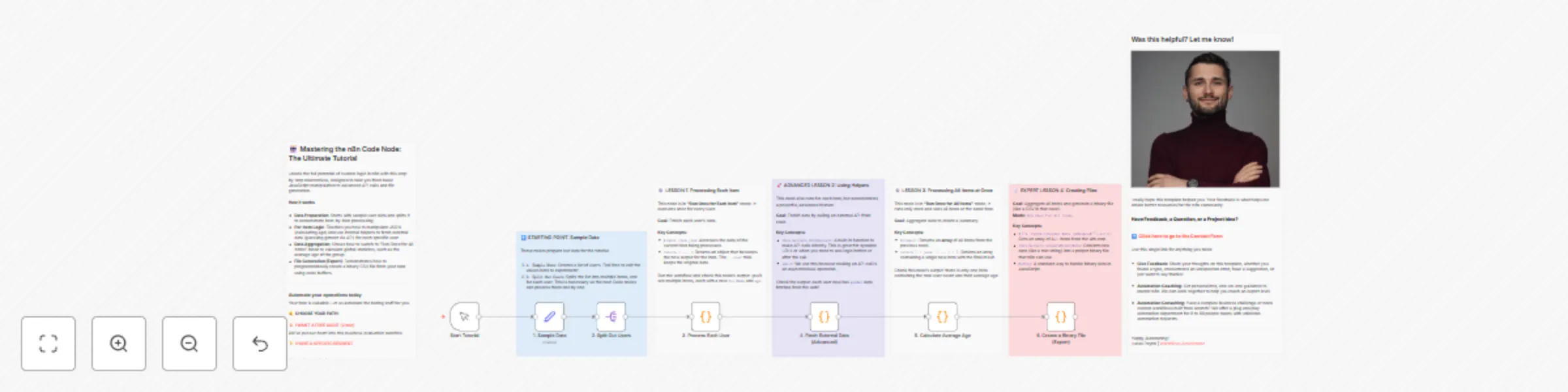
## How it works This workflow is a hands-on tutorial for the **Code node** in n8n, covering both basic and advanced concepts through a simple data processing task. 1. **Provides Sample Data:** The workflow begins with a sample list of users. 2. **Processes Each Item (`Run Once for Each Item`):** The first Code node iterates through each user to calculate their `fullName` and `age`. This demonstrates basic item-by-item data manipulation using `$input.item.json`. 3. **Fetches External Data (Advanced):** The second Code node showcases a more advanced feature. For each user, it uses the built-in `this.helpers.httpRequest` function to call an external API (genderize.io) to enrich the data with a predicted gender. 4. **Processes All Items at Once (`Run Once for All Items`):** The third Code node receives the fully enriched list of users and runs only once. It uses `$items()` to access the entire list and calculate the `averageAge`, returning a single summary item. 5. **Create a Binary File:** The final Code node gets the fully enriched list of users once again and creates a binary CSV file to show how to use binary data `Buffer` in JavaScript. ## Set up steps **Setup time: < 1 minute** This workflow is a self-contained tutorial and requires no setup. 1. **Explore the Nodes:** Click on each of the Code nodes to read the code and the comments explaining each step, from basic to advanced. 2. **Run the Workflow:** Click "Execute Workflow" to see it in action. 3. **Check the Output:** Click on each node after the execution to see how the data is transformed at each stage. Notice how the data is progressively enriched. 4. **Experiment!** Try changing the data in the `1. Sample Data` node, or modify the code in the Code nodes to see what happens.

L
Lucas Peyrin
Miscellaneous
27 Jun 2025
40003
0
Workflow preview: 🛠️ AI Prompt Maker
Free advanced

🛠️ AI Prompt Maker

### How it works This template provides a complete, ready-to-use web application for generating high-quality AI prompts. It features a user-friendly web form where you can describe your goal, and it leverages an AI model (Google Gemini) to create a structured, reusable prompt for you. The workflow is a full-stack application built entirely within n8n: 1. **Frontend (The Form):** A **Form Trigger** node creates a beautiful, public-facing web form. Here, a user describes the prompt they need and selects which structural components to include (like system instructions, examples, or input variables). 2. **Backend (The AI Logic):** * A **LangChain Chain** node takes the user's request and constructs a "meta-prompt"—a set of instructions for the AI on how to generate the final prompt. * The **Google Gemini** node executes this meta-prompt, creating a well-structured output with clear sections and tags. 3. **The Result (The Webpage):** * After generation, the user is automatically redirected to a new URL. * This URL is handled by another **Webhook** node, which serves a custom-coded HTML page. * This beautiful, dark-themed webpage displays the generated prompt and includes a one-click "Copy" button, making it easy to use the result immediately. This template is a perfect example of how to build interactive web tools with n8n, combining a user interface, backend logic, and a dynamic web response in a single workflow. ### Set up steps **Setup time: ~1-3 minutes** This workflow requires a Google AI credential to function. 1. **Configure Google AI Credentials:** * This workflow uses a Google Gemini model. You will need a Google AI API key. * In n8n, go to **Credentials** and click **Add credential**. * Search for **Google Gemini** and enter your API key. * Go back to the workflow, open the **Gemini 2.5 Flash** node, and select your newly created credential from the dropdown. 2. **Activate the Workflow:** * Click the **Active** toggle in the top-right corner to turn the workflow on. 3. **Access Your Prompt Maker:** * Open the **Prompt Request (Form Trigger)** node. * Copy the **Public URL** provided. This is the link to your new web application! * Open the link in your browser, fill out the form, and see the magic happen. **Note:** This workflow uses environment variables like `{{ $env.WEBHOOK_URL }}` to build the redirect URL. These are typically set automatically by n8n and should work out-of-the-box on most standard n8n setups.

L
Lucas Peyrin
Engineering
25 Jun 2025
17448
0
Workflow preview: 🎓 Learn n8n expressions with an interactive step-by-step tutorial for beginners
Free advanced

🎓 Learn n8n expressions with an interactive step-by-step tutorial for beginners

## How it works This template is an interactive, step-by-step tutorial designed to teach you the most important skill in n8n: **using expressions to access and manipulate data**. If you know what JSON is but aren't sure how to pull a specific piece of information from one node and use it in another, this workflow is for you. It starts with a single "Source Data" node that acts as our filing cabinet, and then walks you through a series of lessons, each demonstrating a new technique for retrieving and transforming that data. You will learn how to: 1. **Access a simple value** from a previous node. 2. Use n8n's built-in selectors like **`.last()`** and **`.first()`**. 3. Get a specific item from a list (**Array**). 4. Drill down into nested data (**Objects**). 5. Combine these techniques to access data in an **array of objects**. 6. Go beyond simple retrieval by using **JavaScript functions** to do math or change text. 7. Inspect data with utility functions like **`Object.keys()`** and **`JSON.stringify()`**. 8. Summarize data from **multiple items** using `.all()` and arrow functions. ## Set up steps **Setup time: 0 minutes!** This workflow is a self-contained tutorial and requires no setup or external credentials. 1. Click **"Execute Workflow"** to run the entire tutorial. 2. Follow the flow from the "Source Data" node to the "Final Exam" node. 3. For each lesson, click on the node to see how its expressions are configured in the parameters panel. 4. Read the detailed sticky note next to each lesson—it breaks down exactly how the expression works and why. By the end, you'll have the foundational knowledge to connect data and build powerful, dynamic workflows in n8n.

L
Lucas Peyrin
Engineering
25 Jun 2025
51896
0
Workflow preview: 🎓 Learn n8n keyboard shortcuts with an interactive hands-on tutorial workflow
Free advanced

🎓 Learn n8n keyboard shortcuts with an interactive hands-on tutorial workflow

## How it works This template is an interactive playground designed to help you master the most useful keyboard shortcuts in n8n and supercharge your building speed. Forget boring lists—this workflow gives you hands-on tasks to complete, turning learning into a practical exercise. The workflow is structured into four chapters, each focusing on a different aspect of workflow development: 1. **Node Basics:** Learn the fundamentals of interacting with a single node, such as renaming, editing, duplicating, and deactivating. 2. **Canvas Navigation & Selection:** Master the art of moving around the canvas and selecting multiple nodes efficiently. 3. **Advanced Actions:** Discover powerful moves like tidying up messy connections and creating sub-workflows. 4. **Execution & Debugging:** Uncover essential shortcuts for testing your workflows, like pinning data and navigating the executions panel. Each step provides a clear task in a sticky note, guiding you to perform the action yourself. ## Set up steps **Setup time: 0 minutes!** This workflow is a self-contained tutorial and requires no setup, credentials, or configuration. 1. Open the workflow. 2. Follow the instructions in the sticky notes, starting from the top. 3. Perform the actions as described to build muscle memory for each shortcut. That's it! Get ready to become an n8n power user.

L
Lucas Peyrin
Miscellaneous
25 Jun 2025
5147
0
Workflow preview: 🛠️ Auto n8n updater (Docker)
Free advanced

🛠️ Auto n8n updater (Docker)

## How it works This workflow automates the process of checking for and applying updates to a self-hosted n8n instance running on Docker. It runs on a schedule, checks for new versions, summarizes the release notes with AI, and asks for your approval via Telegram before updating. 1. **Scheduled Check:** The workflow runs hourly, triggered by a `Schedule` node. 2. **Version Discovery:** * It first confirms it's running in a Docker environment. * It uses SSH to connect to the host machine and inspects the running n8n container to find its current version tag (e.g., `latest` or `next`). * It then queries the Docker Hub API to compare the image `digest` (a unique ID for an image version) of the running version against the latest available version for that tag. 3. **Update Detection:** If the digests do not match, it means a new image has been pushed for your version tag (e.g., a new `latest` image is available), and an update is needed. 4. **AI-Powered Release Notes:** * It fetches the official release notes for the new version from the GitHub API. * An AI model (LLM) summarizes these technical notes into a concise, human-readable overview of the key features and fixes. 5. **Manual Approval:** It sends a message to a Telegram chat with the AI-generated summary and two buttons: "✅ Update" and "❌ Ignore". The workflow then pauses and waits for your response. 6. **Execute Update:** If you approve the update, the workflow uses SSH to run a `docker compose` command on your server, which pulls the new image, stops the old containers, and starts the new ones. ## Set up steps **Setup time: ~5-10 minutes** 1. **SSH Credentials:** * Go to **Credentials** and create a new **SSH** credential with the username, host, and password/private key for the server where your n8n Docker instance is running. * Select this credential in the **`Get n8n Current Version`** and **`Update Docker`** nodes. 2. **Telegram Bot Credentials:** * Create a Telegram Bot and get its API token. * Go to **Credentials** and create a new **Telegram** credential with your bot's token. * Select this credential in the **`Send a text message`** node. 3. **AI Model Credentials:** * Ensure you have credentials for an AI provider (like Google AI, OpenAI, etc.) set up. * Select your desired credential in the **`Google Gemini Chat Model`** node (or replace it with your preferred LLM node). 4. **Configure Paths and Commands:** * Open the **`Docker Path`** node. Set the `docker_path` to the absolute path of your `docker-compose.yml` file on the server (e.g., `/root/n8n`). * If you use workers, adjust the `worker_command` to include the correct `--scale` argument for your setup. If not, you can leave it blank. 5. **Set Your Chat ID:** * Open the **`Approve Update`** Telegram node and enter your personal Telegram Chat ID in the `Chat ID` field. This ensures the approval message is sent to you. 6. **Activate the workflow.** It will now check for updates every hour. **To enable fully automatic updates (without manual approval):** Delete the nodes from `Get n8n Releases` to `Approved ?` and connect the `Needs Update ?` node directly to the `Update Docker` node.

L
Lucas Peyrin
DevOps
24 Jun 2025
3236
0
Workflow preview: 🗲 Creating a Secure Webhook - MUST HAVE
Free advanced

🗲 Creating a Secure Webhook - MUST HAVE

## How it works This workflow demonstrates a fundamental pattern for securing a webhook by requiring an API key. It acts as a gatekeeper, checking for a valid key in the request header before allowing the request to proceed. 1. **Incoming Request:** The `Secured Webhook` node receives an incoming `POST` request. It expects an API key to be sent in the `x-api-key` header. 2. **API Key Verification:** * The `Check API Key` node takes the key from the incoming request's header. * It then makes an internal HTTP request to a *second* webhook (`Get API Key`) which acts as a mock database. * This second webhook retrieves a list of registered API keys (from the `Registered API Keys` node) and filters it to find a match for the key that was provided. 3. **Conditional Response:** * **If a match is found**, the `API Key Identified` node routes the execution to the "success" path, returning a `200 OK` response with the identified user's ID. * **If no match is found**, it routes to the "unauthorized" path, returning a `401 Unauthorized` error. This pattern separates the public-facing endpoint from the data source, which is a good security practice. ## Set up steps **Setup time: ~2 minutes** This workflow is designed to be a self-contained example. 1. **Set up Credentials:** This workflow uses "Header Auth" for its internal communication. Go to **Credentials** and create a new **Header Auth** credential. You can use any name and value (e.g., Name: `X-N8N-Auth`, Value: `my-secret-password`). Select this credential in all four webhook/HTTP Request nodes. 2. **Add Your API Keys:** Open the **`Registered API Keys`** node. This is your mock database. Edit the array to include the `user_id` and `api_key` pairs you want to authorize. 3. **Activate the workflow.** 4. **Test it:** Use the **`Test Secure Webhook`** node to send a request. * Try it with a valid key from your list to see the success response. * Change the `x-api-key` header to an invalid key to see the `401 Unauthorized` error. **For Production:** Replace the mock database part of this workflow (the `Get API Key` webhook and `Registered API Keys` node) with a real database node like Supabase, Postgres, or Baserow to look up keys.

L
Lucas Peyrin
SecOps
24 Jun 2025
5291
0
Workflow preview: 🗲 Serve custom websites (HTML webpages) with webhooks
Free intermediate

🗲 Serve custom websites (HTML webpages) with webhooks

## How it works This workflow demonstrates how to use n8n to serve a complete, styled HTML webpage. It acts as a mini web server, responding to browser requests with your custom HTML content. 1. **Webhook Trigger:** The workflow starts with a `Webhook` node configured to listen for `GET` requests on a specific path. When you visit this node's Production URL in a browser, it triggers the workflow. 2. **Respond with HTML:** The `Respond to Webhook` node is configured to send a response back to the browser. * **Content-Type Header:** It sets a crucial response header, `Content-Type: text/html`, which tells the browser to render the response as a webpage, not just plain text. * **HTML Body:** The entire HTML, CSS, and JavaScript for the webpage is pasted directly into the `Body` field of this node. When activated, visiting the webhook URL will instantly display the custom webpage. ## Set up steps **Setup time: < 1 minute** This workflow is ready to use out-of-the-box. 1. **Activate the workflow.** 2. Open the **`Your WebPage`** (Webhook) node and copy its **Production URL**. 3. Paste the URL into your browser to see the live tutorial page. 4. To use your own HTML, simply open the **`Site`** (Respond to Webhook) node and replace the content in the `Body` field with your own code.

L
Lucas Peyrin
Engineering
24 Jun 2025
2344
0
Workflow preview: 🎓 Learn API Fundamentals with an Interactive Hands-On Tutorial Workflow
Free advanced

🎓 Learn API Fundamentals with an Interactive Hands-On Tutorial Workflow

### How it works This template is an interactive, hands-on tutorial designed to demystify what an API is and how it works, right inside your n8n canvas. It uses a simple restaurant analogy to explain the core concepts: * **You** are the "Client" (an **HTTP Request** node). * The **Kitchen** is the "Server" (a **Webhook** node). * The **API** is the **Menu and the Waiter**—the set of rules for how you can ask for things and get a response. The workflow is a series of self-contained lessons. Each lesson pairs an HTTP Request node (the customer placing an order) with a Webhook node (the kitchen receiving and responding to the order) to demonstrate a key concept: 1. **The Basics:** Making a simple `GET` request to a `URL`. 2. **Customizing:** Using `Query Parameters` to filter or modify your request. 3. **Sending Data:** Using the `POST` method and a `Body` to send information to the server. 4. **Identification:** Using `Headers` and simple `Authentication` to prove who you are. 5. **Handling Delays:** Understanding how `Timeouts` prevent your workflow from getting stuck. ### Set up steps **Setup time: < 1 minute** This workflow is a self-contained tutorial and requires no external services or credentials. You may want to check the Base URL. 1. Click **"Execute Workflow"** to run the entire tutorial. 2. Follow the flow from top to bottom, exploring each "Lesson". 3. For each lesson, click on the **HTTP Request** node and its corresponding **Webhook** node to see how they are configured and what they do. 4. Read the sticky notes next to each lesson—they contain the core explanations! That's it! Explore and have fun learning the fundamentals of APIs in an interactive way.

L
Lucas Peyrin
Miscellaneous
24 Jun 2025
44286
0
Workflow preview: 🎓 Learn JSON basics with an interactive step-by-step tutorial for beginners
Free advanced

🎓 Learn JSON basics with an interactive step-by-step tutorial for beginners

## How it works This workflow is an interactive, hands-on tutorial designed to teach you the absolute basics of JSON (JavaScript Object Notation) and, more importantly, how to use it within n8n. It's perfect for beginners who are new to automation and data structures. The tutorial is structured as a series of simple steps. Each node introduces a new, fundamental concept of JSON: 1. **Key/Value Pairs:** The basic building block of all JSON. 2. **Data Types:** It then walks you through the most common data types one by one: * **String** (text) * **Number** (integers and decimals) * **Boolean** (`true` or `false`) * **Null** (representing "nothing") * **Array** (an ordered list of items) * **Object** (a collection of key/value pairs) 3. **Using JSON with Expressions:** The most important step! It shows you how to dynamically pull data from a previous node into a new one using n8n's expressions (`{{ }}`). 4. **Final Exam:** A final node puts everything together, building a complete JSON object by referencing data from all the previous steps. Each node has a detailed sticky note explaining the concept in simple terms. ## Set up steps **Setup time: 0 minutes!** This is a tutorial workflow, so there is no setup required. 1. Simply click the **"Execute Workflow"** button to run it. 2. Follow the instructions in the main sticky note: click on each node in order, from top to bottom. 3. For each node, observe the output in the right-hand panel and read the sticky note next to it to understand what you're seeing. By the end, you'll have a solid understanding of what JSON is and how to work with it in your own n8n workflows.

L
Lucas Peyrin
Engineering
24 Jun 2025
118856
0