L

Lucas Correia

3
Workflows

Workflows by Lucas Correia

Workflow preview: Generate viral social media carousels with xAI Grok for Instagram, TikTok, LinkedIn & X
Free advanced

Generate viral social media carousels with xAI Grok for Instagram, TikTok, LinkedIn & X

# AI Automated "Viral Style" Carousels Generator for Instagram, TikTok, LinkedIn, or X ## 🚀 Overview Automate your **social media content creation** with this powerful n8n workflow! Generate engaging, **viral-style carousels** for Instagram, TikTok, LinkedIn, or X (Twitter) in minutes. This template leverages **AI (xAI Grok)** to craft compelling, high-retention text and uses n8n's **Edit Image** node to automatically design your slides with your custom branding. Output examples: ![1.png](fileId:3403) ![2.png](fileId:3402) ## ✨ Features * **AI-Powered Content:** Utilizes xAI Grok to generate witty, substantive, 7-slide carousel content based on a theme and CTA. * **Multi-Platform Ready:** Perfect for **Instagram carousels**, **TikTok carousels**, **LinkedIn carousels**, and **X (Twitter) threads**. * **Automated Design:** Overlays AI-generated text onto your chosen background image, creating visually consistent slides. * **Easy Customization:** Adapt the AI persona, font styles, colors, and background images to match your brand. * **Google Drive Integration:** Seamlessly downloads your background template and uploads finished carousel slides. * **No Code Automation:** Set up once and generate endless content with minimal effort. ## 💡 How it Works 1. **Input Trigger:** Provide a `theme` and `call to action (CTA)` via a webhook or manual trigger. 2. **Content Generation:** The AI (acting as "The Carousel Cynic") writes 7 distinct slides, each with a provocative title and a detailed description, formatted for maximum engagement. 3. **Image Assembly:** * Downloads a base background image from Google Drive. * Loops through each of the 7 AI-generated slides. * Uses the **Edit Image** node to dynamically add the slide's title and description to the background. * Outputs sequentially numbered `.png` files (e.g., `1.png`, `2.png`). 4. **Output & Storage:** Uploads all final carousel images to a specified folder in your Google Drive, ready for publishing. ## 🛠️ Setup Steps 1. **xAI Credentials:** Add your xAI API Key to the **xAI Grok Chat Model** node. 2. **Google Drive Integration:** * Connect your Google Drive OAuth2 credentials. * In the **Download file** node, update the `File ID` to point to your desired blank background image. * In the **Upload file** node, select the Google Drive folder where you want to save the generated carousels. 3. **Customization (Optional):** * Adjust AI persona in the **AI Agent** node's "System Prompt." * Modify `fontSize`, `fontColor`, `positionX`, and `positionY` in the **Params Style Config** node to perfectly align text on your background images. ## 🎁Bonus Added in workflow a Canva link to editable background style I use in my carousels. ## 🔑 Keywords AI, Automation, Social Media, Carousel, Instagram, TikTok, LinkedIn, X, Twitter, Content Creation, Viral Content, Marketing, Grok, xAI, Image Generation, No-code, Workflow, Productivity, Creator Economy, Digital Marketing, Engagement, Visual Content, Dynamic Image, Automated Marketing.

L
Lucas Correia
Content Creation
20 Nov 2025
610
0

Workflow preview: Generate dynamic line chart from JSON data to upload to Google Drive
Free intermediate

Generate dynamic line chart from JSON data to upload to Google Drive

## What Does This Flow Do? This workflow demonstrates how to dynamically generate a line chart using the QuickChart node based on data provided in a JSON object and then upload the resulting chart image to Google Drive. ![chart.jpg](fileId:1121) ## Use Cases * You can use it in presentations or requesting for chart generation from a software with HTTP requests. * Automated report generation (e.g., daily sales charts). * Visualizing data fetched from APIs or databases. * Simple monitoring dashboards. * Adding charts to internal tools or notifications. ## How it Works 1. **Trigger:** The workflow starts manually when you click 'Test workflow'. 2. **Set Sample Data:** A Set node (`Edit Fields: Set JSON data to test`) defines a sample JSON object named `jsonData`. This object contains: * `reportTitle`: A title (not used in the chart generation in this example, but useful for context). * `labels`: An array of strings representing the labels for the chart's X-axis (e.g., ["Q1", "Q2", "Q3", "Q4"]). * `salesData`: An array of numbers representing the data points for the chart's Y-axis (e.g., [1250, 1800, 1550, 2100]). 3. **Generate Chart:** The QuickChart node is configured to: * Create a `line` chart. * Dynamically read labels from the `jsonData.labels` array (`Labels Mode: From Array`). * Use the `jsonData.salesData` array as the input data (Note: This configuration places data in the top-level 'Data' field. For more complex charts with multiple datasets or specific dataset options, configure datasets under 'Dataset Options' instead). * The node outputs the generated chart image as binary data in a field named `data`. 4. **Upload to Google Drive:** The Google Drive node (`Google Drive: Upload File`): * Takes the binary data (`data`) from the QuickChart node. * Uploads the image to your specified Google Drive folder. * Dynamically names the file based on its extension (e.g., `chart.png`). ## Setup Steps 1. **Import:** Import this template into your n8n instance. 2. **Configure Google Drive Credentials:** * Select the `Google Drive: Upload File` node. * You **MUST** configure your own Google Drive credentials. Click on the 'Credentials' dropdown and either select existing credentials or create new ones by following the authentication prompts. 3. **(Optional) Customize Google Drive Folder:** In the `Google Drive: Upload File` node, you can change the `Drive ID` and `Folder ID` to specify exactly where the chart should be uploaded. 4. **Activate:** Activate the workflow if you want it to run automatically based on a different trigger. ## How to Use & Customize * **Change Input Data:** Modify the `labels` and `salesData` arrays within the `Edit Fields: Set JSON data to test` node to use your own data. Ensure the number of labels matches the number of data points. * **Use Real Data Sources:** Replace the `Edit Fields: Set JSON data to test` node with nodes that fetch data from real sources like: * HTTP Request (APIs) * Postgres / MongoDB nodes (Databases) * Google Sheets node * Ensure the output data from your source node is formatted similarly (providing `labels` and `salesData` arrays). You might need another Set node to structure the data correctly before the QuickChart node. * **Change Chart Type:** In the QuickChart node, modify the `Chart Type` parameter (e.g., change from `line` to `bar`, `pie`, `doughnut`, etc.). * **Customize Chart Appearance:** Explore the `Chart Options` parameter within the QuickChart node to add titles, change colors, modify axes, etc., using QuickChart's standard JSON configuration options. * **Use Datasets (Recommended for Complex Charts):** For multiple lines/bars or more control, configure datasets explicitly in the QuickChart node: * Remove the expression from the top-level `Data` field. * Go to `Dataset Options` -> `Add option` -> `Add dataset`. * Set the `Data` field within the dataset using an expression like `{{ $json.jsonData.salesData }}`. * You can add multiple datasets this way. * **Change Output Destination:** Replace the `Google Drive: Upload File` node with other nodes to handle the chart image differently: * `Write Binary File`: Save the chart to the local filesystem where n8n is running. * `Slack` / `Discord` / `Telegram`: Send the chart to messaging platforms. * `Move Binary Data`: Convert the image to Base64 to embed in HTML or return via webhook response. ## Nodes Used * Manual Trigger * Set * QuickChart * Google Drive --- **Tags:** (Suggestions for tags field) `QuickChart`, `Chart`, `Visualization`, `Line Chart`, `Google Drive`, `Reporting`, `Automation` ---

L
Lucas Correia
Document Extraction
17 Apr 2025
2466
0
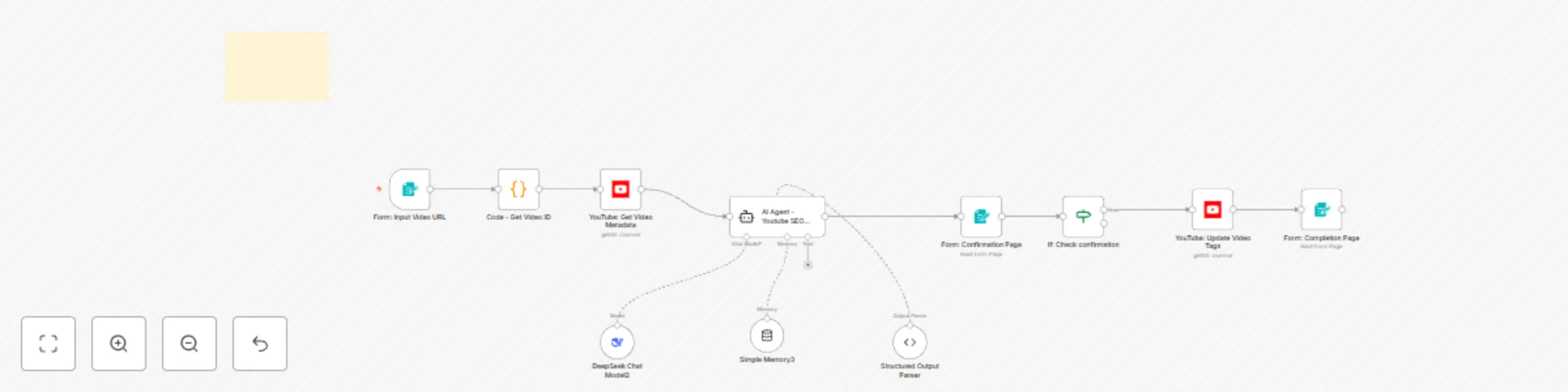
Workflow preview: Advanced AI-powered YouTube SEO optimization & auto-update
Free intermediate

Advanced AI-powered YouTube SEO optimization & auto-update

# Optimize Existing YouTube Video Metadata using AI and YouTube API ## This n8n workflow automatically enhances the Search Engine Optimization (SEO) of your existing YouTube videos. Provide a video link, and the workflow fetches its current data, uses advanced SEO techniques with AI to generate optimized titles, descriptions, and tags, and then updates the video directly on your YouTube channel. ### Who is this for? This workflow is designed for: #### Content Creators & YouTubers: Who want to improve the visibility and reach of their existing video library without manual effort. #### Digital Marketers & Social Media Managers: Who manage YouTube channels and need an efficient way to revitalize older or underperforming content. #### Agencies: Managing multiple client YouTube channels and looking for scalable optimization solutions. ### What problem is this workflow solving? / Use Case Many creators have a backlog of published videos that aren't reaching their full potential due to suboptimal titles, descriptions, or tags. Manually reviewing and updating each video is time-consuming and requires SEO expertise. ### This workflow solves that by: - Automating the re-optimization process: Saving significant time and effort. - Leveraging AI for SEO: Generating high-quality, relevant metadata based on the video's content. - Revitalizing existing content: Giving older videos a fresh chance to be discovered by the YouTube algorithm and new viewers. - Improving discoverability: Helping your videos rank better in Youtube and appear more often in recommendations. ### What this workflow does #### Input: Takes a YouTube video URL as the starting point (e.g., via a manual trigger or form). #### Fetch Data: Connects to the YouTube API using the provided link to retrieve the video's current title, description, tags, and potentially transcript data (if accessible and configured). #### AI Analysis & Generation: Sends the current metadata and video information to an AI model (like OpenAI, Google AI, or Anthropic - depending on your setup). The AI analyzes the content and generates new, SEO-optimized suggestions for the: - Video Title - Video Description - Video Tags #### Update Video: Connects to the YouTube API again using appropriate permissions and updates the specific video with the newly generated title, description, and tags, replacing the old ones. ### How to customize this workflow to your needs To use this workflow, you will need to: #### Configure Credentials: - YouTube: Set up YouTube API credentials in n8n. You'll likely need OAuth2 credentials that allow editing video metadata (youtube.force-ssl scope). Follow Google Cloud Console instructions to create these. - AI Service: Set up credentials for your chosen AI provider (e.g., OpenAI API Key, Google AI API Key) in n8n. - Connect Credentials: Select your configured YouTube and AI credentials in the respective nodes within the workflow. - (Optional) Review AI Prompts: Check the prompts used in the AI node(s) to ensure they align with your desired tone and optimization strategy.

L
Lucas Correia
Content Creation
13 Apr 2025
1025
0