Mark Shcherbakov
Workflows by Mark Shcherbakov

Two-stage document retrieval chatbot with OpenAI and Supabase vector search
### Video Guide I prepared a comprehensive guide demonstrating how to build a multi-level retrieval AI agent in n8n that smartly narrows down search results first by file descriptions, then retrieves detailed vector data for improved relevance and answer quality. [](https://www.youtube.com/watch?v=asXVOHg89hs) [Youtube Link](https://www.youtube.com/watch?v=asXVOHg89hs) ### Who is this for? This workflow suits developers, AI enthusiasts, and data engineers working with vector stores and large document collections who want to enhance the precision of AI retrieval by leveraging metadata-based filtering before deep content search. It helps users managing many files or documents and aiming to reduce noise and input size limits in AI queries. ### What problem does this workflow solve? Performing vector searches directly on large numbers of document chunks can degrade AI input quality and introduce noise. This workflow implements a two-stage retrieval process that first searches file descriptions to filter relevant files, then runs vector searches only within those files to fetch precise results. This reduces irrelevant data, improves answer accuracy, and optimizes performance when dealing with dozens or hundreds of files split into multiple pieces. ### What this workflow does This n8n workflow connects to a Supabase vector store to perform: - **Multi-level Retrieval:** 1. **File Description Search:** Calls a Supabase RPC function to find files whose descriptions (metadata) best match the user query. It filters and limits the number of relevant files based on similarity scores. 2. **Document Chunk Retrieval:** Uses retrieved file IDs to perform a second RPC call fetching detailed vector pieces only within those files, again filtered by similarity thresholds. - **OpenAI Integration:** The filtered document chunks and associated metadata (like file names and URLs) are passed to an OpenAI message node that includes system instructions to guide the AI in leveraging the knowledge base and linked resources for comprehensive responses. - **Custom Code Functions:** Two code nodes interact with Supabase stored procedures `match_files` and `match_documents` to perform the semantic searches with multiline metadata filtering unavailable in default vector filters. - **Helper Flows and SQL Setup:** Templates and SQL scripts prepare database tables and functions, with additional flows to generate embeddings from file description summaries using OpenAI. ### N8N Workflow 1. **Preparation:** - Create or verify Supabase account with vector store capability. - Set up necessary database tables and RPC functions (`match_files` and `match_documents`) using provided SQL scripts. - Replace all credentials in n8n nodes to connect to your Supabase and OpenAI accounts. - Optionally upload document files and generate their vector embeddings and description summaries in a separate helper workflow. 2. **Main Workflow Logic:** - **Code Function Node #1:** Receives user query and calls the `match_files` RPC to retrieve file IDs by searching file descriptions with vector similarity thresholds and file limits. - **Code Function Node #2:** Takes filtered file IDs, invokes `match_documents` RPC to fetch vector document chunks only from those files with additional similarity filtering and count limits. - **OpenAI Message Node:** Combines fetched document pieces, their metadata (file URLs, similarity scores), and system prompts to generate precise AI-powered answers referencing the documents. This multi-tiered retrieval process improves search relevance and AI contextual understanding by smartly limiting vector search scope first to relevant files, then to specific document chunks, refining user query results.
AI agent to chat with Snowflake database
### Video Guide I prepared a detailed guide showcasing the process of building an AI agent that interacts with a Snowflake database using n8n. This setup enables conversational querying, secure execution of SQL queries, and dynamic report generation with rich visualization capabilities. [](https://youtu.be/r7er-HCRsX4) [Youtube Link](https://youtu.be/r7er-HCRsX4) ### Who is this for? This workflow is designed for developers, data analysts, and business professionals who want to interact with their Snowflake data conversationally. It suits users looking to automate SQL query generation with AI, manage large datasets efficiently, and produce interactive reports without deep technical knowledge. ### What problem does this workflow solve? Querying Snowflake databases typically requires SQL proficiency and can lead to heavy token usage if large datasets are sent to AI models directly. This workflow addresses these challenges by: - Guiding AI to generate accurate SQL queries based on user chat input while referencing live database schema to avoid errors. - Executing queries safely on Snowflake with proper credential management. - Aggregating large result sets to reduce token consumption. - Offering a user-friendly report link with pagination, filtering, charts, and CSV export instead of returning overwhelming raw data. - Providing an error-resilient environment that prompts regenerations for SQL errors or connectivity issues. ### What this workflow does The scenario consists of multiple focused n8n workflows orchestrated for smooth, secure, and scalable interactions: 1. **Agent Workflow** - Starts with a chat node and sets the system role as "Snowflake SQL assistant." - AI generates SQL after verifying database schema and table definitions to avoid hallucinations. - Reinforcement rules ensure schema validation before query creation. 2. **Data Retrieval Workflow** - Receives SQL queries from the agent workflow. - Executes them against the Snowflake database using user-provided credentials (hostname, account, warehouse, database, schema, username, password). - Optionally applies safety checks on SQL to prevent injection attacks. 3. **Aggregation and Reporting Decision** - Aggregates returned data into arrays for efficient processing. - Applies a threshold (default 100 records) to decide whether to return raw data or generate a dynamic report link. - Prepares report links embedding URL-encoded SQL queries to securely invoke a separate report workflow. 4. **Report Viewing Workflow** - Triggered via webhook from the report link. - Re-executes SQL queries to fetch fresh data. - Displays data with pagination, column filtering, and selectable chart visualizations. - Supports CSV export and custom HTML layouts for tailored user experience. - Provides proper error pages in case of SQL or data issues. 5. **Schema and Table Definition Retrieval Tools** - Two helper workflows that fetch the list of tables and column metadata from Snowflake. - Require the user to replace placeholders with actual database and data source names. - Crucial for AI to maintain accurate understanding of the database structure. ### N8N Workflow **Preparation** - Create your Snowflake credentials in n8n with required host and account details, warehouse (e.g., "computer_warehouse"), database, schema, username, and password. - Replace placeholder variables in schema retrieval workflows with your actual database and data source names. - Verify the credentials by testing the connection; reset passwords if needed. **Workflow Logic** - The Agent Workflow listens to user chats, employs system role "Snowflake SQL assistant," and ensures schema validation before generating SQL queries. - Generated SQL queries pass to the Data Retrieval Workflow, which executes them against Snowflake securely. - Retrieved data is aggregated and evaluated against a configurable threshold to decide between returning raw data or creating a report link. - When a report link is generated, the Report Viewing Workflow renders a dynamic interactive HTML-based report webpage, including pagination, filters, charts, and CSV export options. - Helper workflows periodically fetch or update the current database schema and table definitions to maintain AI accuracy and prevent hallucinations in SQL generation. - Error handling mechanisms provide user-friendly messages both in the agent chat and report pages when issues arise with SQL or connectivity. This modular, secure, and extensible setup empowers you to build intelligent AI-driven data interactions with Snowflake through n8n automations and custom reporting.
Automate cryptocurrency funding fee tracking with Binance API and Airtable
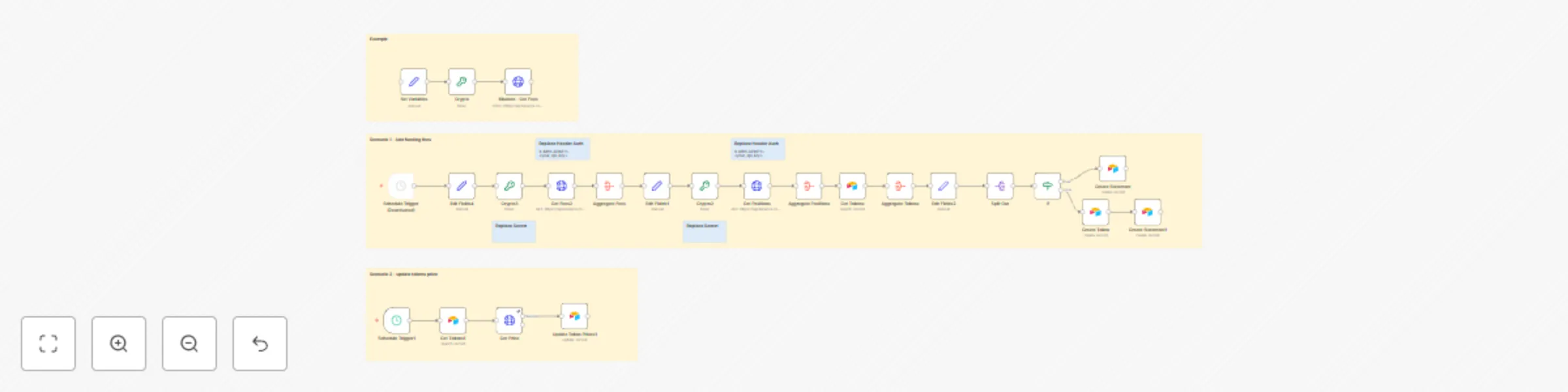
### Video Guide I prepared a detailed guide that showed the whole process of integrating the Binance API and storing data in Airtable to manage funding statements associated with tokens in a wallet. [](https://youtu.be/GBZRduOzOzg) [Youtube Link](https://youtu.be/GBZRduOzOzg) ### Who is this for? This workflow is ideal for developers, financial analysts, and cryptocurrency enthusiasts who want to automate the process of managing funding statements and token prices. It’s particularly useful for those who need a systematic approach to track and report funding fees associated with tokens in their wallets. ### What problem does this workflow solve? Managing funding statements and token prices across multiple platforms can be cumbersome and error-prone. This workflow automates the process, allowing users to seamlessly fetch funding fees from Binance and record them alongside token prices in Airtable, minimizing manual data entry and potential discrepancies. ### What this workflow does This workflow integrates the Binance API with an Airtable database, facilitating the storage and management of funding statements linked to tokens in a wallet. The agent can: - Fetch funding fees and current positions from Binance. - Aggregate data to create structured funding statements. - Insert records into Airtable, ensuring proper linkage between funding data and tokens. 1. **API Authentication**: The workflow establishes authentication with the Binance API using a Crypto Node to handle API keys and signatures, ensuring secure and verified requests. 2. **Data Collection**: It retrieves necessary data, including funding fees and current positions with properly formatted API requests to ensure seamless communication with Binance. 3. **Airtable Integration**: The workflow inserts aggregated funding statements and token data into the corresponding Airtable records, managing token existence checks to avoid duplicate entries. ### Setup 1. **Set Up Airtable Database**: - Create an Airtable base with tables for Funding Statements and Tokens. 2. **Generate Binance API Key**: - Log in and create an API key with appropriate permissions. 3. **Set Up Authentication in N8N**: - Utilize a Crypto Node for Binance API authentication. 4. **Configure API Request to Binance**: - Set request method and headers for communication with the Binance API. 5. **Fetch Funding Fees and Current Positions**: - Retrieve funding data and current positions efficiently. 6. **Aggregate and Create Statements**: - Aggregate data to create detailed funding statements. 7. **Insert Data into Airtable**: - Input the structured data into Airtable and manage token records. 8. **Using Get Price Node**: - Implement a Get Price Node to maintain current token price tracking without additional setup.
Ai agent to chat with files in Supabase Storage and Google Drive
### Video Guide I prepared a detailed guide that illustrates the entire process of building an AI agent using Supabase and Google Drive within N8N workflows. [](https://youtu.be/NB6LhvObiL4) [Youtube Link](https://youtu.be/NB6LhvObiL4) ### Who is this for? This workflow is designed for developers, data scientists, and business users who wish to automate document management and enable AI-powered interactions over their stored files. It's especially beneficial for scenarios where users need to process, analyze, and retrieve information from uploaded documents rapidly. ### What problem does this workflow solve? Managing files across multiple platforms often involves tedious manual processes. This workflow facilitates automated file handling, making it easier for users to upload, parse, and interact with documents through an AI agent. It reduces redundancy and enhances the efficiency of data retrieval and management tasks. ### What this workflow does This workflow integrates Supabase storage with Google Drive and employs an AI agent to manage files effectively. The agent can: - Upload files to Supabase storage and activate processes based on file changes in Google Drive. - Retrieve and parse documents, converting them into a structured format for easy querying. - Utilize an AI agent to answer user queries based on saved document data. 1. **Data Collection**: The workflow initially gathers files from Supabase storage, ensuring no duplicates are processed in the 'files' table. 2. **File Handling**: It processes files to be parsed based on their type, leveraging LlamaParse for effective data transformation. 3. **Google Drive Integration**: The workflow monitors a designated Google Drive folder to upload files automatically and refresh document records in the database with new data. 4. **AI Interaction**: A webhook is established to enable the AI agent to converse with users, facilitating queries and leveraging stored document knowledge. ### Setup 1. **Supabase Storage Setup**: - Create a private bucket in Supabase storage, modifying the default name in the URL. - Upload your files using the provided upload options. 2. **Database Configuration**: - Establish the 'file' and 'document' tables in Supabase with the necessary fields. - Execute any required SQL queries for enabling vector matching features. 3. **N8N Workflow Logic**: - Start with a manual trigger for the initial workflow segment or consider alternative triggers like webhooks. - Replace all relevant credentials across nodes with your own to ensure seamless operation. 4. **File Processing and Google Drive Monitoring**: - Set up file processing to take care of downloading and parsing files based on their types. - Create triggers to monitor the designated Google Drive folder for file uploads and updates. 5. **Integrate AI Agent**: - Configure the webhook for the AI agent to accept chat inputs while maintaining session context for enhanced user interactions. - Utilize PostgreSQL to store user interactions and manage conversation states effectively. 6. **Testing and Adjustments**: - Once everything is set up, run tests with the AI agent to validate its responses based on the documents in your database. - Fine-tune the workflow and AI model as needed to achieve desired performance.
Technical stock analysis with Telegram, Airtable and a GPT-powered AI agent
### Video Guide I prepared a detailed guide that demonstrates the complete process of building a trading agent automation using n8n and Telegram, seamlessly integrating various functions for stock analysis. [](https://youtu.be/94vh6hSiP9s) [Youtube Link](https://youtu.be/94vh6hSiP9s) ### Who is this for? This workflow is perfect for traders, financial analysts, and developers looking to automate stock analysis interactions via Telegram. It’s especially valuable for those who want to leverage AI tools for technical analysis without needing to write complex code. ### What problem does this workflow solve? Many traders desire real-time analysis of stock data but lack the technical expertise or tools to perform in-depth analysis. This workflow allows users to easily interact with an AI trading agent through Telegram for seamless stock analysis, chart generation, and technical evaluation, all while eliminating the need for manual interventions. ### What this workflow does This workflow utilizes n8n to construct an end-to-end automation process for stock analysis through Telegram communication. The setup involves: - Receiving messages via a Telegram bot. - Processing audio or text messages for trading queries. - Transcribing audio using OpenAI API for interpretation. - Gathering and displaying charts based on user-specified parameters. - Performing technical analysis on generated charts. - Sending back the analyzed results through Telegram. ### Setup 1. **Prepare Airtable**: - Create simple table to store tickers. 2. **Prepare Telegram Bot**: - Ensure your Telegram bot is set up correctly and listening for new messages. 3. **Replace Credentials**: - Update all nodes with the correct credentials and API keys for services involved. 4. **Configure API Endpoints**: - Ensure chart service URLs are correctly set to interact with the corresponding APIs properly. 5. **Start Interaction**: - Message your bot to initiate analysis; specify ticker symbols and desired chart styles as required.
Copy viral reels with Gemini AI
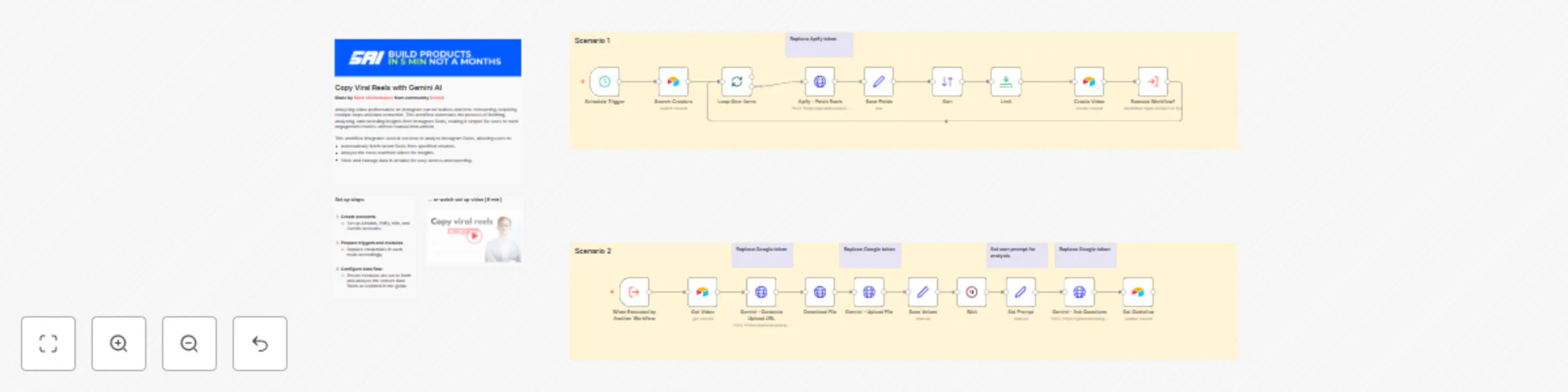
### Video Guide I prepared a detailed guide that shows the whole process of building an AI tool to analyze Instagram Reels using n8n. [](https://youtu.be/SQPPM0KLsrM) [Youtube Link](https://youtu.be/SQPPM0KLsrM) ### Who is this for? This workflow is ideal for social media analysts, digital marketers, and content creators who want to leverage data-driven insights from their Instagram Reels. It's particularly useful for those looking to automate the analysis of video performance to inform strategy and content creation. ### What problem does this workflow solve? Analyzing video performance on Instagram can be tedious and time-consuming, requiring multiple steps and data extraction. This workflow automates the process of fetching, analyzing, and recording insights from Instagram Reels, making it simpler for users to track engagement metrics without manual intervention. ### What this workflow does This workflow integrates several services to analyze Instagram Reels, allowing users to: - Automatically fetch recent Reels from specified creators. - Analyze the most-watched videos for insights. - Store and manage data in Airtable for easy access and reporting. 1. **Initial Trigger**: The process begins with a manual trigger that can later be modified for scheduled automation. 2. **Data Retrieval**: It connects to Airtable to fetch a list of creators and their respective Instagram Reels. 3. **Video Analysis**: It handles the fetching, downloading, and uploading of videos for analysis using an external service, simplifying performance tracking through a structured query process. 4. **Record Management**: It saves relevant metrics and insights into Airtable, ensuring that users can access and organize their video analytics effectively. ### Setup 1. **Create accounts**: - Set up Airtable, Edify, n8n, and Gemini accounts. 2. **Prepare triggers and modules**: - Replace credentials in each node accordingly. 3. **Configure data flow**: - Ensure modules are set to fetch and analyze the correct data fields as outlined in the guide. 4. **Test the workflow**: - Run the scenario manually to confirm that data is fetched and analyzed correctly.
AI agent to chat with Airtable and analyze data
### Video Guide I prepared a detailed guide that shows the entire process of building an AI agent that integrates with Airtable data in n8n. This template covers everything from data preparation to advanced configurations. [](https://youtu.be/SotqsAZEhdc) [Youtube Link](https://youtu.be/SotqsAZEhdc) ### Who is this for? This workflow is designed for developers, data analysts, and business owners who want to create an AI-powered conversational agent integrated with Airtable datasets. It is particularly useful for users looking to enhance data interaction through chat interfaces. ### What problem does this workflow solve? Engaging with data stored in Airtable often requires manual navigation and time-consuming searches. This workflow allows users to interact conversationally with their datasets, retrieving essential information quickly while minimizing the need for complex queries. ### What this workflow does This workflow enables an AI agent to facilitate chat interactions over Airtable data. The agent can: - Retrieve order records, product details, and other relevant data. - Execute mathematical functions to analyze data such as calculating averages and totals. - Optionally generate maps for geographic data visualization. 1. **Dynamic Data Retrieval**: The agent uses user prompts to dynamically query the dataset. 2. **Memory Management**: It retains context during conversations, allowing users to engage in a more natural dialogue. 3. **Search and Filter Capabilities**: Users can perform tailored searches with specific parameters or filters to refine their results. ### Set up steps 1. **Separate workflows**: - Create additional workflow and move there Workflow 2. 2. **Replace credentials**: - Replace connections and credentials in all nodes. 3. **Start chat**: - Ask questions and don't forget to mention required base name.
AI agent for project management and meetings with Airtable and Fireflies
### Video Guide I prepared a comprehensive guide detailing how to create a Smart Agent that automates meeting task management by analyzing transcripts, generating tasks in Airtable, and scheduling follow-ups when necessary. [](https://www.youtube.com/watch?v=0TyX7G00x3A) [Youtube Link](https://www.youtube.com/watch?v=0TyX7G00x3A) ### Who is this for? This workflow is ideal for project managers, team leaders, and business owners looking to enhance productivity during meetings. It is particularly helpful for those who need to convert discussions into actionable items swiftly and effectively. ### What problem does this workflow solve? Managing action items from meetings can often lead to missed tasks and poor follow-up. This automation alleviates that issue by automatically generating tasks from meeting transcripts, keeping everyone informed about their responsibilities and streamlining communication. ### What this workflow does The workflow leverages n8n to create a Smart Agent that listens for completed meeting transcripts, processes them using AI, and generates tasks in Airtable. Key functionalities include: - Capturing completed meeting events through webhooks. - Extracting relevant meeting details such as transcripts and participants using API calls. - Generating structured tasks from meeting discussions and sending notifications to clients. 1. **Webhook Integration**: Listens for meeting completion events to trigger subsequent actions. 2. **API Requests for Data**: Pulls necessary details like transcripts and participant information from Fireflies. 3. **Task and Notification Generation**: Automatically creates tasks in Airtable and notifies clients of their responsibilities. ### Setup #### N8N Workflow 1. **Configure the Webhook**: - Set up a webhook to capture meeting completion events and integrate it with Fireflies. 2. **Retrieve Meeting Content**: - Use GraphQL API requests to extract meeting details and transcripts, ensuring appropriate authentication through Bearer tokens. 3. **AI Processing Setup**: - Define system messages for AI tasks and configure connections to the AI chat model (e.g., OpenAI's GPT) to process transcripts. 4. **Task Creation Logic**: - Create structured tasks based on AI output, ensuring necessary details are captured and records are created in Airtable. 5. **Client Notifications**: - Use an email node to notify clients about their tasks, ensuring communications are client-specific. 6. **Scheduling Follow-Up Calls**: - Set up Google Calendar events if follow-up meetings are required, populating details from the original meeting context.
Parse PDF with LlamaParse and save to Airtable
### Video Guide I prepared a comprehensive guide detailing how to automate the parsing of invoices using n8n and LlamaParse, seamlessly capturing and storing vital billing information. [](https://youtu.be/E4I0nru-fa8) [Youtube Link](https://youtu.be/E4I0nru-fa8) ### Who is this for? This workflow is ideal for finance teams, accountants, and business operations managers who need to streamline invoice processing. It is particularly helpful for organizations seeking to reduce manual entry errors and improve efficiency in managing billing information. ### What problem does this workflow solve? Manually processing invoices can be time-consuming and error-prone. This automation eliminates the need for manual data entry by capturing invoice details directly from uploaded documents and storing structured data efficiently. This enhances productivity and accuracy across financial operations. ### What this workflow does The workflow leverages n8n and LlamaParse to automatically detect new invoices in a designated Google Drive folder, parse essential billing details, and store the extracted data in a structured format. The key functionalities include: - Real-time detection of new invoices via Google Drive triggers. - Automated HTTP requests to initiate parsing through Lama Cloud. - Structured storage of invoice details and line items in a database for future reference. 1. **Google Drive Integration**: Monitors a specific folder in Google Drive for new invoice uploads. 2. **Parsing with LlamaParse**: Automatically sends invoices for parsing and processes results through webhooks. 3. **Data Storage in Airtable**: Creates records for invoices and their associated line items, allowing for detailed tracking. ### Setup #### N8N Workflow 1. **Google Drive Trigger**: - Set up a trigger to detect new files in a specified folder dedicated to invoices. 2. **File Upload to LlamaParse**: - Create an HTTP request that sends the invoice file to LlamaParse for parsing, including relevant header settings and webhook URL. 3. **Webhook Processing**: - Establish a webhook node to handle parsed results from LlamaParse, extracting needed invoice details effectively. 4. **Invoice Record Creation**: - Create initial records for invoices in your database using the parsed details received from the webhook. 5. **Line Item Processing**: - Transform string data into structured line item arrays and create individual records for each item linked to the main invoice.
AI agent for realtime insights on meetings
### Video Guide I prepared a detailed guide explaining how to build an AI-powered meeting assistant that provides real-time transcription and insights during virtual meetings. [](https://www.youtube.com/watch?v=rtaX6BMiTeo) [Youtube Link](https://www.youtube.com/watch?v=rtaX6BMiTeo) ### Who is this for? This workflow is ideal for business professionals, project managers, and team leaders who require effective transcription of meetings for improved documentation and note-taking. It's particularly beneficial for those who conduct frequent virtual meetings across various platforms like Zoom and Google Meet. ### What problem does this workflow solve? Transcribing meetings manually can be tedious and prone to error. This workflow automates the transcription process in real-time, ensuring that key discussions and decisions are accurately captured and easily accessible for later review, thus enhancing productivity and clarity in communications. ### What this workflow does The workflow employs an AI-powered assistant to join virtual meetings and capture discussions through real-time transcription. Key functionalities include: - Automatic joining of meetings on platforms like Zoom, Google Meet, and others with the ability to provide real-time transcription. - Integration with transcription APIs (e.g., AssemblyAI) to deliver seamless and accurate capture of dialogue. - Structuring and storing transcriptions efficiently in a database for easy retrieval and analysis. 1. **Real-Time Transcription**: The assistant captures audio during meetings and transcribes it in real-time, allowing participants to focus on discussions. 2. **Keyword Recognition**: Key phrases can trigger specific actions, such as noting important points or making prompts to the assistant. 3. **Structured Data Management**: The assistant maintains a database of transcriptions linked to meeting details for organized storage and quick access later. ### Setup #### Preparation 1. **Create Recall.ai API key** 2. **Setup Supabase account and table** ``` create table public.data ( id uuid not null default gen_random_uuid (), date_created timestamp with time zone not null default (now() at time zone 'utc'::text), input jsonb null, output jsonb null, constraint data_pkey primary key (id), ) tablespace pg_default; ``` 3. **Create OpenAI API key** #### Development 1. **Bot Creation**: - Use a node to create the bot that will join meetings. Provide the meeting URL and set transcription options within the API request. 2. **Authentication**: - Configure authentication settings via a Bearer token for interacting with your transcription service. 3. **Webhook Setup**: - Create a webhook to receive real-time transcription updates, ensuring timely data capture during meetings. 4. **Join Meeting**: - Set the bot to join the specified meeting and actively listen to capture conversations. 5. **Transcription Handling**: - Combine transcription fragments into cohesive sentences and manage dialog arrays for coherence. 6. **Trigger Actions on Keywords**: - Set up keyword recognition that can initiate requests to the OpenAI API for additional interactions based on captured dialogue. 7. **Output and Summary Generation**: - Produce insights and summary notes from the transcriptions that can be stored back into the database for future reference.
Extract insights & analyse YouTube comments via AI agent chat
### Video Guide I prepared a detailed guide to help you set up your workflow effectively, enabling you to extract insights from YouTube for content generation using an AI agent. [](https://youtu.be/6RmLZS8Yl4E) [Youtube Link](https://youtu.be/6RmLZS8Yl4E) ### Who is this for? This workflow is ideal for content creators, marketers, and analysts looking to enhance their YouTube strategies through data-driven insights. It’s particularly beneficial for individuals wanting to understand audience preferences and improve their video content. ### What problem does this workflow solve? Navigating the content generation and optimization process can be complex, especially without significant audience insight. This workflow automates insights extraction from YouTube videos and comments, empowering users to create more engaging and relevant content effectively. ### What this workflow does The workflow integrates various APIs to gather insights from YouTube videos, enabling automated commentary analysis, video transcription, and thumbnail evaluation. The main functionalities include: - Extracting user preferences from comments. - Transcribing video content for enhanced understanding. - Analyzing thumbnails via AI for maximum viewer engagement insights. 1. **AI Insights Extraction**: Automatically pulls comments and metrics from selected YouTube creators to evaluate trends and gaps. 2. **Dynamic Video Planning**: Uses transcriptions to help creators outline video scripts and topics based on audience interest. 3. **Thumbnail Assessment**: Provides analysis on thumbnail designs to improve click-through rates and viewer attraction. ### Setup #### N8N Workflow 1. **API Setup**: - Create a Google Cloud project and enable the YouTube Data API. - Generate an API key to be included in your workflow requests. 2. **YouTube Creator and Video Selection**: - Start by defining a request to identify top creators based on their video views. - Capture the YouTube video IDs for further analysis of comments and other video metrics. 3. **Comment Analysis**: - Gather comments associated with the selected videos and analyze them for user insights. 4. **Video Transcription**: - Utilize the insights from transcriptions to formulate content plans. 5. **Thumbnail Analysis**: - Evaluate your video thumbnails by submitting the URL through the OpenAI API to gain insights into their effectiveness.
AI agent to chat with files in Supabase Storage
### Video Guide I prepared a detailed guide explaining how to set up and implement this scenario, enabling you to chat with your documents stored in Supabase using n8n. [](https://www.youtube.com/watch?v=glWUkdZe_3w) [Youtube Link](https://www.youtube.com/watch?v=glWUkdZe_3w) ### Who is this for? This workflow is ideal for researchers, analysts, business owners, or anyone managing a large collection of documents. It's particularly beneficial for those who need quick contextual information retrieval from text-heavy files stored in Supabase, without needing additional services like Google Drive. ### What problem does this workflow solve? Manually retrieving and analyzing specific information from large document repositories is time-consuming and inefficient. This workflow automates the process by vectorizing documents and enabling AI-powered interactions, making it easy to query and retrieve context-based information from uploaded files. ### What this workflow does The workflow integrates Supabase with an AI-powered chatbot to process, store, and query text and PDF files. The steps include: - Fetching and comparing files to avoid duplicate processing. - Handling file downloads and extracting content based on the file type. - Converting documents into vectorized data for contextual information retrieval. - Storing and querying vectorized data from a Supabase vector store. 1. **File Extraction and Processing**: Automates handling of multiple file formats (e.g., PDFs, text files), and extracts document content. 2. **Vectorized Embeddings Creation**: Generates embeddings for processed data to enable AI-driven interactions. 3. **Dynamic Data Querying**: Allows users to query their document repository conversationally using a chatbot. ### Setup #### N8N Workflow 1. **Fetch File List from Supabase**: - Use Supabase to retrieve the stored file list from a specified bucket. - Add logic to manage empty folder placeholders returned by Supabase, avoiding incorrect processing. 2. **Compare and Filter Files**: - Aggregate the files retrieved from storage and compare them to the existing list in the Supabase `files` table. - Exclude duplicates and skip placeholder files to ensure only unprocessed files are handled. 3. **Handle File Downloads**: - Download new files using detailed storage configurations for public/private access. - Adjust the storage settings and GET requests to match your Supabase setup. 4. **File Type Processing**: - Use a Switch node to target specific file types (e.g., PDFs or text files). - Employ relevant tools to process the content: - For PDFs, extract embedded content. - For text files, directly process the text data. 5. **Content Chunking**: - Break large text data into smaller chunks using the Text Splitter node. - Define chunk size (default: 500 tokens) and overlap to retain necessary context across chunks. 6. **Vector Embedding Creation**: - Generate vectorized embeddings for the processed content using OpenAI's embedding tools. - Ensure metadata, such as file ID, is included for easy data retrieval. 7. **Store Vectorized Data**: - Save the vectorized information into a dedicated Supabase vector store. - Use the default schema and table provided by Supabase for seamless setup. 8. **AI Chatbot Integration**: - Add a chatbot node to handle user input and retrieve relevant document chunks. - Use metadata like file ID for targeted queries, especially when multiple documents are involved. ### Testing - Upload sample files to your Supabase bucket. - Verify if files are processed and stored successfully in the vector store. - Ask simple conversational questions about your documents using the chatbot (e.g., "What does Chapter 1 say about the Roman Empire?"). - Test for accuracy and contextual relevance of retrieved results.
AI agent to chat with Supabase/PostgreSQL DB
### Video Guide I prepared a detailed guide that showed the whole process of building a resume analyzer. [](https://youtu.be/-GgKzhCNxjk) ### Who is this for? This workflow is ideal for developers, data analysts, and business owners who want to enable conversational interactions with their database. It’s particularly useful for cases where users need to extract, analyze, or aggregate data without writing SQL queries manually. ### What problem does this workflow solve? Accessing and analyzing database data often requires SQL expertise or dedicated reports, which can be time-consuming. This workflow empowers users to interact with a database conversationally through an AI-powered agent. It dynamically generates SQL queries based on user requests, streamlining data retrieval and analysis. ### What this workflow does This workflow integrates OpenAI with a Supabase database, enabling users to interact with their data via an AI agent. The agent can: - Retrieve records from the database. - Extract and analyze JSON data stored in tables. - Provide summaries, aggregations, or specific data points based on user queries. 1. **Dynamic SQL Querying**: The agent uses user prompts to create and execute SQL queries on the database. 2. **Understand JSON Structure**: The workflow identifies JSON schema from sample records, enabling the agent to parse and analyze JSON fields effectively. 3. **Database Schema Exploration**: It provides the agent with tools to retrieve table structures, column details, and relationships for precise query generation. ### Setup #### Preparation 1. **Create Accounts**: - [N8N](https://n8n.partnerlinks.io/2hr10zpkki6a): For workflow automation. - [Supabase](https://supabase.com/): For database hosting and management. - [OpenAI](https://openai.com/): For building the conversational AI agent. 2. **Configure Database Connection**: - Set up a PostgreSQL database in Supabase. - Use appropriate credentials (`username`, `password`, `host`, and `database` name) in your workflow. #### N8N Workflow AI agent with tools: 1. **Code Tool**: - Execute SQL queries based on user input. 2. **Database Schema Tool**: - Retrieve a list of all tables in the database. - Use a predefined SQL query to fetch table definitions, including column names, types, and references. 3. **Table Definition**: - Retrieve a list of columns with types for one table.

Cv screening with OpenAI
### Video Guide I prepared a detailed guide that showed the whole process of building a resume analyzer. [](https://youtu.be/TWuI3dOcn0E) ### Who is this for? This workflow is ideal for recruitment agencies, HR professionals, and hiring managers looking to automate the initial screening of CVs. It is especially useful for organizations handling large volumes of applications and seeking to streamline their recruitment process. ### What problem does this workflow solve? Manually screening resumes is time-consuming and prone to human error. This workflow automates the process, providing consistent and objective analysis of CVs against job descriptions. It helps filter out unsuitable candidates early, reducing workload and improving the overall efficiency of the recruitment process. ### What this workflow does This workflow automates the resume screening process using OpenAI for analysis. It provides a matching score, a summary of candidate suitability, and key insights into why the candidate fits (or doesn’t fit) the job. 1. **Retrieve Resume**: The workflow downloads CVs from a direct link (e.g., Supabase storage or Dropbox). 2. **Extract Data**: Extracts text data from PDF or DOC files for analysis. 3. **Analyze with OpenAI**: Sends the extracted data and job description to OpenAI to: - Generate a matching score. - Summarize candidate strengths and weaknesses. - Provide actionable insights into their suitability for the job. ### Setup #### Preparation 1. **Create Accounts**: - [N8N](https://n8n.partnerlinks.io/2hr10zpkki6a): For workflow automation. - [OpenAI](https://openai.com/): For AI-powered CV analysis. 2. **Get CV Link**: - Upload CV files to Supabase storage or Dropbox to generate a direct link for processing. 3. **Prepare Artifacts for OpenAI**: - **Define Metrics**: Identify the metrics you want from the analysis (e.g., matching percentage, strengths, weaknesses). - **Generate JSON Schema**: Use OpenAI to structure responses, ensuring compatibility with your database. - **Write a Prompt**: Provide OpenAI with a clear and detailed prompt to ensure accurate analysis. #### N8N Scenario 1. **Download File**: Fetch the CV using its direct URL. 2. **Extract Data**: Use N8N’s PDF or text extraction nodes to retrieve text from the CV. 3. **Send to OpenAI**: - **URL**: POST to OpenAI’s API for analysis. - **Parameters**: - Include the extracted CV data and job description. - Use JSON Schema to structure the response. ### Summary This workflow provides a seamless, automated solution for CV screening, helping recruitment agencies and HR teams save time while maintaining consistency in candidate evaluation. It enables organizations to focus on the most suitable candidates, improving the overall hiring process.
Call analyzer with AssemblyAI transcription and OpenAI assistant integration
### Video Guide I prepared a detailed guide that showed the whole process of building a call analyzer. [.png)](https://www.youtube.com/watch?v=kS41gut8l0g) ### Who is this for? This workflow is ideal for sales teams, customer support managers, and online education services that conduct follow-up calls with clients. It’s designed for those who want to leverage AI to gain deeper insights into client needs and upsell opportunities from recorded calls. ### What problem does this workflow solve? Many follow-up sales calls lack structured analysis, making it challenging to identify client needs, gauge interest levels, or uncover upsell opportunities. This workflow enables automated call transcription and AI-driven analysis to generate actionable insights, helping teams improve sales performance, refine client communication, and streamline upselling strategies. ### What this workflow does This workflow transcribes and analyzes sales calls using AssemblyAI, OpenAI, and Supabase to store structured data. The workflow processes recorded calls as follows: 1. **Transcribe Call with AssemblyAI**: Converts audio into text with speaker labels for clarity. 2. **Analyze Transcription with OpenAI**: Using a predefined JSON schema, OpenAI analyzes the transcription to extract metrics like client intent, interest score, upsell opportunities, and more. 3. **Store and Access Results in Supabase**: Stores both transcription and analysis data in a Supabase database for further use and display in interfaces. ### Setup #### Preparation 1. **Create Accounts**: Set up accounts for [N8N](https://n8n.partnerlinks.io/2hr10zpkki6a), [Supabase](https://supabase.com/), [AssemblyAI](https://www.assemblyai.com/), and [OpenAI](https://openai.com/). 2. **Get Call Link**: Upload audio files to public Supabase storage or Dropbox to generate a direct link for transcription. 3. **Prepare Artifacts for OpenAI**: - **Define Metrics**: Identify business metrics you want to track from call analysis, such as client needs, interest score, and upsell potential. - **Generate JSON Schema**: Use GPT to design a JSON schema for structuring OpenAI’s responses, enabling efficient storage, analysis, and display. - **Create Analysis Prompt**: Write a detailed prompt for GPT to analyze calls based on your metrics and JSON schema. #### Scenario 1: Transcribe Call with AssemblyAI 1. **Set Up Request**: - **Header Authentication**: Set `Authorization` with AssemblyAI API key. - **URL**: POST to `https://api.assemblyai.com/v2/transcript/`. - **Parameters**: - `audio_url`: Direct URL of the audio file. - `webhook_url`: URL for an N8N webhook to receive the transcription result. - **Additional Settings**: - `speaker_labels` (true/false): Enables speaker diarization. - `speakers_expected`: Specify expected number of speakers. - `language_code`: Set language (default: `en_us`). #### Scenario 2: Process Transcription with OpenAI 1. **Webhook Configuration**: Set up a POST webhook to receive AssemblyAI’s transcription data. 2. **Get Transcription**: - **Header Authentication**: Set `Authorization` with AssemblyAI API key. - **URL**: GET `https://api.assemblyai.com/v2/transcript/<transcript_id>`. 3. **Send to OpenAI**: - **URL**: POST to `https://api.openai.com/v1/chat/completions`. - **Header Authentication**: Set `Authorization` with OpenAI API key. - **Body Parameters**: - **Model**: Use `gpt-4o-2024-08-06` for JSON Schema support, or `gpt-4o-mini` for a less costly option. - **Messages**: - `system`: Contains the main analysis prompt. - `user`: Combined speakers’ utterances to analyze in text format. - **Response Format**: - `type`: `json_schema`. - `json_schema`: JSON schema for structured responses. 4. **Save Results in Supabase**: - **Operation**: Create a new record. - **Table Name**: `demo_calls`. - **Fields**: - **Input**: Transcription text, audio URL, and transcription ID. - **Output**: Parsed JSON response from OpenAI’s analysis.
Telegram bot with Supabase memory and OpenAI assistant integration
### Video Guide I prepared a detailed guide that showed the whole process of building an AI bot, from the simplest version to the most complex in a template. [.png)](https://www.youtube.com/watch?v=QrZxuWgFqBI) ### Who is this for? This workflow is ideal for developers, chatbot enthusiasts, and businesses looking to build a dynamic Telegram bot with memory capabilities. The bot leverages OpenAI's assistant to interact with users and stores user data in Supabase for personalized conversations. ### What problem does this workflow solve? Many simple chatbots lack context awareness and user memory. This workflow solves that by integrating Supabase to keep track of user sessions (via ```telegram_id``` and ```openai_thread_id```), allowing the bot to maintain continuity and context in conversations, leading to a more human-like and engaging experience. ### What this workflow does This Telegram bot template connects with OpenAI to answer user queries while storing and retrieving user information from a Supabase database. The memory component ensures that the bot can reference past interactions, making it suitable for use cases such as customer support, virtual assistants, or any application where context retention is crucial. 1.**Receive New Message:** The bot listens for incoming messages from users in Telegram. 2. **Check User in Database:** The workflow checks if the user is already in the Supabase database using the ```telegram_id```. 3. **Create New User (if necessary):** If the user does not exist, a new record is created in Supabase with the telegram_id and a unique ```openai_thread_id```. 4. **Start or Continue Conversation with OpenAI:** Based on the user’s context, the bot either creates a new thread or continues an existing one using the stored ```openai_thread_id```. 5. **Merge Data:** User-specific data and conversation context are merged. 6. **Send and Receive Messages:** The message is sent to OpenAI, and the response is received and processed. 7. **Reply to User:** The bot sends OpenAI’s response back to the user in Telegram. ### Setup 1. **Create a Telegram Bot** using the [Botfather](https://t.me/botfather) and obtain the bot token. 2. **Set up Supabase:** 1. Create a new project and generate a ```SUPABASE_URL``` and ```SUPABASE_KEY```. 2. Create a new table named ```telegram_users``` with the following SQL query: ``` create table public.telegram_users ( id uuid not null default gen_random_uuid (), date_created timestamp with time zone not null default (now() at time zone 'utc'::text), telegram_id bigint null, openai_thread_id text null, constraint telegram_users_pkey primary key (id) ) tablespace pg_default; ``` 3. **OpenAI Setup:** 1. Create an OpenAI assistant and obtain the ```OPENAI_API_KEY```. 2. Customize your assistant’s personality or use cases according to your requirements. 4. **Environment Configuration in n8n:** 1. Configure the Telegram, Supabase, and OpenAI nodes with the appropriate credentials. 2. Set up triggers for receiving messages and handling conversation logic. 3. Set up OpenAI assistant ID in "++OPENAI - Run assistant++" node.