Le Nguyen
Workflows by Le Nguyen

Automate stale deal follow-ups in Salesforce with GPT-5.1, email, Slack & tasks
## How it works - Runs every morning at 8:00 using the Schedule Trigger. - Sets a `stale_days` value and queries Salesforce for Opportunities where `Stage_Unchanged_Days__c` equals that value and the stage is not Closed Won / Closed Lost. - For each “stale” Opportunity, loads full deal details and sends them to an OpenAI model. - The model uses the `query_soql` tool to pull recent Notes, the primary Contact, and the Opportunity Owner, then returns a single JSON object with: - a personalized follow-up **email** for the client, - a short **SMS** template, - a concise **Slack** summary for the sales team, - and a ready-to-use **Task** payload for Salesforce. - n8n parses that JSON, sends the email via SMTP, posts the Slack message to your chosen channel, and creates a Salesforce Task assigned to the Opportunity Owner so every stalled deal has a clear next step. ## Setup steps Estimated setup time: ~30–45 minutes if your Salesforce, OpenAI, SMTP and Slack credentials are ready. 1. **Create `Stage_Unchanged_Days__c` on Opportunity (Salesforce)** - Field Type: Formula (Number, 0 decimal places) - Formula: ```text IF( ISBLANK(LastStageChangeDate), TODAY() - DATEVALUE(CreatedDate), TODAY() - DATEVALUE(LastStageChangeDate) ) ``` - This field tracks how many days the Opportunity has been in the current stage. 2. **Connect credentials in n8n** - Salesforce OAuth2 for the Salesforce nodes and the `query_soql` HTTP Tool. - OpenAI (or compatible) credential for the “Message a model” node. - SMTP credential for the customer email node. - Slack credential for the internal notification node. 3. **Configure your follow-up rules** - In **Edit Fields (Set)**, set `stale_days` to the threshold that defines a stalled deal (e.g. 7, 14, 30). - In **Perform a query**, optionally refine the SOQL (record types, owners, minimum amount, etc.) to match your pipeline. - Update the **Send Email SMTP Customer** node with your real “from” address and tweak the wording if needed. - Point **Send Message To Internal Team (Slack)** to the right channel or user. 4. **Test safely** - Turn off the Schedule Trigger and run the workflow manually with a few test Opportunities. - Inspect the AI output in **Message a model** and **Parse JSON** to confirm the structure (`email`, `sms`, `slack`, `task.api_body`). - Check that the email and Slack messages look good and that Salesforce Tasks are created, assigned to the right Owner, and linked to the correct Opportunity. 5. **Go live** - Re-enable the Schedule Trigger. - Monitor the first few days to confirm that follow-ups, Slack alerts, and Tasks all behave as expected, then let the automation quietly keep your pipeline clean and moving.
Automate blog-to-social media with GPT-4 for LinkedIn, X, and Reddit
Turn your blog into a set-and-forget content engine: every new article is instantly repurposed into channel-specific social posts with visuals, keeping your brand visible on LinkedIn, X, and Reddit without extra copywriting time. Perfect for lean marketing teams who want consistent, always-on distribution from a single source of content. # How it works • Watches your blog RSS feed (or receives a single URL) and detects new articles. • Saves each post in Postgres so every article is only processed once. • Fetches the article HTML, extracts the main body content and sends it to OpenAI (GPT-4.1). • OpenAI creates platform-optimized copy: 1 LinkedIn post, 1 X/Twitter post, 1 Reddit post + image prompts. • Generates on-brand images with OpenAI and publishes everything automatically to LinkedIn, X, and Reddit. • You can also trigger it manually or via webhook whenever you want to push a specific campaign.   # Setup Steps • Time: around 20–40 minutes for someone familiar with n8n and the platforms. • Create a Postgres table “rss_items” with fields: guid (PRIMARY KEY), title, link, published_at. • Add credentials in n8n for: – Postgres – OpenAI – LinkedIn OAuth2 – X/Twitter OAuth2 + OAuth1 (for media upload) – Reddit OAuth2 • In the RSS node, set your blog feed URL (for example: https://yourblog.com/feed). • In the webhook node, confirm the URL/path you want external tools or other workflows to call with a “link” field. • Run the manual trigger with one test blog URL to verify: – Article content is extracted correctly. – AI returns LinkedIn/X/Reddit posts and image prompts. – Posts and images appear correctly on all social accounts. • Once tests look good, enable the Schedule Trigger so Blog2Social AI runs automatically at your chosen interval.
Automate invoice processing with OCR, GPT-4 & Salesforce opportunity creation
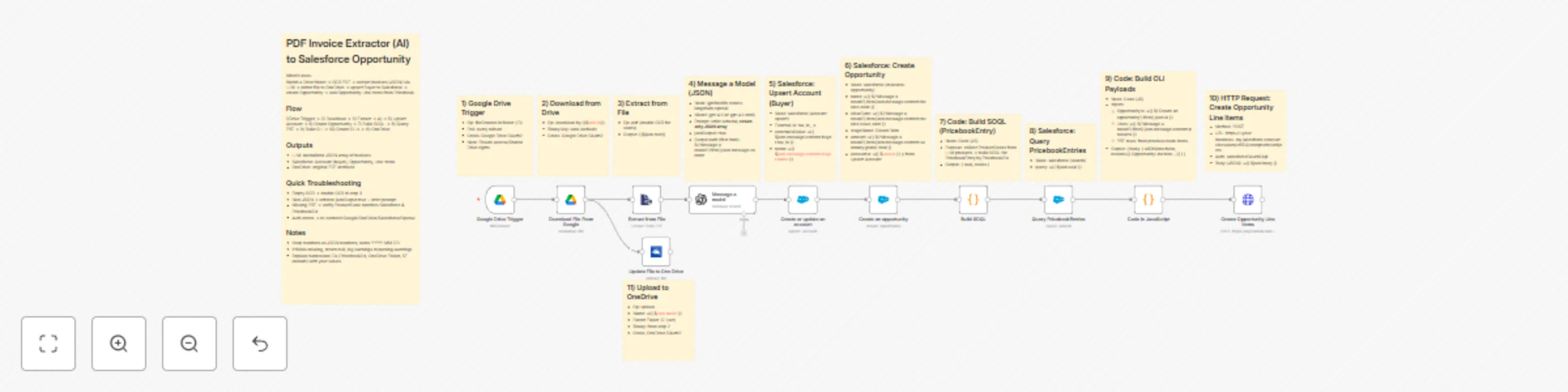
# PDF Invoice Extractor (AI) End-to-end pipeline: Watch Drive ➜ Download PDF ➜ OCR text ➜ AI normalize to JSON ➜ Upsert Buyer (Account) ➜ Create Opportunity ➜ Map Products ➜ Create OLI via Composite API ➜ Archive to OneDrive. --- ## Node by node (what it does & key setup) ### 1) Google Drive Trigger - **Purpose**: Fire when a new file appears in a specific Google Drive folder. - **Key settings**: - Event: `fileCreated` - Folder ID: `google drive folder id` - Polling: `everyMinute` - Creds: `googleDriveOAuth2Api` - **Output**: Metadata `{ id, name, ... }` for the new file. --- ### 2) Download File From Google - **Purpose**: Get the file binary for processing and archiving. - **Key settings**: - Operation: `download` - File ID: `={{ $json.id }}` - Creds: `googleDriveOAuth2Api` - **Output**: Binary (default key: `data`) and original metadata. --- ### 3) Extract from File - **Purpose**: Extract text from PDF (OCR as needed) for AI parsing. - **Key settings**: - Operation: `pdf` - OCR: enable for scanned PDFs (in **options**) - **Output**: JSON with OCR text at `{{ $json.text }}`. --- ### 4) Message a model (AI JSON Extractor) - **Purpose**: Convert OCR text into **strict normalized JSON array** (invoice schema). - **Key settings**: - Node: `@n8n/n8n-nodes-langchain.openAi` - Model: `gpt-4.1` (or `gpt-4.1-mini`) - Message role: **system** (the strict prompt; references `{{ $json.text }}`) - `jsonOutput`: `true` - Creds: `openAiApi` - **Output (per item)**: `$.message.content` → the parsed **JSON** (ensure it’s an array). --- ### 5) Create or update an account (Salesforce) - **Purpose**: Upsert **Buyer** as Account using an external ID. - **Key settings**: - Resource: `account` - Operation: `upsert` - External Id Field: `tax_id__c` - External Id Value: `={{ $json.message.content.buyer.tax_id }}` - Name: `={{ $json.message.content.buyer.name }}` - Creds: `salesforceOAuth2Api` - **Output**: Account record (captures `Id`) for downstream **Opportunity**. --- ### 6) Create an opportunity (Salesforce) - **Purpose**: Create Opportunity linked to the Buyer (Account). - **Key settings**: - Resource: `opportunity` - Name: `={{ $('Message a model').item.json.message.content.invoice.code }}` - Close Date: `={{ $('Message a model').item.json.message.content.invoice.issue_date }}` - Stage: `Closed Won` - Amount: `={{ $('Message a model').item.json.message.content.summary.grand_total }}` - AccountId: `={{ $json.id }}` (from **Upsert Account** output) - Creds: `salesforceOAuth2Api` - **Output**: Opportunity `Id` for OLI creation. --- ### 7) Build SOQL (Code / JS) - **Purpose**: Collect unique product **codes** from AI JSON and build a SOQL query for **PricebookEntry** by `Pricebook2Id`. - **Key settings**: - `pricebook2Id` (hardcoded in script): e.g., `01sxxxxxxxxxxxxxxx` - Source lines: `$('Message a model').first().json.message.content.products` - **Output**: `{ soql, codes }` --- ### 8) Query PricebookEntries (Salesforce) - **Purpose**: Fetch `PricebookEntry.Id` for each `Product2.ProductCode`. - **Key settings**: - Resource: `search` - Query: `={{ $json.soql }}` - Creds: `salesforceOAuth2Api` - **Output**: Items with `Id`, `Product2.ProductCode` (used for mapping). --- ### 9) Code in JavaScript (Build OLI payloads) - **Purpose**: Join lines with PBE results and Opportunity `Id` ➜ build **OpportunityLineItem** payloads. - **Inputs**: - OpportunityId: `={{ $('Create an opportunity').first().json.id }}` - Lines: `={{ $('Message a model').first().json.message.content.products }}` - PBE rows: from previous node items - **Output**: `{ body: { allOrNone:false, records:[{ OpportunityLineItem... }] } }` - **Notes**: - Converts discount_total ➜ per-unit if needed (currently commented for standard pricing). - Throws on missing PBE mapping or empty lines. --- ### 10) Create Opportunity Line Items (HTTP Request) - **Purpose**: Bulk create OLIs via Salesforce Composite API. - **Key settings**: - Method: `POST` - URL: `https://<your-instance>.my.salesforce.com/services/data/v65.0/composite/sobjects` - Auth: `salesforceOAuth2Api` (predefined credential) - Body (JSON): `={{ $json.body }}` - **Output**: Composite API results (per-record statuses). --- ### 11) Update File to One Drive - **Purpose**: Archive the **original** PDF in OneDrive. - **Key settings**: - Operation: `upload` - File Name: `={{ $json.name }}` - Parent Folder ID: `onedrive folder id` - Binary Data: `true` (from the Download node) - Creds: `microsoftOneDriveOAuth2Api` - **Output**: Uploaded file metadata. --- ## Data flow (wiring) 1. **Google Drive Trigger** → **Download File From Google** 2. **Download File From Google** - → **Extract from File** - → **Update File to One Drive** 3. **Extract from File** → **Message a model** 4. **Message a model** - → **Create or update an account** 5. **Create or update an account** → **Create an opportunity** 6. **Create an opportunity** → **Build SOQL** 7. **Build SOQL** → **Query PricebookEntries** 8. **Query PricebookEntries** → **Code in JavaScript** 9. **Code in JavaScript** → **Create Opportunity Line Items** --- ## Quick setup checklist - 🔐 **Credentials**: Connect Google Drive, OneDrive, Salesforce, OpenAI. - 📂 **IDs**: - Drive Folder ID (watch) - OneDrive Parent Folder ID (archive) - Salesforce **Pricebook2Id** (in the JS SOQL builder) - 🧠 **AI Prompt**: Use the strict system prompt; **jsonOutput = true**. - 🧾 **Field mappings**: - Buyer tax id/name → Account upsert fields - Invoice code/date/amount → Opportunity fields - Product `name` must equal your **Product2.ProductCode** in SF. - ✅ **Test**: Drop a sample PDF → verify: - AI returns **array JSON** only - Account/Opportunity created - OLI records created - PDF archived to OneDrive --- ## Notes & best practices - If PDFs are scans, enable OCR in **Extract from File**. - If AI returns non-JSON, keep “**Return only a JSON array**” as the last line of the prompt and keep `jsonOutput` enabled. - Consider adding validation on `parsing.warnings` to gate Salesforce writes. - For discounts/taxes in OLI: - Standard OLI fields don’t support per-line discount amounts directly; model them in **UnitPrice** or custom fields. - Replace the Composite API **URL** with your org’s domain or use the Salesforce node’s **Bulk Upsert** for simplicity.
Domain-specific web content crawler with depth control & text extraction
This template implements a recursive web crawler inside n8n. Starting from a given URL, it crawls linked pages up to a maximum depth (default: 3), extracts text and links, and returns the collected content via webhook. --- ## 🚀 How It Works 1) **Webhook Trigger** Accepts a JSON body with a `url` field. Example payload: { "url": "https://example.com" } 2) **Initialization** - Sets crawl parameters: `url`, `domain`, `maxDepth = 3`, and `depth = 0`. - Initializes global static data (`pending`, `visited`, `queued`, `pages`). 3) **Recursive Crawling** - Fetches each page (HTTP Request). - Extracts body text and links (HTML node). - Cleans and deduplicates links. - Filters out: - External domains (only same-site is followed) - Anchors (#), mailto/tel/javascript links - Non-HTML files (.pdf, .docx, .xlsx, .pptx) 4) **Depth Control & Queue** - Tracks visited URLs - Stops at `maxDepth` to prevent infinite loops - Uses SplitInBatches to loop the queue 5) **Data Collection** - Saves each crawled page (`url`, `depth`, `content`) into `pages[]` - When `pending = 0`, combines results 6) **Output** - Responds via the Webhook node with: - `combinedContent` (all pages concatenated) - `pages[]` (array of individual results) - Large results are chunked when exceeding ~12,000 characters --- ## 🛠️ Setup Instructions 1) **Import Template** Load from n8n Community Templates. 2) **Configure Webhook** - Open the **Webhook** node - Copy the Test URL (development) or Production URL (after deploy) - You’ll POST crawl requests to this endpoint 3) **Run a Test** Send a POST with JSON: curl -X POST https://<your-n8n>/webhook/<id> \ -H "Content-Type: application/json" \ -d '{"url": "https://example.com"}' 4) **View Response** The crawler returns a JSON object containing `combinedContent` and `pages[]`. --- ## ⚙️ Configuration - **maxDepth** Default: 3. Adjust in the **Init Crawl Params** (Set) node. - **Timeouts** HTTP Request node timeout is 5 seconds per request; increase if needed. - **Filtering Rules** - Only same-domain links are followed (apex and `www` treated as same-site) - Skips anchors, `mailto:`, `tel:`, `javascript:` - Skips document links (.pdf, .docx, .xlsx, .pptx) - You can tweak the regex and logic in **Queue & Dedup Links** (Code) node --- ## 📌 Limitations - No JavaScript rendering (static HTML only) - No authentication/cookies/session handling - Large sites can be slow or hit timeouts; chunking mitigates response size --- ## ✅ Example Use Cases - Extract text across your site for AI ingestion / embeddings - SEO/content audit and internal link checks - Build a lightweight page corpus for downstream processing in n8n --- ## ⏱️ Estimated Setup Time ~10 minutes (import → set webhook → test request)
Automated Zalo OA token management with OAuth and webhook integration
# Description (How it works) This workflow keeps your Zalo Official Account access token valid and easy to reuse across other flows—no external server required. **High-level steps** 1. **Scheduled refresh** runs on an interval to renew the access token before it expires. 2. **Static Data cache** (global) stores access/refresh tokens + expiries for reuse by any downstream node. 3. **OAuth exchange** calls Zalo OAuth v4 with your `app_id` and `secret_key` to get a fresh access token. 4. **Immediate output** returns the current access token to the next nodes after each refresh. 5. **Operational webhooks** include: - A **reset** webhook to clear the cache when rotating credentials or testing. - A **token peek** webhook to read the currently cached token for other services. # Setup steps (estimated time ~8–15 minutes) 1. **Collect Zalo credentials (2–3 min):** Obtain `app_id`, `secret_key`, and a valid `refresh_token`. 2. **Import & activate workflow (1–2 min):** Import the JSON into n8n and activate it. 3. **Wire inputs (2–3 min):** Point the “Set Refresh Token and App ID” node to your env vars (or paste values for a quick test). 4. **Adjust schedule & secure webhooks (2–3 min):** Tune the run interval to your token TTL; protect the reset/peek endpoints (e.g., secret param or IP allowlist). 5. **Test (1–2 min):** Execute once to populate Static Data; optionally try the token peek and reset webhooks to confirm behavior.
LeadChat Booker — conversational lead capture that schedules
## Real Working Demo [https://crmaiinsight.com/leadbot](https://crmaiinsight.com/leadbot) # How It Works (High-Level) 1) **Chat > Capture** LeadBot greets, collects **Full Name → Email → Mobile (optional) → Product interest** via friendly chat (no forms). - Validates email/phone, confirms inputs, supports corrections. 2) **De-dupe** Checks Salesforce for an existing lead by **Email**. - If found → **update_lead**. If not → **create_lead**. 3) **Product Selection** Pulls your **Feature_Product__c** list (Name + one-line Description) and lets the user choose by **number or name**. 4) **Demo Booking (Optional)** If the user says **Yes**: - Detect/ask **Time Zone** (IANA). - Reads **Salesforce Events** for the next 14 days. - Computes **free 30-min weekday slots (09:00–17:00 UTC)** strictly after *now*. - User picks a slot → creates a **Salesforce Event** (30 min) linked to the Lead. 5) **Notifications & Follow-ups** - **Slack DM** to your team (concise summary). - **Email** confirmation to the prospect (local date/time included). - Ends with a polite confirmation message. --- ## Setup at a Glance - **Effort:** Most teams finish the base setup in **~45–90 minutes** (credentials, field mapping, test). - **What you’ll configure:** Salesforce OAuth, SMTP (or your ESP), Slack, OpenAI key, and the web chat widget. > Tip: Start with the provided **Feature_Product__c** object. You can switch to your own product catalog with a **few tweaks** (see below). --- ## Prerequisites - **Salesforce** - Connected App + OAuth (API enabled). - Lead fields: `FirstName`, `LastName`, `Email`, `MobilePhone`, and **one product lookup/text field** (e.g., `Interested_Product__c` or `Feature_Product__c`). - (Recommended) Custom object **Feature_Product__c** with fields: `Name`, `Description__c`, `Features__c`, `Tags__c`. - **n8n Credentials** - `salesforceOAuth2Api` (to read/write Leads & Events). - `smtp` (or use your email provider node). - `slackApi` (for internal notifications). - `openAiApi` (for the chat agent). - **Widget Embed (optional)** - A place on your site/app to embed the chat launcher. --- ## Step-by-Step Setup 1) **Import the flow into n8n** - Verify nodes: **Chat Trigger → AI Agent → check_duplicate_lead → update/create lead → get_products → get_scheduled_events → create_demo_event → Slack/Email**. 2) **Add/Bind Credentials** - **Salesforce OAuth**: authorize org with API scope. - **SMTP**: sender, domain, and authentication (verify SPF/DKIM). - **Slack**: ensure bot can DM users/channels. - **OpenAI**: drop in your API key. 3) **Map Product Field on Lead** - Pick **one** field to store the selection (e.g., `Interested_Product__c`). - Ensure **AI Agent** and **Salesforce nodes** reference the **same field**. 4) **(Option A) Use `Feature_Product__c`** - Confirm fields exist: `Name`, `Description__c` (used in the numbered list). - In **get_products**, make sure **`Id`** is returned; pass it as `customFieldsValues0_Value`. 5) **(Option B) Use Your Own Catalog** - Swap `customObject: Feature_Product__c` → `Product2` (or your object). - Update **fields** to at least: `Id`, `Name`, and a short description field. - Keep the **variable contract** the same (AI expects to store `Id`, `name`, `description`). 6) **Configure Demo Booking** - **get_scheduled_events** uses a SOQL search window *(today → +14 days)*. - Ensure your **Event** permissions allow read/write. - Confirm **create_demo_event** URL points to your Salesforce domain & API version. 7) **Customize Widget (optional)** - Set **title**, **brand colors**, and **initial message** in the Chat Trigger options. - Limit reply length (≤100 words) is already set. 8) **Test End-to-End** - Run a full path: enter name/email/phone, pick a product, select a time slot. - Verify: **Lead/Update** in Salesforce, **Event** creation, **Slack DM**, **Prospect Email**. --- ## Switching to Your Own Products (Quick Tweaks) - **Replace Data Source:** - In **get_products**: - `customObject: Product2` (or your object API name). - **Fields**: ensure `Id`, `Name`, and a short description are returned. - **Update Lead Field Mapping:** - Set `Interested_Product__c` (or your chosen field) to the returned **Product Id**. - **Copy Text Logic:** - Keep the AI’s “numbered list” output; it supports both number and name replies. --- ## What Users Experience - No forms. A friendly AI asks one thing at a time, confirms details, and offers a **live calendar** of the next available 30-minute demo slots. - The moment they choose, a **Salesforce Event** is created and they get a **confirmation email**. - Your team receives a **Slack heads-up** with who/what/when. --- ## Troubleshooting Quick Checks - **No product list?** Ensure `Id, Name, Description__c` (or equivalent) are returned by **get_products**. - **No free slots shown?** Confirm Event query window (+14 days), timezone handling, and that “current time” filter excludes past times. - **Lead not updated?** Check the **duplicate search by Email** and that `update_lead` receives `Lead_ID`. - **Event fails to create?** Verify Salesforce API endpoint, OAuth scope, and required Event fields. ---
LeadBot autopilot — chat-to-lead for Salesforce
# LeadBot Autopilot — Chat-to-Lead for Salesforce ## Description — How It Works 1. **Greets & Guides:** Welcomes the visitor and collects info step-by-step — Full Name → Email → Mobile → Product Interest. 2. **Validates Inputs:** Checks email/phone formats; politely re-asks if invalid. 3. **De-dupe in Salesforce:** Looks up by email; updates an existing lead if found. 4. **Create/Update Lead:** Writes to Salesforce, including `ProductInterest__c`. 5. **Notify Instantly:** Sends a Slack alert to your team and a personalized email to the prospect. 6. **Close the Loop:** Confirms submission and ends the chat. ## Description — Set Up Steps (≈45–75 mins) - **Connect Credentials (20–30 mins):** Salesforce OAuth, OpenAI, Slack, SMTP. - **Tune the Prompt (5–10 mins):** Greeting, field order, product options. - **Map Fields (10–15 mins):** Name split, email/phone, `ProductInterest__c`. - **Smoke Test (10–15 mins):** Run a full chat; verify de-dupe, Slack + email. - **Go Live (5–10 mins):** Expose the webhook/chat entry point on your site.
Automatically enrich Salesforce accounts with web crawling, LinkedIn data, GPT
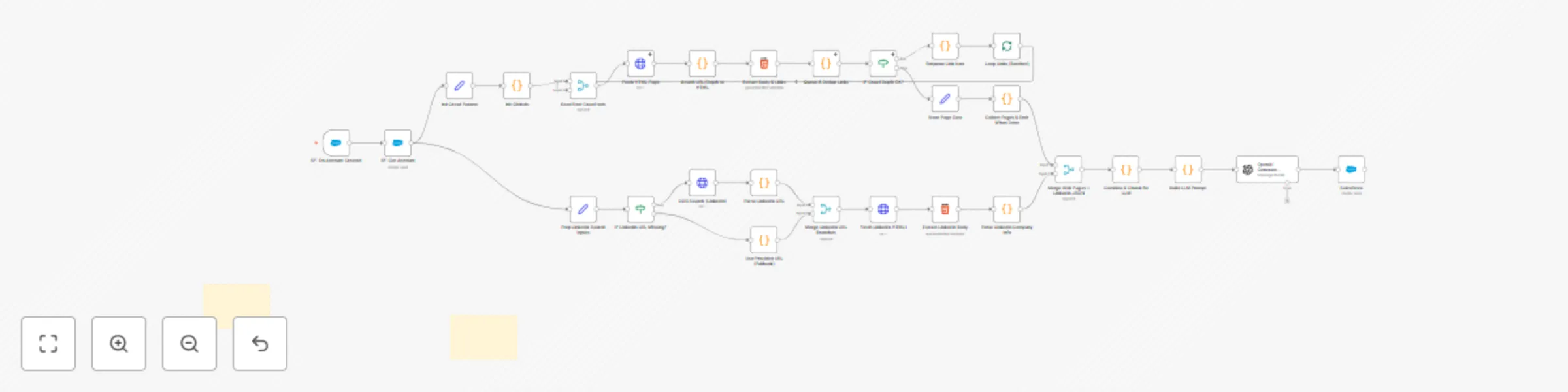
*Crawl the web, mine LinkedIn, think with GPT, and auto‑enrich Salesforce—all inside n8n.* --- ## 🔧 How It Works (High-Level) 1. **Listen** – Trigger on new Salesforce Accounts. 2. **Discover** – Crawl the company site (depth-limited) + grab/parse LinkedIn. 3. **Distill** – GPT (JSON mode) returns a clean insight object + HTML summary. 4. **Enrich** – Update the Account record in Salesforce automatically. --- ## 🛠 Setup Steps (≈15–25 minutes) 1. **Import** the workflow JSON into n8n. 2. **Connect Credentials**: Salesforce OAuth2 + OpenAI API key. 3. **Tune Settings**: Set `maxDepth` (default = 1), confirm the model (e.g., gpt‑4o). 4. **Test** with a sample Account to verify crawl + update. 5. **Enable Trigger** and let it run. --- ## 💼 Business Impact - **Zero manual research**: Insights appear in Salesforce instantly. - **Consistent data**: Unified JSON schema + confidence rating. - **Faster qualification**: Reps see services, size, HQ, etc., without leaving SF. - **Scalable & automated**: Works 24/7 on every new Account. - **AI-ready outputs**: Raw JSON for automations, HTML for dashboards/Lightning. --- ### 🌟 Optional Enhancements - Push insights to Slack/Teams. - Auto-create tasks if rating < 60 or data missing. - Archive raw HTML to S3 for audits.
Salesforce to S3 file migration & cleanup
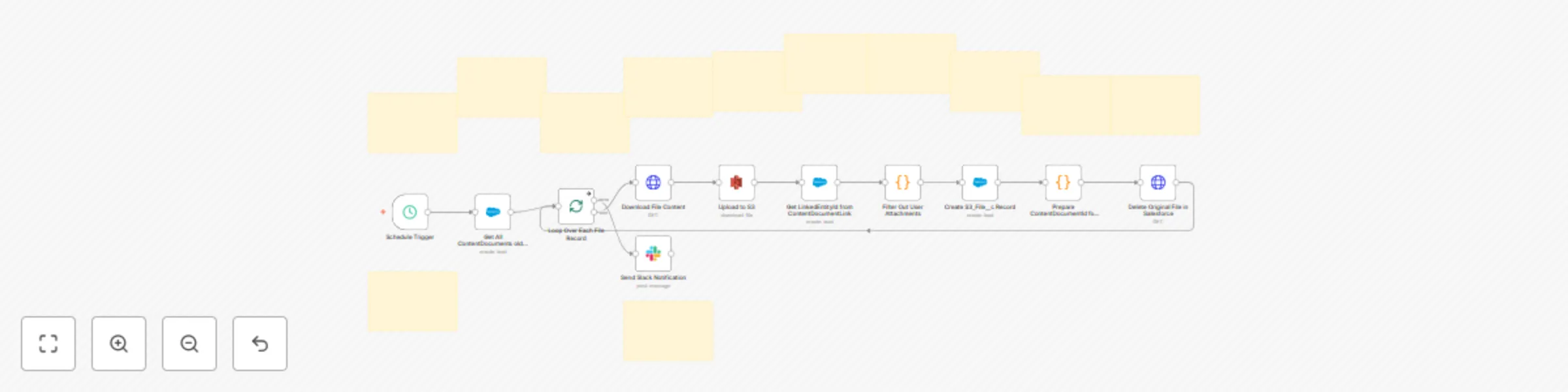
# Salesforce to S3 File Migration & Cleanup Automate archiving old Salesforce files to Amazon S3, log them back in Salesforce, and free up org storage — all from a scheduled n8n workflow. --- ## 🔧 How It Works (High-Level) 1. **Schedule Trigger** kicks off (e.g., daily). 2. **Query Salesforce** for `ContentDocument` records older than 365 days. 3. **Loop Each File** → download binary via REST. 4. **Upload to S3** with the original filename. 5. **Lookup Links** (`ContentDocumentLink`) to keep the parent record reference. 6. **Filter Out Users** (ignore `LinkedEntityId` starting with `005`). 7. **Create `S3_File__c`** record in Salesforce for traceability. 8. **Delete Original File** from Salesforce to reclaim storage. 9. **Notify via Slack** when the batch is done.  --- ## 🚀 Set Up Steps (Time: ~45–90 mins) 1. **Import n8n Workflow JSON** and wire up credentials (Salesforce OAuth2, AWS S3, Slack). 2. **Install Salesforce Unmanaged Package** (Custom Object `S3_File__c`, Apex controller, LWC, settings). 3. **Fill `S3Settings__c`** (bucket, region, keys, expiry) or swap to Named Credentials. 4. **Test with a Sandbox Batch** (e.g., small date range) and verify upload/delete. 5. **Schedule & Monitor** (tweak interval, Slack channel). --- ## 💖 Why you’ll love it - 💸 **Slash storage costs** — offload gigabytes to S3 - 🔍 **Full traceability** — every file still tracked in Salesforce - 🧰 **Plug & play** — import JSON, install package, plug in creds - 🧱 **Modular & extensible** — swap S3, add approvals, build an uploader UI - ⏱ **Set it & forget it** — scheduled automation + Slack alerts ## 📦 What’s Included - **n8n JSON Flow** – ready to import. - **Salesforce Unmanaged Package** – Apex (`S3FilesController.cls`), LWC (`s3FilesViewer`), `S3_File__c`, `S3Settings__c`. - **S3 + Salesforce Setup Guide** – quick reference for configuring keys, permissions, and the LWC. All components are editable — extend, replace, or integrate with your own processes. --- ## 🧱 Requirements - n8n instance (self-hosted or Cloud) with HTTP Request, AWS S3, Slack, and Salesforce nodes. - Salesforce org with API access & permission to install unmanaged packages. - You have to have **Query All Files** permission. Setup-> Permission Sets / Profile -> App Permission -> Content -> Query All Files. Allows View All Data users to SOQL query all files in the org. - AWS S3 bucket + IAM user/role with `GetObject`/`PutObject` (and optional `ListBucket`).
Multi-channel campaign messaging with GPT-4 and Salesforce
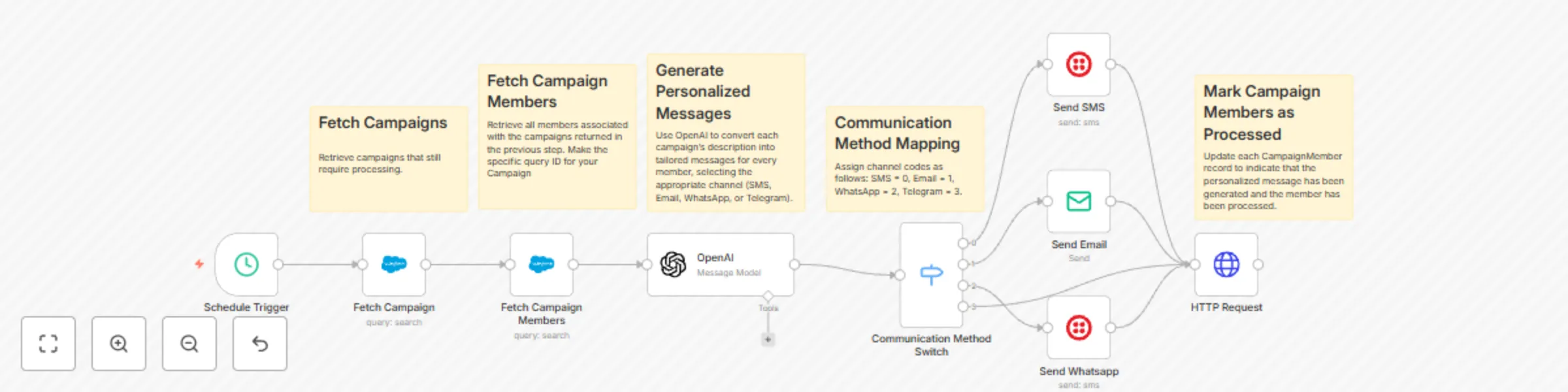
## How it works 1. **Fetch campaign & members** from Salesforce. 2. **GPT‑4** auto‑writes a channel‑appropriate, personalised outbound message. 3. **Switch** node sends via Twilio (SMS/WhatsApp), SMTP (Email). 4. **Mark** each member as processed to avoid double‑touches. 5. **Error trigger** notifies Slack if anything fails. ## Set‑up steps 1. **Time**: ~10‑15 min once credentials are ready. 2. **Prereqs**: Active Salesforce OAuth app, Twilio account, SMTP creds, Slack app. 3. **In‑flow sticky notes** walk you through credential mapping, environment variables, and optional tweaks (e.g., campaign SOQL filter). > Copy the workflow, add your keys, and run a quick manual test—after that you can place it on a cron or Salesforce trigger.
Salesforce lead capture with GPT-4 personalized email & SMS follow-up
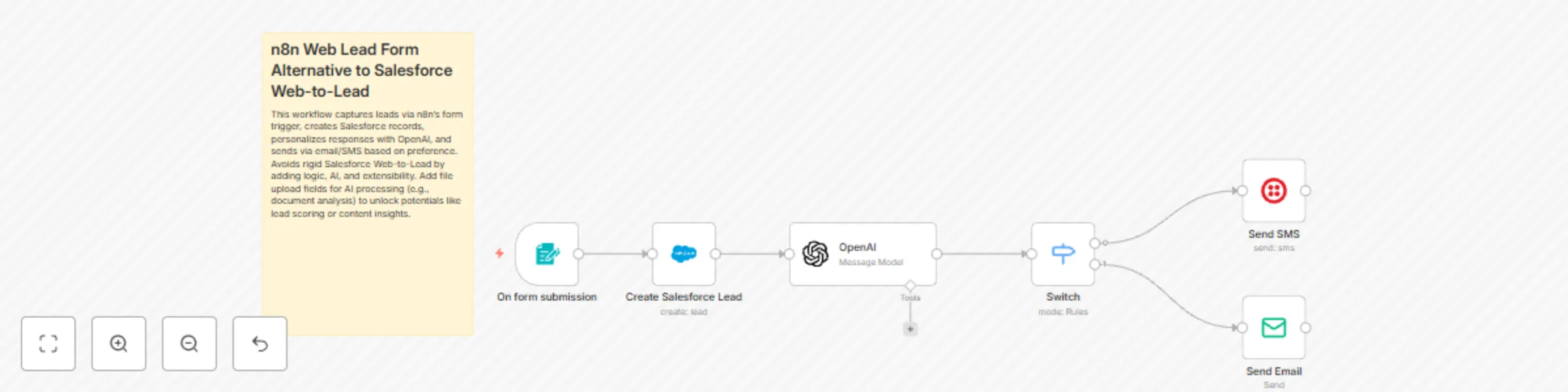
## How It Works This workflow transforms n8n into a smart Web Lead Form alternative to Salesforce's traditional Web-to-Lead, capturing leads, creating Salesforce records, and sending AI-personalized responses via email or SMS. - **Capture Submission**: User submits form data (name, email, phone, description, preference) via n8n's hosted form. - **Create Lead**: Maps data to a new Salesforce Lead. - **Personalize Message**: Uses OpenAI to generate a tailored welcome based on description and preference (detailed for email, concise for SMS). - **Route Outreach**: Branches to send via Twilio SMS or SMTP email depending on preference. ## Set Up Steps Setup takes about 15-30 minutes if you have credentials ready. Focus on connecting services; detailed configs are in workflow sticky notes. - Duplicate this template in n8n. - Add your Salesforce, OpenAI, Twilio, and SMTP credentials (no hardcoding—use n8n's credential manager). - Customize form fields if needed and test with sample data. - Activate and share the form URL on your site. [n8n Web to Lead Form.json](https://drive.google.com/file/d/1puZgYLD2aKcuyhyTF_C-s_1kCWBwNnLQ/view?usp=sharing)
AI-powered lead scoring with Salesforce, GPT-4o, and Slack with data masking
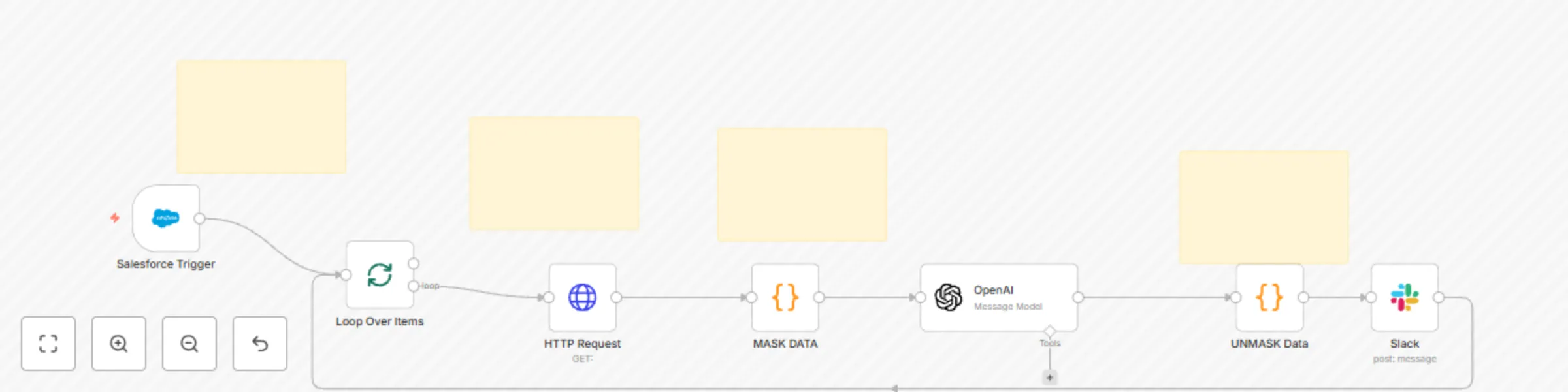
Boost your sales team’s efficiency with an end-to-end, privacy-first lead-scoring engine—ready to drop straight into your n8n instance. 🔹 What it does Salesforce Trigger watches for new or updated Leads every hour. HTTP Request fetches the full record so you never miss a field. Mask Data (JS Code) automatically tokenises PII (name, email, address, etc.) before any external call—ideal for GDPR/SOC 2 compliance. OpenAI (GPT-4o) scores each lead 0-100, assigns a grade A-F, lists key reasons, recommends one next action, and even drafts a personalised email template. Unmask Data (JS Code) swaps the tokens back in only when you explicitly need them—so sensitive data never leaks to logs or AI prompts. Slack Node delivers a concise, team-friendly summary (score, grade, reasons, next step, and draft email) right to the rep who needs it. 🔹 Why you’ll love it Security by design – field-level masking with reversible tokens. No-code friendly – clear sticky notes explain every step; swap Salesforce for any CRM in minutes. AI you can trust – scoring rubric baked into the system prompt for consistent results. Instant hand-off – reps get an actionable Slack message instead of another spreadsheet. Perfect for rev-ops teams that want smarter prioritisation without rebuilding their stack—or exposing customer data. Plug it in, set your own masking list, and start converting the leads that matter most.