K

keisha kalra

3
Workflows

Workflows by keisha kalra

Workflow preview: Auto-generate Instagram content schedule with GPT-4, Apify, and Google Sheets
Free advanced

Auto-generate Instagram content schedule with GPT-4, Apify, and Google Sheets

## Try It Out! ### This n8n template creates a fully automated Instagram content schedule using AI and Google Sheets. It is perfect for content creators, marketing teams, or local businesses looking to organize and scale their social media posting. ### How it works The workflow starts by reading two sets of inputs from a Google Sheet: - Your content strategy inputs (Pillar, Objective, Frequency, Format, Structure, Examples). - A list of scraped blog posts with title, URL, and description (fetched from your website). - Blog posts are scraped using Apify and parsed to extract key fields, which are stored in a tab labeled "Input (blog month)". - You can assign a preferred posting month for each blog (e.g. fall blog posts get tagged for September). - The workflow then merges both inputs and extracts the relevant information for further information added by ChatGPT. ### AI Scheduling & Personalization Once merged, the workflow loops through each content item and: - Identifies if the scheduled post falls on or near a holiday (like Mother’s Day) and adjusts the content accordingly. - A reference tool is attached to guide structure and tone, based on a library of post examples. - Sends the content to an AI Agent (using GPT-4, but customizable) that generates: 1. A compelling Instagram caption 2. A visual description 3. Hashtags 4. Suggested post date, day, content pillar, and format (carousel, reel, image, etc.) ### Output - All generated content including captions, structure, dates, hashtags, and pillar is exported into a tab titled Output in your Google Sheet. - The final schedule is ready for manual review, editing, or publishing to social media. ### How to use - The workflow uses a manual trigger to start, but you can replace it with a Webhook, cron job, or form submission. - Add/edit your content strategy in Google Sheets. ### How to Set-Up ### Initial Input Tab - Define your content pillars and structure - Create a tab named "Input" or "Strategy" Include these columns: - Pillar: e.g., Family images - Objective: e.g., Showcase images - Frequency: e.g., Bi-weekly - Content Form: e.g., Images, Reels - Structure: brief description of expected layout (e.g., carousel Q&A, singular photo) - Examples: prompts or questions to guide AI (e.g., Why do you think families should do a session?) ### Input (blog month) Tab – Store scraped blog content Include these columns: - URL: direct link to blog post - Title: blog post title - Description: short summary of the post - Preferred Month: month you want it posted (e.g., August, September) - This sheet is partially auto-filled by the workflow (except for Preferred Month) ### Output Tab – Final scheduled content Include these columns: - Date: scheduled posting date (YYYY-MM-DD) - Day: day of the week - Pillar: content category assigned - Format: e.g., Images, Reels, Carousel - Description: visual summary - Caption: Instagram-ready caption - Hashtags: complete hashtag block ### To use the Apify HTTP Request node: 1. Drag in an HTTP Request node into your n8n workflow. 2. Set the Method and URL based on how you're using Apify: - Use POST if you want to run an actor live with dynamic input (e.g. scrape blog posts in real time). - Use GET if you want to retrieve results from a completed or static dataset run (faster and cheaper if you're reusing previous data). 3. Configure query or body parameters: 4. Include your Apify API token for authentication (e.g. token=YOUR_API_KEY) - For POST: include an input object with any required actor settings (e.g., blog URL to scrape). - For GET: specify the dataset ID in the URL 5. Test the node to ensure you're retrieving the blog titles, descriptions, and URLs as expected. ### Requirements - Apify account for scraping blog posts - OpenAI key (e.g. GPT-4) or another model of your choice - Google Sheets Credentials ### Example Use Cases - A photographer repurposing blogs into Instagram carousels - A nonprofit automatically generating seasonal posts - A small team managing multi-pillar content across weeks or months ### Need Help? Join the n8n Discord or ask in the n8n Forum! Happy Content Making ! 📅✨

k
keisha kalra
Content Creation
5 Aug 2025
1109
0
Workflow preview: Generate SEO-optimized blog posts with Google Autocomplete & GPT-4
Free advanced

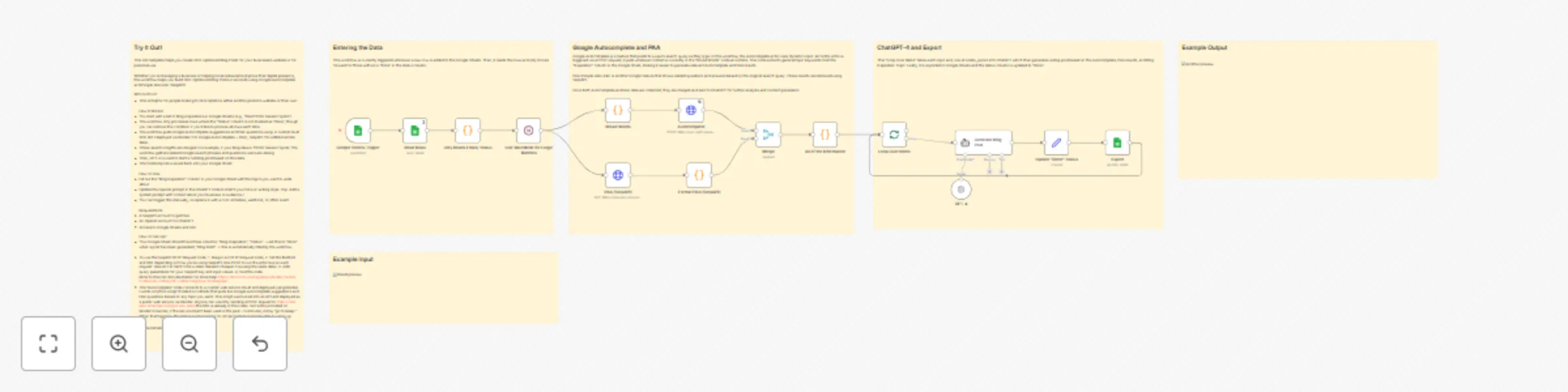
Generate SEO-optimized blog posts with Google Autocomplete & GPT-4

## Try It Out! This n8n template helps you create SEO-optimized Blog Posts for your businesses website or for personal use. Whether you're managing a business or helping local restaurants improve their digital presence, this workflow helps you build SEO-Optimized Blog Posts in seconds using Google Autocomplete and People Also Ask (SerpAPI). Who Is It For? - This is helpful for people looking to SEO Optimize either another person's website or their own. How It Works? - You start with a list of blog inspirations in Google Sheets (e.g., “Best Photo Session Spots”). - The workflow only processes rows where the “Status” column is not marked as “done”, though you can remove this condition if you’d like to process all rows each time. - The workflow pulls Google Autocomplete suggestions and PAA questions using: A custom-built SEO API I deployed via Render (for Google Autocomplete + PAA), SerpAPI (for additional PAA data). - These search insights are merged. For example, if your blog idea is “Photo Session Spots,” the workflow gathers related Google search phrases and questions users are asking. - Then, GPT-4 is used to draft a full blog post based on this data. - The finished post is saved back into your Google Sheet. How To Use - Fill out the “Blog Inspiration” column in your Google Sheet with the topics you want to write about. - Update the OpenAI prompt in the ChatGPT node to match your tone or writing style. (Tip: Add a system prompt with context about your business or audience.) - You can trigger this manually, or replace it with a cron schedule, webhook, or other event. Requirements - A SerpAPI account to get PAA - An OpenAI account for ChatGPT - Access to Google Sheets and n8n How To Set-Up? - Your Google Sheet should have three columns: "Blog Inspiration", "Status" → set this to “done” when a post has been generated, "Blog Draft" → this is automatically filled by the workflow. - To use the SerpAPI HTTP Request node: 1. Drag in an HTTP Request node, 2. Set the Method and URL depending on how you're using SerpAPI: Use POST to run the actor live on each request. Use GET to fetch from a static dataset (cheaper if reusing the same data). 3. Add query parameters for your SerpAPI key and input values. 4. Test the node. Refer to this n8n documentation for more help! https://docs.n8n.io/integrations/builtin/cluster-nodes/sub-nodes/n8n-nodes-langchain.toolserpapi/. - The “Autocomplete” node connects to a custom web service I built and deployed using Render. I wrote a Python script (hosted on GitHub) that pulls live Google Autocomplete suggestions and PAA questions based on any topic you send. This script was turned into an API and deployed as a public web service via Render. Anyone can use it by sending a POST request to: https://seo-api2.onrender.com/get-seo-data (the URL is already in the node). Since this is hosted on Render’s free tier, if the service hasn’t been used in the past ~15 minutes, it may “go to sleep.” When that happens, the first request can take 10–30 seconds to respond while it wakes up. Happy Automating!

k
keisha kalra
Content Creation
23 Jul 2025
1007
0
Workflow preview: Analyze and summarize Google Reviews with SerpAPI, GPT-4 and Google Sheets
Free intermediate

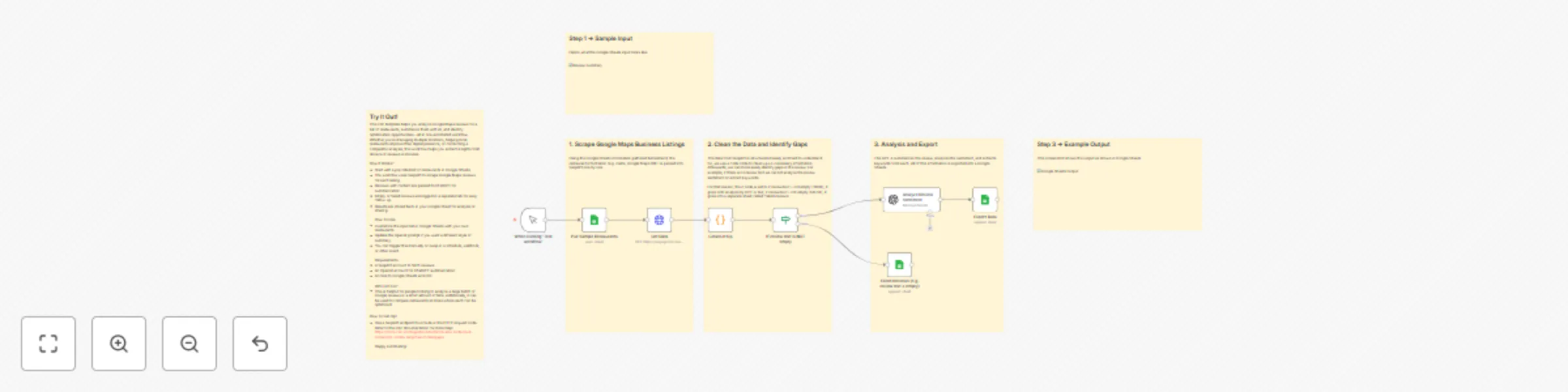
Analyze and summarize Google Reviews with SerpAPI, GPT-4 and Google Sheets

## Try It Out! This n8n template helps you analyze Google Maps reviews for a list of restaurants, summarize them with AI, and identify optimization opportunities—all in one automated workflow. Whether you're managing multiple locations, helping local restaurants improve their digital presence, or conducting a competitor analysis, this workflow helps you extract insights from dozens of reviews in minutes. How It Works? - Start with a pre-filled list of restaurants in Google Sheets. - The workflow uses SerpAPI to scrape Google Maps reviews for each listing. - Reviews with content are passed to ChatGPT for summarization. - Empty or failed reviews are logged in a separate tab for easy follow-up. - Results are stored back in your Google Sheet for analysis or sharing How To Use - Customize the input list in Google Sheets with your own restaurants. - Update the OpenAI prompt if you want a different style of summary. - You can trigger this manually or swap in a schedule, webhook, or other event. Requirements - A SerpAPI account to fetch reviews - An OpenAI account for ChatGPT summarization - Access to Google Sheets and n8n Who Is It For? - This is helpful for people looking to analyze a large batch of Google reviews in a short amount of time. Additionally, it can be used to compare restaurants and see where each can be optimized. How To Set-Up? - Use a SerpAPI endpoint to include in the HTTP request node. Refer to this n8n documentation for more help! https://docs.n8n.io/integrations/builtin/cluster-nodes/sub-nodes/n8n-nodes-langchain.toolserpapi/. Happy Automating!

k
keisha kalra
Market Research
17 Jul 2025
646
0