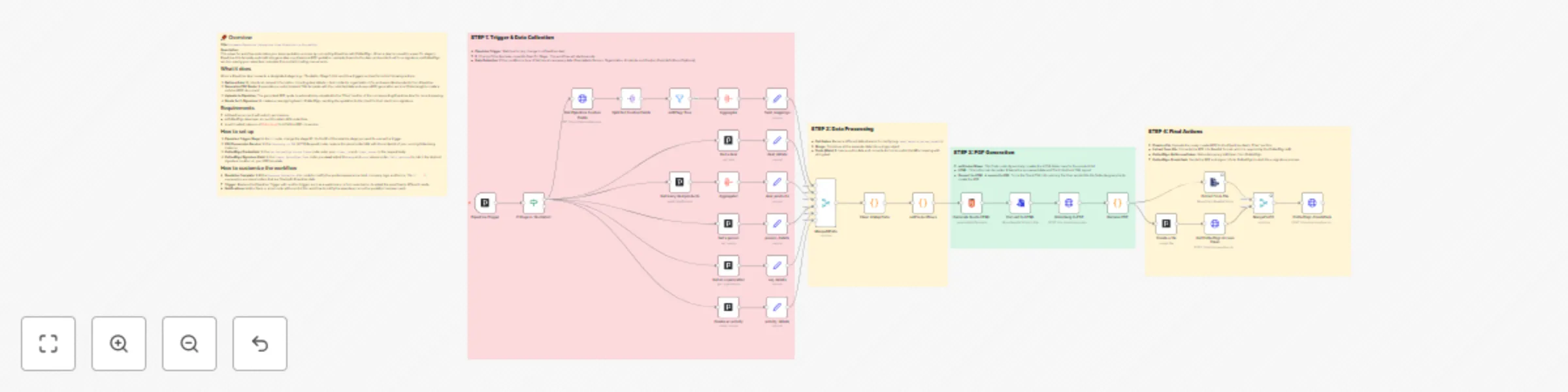
Generate & send quotation PDFs from Pipedrive to DottedSign for e-signature
## 📌 Overview
**Description:**
This powerful workflow automates your sales quotation process by connecting Pipedrive with DottedSign. When a deal is moved to a specific stage in Pipedrive, this template automatically generates a professional PDF quotation, uploads it back to the deal, and sends it out for e-signature via DottedSign service, saving your sales team valuable time and eliminating manual work.
## What it does
When a Pipedrive deal moves to a designated stage (e.g., "Quotation Stage"), this workflow triggers and performs the following actions:
1. **Gathers Data:** It collects all relevant information, including deal details, client contacts, organization info, and associated products from Pipedrive.
2. **Generates PDF Quote:** It populates a customizable HTML template with the collected data and uses a PDF generation service (Gotenberg) to create a polished PDF document.
3. **Uploads to Pipedrive:** The generated PDF quote is automatically uploaded to the "Files" section of the corresponding Pipedrive deal for record-keeping.
4. **Sends for E-Signature:** It creates a new signing task in DottedSign, sending the quotation to the client for their electronic signature.
## Requirements
- A Pipedrive account with admin permissions.
- A DottedSign developer account to obtain API credentials.
- A self-hosted instance of [Gotenberg](https://gotenberg.dev/docs/getting-started/installation) for HTML to PDF conversion.
## How to set up
1. **Pipedrive Trigger Stage:** In the `If` node, change the stage ID `7` to the ID of the pipeline stage you want to use as the trigger.
2. **PDF Conversion Service:** In the `Gotenberg to PDF` (HTTP Request) node, replace the placeholder URL with the endpoint of your running Gotenberg instance.
3. **DottedSign Credentials:** In the `Get DottedSign Access Token` node, enter your `client_id` and `client_secret` in the request body.
4. **DottedSign Signature Field:** In the `Create DottedSign Task` node, you **must** adjust the `page` and `coord` values under `field_settings` to match the desired signature location on your PDF template.
## How to customize the workflow
- **Quotation Template:** Edit the `Generate Quotation HTML` node to modify the quote's appearance, text, company logo, and terms. The `{{ ... }}` expressions are placeholders that are filled with Pipedrive data.
- **Trigger:** Replace the Pipedrive Trigger with another trigger, such as a webhook or a form submission, to adapt the workflow to different needs.
- **Notifications:** Add a Slack or email node at the end of the workflow to notify the sales team once the quotation has been sent.