H

higashiyama

5
Workflows

Workflows by higashiyama

Workflow preview: AI-powered code review with linting, red-marked corrections in Google Sheets & Slack
Free advanced

AI-powered code review with linting, red-marked corrections in Google Sheets & Slack

## Advanced Code Review Automation (AI + Lint + Slack) ### Who’s it for For software engineers, QA teams, and tech leads who want to **automate intelligent code reviews** with both AI-driven suggestions and rule-based linting — all managed in Google Sheets with instant Slack summaries. ### How it works This workflow performs a two-layer review system: 1. **Lint Check**: Runs a lightweight static analysis to find common issues (e.g., use of `var`, `console.log`, unbalanced braces). 2. **AI Review**: Sends valid code to Gemini AI, which provides human-like review feedback with severity classification (`Critical`, `Major`, `Minor`) and visual highlights (red/orange tags). 3. **Formatter**: Combines lint and AI results, calculating an overall score (0–10). 4. **Aggregator**: Summarizes results for quick comparison. 5. **Google Sheets Writer**: Appends results to your review log. 6. **Slack Notification**: Posts a concise summary (e.g., number of issues and average score) to your team’s channel. ### How to set up 1. Connect **Google Sheets** and **Slack** credentials in n8n. 2. Replace placeholders (`<YOUR_SPREADSHEET_ID>`, `<YOUR_SHEET_GID_OR_NAME>`, `<YOUR_SLACK_CHANNEL_ID>`). 3. Adjust the AI review prompt or lint rules as needed. 4. Activate the workflow — reviews will start automatically whenever new code is added to the sheet. ### Requirements - Google Sheets and Slack integrations enabled - A configured AI node (Gemini, OpenAI, or compatible) - Proper permissions to write to your target Google Sheet ### How to customize - Add more linting rules (naming conventions, spacing, forbidden APIs) - Extend the AI prompt for project-specific guidelines - Customize the Slack message formatting - Export analytics to a dashboard (e.g., Notion or Data Studio) ### Why it’s valuable This workflow brings **realistic, team-oriented AI-assisted code review** to n8n — combining the speed of automated linting with the nuance of human-style feedback. It saves time, improves code quality, and keeps your team’s review history transparent and centralized.

h
higashiyama
Engineering
22 Oct 2025
85
0
Workflow preview: Curate learning content from Reddit & RSS with GPT-4.1-mini and Google Sheets
Free advanced

Curate learning content from Reddit & RSS with GPT-4.1-mini and Google Sheets

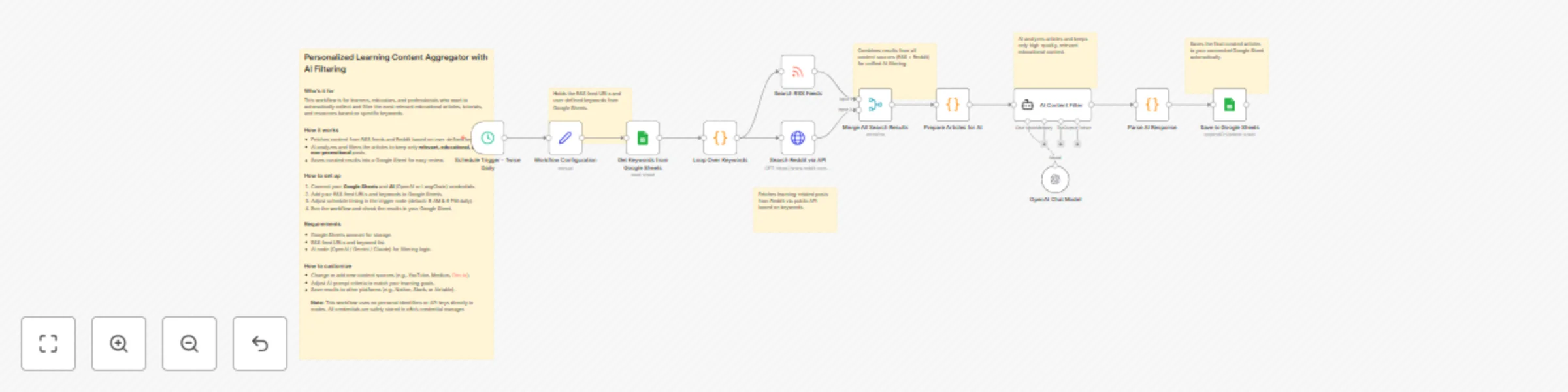
## Personalized Learning Content Aggregator with AI Filtering ### Who’s it for This workflow is for learners, educators, and professionals who want to automatically collect and filter the most relevant educational articles, tutorials, and resources based on specific keywords. ### How it works - Fetches content from RSS feeds and Reddit based on user-defined keywords. - AI analyzes and filters the articles to keep only **relevant, educational, and non-promotional** posts. - Saves curated results into a Google Sheet for easy review. ### How to set up 1. Connect your **Google Sheets** and **AI** (OpenAI or LangChain) credentials. 2. Add your RSS feed URLs and keywords to Google Sheets. 3. Adjust schedule timing in the trigger node (default: 8 AM & 6 PM daily). 4. Run the workflow and check the results in your Google Sheet. ### Requirements - Google Sheets account for storage. - RSS feed URLs and keyword list. - AI node (OpenAI / Gemini / Claude) for filtering logic. ### How to customize - Change or add new content sources (e.g., YouTube, Medium, Dev.to). - Adjust AI prompt criteria to match your learning goals. - Save results to other platforms (e.g., Notion, Slack, or Airtable). **Note:** This workflow uses no personal identifiers or API keys directly in nodes. All credentials are safely stored in n8n’s credential manager.

h
higashiyama
Market Research
22 Oct 2025
145
0
Workflow preview: Team morale monitoring from Teams/Slack messages with Gemini AI
Free advanced

Team morale monitoring from Teams/Slack messages with Gemini AI

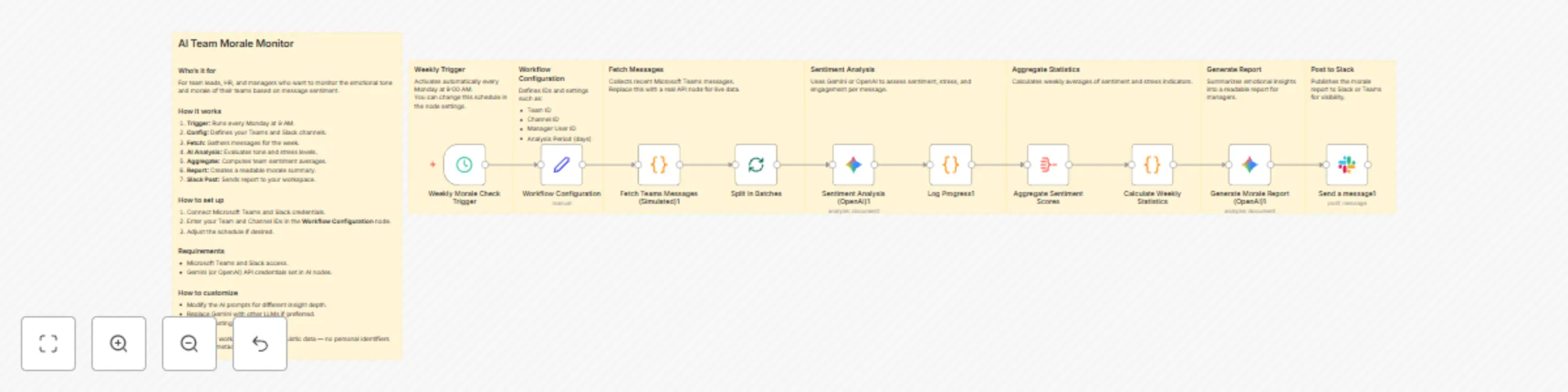
## AI Team Morale Monitor ### Who’s it for For team leads, HR, and managers who want to monitor the emotional tone and morale of their teams based on message sentiment. ### How it works 1. **Trigger:** Runs every Monday at 9 AM. 2. **Config:** Defines your Teams and Slack channels. 3. **Fetch:** Gathers messages for the week. 4. **AI Analysis:** Evaluates tone and stress levels. 5. **Aggregate:** Computes team sentiment averages. 6. **Report:** Creates a readable morale summary. 7. **Slack Post:** Sends report to your workspace. ### How to set up 1. Connect Microsoft Teams and Slack credentials. 2. Enter your Team and Channel IDs in the **Workflow Configuration** node. 3. Adjust the schedule if desired. ### Requirements - Microsoft Teams and Slack access. - Gemini (or OpenAI) API credentials set in AI nodes. ### How to customize - Modify the AI prompts for different insight depth. - Replace Gemini with other LLMs if preferred. - Change posting platform or format. **Note:** This workflow uses *only* linguistic data — no personal identifiers or private metadata.

h
higashiyama
HR
20 Oct 2025
99
0
Workflow preview: Daily morning briefing with Google Calendar, weather, and news to Slack
Free intermediate

Daily morning briefing with Google Calendar, weather, and news to Slack

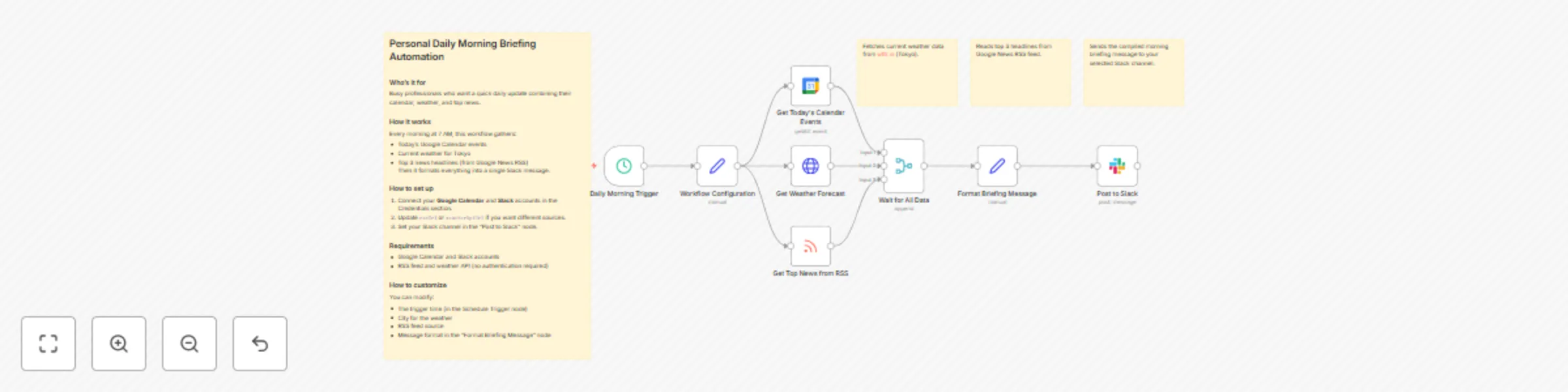
## Personal Daily Morning Briefing Automation ### Who’s it for Busy professionals who want a quick daily update combining their calendar, weather, and top news. ### How it works Every morning at 7 AM, this workflow gathers: - Today’s Google Calendar events - Current weather for Tokyo - Top 3 news headlines (from Google News RSS) Then it formats everything into a single Slack message. ### How to set up 1. Connect your **Google Calendar** and **Slack** accounts in the Credentials section. 2. Update `rssUrl` or `weatherApiUrl` if you want different sources. 3. Set your Slack channel in the "Post to Slack" node. ### Requirements - Google Calendar and Slack accounts - RSS feed and weather API (no authentication required) ### How to customize You can modify: - The trigger time (in the Schedule Trigger node) - City for the weather - RSS feed source - Message format in the “Format Briefing Message” node

h
higashiyama
Personal Productivity
17 Oct 2025
305
0
Workflow preview: Extract meeting to-do lists from audio with Google Gemini and send to Slack
Free intermediate

Extract meeting to-do lists from audio with Google Gemini and send to Slack

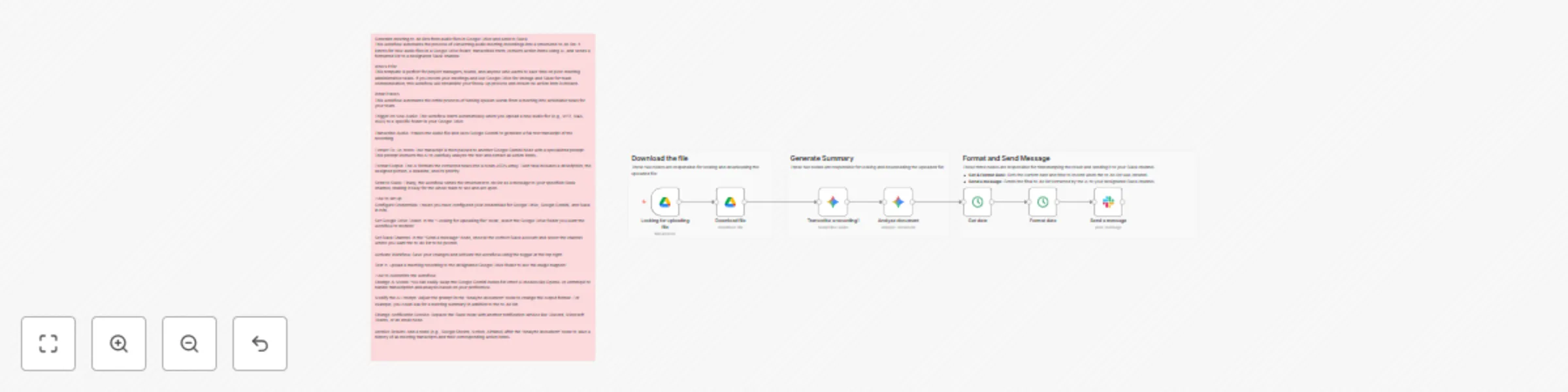
This workflow automates the process of converting audio meeting recordings into a structured to-do list. It listens for new audio files in a Google Drive folder, transcribes them, extracts action items using AI, and sends a formatted list to a designated Slack channel. ## Who’s it for This template is perfect for project managers, teams, and anyone who wants to save time on post-meeting administrative tasks. If you record your meetings and use Google Drive for storage and Slack for team communication, this workflow will streamline your follow-up process and ensure no action item is missed. ## What it does This workflow automates the entire process of turning spoken words from a meeting into actionable tasks for your team. 1. **Trigger on New Audio:** The workflow starts automatically when you upload a new audio file (e.g., MP3, M4A, WAV) to a specific folder in your Google Drive. 2. **Transcribe Audio:** It takes the audio file and uses Google Gemini to generate a full text transcript of the recording. 3. **Extract To-Do Items:** The transcript is then passed to another Google Gemini node with a specialized prompt. This prompt instructs the AI to carefully analyze the text and extract all action items. 4. **Format Output:** The AI formats the extracted tasks into a clean JSON array. Each task includes a description, the assigned person, a deadline, and its priority. 5. **Send to Slack:** Finally, the workflow sends the structured to-do list as a message to your specified Slack channel, making it easy for the whole team to see and act upon. ## How to set up 1. **Configure Credentials:** Ensure you have configured your credentials for Google Drive, Google Gemini, and Slack in n8n. 2. **Set Google Drive Folder:** In the "Looking for uploading file" node, select the Google Drive folder you want the workflow to monitor. 3. **Set Slack Channel:** In the "Send a message" node, choose the correct Slack account and select the channel where you want the to-do list to be posted. 4. **Activate Workflow:** Save your changes and activate the workflow using the toggle at the top right. 5. **Test It:** Upload a meeting recording to the designated Google Drive folder to see the magic happen! ## How to customize the workflow - **Change AI Model:** You can easily swap the Google Gemini nodes for other AI models like OpenAI or Anthropic to handle transcription and analysis based on your preference. - **Modify the AI Prompt:** Adjust the prompt in the "Analyze document" node to change the output format. For example, you could ask for a meeting summary in addition to the to-do list. - **Change Notification Service:** Replace the Slack node with another notification service like Discord, Microsoft Teams, or an email node. - **Archive Results:** Add a node (e.g., Google Sheets, Notion, Airtable) after the "Analyze document" node to save a history of all meeting transcripts and their corresponding action items.

h
higashiyama
Project Management
17 Oct 2025
161
0