J

Junichiro Tobe

2
Workflows

Workflows by Junichiro Tobe
Workflow preview: Automatically analyze meeting effectiveness with AI & send Slack feedback
Free advanced

Automatically analyze meeting effectiveness with AI & send Slack feedback

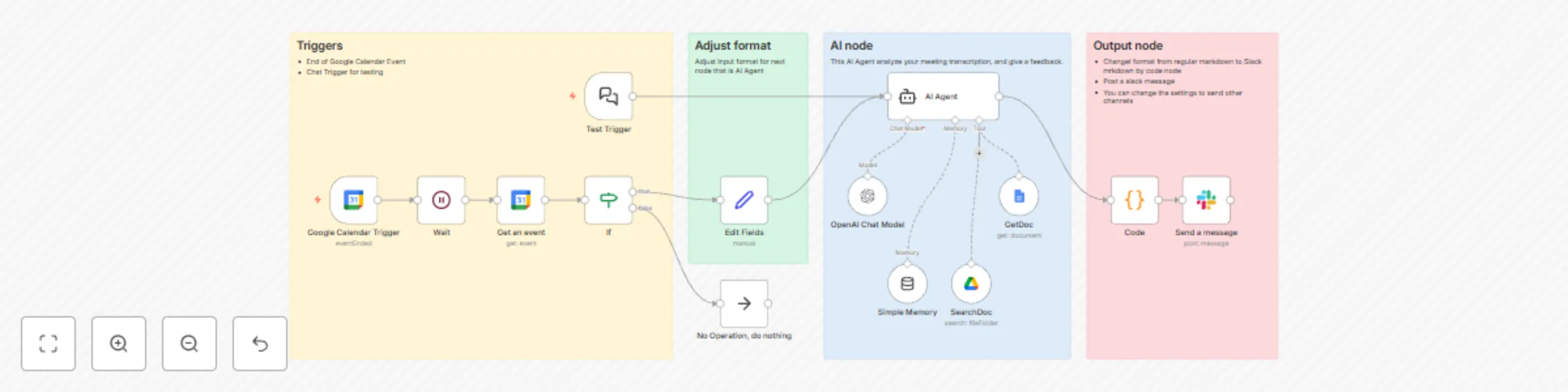
--- ## How it works This workflow automatically analyzes meeting effectiveness and provides constructive feedback: • **Retrieve meeting minutes**: Automatically searches and retrieves meeting minutes from Google Drive using either a Google Docs URL or meeting name • **Multi-dimensional analysis**: Comprehensively evaluates meeting effectiveness score, speaking time distribution, communication quality (clarity, friendliness, decisiveness, listening), disagreements, and more • **Generate actionable feedback**: Outputs a structured report in Japanese with specific improvement suggestions and highlights of what went well ## Set up steps Setup takes approximately **5 minutes**: • **Connect Google Drive**: Grant permission for the workflow to access your meeting minutes by connecting to Google Drive • **First run**: Enter the meeting minutes URL or meeting name and execute the workflow For detailed setup instructions and step-by-step explanations, please refer to the sticky notes inside your workflow.

J
Junichiro Tobe
AI Summarization
6 Oct 2025
110
0
Workflow preview: Ai-powered Gmail email organization with auto-archiving and priority labels
Free advanced

Ai-powered Gmail email organization with auto-archiving and priority labels

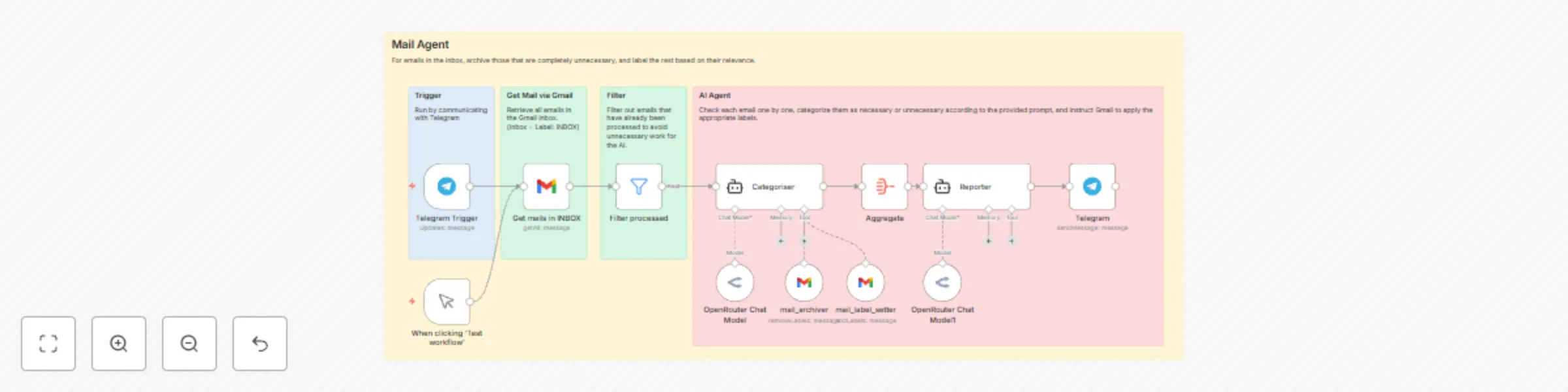
### **Who is this for?** This workflow is perfect for busy professionals, students, or anyone who struggles to keep their Gmail inbox organized and clutter-free. ### **What problem is this workflow solving?** It helps you avoid email overload by automating the process of organizing your Gmail inbox. Unnecessary emails are archived, while important emails are categorized into "MustRead" or "NotNeed" for better prioritization. ### **What this workflow does** - Connects to your Gmail inbox. - Automatically archives emails that are unnecessary or irrelevant. - Sorts remaining emails into two categories: - **MustRead**: Emails that require immediate attention. - **NotNeed**: Less critical emails for review later. ### **Setup** 1. Connect your Gmail account to the workflow. 2. Define the criteria for "MustRead" and "NotNeed" emails by updating the filter rules in the nodes. 3. Activate the workflow to start organizing your inbox. ### **How to customize this workflow to your needs** - Adjust the filters for archiving emails based on your specific preferences. - Modify the sorting rules for "MustRead" and "NotNeed" categories to match your workflow. - Add additional actions, such as sending notifications for "MustRead" emails.

J
Junichiro Tobe
Personal Productivity
24 Apr 2025
9965
0