M

Matheus Pedrosa

3
Workflows

Workflows by Matheus Pedrosa
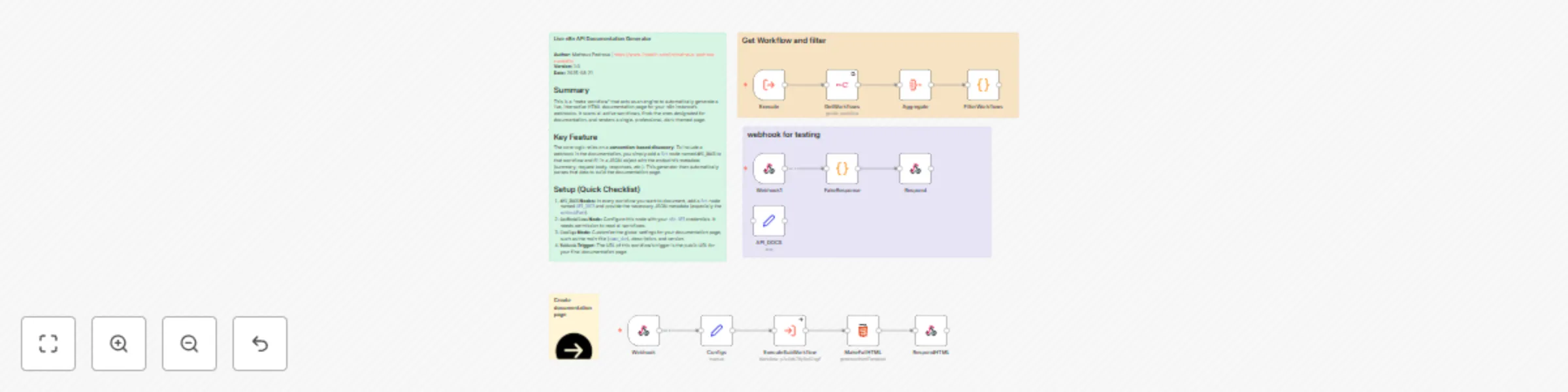
Workflow preview: Generate self-documenting API portal for webhooks with n8n API & Bootstrap
Free advanced

Generate self-documenting API portal for webhooks with n8n API & Bootstrap

### Workflow Overview Keeping API documentation updated is a challenge, especially when your endpoints are powerful n8n webhooks. This project solves that problem by turning your n8n instance into a **self-documenting API platform**. This workflow acts as a central engine that scans your entire n8n instance for designated webhooks and automatically generates a single, beautiful, and interactive HTML documentation page. By simply adding a standard `Set` node with specific metadata to any of your webhook workflows, you can make it instantly appear in your live documentation portal, complete with code examples and response schemas. The final output is a single, callable URL that serves a professional, dark-themed, and easy-to-navigate documentation page for all your automated webhook endpoints. ### Key Features: * **Automatic Discovery:** Scans all active workflows on your instance to find endpoints designated for documentation. * **Simple Configuration via a `Set` Node:** No custom nodes needed! Just add a `Set` node named `API_DOCS` to any workflow you want to document and fill in a simple JSON structure. * **Rich HTML Output:** Dynamically generates a single, responsive, dark-mode HTML page that looks professional right out of the box. * **Interactive UI:** Uses Bootstrap accordions, allowing users to expand and collapse each endpoint to keep the view clean and organized. * **Developer-Friendly:** Automatically generates a ready-to-use `cURL` command for each endpoint, making testing and integration incredibly fast. * **Zero Dependencies:** The entire solution runs within n8n. No need to set up or maintain external documentation tools like Swagger UI or Redoc. ### Setup Instructions: This solution has two parts: configuring the workflows you want to document, and setting up this generator workflow. **Part 1: In Each Workflow You Want to Document** 1. Next to your `Webhook` trigger node, add a **`Set`** node. 2. Change its name to **`API_DOCS`**. 3. Create a single variable named `jsonOutput` (or `docsData`) and set its type to `JSON`. 4. Paste the following JSON structure into the value field and customize it with your endpoint's details: ```json { "expose": true, "webhookPath": "PASTE_YOUR_WEBHOOK_PATH_HERE", "method": "POST", "summary": "Your Endpoint Summary", "description": "A clear description of what this webhook does.", "tags": [ "Sales", "Automation" ], "requestBody": { "exampleKey": "exampleValue" }, "successCode": 200, "successResponse": { "status": "success", "message": "Webhook processed correctly." }, "errorCode": 400, "errorResponse": { "status": "error", "message": "Invalid input." } } ``` **Part 2: In This Generator Workflow** 1. `n8n API` Node: Configure the `GetWorkflows` node with your n8n API credentials. It needs permission to read workflows. 2. `Configs` Node: Customize the main settings for your documentation page, like the title (`name_doc`), version, and a short description. 3. **Webhook Trigger:** The `Webhook` node at the start (default path is `/api-doc`) provides the final URL for your documentation page. Copy this URL and open it in your browser. **Required Credentials:** n8n API Credentials: To allow this workflow to read your other workflows.

M
Matheus Pedrosa
Document Extraction
21 Aug 2025
185
0
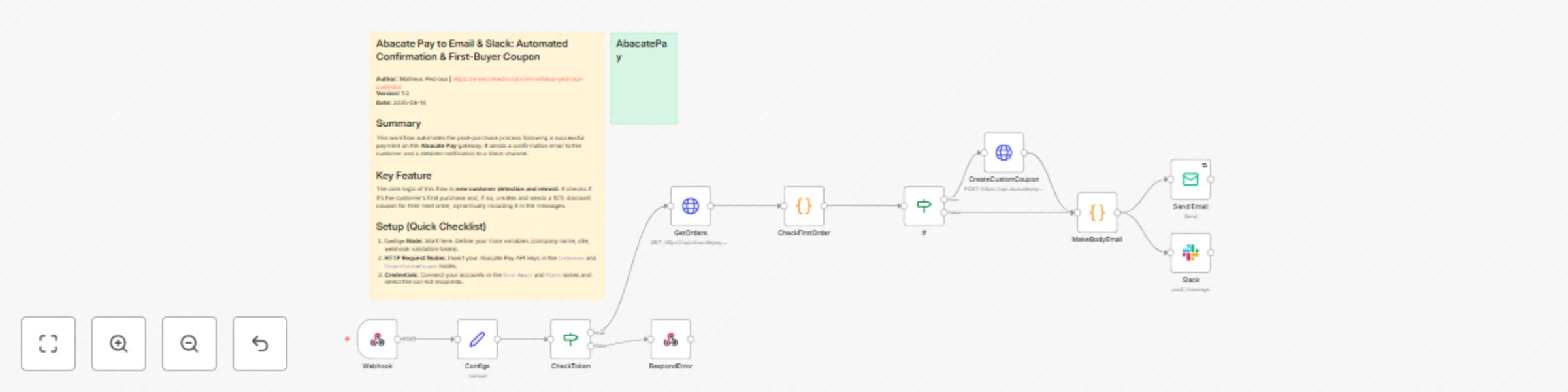
Workflow preview: Automated order confirmations with Abacate Pay: first-buyer coupon rewards via email & Slack
Free intermediate

Automated order confirmations with Abacate Pay: first-buyer coupon rewards via email & Slack

### Workflow Overview This workflow provides a complete, automated post-purchase solution triggered by a successful payment webhook from **Abacate Pay**. *(For international users, think of Abacate Pay as 'the Brazilian Stripe' – a popular and robust payment gateway in Brazil).* When a successful payment is registered, this workflow instantly sends a beautiful, responsive HTML confirmation email to the customer and posts a detailed notification to a designated Slack channel. The key feature is its ability to **dynamically reward first-time buyers**. The workflow checks the customer's purchase history, and if it's their first order, it automatically generates a 10% discount coupon for their next purchase and includes it in the welcome email. ### Key Features: * **Webhook Trigger:** Securely listens for successful payment events from Abacate Pay. * **First-Time Buyer Detection:** Queries past orders to identify new customers. * **Automatic Coupon Generation:** Creates a unique, single-use discount coupon for new buyers. * **Dynamic Content:** The email and Slack messages automatically include the coupon details, but only for first-time buyers. * **Responsive HTML Email:** Sends a professional and mobile-friendly order confirmation. * **Rich Slack Notifications:** Uses Block Kit for well-formatted, actionable alerts for your team. * **Centralized Configuration:** A single `Configs` node makes it easy to manage static variables like company name and tokens. ### Setup Instructions: 1. **Webhook Node:** Copy the webhook URL and paste it into your Abacate Pay dashboard for the "payment successful" event (e.g., `billing.paid`). 2. **Configs Node:** Open this `Set` node and fill in your company's information (`companyName`, `companySite`, `companyEmail`) and the `token` used to validate the webhook requests. 3. **HTTP Request Nodes (`GetOrders`, `CreateCustomCoupon`):** In both nodes, go to the "Authentication" or "Header" section and replace the placeholder Bearer Token with your actual Abacate Pay API key. 4. **Send Email Node:** Select your email credentials from the dropdown or configure a new account (e.g., `SMTP`, `Gmail`). 5. **Slack Node:** Select your Slack credentials and choose the channel where you want to receive notifications. 6. **Activate the Workflow:** Save and activate the workflow. It's now ready to process incoming orders! ### Required Credentials: * Abacate Pay API Credentials * Email Credentials (e.g., `SMTP`, `SendGrid`, `Gmail`) * Slack API Credentials

M
Matheus Pedrosa
CRM
15 Aug 2025
159
0
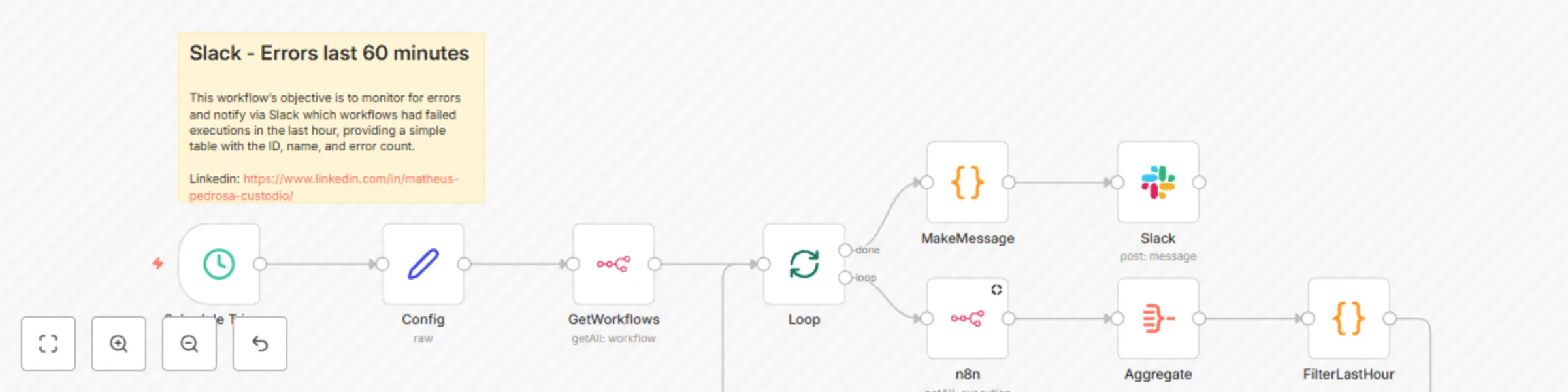
Workflow preview: Automated hourly n8n error monitoring with Slack notifications
Free intermediate

Automated hourly n8n error monitoring with Slack notifications

## Who is this template for? This template is ideal for n8n instance administrators, developers, and DevOps teams who need a proactive and organized way to monitor the health of their automations. If you want to be notified about failures as soon as they happen, without having to manually check execution logs, this workflow is for you. ## What does this template do? This workflow automates error monitoring on your n8n instance. Every hour, it performs the following steps: 1. **Queries the n8n API** to fetch all executions that have failed in the last hour. 2. **Groups the errors** by workflow to consolidate the information. 3. **Builds a rich message** for each failed workflow, including the error count. 4. **Sends an alert to a Slack channel** with a **button to open the workflow** directly, allowing for immediate investigation. ## Requirements Before you start, you will need to have the following configured in your n8n instance: * **n8n API Credentials:** You need to generate an API key in your n8n instance settings so the workflow can query execution data. * **Slack Credentials:** A configured **Slack (OAuth2 API)** credential to allow n8n to send messages to your workspace. ## How to set it up Setup is simple and only takes a few minutes: 1. **Config Node:** In the node named `"Config"`, you must set the value for the `baseUrl` to your n8n instance's URL (e.g., `https://n8n.yourdomain.com`). This is crucial for generating the correct workflow links in the Slack message. 2. **Schedule Trigger:** The workflow is pre-configured to run every hour. You can adjust the frequency in this node to fit your needs. 3. **"Get Failed Executions" Node (HTTP Request):** * Under *Authentication*, select 'Header Auth'. * In the *Credentials* field, select your n8n API credential. 4. **"Post to Slack" Node (Slack):** * Select your Slack credential. * In the *Channel* field, enter the name of the channel where error notifications should be sent (e.g., `#n8n-alerts`). 5. **Activate the Workflow!** After these steps, just activate the workflow to start the automatic error monitoring. ## How to customize the workflow You can easily customize this template: * **Change the Schedule:** Modify the `Schedule Trigger` node to run at different intervals (every 15 minutes, once a day, etc.). * **Change the Notification Channel:** Instead of Slack, you can replace the last node to send notifications to Discord, Microsoft Teams, Telegram, or even by email. * **Add More Information:** You can modify the `MakeMessage` node that generates the message to include more details about the errors, such as the error message or the exact time of failure.

M
Matheus Pedrosa
DevOps
7 Aug 2025
538
0