Jorge Martínez
Workflows by Jorge Martínez
Auto-generate Instagram carousels with GPT-Image-1 & AI captions from Google Sheets
# 🧰 Instagram Carousel Scheduler A tool to **automatically publish Instagram carousels** using a `Post Description`, `Instructions`, and the **number of images** you want to post — all directly from a Google Sheet. At the end of each post, the next row is marked as `Pending`, allowing **fully automated posting**, so you can prepare **months of content in advance**. --- ## ✅ Requirements * 📱 **Instagram Business Account** Required to publish content via the Meta Graph API. Make sure your IG account is **connected to a Facebook Page**. * 🔐 **Facebook Developers Token** Required to use the **Graph API** and publish on Instagram. 👉 It's highly recommended to create a **System User** so your token **never expires**. * ☁️ **Cloudinary Upload Preset** Used to upload generated images and retrieve public URLs. 👉 Use an **unsigned upload preset** (no API key required). * 🧠 **OpenAI API Key** Used for: * Generating a **caption** from the post description. * Creating **image prompts**. * Generating images using **`gpt-image-1`**. ⚠️ You might need to **verify your business** with OpenAI to access this model. * 📊 **Google Sheets App with OAuth credentials** To fetch your content and instructions from the spreadsheet. --- ## 💬 Notes and Customization * ✏️ You can **customize the prompt** to change the visual style of the images. Examples: * *Gumball* style * *Comic-style illustration* * *Digital painting* * 🔄 You can **replace Google Sheets** with tools like: * Airtable * Notion * Your own database * 🔐 If Facebook requires a **Privacy Policy**, you can quickly create one here: 👉 [https://www.privacypolicygenerator.info](https://www.privacypolicygenerator.info)
Auto-generate social posts from GitHub README/CHANGELOG updates with GPT-4o and OAuth
# Generate social posts from GitHub pushes to Twitter and LinkedIn On each GitHub *push*, this workflow checks if the commit set includes **README.md** and **CHANGELOG.md**, fetches both files, lets an **LLM** generate a Twitter and LinkedIn post, then publishes to **Twitter** and **LinkedIn (Person)**. ## Apps & Nodes * **Trigger:** Webhook * **Logic:** IF, Merge, Aggregate * **GitHub:** Get Repository File (×2) * **Files:** Extract from File (text) (×2) * **AI:** OpenAI Chat Model → LLM Chain (+ Structured Output Parser) * **Publish:** Twitter, LinkedIn (Person) ## Prerequisites * **GitHub:** OAuth2 or PAT with repo read. * **OpenAI:** API key. * **Twitter:** OAuth2 app with *Read and Write*; scopes `tweet.read tweet.write users.read offline.access`. * **LinkedIn (Person):** OAuth2 credentials; **required scope:** `w_member_social`, `openid`. ## Setup 1. **GitHub Webhook:** Repo → *Settings → Webhooks* * Payload URL: `https://<your-n8n-domain>/webhook/github/push` * Content type: `application/json` • Event: *Push* • Secret (optional) • Branches as needed. 2. **Credentials:** Connect GitHub, OpenAI, Twitter, and LinkedIn (Person). ## How it Works 1. **Webhook** receives GitHub push payload. 2. **IF** checks that `README` and `CHANGELOG` appear in *added/modified*. 3. **GitHub (Get Repository File)** pulls `README.md` and `CHANGELOG.md`. 4. **Extract from File (text)** converts both binaries to text. 5. **Merge & Aggregate** combines into one item with both contents. 6. **LLM (OpenAI + Parser)** returns a JSON with `twitter` and `linkedin`. 7. **Twitter** posts the tweet. 8. **LinkedIn (Person)** posts the LinkedIn text.
Automating WhatsApp replies using Go High Level with Redis and Anthropic
# Automating WhatsApp replies in Go High Level with Redis and Anthropic ## Description * Integrates GHL + Wazzap with Redis and an AI Agent using ClientInfo to process messages, generate accurate replies, and send them via a custom field trigger. --- ## Who’s it for * This workflow is for businesses using **GoHighLevel (GHL)**, including the **Wazzap** plugin for WhatsApp, who want to automate inbound SMS/WhatsApp replies with AI. It’s ideal for teams that need accurate, data-driven responses from a predefined **ClientInfo** source and want to send them back to customers without paying for extra inbound automations. --- ## How it works / What it does 1. **Receive message** in n8n via Webhook from GHL (**Customer Replied (SMS)** automation). WhatsApp messages arrive the same way using the **Wazzap** plugin. 2. **Filter message type**: * If audio → skip processing and send fallback asking for text. * If text → sanitize by fixing escaped quotes, escaping line breaks/carriage returns/tabs, and removing invalid fields. 3. **Buffer messages** in Redis to group multiple messages sent in a short window. 4. **Run AI Agent** using the **ClientInfo** tool to answer only with accurate service/branch data. 5. **Sanitize AI output** before sending back. 6. **Update GHL contact** custom field (**IA_answer**) with the AI’s response. 7. **Send SMS reply** automatically via GHL’s outbound automation triggered by the updated custom field. --- ## How to set up 1. In **GHL**, create: * **Inbound automation**: Trigger on *Customer Replied (SMS)* → Send to your n8n Webhook. * **Outbound automation**: Trigger when **IA_answer** is updated → Send SMS to the contact. * Create a custom field named **IA_answer**. 2. Connect **Wazzap** in GHL to handle WhatsApp messages. 3. Configure **Redis** in n8n (host, port, DB index, password). 4. Add your **AI model** credentials (Anthropic, OpenAI, etc.) in n8n. 5. (Optional) Set up the **Google Drive Excel Merge** sub-workflow to enrich ClientInfo with external data. --- ## Requirements * **GoHighLevel sub-account API key**. * **Anthropic (Claude)** API key or another supported LLM provider. * **Redis database** for temporary message storage. * **GHL automations**: one for inbound messages to n8n, one for outbound replies when **IA\_answer** is updated. * **GHL custom field**: **IA\_answer** to store and trigger replies. * **Wazzap plugin** in GHL for WhatsApp message handling. --- ## How to customize the workflow * Add more context or business-specific data to the **AI Agent prompt** so replies match your brand tone and policies. * Expand the **ClientInfo** dataset with additional services, branches, or product details. * Adjust the **Redis wait time** to control how long the workflow buffers messages before replying.
Extract business email addresses using Serper.dev and ScrapingBee from Google Sheets
# Lead Enrichment & Email Discovery from Google Sheets ## What this workflow does This template automates the enrichment of business leads from a Google Sheet by: * Triggering when a row is activated * Searching for company information with Serper.dev * Generating and validating potential contact pages * Scraping company pages with ScrapingBee * Extracting emails and updating the sheet * Marking rows as finished --- ## Prerequisites * Google Sheet with columns: `business type`, `city`, `state`, `activate` * **Copy the ready-to-use template:** [Sheet Template](https://docs.google.com/spreadsheets/d/1222TvBxE2UBb1MK2xDMoQSd5WHQ7mA5Ew-W6vBgfCJs/edit?usp=sharing) * Google Sheets API credentials (from Google Cloud) * Serper.dev API key (free tier available) * ScrapingBee API key (free tier available) --- ## Inputs * **Google Sheet row:** Must include `business type`, `city`, `state`, `activate` * **Set Information Node:** `country`, `country_code`, `language`, `result_count` (can also be provided via columns in the sheet) --- ## Outputs * **Google Sheet update:** Company names, URLs, found email addresses (comma-separated if multiple), and status updates (`Running`, `Missing information`, `Finished`) --- ## Configuration Required * Connect Google Sheets node with your Google Cloud credentials * Add your Serper.dev API key to the HTTP Request node * Add your ScrapingBee API key to the scraping node * Adjust search and filtering options as needed --- ## How to customize the workflow * **Send `country`, `country_code`, and `result_count` from the sheet:** Add these as columns in your sheet and update the workflow to read their values dynamically, making your search fully configurable per row. * **Add more blacklist terms:** Update the code node with additional company names or keywords you want to exclude from the search results. * **Extract more contact details:** Modify the email extraction code to find other contact info (like phone numbers or social profiles) if needed.
Automate tweet filtering and replies on X with GPT and scheduled rotation
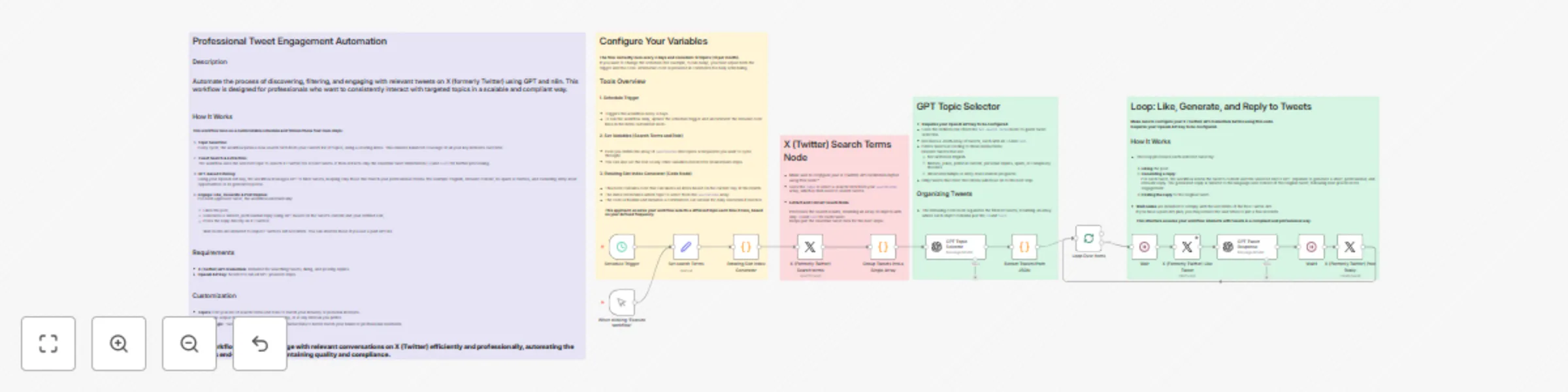
# Automate tweet engagement on X (formerly Twitter) ## Description Automate professional engagement on X (formerly Twitter) by searching for, filtering, liking, and replying to tweets that match your key topics. This workflow enables you to engage consistently and efficiently with relevant conversations, using your defined professional role and the power of GPT for filtering and replies. Save time and maintain high-quality interactions, while staying focused on your business or personal brand interests. --- ## How it Works 1. **Rotating Topic Selection** The workflow selects one search term from your list on each run, using a rotating index based on the date. 2. **Search Tweets & Extract Essentials** Searches X (formerly Twitter) for tweets matching the chosen topic, then extracts only the tweet `id` and `text` for further processing. 3. **GPT‑Based Filtering with Role Context** Filters tweets based on your role and strict criteria, removing non-English tweets, memes, spam, Grok-generated content, political posts, internships, and more. 4. **Engagement Loop** For every filtered tweet, the workflow likes the post, generates a professional, concise reply with GPT (matching language and context), and posts the reply. Wait nodes ensure compliance with Twitter’s API rate limits (can be adjusted for paid API tiers). --- ## Requirements * X (Twitter) API credentials (for searching, liking, and replying to tweets) * OpenAI API key (for GPT-based steps) --- ## Setup Steps 1. **Obtain your X (Twitter) API credentials.** 2. **Obtain your OpenAI API key.** 3. **Configure the schedule** in the trigger node to your desired frequency (e.g., every 3 days or daily). 4. **Set your list of topics and professional role** in the variables node. --- ## How to Customize the Workflow (Optional) * **Adjust prompts** in the GPT nodes to fine-tune filtering and reply style. * **Upgrade your Twitter API plan** to increase request limits and search for more tweets per run. * **Change tweet processing logic:** For high-volume engagement (e.g., analyzing 100+ tweets per run), consider switching to a per-tweet loop for advanced filtering and response handling. --- **This workflow enables scalable, professional, and targeted engagement on X (formerly Twitter), fully customizable to your audience and objectives.**