Julian Kaiser
Workflows by Julian Kaiser
Transform Readwise highlights into weekly content ideas with Gemini AI
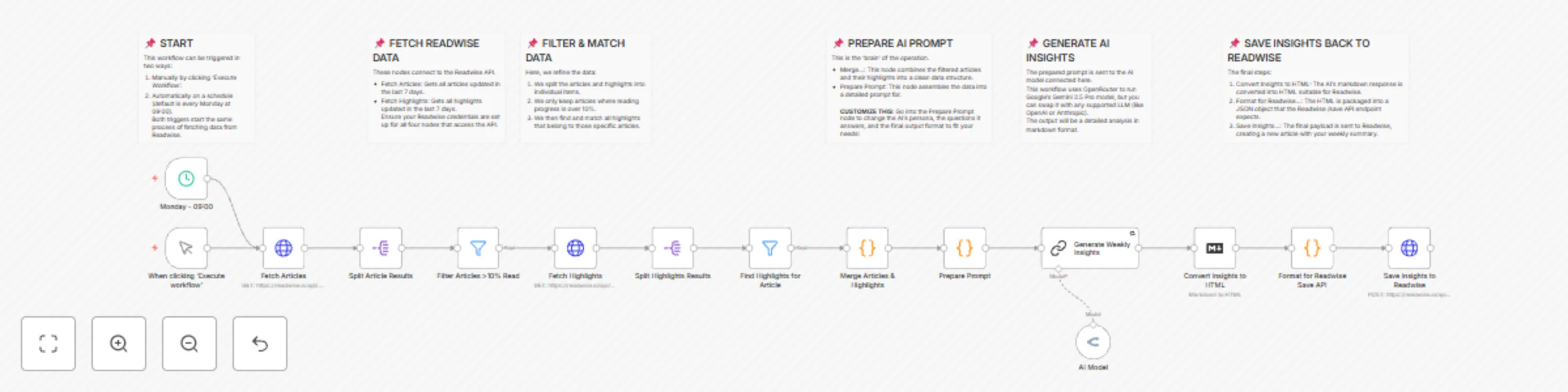
## **Turn Your Reading Habit into a Content Creation Engine** This workflow is built for one core purpose: to maximize the return on your reading time. It turns your passive consumption of articles and highlights into an active system for generating original content and rediscovering valuable ideas you may have forgotten. ### **Why This Workflow is Valuable** * **End Writer's Block Before It Starts:** This workflow is your personal content strategist. Instead of staring at a blank page, you'll start your week with a list of AI-generated content ideas—from LinkedIn posts and blog articles to strategic insights—all based on the topics you're already deeply engaged with. It finds the hidden connections between articles and suggests novel angles for your next piece. * **Rescue Your Insights from the Digital Abyss:** Readwise is fantastic for capturing highlights, but the best ones can get lost over time. This workflow acts as your personal curator, automatically excavating the most impactful quotes and notes from your recent reading. It doesn't just show them to you; it contextualizes them within the week's key themes, giving them new life and relevance. * **Create an Intellectual Flywheel:** By systematically analyzing your reading, generating content ideas, and saving those insights back into your "second brain," you create a powerful feedback loop. Your reading informs your content, and the process of creating content deepens your understanding, making every reading session more valuable than the last. ### **How it works** This workflow automates the process of generating a "Weekly Reading Insights" summary based on your activity in Readwise. - **Trigger:** It can be run manually or on a weekly schedule - **Fetch Data:** It fetches all articles and highlights you've updated in the last 7 days from your Readwise account. - **Filter & Match:** It filters for articles that you've read more than 10% of and then finds all the corresponding highlights for those articles. - **Generate Insights:** It constructs a detailed prompt with your reading data and sends it to an AI model (via OpenRouter) to create a structured analysis of your reading patterns, key themes, and content ideas. - **Save to Readwise:** Finally, it takes the AI-generated markdown, converts it to HTML, and saves it back to your Readwise account as a new article titled "Weekly Reading Insights". ### **Set up steps** * **Estimated Set Up Time:** 5-10 minutes. 1. **Readwise Credentials:** Authenticate the two `HTTP Request` nodes and the two `Fetch` nodes with your Readwise API token [Get from Reader API](https://readwise.io/reader_api). Also check [how to set up Header Auth](https://docs.n8n.io/integrations/builtin/credentials/httprequest/#using-header-auth) 2. **AI Model Credentials:** Add your [OpenRouter API key](https://openrouter.ai/docs/api-reference/authentication) to the `OpenRouter Chat Model` node. You can swap this for any other AI model if you prefer. 3. **Customize the Prompt:** Open the `Prepare Prompt` Code node to adjust the persona, questions, and desired output format. This is where you can tailor the AI's analysis to your specific needs. 4. **Adjust Schedule:** Modify the `Monday - 09:00` Schedule Trigger to run on your preferred day and time.
Automatically Classify Zoho Desk Support Tickets using Gemini AI
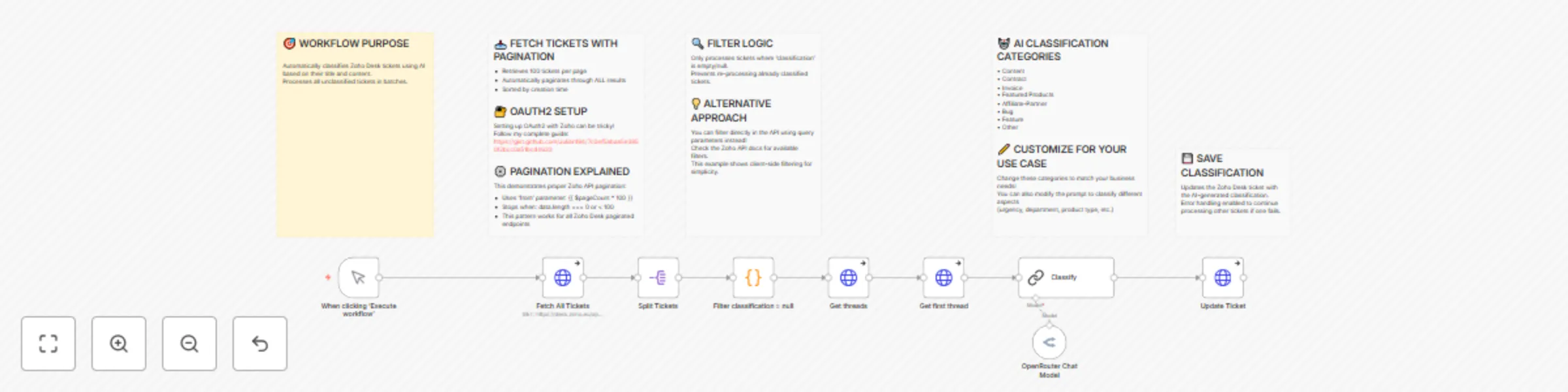
## **Automatically Classify Support Tickets in Zoho Desk with AI with Gemini** Transform your customer support workflow with intelligent ticket classification. This automation leverages AI to automatically categorize incoming support tickets in Zoho Desk, reducing manual work and ensuring faster ticket routing to the right teams. ### **How It Works** 1. Fetches all tickets from Zoho Desk with pagination support 2. Filters unclassified tickets (where classification field is null) 3. Retrieves complete ticket threads for full conversation context 4. Uses OpenRouter AI (GPT-4, Claude, or other models) to classify tickets into predefined categories 5. Updates tickets in Zoho Desk with accurate classifications automatically ### **Use Cases** - **Customer Support Teams**: Automatically route tickets to specialized departments (billing, technical, sales) - **Help Desks**: Prioritize urgent issues and categorize feature requests ### **Prerequisites** - Active Zoho Desk account with API access - OpenRouter API account (supports multiple AI models) - Basic understanding of OAuth2 authentication - Predefined ticket categories in your Zoho Desk setup ### **Setup Steps** **Time: ~15 minutes** 1. **Configure Zoho Desk OAuth2** - Follow our [step-by-step GitHub guide](https://gist.github.com/Julian194/7c0ef5abaa5e3850f2bcc0a51bcd4633) for OAuth2 credential setup 2. **Set up OpenRouter API** - Create an account and generate API keys at openrouter.ai 3. **Customize classifications** - Define your ticket categories (e.g., Technical, Billing, Feature Request, Bug Report) 4. **Adapt the workflow** - Modify for any field: status, priority, tags, assignment, or custom fields 5. **Review API documentation** - Check [Zoho Desk Search API docs](https://desk.zoho.com/DeskAPIDocument) for advanced filtering options 6. **Test thoroughly** - Run manual triggers before automation **Note**: This workflow demonstrates proper Zoho Desk API integration, including OAuth2 authentication and pagination handling—two common integration challenges.
Automate Job Opportunity Digests with OpenRouter GPT-5 and Email
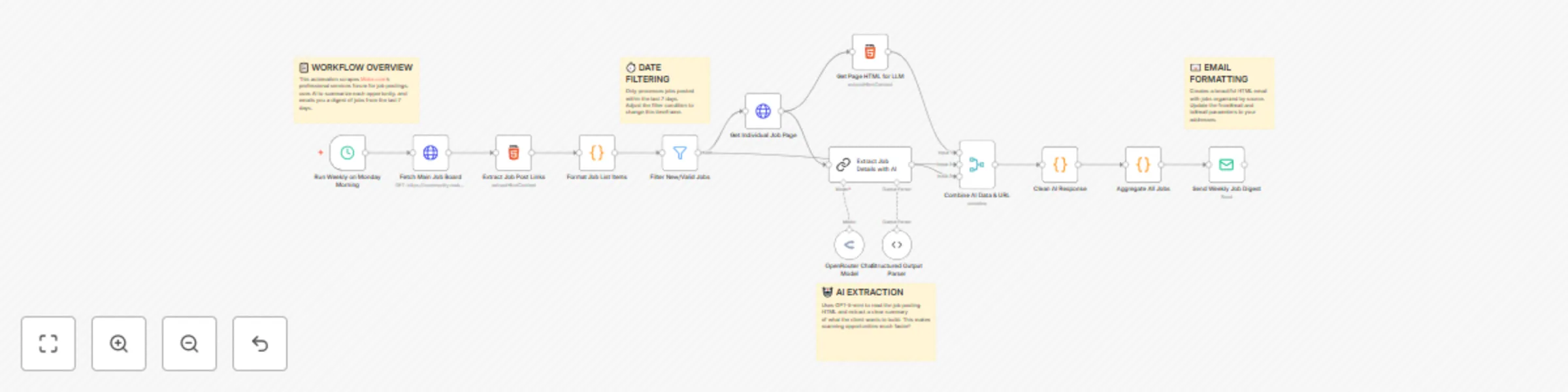
# n8n Forum Job Aggregator - AI-Powered Email Digest ## Overview Automate your n8n community job board monitoring with this intelligent workflow that scrapes, analyzes, and delivers opportunities straight to your inbox. Perfect for freelancers, agencies, and developers looking to stay on top of n8n automation projects without manual checking. ## How It Works 1. **Scrapes** the n8n community job board to find new postings from the last 7 days 2. **Extracts** key metadata including job titles, descriptions, posting dates, and client details 3. **Analyzes** each listing using OpenRouter AI to generate concise summaries of project requirements and client needs 4. **Delivers** a professionally formatted email digest with all opportunities organized and ready for review ## Prerequisites - **OpenRouter API Key**: Sign up at [OpenRouter.ai](https://openrouter.ai) to access AI summarization capabilities - **SMTP Email Account**: Gmail, Outlook, or any SMTP-compatible email service ## Setup Steps **Time estimate: 5-10 minutes** 1. **Configure OpenRouter Credentials** - Add your OpenRouter API key in n8n credentials manager - Recommended model: GPT-3.5-turbo or Claude for cost-effective summaries 2. **Set Up SMTP Email** - Configure sender email address - Add recipient email(s) for digest delivery - Test connection to ensure delivery 3. **Customize Date Range** (Optional) - Default: Last 7 days of job postings - Adjust the date filter node to match your preferred frequency 4. **Test & Refine** - Run a test execution - Review email formatting and AI summary quality - Customize HTML template styling to match your preferences ## Customization Options - **Scheduling**: Set up cron triggers (daily, weekly, or custom intervals) - **Filtering**: Add keyword filters for specific technologies or project types - **AI Prompts**: Modify the summarization prompt to extract different insights - **Email Design**: Customize HTML/CSS styling in the email template node ## Example Use Cases - **Freelance Developers**: Never miss relevant n8n automation opportunities - **Agencies**: Monitor market demand and competitor activity - **Job Seekers**: Track n8n-related positions and consulting gigs - **Market Research**: Analyze trends in automation project requests ## Example Output Each email digest includes: - Job title and posting date - AI-generated summary (e.g., "Client needs workflow automation for Shopify order processing with Slack notifications") - Direct link to original posting - Organized by recency
Automatically Scrape Make.com Job Board with GPT-5-mini Summaries & Email Digest
# Automatically Scrape Make.com Job Board with GPT-5-mini Summaries & Email Digest ## Overview **Who is this for?** Make.com consultants, automation specialists, and freelancers who want to catch new client opportunities without manually checking the forum. **What problem does it solve?** Scrolling through forum posts to find jobs wastes time. This automation finds new postings, uses AI to summarize what clients need, and emails you a clean digest. **How it works:** Runs on schedule → scrapes the Make.com professional services forum → filters jobs from last 7 days → AI summarizes each posting → sends formatted email digest. ### Use Cases 1. **Freelancers**: Get daily job alerts without forum browsing, respond to opportunities faster 2. **Agencies**: Keep sales teams informed of potential clients needing Make.com expertise 3. **Job Seekers**: Track contract and full-time positions requiring Make.com skills ### Detailed Workflow **Scraping:** HTTP module pulls HTML from the Make.com forum job board **Parsing:** Extracts job titles, dates, authors, and thread links **Filtering:** Only jobs posted within last 7 days pass through (configurable) **AI Processing:** GPT-5-mini analyzes each post to extract: - Project type - Key requirements - Complexity level - Budget/timeline (if mentioned) **Email Generation:** Aggregates summaries into organized HTML email with direct links **Delivery:** Sends via SMTP to your inbox ### Setup Steps **Time:** ~10 minutes **Requirements:** - OpenRouter API key ([get one here](https://openrouter.ai/)) - SMTP credentials (Gmail, SendGrid, etc.) **Steps:** 1. Import template 2. Add OpenRouter API key in "OpenRouter Chat Model" node 3. Configure SMTP settings in "Send email" node 4. Update recipient email address 5. Set schedule (recommended: daily at 8 AM) 6. Run test to verify ### Customization Tips **Change date range:** Modify filter from 7 days to X days: `{{now - X days}}` **Keyword filtering:** Add filter module to only show jobs mentioning "API", "Shopify", etc. **AI detail level:** Edit prompt for shorter/longer summaries **Multiple recipients:** Add comma-separated emails in Send Email node **Different AI model:** Switch to Gemini or Claude in OpenRouter settings **Team notifications:** Add Slack/Discord webhook instead of email
Community questions monitor with OpenRouter AI, Reddit & forum scraping
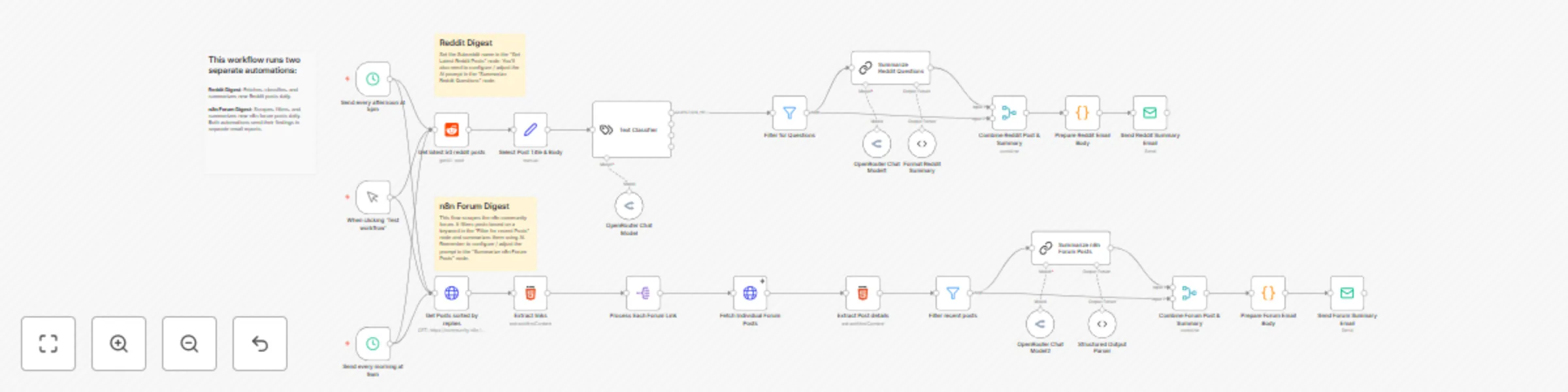
## **What problem does this solve?** Earlier this year, as I got more involved with n8n, I committed to helping users on our community forums and the n8n subreddit. The volume of questions was growing, and I found it was a real challenge to keep up and make sure no one was left without an answer. I needed a way to quickly see what people were struggling with, without spending hours just searching for new posts. So, I built this workflow. It acts as my personal AI research assistant. Twice a day, it automatically scans Reddit and the n8n forums for me. It finds relevant questions, summarizes the key points using AI, and sends me a digest with direct links to each post. This allows me to jump straight into the conversations that matter and provide support effectively. While I built this for n8n support, you can adapt it to monitor any community, track product feedback, or stay on top of any topic you care about. It transforms noisy forums into an actionable intelligence report delivered right to your inbox. ## **How it works** Here’s the technical breakdown of my two-part system: 1. **AI Reddit Digest (Daily at 9AM / 5 PM):** * Fetches the latest 50 posts from a specified subreddit. * Uses an AI **Text Classifier** to categorize each post (e.g., `QUESTION`, `JOB_POST`). * Isolates the posts classified as questions and uses an AI model to generate a concise summary for each. * Formats the original post link and its new summary into an email-friendly format and sends the digest. 2. **AI n8n Forum Digest (Daily at 9AM / 5 PM):** * Scrapes the n8n community forum to get a list of the latest post links. * Processes each link individually, fetching the full post content. * Filters these posts to keep only those containing a specific keyword (e.g., "2025"). * Summarizes the filtered posts using an AI model. * Combines the original post link with its AI summary and sends it in a separate email report. ## **Set up steps** This workflow is quite powerful and requires a few configurations. Setup should take about **15 minutes**. 1. **Add Credentials:** First, add your credentials for your AI provider (like OpenRouter) and your email service (like Gmail or SMTP) in the **Credentials** section of your n8n instance. 2. **Configure Reddit Digest:** * In the **Get latest 50 reddit posts** node, enter the name of the `Subreddit` you want to follow. * Fine-tune the AI's behavior by editing the prompt in the **Summarize Reddit Questions** node. * *(Optional)* Add more examples to the **Text Classifier** node to improve its accuracy. 3. **Configure n8n Forum Digest:** * In the **Filter 2025 posts** node, change the keyword to track topics you're interested in. * Edit the prompt in the **Summarize n8n Forum Posts** node to guide the AI's summary style. 4. **Activate Workflow:** Once configured, just set the workflow to **Active**. It will run automatically on schedule. You can also trigger it manually with the **When clicking 'Test workflow'** node.
Convert workout plan PDFs to Hevy App routines with Gemini AI
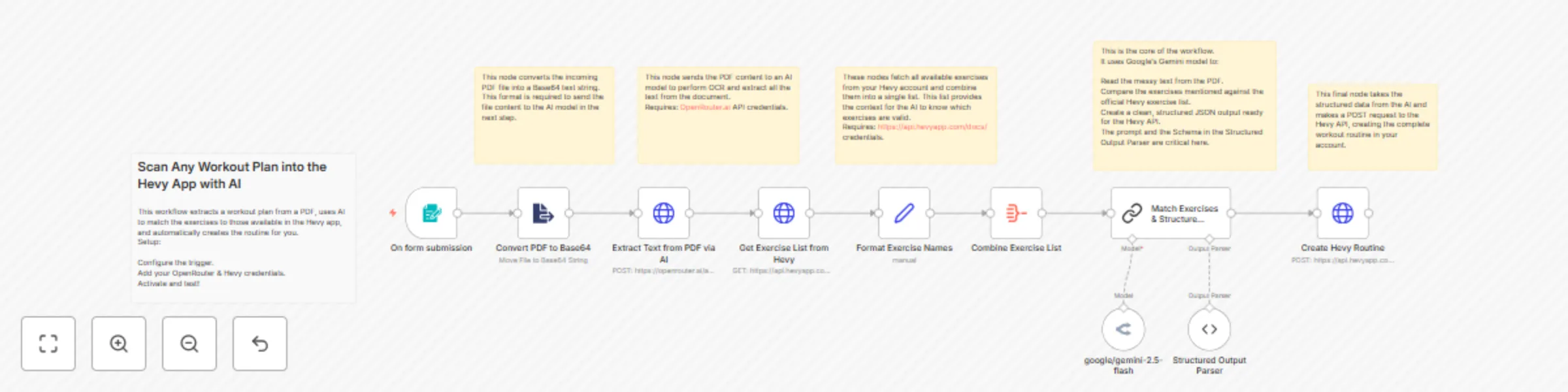
## Scan Any Workout Plan into the Hevy App with AI This workflow automates the creation of workout routines in the [Hevy app](https://www.hevyapp.com) by extracting exercise information from an uploaded PDF or Image using AI. *** ## What problem does this solve? Tired of manually typing workout plans into the Hevy app? Whether your coach sends them as Google Docs, PDFs, or you have a screenshot of a routine, entering every single exercise, set, and rep is a tedious chore. This workflow ends the madness. It uses AI to instantly scan your workout plan from any file, intelligently extract the exercises, and automatically create the routine in your Hevy account. What used to take 15 minutes of mind-numbing typing now happens in seconds. ## How it works 1. **Trigger:** The workflow starts when a PDF file is submitted through an n8n form. 2. **Data Extraction:** The PDF is converted to a Base64 string and sent to an AI model to extract the raw text of the workout plan. 3. **Context Gathering:** The workflow fetches a complete list of available exercises directly from the Hevy API. This list is then consolidated. 4. **AI Processing:** A Google Gemini model analyzes the extracted text, compares it against the official Hevy exercise list, and transforms the raw text into a structured JSON format that matches the Hevy API requirements. 5. **Routine Creation:** The final structured data is sent to the Hevy API to create the new workout routine in your account. ## Set up steps * **Estimated set up time:** 15 minutes. 1. Configure the **On form submission** trigger or replace it with your preferred trigger (e.g., Webhook). Ensure it's set up to receive a file upload. 2. Add your API credentials for the AI service (in this case, OpenRouter.ai) and the [Hevy app](https://api.hevyapp.com/docs/). You will need to create 'Hevy API' and [OpenRouter API](https://openrouter.ai/docs/quickstart) credentials in your n8n instance. 3. In the **Structured Data Extraction** node, review the prompt and the json schema in the `Structured Output Parser`. You may need to adjust the prompt to better suit the types of files you are uploading. 4. Activate the workflow. Test it by uploading a sample workout plan document.
Startup funding research automation with Claude, Perplexity AI, and Airtable
# Startup Funding Research Automation with Claude, Perplexity AI, and Airtable ## How it works This intelligent workflow automatically discovers and analyzes recently funded startups by: 1. Monitoring multiple news sources (TechCrunch and VentureBeat) for funding announcements 2. Using AI to extract key funding details (company name, amount raised, investors) 3. Conducting automated deep research on each company through perplexity deep research or jina deep search. 4. Organizing all findings into a structured Airtable database for easy access and analysis ## Set up steps (10-15 minutes) 1. Connect your news feed sources (TechCrunch and VentureBeat). Could be extended. These were easy to scrape and this data can be expensive. 2. Set up your AI service credentials (Claude and Perplexity or jina which has generous free tier) 3. Connect your Airtable account and create a base with appropriate fields (can be imported from my base) or see structure below. [Airtable Base](https://airtable.com/appYwSYZShjr8TN5r/shryOEdmJmZE5ROce) ### Structure Funding Round Base | Field Name | Data Type | Description | |------------|-----------|-------------| | website_url | String | URL of the company website | | company_name | String | Name of the company | | funding_round | String | The funding stage or round (e.g., Series A, Seed, etc.) | | funding_amount | Number | The amount of funding received | | lead_investor | String | The primary investor leading the funding round | | market | String | The market or industry sector the company operates in | | participating_investors | String | List of other investors participating in the funding round | | press_release_url | String | URL to the press release about the funding | | evaluation | Number | The company's valuation | ### Structure Company Deep Research Base | Field Name | Data Type | Description | |------------|-----------|-------------| | website_url | String | URL of the company website | | company_name | String | Name of the company | | funding_round | String | The funding stage or round (e.g., Series A, Seed, etc.) | | funding_amount | Number | The amount of funding received | | currency | String | Currency of the funding amount | | announcement_date | String | Date when the funding was announced | | lead_investor | String | The primary investor leading the funding round | | participating_investors | String | List of other investors participating in the funding round | | industry | String | The industry sectors the company operates in | | company_description | String | Description of the company's business | | hq_location | String | Company headquarters location | | founding_year | Number | Year the company was founded | | founder_names | String | Names of the company founders | | ceo_name | String | Name of the company CEO | | employee_count | Number | Number of employees at the company | | total_funding | Number | Total funding amount received to date | | total_funding_currency | String | Currency of total funding | | funding_purpose | String | Purpose or use of the funding | | business_model | String | Company's business model | | valuation | Object | Company valuation information | | previous_rounds | Object | Information about previous funding rounds | | source_urls | String | Source URLs for the funding information | | original_report | String | Original report text about the funding | | market | String | The market the company operates in | | press_release_url | String | URL to the press release about the funding | | evaluation | Number | The company's valuation | ## Notes I found that by using perplexity via open router, we lose access to the sources, as they are not stored in the same location as the report itself so I opted to use perplexity API via HTTP node. For using perplexity and or jina you have to configure header auth as described in [Header Auth - n8n Docs](https://docs.n8n.io/integrations/builtin/credentials/httprequest/#using-header-auth) ## What you can learn - How to scrape data using sitemaps - How to extract strucutred data from unstructured text - How to execute parts of the workflow as subworkflow - How to use deep research in a practical scenario - How to define more complex JSON schemas
5 ways to process images & PDFs with Gemini AI in n8n
## How it works Many users have asked in the support forum about different methods to analyze images and PDF documents with Google Gemini AI in n8n. This workflow answers that question by demonstrating five different approaches: - Single image with auto binary passthrough - The simplest approach using AI Agent's automatic binary handling - Multiple images with predefined prompts - For customized analysis with different instructions per image - Native n8n item-by-item processing - For handling multiple items using n8n's standard workflow paradigm - PDF analysis via direct API - For document analysis and text extraction - Image analysis via direct API - For direct control over API parameters - Each method has advantages depending on your specific use case, data volume, and customization needs. ## Set up steps **Setup time**: ~5-10 minutes You'll need: - A Google Gemini API key - n8n with HTTP Request and AI Agent nodes - Important: For the HTTP Request nodes making direct API calls to Gemini (Methods 3, 4, and 5), you'll need to set up Query Authentication with your Gemini API key. Add a parameter named "key" with your API key value in the Query Auth section of these nodes. I'll updated this if I find better ways. Also let me know if you know other ways. Eager to learn :)
Bulk file upload to Google Drive with folder management
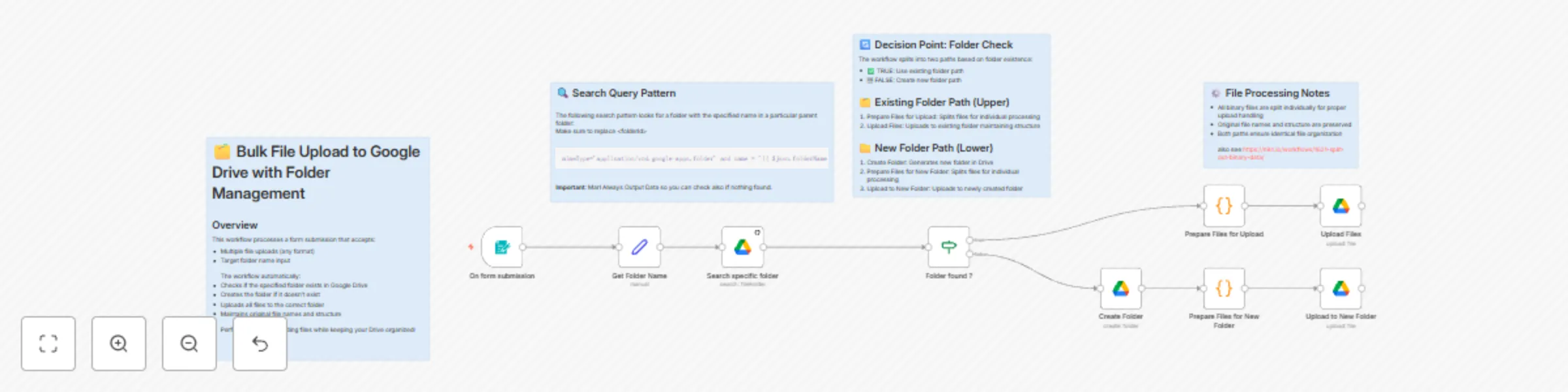
# 🗂️ Bulk File Upload to Google Drive with Folder Management ## How it works 1. User submits files and target folder name via form 2. Workflow checks if folder exists in Drive 3. Creates folder if needed or uses existing one 4. Processes and uploads all files maintaining structure ## Set up steps (Est. 10-15 mins) 1. Set up Google Drive credentials in n8n 2. Replace parent folder ID in search query with your Drive folder ID 3. Configure form node with: - Multiple file upload field - Folder name text field 4. Test workflow with sample files 💡 Detailed configuration steps and patterns are documented in sticky notes within the workflow. Perfect for: - Bulk file organization - Automated Drive folder management - File upload automation - Maintaining consistent file structures
Hacker news job listing scraper and parser
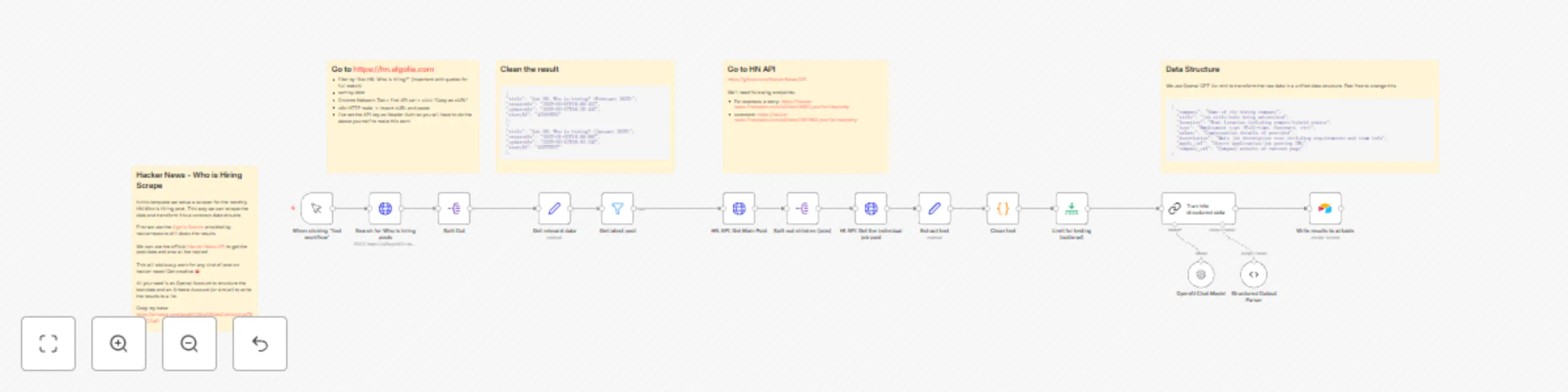
This automated workflow scrapes and processes the monthly "Who is Hiring" thread from Hacker News, transforming raw job listings into structured data for analysis or integration with other systems. Perfect for job seekers, recruiters, or anyone looking to monitor tech job market trends. ## How it works Automatically fetches the latest "Who is Hiring" thread from Hacker News Extracts and cleans relevant job posting data using the HN API Splits and processes individual job listings into structured format Parses key information like location, role, requirements, and company details Outputs clean, structured data ready for analysis or export ## Set up steps 1. Configure API access to [Hacker News](https://github.com/HackerNews/API ) (no authentication required) 2. Follow the steps to get your cURL command from [https://hn.algolia.com/](https://hn.algolia.com/) 3. Set up desired output format (JSON structured data or custom format) 4. Optional: Configure additional parsing rules for specific job listing information 5. Optional: Set up integration with preferred storage or analysis tools The workflow transforms unstructured job listings into clean, structured data following this pattern: - Input: Raw HN thread comments - Process: Extract, clean, and parse text - Output: Structured job listing data This template saves hours of manual work collecting and organizing job listings, making it easier to track and analyze tech job opportunities from Hacker News's popular monthly hiring threads.