JJ Tham
Workflows by JJ Tham
Send server-side conversions to the Meta Ads API (CAPI)
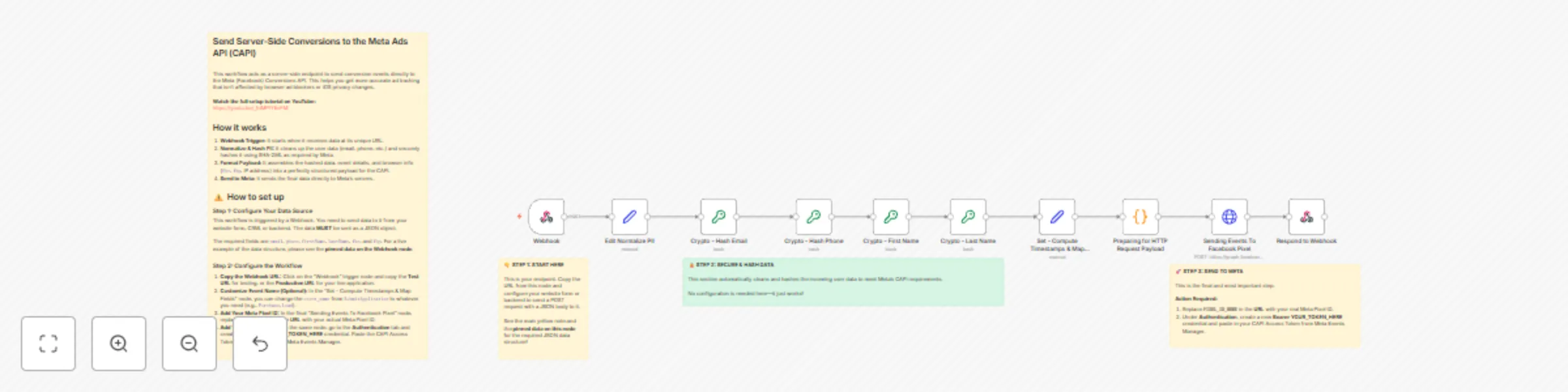
Struggling with inaccurate Meta Ads tracking due to iOS 14+ and ad blockers? 📉 This workflow is your solution. It provides a robust, server-side endpoint to reliably send conversion events directly to the Meta Conversions API (CAPI). By bypassing the browser, you can achieve more accurate ad attribution and optimize your campaigns with better data. This template handles all the required data normalization, hashing, and formatting, so you can set up server-side tracking in minutes. ## ⚙️ How it works This workflow provides a webhook URL that you can send your conversion data to (e.g., from a web form, CRM, or backend). Once it receives the data, it: - Sanitizes User Data: Cleans and normalizes PII like email and phone numbers. - Hashes PII: Securely hashes the user data using SHA-256 to meet Meta's privacy requirements. - Formats the Payload: Assembles all the data, including click IDs (fbc, fbp) and user info, into the exact format required by the Meta CAPI. - Sends the Event: Makes a direct, server-to-server call to Meta, reliably logging your conversion event. ## 👥 Who’s it for? - Performance Marketers: Improve ad performance and ROAS with more accurate conversion data. - Lead Generation Businesses: Reliably track form submissions as conversions. - E-commerce Stores: Send purchase events from your backend to ensure nothing gets missed. - Developers: A ready-to-use template for implementing server-side tracking without writing custom code from scratch. ## 🛠️ How to set up Setup is straightforward. You'll need your Meta Pixel ID and a CAPI Access Token. For a complete walkthrough, check out the tutorial video for this workflow on YouTube: https://youtu.be/_fdMPIYEvFM The basic steps are to copy the webhook URL, configure your form or backend to send the correct data payload, and add your Meta Pixel ID and Access Token to the final HTTP Request node. 👉 For a detailed, step-by-step guide, please refer to the yellow sticky note inside the workflow.
Automate Google Ads search term analysis with Gemini AI and send to Slack
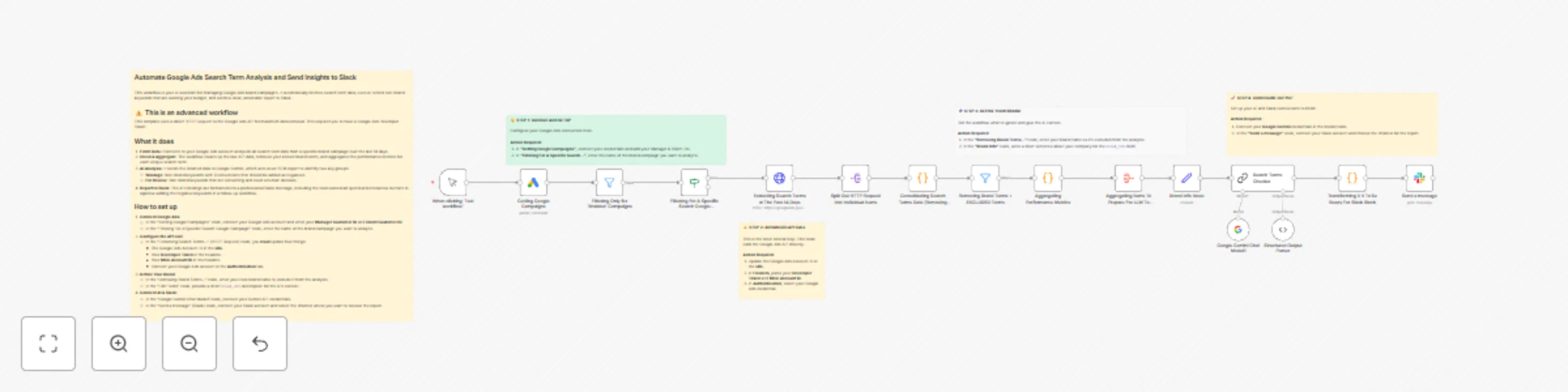
# Automate Google Ads Search Term Analysis and Send Insights to Slack Stop manually digging through endless Google Ads search term reports! 📊 This workflow puts your brand campaign analysis on autopilot, acting as an AI-powered performance marketer that works for you 24/7. This template fetches your recent search term data, uses AI to identify wasted ad spend and new keyword opportunities, and delivers a concise, actionable report directly to your Slack channel—complete with buttons to approve the changes. ## ⚙️ How it works This workflow connects to your Google Ads account to pull search term data from your brand campaigns. It then feeds this data to Google Gemini with a specific prompt to: - Identify Non-Brand Keywords: Isolate all search terms that are not related to your brand. - Calculate Wasted Spend: Find terms with zero conversions and sum up the total cost. - Flag Opportunities: Highlight non-brand terms that are converting for manual review. - Send to Slack: Format the findings into a beautiful, easy-to-read Slack message with interactive buttons to approve adding the wasteful terms as negative keywords. ## 👥 Who’s it for? - PPC & SEM Managers: Save hours each week by automating the search query mining process. - Performance Marketers: Instantly spot and plug budget leaks in your brand campaigns. - Digital Marketing Agencies: Provide proactive, data-driven insights to clients with zero manual effort. ## 🛠️ How to set up This is an advanced workflow that requires several connection points. Setup involves connecting your Google Ads account, providing your Manager and Client IDs, specifying which campaign and brand terms to analyze, configuring the direct API call with your developer token, and finally connecting your Slack workspace. 👉 For a detailed, step-by-step guide, please refer to the yellow sticky note inside the workflow.
Generate AI voiceovers from scripts with Gemini TTS and upload to Google Drive
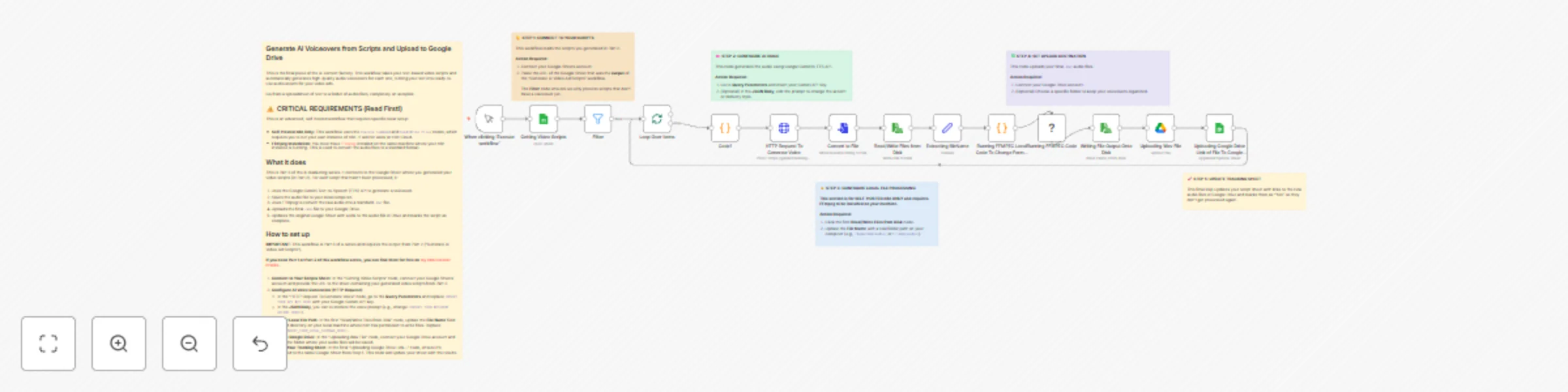
# Generate AI Voiceovers from Scripts and Upload to Google Drive This is the final piece of the AI content factory. This workflow takes your text-based video scripts and automatically generates high-quality audio voiceovers for each one, turning your text into ready-to-use audio assets for your video ads. Go from a spreadsheet of text to a folder of audio files, completely on autopilot. ## ⚠️ CRITICAL REQUIREMENTS (Read First!) This is an advanced, self-hosted workflow that requires specific local setup: * **Self-Hosted n8n Only:** This workflow uses the `Execute Command` and `Read/Write Files` nodes, which requires you to run your own instance of n8n. It will not work on n8n Cloud. * **FFmpeg Installation:** You must have [FFmpeg](https://ffmpeg.org/download.html) installed on the same machine where your n8n instance is running. This is used to convert the audio files to a standard format. ## What it does This is Part 3 of the AI marketing series. It connects to the Google Sheet where you generated your video scripts (in Part 2). For each script that hasn't been processed, it: 1. Uses the Google Gemini Text-to-Speech (TTS) API to generate a voiceover. 2. Saves the audio file to your local computer. 3. Uses FFmpeg to convert the raw audio into a standard `.wav` file. 4. Uploads the final `.wav` file to your Google Drive. 5. Updates the original Google Sheet with a link to the audio file in Drive and marks the script as complete. ## How to set up **IMPORTANT:** This workflow is Part 3 of a series and requires the output from Part 2 ("Generate AI Video Ad Scripts"). **If you need Part 1 or Part 2 of this workflow series, you can find them for free on [my n8n Creator Profile](https://n8n.io/creators/jj-tham/).** 1. **Connect to Your Scripts Sheet:** In the "Getting Video Scripts" node, connect your Google Sheets account and provide the URL to the sheet containing your generated video scripts from Part 2. 2. **Configure AI Voice Generation (HTTP Request):** * In the "HTTP Request To Generate Voice" node, go to the **Query Parameters** and replace `INSERT YOUR API KEY HERE` with your Google Gemini API key. * In the **JSON Body**, you can customize the voice prompt (e.g., change `<INSERT YOUR DESIRED ACCENT HERE>`). 3. **Set Your Local File Path:** In the first "Read/Write Files from Disk" node, update the **File Name** field to a valid directory on your local machine where n8n has permission to write files. Replace `/Users/INSERT_YOUR_LOCAL_STORAGE_HERE/`. 4. **Connect Google Drive:** In the "Uploading Wav File" node, connect your Google Drive account and choose the folder where your audio files will be saved. 5. **Update Your Tracking Sheet:** In the final "Uploading Google Drive Link..." node, ensure it's connected to the same Google Sheet from Step 1. This node will update your sheet with the results. Name and Description for Submission Form Here are the name and description, updated with the new information, ready for you to copy and paste. Name: Generate AI Voiceovers from Scripts and Upload to Google Drive Description: Welcome to the final piece of the AI content factory! 🔊 This advanced workflow takes the video ad scripts you've generated and automatically creates high-quality audio voiceovers for each one, completing your journey from strategy to ready-to-use media assets. ⚠️ This is an advanced workflow for self-hosted n8n instances only and requires FFmpeg to be installed locally. ## ⚙️ How it works This workflow is Part 3 of a series. It reads your video scripts from a Google Sheet, then for each script it: - Generates a voiceover using the Google Gemini TTS API. - Saves the audio file to your local machine. - Converts the file to a standard .wav format using FFmpeg. - Uploads the final audio file to Google Drive. - Updates your Google Sheet with a link to the new audio file. ## 👥 Who’s it for? - Video Creators & Marketers: Mass-produce voiceovers for video ads, tutorials, or social media content without hiring voice actors. - Automation Power Users: A powerful example of how n8n can bridge cloud APIs with local machine commands. - Agencies: Drastically speed up the production of audio assets for client campaigns. ## 🛠️ How to set up This workflow requires specific local setup due to its advanced nature. **IMPORTANT: This is Part 3 of a series. To find Part 1 ("Generate a Strategic Plan") and Part 2 ("Generate Video Scripts"), please visit my n8n Creator Profile where they are available for free.** Setup involves connecting to your scripts sheet, configuring the AI voice API, setting a local file path for n8n to write to, and connecting your Google Drive.
Analyze Facebook Ads & send insights to Google Sheets with Gemini AI
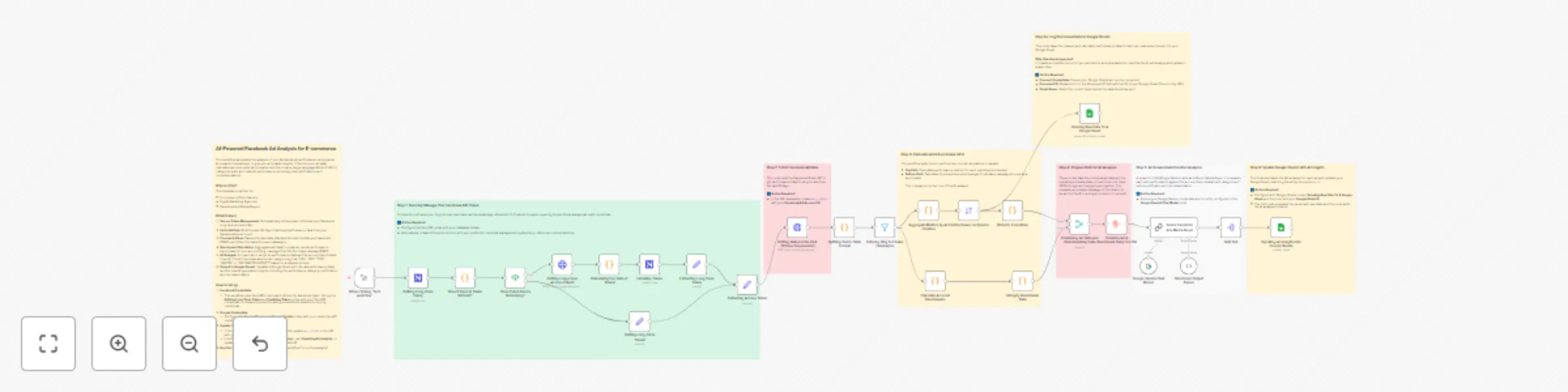
Stop manually digging through Meta Ads data and spending hours trying to connect the dots. This workflow turns n8n into an AI-powered media buyer that automatically analyzes your ad performance, categorizes your creatives, and delivers insights directly into a Google Sheet. ➡️ Watch the full 4-part setup and tutorial on YouTube: https://youtu.be/hxQshcD3e1Y About This 4-Part Automation Series As a media buyer, I built this system to automate the heavy lifting of analyzing ad data and brainstorming new creative ideas. This template is the first foundational part of that larger system. ✅ Part 1 (This Template): Pulling Ad Data & Getting Quick Insights Automatically pulls data into a Google Sheet and uses an LLM to categorize ad performance. ✅ Part 2: Finding the Source Files for the Best Ads Fetches the image or video files for top-performing ads. ✅ Part 3: Using AI to Understand Why an Ad Works Sends your best ads to Google Gemini for structured notes on hooks, transcripts, and visuals. ✅ Part 4: Getting the AI to Suggest New Creative Ideas Uses all the insights to generate fresh ad concepts, scripts, and creative briefs. What This Template (Part 1) Does Secure Token Management Automatically retrieves and refreshes your Facebook long-term access token. Fetch Ad Data Pulls the last 28 days of ad-level performance data from your Facebook Ads account. Process & Clean Parses raw data, standardizes key e-commerce metrics (like ROAS), and filters for sales-focused campaigns. Benchmark Calculation Aggregates all data to create an overall performance benchmark (e.g., average Cost Per Purchase). AI Analysis A “Senior Media Buyer” AI persona evaluates each ad against the benchmark and categorizes it as “HELL YES,” “YES,” or “MAYBE,” with justifications. Output to Google Sheets Updates your Google Sheet with both raw performance data and AI-generated insights. Who Is It For? E-commerce store owners Digital marketing agencies Facebook Ads media buyers How to Set It Up Credentials Connect your Google Gemini and Google Sheets accounts in the respective nodes. The template uses NocoDB for token management. Configure the “Getting Long-Term Token” and “Updating Token” nodes — or replace them with your preferred credential storage method. Update Your IDs In the “Getting Data For the Past 28 Days…” HTTP Request node, replace act_XXXXXX in the URL with your Facebook Ad Account ID. In both Google Sheets nodes (“Sending Raw Data…” and “Updating Ad Insights…”), update the Document ID with your target Google Sheet’s ID. Run the Workflow Click “Test workflow” to run your first AI-powered analysis! Tools Used n8n Facebook for Developers Google AI Studio (Gemini) NocoDB (or any credential database of your choice)