J

Jay Hartley

6
Workflows

Workflows by Jay Hartley

Workflow preview: Check for bargain flights and get notified using Amadeus and Gmail
Free intermediate

Check for bargain flights and get notified using Amadeus and Gmail

## What this template does This workflow uses the Amadeus API, every day to check for bargain flights for an itinerary and price target of your choice. It then automatically emails you once it found a match. ## Setup 1. Create an api account on https://developers.amadeus.com/ 2. In **Amadeus Flight Search**, connect to Oauth2 API: -- Grant Type - Client Credentials -- Access Token URL - https://test.api.amadeus.com/v1/security/oauth2/token -- Client ID/Secret - from your account 3. Set your details in **Gmail** 4. Set your desired Origin/Destination airports in FromTo 5. Set the dates ahead you wish to search in **Get Dates** (default is 7 days and 14 days) 6. Set the price target in **Under Price** ## How to test it After completing the setup steps above, just hit 'Test workflow'!

J
Jay Hartley
Personal Productivity
8 Oct 2024
7599
0
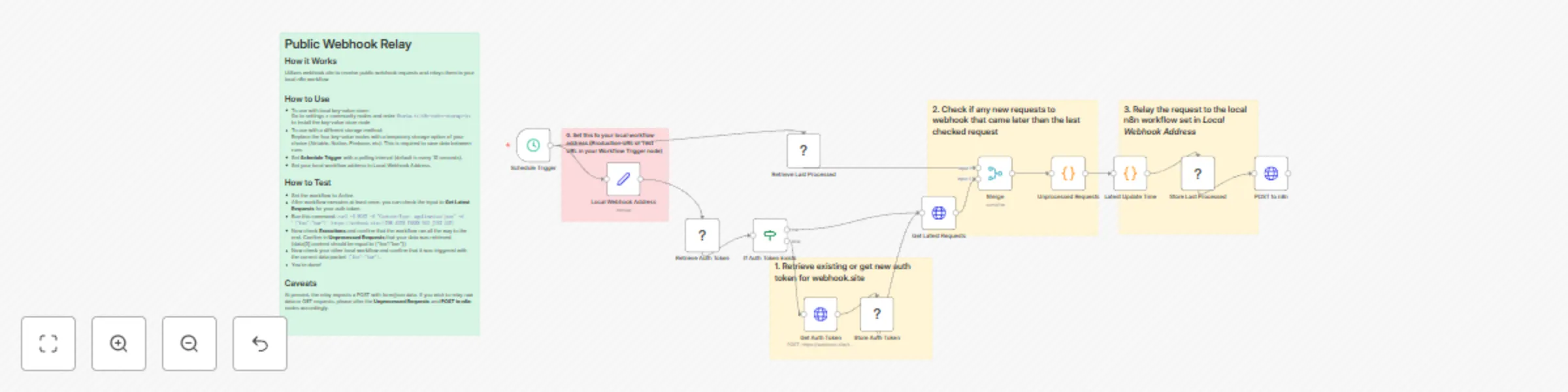
Workflow preview: Public webhook relay
Free advanced

Public webhook relay

## Disclaimer This template only works on n8n local instances! ## How it Works This workflow allows you to to receive webhooks from the public web and have your local workflow catch them, without any remote proxy. It is very useful for running quick tests without exposing your dev server. All you have to do is activate the workflow and use the public address as defined below. ## Set up steps If you use the default key-value storage, there are only three steps: 1. Install the *@horka.tv/n8n-nodes-storage-kv* community node 2. Put your n8n workflow address in **Local Webhook Address** 3. Activate the workflow and, from *Executions*, note down your public webhook token from the inputs to **Get Latest Requests**. You can now use https://webhook.site/[YOUR TOKEN] as a webhook destination, to receive webhook requests from the public web.

J
Jay Hartley
DevOps
30 Sep 2024
1513
0

Workflow preview: Monitor multiple Github repos via webhook
Free advanced

Monitor multiple Github repos via webhook

## What this workflow does This workflow allows you to monitor multiple Github repos simultaneously without polling due to use of Webhooks. It programmatically allows for adding and deleting of repos to your watchlist to make management convenient. ## Description - Can monitor multiple repos simultaneously. - Programmatically register or unregister repos from a list. No need for manual work. - Webhook notification means no constant polling necessary. ## Setup ### 1. Creating Credentials on Github Generate a personal access token on github by following these esteps; - Right hand side of page -> Settings -> scroll to bottom -> Developer Settings > Personal Access Token > Tokens (classic) > Generate New Token - Give scopes: *admin:repo_hook* *repo* (if you want to use it for your own private repo) if you need more help, see here: https://docs.github.com/en/authentication/keeping-your-account-and-data-secure/managing-your-personal-access-tokens ### 2. Setting Credentials in n8n In `Register Github Webhook` *Authenticaion > Generic Credential Type* *Generic Auth Type > Header Auth* *Header Auth > Create New Credential* with Name set to *'Authorization'* and Value set to *'Bearer <YOUR GITHUB TOKEN HERE>'*. (You can reuse this for `Delete Github Webhook` and `Get Existing Webhooks`). Now in `Register Github Webhook`, scroll down to Send Body > JSON and inside the JSON, change the value of *"url"* to the webhook address given as Production URL in the node `Webhook Trigger`. ### 3. Notification settings In the third row, link up the Webhook Trigger to any API of your choice. Slack and Telegram are given as examples. You can also format the notification message as you wish. *Setup time: roughly 10 minutes.* ## Instructions Video: https://vimeo.com/1013473758 ## Test ## 1. Register Webhooks - In `Repos to Monitor`, add any repo you want to monitor changes for. - Disable `Webhook Trigger`, Click `Test Workflow` and if your Github credentials were set correctly, it will automatically register the webhooks. - You can test this by running the single node `Get Existing Webhook` and confirming it outputs the repo addresses. ## 2. Handle Github Events - Now that you have registered the webhooks, re-enable `Webhook Trigger` and activate the workflow. - Make a commit to any of the registered repos. - Confirm that the notification went through. *That's it!*

J
Jay Hartley
DevOps
27 Sep 2024
6195
0
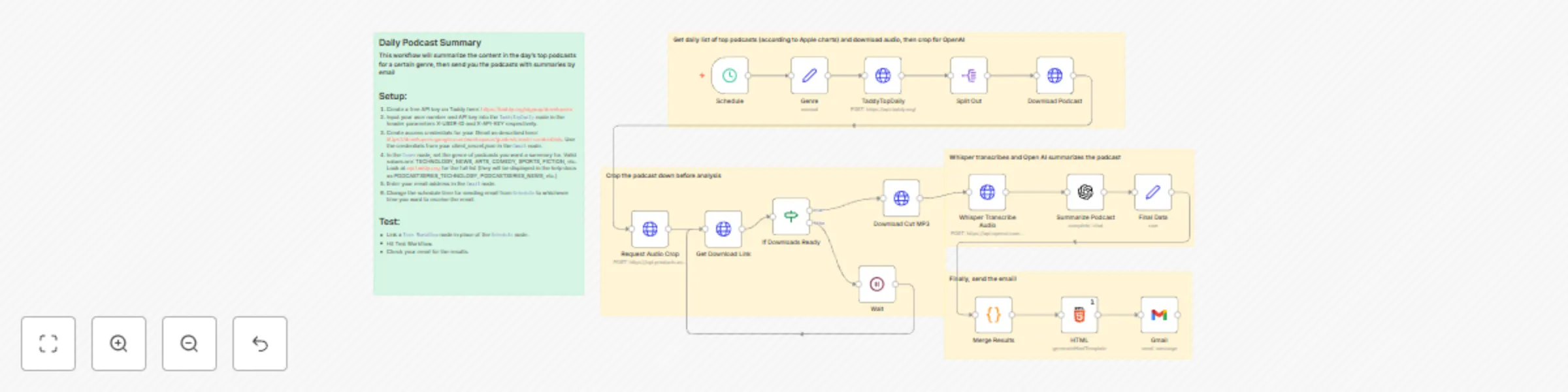
Workflow preview: Daily podcast summary
Free advanced

Daily podcast summary

**What this workflow does** - Downloads the daily top podcasts of a selected genre - Summarizes the content of each podcast in a few paragraphs - Sends the summaries and the direct link to each podcast in a formatted email **Setup** 1. Create a free API key on Taddy here: https://taddy.org/signup/developers 2. Input your user number and API key into the `TaddyTopDaily` node in the header parameters X-USER-ID and X-API-KEY respectively. 3. Create access credentials for your Gmail as described here: https://developers.google.com/workspace/guides/create-credentials. Use the credentials from your *client_secret.json* in the `Gmail` node. 4. In the `Genre` node, set the genre of podcasts you want a summary for. Valid values are: TECHNOLOGY, NEWS, ARTS, COMEDY, SPORTS, FICTION, etc. Look at api.taddy.org for the full list (they will be displayed in the help docs as PODCASTSERIES_TECHNOLOGY, PODCASTSERIES_NEWS, etc.) 5. Enter your email address in the `Gmail` node. 6. Change the schedule time for sending email from `Schedule` to whichever time you want to receive the email. ## Test: - Hit Test Workflow. - Check your email for the results. *That's it! It should take less than 5 minutes total.*

J
Jay Hartley
Personal Productivity
26 Sep 2024
15757
0

Workflow preview: User verification and login using Auth0
Free advanced

User verification and login using Auth0

***Release yourself from the pain of user login with this simple solution!*** ## Who this is for This is for everyone that wants to provide a simple login solution to their users/colleagues ## What this template does - This workflow utilizes Auth0 to provide a simple and easy authentication page that allows login via gmail or any email address. ## Setup To use this workflow, simply sign up at https://auth0.com and create a new Single Page Application, then from Dashboard/Applications, copy the values as instructed in the workflow. It should not take more than ten minutes to setup. 1. First, go to https://auth0.com and create a Single Page Application. 2. From Dashboard/Applications, click on your new app settings. 3. The first step is to add the following to allowed callback URLs: http://localhost:5678, http://localhost:5678/webhook/receive-token (If you do not run n8n locally, replace localhost with your server where you run n8n. You must also replace it in **Set Application Details** 'my_server' field) 4. From the same settings page, retrieve the Domain, Client_ID, and Client_Secret of your application. 5. Fill in Set Application Details and Set Application Details1 6. **Login from https://<n8n server address>/webhook/login!** - It can also be extended to allow login via Github, Facebook, and other socials.

J
Jay Hartley
Miscellaneous
12 Sep 2024
17648
0
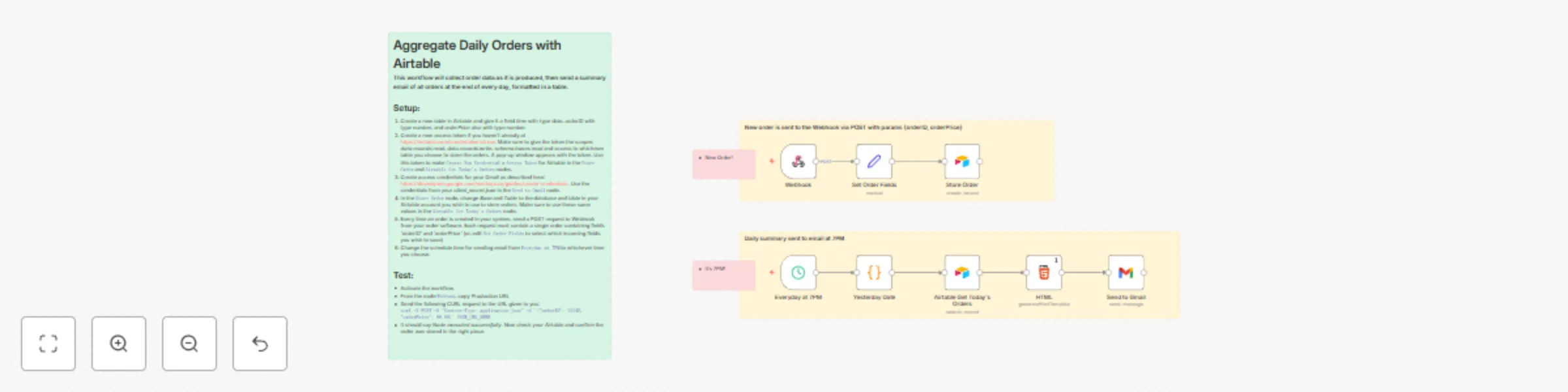
Workflow preview: Store new orders to Airtable and summarize daily orders through email
Free intermediate

Store new orders to Airtable and summarize daily orders through email

## What this template does This workflow will collect order data as it is produced, then send a summary email of all orders at the end of every day, formatted in a table. It receives new orders via webhook and stores in Airtable. At 7PM every day, it sends a summary email with the day's orders in a HTML table ## Setup: [Instructions Video](https://vimeo.com/1012686665?share=copy#t=0) 1. Create a new table in Airtable and give it a field *time* with type date, *orderID* with type number, and *orderPrice* also with type number. 2. Create a new access token if you haven't already at https://airtable.com/create/tokens/new. Make sure to give the token the scopes *data.records:read*, *data.records:write*, *schema.bases:read* and access to whichever table you choose to store the orders. A pop-up window appears with the token. Use this token to make `Create New Credential` > `Access Token` for Airtable in the `Store Order` and `Airtable Get Today's Orders` nodes. 3. Create access credentials for your Gmail as described here: https://developers.google.com/workspace/guides/create-credentials. Use the credentials from your *client_secret.json* in the `Send to Gmail` node. 4. In the `Store Order` node, change *Base* and *Table* to the database and table in your Airtable account you wish to use to store orders. Make sure to use these same values in the `Airtable Get Today's Orders` node. 5. Every time an order is created in your system, send a POST request to Webhook from your order software. Each request must contain a single order containing fields *'orderID'* and *'orderPrice'* (or, edit `Set Order Fields` to select which incoming fields you wish to save) 6. Change the schedule time for sending email from `Everyday at 7PM` to whichever time you choose. ## Test: - Activate the workflow. - From the node `Webhook`, copy *Production URL* - Send the following CURL request to the URL given to you: ` curl -X POST -H "Content-Type: application/json" -d '{"orderID": 12345, "orderPrice": 99.99}' YOUR_URL_HERE` - It should say *Node executed successfully*. Now check your Airtable and confirm the order was stored in the right place.

J
Jay Hartley
CRM
11 Sep 2024
1731
0