Javier Quilez Cabello
Workflows by Javier Quilez Cabello
Sync face-to-face fundraising data from offline Google Sheets to SinergiaCRM
Automate syncing of offline donor data from Google Sheets into SinergiaCRM for fast, error-free face-to-face fundraising tracking. ### Who is this workflow for? This workflow is perfect for nonprofit organizations that run face-to-face fundraising campaigns and collect donor data offline (e.g. via tablets or spreadsheets). It helps fundraising and CRM teams ensure donor records are correctly and automatically stored in **SinergiaCRM**, a popular CRM platform used by NGOs. ### What it does / How it works - Watches a Google Sheet for new rows (also works offline if synced later). - Filters rows marked `To CRM = Yes` and `Processed = No`. - Checks if the donor already exists in **SinergiaCRM** (based on NIF). - If the contact exists: creates a “member” relationship and a payment commitment. - If not: creates the contact first, then adds the relationship and commitment. - Finally, updates the original row as “Processed” to prevent re-importing. ### Requirements - An active **Google Sheets** account with the donor spreadsheet. - A **SinergiaCRM** account with API/OAuth access. - Fields `First name`, `Last name`, `Email`, `NIF`, `To CRM`, `Processed` must exist in the sheet. - SinergiaCRM modules enabled: Contacts, stic_Contacts_Relationships, stic_Payment_Commitments. ### How to set up 1. Connect your **Google Sheets** account and set the correct Document ID and Sheet name in the trigger and update nodes. 2. Connect your **SinergiaCRM** account using OAuth credentials. 3. Adjust the `assigned_user_id` field if required by your CRM instance. ### How to customize the workflow - Change the filter conditions in the IF nodes to match your business logic. - Customize fields like relationship type, amount, and periodicity to suit your campaign. - Add or remove nodes if you want additional steps (like sending Slack notifications). 📌 Category: **CRM & Customer Management** 📘 [Learn more about SinergiaCRM](https://sinergiacrm.org)
Register volunteers in SinergiaCRM from form submissions and notify your team
Automatically register new volunteers in SinergiaCRM when they submit a form, creating or updating contacts and relationships, and sending a confirmation email to your team. ### Who is this workflow for? This workflow is ideal for nonprofit organizations that manage volunteer registrations and use **SinergiaCRM** as their CRM system. It helps automate the data entry process, ensuring volunteers are quickly added and tracked in the CRM. ### What it does / How it works - Triggers when a new volunteer submits a form. - Checks if the volunteer already exists in SinergiaCRM (matched by NIF). - If found: adds a “volunteer” relationship to the existing contact. - If not found: creates the contact and then adds the relationship. - Sends an email notification to your team with the volunteer’s information. ### Requirements - A working **SinergiaCRM** instance with the following modules enabled: - `Contacts` - `stic_Contacts_Relationships` - The field `stic_identification_number_c` must exist and be used to identify contacts by NIF. - Active Gmail (or other email provider) integration in n8n. - Valid OAuth credentials for SinergiaCRM and your email provider. ### How to set up 1. Connect your SinergiaCRM account using OAuth in the credentials section. 2. Update the recipient email address in the Gmail node. 3. Ensure your CRM contains the field `stic_identification_number_c`. 4. Optionally adjust the value of `assigned_user_id` to reflect your CRM configuration. ### How to customize the workflow - Modify the form fields in the **Form Trigger** node to match your registration form. - Customize the volunteer relationship parameters (e.g. type or assigned user). - Change the email content in the **Gmail** node to fit your organization’s tone. - Replace Gmail with another email node (Outlook, SMTP, etc.) if needed. 📌 Category: **CRM & Customer Management** 📘 [Learn more about SinergiaCRM](https://sinergiacrm.org)
Google Sheets to SinergiaCRM: automate event participant registration
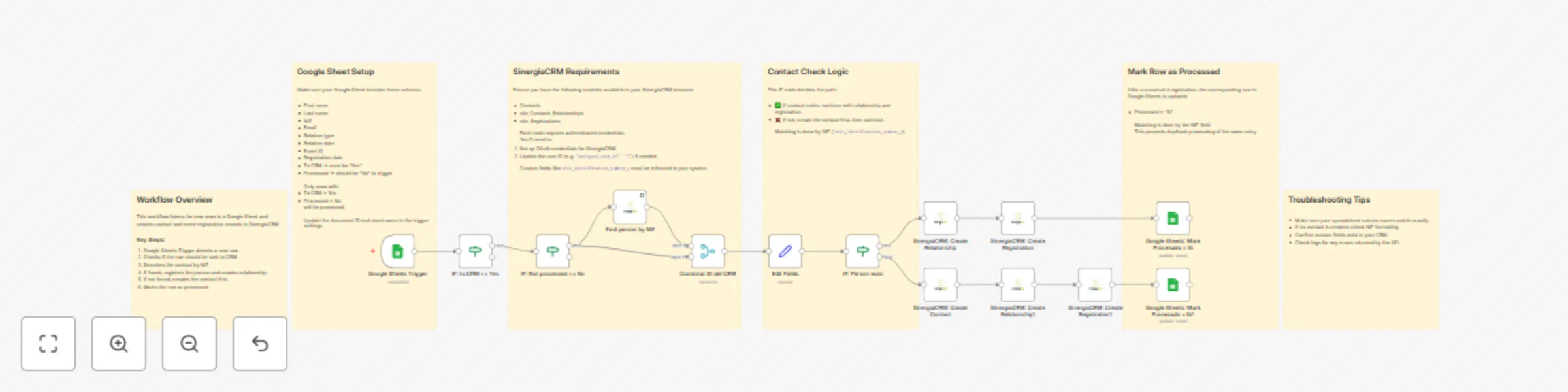
*This workflow contains community nodes that are only compatible with the self-hosted version of n8n.* **How it works** - This workflow automates the registration of event participants in SinergiaCRM from a Google Sheets spreadsheet. - A Google Sheets Trigger watches for new rows with pending registrations. - The flow checks if the participant already exists in SinergiaCRM by NIF (national ID). - If the contact exists, it creates a relationship and registers them for an event. - If the contact doesn’t exist, it first creates the contact, then adds the relationship and event registration. - Finally, it marks the row as "Processed" in the original spreadsheet to avoid duplicate entries. **Set up steps** - Connect your Google Sheets and SinergiaCRM accounts using OAuth credentials. - Replace the sample Google Sheet ID and worksheet name with your own. - Ensure the spreadsheet contains the following columns: First name, Last name, NIF, Email, Event ID, Relation type, Registration date, and Relation date. - Add the appropriate values in the "To CRM" and "Processed" columns to control processing logic. - Review sticky notes inside the workflow for additional guidance and customization tips.