J

Jose Castillo

3
Workflows

Workflows by Jose Castillo

Workflow preview: Employee time tracking system with GPT-4o reports & Gmail notifications
Free advanced

Employee time tracking system with GPT-4o reports & Gmail notifications

### Overview This workflow acts as an **AI-powered smart time tracker** for employees or personal use. It records work sessions via a webhook, logs start/end/break times into n8n Data Tables, and uses **OpenAI** to automatically summarize working patterns and send reminders or monthly reports via Gmail. --- ### How It Works 1. **Webhook `/track-time`** → Receives a `POST` request with a `method` (`start`, `break`, or `end`) and duration if applicable. 2. **Switch Logic** → Directs the request to create or update the appropriate record in your Data Table. 3. **Data Tables** → Store timestamps, break durations, and worker IDs in a secure local table. 4. **Schedule Triggers** - **Daily (10:00)** → Checks if today’s shift was not started and sends a reminder. - **Monthly (Day 1, 06:00)** → Compiles last month’s working data and sends an AI report to management. 5. **OpenAI Analysis** - Summarizes working hours and productivity trends. - Detects missed clock-ins or irregular patterns. 6. **Gmail Integration** → Sends formatted daily or monthly reports to both employees and supervisors. --- ### Example Webhook Requests ```json # Start work POST /track-time { "method": "start", "headers": { "id": "EMP001" } } # Log a break POST /track-time { "method": "break", "duration": 15, "headers": { "id": "EMP001" } } # End work POST /track-time { "method": "end", "headers": { "id": "EMP001" } } # Example Email Output Subject: “Workday Summary – EMP001” 🕒 Workday completed successfully Start: 09:00 Break: 15 minutes End: 17:45 AI Summary: Consistent work pattern detected this week. Consider shorter but more frequent breaks.

J
Jose Castillo
HR
26 Oct 2025
207
0
Workflow preview: Track daily moods with AI analysis & reports using GPT-4o, Data Tables & Gmail
Free advanced

Track daily moods with AI analysis & reports using GPT-4o, Data Tables & Gmail

Track your daily mood in one tap and receive automated AI summaries of your emotional trends every week and month. Perfect for self-reflection, wellness tracking, or personal analytics. This workflow logs moods sent through a webhook (/mood) into Data Tables, analyzes them weekly and monthly with OpenAI (GPT-4o), and emails you clear summaries and actionable recommendations via Gmail. ⚙️ How It Works Webhook – Mood → Collects new entries (🙂, 😐, or 😩) plus an optional note. Set Mood Data → Adds date, hour, and note fields automatically. Insert Mood Row → Stores each record in a Data Table. Weekly Schedule (Sunday 20:00) → Aggregates the last 7 days and sends a summarized report. Monthly Schedule (Day 1 at 08:00) → Aggregates the last 30 days for a deeper AI analysis. OpenAI Analysis → Generates insights, patterns, and 3 actionable recommendations. Gmail → Sends the full report (chart + AI text) to your inbox. 📊 Example Auto-Email Weekly Mood Summary (last 7 days) 🙂 5 ██████████ 😐 2 ████ 😩 0 Average: 1.7 (Positive 🙂) AI Insights: You’re trending upward this week — notes show that exercise days improved mood. Try keeping short walks mid-week to stabilize energy. 🧩 Requirements n8n Data Tables enabled OpenAI credential (GPT-4o or GPT-4 Turbo) Gmail OAuth2 credential to send summaries 🔧 Setup Instructions Connect your credentials: Add your own OpenAI and Gmail OAuth2 credentials. Set your Data Table ID: Open the Insert Mood Row node and enter your own Data Table ID. Without this, new moods won’t be stored. Replace the email placeholder: In the Gmail nodes, replace [email protected] with your actual address. Deploy and run: Send a test POST request to /mood (e.g. { "mood": "🙂", "note": "productive day" }) to log your first entry. ⚠️ Before activating the workflow, ensure you have configured the Data Table ID in the “Insert Mood Row” node. 🧠 AI Analysis Interprets mood patterns using GPT-4o. Highlights trends, potential triggers, and suggests 3 specific actions. Runs automatically every week and month. 🔒 Security No personal data is exposed outside your n8n instance. Always remove or anonymize credential references before sharing publicly. 💡 Ideal For Personal mood journaling and AI feedback Therapists tracking client progress Productivity or self-quantification projects 🗒️ Sticky Notes Guide 🟡 Mood Logging Webhook POST /mood receives mood + optional note. ⚠️ Configure your own Data Table ID in the “Insert Mood Row” node before running. 🟢 Weekly Summary Runs every Sunday 20:00 → aggregates last 7 days → generates AI insights + emails report. 🔵 Monthly Summary Runs on Day 1 at 08:00 → aggregates last 30 days → creates monthly reflection. 🟣 AI Analysis Uses OpenAI GPT-4o to interpret trends and recommend actions. 🟠 Email Delivery Sends formatted summaries to your inbox automatically.

J
Jose Castillo
Personal Productivity
26 Oct 2025
102
0
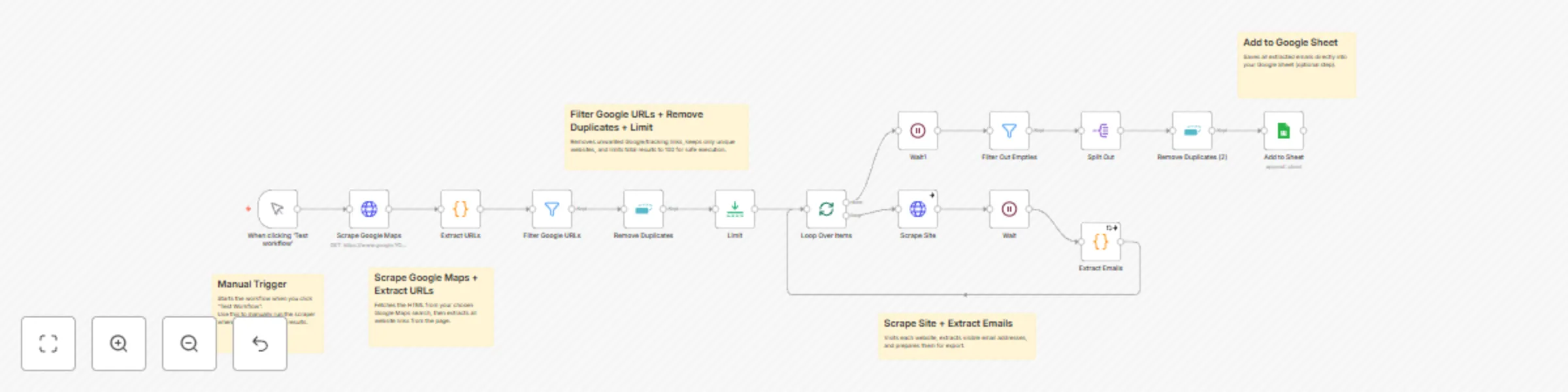
Workflow preview: Extract Business Emails from Google Maps Listings for Lead Generation
Free advanced

Extract Business Emails from Google Maps Listings for Lead Generation

This workflow scrapes Google Maps business listings (e.g., carpenters in Tarragona) to extract websites and email addresses — perfect for lead generation, local business prospecting, or agency outreach. 🔧 How it works Manual Trigger – start manually using the “Test Workflow” button. Scrape Google Maps – fetches the HTML from a Google Maps search URL. Extract URLs – parses all business links from the page. Filter Google URLs – removes unwanted Google/tracking links. Remove Duplicates + Limit – keeps unique websites (default: 100). Scrape Site – fetches each website’s HTML. Extract Emails – detects valid email addresses. Filter Out Empties & Split Out – isolates each valid email per site. (Optional) Add to Google Sheet – appends results to your Sheet. 💼 Use cases Local business leads: find emails of carpenters, dentists, gyms, etc., in your city. Agency outreach: collect websites and contact emails to pitch marketing services. B2B prospecting: identify businesses by niche and region for targeted campaigns. 🧩 Requirements n8n instance with HTTP Request and Code nodes enabled. (Optional) Google Sheets OAuth2 credentials. Tip: Add a “Google Sheets → Append Row” node and connect it to your account. 🔒 Security No personal or sensitive data included — only credential references. If sharing this workflow, anonymize the “credentials” field before publishing.

J
Jose Castillo
Lead Generation
23 Oct 2025
623
0