Optimum Office Solution
Workflows by Optimum Office Solution
Dental clinic appointment & admin system with Supabase, phone integration & AI
## Dental Clinic Automation: Scheduling, Availability & Patient Lookup This workflow automates dental appointment management through a phone-based assistant. It listens for requests like booking, rescheduling, canceling, checking insurance, looking up appointments, and finding available time slots. Each request is processed through a Switch node and then routed to your Supabase database for action. ## How it works Once a request is received, the workflow uses the patient’s phone number to identify them. Then, it: - Booking: Checks for available time, creates or retrieves the patient record, and stores the appointment. - Rescheduling: Confirms the new date, avoids double-booking, and updates the record. - Canceling: Removes the appointment and sends a confirmation. - Insurance: Looks up the member ID and provides a status (accepted or not). - Availability: Finds the doctor’s existing appointments and generates available 60-minute slots. - Appointment & doctor lists: Retrieves and presents clean, structured information for the assistant. Each action ends with a webhook response that the phone system reads back to the patient. ## Setup steps 1. Add your Supabase credentials to the Supabase nodes. 2. Connect your phone/voice system to the webhook URL. 3. Ensure Supabase table and column names match the workflow. 4. Test all actions (booking, rescheduling, canceling, etc.) before going live. ## Customization tips (optional) You can update working hours, appointment durations, or add new services by modifying the availability logic or Switch node routing.
Complete appointment system with Supabase and AI assistants for scheduling & management
## Who’s it for This workflow is designed for organizations or services managing appointments, such as interview scheduling, class enrollments, or client meetings. It’s ideal for users who want to automate appointment creation, rescheduling, cancellation, and data retrieval from a single webhook endpoint. ## How it works / What it does ● Receives incoming appointment requests via a Webhook node. ● Processes requests in the Set Fields node, handling multiple actions: • Set Appointment: Adds a new appointment and assigns an available interviewer. • Reschedule: Changes the appointment date based on availability. • Cancel: Deletes an appointment and frees the interviewer’s slot. • Get List: Returns a user’s list of classes. • Get User Info: Retrieves detailed information about a specific user. All actions follow strict instructions to check tables, update rows, and return structured JSON responses. ## How to set up 1. Add the Webhook node and set the HTTP method to POST. 2. Connect it to the Set Fields node. 3. Configure the Set Fields node with the desired assignments (set_appointment, reschedule, cancel, get_list, get_user_info). 4. Ensure your database tables (interviewers, enrollers) are properly configured and accessible. ## Requirements • n8n environment • Database or table access for interviewers and enrollers • Properly formatted incoming JSON requests with necessary fields (e.g., name, nationality number, preferred date). ## How to customize the workflow • Add or modify assignment actions to handle additional appointment scenarios. • Adjust table names or database connections based on your environment. • Extend JSON responses for custom client-side handling.
LinkedIn content automation: AI post creation & images with sheet approval workflow
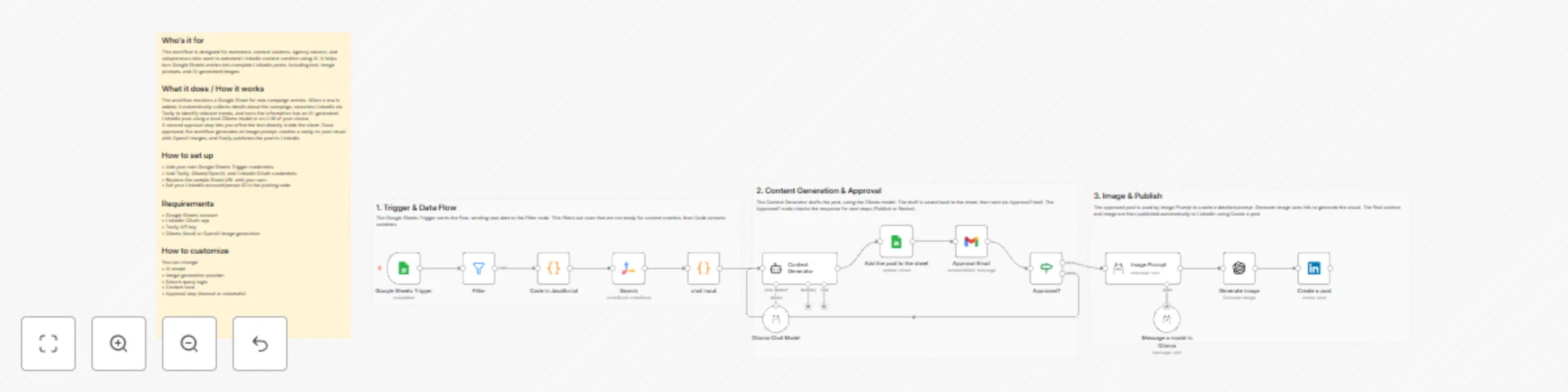
## Who’s it for This workflow is designed for marketers, content creators, agency owners, and solopreneurs who want to automate LinkedIn content creation using AI. It helps turn Google Sheets entries into complete LinkedIn posts, including text, image prompts, and AI-generated images. ## What it does / How it works The workflow monitors a Google Sheet for new campaign entries. When a row is added, it automatically collects details about the campaign, searches LinkedIn via Tavily to identify relevant trends, and turns the information into an AI-generated LinkedIn post using a local Ollama model or an LLM of your choice. A second approval step lets you refine the text directly inside the sheet. Once approved, the workflow generates an image prompt, creates a ready-to-post visual with OpenAI Images, and finally publishes the post to LinkedIn. ## How to set up • Add your own Google Sheets Trigger credentials. • Add Tavily, Ollama/OpenAI, and LinkedIn OAuth credentials. • Replace the sample Sheet URL with your own. • Set your LinkedIn account/person ID in the posting node. ## Requirements • Google Sheets account • LinkedIn OAuth app • Tavily API key • Ollama (local) or OpenAI image generation ## How to customize You can change: • AI model • Image generation provider • Search query logic • Content tone • Approval step (manual or automatic)