InfraNodus
Workflows by InfraNodus

Build an AI chat agent for your Zendesk knowledge base with GPT-4.1 and InfraNodus GraphRAG
## Build a Better AI Chatbot for Your Zendesk Knowledge Portal ### Simple setup, no vector database needed. Uses GraphRAG to enhance user's prompts and provide high-quality and relevant up-to-date responses from your Zendesk knowledge base. #### Can be embedded on your Zendesk portal, also accesible via a URL. Can be customized and branded in your style. ### See example at [support.noduslabs.com](https://support.noduslabs.com) or a screenshot below:  Also, compare it to the original Zendesk AI chatbot available at our other website [https://infranodus.com](https://infranodus.com) — you will see that the quality of responses in this custom chatbot is much better than in the native Zendesk one, plus you save subscription because you won't need to activate their chat option, which is $25 per agent. --- ### Workflow Overview In this workflow, we use the n8n AI Agent Node with a custom prompt that: 1) First consults an "expert" graph from the [InfraNodus GraphRAG system](https://infranodus.com/docs/graph-rag-knowledge-graph) using the official [InfraNodus GraphRAG node](https://n8n.io/integrations/infranodus-graph-rag/) that will extract a reasoning ontology and a general context about your product from the graph that you create manually or automatically as [described on our support portal](https://support.noduslabs.com/hc/en-us/articles/24079266183196-Building-Expert-Ontology-for-InfraNodus-GraphRAG-n8n-Expert-Node). 2) The augmented user prompt is converted by AI agent node in a Zendesk search query that retrieves the most relevant content using their [search API](https://developer.zendesk.com/api-reference/help_center/help-center-api/search/) via n8n HTTP node. 3. Both the results from the graph and the search results are combined and shown to the user  ## How it works 1. Receives a request from a user via a webhook that connects to the custom [n8n chat widget](https://n8n-chat-widget.com). 2. The request goes to the AI Agent node from n8n with a custom prompt (provided in the workflow) that orchestrates the following procedure: 3. Sends the request to the knowledge graph in your InfraNodus account using the official [InfraNodus GraphRAG node](https://n8n.io/integrations/infranodus-graph-rag/) that contains a reasoning ontology represented as a knowledge graph based on your Zendesk knowledge support portal. Read more on [how to generate this ontology here](https://support.noduslabs.com/hc/en-us/articles/24079266183196-Building-Expert-Ontology-for-InfraNodus-GraphRAG-n8n-Expert-Node). 4. Based on the results from InfraNodus, it reformulates the original prompt to include the reasoning logic as well as provide a fuller context to the model. 5. Sends the request to the [Zendesk search API](https://developer.zendesk.com/api-reference/help_center/help-center-api/search/) using the n8n custom HTTP node with an enhanced search query to retrieve high-quality results. 6. Combines Zendesk search results with InfraNodus ontology to generate a final response to the user. 7. Sends the response back to the webhook, which is then picked up by the [n8n chat widget](https://n8n-chat-widget.com) that is shown to the user wherever the widget is embedded (e.g. on your own support portal). ## How to use • Get an **[InfraNodus API key](https://infranodus.com/api-access)** and add it into InfraNodus GraphRAG node. • Edit the **InfraNodus Graph node** to provide the **name of the graph** that you will be using as ontology (you need to **[create it in InfraNodus](https://support.noduslabs.com/hc/en-us/articles/24079266183196-Building-Expert-Ontology-for-InfraNodus-GraphRAG-n8n-Expert-Node) first**. • Edit the **AI Agent (Support Agent) prompt** to modify our custom instructions for your particular use case (do not change it too much as it works quite well and tells the agent what it should do and in what sequence). • Add the **API key for your Zendesk account**. In order to get it, go to your support portal Admin > Apps & Integrations > API Tokens. Usually it's located at [https://noduslabs.zendesk.com/admin/apps-integrations/apis/api-tokens](https://noduslabs.zendesk.com/admin/apps-integrations/apis/api-tokens) where instead of `noduslabs` you need to put the name of your support portal. **Note:** the official n8n Zendesk node does not have an endpoint to search and extract articles from support portal, so we use the custom HTTP node, but you can still connect to it via the Zendesk API key you have installed in your n8n. ## Support & Tutorials If you wan to create your own reasoning ontology graphs, please, refer to this [article on generating your own knowledge graph ontologies](https://support.noduslabs.com/hc/en-us/articles/18301655686172-Generate-Knowledge-Graphs-and-Ontologies-in-Plain-Text). Specifically for this use case: [Building ontology for your n8n AI chat bot](https://support.noduslabs.com/hc/en-us/articles/24079266183196-Building-Expert-Ontology-for-InfraNodus-GraphRAG-n8n-Expert-Node). You may also be interested to watch this video that explains the logic of this approach in detail: [](https://www.youtube.com/watch?v=ueq0RU1HxSo) Our support article for this workflow with real-life example: [Building an embeddable AI chatbot agent for your Zendesk knowledge portal](https://support.noduslabs.com/hc/en-us/articles/24080152180252-Building-an-Embeddable-AI-Chat-for-Zendesk-Knowledge-Support-Portal). **To get support and help, contact us via [support.noduslabs.com](https://support.noduslabs.com)** **Learn more about InfraNodus at [www.infranodus.com](https://www.infranodus.com)**
Retrieve answers from Knowledge Base with InfraNodus GraphRAG chatbot
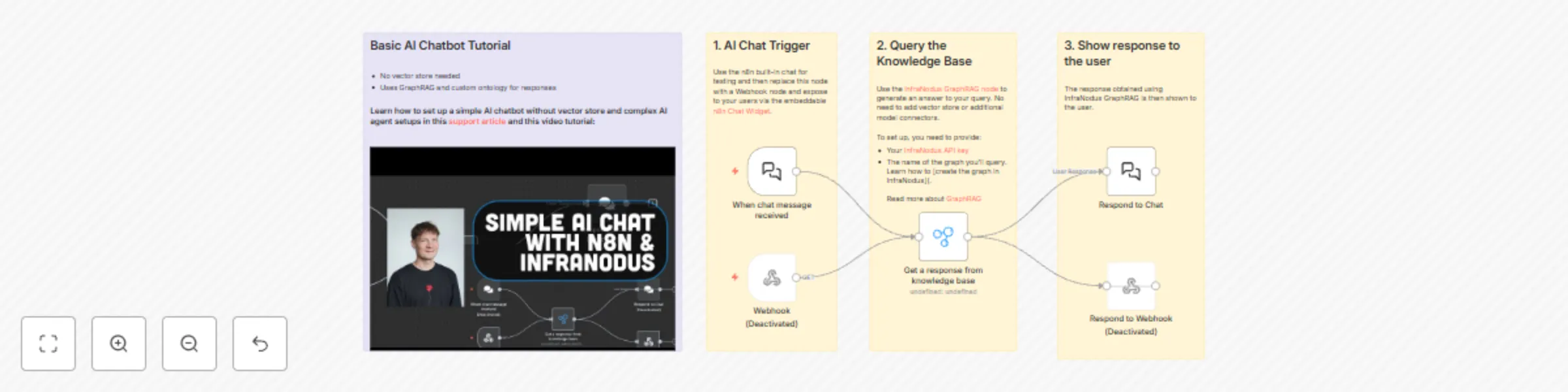
## Basic AI Chatbot that Retrieves Answers From Knowledge Base Using GraphRAG. ### Easiest setup, without vector database, external knowledge base, or OpenAI API keys. All you need is an [InfraNodus graph](https://infranodus.com) with your knowledge. ---- In this workflow, user sends a request to the [InfraNodus GraphRAG system](https://infranodus.com/docs/graph-rag-knowledge-graph) that will extract a reasoning ontology from a graph that you create (or that you can copy from our [repository of public graphs](https://infranodus.com/knowledge-graphs)) and generate a response directly to the user.  ## How it works 1. Receives a request from a user (via n8n or a publicly available URL chat bot if you replace the Chat Trigger with a webhook connected to the embeddable [n8n Chat Widget](https://n8n-chat-widget.com) that you can expose via a URL or add to any website. 2. Sends the request to the knowledge graph in your InfraNodus account that contains a [reasoning ontology represented as a knowledge graph](https://support.noduslabs.com/hc/en-us/articles/24079266183196-Building-Expert-Ontology-for-InfraNodus-GraphRAG-n8n-Expert-Node). You can also use a standard graph — InfraNodus will use its underlying GraphRAG technology to generate the most relevant response. 3. Sends the answer back to the user via chat or webhook (which is then delivered back via [n8n chat widget](https://n8n-chat-widget.com) **Note:** This is a simple example that will work well for occasionally providing responses to users. For a more advanced setup, you might want to build a more sophisticated workflow with AI agent node that would orchestrate among different InfraNodus expert graphs and chat memory, so the context of the conversation can be maintained. See our other workflows for examples. ## How to use • Just get an [InfraNodus API key](https://infranodus.com/api-access) and add API authentication to your InfraNodus GraphRAG node. • In the same InfraNodus GraphRAG Nnode, provide the name of the graph you want to u. Note, these can be two different graphs ife for retrieval. ## Support If you wan to create your own reasoning ontology graphs, please, refer to this [article on generating your own knowledge graph ontologies](https://support.noduslabs.com/hc/en-us/articles/18301655686172-Generate-Knowledge-Graphs-and-Ontologies-in-Plain-Text). You may also be interested to watch this video that explains the logic of this approach in detail: [](https://www.youtube.com/watch?v=qP4KTLBzoWQ) Help article on this specific workflow: [Building expert ontology for InfraNodus GraphRAG n8n expert node](https://support.noduslabs.com/hc/en-us/articles/24079266183196-Building-Expert-Ontology-for-InfraNodus-GraphRAG-n8n-Expert-Node).
Enhance AI chatbot responses with InfraNodus knowledge graph reasoning
## Augment AI chatbot prompts with a knowledge graph reasoning ontology and improve the quality of responses with Graph RAG. In this workflow, we augment the original prompt using the [InfraNodus GraphRAG system](https://infranodus.com/docs/graph-rag-knowledge-graph) that will extract a reasoning ontology from a graph that you create (or that you can copy from our [repository of public graphs](https://infranodus.com/knowledge-graphs)). This additional reasoning logic will improve the user's prompt and make it more descriptive and closely related to the logic you want to use. As the next step, you can send it back to the same graph to generate a high-quality response using Graph RAG or to another graph (or AI model) to apply one type of knowledge in a completely different field.  ## How it works 1. Receives a request from a user (via n8n or a publicly available URL chat bot, you can also connect it to [Telegram](https://n8n.io/workflows/4485-telegram-ai-chatbot-agent-with-infranodus-graphrag-knowledge-base/) 2. Sends the request to the knowledge graph in your InfraNodus account that contains a reasoning ontology represented as a knowledge graph. Reformulates the original prompt to include the reasoning logic provided. 3. Sends the request to the knowledge graph in your InfraNodus account (same as the previous one or a new one for cross-disciplinary research) to retrieve a high-quality response using GraphRAG **Special sauce:** [InfraNodus](https://infranodus.com) will build a graph from your augmented prompt, then overlap it on the knowledge graph you want to inquire, traverse this graph based on the overlapped parts and extended relations, then retrieve the necessary part of the graph and include it in the context to improve the quality of your response. This helps InfraNodus grasp the relations and nuances that are not usually available through standard RAG. ## How to use • Just get an [InfraNodus API key](https://infranodus.com/api-access) and add it into your Prompt Augmentation and Knowledge Base InfraNodus HTTP nodes for authentication • Then provide the name of the graphs you want to be using for prompt augmentation and retrieval. Note, these can be two different graphs if you want to apply a reasoning logic from one domain in another (e.g. machine learning in biology or philosophy in electrical engineering). ## Support If you wan to create your own reasoning ontology graphs, please, refer to this [article on generating your own knowledge graph ontologies](https://support.noduslabs.com/hc/en-us/articles/18301655686172-Generate-Knowledge-Graphs-and-Ontologies-in-Plain-Text). You may also be interested to watch this video that explains the logic of this approach in detail: [](https://www.youtube.com/watch?v=jhqBb3nuyAY) Help article on the same topic: [Using knowledge graphs as reasoning experts](https://support.noduslabs.com/hc/en-us/articles/21429518472988-Using-Knowledge-Graphs-as-Reasoning-Experts).
Build an AI chatbot with InfraNodus knowledge graph for enhanced responses
## Build an embeddable AI chatbot with an access to a knowledge base  This is an example of a simple AI chatbot that has access to external knowledge to augment its responses. The knowledge can be **added manually** or **imported** from multiple sources (text and PDF files, websites, CSVs, Google search results, AI generated, YouTube search results, RSS feeds, etc) using [InfraNodus](https://infranodus.com). • **no OpenAI account needed** • **no vector store needed** • **easy data import: PDF, text, CSV, Google / YouTube results, RSS feeds, websites, or AI-generated** ## How it works 1. First, you add your data into your [InfraNodus](https://infranodus.com) graph — this will be your knowledge base. 2. You can import this data from multiple sources or add it manually. 3. You will have a **visual interface** available that will show the main concepts and topics in your knowledge base, so you can have an overview of its structure and know how to improve it, if necessary. 4. Your data is represented as a **knowledge graph** which contains information about **relations** and **topical clusters** in your data, making the LLM responses much more precise. ## How to use 1. Copy the template 2. Add your [InfraNodus API key](https://infranodus.com/api-access) to the HTTP AI response node 3. Create a new graph in InfraNodus with your data (or import from an external source) 4. Add the name of this graph into the `name` field of the AI response HTTP node. 5. That's it! You can query it using the embeddable web form available via a URL ## Requirements You only need an [InfraNodus account](https://infranodus.com) to set this workflow up. Free 14-day trials are available.
Create custom reasoning patterns for AI agents with GraphRAG & knowledge ontology
## Teach your AI agent HOW to think, not WHAT to think [](https://www.youtube.com/watch?v=jhqBb3nuyAY) This workflow demonstrates how you can build an AI agent in n8n that uses the reasoning logic you define. So an LLM learns a way of thinking, which you can then apply to multiple problems: - Make an **AI chatbot that knows how to convince anybody** using the "Getting to Yes" method - Build an **LLM workflow that uses Ray Dalio's principles** to spot investment opportunities - Create an AI agent crew of **interdisciplinary thinkers**: e.g. a specialist in psychology who gives an advice on education programmes.  ## How it works This template uses the n8n AI agent node as an orchestrating agent that has access to a certain reasoning logic defined by an [InfraNodus knowledge graph](https://infranodus.com). This graph contains a list of reasoning rules (ontology), which is extracted to provide an advice that is relevant to the original prompt. It uses GraphRAG under the hood to traverse the parts of the graph relevant to the query. This advice and the reasoning logic extracted is then used by the AI agent to generate a response that is relevant to the user's query but that uses the reasoning logic provided through the graph. Here's a description step by step: - The user submits a question using the AI chatbot (n8n interface, in this case, a web form that can be embedded to any website, or a webhook that can be connected to a Telegram / WhatsApp bot) - The AI agent node accesses the Reasoning Logic HTTP InfraNodus nodes. The description of AI agent and the description of the reasoning InfraNodus node provides the agent with an understanding of how to rephrase the original question to retrieve relevant reasoning logic. - The request is sent to the InfraNodus node. It provides a response that contains the reasoning logic needed to answer the question. - This reasoning logic is then sent back to an LLM along with the original query to produce the response. InfraNodus uses **[GraphRAG](https://infranodus.com/docs/graph-rag-knowledge-graph)** under the hood: - convert user query into graph - find the overlap with the reasoning graph (using n=1 or more hops to include more relations) - use similarity search to get additional parts of the graph - generate a response based on this intersection as well as the context provided - provide information about the underlying structure ## How to use You need an [InfraNodus account](https://infranodus.com/use-case/ai-knowledge-graphs) to use this workflow. - Create an InfraNodus account - Get the API key at [https://infranodus.com/api-access](https://infranodus.com/api-access) and create a Bearer authorization key for the InfraNodus HTTP nodes. - Create a separate knowledge graph for the reasoning logic - Use the [AI ontology creator](https://infranodus.com/import/ai-ontologies) to generate an ontology for a certain topic or text using AI. Then augment it with your own data. See our [help article on creating ontologies](https://support.noduslabs.com/hc/en-us/articles/18301655686172-Generate-Knowledge-Graphs-and-Ontologies-in-Plain-Text) for detailed instructions - For each graph, go to the workflow, paste the name of the graph into the request JSON `body` `name` field. - Change the system prompt in the AI agent node to reflect the nature of your reasoning logic. For instance, if it's an expert in interactions, you specify that, if it's a psychology expert, you need to specify that as well. - Change the description of the reasoning node (HTTP tool). Use the InfraNodus `summary` and `Project Notes` > `RAG prompt` buttons to generate a description for the reasoning logic, which you can then reuse in your workflow. - add the LLM key to the OpenAI node (or to the model of your choice) and launch the workflow ## Requirements - An [InfraNodus](https://infranodus.com/use-case/ai-knowledge-graphs) account and API key - An OpenAI (or any other LLM) API key ## Customizing this workflow You can use this same workflow with a Telegram bot, so you can interact with it using Telegram. There are many more customizations available. Check out the **complete guide** at [https://support.noduslabs.com/hc/en-us/articles/21429518472988-Using-Knowledge-Graphs-as-Reasoning-Experts](https://support.noduslabs.com/hc/en-us/articles/21429518472988-Using-Knowledge-Graphs-as-Reasoning-Experts) Also check out the **video tutorial** with a demo: [](https://www.youtube.com/watch?v=jhqBb3nuyAY)
Analyze and optimize top website content using Google Analytics, Firecrawl and InfraNodus
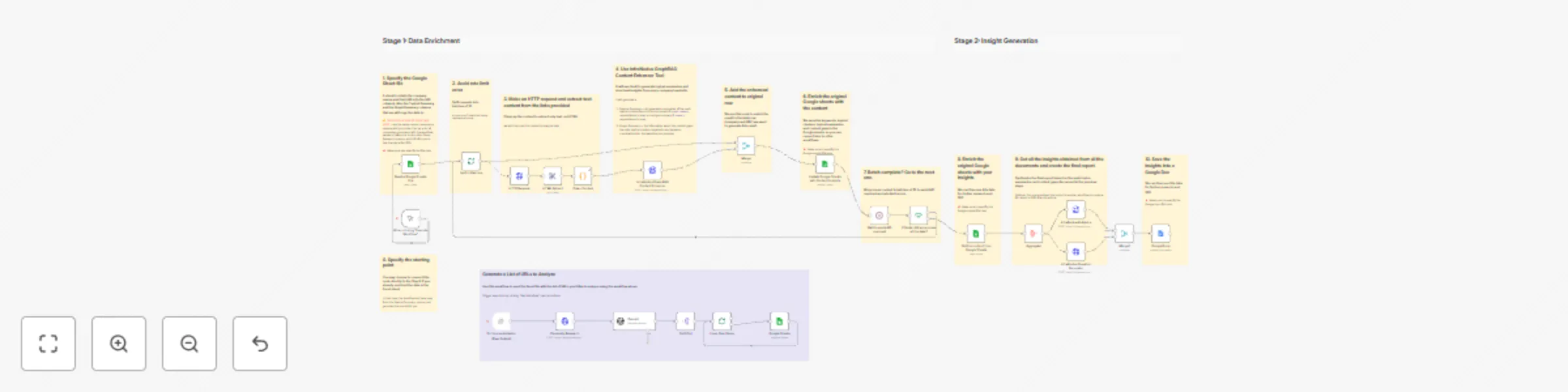
## Optimize Your Top Performing Website Content with Google Analytics, Firecrawl, and InfraNodus This templates helps you - **extract** the top performing pages from your website using Google Analytics - **scrape** the content of the pages using Firecrawl API (HTTP node provided) - **build a knowledge graph** for all these pages with the **topics** and **gaps** identified using [InfraNodus](https://infranodus.com) - understand the main **concepts and topical clusters** in your **top-performing content**, so you can create more of it, while also identifying the **content gaps** — structural holes between the topics that you can use to generate **new content ideas** - have access to a **knowledge graph visualization** of your top performing content to explore it using the interactive network interface  ## How it works This template uses the [InfraNodus](https://infranodus.com) to visualize and analyze your top performing content. It will extract the top pages from the Google Analytics data for the website you choose and scrape their text content using the high-quality Firecrawl API. Then it will ingest every page into an InfraNodus graph you specify. The graph can be used to explore the content visually. The insights from the graph, such as the main topics and gaps between them will be shown to you in the end of the workflow. You can use these insights to understand - **what kind of content you should focus on creating to get the highest number of views** and to establish **topical authority** in your area, which is good for **SEO** and **LLM optimization** — focusing on the topics identified in the top content - discover the **content gaps** — which topics are not connected yet that you could link with new content ideas and publish — this caters to your audience's interests, but connects your existing ideas in a new way. So you deliver the content that's **relevant** but also **novel**. Here's a description **step by step**:  ***Note:** you can replace the PDF to Text convertor node with a better quality **PDF convertor** from [ConvertAPI](https://convertapi.com?ref=4l54n) which respects the original file layout and doesn't split text into small chunks* 1. Trigger the workflow 2. Extract a list of top (25, 50) pages from your Google Analytics account (you'll need to connect it via the Google Cloud API) 3. Fix the extracted data and add a correct URL prefix to each page (if your Analytics has relative paths only 4. Loop through each page extracted 5. Extract the text content of every page using the high-quality [Firecrawl API](https://firecrawl.dev) 6. Ingest the text content into the [InfraNodus graph](https://infranodus.com) that you specify 7. Once all the pages are ingested into the InfraNodus graph, access the AI insights endpoint in InfraNodus and get the information about the main topics and gaps 8. Display this information to the user ## How to use You need an [InfraNodus API account and key](https://infranodus.com/api) to use this workflow. - Create an InfraNodus account - Get the API key at [https://infranodus.com/api-access](https://infranodus.com/api-access) and create a Bearer authorization key for the InfraNodus HTTP nodes. ## Requirements - An [InfraNodus](https://infranodus.com/use-case/ai-knowledge-graphs) account and API key - Optional: A Google Analytics account for your property (alternatively, you can modify this workflow to provide a list of the most popular pages) - Optional: A Google Cloud API access (to access the data from Google Analytic saccount — follow the n8n instructions) - Optional: A [Firecrawl API key](https://firecrawl.dev) API key for better quality web page scraping (otherwise, use the standard HTTP to Text node from n8n) ## Customizing this workflow You can customize this workflow by using a list of the URL pages you want to analyze from a Google sheet. Alternatively, you can use the Google SERP node to extract top search results for a query and get the main topics for them. For **support and feedback**, please, contact us at [https://support.noduslabs.com](https://support.noduslabs.com) To learn more about **InfraNodus**: [https://infranodus.com](https://infranodus.com)
Generate research ideas from PDFs using InfraNodus GraphRAG content gap analysis
This template can be used to **generate research ideas from PDF scientific papers** based on the **content gaps** found in text using the **[InfraNodus knowledge graph](https://infranodus.com)** GraphRAG knowledge graph representation. Simply **upload several PDF files** (research papers, corporate or market reports, etc) and the template will **generate a research question**, which will then be **sent as an AI prompt** to the **InfraNodus GraphRAG** system that will extract the answer from the documents. As a result, you **find the gap in a collection of research papers and bridge it in a few seconds** . The template is **useful for:** - advancing scientific research - generating AI prompts that drive research further - finding the right questions to ask to bridge blind spots in a research field - avoiding the generic bias of LLM models and focusing on what's important in your particular context ## Using Content Gaps for Generating Research Questions Knowledge graphs represent any text as a network: the main concepts are the nodes, their co-occurrences are the connections between them. Based on this representation, we build a graph and apply network science metrics to rank the most important nodes (concepts) that serve as the crossroads of meaning and also the main topical clusters that they connect. Naturally, some of the clusters will be disconnected and will have gaps between them. These are the topics (groups of concepts) that exist in this context (the documents you uploaded) but that are not very well connected. Addressing those gaps can help you see which groups of concepts you could connect with your own ideas. This is exactly what [InfraNodus](https://infranodus.com) does: builds the structure, finds the gaps, then uses the built-in AI to generate research questions that bridge those gaps.  ## How it works 1) Step 1: First, you **upload your PDF files** using an online web form, which you can run from n8n or even make publicly available. 2) Steps 2-4: The documents are processed using the Code and PDF to Text nodes to **extract plain text** from them. 3) Step 5: This text is then sent to the **InfraNodus GraphRAG** node that creates a knowledge graph, identifies **structural gaps** in this graph, and then uses built-in AI to **research questions, which are then used as AI prompts**. 4) Step 6: The research questino is sent to the **InfraNodus GraphRAG** system that represents the PDF documents you submitted as a knowledge graph and then uses the research question generated to come up with an answer based on the content you uploaded. 4) Step 7: The ideas are then **shown to the user** in the same web form. Optionally, you can derive the answers from a different set of papers, so the question is generated from one batch, but the answer is generated from another. If you'd like to sync this workflow to PDF files in a Google Drive folder, you can copy our [Google Drive PDF processing workflow](https://n8n.io/workflows/4486-upload-google-drive-files-to-an-infranodus-graph/) for n8n. ## How to use You need an [InfraNodus GraphRAG API account and key](https://infranodus.com/use-case/ai-knowledge-graphs) to use this workflow. - Create an InfraNodus account - Get the API key at [https://infranodus.com/api-access](https://infranodus.com/api-access) and create a Bearer authorization key. - Add this key into the InfraNodus GraphRAG HTTP node(s) you use in this workflow. - You do not need any OpenAI keys for this to work. Optionally, you can change the settings in the Step 4 of this workflow and enforce it to always use the biggest gap it identifies. ## Requirements - An [InfraNodus](https://infranodus.com/use-case/ai-knowledge-graphs) account and API key Note: OpenAI key is not required. You will have direct access to the InfraNodus AI with the API key. ## Customizing this workflow You can use this same workflow with a Telegram bot or Slack (to be notified of the summaries and ideas). You can also hook up automated social media content creation workflows in the end of this template, so you can generate posts that are relevant (covering the important topics in your niche) but also novel (because they connect them in a new way). Check out our **n8n templates** for ideas at [https://n8n.io/creators/infranodus/](https://n8n.io/creators/infranodus/) Also check the **full tutorial** with a **conceptual explanation** at [https://support.noduslabs.com/hc/en-us/articles/20454382597916-Beat-Your-Competition-Target-Their-Content-Gaps-with-this-n8n-Automation-Workflow](https://support.noduslabs.com/hc/en-us/articles/20454382597916-Beat-Your-Competition-Target-Their-Content-Gaps-with-this-n8n-Automation-Workflow) Also check out the **video introduction to InfraNodus** to better understand how knowledge graphs and content gaps work: [](https://www.youtube.com/watch?v=8SAYDf9P7yg) For **support and help** with this workflow, please, contact us at [https://support.noduslabs.com](https://support.noduslabs.com)
Generate research questions from PDFs using InfraNodus content gap analysis
This template can be used to **generate research questions from PDF documents (e.g. research papers, market reports)** based on the **content gaps** found in text using the **[InfraNodus knowledge graph](https://infranodus.com)** GraphRAG knowledge graph representation. Simply **upload several PDF files** (research papers, corporate or market reports, etc) and **generate a research question / AI prompt in seconds**. The template is **useful for:** - generating research questions - generating AI prompts that drive research further - finding blind spots in any discourse and generating ideas that address them. - avoiding the generic bias of LLM models and focusing on what's important in your particular context ## Using Content Gaps for Generating Research Questions Knowledge graphs represent any text as a network: the main concepts are the nodes, their co-occurrences are the connections between them. Based on this representation, we build a graph and apply network science metrics to rank the most important nodes (concepts) that serve as the crossroads of meaning and also the main topical clusters that they connect. Naturally, some of the clusters will be disconnected and will have gaps between them. These are the topics (groups of concepts) that exist in this context (the documents you uploaded) but that are not very well connected. Addressing those gaps can help you see which groups of concepts you could connect with your own ideas. This is exactly what [InfraNodus](https://infranodus.com) does: builds the structure, finds the gaps, then uses the built-in AI to generate research questions that bridge those gaps.  ## How it works 1) Step 1: First, you **upload your PDF files** using an online web form, which you can run from n8n or even make publicly available. 2) Steps 2-4: The documents are processed using the Code and PDF to Text nodes to **extract plain text** from them. 3) Step 5: This text is then sent to the **InfraNodus GraphRAG** node that creates a knowledge graph, identifies **structural gaps** in this graph, and then uses built-in AI to **research questions / prompts**. 4) Step 6: The ideas are then **shown to the user** in the same web form. Optionally, you can hook this template to your own workflow and send the question generated to an [InfraNodus expert](https://n8n.io/workflows/4402-ai-chatbot-agent-with-a-panel-of-experts-using-infranodus-graphrag-knowledge/) or your own AI model / agent for further processing. If you'd like to sync this workflow to PDF files in a Google Drive folder, you can copy our [Google Drive PDF processing workflow](https://n8n.io/workflows/4486-upload-google-drive-files-to-an-infranodus-graph/) for n8n. ## How to use You need an [InfraNodus GraphRAG API account and key](https://infranodus.com/use-case/ai-knowledge-graphs) to use this workflow. - Create an InfraNodus account - Get the API key at [https://infranodus.com/api-access](https://infranodus.com/api-access) and create a Bearer authorization key. - Add this key into the InfraNodus GraphRAG HTTP node(s) you use in this workflow. - You do not need any OpenAI keys for this to work. Optionally, you can change the settings in the Step 4 of this workflow and enforce it to always use the biggest gap it identifies. ## Requirements - An [InfraNodus](https://infranodus.com/use-case/ai-knowledge-graphs) account and API key Note: OpenAI key is not required. You will have direct access to the InfraNodus AI with the API key. ## Customizing this workflow You can use this same workflow with a Telegram bot or Slack (to be notified of the summaries and ideas). You can also hook up automated social media content creation workflows in the end of this template, so you can generate posts that are relevant (covering the important topics in your niche) but also novel (because they connect them in a new way). Check out our **n8n templates** for ideas at [https://n8n.io/creators/infranodus/](https://n8n.io/creators/infranodus/) Also check the **full tutorial** with a **conceptual explanation** at [https://support.noduslabs.com/hc/en-us/articles/20454382597916-Beat-Your-Competition-Target-Their-Content-Gaps-with-this-n8n-Automation-Workflow](https://support.noduslabs.com/hc/en-us/articles/20454382597916-Beat-Your-Competition-Target-Their-Content-Gaps-with-this-n8n-Automation-Workflow) Also check out the **video introduction to InfraNodus** to better understand how knowledge graphs and content gaps work: [](https://www.youtube.com/watch?v=8SAYDf9P7yg) For **support and help** with this workflow, please, contact us at [https://support.noduslabs.com](https://support.noduslabs.com)
Generate content ideas from PDFs with InfraNodus GraphRAG and AI gap analysis
This template can be used to **find the content gaps in PDF documents** using the **[InfraNodus knowledge graph](https://infranodus.com) / GraphRAG text representation** and then **generate ideas / questions / AI prompts** that bridge those gaps based on optimizing the knowledge graph's structure. Simply **upload several PDF files** (research papers, corporate or market reports, etc) and **generate an idea in seconds**. The template is **useful for:** - generating ideas / questions for research - generating content ideas based on competitors' discourse - finding blind spots in any discourse and generating ideas that address them. - avoiding the generic bias of LLM models and focusing on what's important in your particular context ## What are Content Gaps and Knowledge Graphs? Knowledge graphs represent any text as a network: the main concepts are the nodes, their co-occurrences are the connections between them. Based on this representation, we build a graph and apply network science metrics to rank the most important nodes (concepts) that serve as the crossroads of meaning and also the main topical clusters that they connect. Naturally, some of the clusters will be disconnected and will have gaps between them. These are the topics (groups of concepts) that exist in this context (the documents you uploaded) but that are not very well connected. Addressing those gaps can help you see which groups of concepts you could connect with your own ideas. This is exactly what [InfraNodus](https://infranodus.com) does: builds the structure, finds the gaps, then uses the built-in AI to generate research questions and ideas that bridge those gaps.  ## How it works 1) Step 1: First, you **upload your PDF files** using an online web form, which you can run from n8n or even make publicly available. 2) Steps 2-4: The documents are processed using the Code and PDF to Text nodes to **extract plain text** from them. 3) Step 5: This text is then sent to the **InfraNodus GraphRAG** node that creates a knowledge graph, identifies **structural gaps** in this graph, and then uses built-in AI to generate **ideas** or research **questions / prompts** (if you use the *InfraNodus question module* instead). 4) Step 6: The ideas are then **shown to the user** in the same web form. Optionally, you can hook this template to your own workflow and send the idea / question generated to your own AI model / agent for further processing. If you'd like to sync this workflow to PDF files in a Google Drive folder, you can copy our [Google Drive PDF processing workflow](https://n8n.io/workflows/4486-upload-google-drive-files-to-an-infranodus-graph/) for n8n. ## How to use You need an [InfraNodus GraphRAG API account and key](https://infranodus.com/use-case/ai-knowledge-graphs) to use this workflow. - Create an InfraNodus account - Get the API key at [https://infranodus.com/api-access](https://infranodus.com/api-access) and create a Bearer authorization key. - Add this key into the InfraNodus GraphRAG HTTP node(s) you use in this workflow. - You do not need any OpenAI keys for this to work. Optionally, you can change the settings in the Step 4 of this workflow and enforce it to always use the biggest gap it identifies. ## Requirements - An [InfraNodus](https://infranodus.com/use-case/ai-knowledge-graphs) account and API key Note: OpenAI key is not required. You will have direct access to the InfraNodus AI with the API key. ## Customizing this workflow You can use this same workflow with a Telegram bot or Slack (to be notified of the summaries and ideas). You can also hook up automated social media content creation workflows in the end of this template, so you can generate posts that are relevant (covering the important topics in your niche) but also novel (because they connect them in a new way). Check out our **n8n templates** for ideas at [https://n8n.io/creators/infranodus/](https://n8n.io/creators/infranodus/) Also check the **full tutorial** with a **conceptual explanation** at [https://support.noduslabs.com/hc/en-us/articles/20454382597916-Beat-Your-Competition-Target-Their-Content-Gaps-with-this-n8n-Automation-Workflow](https://support.noduslabs.com/hc/en-us/articles/20454382597916-Beat-Your-Competition-Target-Their-Content-Gaps-with-this-n8n-Automation-Workflow) Also check out the **video introduction to InfraNodus** to better understand how knowledge graphs and content gaps work: [](https://www.youtube.com/watch?v=8SAYDf9P7yg) For **support and help** with this workflow, please, contact us at [https://support.noduslabs.com](https://support.noduslabs.com)
Chat with PDF / MD / text files using GraphRAG (no vector store needed)
## Set up a chat with your documents without the complex vector store setup. This templates helps you - **ingest** your PDF / text / MD documents into a knowledge graph - use the graph as the **knowledge base** for your AI chatbots (and other workflows) - **visualize the main topics** and **gaps** in your documents (good for observability and research) The knowledge base is provided using the [InfraNodus GraphRAG](https://infranodus.com/use-case/ai-knowledge-graphs) with the knowledge graphs offering high-quality responses without the need to set up complex RAG vector store workflows. The advantages of using GraphRAG instead of the standard vector stores for knowledge are: - **Easy and quick to set up and update** — no complex data import workflows needed - A knowledge graph offers a **holistic and interactive view of your knowledge base** (accessible via our API or a web interface — also shareable) - **Better retrieval of relations** between the document chunks = higher quality responses  ## How it works This template uses the [InfraNodus knowledge graph](https://infranodus.com) as a knowledge base for your n8n AI agent node. The knowledge graph contains the documents you can upload using this template from your Google Drive. When the user asks a question via the chat interface, the agent forwards this question to the InfraNodus knowledge graph, retrieves a response, a summary, and a list of matching statements (based advanced Graph RAG), then delivers the final response back the user. Here's a description **step by step**: **Step 1: Upload your documents** - Put the PDF / text / MD files you want to chat with into a folder on your Google drive - Authorize access to that folder using the Google drive node in the template. - Add the [InfraNodus API key](https://infranodus.com/api-access) to the InfraNodus Save to Graph HTTP node - Optional: change the name of the graph you want to save the data to in the InfraNodus HTTP node (in the `name` field of the HTTP post request). - Run the workflow to ingest all the files and save them into the graph - Optional: check the link provided in the Step 1 workflow description to see the visualization of your knowledge base. It will look something like that:  ***Note:** you can replace the PDF to Text convertor node with a better quality **PDF convertor** from [ConvertAPI](https://convertapi.com?ref=4l54n) which respects the original file layout and doesn't split text into small chunks* **Step 2: Chat with your documents** - Deactive the trigger in the Step 1 - Activate the chat trigger in the Step 2 - Add your InfraNodus API credentials to Knowledge Base GraphRAG InfraNodus node - Optional: change the graph `name` in the Knowledge Base node to match the name you provided in the step 1 above - Run the chat and ask the question - Watch the magic ## How to use You need an [InfraNodus GraphRAG API account and key](https://infranodus.com/use-case/ai-knowledge-graphs) to use this workflow. - Create an InfraNodus account - Get the API key at [https://infranodus.com/api-access](https://infranodus.com/api-access) and create a Bearer authorization key for the InfraNodus HTTP nodes. ## Requirements - An [InfraNodus](https://infranodus.com/use-case/ai-knowledge-graphs) account and API key - An OpenAI (or any other LLM) API key - A Google Drive OAuth access (follow the n8n instructions) - Optional: [ConvertAPI](https://convertapi.com?ref=4l54n) API key for better quality PDF conversion ## Customizing this workflow You can customize this workflow by adding several experts to your AI agent. Check out the **complete guide** at [https://support.noduslabs.com/hc/en-us/articles/20174217658396-Using-InfraNodus-Knowledge-Graphs-as-Experts-for-AI-Chatbot-Agents-in-n8n](https://support.noduslabs.com/hc/en-us/articles/20174217658396-Using-InfraNodus-Knowledge-Graphs-as-Experts-for-AI-Chatbot-Agents-in-n8n) Also check out the **video tutorial** with a demo: [](https://www.youtube.com/watch?v=kS0QTUvcH6E) For **support and feedback**, please, contact us at [https://support.noduslabs.com](https://support.noduslabs.com) To learn more about **InfraNodus**: [https://infranodus.com](https://infranodus.com)
Zendesk: visual summarization, sentiment analysis, and Slack integration
## Analyze and Explore your ZenDesk Support Requests using AI-Powered Knowledge Graph This template helps you create an **interactive [InfraNodus knowledge graph](https://infranodus.com) for your ZenDesk tickets** using any search criteria (e.g. after a certain date, specific status, sender, keyword) that will automatically be sent to a selected Slack channel. Here's an example of the [InfraNodus graph](https://infranodus.com) that shows the main topics and gaps in ZenDesk support tickets:  ## You can use the workflow to: - Get an instant overview of the **main topics** your customers are talking about - Generate **business and product ideas** based on the blind spots identified using the [InfraNodus AI](https://infranodus.com) - See which **topics correlate to the negative / positive sentiment** understanding the weak and strong sides of your product and support - Receive **daily notifications** on the main topics your customers are talking about via Slack / Telegram / Email and other channels - Perform **detailed search using a password-protected web form** for tickets filtered by a certain date, status, tag, sender, keyword. - Use the **interactive graph** to **explore specific topics and concepts** your customers are talking about — a great way to engage with their concerns in a non-linear way, **bypassing the boring tabular interface** - Use the graph to explore the support requests by **specific segments** — e.g. status, priority, sentiment, tags, urgency. - Use the graph generated as an **AI expert** available to your **AI agents** in other n8n workflows via [InfraNodus GraphRAG](https://infranodus.com/use-case/ai-knowledge-graphs). For instance, you could connect your knowledge base to the support tickets graph and let the agent discover possible solutions to your customers' most typical problems. See an [sample template here](https://n8n.io/workflows/4402-ai-chatbot-agent-with-a-panel-of-experts-using-infranodus-graphrag-knowledge/). ## How it works You can start this workflow - manually, - with a daily / weekly trigger, or - via a password-protected web form, where you can provide search requests. Once started, it will perform a ZenDesk tickets search with the default or your custom criteria. Then it will use the search results to generate an [InfraNodus graph](https://infranodus.com) (or add the new data to an existing one), and — finally — use the InfraNodus AI endpoints to generate a topical summary and a product business idea based on the blind spots identified. The results are delivered a channel of your choice. Here's a description step by step: 1. Start the workflow (manually or on schedule) 2. Assign values to variables (search criteria, graph name) 3. Perform ZenDesk support tickets search 4. Convert the data received and submit it to [InfraNodus](https://infranodus.com) to generate a knowledge graph 5. Generate topical summary with [InfraNodus](https://infranodus.com) 6. Generate a business idea with [InfraNodus](https://infranodus.com) (you can also change the setting to generate a question instead) 7. Send a notification via Slack / Telegram / Email or back to the webform ## How to use You need an [InfraNodus API account and key](https://infranodus.com/use-case/ai-knowledge-graphs) to use this workflow. You also need a ZenDesk account. It takes about 5 minutes to set everything up. - Create an InfraNodus account. - Get the API key at [https://infranodus.com/api-access](https://infranodus.com/api-access) and create a Bearer authorization key for the InfraNodus HTTP nodes. - Add the authorization key to all the InfraNodus HTTP nodes in the template (Steps 3, 5, and 6). - Generate a ZenDesk authorization token following the instructions in n8n's ZenDesk node (Step 3). - Optionally: connect your Slack or Telegram or Gmail account to receive automated notifications with the link to the graph, once the workflow is ready (it takes about 30 seconds to run). - Run it with using the form to play around with the search criteria that works best for you (you can leave everything empty at first), then choose the parameters you like and activate the Daily Trigger node to receive executive summaries to a channel of your choice. - Open the graph in [InfraNodus](https://infranodus.com) and use our [customer feedback analysis guide](https://support.noduslabs.com/hc/en-us/articles/19917497109020-Qualitative-Analysis-of-Interviews-Open-Ended-Survey-Responses-and-Customer-Feedback) to explore the graph and generate new insights. ## Requirements - An [InfraNodus](https://infranodus.com/use-case/ai-knowledge-graphs) account and API key - A ZenDesk API key - (Optional) — a Slack / Telegram / Gmail connection for notifications ## FAQ **1. What are the best use cases to try?** I love to set the graph to deliver me a daily visual briefing of what's happening in my support portal. It shows me the main topics and gaps and generates product ideas based on them. Great to keep the pulse on the business. I also really like generating a graph for the past week manually, using the form, and then exploring the graph in InfraNodus directly using the [customer feedback analysis workflow](https://support.noduslabs.com/hc/en-us/articles/19917497109020-Qualitative-Analysis-of-Interviews-Open-Ended-Survey-Responses-and-Customer-Feedback) to: - discover main topics my customers are talking about? - understand the topics that have the most negative connotation for them (using the sentiment filter)? - discover some support tickets that need more attention or that talk about the topics I'm personally interested in and engage with the client - identify the gaps in your customers' discourse based on the blind spots — useful for generating ideas, see the graph below with a demo of how it works:  **2. Why use the graph and not just AI summary?** AI summary will just give you generic results. You'll see what you already know. Using the graph helps you deconstruct the discourse and get a much more nuanced understanding of the main pain points and interests of your customers. The auto-generated InfraNodus summary and business ideas have a direct explainable connection to the discourse, so you can always see where they are coming from and maintain the focus on all the topics, rather than the most prominent ones. Additionally, having an interactive graph opens a possibility to explore your customers' concerns in a more engaging way, finding the topics and concepts that are relevant to your interests or to your agents' expertise, helping you find the conversations that you'd otherwise have missed. **3. Is my customers' data safe?** Absolutely. InfraNodus' [terms of use](https://infranodus.com/about/terms-conditions) and [privacy policy](https://infranodus.com/about/privacy-policy) state that the customers' data and text graphs are not used in AI training and are not offered to any third parties. Its underlying API system uses the Open API which explicitly states that data is not used for training either. So all the customers' data are private and safe. As an extra precaution, you can always delete the graphs after you analyzed them, in which case there is no trace of this data left on the servers. ## Customizing this workflow Check out the **complete setup guide** for this workflow at [https://support.noduslabs.com/hc/en-us/articles/20447530961308-Zendesk-Tickets-Summarization-Sentiment-Analysis-and-Slack-Integration-with-n8n-and-InfraNodus](https://support.noduslabs.com/hc/en-us/articles/20447530961308-Zendesk-Tickets-Summarization-Sentiment-Analysis-and-Slack-Integration-with-n8n-and-InfraNodus) For **support** with this template, please, contact [https://support.noduslabs.com](https://support.noduslabs.com) For more **InfraNodus n8n workflows**, please, see our creators page: [https://n8n.io/creators/infranodus/](https://n8n.io/creators/infranodus/) To **learn more about InfraNodus**, GraphRAG, and knowledge graph analysis: [https://infranodus.com](https://infranodus.com)
Automate Gmail labeling with Gemini AI & build InfraNodus knowledge graph with Telegram alerts
## Automated Gmail Labeling and Brainstorming This template can be used to **automatically label your incoming Gmail messages with AI** and to **build a knowledge graph** from the emails tagged with a specific label to brainstorm new ideas based on them. You can also **get notified about the emails with the most important labels via Telegram** as well as receive new ideas as you are building a knowledge graph of incoming messages. The idea generation is based on the **[InfraNodus knowledge graph](https://infranodus.com) content gap detection algorithm**, which builds a network from your content and then finds a blind spot and uses AI to generate an interesting research question or idea that can be used to bridge this gap.  ## Why it works so well? Think of all the business emails you receive that bypass the spam filters. Probably, they are personalized to you already. Now imagine if you build a knowledge graph from them for over a month. You will then **have a ideation device based on your interests and marketing profile**. Now, if you identify the gaps inside and generate interesting research questions based on them, you will **come up with new interesting ideas** that will be **relevant** (because they touch on the topics that matter to you), but **novel**, because they bridge them in new ways. ## What is it useful for? - **Automate Gmail incoming message labeling** with the new Classifier n8n node — much more advanced than the default Gmail labeling rules. - Get **notified via Telegram** (or a messenger of your choice) about the most important messages and **be sure not to miss anything important**. - Keep the messages with a certain label saved into **knowledge graph** for brainstorming and ideation. - Every time a new message of this category comes in, it's added into the graph, changing its structure, a **new idea** is generated. So instead of looking at each specific offer, you now use them to generate **insights** for you. ## How it works - Step 1: This template can is triggered automatically when a new Gmail message arrives. *Note: you need to connect your Gmail account here in this node* - Step 2: We use the new n8n AI Classifier Node to classify your email based on its content. You might need to update to n8n 1.94 version to make it work. *Note: we like to use Gemini AI for that classifier as it's the same company as Gmail, so should be safe with data* - Step 3: After classifying the message, we label the message with the appropriate label. *Note: you need to create the labels before in your Gmail account* - Step 4: For a certain category (e.g. "Business" you format the message and save it into your InfraNodus graph. *Note: specify your [InfraNodus API](https://infranodus.com/api-access) here and choose the name of the graph. It will use the [InfraNodus HTTP `graphAndEntries` endpoint](https://support.noduslabs.com/hc/en-us/articles/13605983537692-InfraNodus-API-Access-Points) and save your data to an InfraNodus graph. By default, we save the text knowledge graph using the `contextSettings` parameters (it will only build a text graph of the content), but you can take an alternative setting from this InfraNodus HTTP node's settings and create a social knowledge graph, that will also show email senders in the graph itself.* - Step 5 (optional): Generate an interesting insight question with the [`graphAndAdvice` endpoint]((https://support.noduslabs.com/hc/en-us/articles/13605983537692-InfraNodus-API-Access-Points)) of InfraNodus. - Step 6 (optional): Then send this insight via Telegram to a chat. - Step 7 (optional): Link some important labels to the second Telegram notification node, so you receive important messages for specified labels. - Step 8 (optional): Send a Telegram notification We use Telegram, because it takes only 30 seconds to set up a bot with an API (send `/newbot` to [@botfather](https://t.me/botfather), unlike Discord or Slack, which is long and cumbersome to set up. You can also attach a Gmail send node and generate an email instead. ## How to use You need an [InfraNodus GraphRAG API account and key](https://infranodus.com/use-case/ai-knowledge-graphs) to use this workflow. - Create an [InfraNodus](https://infranodus.com) account or log in. - Get the API key at [https://infranodus.com/api-access](https://infranodus.com/api-access) and create a Bearer authorization key for the InfraNodus HTTP nodes. - Add this Authorization code in Steps 4 and 5 of the workflow. - Come up with the name of the graph and change it in the HTTP InfraNodus nodes in the steps 4 and 5 and also in the Telegram node in Step 6 that sends a link to the graph. - For additional text processing / idea generation settings you can use in the HTTP InfraNodus nodes, see the [InfraNodus access points](https://support.noduslabs.com/hc/en-us/articles/13605983537692-InfraNodus-API-Access-Points) page. For example, in Step 4 you can change the text processing settings to build a social knowledge graph (settings are available in the Node's Notes section) and in Step 5 you can change the `requestMode` from `question` to `idea` to receive business ideas instead. - Authorize your Gmail account for Steps 2, 3, 7 and 8 Gmail nodes. The easiest way to set it up is to open a free Google Console API account and to create an OAuth access point for n8n. You can then reuse it with other Google services like Google Sheets, Drive, etc. So it's a useful thing to have in general. - Set up the Gemini AI API key using the instructions in the Step 2 Gemini AI classification node. - Set up the Telegram node bot for the Step 8. It takes only 30 seconds: just go to [@botfather](https://t.me/botfather) and type in `/newbot` and you'll have an API key ready. To get the conversation ID, follow the n8n / Telegram instructions in the node itself. - Once everything is ready, try to run the default automated workflow to test if everything works well. ## Requirements - An [InfraNodus](https://infranodus.com/use-case/ai-knowledge-graphs) account and API key - An Google Cloud API OAuth client and key for Gmail access - A Gemini AI API key - A Telegram bot API key - n8n version 1.94 and higher (for Text Classification AI node to work) ## Customizing this workflow Check our **other n8n workflows** at [https://n8n.io/creators/infranodus/](https://n8n.io/creators/infranodus/) for useful content gap analysis, expert panel, and marketing, and research workflows that utilize GraphRAG for better AI generation. Finally, check out [https://infranodus.com](https://infranodus.com) to learn more about our **network analysis technology** used to build knowledge graphs from text. For **support**, please, contact [https://support.noduslabs.com](https://support.noduslabs.com)
Generate visual summary & knowledge graph insights for your email
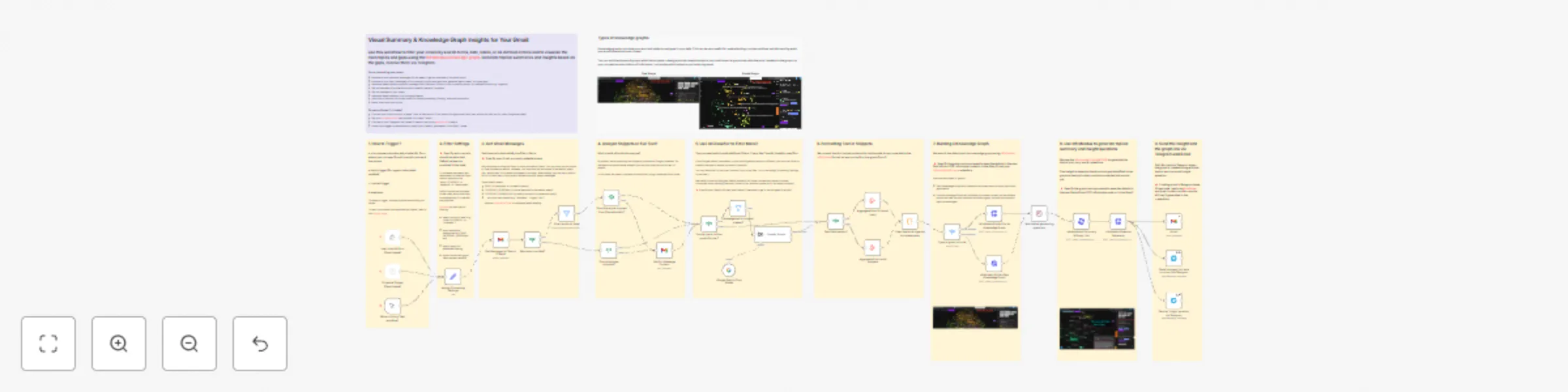
## The Ultimate Gmail Analysis and Visual Summarization Template This workflow showcases various useful Gmail search, filter, and AI categorization operations and generates a **knowledge graph** for your mail using the [InfraNodus GraphRAG API](https://infranodus.com/use-case/ai-knowledge-graphs), which you can use to reveal the **main topics** and **blind spots** in your correspondence. InfraNodus will then **target those blind spots** to generate **interesting research questions** for you and send the topical summary and insights via Telegram. You can also click the generated graph and explore the blind spots inside [InfraNodus](https://infranodus.com) using the **interactive visual interface:**  ## What is it useful for? - **Learn about advanced Gmail search, filtering, and AI categorization functions** that can be useful for your other workflows - Analyze all your personal messages for the last week to get an **overview of the main topics** - Analyze **all your Sent messages** to find recurrent topics and gaps and generate ideas based. on those gaps - Generate ideas based on **specific message filters** (Personal, Promos, from a specific person, AI-defined criteria, e.g. urgency) - Get an **overview of an interaction with a specific person / company** - Get an **overview of your notes** - Generate **new ideas based on your correspondence on a certain topic** (e.g. "business") - Learn about **various n8n nodes useful for email processing, filtering, and data conversion** - Never miss important topics, use AI filter to get **notified of the urgent and important emails** via Telegram ## How it works This template can be triggered in multiple ways: - automatically in regular intervals (daily, weekly), - manually in n8n, or - via a private password-protected URL form where you can specify your search and filtering criteria When you start the workflow, you specify: - your **Gmail search filters** (can be combined, e.g. `after:2025/06/01 label:personal business` to search for all emails received after 1 June 2025, filed in the Personal category containing the word "business". (optional, if empty, will retrieve all the emails or limited to the number you set in the Gmail node) - Additional **Gmail labels** (e.g. SENT or CATEGORY_PERSONAL or your custom categories). Use the search filter for faster processing (e.g. prefer label:person to CATEGORY_PERSONAL, but labels can be useful for additional filtering for your search queries) (optional, if empty, will retrieve all the emails) - **AI filtering criteria** — set an additional classification criteria used to filter out the emails, e.g. "Only the urgent, personal emails" — in that case, AI classification node working with Google's Gemini AI will be activated and will only pass through the email based on the criteria you specify. - Whether you want to build a **text graph** or a **social graph** — see the workflow for detailed explanation of each - Use **snippets of emails** (default) or **full text** (for thorough analysis). We prefer snippets as it's faster and your graph context doesn't get biased towards longer emails this way. Once you set up your search parameters in Steps 1 and 2, the template will follow the following steps: 1. Step 3 — retrieve Google emails that satisfy your filter criteria. Filter them by additional labels provided if applicable. 2. Step 4 - if the user chooses to analyze full text, use additional Gmail node that retrieves the full text of the email message 3. Step 5 — if AI filter rule is provided, use the AI Classifier node with Google Gemini Pro 2.5 model to classify the email based on the rule provided. Bypass if empty. 4. Step 6 - format the text or the email snippets to add the sender meta-data and category and to prepare to submit to InfraNodus 5. Step 7 - submit the data to the [InfraNodus HTTP `graphAndEntries` endpoint](https://support.noduslabs.com/hc/en-us/articles/13605983537692-InfraNodus-API-Access-Points) and generate a knowledge graph 6. Step 8 - access this graph via the [`graphAndAdvice` endpoint]((https://support.noduslabs.com/hc/en-us/articles/13605983537692-InfraNodus-API-Access-Points)) and generate a topical summary based on the GraphRAG representation and insight questions bridging the gaps identified. Send the results via a Telegram bot. We use Telegram, because it takes only 30 seconds to set up a bot with an API, unlike Discord or Slack, which is long and cumbersome to set up. You can also attach a Gmail send node and generate an email instead. ## How to use You need an [InfraNodus GraphRAG API account and key](https://infranodus.com/use-case/ai-knowledge-graphs) to use this workflow. - Create an InfraNodus account - Get the API key at [https://infranodus.com/api-access](https://infranodus.com/api-access) and create a Bearer authorization key for the InfraNodus HTTP nodes. - Add this Authorization code in Steps 7 and 8 of the workflow. - Come up with the name of the graph and change it in the HTTP InfraNodus nodes in the steps 7 and 8 and also in the Telegram nodes that send a link to the graph. - For additional settings you can use in the HTTP InfraNodus nodes, see the [InfraNodus access points](https://support.noduslabs.com/hc/en-us/articles/13605983537692-InfraNodus-API-Access-Points) page. - Authorize your Gmail account for Steps 2 and 3 Gmail nodes. The easiest way to set it up is to open a free Google Console API account and to create an OAuth access point for n8n. You can then reuse it with other Google services like Google Sheets, Drive, etc. So it's a useful thing to have in general. - Set up the Gemini AI API key using the instructions in the Step 5 Gemini AI node. - Set up the Telegram node bot for the Step 8. It takes only 30 seconds: just go to [@botfather](https://t.me/botfather) and type in `/newbot` and you'll have an API key ready. To get the conversation ID, follow the n8n / Telegram instructions in the node itself. - Once everything is ready, try to run the default automated workflow to test if everything works well, then use the Form for playing around with specific filters that you may find useful. ## Requirements - An [InfraNodus](https://infranodus.com/use-case/ai-knowledge-graphs) account and API key - An Google Cloud API OAuth client and key for Gmail access - A Gemini AI API key - A Telegram bot API key ## FAQ **1. What's the best search query to use?** I personally like starting with analyzing the messages Gmail tags as "personal" from the last week (using the `after:2025/05/28 label:personal` search query) using the social graph settings. It helps me see who I interacted with, what it was about, and gives me a good bird's eye view into my last week's interactions, helping me see if I didn't miss anything. I also find it useful to analyze the sent messages (using the `after:2025/05/28 label:sent` search filter or `SENT` category filter) as it helps me see what I was writing about recently and understand some recurrent topics and gaps in my interactions. Finally, I also like to analyze notes (`label:notes`) or specific correspondence (`from:[email protected]`) to get an overview and find gaps in the conversations. **2. Why use InfraNodus and not an AI summarization module?** You probably get a lot of spam, so your AI will get overwhelmed with the content that's not really useful. The [InfraNodus graph](https://infranodus.com) helps you see the important patterns and discover what's missing by focusing on the gaps. You can use the interactive graph to quickly remove the stuff you don't need and to focus on the most relevant topics and conversations. ## Customizing this workflow You can connect a Gmail node instead of the Telegram one if you prefer to receive notifications directly by email. I don't like using Slack and Discord because their bots are too difficult to set up and take too long. Check out the **complete setup guide** for this workflow at [https://support.noduslabs.com/hc/en-us/articles/20394884531996-Build-a-Knowledge-Graph-and-Extract-Insights-from-Gmail-Emails-with-n8n-and-InfraNodus](https://support.noduslabs.com/hc/en-us/articles/20394884531996-Build-a-Knowledge-Graph-and-Extract-Insights-from-Gmail-Emails-with-n8n-and-InfraNodus) with a video tutorial coming soon and the links to other n8n workflows. Check our **other n8n workflows** at [https://n8n.io/creators/infranodus/](https://n8n.io/creators/infranodus/) for useful content gap analysis, expert panel, and marketing, and research workflows that utilize GraphRAG for better AI generation. Finally, check out [https://infranodus.com](https://infranodus.com) to learn more about our **network analysis technology** used to build knowledge graphs from text.
Sync Google Drive files to an InfraNodus Knowledge Graph
This template can be used to **sync the files in your Google drive** to a new or existing **[InfraNodus knowledge graph](https://infranodus.com)**. The InfraNodus graph will then reveal the **main topics** and **ideas** in your collection of documents and show the **content gaps** in them. You can also use the **built-in AI** to converse with the documents.  You can also access the InfraNodus Graphs via its **GraphRAG API** to re-use them in your other n8n workflows for high-quality content retrieval and knowledge base optimization. The template showcases the use of multiple n8n nodes and processes: - Syncing documents from a Google Drive folder / extracting them - text extraction from files - optional: high-quality PDF conversion using [ConvertAPI](https://convertapi.com?ref=4l54n) - [InfraNodus knowledge graph](https://infranodus.com) generation ***Note**: If you want to **upload files from your Google drive** to an InfraNodus graph, check out our other workflow* ## How it works Here's a description of this workflow step by step: - Wait for new file(s) to appear in the Google drive folder - Reiterate through each file - Retrieve the new file from the Google drive - For each file found: reiterate the workflow and - Identify the type of the file (TXT, PDF, Markdown) - For TXT and Markdown files extract the text data - For PDF files use a special PDF to Text convertor to extract the text data. (Optional: using [ConvertAPI](https://convertapi.com?ref=4l54n) for better quality PDF conversion) - Forward everything to the InfraNodus `graphAndStatements` [API endpoint](https://support.noduslabs.com/hc/en-us/articles/13605983537692-InfraNodus-API-Access-Points) with the `name` of the new graph, the `text` field with the text data, the text settings, and `doNotSave=false` to create a new graph - Reiterate through another file. ## How to use You need an [InfraNodus GraphRAG API account and key](https://infranodus.com/use-case/ai-knowledge-graphs) to use this workflow. - Create an InfraNodus account - Get the API key at [https://infranodus.com/api-access](https://infranodus.com/api-access) and create a Bearer authorization key for the InfraNodus HTTP nodes. - Use that API key to set up authorization for the InfraNodus tool in the workflow. - If you want to upload the files to an existing graph, you should copy its name from InfraNodus. Otherwise you can specify any name you want. ## Requirements - An [InfraNodus](https://infranodus.com/use-case/ai-knowledge-graphs) account and API key - A Google Drive account and authorization (you will need to set it up via Google Cloud using the n8n instructions provided in the Google Drive node). ## Customizing this workflow You can use Dropbox instead of Google Drive. You can also modify this workflow slightly to make it Upload the files from a Google Drive when the new files appear in it. Check out the **complete guide** at [https://support.noduslabs.com/hc/en-us/articles/20267019838108-Upload-Sync-Your-Google-Drive-Folder-with-InfraNodus-using-n8n](https://support.noduslabs.com/hc/en-us/articles/20267019838108-Upload-Sync-Your-Google-Drive-Folder-with-InfraNodus-using-n8n)
Upload Google Drive files to an InfraNodus graph
This template can be used to **upload the files in your Google drive** to an **[InfraNodus knowledge graph](https://infranodus.com)**. The InfraNodus graph will then reveal the **main topics** and **ideas** in your collection of documents and show the **content gaps** in them. You can also use the **built-in AI** to converse with the documents.  You can also access the InfraNodus Graphs via its **GraphRAG API** to re-use them in your other n8n workflows for high-quality content retrieval and knowledge base optimization. The template showcases the use of multiple n8n nodes and processes: - Extracting documents from a Google Drive folder - text extraction - optional: high-quality PDF conversion using [ConvertAPI](https://convertapi.com?ref=4l54n) - [InfraNodus knowledge graph](https://infranodus.com) generation ***Note**: If you want to **Sync your Google drive** to an InfraNodus graph, check out our other workflow* ## How it works Here's a description of this workflow step by step: - Find all the files in a specific Google drive folder - For each file found: reiterate the workflow and - Identify the type of the file (TXT, PDF, Markdown) - For TXT and Markdown files extract the text data - For PDF files use a special PDF to Text convertor to extract the text data. (Optional: using [ConvertAPI](https://convertapi.com?ref=4l54n) for better quality PDF conversion) - Forward everything to the InfraNodus `graphAndStatements` [API endpoint](https://support.noduslabs.com/hc/en-us/articles/13605983537692-InfraNodus-API-Access-Points) with the `name` of the new graph, the `text` field with the text data, the text settings, and `doNotSave=false` to create a new graph - Reiterate through another file. ## How to use You need an [InfraNodus GraphRAG API account and key](https://infranodus.com/use-case/ai-knowledge-graphs) to use this workflow. - Create an InfraNodus account - Get the API key at [https://infranodus.com/api-access](https://infranodus.com/api-access) and create a Bearer authorization key for the InfraNodus HTTP nodes. - Use that API key to set up authorization for the InfraNodus tool in the workflow. - If you want to upload the files to an existing graph, you should copy its name from InfraNodus. Otherwise you can specify any name you want. ## Requirements - An [InfraNodus](https://infranodus.com/use-case/ai-knowledge-graphs) account and API key - A Google Drive account and authorization (you will need to set it up via Google Cloud using the n8n instructions provided in the Google Drive node). ## Customizing this workflow You can use Dropbox instead of Google Drive. You can also modify this workflow slightly to make it Sync with a Google Drive when the new files appear in it. Check out the **complete guide** at [https://support.noduslabs.com/hc/en-us/articles/20267019838108-Upload-Sync-Your-Google-Drive-Folder-with-InfraNodus-using-n8n](https://support.noduslabs.com/hc/en-us/articles/20267019838108-Upload-Sync-Your-Google-Drive-Folder-with-InfraNodus-using-n8n)
Telegram AI chatbot agent with InfraNodus GraphRAG knowledge base
## Using the knowledge graphs instead of RAG vector stores This workflow creates a Telegram chatbot agent that has access to several knowledge bases at the same time (used as "experts"). These knowledge bases are provided using the [InfraNodus GraphRAG](https://infranodus.com/use-case/ai-knowledge-graphs) using the knowledge graphs and providing high-quality responses without the need to set up complex RAG vector store workflows. The advantages of using GraphRAG instead of the standard vector stores for knowledge are: - Easy and quick to set up and update (no complex data import workflows or vector stores needed) - A knowledge graph has a holistic view of your knowledge base and knows what it's about - Better retrieval of relations between the document chunks = higher quality responses  ## How it works This template uses the n8n AI agent node as an orchestrating agent that decides which tool (knowledge graph) to use based on the user's prompt. Here's a description step by step: - The user submits a question using the Telegram bot, which is then received in the n8n workflow via the Telegram trigger node. - The AI agent node checks a list of tools it has access to. Each tool has a description of the knowledge it has auto-generated by InfraNodus. - The AI agent decides which tool should be used to generate a response. It may reformulate user's query to be more suitable for the expert. - The query is then sent to the official InfraNodus Graph RAG Node or directly to the InfraNodus API via the HTTP node endpoint, which will query the graph that corresponds to that expert. - Each InfraNodus GraphRAG expert provides a rich response that takes the whole context into account and provides a response from each expert (graph) along with a list of relevant statements retrieved using a combination or RAG and GraphRAG. - The n8n AI Agent node integrates the responses received from the experts to produce the final answer. - The final answer is sent back to the Telegram bot who delivers it back to the private chat or a Telegram group. ## How to use You need an [InfraNodus GraphRAG API account and key](https://infranodus.com/use-case/ai-knowledge-graphs) to use this workflow. - Create an InfraNodus account - Get the API key at [https://infranodus.com/api-access](https://infranodus.com/api-access) and create a Bearer authorization key for the InfraNodus HTTP nodes. - Create a separate knowledge graph for each expert (using PDF / content import options) in InfraNodus - For each graph, go to the workflow, paste the name of the graph into the `body` `name` field. - Keep other settings intact or learn more about them at the [InfraNodus access points](https://support.noduslabs.com/hc/en-us/articles/13605983537692-InfraNodus-API-Access-Points) page. - Once you add one or more graphs as experts to your flow, add the LLM key to the OpenAI node - Create a Telegram bot (the instructions are in the workflow Post note) — it takes 30 seconds. Get its API key and create the Telegram credentials to use in the Telegram nodes in this workflow. ## Requirements - An [InfraNodus](https://infranodus.com/use-case/ai-knowledge-graphs) account and API key - An OpenAI (or any other LLM) API key - A Telegram account ## Customizing this workflow You can use this same workflow with a standard AI chatbot via a URL that can also be embedded to any website. You can also use it with [ElevenLabs AI voice agent](https://support.noduslabs.com/hc/en-us/articles/20318967066396-How-to-Build-a-Text-Voice-AI-Agent-Chatbot-with-n8n-Elevenlabs-and-InfraNodus). There are many more customizations available. Check out the **complete guide** at [https://support.noduslabs.com/hc/en-us/articles/20174217658396-Using-InfraNodus-Knowledge-Graphs-as-Experts-for-AI-Chatbot-Agents-in-n8n](https://support.noduslabs.com/hc/en-us/articles/20174217658396-Using-InfraNodus-Knowledge-Graphs-as-Experts-for-AI-Chatbot-Agents-in-n8n) Also check out the **video tutorial** with a demo: [](https://www.youtube.com/watch?v=kS0QTUvcH6E) ## Support If you have any questions, contact us via the support portal at [https://support.noduslabs.com](https://support.noduslabs.com) or via our [Discord channel](https://discord.gg/v4BWAvTfB9). More n8n workflows are available on our support portal: [n8n x InfraNodus AI automation workflows](https://support.noduslabs.com/hc/en-us/sections/18343587412252-AI-RAG-GraphRAG-and-LLM-Workflows).
Build a voice AI chatbot with ElevenLabs and InfraNodus knowledge experts
## Set Up ElevenLabs Voice Chat Agent using Graph RAG Knowledge Graphs as Experts This workflow creates an AI voice chatbot agent that has access to several knowledge bases at the same time (used as "experts"). These knowledge bases are provided using the [InfraNodus GraphRAG](https://infranodus.com/use-case/ai-knowledge-graphs) using the knowledge graphs and providing high-quality responses without the need to set up complex RAG vector store workflows. We use [ElevenLabs](https://elevenlabs.io) to set up a voice agent that can be embedded to any website or used via their API. The advantages of using GraphRAG instead of the standard vector stores for knowledge are: - Easy and quick to set up (no complex data import workflows needed) and to update with new knowledge - A knowledge graph has a holistic overview of your knowledge base - Better retrieval of relations between the document chunks = higher quality responses - Ability to reuse in other n8n workflows  ## How it works This template uses the n8n AI agent node as an orchestrating agent that decides which tool (knowledge graph) to use based on the user's prompt. The user's prompt is received from the ElevenLabs Conversational AI agent via an n8n Webhook, which also takes care of the voice interaction. The response from n8n is then sent to the Webhook, which is polled by the ElevenLabs voice agent. This agent processes the response and provides the final answer. Here's a description step by step: - The user submits a question using ElevenLabs voice interface - The question is sent via the `knowledge_base` tool in ElevenLabs to the n8n Webhook with the POST request containing the user's `prompt` and `sessionID` for Chat Memory node in n8n. - The n8n AI agent node checks a list of tools it has access to. Each tool has a description of the knowledge auto-generated by InfraNodus (we call each tool an "expert"). - The n8n AI agent decides which tool should be used to generate a response. It may reformulate user's query to be more suitable for the expert. - The query is then sent to the InfraNodus HTTP node endpoint, which will query the graph that corresponds to that expert. - Each InfraNodus GraphRAG expert provides a rich response that takes the whole context into account and provides a response from each expert (graph) along with a list of relevant statements retrieved using a combination or RAG and GraphRAG. - The n8n AI Agent node integrates the responses received from the experts to produce the final answer. - The final answer is sent back to the Webhook endpoint - ElevenLabs conversational AI agent picks up the response arriving from the `knowledge_base` tool via the webhook and then condenses it for conversational format and transforms text into voice. ## How to use You need an [InfraNodus GraphRAG API account and key](https://infranodus.com/use-case/ai-knowledge-graphs) to use this workflow. - Create an InfraNodus account - Get the API key at [https://infranodus.com/api-access](https://infranodus.com/api-access) and create a Bearer authorization key for the InfraNodus HTTP nodes. - Create a separate knowledge graph for each expert (using PDF / content import options) in InfraNodus - For each graph, go to the workflow, paste the name of the graph into the `body` `name` field. - Keep other settings intact or learn more about them at the [InfraNodus access points](https://support.noduslabs.com/hc/en-us/articles/13605983537692-InfraNodus-API-Access-Points) page. - Once you add one or more graphs as experts to your flow, add the LLM key to the OpenAI node and launch the workflow - You will also need to set up an ElevenLabs account and to set up a conversational AI agent there. See the Post note in the n8n workflow for a complete step-by-step description or our [support article on setting up ElevenLabs AI voice agent](https://support.noduslabs.com/hc/en-us/articles/20318967066396-How-to-Build-a-Text-Voice-AI-Agent-Chatbot-with-n8n-Elevenlabs-and-InfraNodus) - Once the voice AI agent is ready, you might want to combine it with a [text AI chatbot workflow](https://n8n.io/workflows/4402-ai-chatbot-agent-with-a-panel-of-experts-using-infranodus-graphrag-knowledge/) so your users have a choice between the text and voice interaction. In that case, you may be interested to use our free open-source [website popup chat widget popupchat.dev](https://popupchat.dev) where you can create an embed code to add to your blog or website and allow the user to choose between the text and voice interaction. ## Requirements - An [InfraNodus](https://infranodus.com/use-case/ai-knowledge-graphs) account and API key - An OpenAI (or any other LLM) API key - An ElevenLabs account ## FAQ **1. How many "experts" should I aim for?** We recommend to aim for the number of experts as the optimal number of people in a team, which is usually 2-7. If you add more experts, your AI orchestrating agent will have troubles choosing the most suitable "expert" tool for the user's query. You can mitigate this by specifying in the AI agent description that it can choose maximum 3-7 experts to provide a response. **2. Why use InfraNodus GraphRAG and not standard vector store for knowledge?** First, vector stores are complex to set up and to update. You'd need a separate workflow for that, decide on the vector dimensions, add metadata to your knowledge, etc. With InfraNodus, you have a complete RAG / GraphRAG solution under the hood that is easy to set up and provides high-quality responses that takes the overall structure and the relations between your ideas into account. **3 Why not use ElevenLabs' own knowledge?** One of the reasons is that you want your knowledge base to be in one place so you can reuse it in other n8n workflows. Another reason is that you will not have such a good separation between the "experts" when you converse with the agent. So the answers you get will be based on top matches from all the books / articles you upload, while with the InfraNodus GraphRAG setup you can better control which graphs are consulted as experts and have an explicit way to display this data. ## Customizing this workflow You can use this same workflow with a Telegram bot, so you can interact with it using Telegram. There are many more customizations available on our [GitHub repo for n8n workflows](https://github.com/infranodus/n8n-infranodus-workflow-templates). Check out the **complete setup guide** for this workflow at [https://support.noduslabs.com/hc/en-us/articles/20318967066396-How-to-Build-a-Text-Voice-AI-Agent-Chatbot-with-n8n-Elevenlabs-and-InfraNodus](https://support.noduslabs.com/hc/en-us/articles/20318967066396-How-to-Build-a-Text-Voice-AI-Agent-Chatbot-with-n8n-Elevenlabs-and-InfraNodus) Also check out the **video tutorial** with a demo: [](https://www.youtube.com/watch?v=07-HZZQs5h0)
Find Content Gaps in Competitors' Websites with InfraNodus GraphRAG for SEO
This template can be used to **find the content gaps in your competitors' discourse**: identifying the topics they are not yet connecting and giving you an opportunity to fill in this gap with your content and product ideas. It will also generate **research questions** that will help bridge the gaps and generate new ideas. The template showcases the use of multiple n8n nodes and processes: - enriching Google sheets file with the new data - data extraction - content enhancement using GraphRAG approach - content gap / research question generation This approach can be very useful for research, marketing, and SEO applications as you can quickly get an overview of the main topics that are available online for a certain niche and understand what is missing. ## What are Content Gaps in Marketing and SEO? In the context of SEO, content gaps are usually understood as the topics that your competitors rank for but you do not. However, it's hard to rank for these topics because there's very high competition. So a much more effective way is to identify **the gaps between the topics your competitors are talking about that are not yet bridged in their discourse**. If you address these gaps in your content, you will increase the **informational gain** that your content offers and also offer a **novel perspective** while touching upon the topics that are relevant in your field. For example, if we analyze the top websites for "body and physical practices, fitness, etc." we will see that most of them are talking about the health and fitness aspects and another big topic is the community aspect. However, there is a gap between the two topics: which means that most of the websites (companies) that talk about this topic don't mention the two in the same context. This might be an opportunity: bridging the gap between health, fitness but also emphasizing the community aspect that comes with a collective practice.  ## How it works This template consists of the **two stages**: 1) **Data enrichment** of a Google sheet file with a list of your competitors using InfraNodus' GraphRAG to generate topical summaries and graph summaries for every URL you're analyzing. 2) **Insight generation** (using InfraNodus to identify the main topical clusters and gaps in those summaries, these insights are then added to the Google sheet file. Additionally, it contains a sub workflow that you can activate and launch to ask Perplexity model to **conduct a market research** and find the companies that operate in your field and populate the original Google sheet file. Here's a description step by step: - Step 0: Populate the Google sheets file with the company data (either manually or using the **sub-workflow provided** or Manus AI / Deep Research) - Steps 1-2: Triggering and Launching the workflow, extracting the company URL from the Google sheet row - Step 3: Scraping the url content from the companies' websites and cleaning the data - Steps 5-7: Use [InfraNodus GraphRAG Content Enhancer](https://infranodus.com/docs/graph-rag-knowledge-graph) to get a topical summary and graph summary. This is what you're going to get:  - Steps 8-10: Use InfraNodus AI to generate insight advice and research questions based on the content gaps ## How to use You need an [InfraNodus GraphRAG API account and key](https://infranodus.com/use-case/ai-knowledge-graphs) to use this workflow. - Create an InfraNodus account - Get the API key at [https://infranodus.com/api-access](https://infranodus.com/api-access) and create a Bearer authorization key for the InfraNodus HTTP nodes. - Create a separate knowledge graph for each expert (using PDF / content import options) in InfraNodus - For each graph, go to the workflow, paste the name of the graph into the `body` `name` field. - Keep other settings intact or learn more about them at the [InfraNodus access points](https://support.noduslabs.com/hc/en-us/articles/13605983537692-InfraNodus-API-Access-Points) page. - Once you add one or more graphs as experts to your flow, add the LLM key to the OpenAI node and launch the workflow ## Requirements - An [InfraNodus](https://infranodus.com/use-case/ai-knowledge-graphs) account and API key - A Google Sheet account and an authorization key Note: OpenAI key is not required. But you might want to get a Perplexity AI key if you'd like to use the sub-workflow that populates the Google sheet with your competitors' website addresses (if you don't have this list yet). ## Customizing this workflow You can use this same workflow with a Telegram bot or Slack (to be notified of the summaries and ideas). You can also hook up automated social media content creation workflows in the end of this template, so you can generate posts that are relevant (covering the important topics in your niche) but also novel (because they connect them in a new way). Check out our **n8n templates** for ideas at [https://n8n.io/creators/infranodus/](https://n8n.io/creators/infranodus/) Check out the **complete guide** at [https://support.noduslabs.com/hc/en-us/articles/20234254556828-Find-Content-Gaps-in-Websites-Market-Research-and-SEO-n8n-Workflow](https://support.noduslabs.com/hc/en-us/articles/20234254556828-Find-Content-Gaps-in-Websites-Market-Research-and-SEO-n8n-Workflow) Also check the **full tutorial** with a **conceptual explanation** at [https://support.noduslabs.com/hc/en-us/articles/20454382597916-Beat-Your-Competition-Target-Their-Content-Gaps-with-this-n8n-Automation-Workflow](https://support.noduslabs.com/hc/en-us/articles/20454382597916-Beat-Your-Competition-Target-Their-Content-Gaps-with-this-n8n-Automation-Workflow) Also check out the **video tutorial** with a demo: [](https://www.youtube.com/watch?v=DZS7LMbFcSU) For **support and help** with this workflow, please, contact us at [https://support.noduslabs.com](https://support.noduslabs.com)
AI Chatbot Agent with a Panel of Experts using InfraNodus GraphRAG Knowledge
## Using the knowledge graphs instead of RAG vector stores This workflow creates an AI chatbot agent that has access to several knowledge bases at the same time (used as "experts"). These knowledge bases are provided using the InfraNodus GraphRAG using the knowledge graphs and providing high-quality responses without the need to set up complex RAG vector store workflows. The advantages of using GraphRAG instead of the standard vector stores for knowledge are: - Easy and quick to set up (no complex data import workflows needed) - A knowledge graph has a holistic view of your knowledge base - Better retrieval of relations between the document chunks = higher quality responses  ## How it works This template uses the n8n AI agent node as an orchestrating agent that decides which tool (knowledge graph) to use based on the user's prompt. Here's a description step by step: - The user submits a question using the AI chatbot (n8n interface, in this case, which can be accessed via a URL or embedded to any website) - The AI agent node checks a list of tools it has access to. Each tool has a description of the knowledge it has auto-generated by InfraNodus. - The AI agent decides which tool should be used to generate a response. It may reformulate user's query to be more suitable for the expert. - The query is then sent to the InfraNodus HTTP node endpoint, which will query the graph that corresponds to that expert. - Each InfraNodus GraphRAG expert provides a rich response that takes the whole context into account and provides a response from each expert (graph) along with a list of relevant statements retrieved using a combination or RAG and GraphRAG. - The n8n AI Agent node integrates the responses received from the experts to produce the final answer. - The final answer is sent back to the user's chat (or a webhook endpoint) ## How to use You need an [InfraNodus GraphRAG API account and key](https://infranodus.com/use-case/ai-knowledge-graphs) to use this workflow. - Create an InfraNodus account - Get the API key at [https://infranodus.com/api-access](https://infranodus.com/api-access) and create a Bearer authorization key for the InfraNodus HTTP nodes. - Create a separate knowledge graph for each expert (using PDF / content import options) in InfraNodus - For each graph, go to the workflow, paste the name of the graph into the `body` `name` field. - Keep other settings intact or learn more about them at the [InfraNodus access points](https://support.noduslabs.com/hc/en-us/articles/13605983537692-InfraNodus-API-Access-Points) page. - Once you add one or more graphs as experts to your flow, add the LLM key to the OpenAI node and launch the workflow ## Requirements - An [InfraNodus](https://infranodus.com/use-case/ai-knowledge-graphs) account and API key - An OpenAI (or any other LLM) API key ## Customizing this workflow You can use this same workflow with a Telegram bot, so you can interact with it using Telegram. There are many more customizations available. Check out the **complete guide** at [https://support.noduslabs.com/hc/en-us/articles/20174217658396-Using-InfraNodus-Knowledge-Graphs-as-Experts-for-AI-Chatbot-Agents-in-n8n](https://support.noduslabs.com/hc/en-us/articles/20174217658396-Using-InfraNodus-Knowledge-Graphs-as-Experts-for-AI-Chatbot-Agents-in-n8n) Also check out the **video tutorial** with a demo: [](https://www.youtube.com/watch?v=kS0QTUvcH6E)