Z

Zacharia Kimotho

22
Workflows

Workflows by Zacharia Kimotho

Workflow preview: Scrape & analyze Google Ads with Bright Data API and AI for email reports
Free advanced

Scrape & analyze Google Ads with Bright Data API and AI for email reports

*This workflow contains community nodes that are only compatible with the self-hosted version of n8n.* This workflow is a gem for all PPC managers and experts out there looking to keep track of competitor ads and the campaigns they are running and generate an email report ![image.png](fileId:1819) How does it work 1. We use Bright Data API to scrap Google for a given keyword that can trigger an ad. We then extract and analyse different components of the ads to get insights and data rekevant for our processes Setting it up 1. Make a copy of this workflow to your canvas 2. Make a copy of this [google sheet](https://docs.google.com/spreadsheets/d/1QU9rwawCZLiYW8nlYYRMj-9OvAUNZoe2gP49KbozQqw/edit#gid=0) 3. Add high intent commercial keywords to your google sheet. These are relevant to trigger ads 4. Set your Bright Data API credentials and update the zone to your respective zone as set on your Bright Data account 5. We filter only if ads are found and if true extract the top and botton ads 6. This routes the results via different paths 1. Store raw Ad results 2. Process the Ads to get new insights and data 7. Map the raw data to match your account 8. You can adjust the prompt to provide any data as needed 9. Connect your emailing platform or tool and update the to email ## Setting up Bright Data serp API and Zone 1. On Bright Data, go to the [Proxies & Scraping](https://brightdata.com/cp/zones) tab 2. Under SERP API, create a new zone 3. Give it a suitable name and description. The default is `serp_api` 3. Add this to your account If you have any questions, feel free to reach out via [linkedin](https://www.linkedin.com/in/zacharia-kimotho/)

Z
Zacharia Kimotho
Market Research
22 Jul 2025
830
0
Workflow preview: Generate SEO-optimized titles & meta descriptions with Bright Data & Gemini AI
Free advanced

Generate SEO-optimized titles & meta descriptions with Bright Data & Gemini AI

*This workflow contains community nodes that are only compatible with the self-hosted version of n8n.* ## What does this workflow do? This workflow helps speed up the analysis process of the top ranking titles and meta descriptions to identify paterns and styles that will help us rank on Google for a given keyword ## How does it work? We provide a keyword we are interested in on our Google sheet. When executed, We scrap the top 10 pages using Bright Data serp API and analyse the style and patterns of the top ranking pages and generate a new title and meta description ## Techncial setup 1. Make a copy of this [Google sheet](https://docs.google.com/spreadsheets/d/1QU9rwawCZLiYW8nlYYRMj-9OvAUNZoe2gP49KbozQqw/edit?gid=0#gid=0) 2. Update your desired keywords on the cell/row 3. Set your Bright data credentials on the ```Fetch Google Search Results JSON``` node 4. Update the `zone` to your preset zone 5. We are getting the results as a JSON. You can update this setting on the url `https://www.google.com/search?q={{ $json.search_term .replaceAll(" ", "+")}}&start=0&brd_json=1` by removing the brd_json=1 query 6. Store the generated results on the Duplicated sheet 7. Run the workflow ## Setting up the Serp Scraper in Bright Data 1. On Bright Data, go to the Proxies & Scraping tab 2. Under SERP API, create a new zone 3. Give it a suitable name and description. The default is serp_api 4. Add this to your account 5. Add your credentials as a header credential and rename to `Bright data API`

Z
Zacharia Kimotho
Market Research
18 Jul 2025
1102
0
Workflow preview: Analyze search intent for keywords with Google scraping, Bright Data, and Gemini AI
Free advanced

Analyze search intent for keywords with Google scraping, Bright Data, and Gemini AI

## What it does This workflow scrapes the top 10 pages on SERP and conducts an in-depth analysis of the keyword intent for each ranking keyword, saving the information to a Google Sheet for further analysis. ## How does this workflow work? - We add our keywords and country code to a Google sheet that we need to monitor and research on - Run the system - Scrape the top 10 pages - Analyze the intents of the top 10 and update to a Google sheet ## Technical Setup 1. Make a copy of this [G sheet](https://docs.google.com/spreadsheets/d/1QU9rwawCZLiYW8nlYYRMj-9OvAUNZoe2gP49KbozQqw/edit?usp=sharing) 2. Add your desired keywords to the Google sheet 3. Map keyword and country code 4. Update the Zone name to match your zone on Bright Data 5. Run the scraper Upon successful scraping, we run an intent classifier to determine the intents for each ranking page and update the G sheet. ## Setting up the Serp Scraper in Bright Data 1. On Bright Data, go to the [Proxies & Scraping](https://brightdata.com/cp/zones) tab 2. Under SERP API, create a new zone 3. Give it a suitable name and description. The default is `serp_api` 3. Add this to your account 4. Add your credentials as a header credential

Z
Zacharia Kimotho
Market Research
16 Jul 2025
927
0
Workflow preview: Stock market daily digest with Bright Data scraping & Gemini AI email reports
Free advanced

Stock market daily digest with Bright Data scraping & Gemini AI email reports

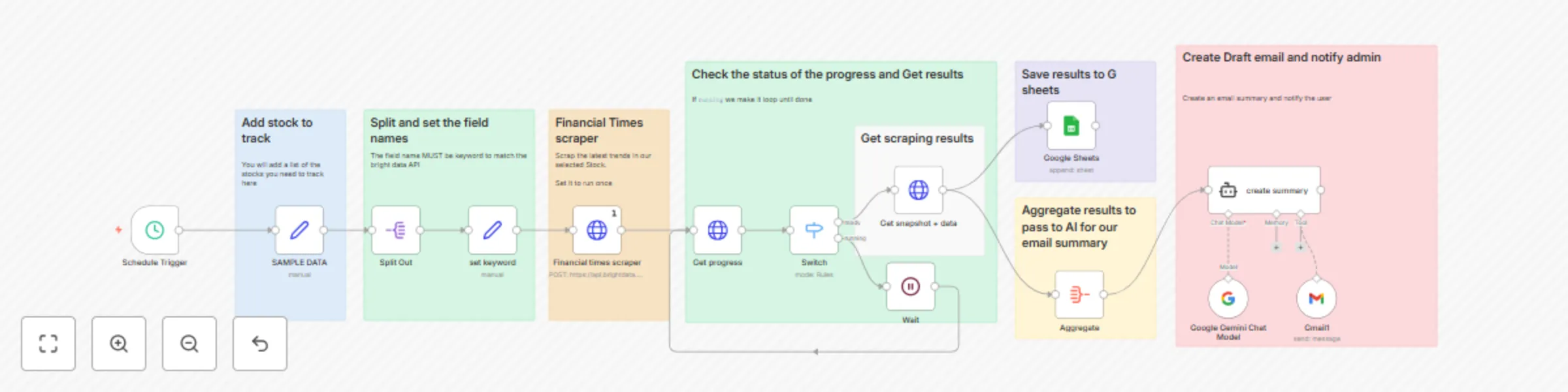
This workflow makes it easier to keep track of the stocks market and get an email with a summary of the daily highlights on what happened, key insights and trends ## Setup Guide 1. Define the schedule (days, times, intervals). 2. Replace sample stock data with your desired stock list (ticker, name, etc.) in JSON format. 3. Split Out the fields to have a clean list of the stocks to monitor 4. set keyword node Extracts the stock ticker from each item and sets it to the `keyword` property. 5. Financial times scraper Triggers the Bright Data Datasets API to scrape financial data. Set the node as below * **Method:** `POST` * **URL:** `https://api.brightdata.com/datasets/v3/trigger` * **Query Parameters:** * `dataset_id`: Replace with your Bright Data dataset ID. * `include_errors`: `true` * `type`: `discover_new` * `discover_by`: `keyword` * **Headers:** * `Authorization`: `Bearer YOUR_BRIGHTDATA_API_KEY` Replace with your Bright Data API key. * **Body:** JSON, `={{ $('set keyword').all().map(item => item.json)}}` * **Execute Once:** Checked. 6. Get progress node Checks the status of the Bright Data scraping job if complete, or running **Setup:** * **URL:** `https://api.brightdata.com/datasets/v3/progress/{{ $json.snapshot_id }}` * **Headers:** * `Authorization`: `Bearer YOUR_BRIGHTDATA_API_KEY` Replace with your Bright Data API key. 7. Get snapshot + data retrieves the scraped data from the Bright Data API. Pass the request as * **URL:** `https://api.brightdata.com/datasets/v3/snapshot/{{ $json.snapshot_id }}` * **Query Parameters:** `format`: `json` * **Headers:** * `Authorization`: `Bearer YOUR_BRIGHTDATA_API_KEY` Replace with your Bright Data API key. 8. Aggregate. Combines the data from each stock item into a single object 9. Update to sheet and add all items to [This sheet](https://docs.google.com/spreadsheets/d/1I5CvpHlmDsIFOfnGg4DEtniem0oTiumWWzGs4CV6AuM/edit?usp=sharing). Make a copy before you can map the data 10. create summary node generates a summary of the scraped stock data using the Google Gemini AI model and notifies you via Gmail. **Setup:** * **Prompt Type:** `define` * **Text:** Customize the prompt to define the AI's role, input format, tasks, output format (HTML email), and constraints. 11. Google Sheets. Appends the scraped data to a Google Sheet. This should be set to automap so as to adjust to the results found in the request **Important Notes:** * Remember to replace placeholder values (API keys, dataset IDs, email addresses, Google Sheet IDs) with your actual values. * Review and customize the AI prompt for the "create summary" node to achieve the desired email summary output. * Consider adding error handling for a more robust workflow. * Monitor API usage to avoid rate limits.

Z
Zacharia Kimotho
Crypto Trading
25 Jun 2025
9064
0
Workflow preview: Reddit Sentiment Analysis for Apple WWDC25 with Gemini AI and Google Sheets
Free advanced

Reddit Sentiment Analysis for Apple WWDC25 with Gemini AI and Google Sheets

This workflow automates sentiment analysis of Reddit posts related to Apple's WWDC25 event. It extracts data, categorizes posts, analyzes sentiment of comments, and updates a Google Sheet with the results. ### Preliquisites 1. Bright Data Account: You need a Bright Data account to scrape Reddit data. Ensure you have the correct permissions to use their API. https://brightdata.com/ 2. Google Sheets API Credentials: Enable the Google Sheets API in your Google Cloud project and create credentials (OAuth 2.0 Client IDs). 3. Google Gemini API Credentials: You need a Gemini API key to run the sentiment analysis. Ensure you have the correct permissions to use their API. https://ai.google.dev/". You can use any other models of choice ### Setup 1. **Import the Workflow:** Import the provided JSON workflow into your n8n instance.", 2. **Configure Bright Data Credentials:**, In the 'scrap reddit' and the 'get status' nodes, in Header Parameters find the Authorization field, replace `Bearer 1234` with your Bright Data API key. Apply this to every node that utilizes your Bright Data API Key., 3. **Set up the Google Sheets API credentials**, - In the 'Append Sentiments' node, set up the Google Sheets API by connecting your Google Sheets account through oAuth 2 credentials. ", 4. **Configure the Google Gemini Credential ID**, - In the ' Sentiment Analysis per comment' node, set up the Google Gemini API by connecting your Google AI account through the API credentials. , 5. **Configure Additional Parameters:**, - In the 'scrap reddit' node, modify the JSON body to adjust the search term, date, or sort method., - In the 'Wait' node, alter the 'Amount' to adjust the polling interval for scraping status, it is set to 15 seconds by default., - In the 'Text Classifier' node, customize the categories and descriptions to suit the sentiment analysis needs. Review categories such as 'WWDC events' to ensure relevancy., - In the 'Sentiment Analysis per comment' node, modify the system prompt template to improve context. ### customization_options 1. Bright Data API parameters to adjust scraping behavior. 2. Wait node duration to optimize polling. 3. Text Classifier categories and descriptions. 4. Sentiment Analysis system prompt. ### Use Case Examples - **Brand Monitoring:** Track public sentiment towards Apple during and after the WWDC25 event. - **Product Feedback Analysis:** Gather insights into user reactions to new product announcements. - **Competitive Analysis:** Compare sentiment towards Apple's announcements versus competitors. - **Event Impact Assessment:** Measure the overall impact of the WWDC25 event on various aspects of Apple's business. ### Target_audiences: - Marketing professionals in the tech industry, - Brand managers, - Product managers, - Market research analysts, - Social media managers ### Troubleshooting: 1. Workflow fails to start. Check that all necessary credentials (Bright Data and Google Sheets API) are correctly configured and that the Bright Data API key is valid. 2. Data scraping fails. Verify the Bright Data API key, ensure the dataset ID is correct, and inspect the Bright Data dashboard for any issues with the scraping job. 3. Sentiment analysis is inaccurate. Refine the categories and descriptions in the 'Text Classifier' node. Check that you have the correct Google Gemini API key, as the original is a placeholder. 4. Google Sheets are not updating. Ensure the Google Sheets API credentials have the necessary permissions to write to the specified spreadsheet and sheet. Check API usage limits. 5. Workflow does not produce the correct output. Check the data connections, by clicking the connections, and looking at which data is being produced. Check all formulas for errors. Happy productivity!

Z
Zacharia Kimotho
Market Research
17 Jun 2025
687
0
Workflow preview: Automated Airtable to Postgres migration with n8n
Free advanced

Automated Airtable to Postgres migration with n8n

## Overview This ETL system automates the process of migrating data from **Airtable** to **PostgreSQL** with a single API request. * It maps your Airtable schema into a Postgres-compatible structure. * Automatically creates new tables in your Postgres database. * Migrates all the data while preserving formats and relationships. > ⚙️ Originally built in-house to help us migrate off Airtable after exceeding usage limits. --- ## 🔧 How It Works 1. Accepts **Airtable** and **Postgres** credentials via HTTP requests. 2. Authenticates both services and validates schema compatibility. 3. Fetches data from Airtable and maps each table and field to PostgreSQL equivalents. 4. Creates the necessary tables in your Postgres database. 5. Inserts all records in batches. 6. Returns a success response with summary stats. > **Bonus operations:** You can list or delete created tables using API endpoints. --- ## Setup Instructions (n8n Workflow) ### Step 1: Airtable Configuration * Generate an **Airtable access token** from the [Airtable developer hub](https://airtable.com/developers/web/api). * Copy your **Base ID** or URL. ### Step 2: PostgreSQL Configuration * Gather your PostgreSQL connection details: * Host * Port * Database name * Username * Password ### Step 3: Deploy in n8n * Import the workflow into your n8n instance. * Use a simple HTTP request tool like `curl` or Postman to trigger migration actions. --- ## API Endpoints & Payloads Here are the available HTTP endpoints and how to use them. --- ### 1. Test Airtable Credentials ```bash curl -X POST "https://n8n.com/webhook/123/validate-airtable" \ -H "Content-Type: application/json" \ -d '{ "airtable": { "airtableId": "app12345", "airtableToken": "pjhy.iyhhs" } }' ``` ### 2. Test PostgreSQL Credentials ```bash curl -X POST "https://n8n.com/webhook/123/validate-postgres" \ -H "Content-Type: application/json" \ -d '{ "postgres": { "host": "aws-0-us-west-1.pooler.supabase.com", "port": "6543", "user": "postgres.username", "password": "gamjgnrkxetb", "database": "postgres" } }' ``` --- ### 3. Sync Airtable Data to Postgres ```bash curl -X POST "https://n8n.com/webhook/123/sync" \ -H "Content-Type: application/json" \ -d '{ "host": "aws-0-us-west-1.pooler.supabase.com", "port": "6543", "user": "postgres.username", "password": "gamjgnrkxetb", "database": "postgres", "airtableId": "app73PqALbM3AM0xN", "airtableToken": "patNCueRkrLI98fEq.9ae7f9786e9ad73ac21ca26d8046f08ad77e135ae950a6e2ff3760d85aca3db4", "action": "Move" }' ``` #### Expected Response: ```json [ { "statusCode": 200, "statusMessage": "Data migration successful", "recordsProcessed": 152, "tablesProcessed": 3 } ] ``` --- ### 4.List All Created Tables ```bash curl -X POST "https://n8n.com/webhook/123/list-tables" \ -H "Content-Type: application/json" \ -d '{ "postgres": { "host": "aws-0-us-west-1.pooler.supabase.com", "port": "6543", "user": "postgres.username", "password": "gamjgnrkxetb", "database": "postgres" } }' ``` --- ### 5. Delete Migrated Tables ```bash curl -X POST "https://n8n.com/webhook/123/delete-tables" \ -H "Content-Type: application/json" \ -d '{ "postgres": { "host": "aws-0-us-west-1.pooler.supabase.com", "port": "6543", "user": "postgres.username", "password": "gamjgnrkxetb", "database": "postgres" } }' ``` --- ## Technical Notes * **Schema Mapping**: Field types from Airtable are mapped to PostgreSQL equivalents (e.g. `singleLineText → VARCHAR`, `number → INTEGER`, `checkbox → BOOLEAN`, etc.). * **Linked Records**: Relationships in Airtable bases are resolved and converted into foreign key-friendly formats. * **Batch Inserts**: Records are inserted in optimized chunks to improve performance and avoid payload limits. * **Error Handling**: Invalid credentials, schema mismatches, or connection issues will return proper HTTP status codes and error messages. --- ## Usage Scenarios * Airtable to Postgres migration during scale-up. * Backup or sync Airtable records to a SQL environment. * Use Postgres-powered dashboards while editing in Airtable. --- ## Requirements * Airtable Pro/Developer Account * PostgreSQL database (e.g. Supabase, Render, or local instance) * n8n instance with webhook exposure * Basic familiarity with HTTP requests (`curl`, Postman, or integrations) --- ## Need Help? Feel free to reach out via **LinkedIn** or **Email** if you need help adapting this workflow for your organization or extending it with extra transformations. **Happy productivity!**

Z
Zacharia Kimotho
Engineering
8 Jun 2025
162
0
Workflow preview: Automate meeting prep & lead enrichment with Bright Data, Cal.com & Airtable
Free advanced

Automate meeting prep & lead enrichment with Bright Data, Cal.com & Airtable

This workflow makes it easier to prepare for meetings and calls by researching your lead right before the call and creates a high-level meeting prep that is sent to your email. This removes the extra steps needed by teams to learn their leads, research, and prepare for the upcoming calls. ## How does it work This workflow starts when We Capture the webhook from cal.com for new bookings. Ensure you have a field on the form to collect LinkedIn posts. This can be optional or mandatory depending on your preferences. When a new event is booked, we will add the leads to an Airtable CRM for appointments and new bookings. This table will contain all the items and items needed to enrich and maintain your CRM. If the lead has linkedin then we do research on LinkedIn for their content and posts and perform a lead enrichment to get as much info as we can about the leads and create a new meeting prep. ## What you need 1. Bright data API 2. Cal.com account/calendar. Other calendars can be used too for this eg calendly, Google Calendar, etc with a few tweaks 3. CRM - This can be anything not just airtable ## Setting it up 1. Create/update your calendar to allow collecting users LinkedIn profiles/bios 2. Add a new webhook to and subscribe to the desired events like below ![image.png](fileId:1420) 3. Map the fields from the webhook to match your CRM. If you have no CRM make a copy of this [Airtable CRM](https://airtable.com/appiSZ70ow7uVxv7t/shrvmFKqRYGX6iUZY) and map the fields to your account. We will be using the Base and table ID to make the mapping easier 4. Setup your Bright Data API and select the data source as linkedin for the scraping 5. You can edit more data on the bio as needed 6. Update this info to the CRM under the table lead enrichment and map accordingly 7. You can update the prompt on the AI models or work with them as is. 8. Update the Gmail node to send the meeting preps to you and finally update the CRM with the generated Meeting prep This automated process can save your team a couple of minutes each day otherwise spent on other client fulfillment items. If you would like to learn more about n8n templates like this, feel free to reach out via [Linkedin](https://www.linkedin.com/in/zacharia-kimotho/) Happy productivity!!

Z
Zacharia Kimotho
Lead Generation
30 May 2025
591
0
Workflow preview: Monitor and track brand Sentiment on Facebook Groups with Bright data
Free advanced

Monitor and track brand Sentiment on Facebook Groups with Bright data

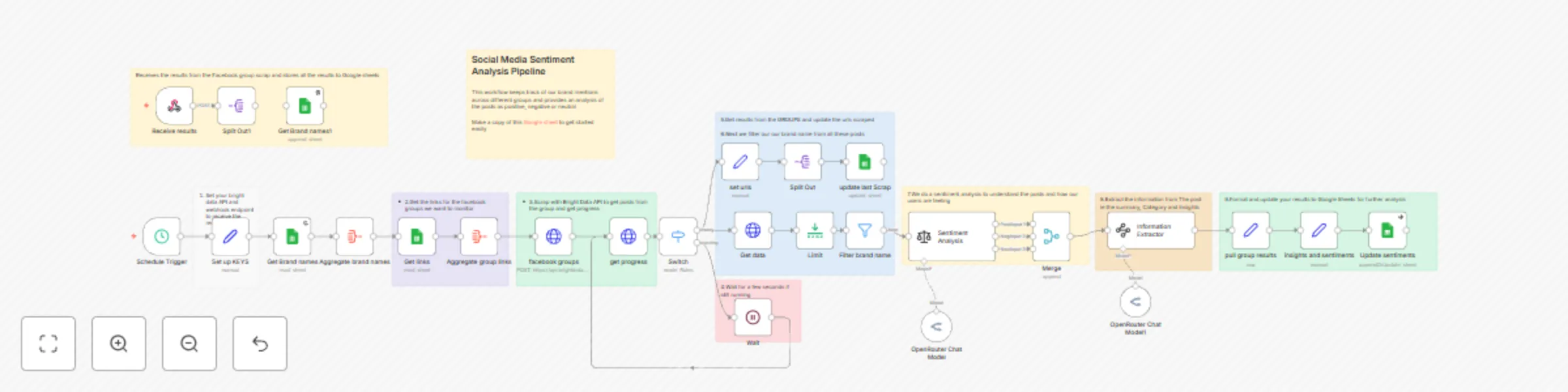
#### Workflow documentation updated on 21 May 2025 This workflow keeps track of your brand mentions across different Facebook groups and provides an analysis of the posts as positive, negative or neutral and updates this to Googe sheets for further analysis This is useful and relevants for brands looking to keep track of what people are saying about their brands and guage the customer satisfaction or disatisfaction based on what they are talking about ## Who is this template for? This workflow is for you if You 1. Need to keep track of your brand sentiments across different niche facebook groups 2. Own a saas and want to monitor it across different local facebook Groups 3. Are looking to do some competitor research to understand what others dont like about their products 4. Are testing the market on different market offerings and products to get best results 5. Are looking for sources other that review sites for product, software or service reviews 6. Need to keep track of your brand sentiments across different niche facebook groups 7. Are starting on market research and would like to get insights from differnt facebook groups on app usage, strngths weaknesses, features etc ## How it works You will set the desired schedule by which to monitor the groups This gets the brand names and facebook Groups to monitor. ## Setup Steps **Before you begin** You will need access to a Bright Data API to run this workflows Make a copy of the sheet below and add the urls for the facebook groups to scrap and the brand names you wish to monitor. 1. Import the workflow json to your canvas 2. Make a copy of this [Google sheet](https://docs.google.com/spreadsheets/d/1TXF_xLPF7XJJakoWB5Ix-tTduvX3GRxocJcp6DA-U_A/edit?usp=sharing) to get started easily 3. Set your APi key in the ```Set up KEYs``` node 4. Map out the Google sheet to your tables 5. You can use/update the current AI models to differnt models eg Gemini or anthropic 6. Run the workflow ## Setup B Bright Data provides an option to receive the results on an external webhook via a POST call. This can be collected via the ```recieve results``` webhook node and passed to a google sheet

Z
Zacharia Kimotho
Market Research
20 May 2025
3247
0
Workflow preview: Convert n8n tags into folders and move workflows
Free advanced

Convert n8n tags into folders and move workflows

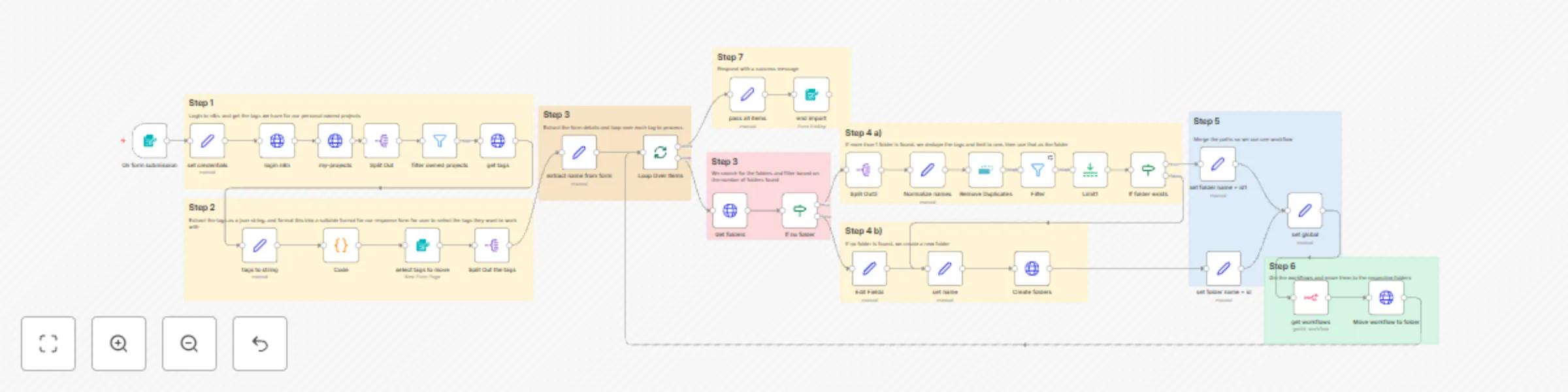
N8n recently introduced folders and it has been a big improvement on workflow management on top of the tags. This means the current workflows need to be moved manually to the folders. The simplest idea to try is to convert the current tags into folders and move all the current workflows within the respective tags into the folders This assumes the tag name will be used as the folder name. **To Note** For workflows that use more than 1 tag, the workflow will be assigned the last tag that runs as the folder. **How does it work** I took the liberty of simplifying the setup of this workflow that will be needed on your part and also be beginner-friendly 1. Copy and paste this workflow into your n8n canvas. You must have existing workflows and tags before you can run this 2. Set your n8n login details on the node set Credentials with the n8n URL, username, and password. 3. Setup your n8n API credentials on the n8n node get workflows 4. Run the workflow. This opens up a form where you can select the number of tags to move and click on submit 5. The workflow responds with the successful number of workflows that were imported [Read more about the template](https://funautomations.io/workflows/how-to-convert-n8n-tags-into-folders/) Built by [Zacharia Kimotho - Imperol](https://www.linkedin.com/in/zacharia-kimotho/)

Z
Zacharia Kimotho
DevOps
6 Apr 2025
681
0
Workflow preview: Generate AI prompts with Google Gemini and store them in Airtable
Free intermediate

Generate AI prompts with Google Gemini and store them in Airtable

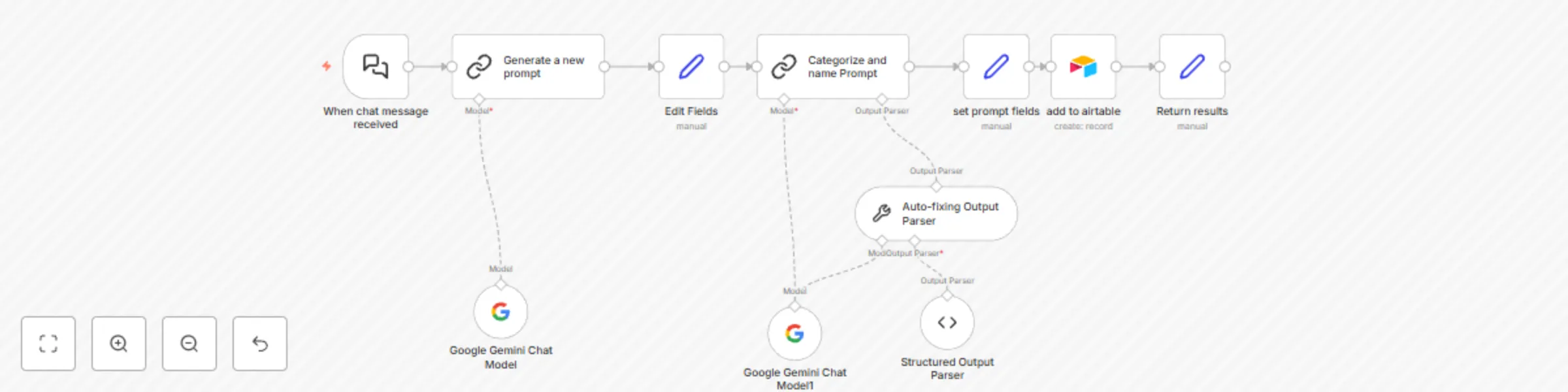
This workflow is designed to generate prompts for AI agents and store them in Airtable. It starts by receiving a chat message, processes it to create a structured prompt, categorizes the prompt, and finally stores it in Airtable. ## 2. Setup Instructions ### Prerequisites - **AI model eg Gemini, openAI etc** - **Airtable base and table or other storage tool** ### Step-by-Step Guide 1. **Clone the Workflow** - Copy the provided workflow JSON and import it into your n8n instance. 2. **Configure Credentials** - Set up the Google Gemini(PaLM) API account credentials. - Set up the Airtable Personal Access Token account credentials. 3. **Map Airtable Base and Table** - Create a copy of the [Prompt Library](https://airtable.com/app994hU3fOw0ssrx/shrRxcst3vzWMKFcR) in Airtable. - Map the Airtable base and table in the Airtable node. 4. **Customize Prompt Template** - Edit the 'Create prompt' node to customize the prompt template as needed. ### Configuration Options - **Prompt Template:** Customize the prompt template in the 'Create prompt' node to fit your specific use case. - **Airtable Mapping:** Ensure the Airtable base and table are correctly mapped in the Airtable node. ## 4. Running and Troubleshooting ### Running the Workflow 1. **Trigger the Workflow:** Send a chat message to trigger the workflow. 2. **Monitor Execution:** Use the n8n interface to monitor the workflow execution. 3. **Check Completion:** Verify that the prompt is stored in Airtable and check the chat interface for the result. ### Troubleshooting Tips - **API Issues:** Ensure that the APIs and Airtable credentials are correctly configured. - **Data Mapping:** Verify that the Airtable base and table are correctly mapped. - **Prompt Template:** Check the prompt template for any errors or inconsistencies. 3. Use Case Examples This workflow is particularly useful in scenarios where you want to automate the generation and management of AI agent prompts. Here are some examples: **Rapid Prototyping of AI Agents:** Quickly generate and test different prompts for AI agents in various applications. * **Content Creation:** Generate prompts for AI models that create blog posts, articles, or social media content. * **Customer Service Automation:** Develop prompts for AI-powered chatbots to handle customer inquiries and support requests. * **Educational Tools:** Create prompts for AI tutors or learning assistants. **Industries/Professionals:** * **Software Development:** Developers building AI-powered applications. * **Marketing:** Marketers automating content creation and social media management. * **Customer Service:** Customer service managers implementing AI-driven chatbots. * **Education:** Educators creating AI-based learning tools. **Practical Value:** * **Time Savings:** Automates the prompt generation process, saving significant time and effort. * **Improved Prompt Quality:** Leverages Google Gemini and structured prompt engineering principles to generate more effective prompts. * **Centralized Prompt Management:** Stores prompts in Airtable for easy access, organization, and reuse. ## 4. Running and Troubleshooting * **Running the Workflow:** 1. Activate the workflow in n8n. 2. Send a chat message to the webhook URL configured in the "When chat message received" node. 3. Monitor the workflow execution in the n8n editor. * **Monitoring Execution:** * Check the execution log in n8n to see the data flowing through each node and identify any errors. * **Checking for Successful Completion:** * Verify that a new record is created in your Airtable base with the generated prompt, name, and category. * Confirm that the "Return results" node sends back confirmation of the prompt in the chat interface. * **Troubleshooting Tips:** * **Error:** `400: Bad Request` in the Google Gemini nodes: * **Cause:** Invalid API key or insufficient permissions. * **Solution:** Double-check your Google Gemini API key and ensure that the API is enabled for your project. * **Error:** Airtable node fails to create a record: * **Cause:** Invalid Airtable credentials, incorrect Base ID or Table ID, or mismatched column names. * **Solution:** Verify your Airtable API key, Base ID, Table ID, and column names. Ensure that the data types in n8n match the data types in your Airtable columns. Follow me on [Linkedin](https://www.linkedin.com/in/zacharia-kimotho/) for more

Z
Zacharia Kimotho
Engineering
27 Feb 2025
2819
0
Workflow preview: Backup all n8n workflows to Google Drive every 4 hours
Free intermediate

Backup all n8n workflows to Google Drive every 4 hours

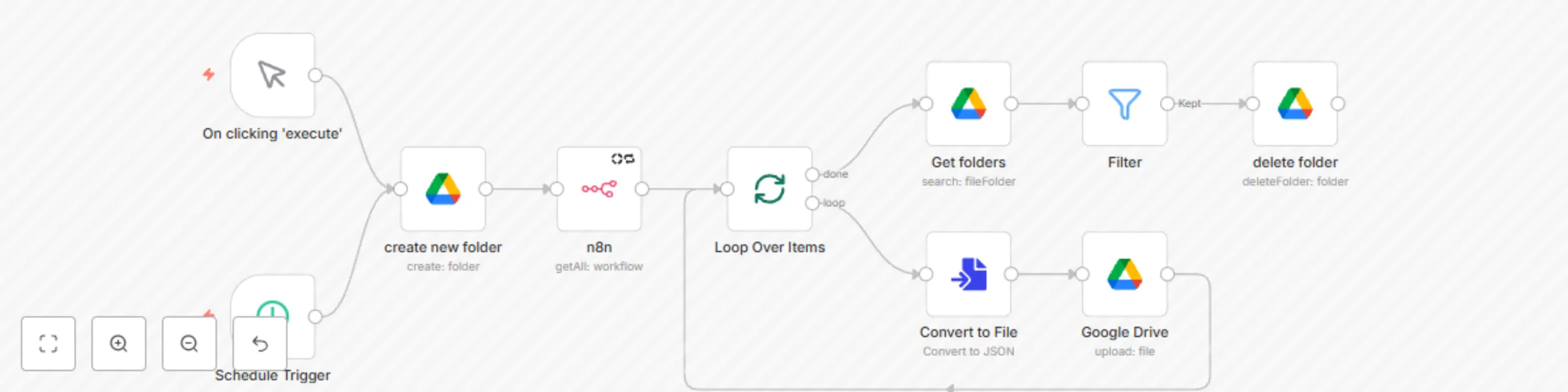
This workflow takes off the task of backing up workflows regularly on Github and uses Google Drive as the main tool to host these. This can be a good way to keep track of your workflows so that you never lose any workflows in case your n8n goes down. ## How does it work 1. Creates a new folder within a specified folder with the time its backed up 2. Loops around all workflows, converts them to a JSON file and uploads them to the created folder 3. Gets the previous backups and deletes them This has a clean feel and look as it simplifies the backup while not keeping a cache of workflows on your drive. ## Setup 1. Create a new folder 2. Create new service account credentials 3. Share the folder with the `service account` email 4. Upload this workflow to your canvas and map the credentials 5. Set the schedule that you need your workflows to run and manage your backups 6. Activate the workflow Happy Productivity! [@Imperol](https://www.linkedin.com/in/zacharia-kimotho/)

Z
Zacharia Kimotho
DevOps
12 Feb 2025
36513
0
Workflow preview: Generating new keywords and their search volumes using the Google Ads API
Free intermediate

Generating new keywords and their search volumes using the Google Ads API

## Generate new keywords for SEO with the monthly Search volumes This workflow is an improvement on the workflows below. It can be used to generate new keywords that you can use for your SEO campaigns or Google ads campaigns [Generate SEO Keyword Search Volume Data using Google API](https://n8n.io/workflows/2494-generate-seo-keyword-search-volume-data-using-google-api/) and [Generating Keywords using Google Autosuggest](https://n8n.io/workflows/2155-generating-keywords-using-google-autosuggest/) ## Usage 1. Send the keywords you need as an array to this workflow 2. Pin the data and map it to the `set Keywords` node 3. Map the keywords to the Google ads API with the location and Language of your choice 4. Split the results and set them data 5. Pass this to the next nodes as needed for storage 6. Make a copy of this [spreedsheet](https://docs.google.com/spreadsheets/d/10mXXLB987b7UySHtS9F4EilxeqbQjTkLOfMabnR2i5s/edit?usp=sharing) and update the data accordingly ## Having challenges with the google Ads API? Read this [blog ](https://funautomations.io/workflows/automating-keyword-generation-with-n8n-google-ads-api/) ## Setup 1. Replace the trigger with your desired trigger eg a webhook or manual trigger 2. Map the data correctly to the `set Keywords` node 3. On the `Generate new keywords`, Update the `{customer_id} on the url and login-customer-id with your actual one. Update the `developer-token` also with your values. The url should be corrected as below https://googleads.googleapis.com/v18/customers/{customer-id}:generateKeywordIdeas You should send the headers as below ``` { "name": "content-type", "value": "application/json" }, { "name": "developer-token", "value": "5j-tyzivCNmiCcoW-xkaxw" }, { "name": "login-customer-id", "value": "513554 " } ``` and the json body should take the following format ``` { "geoTargetConstants": ["geoTargetConstants/2840"], "includeAdultKeywords": false, "pageToken": "", "pageSize": 2, "keywordPlanNetwork": "GOOGLE_SEARCH", "language": "languageConstants/1000", "keywordSeed": { "keywords": {{ $json.Keyword }} } } ``` ## Troubleshooting 1. If you get an error with the workflow, check the credentials you are using 2. Check the account you are using eg the right customer id and developer token 3. Follow the [guide ](https://funautomations.io/workflows/automating-keyword-generation-with-n8n-google-ads-api/)on the blog to set up your Google ads account Made by [@Imperol](https://www.linkedin.com/in/zacharia-kimotho/)

Z
Zacharia Kimotho
Market Research
3 Jan 2025
14407
0
Workflow preview: Export search console results to Google Sheets
Free advanced

Export search console results to Google Sheets

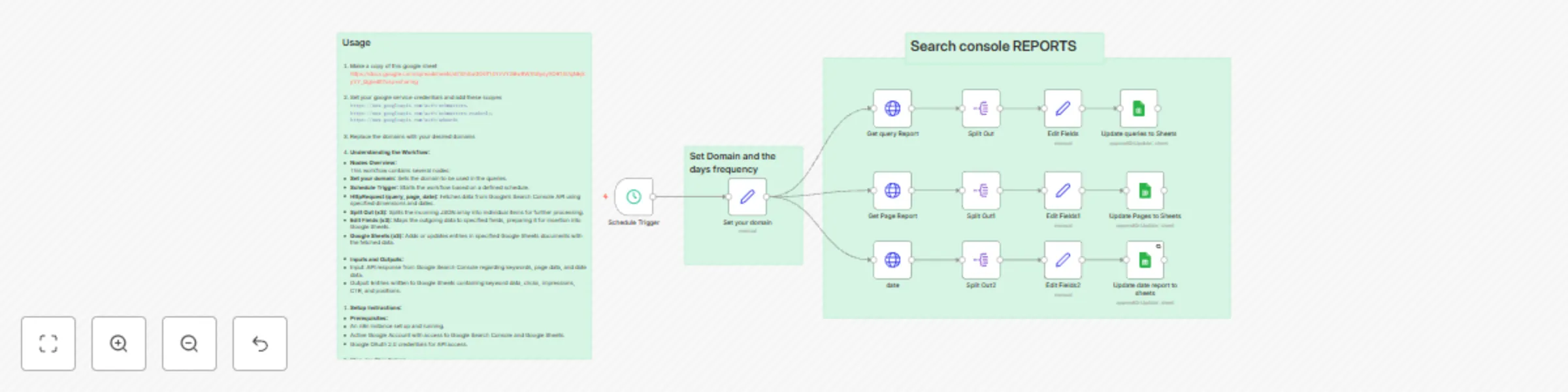
## How it works This workflow gets the search console results data and exports this to google sheets. This makes it easier to visualize and do other SEO related tasks and activities without having to log into Search Console ## Setup and use 1. Set your desired schedule 2. Enter your desired domain 3. Connect to your Google sheets or make a copy of this sheet. ## Detailed Setup - **Inputs and Outputs:** - Input: API response from Google Search Console regarding keywords, page data, and date data. - Output: Entries written to Google Sheets containing keyword data, clicks, impressions, CTR, and positions. 2. **Setup Instructions:** - **Prerequisites:** - An n8n instance set up and running. - Active Google Account with access to Google Search Console and Google Sheets. - Google OAuth 2.0 credentials for API access. - **Step-by-Step Setup:** 1. Open n8n and create a new workflow. 2. Add the nodes as described in the JSON. 3. Configure the **Google OAuth2** credentials in n8n to enable API access. 4. Set your domain in the **Set your domain** node. 5. Customize the Google Sheets document URLs to your personal sheets. 6. Adjust the schedule in the **Schedule Trigger** node as per your requirements. 7. Save the workflow. - **Configuration Options:** - You can customize the date ranges in the body of the **HttpRequest** nodes. - Adjust any fields in the **Edit Fields** nodes based on different data requirements. 3. **Use Case Examples:** - Useful in tracking website performance over time using Search Console metrics. - Ideal for digital marketers, SEO specialists, and web analytics professionals. - Offers value in compiling performance reports for stakeholders or team reviews. 4. **Running and Troubleshooting:** - **Running the Workflow:** - Trigger the workflow manually or wait for the schedule to run it automatically. - **Monitoring Execution:** - Check the execution logs in n8n's dashboard to ensure all nodes complete successfully. - **Common Issues:** - Invalid OAuth credentials – ensure credentials are set up correctly. - Incorrect Google Sheets URLs – double-check document links and permissions. - Scheduling conflicts – make sure the schedule set does not overlap with other workflows.

Z
Zacharia Kimotho
Market Research
7 Dec 2024
23193
0
Workflow preview: Creating a AI Slack bot with Google Gemini
Free intermediate

Creating a AI Slack bot with Google Gemini

This is an example of how we can build a slack bot in a few easy steps Before you can start, you need to o a few things 1. Create a copy of this workflow 2. Create a slack bot 3. Create a slash command on slack and paste the webhook url to the slack command ## Note Make sure to configure this webhook using a https:// wrapper and don't use the default http://localhost:5678 as that will not be recognized by your slack webhook. Once the data has been sent to your webhook, the next step will be passing it via an AI Agent to process data based on the queries we pass to our agent. To have some sort of a memory, be sure to set the slack token to the memory node. This way you can refer to other chats from the history. The final message is relayed back to slack as a new message. Since we can not wait longer than 3000 ms for slack response, we will create a new message with reference to the input we passed. We can advance this using the tools or data sources for it to be more custom tailored for your company. ## Usage To use the slackbot, go to slack and click on your set slash command eg /Bob and send your desired message. This will send the message to your endpoint and get return the processed results as the message. If you would like help setting this up, feel free to reach out to [email protected]

Z
Zacharia Kimotho
Internal Wiki
29 Jul 2024
9871
0
Workflow preview: Create new WordPress posts with a featured image with Airtable
Free intermediate

Create new WordPress posts with a featured image with Airtable

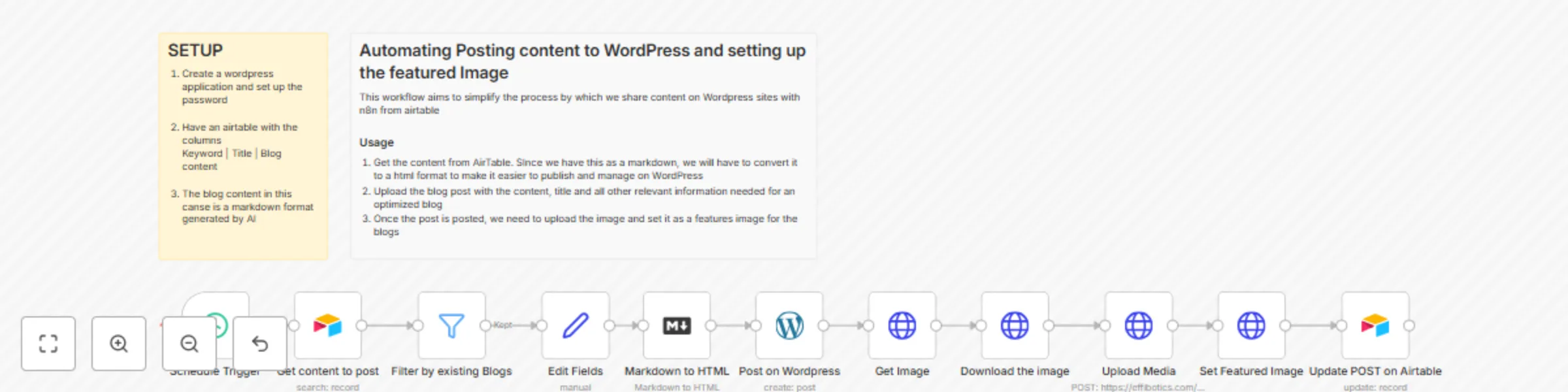
This workflow is aimed to create new posts in wordpress automatically from an airtable dashboard. When creating content in bulk, we can save time by automating how we can post and publish this content. ## Usage 1. Get the content from Airtable. Since we have this as a markdown, we will have to convert it to a html format to make it easier to publish and manage on WordPress 2. Upload the blog post with the content, title and all other relevant information needed for an optimized blog 3. Once the post is posted, we need to upload the image and set it as a features image for the blogs Happy productivity

Z
Zacharia Kimotho
Social Media
7 Jun 2024
12765
0
Workflow preview: Extract Domain and verify email syntax on the go
Free intermediate

Extract Domain and verify email syntax on the go

## What problem is this workflow solving? This workflow is aimed for email marketing enthusiasts looking for an easy way to either extract the domain from an email ad also check if the syntax is correct without having to use the code node. ## How this works 1. For this to work, replace the debugger node with your actual data source. 2. Map your data at match the above layout 3. Run your workflow and check for all the emails that are either valid or not Once done, you will have a list of all your emails, domains, and whether they are valid or not. ![image.png](fileId:790)

Z
Zacharia Kimotho
Lead Generation
22 Apr 2024
1354
0
Workflow preview: Verifying email deliverability using  google sheets and Effibotics API
Free intermediate

Verifying email deliverability using google sheets and Effibotics API

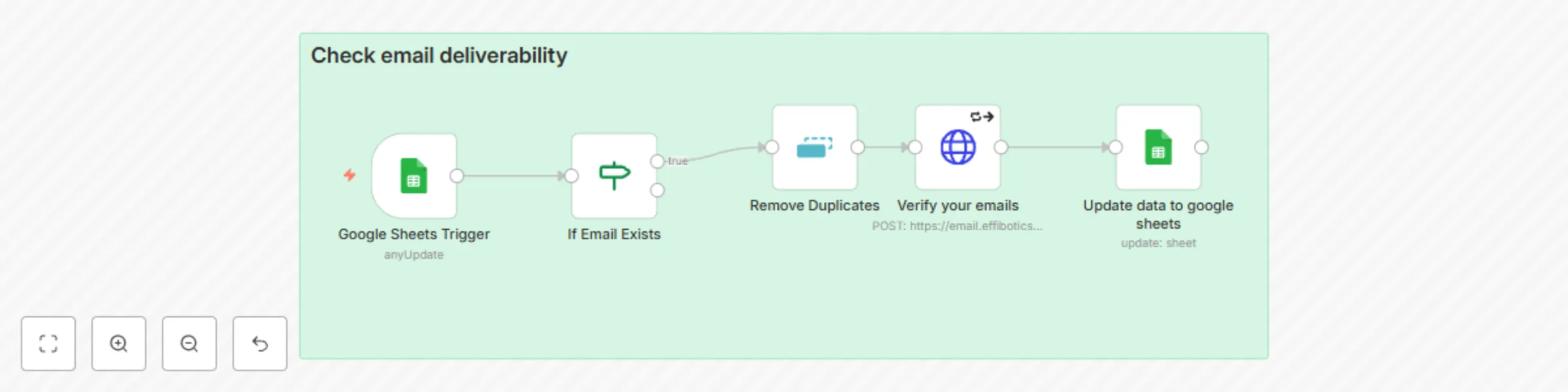
This workflow helps marketers verify and update data using EffiBotics Email Verifier API. Copy and create a list with emails as on this one https://docs.google.com/spreadsheets/d/1rzuojNGTaBvaUEON6cakQRDva3ueGg5kNu9v12aaSP4/edit#gid=0 The trigger checks for any updates in the number of rows that are present in a sheet and updates the verified emails on Google sheets Once you update a new cell, the new data is read, and the email is checked for its validity before. The results are then updated in real-time on the sheet. Happy Emailing!

Z
Zacharia Kimotho
Lead Generation
24 Mar 2024
1767
0
Workflow preview: Create new Clickup tasks from Slack commands
Free intermediate

Create new Clickup tasks from Slack commands

## Create new Clickup Tasks from Slack commands This workflow aims to make it easy to create new tasks on Clickup from normal Slack messages using simple slack command. For example We can have a slack command as /newTask Set task to update new contacts on CRM and assign them to the sales team This will have an new task on Clickup with the same title and description on Clickup For most teams, getting tasks from Slack to Clickup involves manually entering the new tasks into Clickup. What if we could do this with a simple slash command? ## Step 1 The first step is to Create an endpoint URL for your slack command by creating an events API from the link [below] https://api.slack.com/apps/) ## STEP 2 Next step is defining the endpoint for your URL Create a new webhook endpoint from your n8n with a POST and paste the endpoint URL to your event API. This will send all slash commands associated with the Slash to the desired endpoint ## Step 3 Log on to slack API (https://api.slack.com/) and create an application. This is the one we use to run all automation and commands from Slack. Once your app is ready, navigate to the Slash Commands and create a new command ![image.png](fileId:784) This will include the command, the webhook URL and a description of what the slash command is all about ![image.png](fileId:786) Now that this is saved you can do a test by sending a demo task to your endpoint ![image.png](fileId:785) Once you have tested the webhook slash command is working with the webhook, create a new Clickup API that can be used to create new tasks in ClickUp This workflow creates a new task with the start dates on Clikup that can be assigned to the respective team members More details about the document setup can be found on this document [below](https://docs.google.com/document/d/1jw_UP6sXmGsIMktW0Z-b-yQB1leDLatUY2393bA4z8s/edit?usp=sharing) #### Happy Productivity

Z
Zacharia Kimotho
Project Management
24 Mar 2024
2406
0
Workflow preview: Generating Keywords using Google Autosuggest
Free intermediate

Generating Keywords using Google Autosuggest

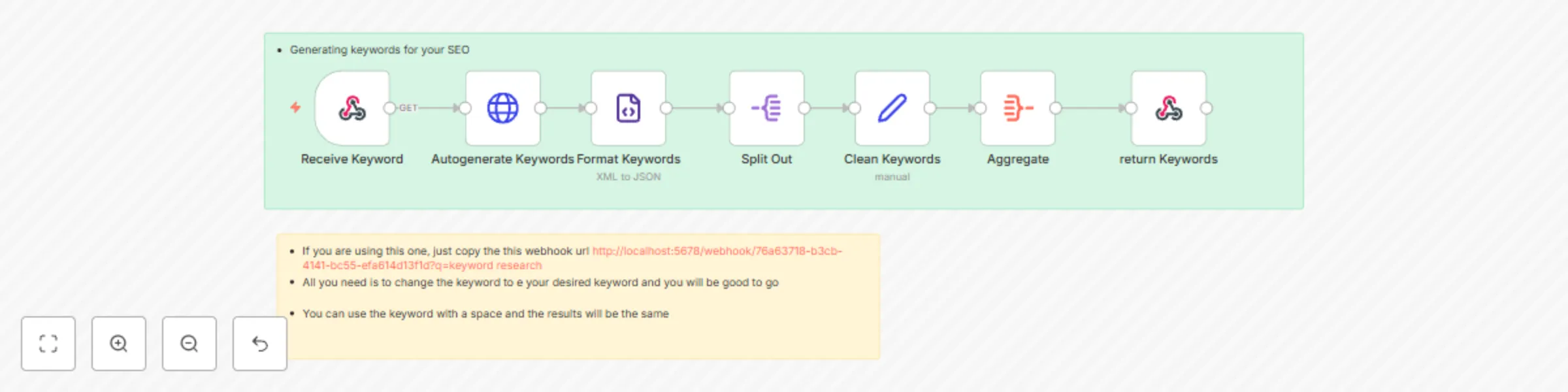
This workflow is aimed at generating keywords for SEO and articles To get started, you need to use the workflow as it is. You just call the webhook URL with a query parameter as q={{ $keywords}} For example, you can call it using ?q=keyword research This will give you a list of keywords back as an array. This system can be used by SEO pros, content marketers and also social media marketers to generate relevant keywords for their user needs

Z
Zacharia Kimotho
Market Research
1 Mar 2024
31531
0
Workflow preview: Extract emails from website HTMLs
Free intermediate

Extract emails from website HTMLs

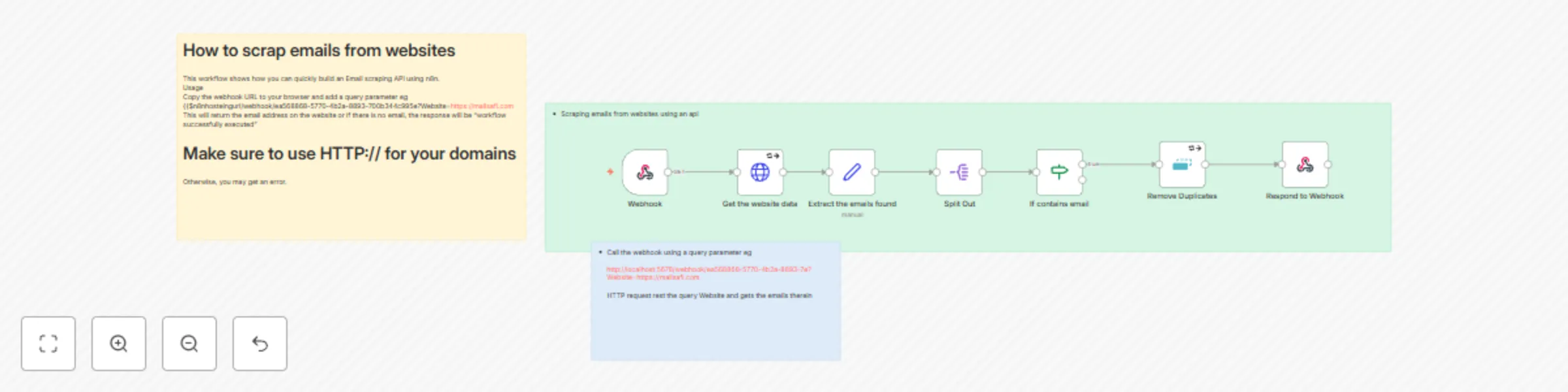
## How to scrap emails from websites This workflow shows how to quickly build an Email scraping API using n8n. Email marketing is at the core of most marketing strategies, be it content marketing, sales, etc. As such, being able to find contacts in bulk for your business on a large scale is key. There are available tools available in the market that can do this, but most are premium; why not build a custom one with n8n? ## Usage The workflow gets the data from a website and performs an extraction based on the date around on the website 1. Copy the webhook URL to your browser 2. Add a query parameter eg ?Website=https://mailsafi.com . This should give you a URL like this {{$n8nhostingurl/webhook/ea568868-5770-4b2a-8893-700b344c995e?Website=https://mailsafi.com 3. Click on the URL and wait for the extracted email to be displayed. This will return the email address on the website, or if there is no email, the response will be "workflow successfully executed." **Make sure to use HTTP:// for your domains** Otherwise, you may get an error.

Z
Zacharia Kimotho
Lead Generation
28 Feb 2024
10559
0
Workflow preview: Posting from Wordpress to Medium
Free intermediate

Posting from Wordpress to Medium

## Usage This workflow gets all the posts from your WordPress site and sorts them into a clear format before publishing them to medium. Step 1. Set up the HTTP node and set the URL of the source destination. This will be the URL of the blog you want to use. We shall be using https://mailsafi.com/blog for this. Step 2. Extract the URLs of all the blogs on the page This gets all the blog titles and their URLs. Its an easy way to sort ou which blogs to share and which not to share. Step 3. Split the entries for easy sorting or a cleaner view. Step 4. Set a new https node with all the blog URLs that we got from the previous steps. Step 5. Extract the contents of the blog Step 6. Add the medium node and then set the contents that you want to be shared out. Execute your workflow and you are good to go

Z
Zacharia Kimotho
Social Media
24 Jan 2024
2699
0
Workflow preview: Bookmarking urls in your browser and save them to Notion
Free intermediate

Bookmarking urls in your browser and save them to Notion

Remember when you were doing some large research and wanted to quickly bookmark a page and save it, only to find premium options? Worry not; n8n got you covered. You can now create a simple bookmarking app straight to your browser using simple scrips on your browser called bookmarklets. A bookmarklet is a bookmark stored in a web browser that contains JavaScript commands that add new features to the browser. To create one, we need to add a short script to the bookmark tab of our browser like below A simple hack is to open a new tab and click on the star that appears on the right side ![image.png](fileId:723) Now that we have our bookmark, it's time for the fun part. Right-click on the bookmark we just created and select the edit option. This will allow you to set the name you want for your bookmark and the destination URL. The URL used here will be the script that shall "capture" the page we want to bookmark. The code below has been used and tested to work for this example ```Javascript javascript:(() => { var currentUrl = window.location.href; var webhookUrl = 'https://$yourN8nInstanceUrl/webhook/1rxsxc04b027-39d2-491a-a9c6-194289fe400c'; var xhr = new XMLHttpRequest(); xhr.open('POST', webhookUrl, true); xhr.setRequestHeader('Content-Type', 'application/json'); var data = JSON.stringify({ url: currentUrl }); xhr.send(data); })(); ``` Your Bookmark should look like something like this ![image.png](fileId:724) Now that we have this setup, we are now going to n8n to receive the data sent by this script. Create a new webhook node that receives the POST request as in the workflow and replace $yourN8nInstanceUrl with your actual n8n instance. This workflow can then be configured to send this data to a notion database. Make sure the notion database has all the required permissions before executing the workflow. Otherwise the URLs will not be saved

Z
Zacharia Kimotho
Personal Productivity
3 Jan 2024
2208
0