I

iamvaar

23
Workflows

Workflows by iamvaar

Workflow preview: Automate rental agreements with BoldSign, Google Sheets & Gemini AI
Free advanced

Automate rental agreements with BoldSign, Google Sheets & Gemini AI

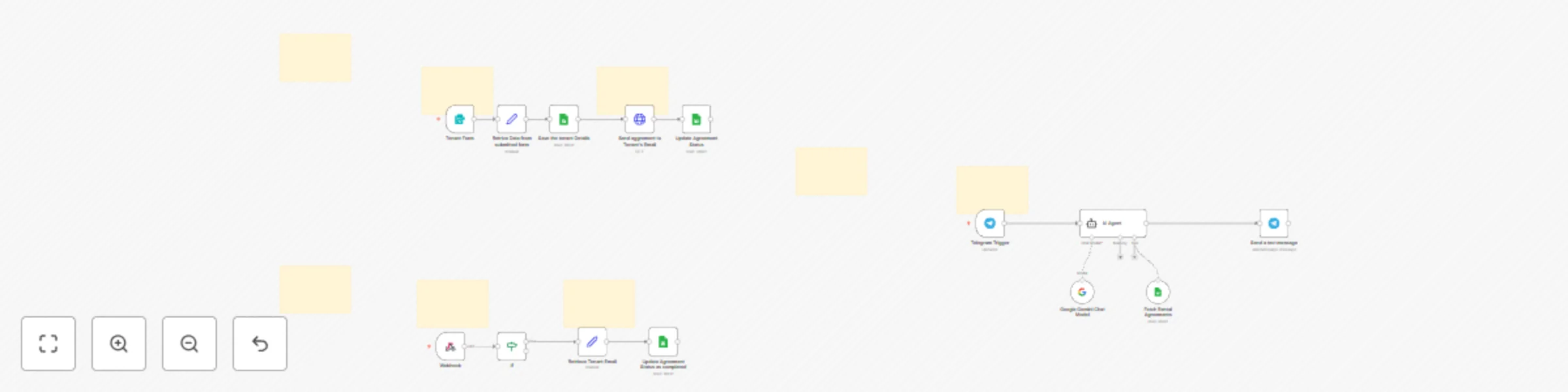
Complete Video Documentation: [https://youtu.be/O-bKlX3G7_4](`https://youtu.be/O-bKlX3G7_4`) ### Explanation WITH clean Video timestamps: * **Prerequisites**: You need a rental agreement document, a BoldSign account (which has a free tier for testing) [[00:44](http://www.youtube.com/watch?v=O-bKlX3G7_4&t=44)], a Google Sheet, and an n8n instance. * **BoldSign Setup**: How to upload your agreement as a template, drag-and-drop the signature and text fields [[01:13](http://www.youtube.com/watch?v=O-bKlX3G7_4&t=73)], get your API key [[01:57](http://www.youtube.com/watch?v=O-bKlX3G7_4&t=117)], and set up a webhook to notify n8n when the agreement is signed or completed [[02:13](http://www.youtube.com/watch?v=O-bKlX3G7_4&t=133)]. * **Workflow Logic**: The video walks through the two main flows: 1. **Form Submission**: A tenant fills out a form, which triggers n8n to save the details to Google Sheets and then call the BoldSign API to send the agreement to both the owner and tenant [[03:01](http://www.youtube.com/watch?v=O-bKlX3G7_4&t=181)]. 2. **Completion**: When both parties sign, BoldSign sends an event to the n8n webhook, which then filters for the "Completed" event and updates the Google Sheet [[09:12](http://www.youtube.com/watch?v=O-bKlX3G7_4&t=552)]. * **Bonus**: It also covers the Telegram bot setup, which lets an owner ask an AI about the status of agreements [[11:52](http://www.youtube.com/watch?v=O-bKlX3G7_4&t=712)]. ----- ### Prerequisites Before you build this, you'll need a few things: * **An n8n Instance**: This can be on n8n.cloud or self-hosted. * **A Google Sheet**: Create a new sheet with columns like `Tenant Name`, `Tenant Email`, `Property`, `Estimated Rent per month`, `contract expiry`, and `agreement status`. * **A BoldSign Account**: * An API Key. [[01:57](http://www.youtube.com/watch?v=O-bKlX3G7_4&t=117)] * A prepared rental agreement document (like a PDF or .docx). * A **BoldSign Template** created from that document. You'll need to drag and drop the required fields (like signatures, dates, text boxes) onto the template. [[01:13](http://www.youtube.com/watch?v=O-bKlX3G7_4&t=73)] * **A Telegram Bot (Optional)**: If you want the AI status checker, you'll need to create a bot with Telegram's BotFather to get an API token. * **A Google Gemini API Key (Optional)**: For the AI agent. ----- *In BoldSign, you would replace the `{{...}}` and `[Date]` parts with draggable form fields.* ----- ### Understanding the BoldSign API Node The key to sending the agreement is the **`Send aggrement to Tenant's Email`** node. This is a standard **HTTP Request** node, not a special BoldSign node. * **`Method`**: `POST` * **`URL`**: `https://api.boldsign.com/v1/template/send?templateId=enter-your-template-id` * This is the official BoldSign API endpoint for sending a document based on a template. You must replace `enter-your-template-id` with the actual ID of the template you created in BoldSign [[07:04](http://www.youtube.com/watch?v=O-bKlX3G7_4&t=424)]. * **`Authentication`**: `Header Auth` * BoldSign uses an API key in the header. You would create a credential in n8n where the `Name` is `X-API-KEY` and the `Value` is the secret API key you got from your BoldSign account [[07:16](http://www.youtube.com/watch?v=O-bKlX3G7_4&t=436)]. * **`Body`**: The `jsonBody` is the most important part [[08:02](http://www.youtube.com/watch?v=O-bKlX3G7_4&t=482)]. It's a JSON object that tells BoldSign who to send the agreement to and what data to pre-fill. * `title`: Sets the document title, like "Rental Agreement - 123 Main St". * `roles`: This array defines the signers. * One role is for the "Owner", dynamically filling their name and email from the form data. * The second role is for the "Tenent" (Tenant), also filling their name and email. * `existingFormFields` & `mergeFields`: This is where you dynamically insert data *into* the document. You map the data from your n8n form (like `{{ $('Retrive Data from submitted form').item.json.address }}`) to the `id` of the fields you created in your BoldSign template [[08:16](http://www.youtube.com/watch?v=O-bKlX3G7_4&t=496)]. ----- ### Workflow Explanation (From Scratch) This workflow is actually three separate flows that work together. #### Flow 1: New Tenant Onboarding (Form to Agreement) This is the main flow that kicks everything off when a new tenant is interested. 1. **Node: `Tenant Form` (Form Trigger)** * **What it is**: This node creates a public web form [[03:10](http://www.youtube.com/watch?v=O-bKlX3G7_4&t=190)]. This is the starting point. * **From Scratch**: You'd drag in a `Form Trigger` node. You add fields for "Your Name" (tenant's name) and "Your Email" (tenant's email). * **This Workflow**: It also cleverly uses **hidden fields** [[03:18](http://www.youtube.com/watch?v=O-bKlX3G7_4&t=198)] to store the *owner's* details, the property address, and the rent. This is a simple way to manage a single property. For multiple properties, you might use a database or a Google Sheet lookup. 2. **Node: `Retrive Data from submitted form` (Set)** * **What it is**: This node takes the messy data from the form and organizes it into clean, named variables (like `tenant_name`, `address`, `estimated_rent`) [[05:25](http://www.youtube.com/watch?v=O-bKlX3G7_4&t=325)]. * **From Scratch**: It's good practice to do this so the rest of your workflow is easy to read. It also calculates the `expiry_date` as one year from today. 3. **Node: `Save the tenant Details` (Google Sheets)** * **What it is**: This logs the new tenant in your Google Sheet *before* the agreement is sent [[05:51](http://www.youtube.com/watch?v=O-bKlX3G7_4&t=351)]. * **From Scratch**: You'd set this to "Append or Update" mode. It maps the variables ( `tenant_name`, `tenant_email`, etc.) to the correct columns in your sheet. 4. **Node: `Send aggrement to Tenant's Email` (HTTP Request)** * **What it is**: This is the **BoldSign API** call we just detailed. It takes all the data and sends the official signing request to both the owner's and tenant's email addresses [[06:47](http://www.youtube.com/watch?v=O-bKlX3G7_4&t=407)]. 5. **Node: `Update Agreement Status` (Google Sheets)** * **What it is**: After the email is *successfully* sent, this node finds the row you just created (using the tenant's email as a key) and updates the `agreement status` column to **"Pending Signing"** [[08:55](http://www.youtube.com/watch?v=O-bKlX3G7_4&t=535)]. This is great for tracking. #### Flow 2: Handling Signed Agreements (Webhook) This flow *listens* for activity. It doesn't run on a schedule; it waits for BoldSign to tell it something happened. 1. **Node: `Webhook` (Webhook Trigger)** * **What it is**: This node generates a unique URL [[02:45](http://www.youtube.com/watch?v=O-bKlX3G7_4&t=165)]. You copy this URL and paste it into your BoldSign account's webhook settings [[09:28](http://www.youtube.com/watch?v=O-bKlX3G7_4&t=568)]. * **From Scratch**: Now, *any* time an event happens in BoldSign (like the document is viewed, signed, or completed), BoldSign will send a data packet to this URL, triggering the workflow. 2. **Node: `If` (If)** * **What it is**: This is a filter. The webhook gets *all* events, but we only care about the final one [[10:49](http://www.youtube.com/watch?v=O-bKlX3G7_4&t=649)]. * **From Scratch**: It's set to check the incoming data from the webhook. It looks at a header called `x-boldsign-event` and only continues if the value `equals` **"Completed"** [[11:02](http://www.youtube.com/watch?v=O-bKlX3G7_4&t=662)]. This means it will ignore the "Signed" event (when just one person signs) and only proceed when *both* parties have signed. 3. **Node: `Retrieve Tenant Email` (Set)** * **What it is**: This node digs into the large JSON data packet from the webhook to find the tenant's email [[11:17](http://www.youtube.com/watch?v=O-bKlX3G7_4&t=677)]. * **From Scratch**: It uses a JavaScript `.find()` function to look through the `signerDetails` and pull the email for the person whose role was "Tenent" (Tenant). This gives us the unique key to update our spreadsheet. 4. **Node: `Update Agreement Status as completed` (Google Sheets)** * **What it is**: The final step\! Just like in Flow 1, this node finds the correct row in the Google Sheet (using the tenant's email) and updates the `agreement status` column to **"Completed"** [[11:32](http://www.youtube.com/watch?v=O-bKlX3G7_4&t=692)]. #### Flow 3: AI-Powered Status Bot (Telegram) This is a bonus flow that lets the owner "chat" with the Google Sheet. 1. **Node: `Telegram Trigger`** * **What it is**: This listens for any new message sent to your Telegram bot [[11:52](http://www.youtube.com/watch?v=O-bKlX3G7_4&t=712)]. 2. **Node: `AI Agent` (Langchain Agent)** * **What it is**: This is the "brain". It takes the `message.text` from the Telegram user [[12:30](http://www.youtube.com/watch?v=O-bKlX3G7_4&t=750)]. * **From Scratch**: Its prompt tells it to be a helpful assistant for rental agreements and to use the tools it's given. 3. **Node: `Google Gemini Chat Model` (Google Gemini)** * **What it is**: This is the Large Language Model (LLM) that the agent uses to think and form sentences. 4. **Node: `Fetch Rental Agreements` (Google Sheets Tool)** * **What it is**: This is *not* a regular node, but a **Tool** plugged into the AI Agent [[12:35](http://www.youtube.com/watch?v=O-bKlX3G7_4&t=755)]. * **From Scratch**: You give the AI agent this "tool" and tell it: "This tool, named 'Fetch Rental Agreements', can get all the data from the Google Sheet." When the user asks, "What's the status of Jane Doe's agreement?", the AI knows it must use this tool to get the sheet data *before* it can answer. 5. **Node: `Send a text message` (Telegram)** * **What it is**: This takes the final `output` from the AI Agent and sends it as a reply to the user in Telegram.

i
iamvaar
Document Extraction
13 Nov 2025
72
0
Workflow preview: Automate bug reports with Gemini AI: Jotform to GitHub with Telegram alerts
Free intermediate

Automate bug reports with Gemini AI: Jotform to GitHub with Telegram alerts

Execution video: [https://youtu.be/Gj7uzz9cIfU?si=jTu8nktmxM-dfKoZ](https://youtu.be/Gj7uzz9cIfU?si=jTu8nktmxM-dfKoZ) This workflow automates the process of handling bug reports submitted through a form, from checking for duplicates on GitHub to logging the report and sending a notification. --- ### 1. A Bug is Reported 🐛 * **Trigger:** The entire process kicks off when a user submits a bug report through a **JotForm**. This form collects the user's name, email, and a description of the bug. --- ### 2. The AI Agent Gets to Work 🤖 * **Action:** The submitted bug description is sent to an **AI Agent** powered by Google Gemini. * **Intelligence:** The agent has a clear set of instructions: 1. **Check for Duplicates:** It first connects to a specific GitHub repository (`iamvaar-dev/pomodoro-timer`) and checks if an issue matching the bug description already exists. 2. **Create a New Issue:** If it's a new bug (not found on GitHub), the agent automatically creates a new issue in the repository. 3. **Report Back:** The agent then neatly packages its findings into a structured JSON format, noting the issue's details and whether it was already present on GitHub. --- ### 3. Log Everything in Google Sheets 📝 * **Action:** The information from the JotForm submission and the AI Agent's analysis is sent to a **Google Sheet**. * **Purpose:** This step creates a clean log of all submitted bugs, including who submitted them and whether a new GitHub issue was created for them. --- ### 4. Prepare a Smart Notification 📣 * **Action:** A small piece of **JavaScript code** runs to create a custom notification message. * **Logic:** The message is dynamic: * If the bug was **already on GitHub**, the message will say something like, "An issue was submitted, but it's already reported. No action is needed." ✅ * If the bug was **new**, the message will be more urgent, like, "A new bug was reported and an issue has been created on GitHub. Please review it." ❗ --- ### 5. Send the Alert via Telegram 📲 * **Final Step:** The custom message created in the previous step is sent to a specific **Telegram chat** using a bot. This instantly notifies the relevant people about the new bug report and what action (if any) is required.

i
iamvaar
Ticket Management
15 Oct 2025
72
0
Workflow preview: Build a knowledge base chatbot with Jotform, RAG Supabase, Together AI & Gemini
Free advanced

Build a knowledge base chatbot with Jotform, RAG Supabase, Together AI & Gemini

Youtube Video: [https://youtu.be/dEtV7OYuMFQ?si=fOAlZWz4aDuFFovH](https://youtu.be/dEtV7OYuMFQ?si=fOAlZWz4aDuFFovH) # Workflow Pre-requisites ### **Step 1: Supabase Setup** First, replace the keys in the "Save the embedding in DB" & "Search Embeddings" nodes with your new Supabase keys. After that, run the following code snippets in your Supabase SQL editor: 1. Create the table to store chunks and embeddings: ```sql CREATE TABLE public."RAG" ( id bigserial PRIMARY KEY, chunk text NULL, embeddings vector(1024) NULL ) TABLESPACE pg_default; ``` 2. Create a function to match embeddings: ```sql DROP FUNCTION IF EXISTS public.matchembeddings1(integer, vector); CREATE OR REPLACE FUNCTION public.matchembeddings1( match_count integer, query_embedding vector ) RETURNS TABLE ( chunk text, similarity float ) LANGUAGE plpgsql AS $$ BEGIN RETURN QUERY SELECT R.chunk, 1 - (R.embeddings <=> query_embedding) AS similarity FROM public."RAG" AS R ORDER BY R.embeddings <=> query_embedding LIMIT match_count; END; $$; ``` ### **Step 2: Create Jotform with these fields** 1. Your full name 2. email address 3. Upload PDF Document [field where you upload the knowledgebase in PDF] ### **Step 3: Get Together AI API Key** Get a Together AI API key and paste it into the "Embedding Uploaded document" node and the "Embed User Message" node. ### Here is a detailed, node-by-node explanation of the n8n workflow, which is divided into two main parts. *** ### Part 1: Ingesting Knowledge from a PDF This first sequence of nodes runs when you submit a PDF through a Jotform. Its purpose is to read the document, process its content, and save it in a specialized database for the AI to use later. 1. **`JotForm Trigger`** * **Type:** Trigger * **What it does:** This node starts the entire workflow. It's configured to listen for new submissions on a **specific Jotform**. When someone uploads a file and submits the form, this node activates and passes the submission data to the next step. 2. **`Grab New knowledgebase`** * **Type:** HTTP Request * **What it does:** The initial trigger from Jotform only contains basic information. This node makes a follow-up call to the Jotform API using the `submissionID` to get the complete details of that submission, including the specific link to the uploaded file. 3. **`Grab the uploaded knowledgebase file link`** * **Type:** HTTP Request * **What it does:** Using the file link obtained from the previous node, this step downloads the actual PDF file. It's set to receive the response as a file, not as text. 4. **`Extract Text from PDF File`** * **Type:** Extract From File * **What it does:** This utility node takes the binary PDF file downloaded in the previous step and extracts all the readable text content from it. The output is a single block of plain text. 5. **`Splitting into Chunks`** * **Type:** Code * **What it does:** This node runs a small JavaScript snippet. It takes the large block of text from the PDF and chops it into smaller, more manageable pieces, or **"chunks,"** each of a **predefined length**. This is critical because AI models work more effectively with smaller, focused pieces of text. 6. **`Embedding Uploaded document`** * **Type:** HTTP Request * **What it does:** This is a key AI step. It sends each individual text chunk to an embeddings API. A **specified AI model** converts the semantic meaning of the chunk into a numerical list called an **embedding** or vector. This vector is like a mathematical fingerprint of the text's meaning. 7. **`Save the embedding in DB`** * **Type:** Supabase * **What it does:** This node connects to your Supabase database. For every chunk, it creates a new row in a **specified table** and stores two important pieces of information: the original text chunk and its corresponding numerical embedding (its "fingerprint") from the previous step. *** ### Part 2: Answering Questions via Chat This second sequence starts when a user sends a message. It uses the knowledge stored in the database to find relevant information and generate an intelligent answer. 1. **`When chat message received`** * **Type:** Chat Trigger * **What it does:** This node starts the second part of the workflow. It listens for any incoming message from a user in a connected chat application. 2. **`Embend User Message`** * **Type:** HTTP Request * **What it does:** This node takes the user's question and sends it to the *exact same* embeddings API and model used in Part 1. This converts the question's meaning into the same kind of numerical vector or "fingerprint." 3. **`Search Embeddings`** * **Type:** HTTP Request * **What it does:** This is the "retrieval" step. It calls a **custom database function** in Supabase. It sends the question's embedding to this function and asks it to search the knowledge base table to find a **specified number of top text chunks** whose embeddings are mathematically most similar to the question's embedding. 4. **`Aggregate`** * **Type:** Aggregate * **What it does:** The search from the previous step returns multiple separate items. This utility node simply bundles those items into a single, combined piece of data. This makes it easier to feed all the context into the final AI model at once. 5. **`AI Agent` & `Google Gemini Chat Model`** * **Type:** LangChain Agent & AI Model * **What it does:** This is the "generation" step where the final answer is created. * The **`AI Agent`** node is given a detailed set of instructions (a prompt). * The prompt tells the **`Google Gemini Chat Model`** to act as a professional support agent. * Crucially, it provides the AI with the user's original question and the **aggregated text chunks** from the `Aggregate` node as its **only source of truth**. * It then instructs the AI to formulate an answer based *only* on that provided context, format it for a **specific chat style**, and to say "I don't know" if the answer cannot be found in the chunks. This prevents the AI from making things up.

i
iamvaar
Internal Wiki
14 Oct 2025
1058
0
Workflow preview: AI-powered NDA review & instant alert system - Jotform, Gemini, Telegram
Free intermediate

AI-powered NDA review & instant alert system - Jotform, Gemini, Telegram

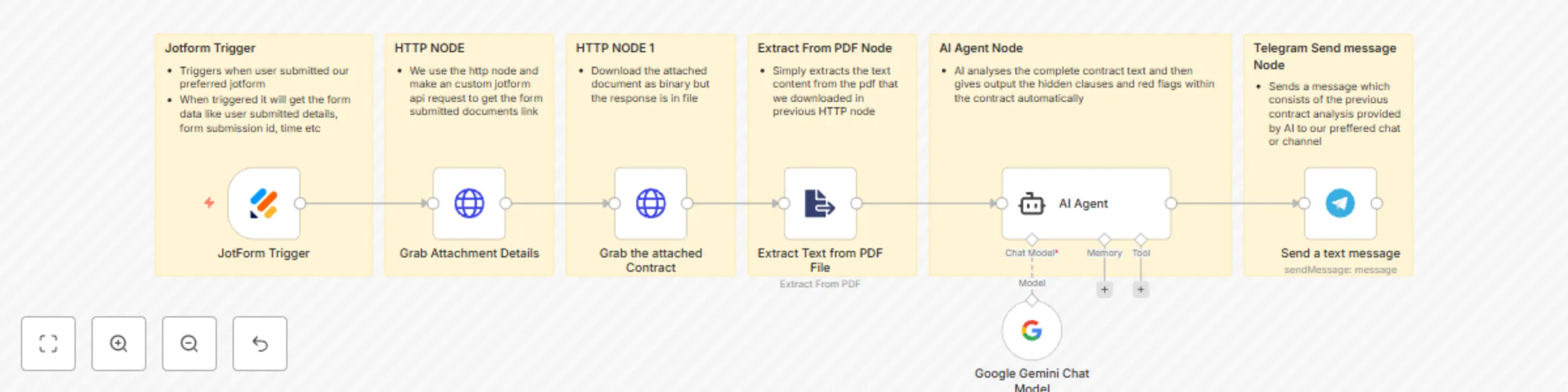
This workflow automates the process of analyzing a contract submitted via a web form. It extracts the text from an uploaded PDF, uses AI to identify potential red flags, and sends a summary report to a Telegram chat. *** ## Prerequisites Before you can use this workflow, you'll need a few things set up. ### 1. JotForm Form You need to create a form in JotForm with at least two specific fields: * **Email Address**: A standard field to collect the user's email. * **File Upload**: This field will be used to upload the contract or NDA. Make sure to configure it to allow `.pdf` files. ### 2. API Keys and IDs * **JotForm API Key**: You can generate this from your JotForm account settings under the "API" section. * **Gemini API Key**: You'll need an API key from Google AI Studio to use the Gemini model. * **Telegram Bot Token**: Create a new bot by talking to the `@BotFather` on Telegram. It will give you a unique token. * **Telegram Chat ID**: This is the ID of the user, group, or channel you want the bot to send messages to. You can get this by using a bot like `@userinfobot`. *** ## Node-by-Node Explanation Here is a breakdown of what each node in the workflow does, in the order they execute. ### 1. JotForm Trigger * **What it does**: This node kicks off the entire workflow. It actively listens for new submissions on the specific JotForm you select. * **How it works**: When someone fills out your form and hits "Submit," JotForm sends the submission data (including the email and a link to the uploaded file) to this node. ### 2. Grab Attachment Details (HTTP Request) * **What it does**: The initial data from JotForm doesn't contain a direct download link for the file. This node takes the `submissionID` from the trigger and makes a request to the JotForm API to get the full details of that submission. * **How it works**: It constructs a URL using the `submissionID` and your JotForm API key to fetch the submission data, which includes the proper download URL for the uploaded contract. ### 3. Grab the Attached Contract (HTTP Request) * **What it does**: Now that it has the direct download link, this node fetches the actual PDF file. * **How it works**: It uses the file URL obtained from the previous node to download the contract. The node is set to expect a "file" as the response, so it saves the PDF data in binary format for the next step. ### 4. Extract Text from PDF File * **What it does**: This node takes the binary PDF data from the previous step and extracts all the readable text from it. * **How it works**: It processes the PDF and outputs plain text, stripping away any formatting or images. This raw text is now ready to be analyzed by the AI. ### 5. AI Agent (with Google Gemini Chat Model) * **What it does**: This is the core analysis engine of the workflow. It takes the extracted text from the PDF and uses a powerful prompt to analyze it. The "Google Gemini Chat Model" node is connected as its "brain." * **How it works**: * It sends the contract text to the Gemini model. * The prompt instructs Gemini to act as an expert contract analyst. * It specifically asks the AI to identify **major red flags** and **hidden/unfair clauses**. * It also tells the AI to format the output as a clean report using Telegram's MarkdownV2 style and to keep the response under 1500 characters. ### 6. Send a text message (Telegram) * **What it does**: This is the final step. It takes the formatted analysis report generated by the AI Agent and sends it to your specified Telegram chat. * **How it works**: It connects to your Telegram bot using your Bot Token and sends the AI's output (`$json.output`) to the Chat ID you've provided. Because the AI was instructed to format the text in MarkdownV2, the message will appear well-structured in Telegram with bolding and bullet points.

i
iamvaar
Document Extraction
14 Oct 2025
90
0
Workflow preview: Automate internal complaint resolution with Jotform, Gemini AI & Google Sheets
Free advanced

Automate internal complaint resolution with Jotform, Gemini AI & Google Sheets

Workflow explaination video: [https://youtu.be/z1grVuNOXMk](https://youtu.be/z1grVuNOXMk) ### Prerequisites Before running this workflow, you need to have the following set up: 1. **JotForm:** A form with fields for describing the issue and optionally naming the team member involved. 2. **Google Sheet 1 (Issue Resolver Logic):** A sheet with three columns: `Issue Category`, `Normal Resolver`, and `Alternate Resolver`. This sheet defines who handles which type of complaint. 3. **Google Sheet 2 (Issue Logs):** A sheet to store all submitted complaints. It needs columns like: `Issue`, `The person Caused by`, `case_awarded_to`, `resolver_email`, `email_subject`, `email_body_html`, `submitted_time`, and `status`. 4. **Google Sheet 3 (Resolver Details):** A simple sheet with two columns: `resolver` (e.g., "HR Team") and `email` (e.g., "[email protected]"). 5. **Credentials:** You need to have connected accounts (credentials) in n8n for JotForm, Google (a Service Account for Sheets and OAuth for Gmail), and a Gemini API Key. *** ### Part 1: Initial Complaint Processing This part of the workflow triggers when a new complaint is submitted, uses AI to process it, logs it, and sends an initial notification. #### 1. JotForm Trigger * **What it is:** The starting point of the workflow. * **How it works:** It constantly listens for new submissions on your specified JotForm. When someone fills out and submits the form, this node activates and pulls in all the submitted data (like the issue description and the person involved). #### 2. AI Agent * **What it is:** The "brain" of the operation, which orchestrates several tools to make a decision. * **How it works:** This node receives the complaint details from the JotForm Trigger. It follows a detailed prompt that instructs it to perform a sequence of tasks: 1. **Classify:** Analyze the complaint description to categorize it. 2. **Reason:** Use its connected "tools" to figure out the correct resolver based on your business logic. 3. **Generate:** Create a complete email notification and format the final output as a JSON object. * **Connected Tools:** * **Google Gemini Chat Model:** This is the actual language model that provides the intelligence. The AI Agent sends its prompt and the data to this model for processing. * **Issue Resolver Allotment Logic Sheets tool:** This allows the AI Agent to read your first Google Sheet. It can look up the issue category and find the designated "Normal Resolver" or "Alternate Resolver." * **Resolver Details Sheets tool:** This allows the AI Agent to read your third Google Sheet. Once it knows the name of the resolver (e.g., "HR Team"), it uses this tool to find their corresponding email address. * **Structured Output Parser:** This ensures that the AI's response is perfectly formatted into the required JSON structure (`email`, `case_awarded_to`, `email_subject`, etc.), making it reliable for the next steps. #### 3. Save Complaint (Google Sheets Node) * **What it is:** The record-keeping step. * **How it works:** This node takes the structured JSON output from the **AI Agent** and the original data from the **JotForm Trigger**. It then adds a new row to your second Google Sheet ("Issue Logs"), mapping each piece of data to its correct column (`Issue`, `case_awarded_to`, `submitted_time`, etc.). #### 4. Send a message (Gmail Node) * **What it is:** The initial notification step. * **How it works:** After the complaint is successfully logged, this node sends an email. It uses the `resolver_email`, `email_subject`, and `email_body_html` fields generated by the **AI Agent** to send a formal assignment email to the correct department or person. *** ### Part 2: Daily Follow-Up This second, independent part of the workflow runs every day to check for unresolved issues that are older than three days and sends a reminder. #### 1. Schedule Trigger * **What it is:** The starting point for the daily check-up. * **How it works:** Instead of waiting for a user action, this node activates automatically at a predefined time each day (e.g., 10:00 AM). #### 2. Get Complaint Logs (Google Sheets Node) * **What it is:** The data gathering step for the follow-up process. * **How it works:** When the schedule triggers, this node reads **all** the rows from your "Issue Logs" Google Sheet, bringing every recorded complaint into the workflow for evaluation. #### 3. If Node * **What it is:** The decision-making step. * **How it works:** This node examines each complaint passed to it from the previous step one by one. For each complaint, it performs a calculation: it finds the difference in days between the `submitted_time` and the current date. If that difference is **greater than or equal to 3**, the complaint is passed on to the next step. Otherwise, the workflow stops for that complaint. #### 4. Send a message1 (Gmail Node) * **What it is:** The reminder email step. * **How it works:** This node only receives complaints that met the "3 days or older" condition from the **If** node. For each of these old complaints, it sends a follow-up email to the `resolver_email`. The email body is dynamic, mentioning how many days have passed and including the original issue description to remind the resolver of the pending task.

i
iamvaar
Ticket Management
14 Oct 2025
138
0
Workflow preview: Automated post-purchase product delivery & upsell with Jotform,  GDrive, Gemini
Free intermediate

Automated post-purchase product delivery & upsell with Jotform, GDrive, Gemini

Explanation video: [https://youtu.be/QjbA-tFYCFE?si=--C36KlSgABzteoB](https://youtu.be/QjbA-tFYCFE?si=--C36KlSgABzteoB) ### Workflow Overview This automation handles what happens right after a customer makes a purchase on your online form. It automatically shares a document with them, records the sale in a spreadsheet, uses AI to write a personalized thank-you email, and then sends it to their inbox. ### Prerequisites Before you can use this workflow, you'll need to have a few things set up and ready: **1. A Configured JotForm** You need an active JotForm account with a form that is set up to sell a product. The form must include: * **Required Fields:** `Full Name`, `Email Address`, and `Phone Number`. * **Product List:** An element where customers can select and pay for a product. * **Active Payment Integration:** A payment gateway (like Stripe or PayPal) must be connected and activated so the form can process live transactions. **2. A Google Sheet** Create a blank Google Sheet to log your sales. It should have columns (headers) prepared to receive the customer data, such as: * `name` * `email` * `phone` * `products` * `amount of sale` **3. A Digital Product in Google Drive** The digital product you want to deliver to your customers (e.g., a PDF guide, a document, a link to a video) must be uploaded to your Google Drive. You'll need this file ready to be selected within the workflow. --- ### Here is the node by node explanation: ### 1. JotForm Trigger: "Wait for a New Order" * **Node:** `JotForm Trigger` This is the starting point. The workflow is constantly watching a specific JotForm you've set up. As soon as a customer fills out the form and submits their purchase, this node catches their information and kicks off the automation. It passes along all the customer's details—like their name, email, and what they bought—to the next step. --- ### 2. Google Drive: "Share a File" * **Node:** `Share file` Once an order comes in, this step automatically shares a specific file from your Google Drive with the customer. It takes the customer's email address from the form and instantly gives them "editor" access to a pre-selected document, like a welcome guide or a digital product. --- ### 3. Google Sheets: "Log the Sale" * **Node:** `Append or update row in sheet` Next, the workflow logs the purchase details in a Google Sheet. It neatly organizes the customer's name, email, and order information into a new row. This keeps your sales records automatically updated. If a customer with the same email buys again, the node is smart enough to just update their existing row instead of creating a duplicate entry. --- ### 4. AI Agent: "Write a Thank-You Email" * **Node:** `AI Agent` (using Google Gemini) This is the creative part of the workflow. This node acts like an AI assistant that writes a brand new, personalized thank-you email for each customer. It follows a specific set of instructions (a prompt) you've given it, which includes: * Greeting the customer by their name. * Mentioning the specific product they just purchased. * Inviting them to join an exclusive online community (like Discord) with a clickable link. * Signing off with your company's name. The AI is specially configured to generate a ready-to-send email, complete with a subject line and a professionally formatted HTML body. --- ### 5. Gmail: "Send the Email" * **Node:** `Send a message` This is the final step. The workflow takes the personalized email written by the AI and sends it directly to the customer from your Gmail account. It automatically fills in the "To" field with the customer's email, uses the AI-generated subject line, and adds the custom message body. After this step, the automation is complete for that customer.

i
iamvaar
Lead Nurturing
14 Oct 2025
205
0
Workflow preview: Automate freelance project intake with custom proposals using Jotform & Gemini
Free intermediate

Automate freelance project intake with custom proposals using Jotform & Gemini

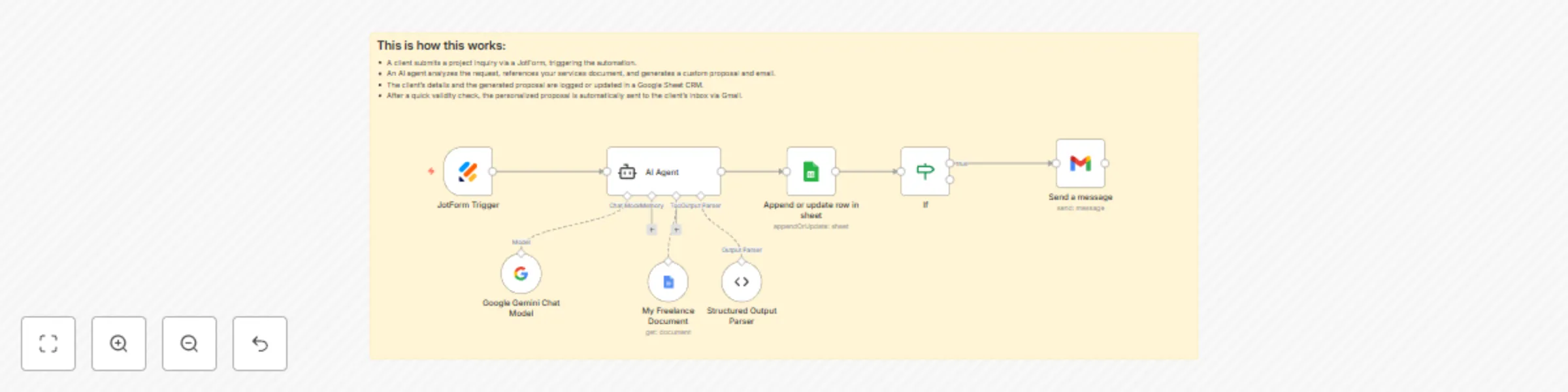
Workflow explaination: [https://youtu.be/ecafBTFPuvE?si=7csA1yNsaUxUG72F](https://youtu.be/ecafBTFPuvE?si=7csA1yNsaUxUG72F) This workflow is designed to automatically handle new freelance project requests from a JotForm, analyze the requirements using AI, create a **custom proposal**, log the details in a Google Sheet, and send a personalized response to the client. --- ## 1. JotForm Trigger * **Purpose**: This node is the entry point of the entire automation. It waits for a new freelance project submission from your specified JotForm. * **Action**: When a potential client fills out and submits the form, this node **instantly triggers** the workflow, passing all submitted data (name, email, project requirements, and budget) to the next node. * **Key Detail**: Uses a webhook for real-time activation, ensuring immediate processing of every new project request. --- ## 2. AI Agent * **Purpose**: The central brain of your freelance workflow. 🧠 It takes the project submission and turns it into a structured, customized proposal. * **Action**: The agent follows a prompt sequence to perform these tasks: 1. **Calls the `My Freelance Document` Tool**: Fetches your Google Doc containing details about your services, pricing, and project templates — your “source of truth.” 2. **Analyzes the Project Request**: Reads the client’s requirements and goals from the form. 3. **Generates a Custom Proposal**: Based on scope, budget, and relevance to your offerings, it prepares a short, tailored proposal or quote that fits the project. 4. **Creates a Personalized Email**: Builds an HTML email with the proposal embedded, including next steps or a scheduling link for further discussion. 5. **Outputs Structured Data**: Packages everything (project summary, proposal text, email subject, and body) into a clean JSON object for downstream use. --- ## 3. Append or Update Row in Sheet (Google Sheets) * **Purpose**: Serves as your lightweight CRM for all project inquiries. * **Action**: Logs data from the AI Agent (proposal details, client info, and project summary) into a Google Sheet. * **Key Detail**: Configured to **Append or Update**—if an email already exists, it updates that row instead of duplicating. Keeps your client records clean and organized. --- ## 4. If * **Purpose**: Acts as a control node to decide whether a proposal email should be sent. * **Action**: Checks the output from the AI Agent to ensure the proposal text is valid (not empty). * **Key Detail**: If the proposal generation fails or returns “NAN,” the workflow stops here to avoid sending incomplete responses. --- ## 5. Send a Message (Gmail) * **Purpose**: Sends the final personalized proposal email to the client. * **Action**: Pulls the recipient’s email from the sheet and sends the **AI-generated subject and HTML proposal email** automatically. * **Key Detail**: The email is customized per project, giving the client an instant, professional response with no manual effort.

i
iamvaar
Lead Nurturing
13 Oct 2025
339
0
Workflow preview: Automated law firm lead management & scheduling with AI, Jotform & Calendar
Free advanced

Automated law firm lead management & scheduling with AI, Jotform & Calendar

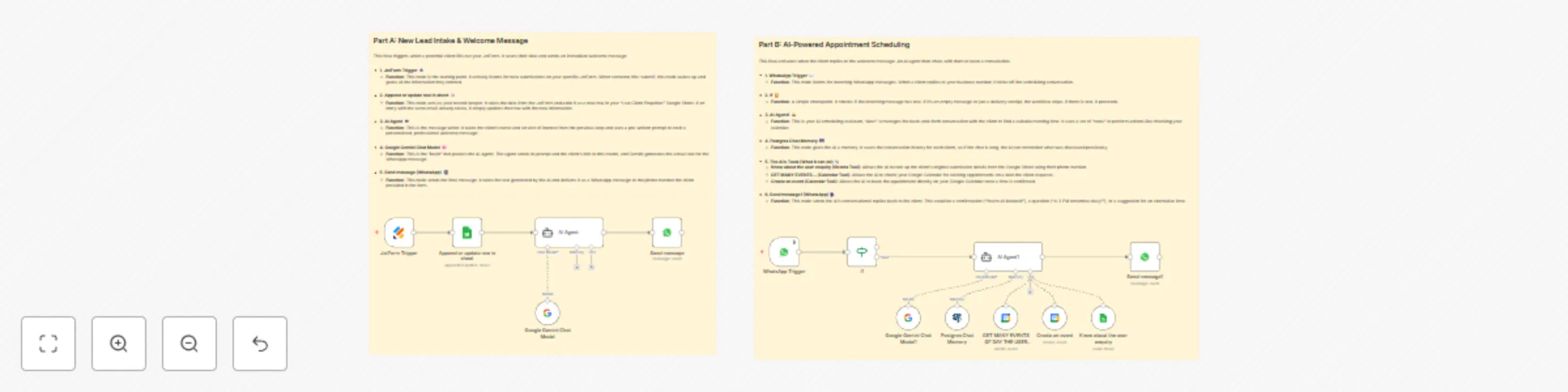
Youtube Explanation: [https://youtu.be/KgmNiV7SwkU](https://youtu.be/KgmNiV7SwkU ) This n8n workflow is designed to automate the initial intake and scheduling for a law firm. It's split into two main parts: 1. **New Inquiry Handling**: Kicks off when a potential client fills out a JotForm, saves their data, and sends them an initial welcome message on WhatsApp. 2. **Appointment Scheduling**: Activates when the client replies on WhatsApp, allowing an AI agent to chat with them to schedule a consultation. Here’s a detailed breakdown of the prerequisites and each node. *** ## Prerequisites Before building this workflow, you'll need accounts and some setup for each of the following services: ### JotForm * **JotForm Account**: You need an active JotForm account. * **A Published Form**: Create a form with the exact fields used in the workflow: `Full Name`, `Email Address`, `Phone Number`, `I am a...`, `Legal Service of Interest`, `Brief Message`, and `How Did You Hear About Us?`. * **API Credentials**: Generate API keys from your JotForm account settings to connect it with n8n. ### Google * **Google Account**: To use Google Sheets and Google Calendar. * **Google Sheet**: Create a new sheet named "Law Client Enquiries". The first row must have these exact headers: `Full Name`, `Email Address`, `Phone Number`, `client type`, `Legal Service of Interest`, `Brief Message`, `How Did You Hear About Us?`. * **Google Calendar**: An active calendar to manage appointments. * **Google Cloud Project**: * **Service Account Credentials (for Sheets)**: In the Google Cloud Console, create a service account, generate JSON key credentials, and enable the Google Sheets API. You must then **share your Google Sheet** with the service account's email address (e.g., `[email protected]`). * **OAuth Credentials (for Calendar)**: Create OAuth 2.0 Client ID credentials to allow n8n to access your calendar on your behalf. You'll need to enable the Google Calendar API. * **Gemini API Key**: Enable the Vertex AI API in your Google Cloud project and generate an API key to use the Google Gemini models. ### WhatsApp * **Meta Business Account**: Required to use the WhatsApp Business Platform. * **WhatsApp Business Platform Account**: You need to set up a business account and connect a phone number to it. This is **different** from the regular WhatsApp or WhatsApp Business app. * **API Credentials**: Get the necessary access tokens and IDs from your Meta for Developers dashboard to connect your business number to n8n. ### PostgreSQL Database * **A running PostgreSQL instance**: This can be hosted anywhere (e.g., AWS, DigitalOcean, Supabase). The AI agent needs it to store and retrieve conversation history. * **Database Credentials**: You'll need the host, port, user, password, and database name to connect n8n to it. *** ## Node-by-Node Explanation The workflow is divided into two distinct logical flows. ### Flow 1: New Client Intake from JotForm This part triggers when a new client submits your form. 1. **`JotForm Trigger`** * **What it does**: This is the starting point. It automatically runs the workflow whenever a new submission is received for the specified JotForm (`Form ID: 252801824783057`). * **Prerequisites**: A JotForm account and a created form. 2. **`Append or update row in sheet` (Google Sheets)** * **What it does**: It takes the data from the JotForm submission and adds it to your "Law Client Enquiries" Google Sheet. * **How it works**: It uses the `appendOrUpdate` operation. It tries to find a row where the "Email Address" column matches the email from the form. If it finds a match, it updates that row; otherwise, it appends a new row at the bottom. * **Prerequisites**: A Google Sheet with the correct headers, shared with your service account. 3. **`AI Agent`** * **What it does**: This node crafts the initial welcome message to be sent to the client. * **How it works**: It uses a detailed prompt that defines a persona ("Alex," a legal intake assistant) and instructs the AI to generate a professional WhatsApp message. It dynamically inserts the client's name and service of interest from the Google Sheet data into the prompt. * **Connected Node**: It's powered by the `Google Gemini Chat Model`. 4. **`Send message` (WhatsApp)** * **What it does**: It sends the message generated by the `AI Agent` to the client. * **How it works**: It takes the client's phone number from the data (`Phone Number` column) and the AI-generated text (`output` from the AI Agent node) to send the message via the WhatsApp Business API. * **Prerequisites**: A configured WhatsApp Business Platform account. --- ### Flow 2: AI-Powered Scheduling via WhatsApp This part triggers when the client replies to the initial message. 1. **`WhatsApp Trigger`** * **What it does**: This node listens for incoming messages on your business's WhatsApp number. When a client replies, it starts this part of the workflow. * **Prerequisites**: A configured WhatsApp Business Platform account. 2. **`If` node** * **What it does**: It acts as a simple filter. It checks if the incoming message text is empty. If it is (e.g., a status update), the workflow stops. If it contains text, it proceeds to the AI agent. 3. **`AI Agent1`** * **What it does**: This is the main conversational brain for scheduling. It handles the back-and-forth chat with the client. * **How it works**: Its prompt is highly detailed, instructing it to act as "Alex" and follow a strict procedure for scheduling. It has access to several "tools" to perform actions. * **Connected Nodes**: * `Google Gemini Chat Model1`: The language model that does the thinking. * `Postgres Chat Memory`: Remembers the conversation history with a specific user (keyed by their WhatsApp ID), so the user doesn't have to repeat themselves. * **Tools**: `Know about the user enquiry`, `GET MANY EVENTS...`, and `Create an event`. 4. **AI Agent Tools (What the AI can *do*)** * **`Know about the user enquiry` (Google Sheets Tool)**: When the AI needs to know who it's talking to, it uses this tool. It takes the user's phone number and looks up their original enquiry details in the "Law Client Enquiries" sheet. * **`GET MANY EVENTS...` (Google Calendar Tool)**: When a client suggests a date, the AI uses this tool to check your Google Calendar for any existing events on that day to see if you're free. * **`Create an event` (Google Calendar Tool)**: Once a time is agreed upon, the AI uses this tool to create the event in your Google Calendar, adding the client as an attendee. 5. **`Send message1` (WhatsApp)** * **What it does**: Sends the AI's response back to the client. This could be a confirmation that the meeting is booked, a question asking for their email, or a suggestion for a different time if the requested slot is busy. * **How it works**: It sends the `output` text from `AI Agent1` to the client's WhatsApp ID, continuing the conversation.

i
iamvaar
Lead Nurturing
9 Oct 2025
5173
0
Workflow preview: Get real-time international space station visibility alerts with N2YO and Telegram
Free intermediate

Get real-time international space station visibility alerts with N2YO and Telegram

Workflow Execution Video: [https://youtu.be/VV4D2aiFXsY](https://youtu.be/VV4D2aiFXsY) ### **Prerequisites & Setup** Before you begin, you need to gather a few key pieces of information: 1. **N2YO API Key:** - Go to https://www.n2yo.com/login/register/ and create a free account. - Once registered, find and copy your API key. This key is used to request satellite data. - Replace the enter-longitude, enter-latitude, enter-your-api-key in http node URL. 2. **Telegram Bot Credentials:** - You need a Telegram bot. You can create one by talking to the **BotFather** on Telegram. - **Bot Token:** BotFather will give you a unique authorization token. This is like a password for your bot. - **Chat ID:** You need the ID of the chat where the bot will send messages. You can get this by sending a message to your bot and then visiting `https://api.telegram.org/bot<YourBOTToken>/getUpdates`. Look for the `chat` -> `id` value in the response. 3. **Your Location Coordinates:** - Visit https://www.maps.ie/coordinates.html. - Find your location on the map. - Copy your **Latitude** and **Longitude** values. --- ### **Node-by-Node Explanation** This workflow is composed of five nodes that execute in a sequence. --- ### **1. Schedule Trigger Node** - **Node Name:** `Schedule Trigger` - **Purpose:** This is the starting point of the workflow. It's designed to run automatically at a specific, recurring interval. - **Configuration:** The node is set to trigger **every 30 minutes**. This means the entire sequence of actions will be initiated twice every hour. --- ### **2. HTTP Request Node** - **Node Name:** `HTTP Request` - **Purpose:** This node is responsible for fetching data from an external source on the internet. - **Configuration:** It sends a request to the N2YO API URL: `https://api.n2yo.com/rest/v1/satellite/visualpasses/25544/...` - The numbers `25544` represent the NORAD ID for the International Space Station (ISS). - You must replace `enter-longitude`, `enter-latitude`, and `enter-your-api-key` with the actual **coordinates and API key** you gathered during the setup. - The result of this request is a block of data (in JSON format) containing information about upcoming satellite passes. --- ### **3. Code Node** - **Node Name:** `Readable` - **Purpose:** This node uses JavaScript to process and reformat the raw data received from the `HTTP Request` node. - **Configuration:** The JavaScript code performs several actions: - It extracts the details of the next upcoming satellite pass. - It contains functions to convert timestamp numbers into human-readable dates and times (e.g., "10th October 2025, 14:30 UTC"). - It calculates the time remaining until the pass begins (e.g., "in 2h 15m"). - Finally, it constructs a formatted text message (`alert`) and calculates the number of minutes until the pass begins (`timeinminutes`), passing both pieces of information to the next node. --- ### **4. If Node** - **Node Name:** `If` - **Purpose:** This node acts as a gatekeeper. It checks if a specific condition is met before allowing the workflow to continue. - **Configuration:** It checks the `timeinminutes` value that was calculated in the previous `Code` node. - The condition is: **Is `timeinminutes` less than or equal to `600`?** - If the condition is **true** (the pass is 600 minutes or less away), the data is passed to the next node through the "true" output. - If the condition is **false**, the workflow stops. --- ### **5. Telegram Node** - **Node Name:** `Send a text message` - **Purpose:** This node sends a message to your specified Telegram chat. - **Configuration:** - It is configured with your Telegram bot's credentials. - The `Chat ID` is set to the specific chat you want the message to appear in. - The content of the text message is taken directly from the `alert` variable created by the `Code` node. This means it will send the fully formatted message about the upcoming ISS pass.

i
iamvaar
Personal Productivity
7 Oct 2025
44
0
Workflow preview: Build a knowledge-based WhatsApp assistant with RAG, Gemini, Supabase & Google Docs
Free advanced

Build a knowledge-based WhatsApp assistant with RAG, Gemini, Supabase & Google Docs

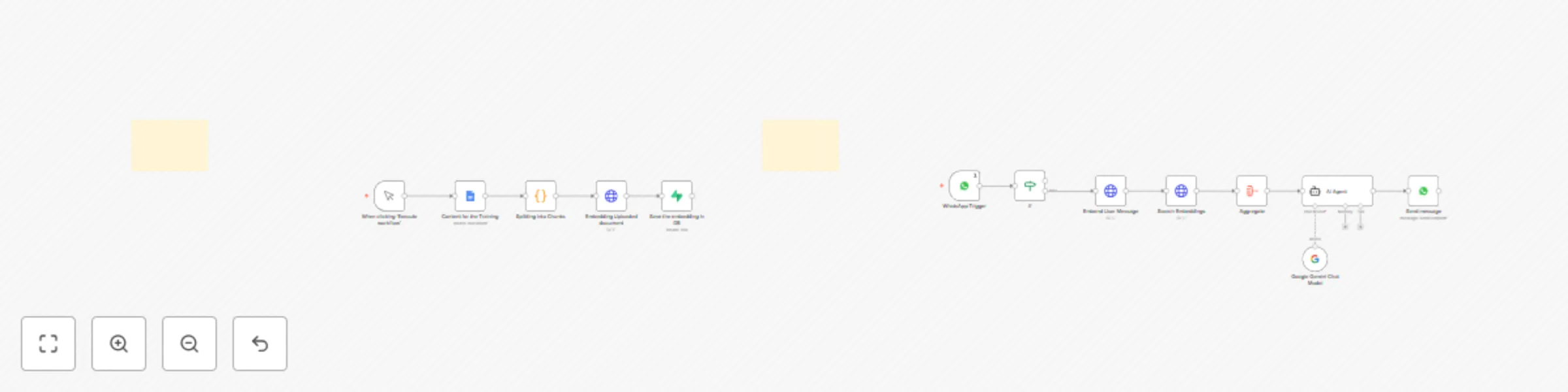
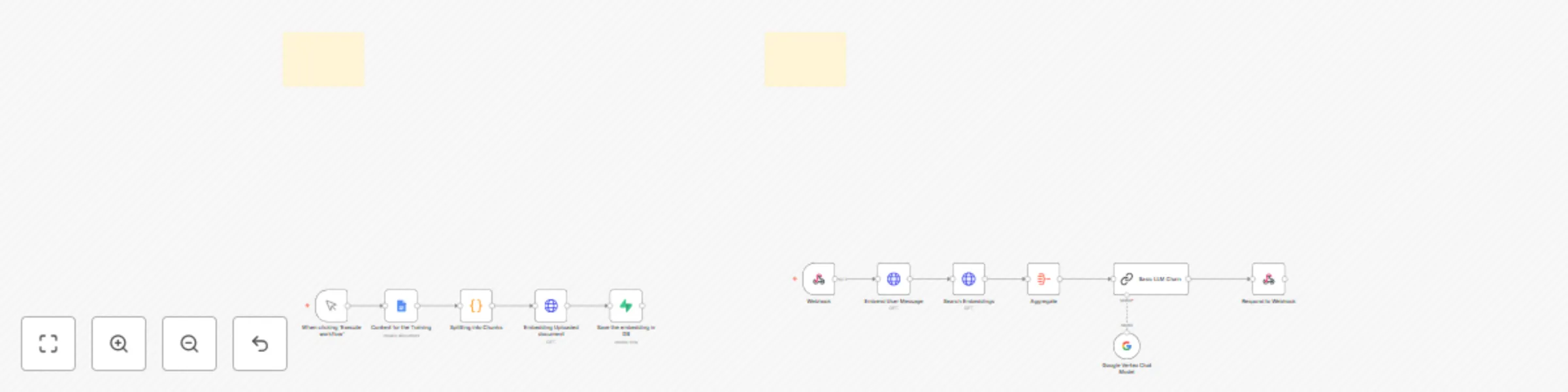
#### Workflow Execution Link: [Watch Execution Video](https://youtu.be/NUWeQywOMTw?si=7slubwmqYqs2m6sh) # Workflow Pre-requisites ### **Step 1: Supabase Setup** First, replace the keys in the "Save the embedding in DB" & "Search Embeddings" nodes with your new Supabase keys. After that, run the following code snippets in your Supabase SQL editor: 1. Create the table to store chunks and embeddings: ```sql CREATE TABLE public."RAG" ( id bigserial PRIMARY KEY, chunk text NULL, embeddings vector(1024) NULL ) TABLESPACE pg_default; ``` 2. Create a function to match embeddings: ```sql DROP FUNCTION IF EXISTS public.matchembeddings1(integer, vector); CREATE OR REPLACE FUNCTION public.matchembeddings1( match_count integer, query_embedding vector ) RETURNS TABLE ( chunk text, similarity float ) LANGUAGE plpgsql AS $$ BEGIN RETURN QUERY SELECT R.chunk, 1 - (R.embeddings <=> query_embedding) AS similarity FROM public."RAG" AS R ORDER BY R.embeddings <=> query_embedding LIMIT match_count; END; $$; ``` ### **Step 2: Create Knowledge Base** Create a new Google Doc with the complete knowledge base about your business and replace the document ID in the "Content for the Training" node. ### **Step 3: Get Together AI API Key** Get a Together AI API key and paste it into the "Embedding Uploaded document" node and the "Embed User Message" node. ### **Step 4: Setup Meta App for WhatsApp Business Cloud** 1. Go to `https://business.facebook.com/latest/settings/apps`, create an app, and select the use case "Connect with customer through WhatsApp". Copy the **Client ID** and **Client Secret** and add them to the first node. 2. Go to that newly created META app in the app dashboard, click on the use case, and then click on "customise...". Go to the API setup, add your number, and also generate an **access token** on that page. Now paste the **access token** and the **WhatsApp Business Account ID** into the send message node. # Part A: Document Preparation (One-Time Setup) ## 1. When clicking ‘Execute workflow’ - **Type:** `manualTrigger` - **Purpose:** Manually starts the workflow for preparing training content. ## 2. Content for the Training - **Type:** `googleDocs` - **Purpose:** Fetches the document content that will be used for training. ## 3. Splitting into Chunks - **Type:** `code` - **Purpose:** Breaks the document text into smaller pieces for processing. ## 4. Embedding Uploaded document - **Type:** `httpRequest` - **Purpose:** Converts each chunk into embeddings via an external API. ## 5. Save the embedding in DB - **Type:** `supabase` - **Purpose:** Stores both the chunks and embeddings in the database for future use. --- # Part B: Chat Interaction (Realtime Flow) ## 1. WhatsApp Trigger - **Type:** `whatsAppTrigger` - **Purpose:** Starts the workflow whenever a user sends a WhatsApp message. ## 2. If - **Type:** `if` - **Purpose:** Checks whether the incoming WhatsApp message contains text. ## 3. Embend User Message - **Type:** `httpRequest` - **Purpose:** Converts the user’s message into an embedding. ## 4. Search Embeddings - **Type:** `httpRequest` - **Purpose:** Finds the top matching document chunks from the database using embeddings. ## 5. Aggregate - **Type:** `aggregate` - **Purpose:** Merges retrieved chunks into one context block. ## 6. AI Agent - **Type:** `langchain agent` - **Purpose:** Builds the prompt combining user’s message and context. ## 7. Google Gemini Chat Model - **Type:** `lmChatGoogleGemini` - **Purpose:** Generates the AI response based on the prepared prompt. ## 8. Send message - **Type:** `whatsApp` - **Purpose:** Sends the AI’s reply back to the user on WhatsApp.

i
iamvaar
Internal Wiki
23 Sep 2025
174
0
Workflow preview: Monitor brand reputation for negative PR on Reddit with Gemini + LangChain + Sheets
Free intermediate

Monitor brand reputation for negative PR on Reddit with Gemini + LangChain + Sheets

# [🎥 Watch the Full Execution on YouTube](https://youtu.be/_VAOeIzC6M0?si=etrUjAGyzwXTiZ6D) # **Workflow Description (in-depth):** This workflow automates the entire process of **monitoring online reputation** by scanning Reddit posts for negative sentiment about your company, filtering only the relevant criticism, and logging it directly into Google Sheets for easy tracking. ### 🔑 **Key Features:** * **Automated Triggering:** Runs on a schedule so you never miss new discussions about your brand. * **Smart Data Fetching:** Uses Reddit API to pull the latest posts matching your chosen keywords (e.g., “Notion”). * **Post Processing:** Breaks down bulk Reddit responses into individual posts for analysis. * **AI-Powered Filtering:** A custom-built AI agent reviews the content and extracts only **genuine negative PR** (complaints, bad experiences, harmful mentions). Neutral or positive posts are ignored. * **Structured Parsing:** AI responses are enforced into a clean JSON schema (ID, Title, URL, NegativeContent).... ensuring compatibility with downstream nodes. * **Noise Reduction:** A code node ensures only posts with meaningful content are passed forward. * **Centralized Logging:** Captures critical information (post title, negative excerpt, URL, ID) into Google Sheets.... giving teams a live dashboard of issues to address. * **Customizable & Scalable:** Swap out “Notion” for your own brand, or expand to other platforms.... the flow adapts without extra overhead. ### 🚀 **Why This Matters:** In 2025, a single Reddit thread can shape brand reputation overnight. Manually monitoring is inefficient, and traditional social listening tools generate too much noise. This workflow gives you a **lean, automated, AI-powered system** to stay ahead of potential PR risks. ### 🛠️ **Tech Stack:** * **n8n** for automation * **Reddit API** for data fetching * **LangChain AI Agent + Google Vertex Model** for sentiment & context analysis * **Google Sheets** for reporting & tracking

i
iamvaar
AI Summarization
16 Aug 2025
77
0
Workflow preview: RAG-powered AI voice customer support agent (Supabase + Gemini + ElevenLabs)
Free intermediate

RAG-powered AI voice customer support agent (Supabase + Gemini + ElevenLabs)

Execution video: [Youtube Link](https://youtu.be/GGvJBnIZQsY?si=y-SPWiy8EFo473_s) I built an **AI voice-triggered RAG assistant** where ElevenLabs’ conversational model acts as the front end and n8n handles the brain....here’s the real breakdown of what’s happening in that workflow: 1. **Webhook** (`/inf`) * Gets hit by ElevenLabs once the user finishes talking. * Payload includes `user_question`. 2. **Embed User Message** (Together API - BAAI/bge-large-en-v1.5) * Turns the spoken question into a dense vector embedding. * This embedding is the query representation for semantic search. 3. **Search Embeddings** (Supabase RPC) * Calls `matchembeddings1` to find the top 5 most relevant context chunks from your stored knowledge base. 4. **Aggregate** * Merges all retrieved `chunk` values into one block of text so the LLM gets full context at once. 5. **Basic LLM Chain** (LangChain node) * Prompt forces the model to only answer from the retrieved context and to sound human-like without saying “based on the context”.... * Uses **Google Vertex Gemini 2.5 Flash** as the actual model. 6. **Respond to Webhook** * Sends the generated answer back instantly to the webhook call, so ElevenLabs can speak it back. You essentially have: **Voice → Text → Embedding → Vector Search → Context Injection → LLM → Response → Voice**

i
iamvaar
Support Chatbot
9 Aug 2025
302
0
Workflow preview: Automate Zillow property search with budget filtering to Google Sheets
Free intermediate

Automate Zillow property search with budget filtering to Google Sheets

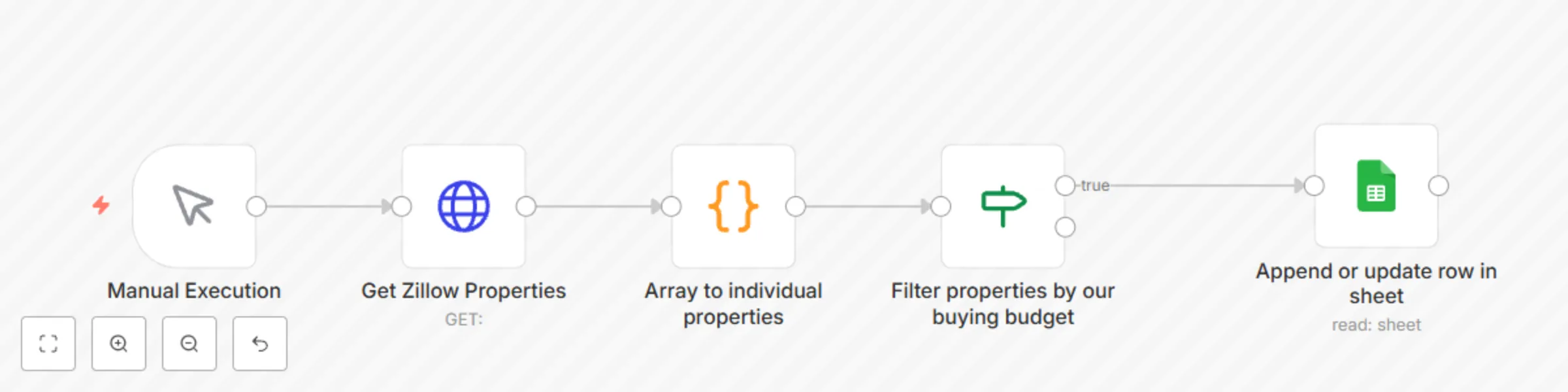
Nodes Used: - Manual Execution Trigger - HTTP Request (Get Zillow Properties) - Code Node (Split Listings Array) - IF Node (Filter by Budget) - Google Sheets (Append or Update) **Description :** This workflow automates the extraction, refinement, and organization of live real estate data from a top property platform into a clean, always-updated spreadsheet. It intelligently filters incoming data using custom criteria and ensures your sheet remains accurate without duplicates. Ideal for realtors, investors, or property analysts who need a real-time snapshot of viable listings without lifting a finger. **YOUTUBE VIDEO OF EXECUTION:** [https://youtu.be/zoBnYGu7fvU](https://youtu.be/zoBnYGu7fvU)

i
iamvaar
Market Research
7 Aug 2025
59
0
Workflow preview: Automate weekly US trademark reports with USPTO API and Google Drive CSV export
Free intermediate

Automate weekly US trademark reports with USPTO API and Google Drive CSV export

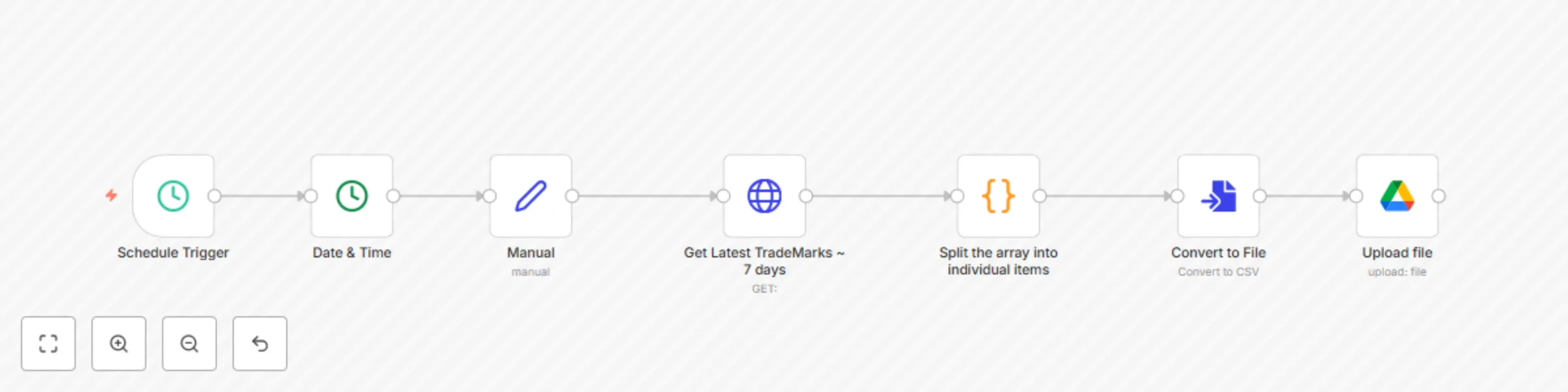
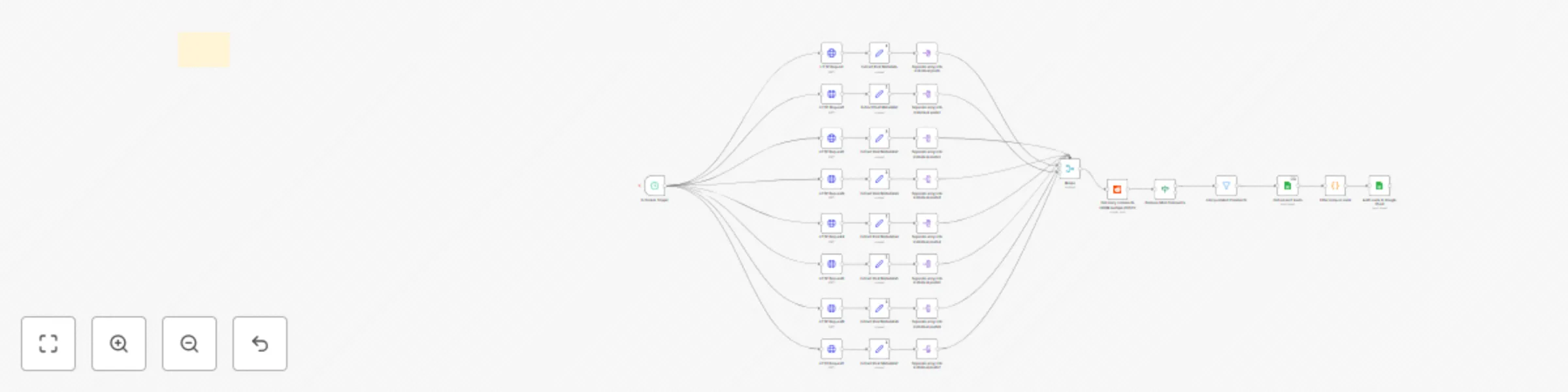
**Title:** ⚙️ Deep Dive: Automating Weekly US Trademark Reports with n8n, RapidAPI & Google Drive (No-Code Workflow) --- **Full Breakdown Post:** In this in-depth walkthrough, we're exploring a **powerful no-code automation** built entirely using [n8n](https://n8n.io), that automatically fetches the **latest US trademark registrations every 7 days**, saves them to a CSV, and uploads that file to your **Google Drive** — no manual effort required. Whether you're a **startup founder**, **legal tech builder**, or **data analyst**, this type of automation can save you hours every week and give you a real-time pulse on newly registered trademarks in the US. --- ### ⚙️ **What This Workflow Does:** Every week, the workflow automatically: 1. **Triggers on a schedule** 2. **Calculates the date range** (today and 7 days prior) 3. **Fetches trademark data** from the USPTO via a RapidAPI endpoint 4. **Splits the API response** into individual rows 5. **Converts it into a CSV file** 6. **Uploads the file to Google Drive** with a dynamic name like: ``` Active TM (2025-07-29 - 2025-08-05).csv ``` --- ### 🔍 Node-by-Node Breakdown --- #### **1. Schedule Trigger** * **Node**: `Schedule Trigger` * **Purpose**: Starts the workflow every 7 days --- #### **2. Date & Time** * **Node**: `Date & Time` * **Purpose**: Captures the current timestamp in ISO format to use for calculations. --- #### **3. Manual (Set Start & End Dates)** * **Node**: `Set` * **Purpose**: Assigns two dynamic values: * `Start_Date`: Current date minus 7 days * `End_Date`: Current date (today) --- #### **4. HTTP Request: Get Trademark Data** * **Node**: `HTTP Request` * **Method**: POST This returns an array of trademark records from USPTO's database that were registered in the past week. --- #### **5. Split the Array into Items** * **Node**: `Code` This takes the `results` array from the HTTP response and flattens it so that each trademark record becomes its own item in n8n's context. --- #### **6. Convert to CSV File** * **Node**: `Convert to File` * **File Name**: `test.csv` (you can change this dynamically if needed) This node takes all the individual trademark JSON objects and generates a CSV file out of them. --- #### **7. Upload to Google Drive** * **Node**: `Google Drive` * **Folder ID**: Your target folder’s ID * **Dynamic Name**: ```js =Active TM ({{ $('Manual').item.json.Start_Date }} - {{ $('Manual').item.json.End_Date }}) ``` This uploads the generated CSV file directly into your specified Google Drive folder with the correct name and date range. --- ### 🧠 Why This is Powerful * **Zero maintenance** once configured * **Always fresh** trademark data weekly * Ideal for **market research**, **brand monitoring**, **IP tracking** * Fully **serverless**... all you need is n8n, a RapidAPI key, and Google Drive access --- ### 🛡️ Disclaimer > **DISCLAIMER: THIS IS FOR EDUCATIONAL PURPOSES ONLY. THE CREATOR IS NOT LIABLE FOR ANY LOSSES OR DAMAGES CAUSED BY MISUSE OF THIS WORKFLOW.** --- ### 🚀 Final Thoughts With this one workflow, you're building a **production-grade automation pipeline** that would otherwise take a full dev sprint to manually script and deploy. Use it, extend it, and plug it into other workflows like: * Auto-emailing the report * Pushing to Google Sheets * Generating insights via AI n8n is your playground — this is just the beginning.

i
iamvaar
Market Research
6 Aug 2025
61
0
Workflow preview: Plan travel itineraries with Gemini AI, live Amadeus flights, and Airbnb stays
Free intermediate

Plan travel itineraries with Gemini AI, live Amadeus flights, and Airbnb stays

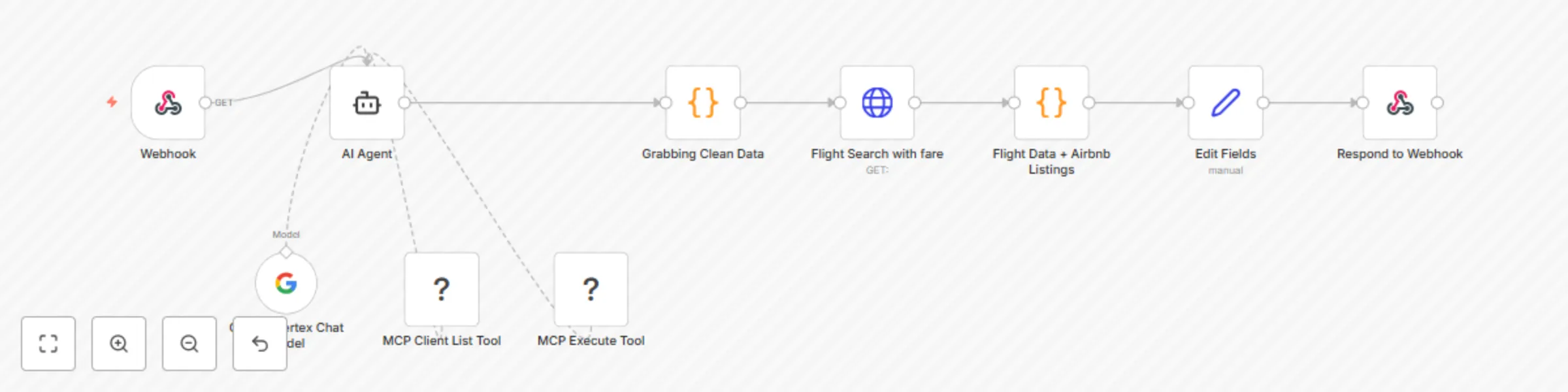
*This workflow contains community nodes that are only compatible with the self-hosted version of n8n.* ### Here is the Full Node-by-Node Breakdown of the workflow Workflow **Execution Video:** [https://youtu.be/qkZ6UaO7aCE](https://youtu.be/qkZ6UaO7aCE) --- #### 1. **Webhook** (`Webhook`) * **Purpose**: Accepts incoming user queries via HTTP GET with the text parameter. * **Example input**: `4 people from Germany to Bangkok @14th August 2025` --- #### 2. **AI Agent** (`AI Agent`) * **Type**: LangChain Agent * **Model**: Google Gemini 2.5 Flash via Vertex AI * **Prompt logic**: * Extracts structured travel info (origin city, destination, date, number of people) * Determines 3-letter IATA codes * Uses MCP’s Airbnb Tool to scrape listings starting from that date * **Returns**: * A markdown + bullet-format response with: * Structured trip info * List of Airbnb listings with titles, price, rating, and link --- #### 3. **MCP Client List Tool** (`MCP Client List Tool`) * **Purpose**: Fetches a list of tools registered with MCP (Multi Channel Parser) client for the AI agent to select from * **Used by**: AI Agent as part of `listTools()` phase --- #### 4. **MCP Execute Tool** (`MCP Execute Tool`) * **Purpose**: Executes the selected MCP tool (Airbnb scraper) * **Tool input**: Dynamic — passed by AI Agent using `$fromAI('Tool_Parameters')` --- #### 5. **Google Vertex Chat Model** (`Google Vertex Chat Model`) * **Purpose**: Acts as the LLM behind the AI Agent * **Model**: Gemini 2.5 Flash from Vertex AI * **Used for**: Language understanding, extraction, decision-making --- #### 6. **Grabbing Clean Data** (`Code Node`) * **Purpose**: Parses AI output to extract: * Structured trip data * Airbnb listings (with title, rating, price, link) * **Handles**: * Bullet (•) and asterisk (\*) formats * New and old markdown styles * Fallbacks for backward compatibility * **Output**: Clean JSON: ```json { "tripInformation": {...}, "listings": [...], "totalListings": X, ... } ``` --- #### 7. **Flight Search with fare** (`HTTP Request`) * **API**: Amadeus Flight Offers API * **Purpose**: Searches live flight offers using: * originIataCode * destinationIataCode * travelDate * numberOfPeople * **Auth**: OAuth2 --- #### 8. **Flight Data + Airbnb Listings** (`Code Node`) * **Purpose**: * Parses Amadeus flight offers * Formats date, time, and durations * Merges flight results with earlier Airbnb + trip info JSON * Sorts by cheapest total price * **Output**: ```json { "tripInformation": {...}, "listings": [...], "allFlightOffers": [...] } ``` --- #### 9. **Edit Fields** (`Set Node`) * **Purpose**: * Assigns final response fields into clean keys: * `traveldetails` * `listings` * `flights` --- #### 10. **Respond to Webhook** * **Purpose**: Sends back the final structured JSON response to the caller. * **Output**: Combined travel itinerary with flights + Airbnb --- ### Summary This end-to-end workflow is a **fully autonomous travel query-to-itinerary engine**. From a plain text like “4 people from Vijayawada to Bangkok @14th August 2025,” it: * Parses and understands the query using an AI agent * Fetches Airbnb stays by scraping live listings * Searches real-time flights via Amadeus * Merges and formats everything into structured, digestible JSON No manual parsing, no frontend — just AI + APIs + automation. NOTE: I JUST USED A COMMUNITY NODE "n8n-nodes-mcp" + UNOFFICIAL AIRBNB MCP

i
iamvaar
Personal Productivity
29 Jul 2025
229
0
Workflow preview: Automate patient intake & symptom triage with AI, Cal.com and Google Services
Free intermediate

Automate patient intake & symptom triage with AI, Cal.com and Google Services

**🚨 DISCLAIMER (READ FIRST):** This workflow is **NOT HIPAA-compliant** and **NOT intended for production use**. It is a **test/demo prototype** built for experimentation, education, and non-clinical evaluation purposes only. It does **not include encryption**, **does not meet any regulatory standards**, and **must not be used with real patient data or PHI** (Protected Health Information). The creator is **not liable** for any misuse or damage caused by deploying this workflow in a real-world or clinical environment. --- 🎥 **Watch the Workflow Demo:** [https://youtu.be/1qt3sU2o4_Y?si=oA1CizPaO66_tKnc](https://youtu.be/1qt3sU2o4_Y?si=oA1CizPaO66_tKnc) **🔧 Workflow Summary:** This n8n workflow mimics a lightweight AI assistant for healthcare clinics by automatically analyzing patient symptoms and booking appointments. It uses no-code tools and basic AI integration to demonstrate automation potential in medical triage. --- **🩺 What it does:** 1. **Patient submits a form** (Cal.com or webhook) with name, contact, and symptoms 2. **AI processes the symptoms** (via OpenRouter) and suggests the likely issue 3. **AI assigns a relevant department** like Ortho, Neuro, etc. 4. **Books the appointment** on the correct Google Calendar (department-wise) 5. **Saves the patient info** to a Google Sheet for tracking 6. **Skips duplicate appointments** for the same patient (based on name or contact) --- **📦 Tools Used:** • n8n (Cloud or Self-Hosted) • OpenRouter (GPT-based AI model) • Cal.com (Booking system) • Google Calendar • Google Sheets --- **⚠️ For a HIPAA-Compliant Version (Future-Ready Notes):** * Self-host n8n to avoid vendor lock-in or BAA issues * Run LLMs locally (LLaMA, Mistral) instead of APIs * Replace Cal.com with a self-hosted calendar/booking tool * Use end-to-end encryption for PHI transmission * Store data in encrypted Postgres (with pgcrypto or similar) * Implement access control and audit logging * AND MANY MORE.... REFER/CONSULT RESPECTIVE AUTHORITIES FOR MORE INFO --- **💡 Use Case:** This demo can help founders, developers, or healthtech explorers prototype AI-assisted clinic systems without writing code — but again, strictly for mock/demo workflows only.

i
iamvaar
Support Chatbot
25 Jul 2025
179
0
Workflow preview: Reddit to Google Sheets: tracking freelance/job leads
Free advanced

Reddit to Google Sheets: tracking freelance/job leads

## 🧩 n8n Workflow Overview: **Goal:** Get Reddit posts from specific subreddits, filter those mentioning freelance/gigs and n8n, extract top-level comments, remove mod replies, and store everything into Google Sheets. --- ## ⚙️ Step-by-step Node Explanation ### **Start (Trigger)** **Type:** Cron node **Runs:** Every 2 hours **Purpose:** Starts the workflow at regular intervals --- ### **HTTP Request - Get Posts from Reddit** **Type:** HTTP Request **Method:** GET **Auth:** OAuth2 (Reddit App) **Purpose:** Pulls the 10 latest posts from any subreddits of your choice --- ### **Filter Relevant Posts** **Type:** IF Node **Purpose:** Filters out noise, keeps only potential job leads --- ### **HTTP Request - Get Post Comments** **Type:** HTTP Request **Auth:** OAuth2 **Purpose:** Gets full comment thread for each post --- ### **Extract Top-Level Comments** **Type:** Function Node **Purpose:** Code filters only top-level comments (ignores nested ones) --- ### **Remove Mod Comments** **Type:** IF Node **Purpose:** Excludes mod replies that are usually auto-messages or rule enforcement --- ### **Format Clean Data** **Type:** Set Node **Fields captured:** - Subreddit - Post Title - Post URL - Comment Body - Reddit Username - Timestamp --- ### **Append to Google Sheets** **Type:** Google Sheets Node **Operation:** Append Row **Sheet:** Pre-created sheet with matching column names **Purpose:** Logs everything into your spreadsheet neatly --- ## 💡 Bonus Logic: - If a post has no comment → adds a blank - Runs smoothly with Reddit’s OAuth2 (no scraping) - All tools used are free-tier --- ## 📹 See It in Action: I posted a quick video walkthrough on YouTube (no audio, just execution): 👉 [https://youtu.be/JsUVVhYm8p4](https://youtu.be/JsUVVhYm8p4)

i
iamvaar
Lead Generation
24 Jul 2025
82
0
Workflow preview: Reddit freelance job monitor with Google Sheets tracking and Telegram alerts
Free intermediate

Reddit freelance job monitor with Google Sheets tracking and Telegram alerts

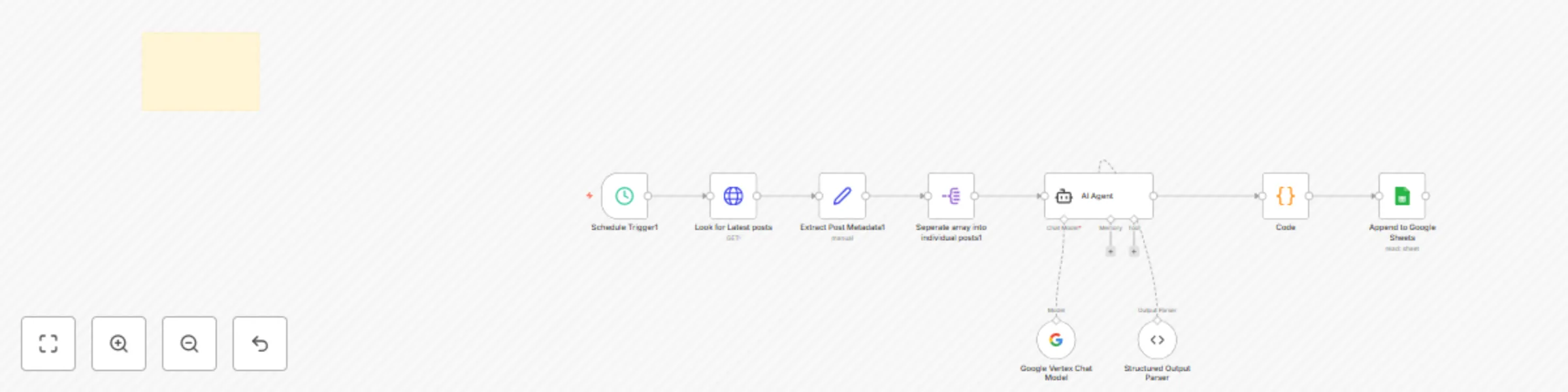
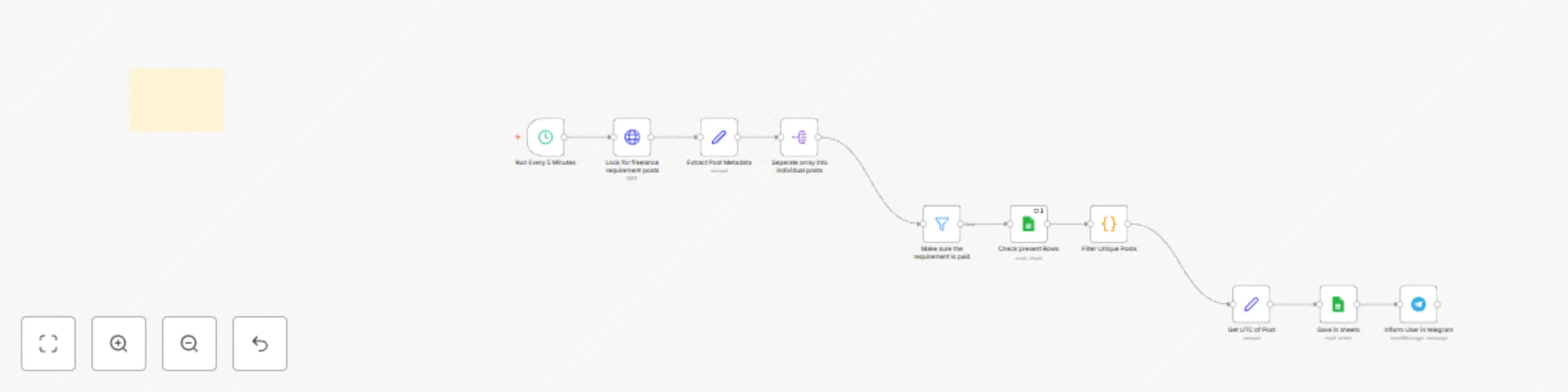
## What It Does This n8n workflow monitors Reddit for freelance job posts related to n8n and sends alerts via Telegram while logging relevant data in Google Sheets. It filters out duplicates and only stores unique, paid opportunities. --- ## Workflow Steps ### 1. **Schedule Trigger** Runs every 5 minutes. ### 2. **Reddit Search** Sends a query to Reddit API for freelance-related keywords. ### 3. **Extract Post Metadata** Parses out relevant data from Reddit response. ### 4. **Separate Posts** Splits array into individual post items. ### 5. **Filter Paid Jobs** Matches posts with keywords like "hiring", "paid", "job", etc. ### 6. **Check Existing Records** Pulls already logged post IDs from Google Sheets. ### 7. **Filter Unique Posts** Uses JavaScript to compare incoming posts with the existing ones and filters out duplicates. ### 8. **Get UTC Date** Converts Reddit `created_utc` timestamp into readable format. ### 9. **Save to Google Sheets** Appends unique posts with these fields: * `id` * `title` * `url` * `flair` * `created_utc` ### 10. **Send Telegram Alert** Sends a formatted notification with clickable links and meta info. --- ## Required Credentials * **Reddit OAuth2** (application with access to `search`) * **Google Sheets API** (via service account) * **Telegram Bot API** (bot token, chat ID) --- ## Google Sheet Configuration Make sure the sheet has these columns: * `id` (used for deduplication) * `title` * `url` * `flair` * `created_utc` > First row must be the header. --- ## How to Set It Up ### Reddit API 1. Create a Reddit App at [https://www.reddit.com/prefs/apps](https://www.reddit.com/prefs/apps) 2. Set up OAuth2 credentials in n8n with correct scopes ### Google Sheets 1. Create a new Google Sheet 2. Share with your service account email 3. Add required columns in the first row ### Telegram 1. Create a bot via [BotFather](https://t.me/BotFather) 2. Copy the bot token 3. Use a private chat or group, get the chat ID --- ## Notes * **Interval**: Adjust schedule node to change frequency * **Search Query**: You can customize keywords in the Reddit API URL * **Profanity**: Clean output only; no slang or offensive words --- ## Final Output * **Google Sheets**: A log of all new freelance Reddit posts * **Telegram**: Instant lead alerts for new job posts ---

i
iamvaar
Lead Generation
17 Jul 2025
99
0
Workflow preview: Personalized hotel reward emails for high-spenders with Salesforce, Gemini AI & Brevo
Free intermediate

Personalized hotel reward emails for high-spenders with Salesforce, Gemini AI & Brevo

This n8n workflow automatically detects high‑spending hotel guests after checkout and emails them a personalized, one‑time reward offer. --- ### **🔧 What it does** - Watches Salesforce `Guest__c` custom object for checkout updates. - Pulls guest spend data on optional paid amenities: - Room Service - Minibar - Laundry - Late Checkout - Extra Bed - Airport Transfer - Calculates total spend to identify VIP guests (≥ **$50**). - Uses AI to: - Spot unused services. - Randomly pick one unused service. - Generate a realistic, short promo like: _"Free late checkout on your next stay"_ - Parses AI output into JSON. - Sends a polished HTML email to the guest with their personalized offer. --- ### **📦 Key nodes** - `Salesforce Trigger` → monitors new checkouts. - `Salesforce` → fetches detailed spend data. - `Function` → sums up total amenity spend. - `IF` → filters for VIP guests. - `LangChain LLM` + `Google Vertex AI` → drafts the offer text. - `Structured Output Parser` → cleans AI output. - `Brevo` → delivers branded email. --- ### **📊 Example output** > _Subject:_ `John, We Have Something Special for Your Next Stay` > _Offer in email:_ `Enjoy a complimentary minibar selection on your next stay.` --- ### **✨ Why it matters** Rewarding guests who already spend boosts loyalty and repeat bookings — without generic discounts. The offer feels personal, relevant, and exclusive.

i
iamvaar
Social Media
13 Jul 2025
1250
0
Workflow preview: Automated inventory management with Airtable PO creation & supplier emails
Free advanced

Automated inventory management with Airtable PO creation & supplier emails

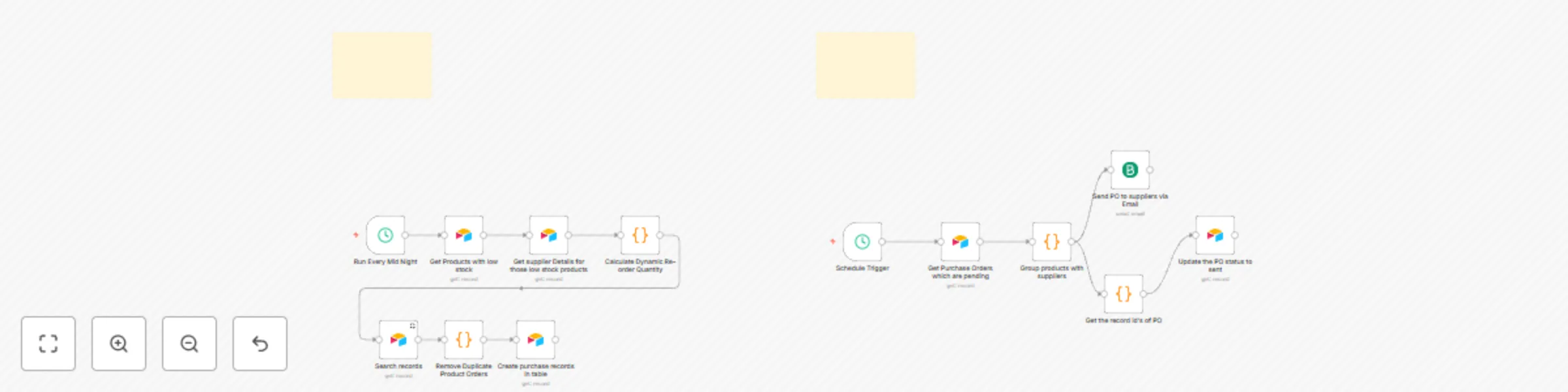
**In-depth description of this automation:** This is a fully automated daily supply chain and procurement workflow that keeps product stock levels healthy and suppliers updated, by automatically generating and emailing purchase orders (POs) and syncing PO statuses in Airtable. --- ### **📅 Daily triggers** * Two `Schedule Trigger` nodes run: * One runs at midnight (00:00) to manage low stock and new purchase order creation. * Another runs at 1:00 AM to process existing pending POs and email suppliers. --- ### **🚦 Step-by-step breakdown** #### 1️⃣ **Get Products with low stock** * Searches the “Products Table” in Airtable for items where `{stock_level} <= {reorder_threshold}`. * Detects products that need restocking. #### 2️⃣ **Get supplier details** * Fetches supplier data for each low-stock product using its `supplier_id`. #### 3️⃣ **Calculate Dynamic Reorder Quantity** * JS code calculates an optimal reorder quantity: * Uses `average_daily_sales × (lead_time × 1.5) × safety_margin (1.2)` * Adds extra buffer so the new order covers both immediate demand and next cycle. #### 4️⃣ **Search existing POs** * Looks in the “Purchase Orders” table for active POs (status `Pending` or `Sent`) matching each product. * Prevents duplicate orders. #### 5️⃣ **Remove duplicate product orders** * JS node compares current low-stock products with existing POs. * Filters out products already covered, so new POs are only created for truly uncovered products. #### 6️⃣ **Create new purchase orders** * For filtered products, creates new PO records in Airtable with: * `product_name` * `product_id` * calculated `reorder_qty` * supplier info and email * initial status `Pending` --- ### **📧 Process existing pending purchase orders and email suppliers** #### 7️⃣ **Get Purchase Orders which are pending** * Searches Airtable for all POs with status `Pending`. #### 8️⃣ **Group products with suppliers** * JS code groups these POs by `supplier_id`. * Builds a summary (total products, total quantity) and an HTML email with a styled table of items. #### 9️⃣ **Send PO emails to suppliers** * Uses Brevo (SendInBlue) to send emails. * Subject and content include supplier-specific order details. #### 🔄 **Update PO statuses to Sent** * Extracts Airtable record IDs of the sent POs. * Updates those POs in Airtable, changing status from `Pending` → `Sent`. --- ### **📌 Summary** ✅ Runs every day ✅ Dynamically calculates reorder needs ✅ Avoids duplicate purchase orders ✅ Automatically creates purchase orders in Airtable ✅ Groups & emails daily PO summaries to suppliers ✅ Updates PO status after sending email --- ### **⚙ Tables involved** * **Products Table:** stores products, stock levels, reorder thresholds, average daily sales, supplier references. * **Suppliers Table:** stores supplier emails and metadata. * **Purchase Orders Table:** tracks product orders with supplier IDs, status, quantities, etc. --- This workflow makes daily procurement fully automated: detects risk of stockouts, creates POs smartly, keeps suppliers in sync by email, and updates order statuses in one closed loop — perfect for any small or mid-sized business using Airtable + N8N.

i
iamvaar
Document Extraction
9 Jul 2025
389
0
Workflow preview: 🚀 Automated Stripe payment recovery: track failures & follow-up emails
Free intermediate

🚀 Automated Stripe payment recovery: track failures & follow-up emails

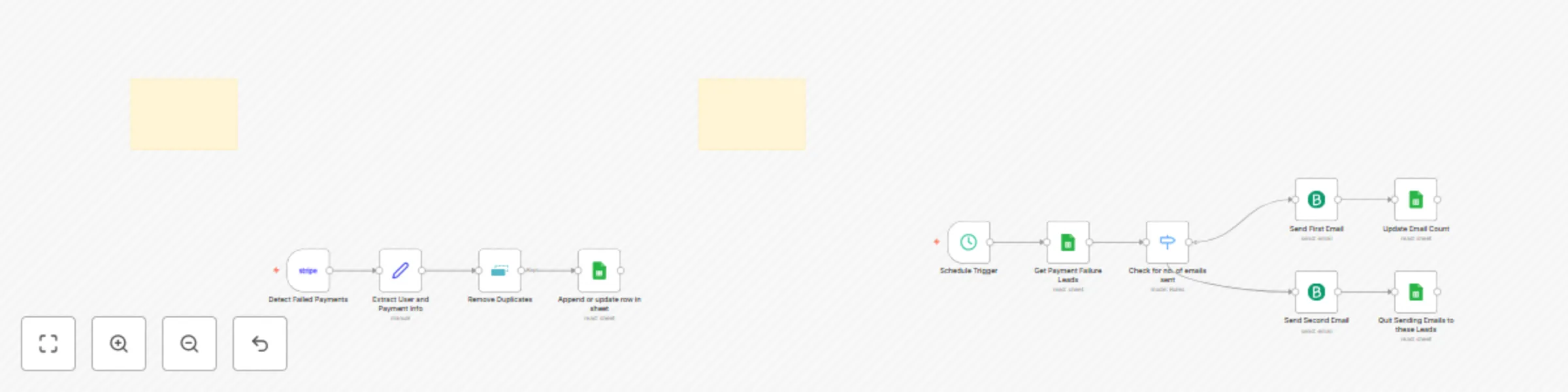
# 🚀 **Automated Stripe Payment Recovery Workflow (n8n)** Detect failed payments, log them, and send polite follow-up emails to recover revenue — all automated with n8n. --- ## ✅ **Part A – Detect & log failed payments** **What it does:** * Listens for failed Stripe payments. * Extracts customer & payment info. * Logs them neatly in Google Sheets for follow-up. **🧩 Nodes:** 1️⃣ **Stripe Trigger** * Listens to: ``` payment_intent.payment_failed ``` 2️⃣ **Set node** * Extracts & maps fields: * Name, Email, Amount (in cents), Currency * payment\_intent\_id * added\_at → `{{ $now }}` * email\_sent\_count → `0` 3️⃣ **Remove Duplicates** * Keeps the sheet clean (avoids duplicate rows). 4️⃣ **Google Sheets node** * Append or update row: * Name, Email, Amount/100, Currency, payment\_intent\_id, added\_at, email\_sent\_count > 📌 This builds your “failed payments queue” to drive the follow-up emails later. --- ## 🔁 **Part B – Daily follow-up emails** **What it does:** * Runs daily. * Checks which users haven’t received 2 emails yet. * Sends reminder emails and tracks how many were sent. **🧩 Nodes:** 1️⃣ **Schedule Trigger** * Runs every day at 10 AM (`0 10 * * *`) 2️⃣ **Get Payment Failure Leads** * Reads rows from Google Sheet. 3️⃣ **Switch node (Check for no. of emails sent)** * If `email_sent_count < 1` → send first email. * Else if `email_sent_count < 2` → send second email. * Else → mark as "quit sending emails". 4️⃣ **Send First Email** * Sends a gentle reminder with billing page button. 5️⃣ **Update Email Count** * Increments `email_sent_count` by +1 in Google Sheets. 6️⃣ **Send Second Email** * Sends final, urgent reminder. 7️⃣ **Quit Sending Emails to these Leads** * Marks that no more emails should be sent. --- ## 📝 **Headline** > **🚀 Automated Stripe Payment Recovery: Track Failures & Send Follow-Up Emails via n8n** --- ## ✅ **Why this matters:** * Catch failed payments automatically. * Log every attempt & follow-up count. * Recover lost revenue while staying polite and respectful. * Avoid spamming by capping follow-ups to 2 emails.

i
iamvaar
Invoice Processing
6 Jul 2025
298
0
Workflow preview: RAG chatbot with Supabase + TogetherAI + Openrouter
Free intermediate

RAG chatbot with Supabase + TogetherAI + Openrouter

## ⚠️ RUN the FIRST WORKFLOW ONLY ONCE (as it will convert your content in Embedding format and save it in DB and is ready for the RAG Chat) ## 📌 Telegram Trigger * **Type:** `telegramTrigger` * **Purpose:** Waits for new Telegram messages to trigger the workflow. * **Note:** Currently disabled. --- ## 📄 Content for the Training * **Type:** `googleDocs` * **Purpose:** Fetches document content from Google Docs using its URL. * **Details:** Uses Service Account authentication. --- ## ✂️ Splitting into Chunks * **Type:** `code` * **Purpose:** Splits the fetched document text into smaller chunks (1000 chars each) for processing. * **Logic:** Loops over text and slices it. --- ## 🧠 Embedding Uploaded Document * **Type:** `httpRequest` * **Purpose:** Calls Together AI embedding API to get vector embeddings for each text chunk. * **Details:** Sends JSON with model name and chunk as input. --- ## 🛢 Save the embedding in DB * **Type:** `supabase` * **Purpose:** Saves each text chunk and its embedding vector into the Supabase `embed` table. ## SECOND WORKFLOW EXPLAINATION: ## 💬 When chat message received * **Type:** `chatTrigger` * **Purpose:** Starts the workflow when a user sends a chat message. * **Details:** Sends an initial greeting message to the user. --- ## 🧩 Embend User Message * **Type:** `httpRequest` * **Purpose:** Generates embedding for the user’s input message. * **Details:** Calls Together AI embeddings API. --- ## 🔍 Search Embeddings * **Type:** `httpRequest` * **Purpose:** Searches Supabase DB for the top 5 most similar text chunks based on the generated embedding. * **Details:** Calls Supabase RPC function `matchembeddings1`. --- ## 📦 Aggregate * **Type:** `aggregate` * **Purpose:** Combines all retrieved text chunks into a single aggregated context for the LLM. --- ## 🧠 Basic LLM Chain * **Type:** `chainLlm` * **Purpose:** Passes the user's question + aggregated context to the LLM to generate a detailed answer. * **Details:** Contains prompt instructing the LLM to answer only based on context. --- ## 🤖 OpenRouter Chat Model * **Type:** `lmChatOpenRouter` * **Purpose:** Provides the actual AI language model that processes the prompt. * **Details:** Uses `qwen/qwen3-8b:free` model via OpenRouter and you can use any of your choice.

i
iamvaar
Internal Wiki
5 Jul 2025
6434
0
Workflow preview: Automated stale user re-engagement system with Supabase, Google Sheets & Gmail
Free intermediate

Automated stale user re-engagement system with Supabase, Google Sheets & Gmail

Built this workflow because most of our users signed up, then vanished after ~30 days. It runs daily, grabs those stale users from Supabase, updates a Google Sheet for tracking, and automatically sends each one a personalized HTML email through Gmail to bring them back. All fully automated — so once it’s set up, it quietly does its job in the background. Currently, it only supports Supabase, but the concept should work with any DB or API if you swap out the request node.

i
iamvaar
Social Media
3 Jul 2025
170
0