H

Hubschrauber

6
Workflows

Workflows by Hubschrauber
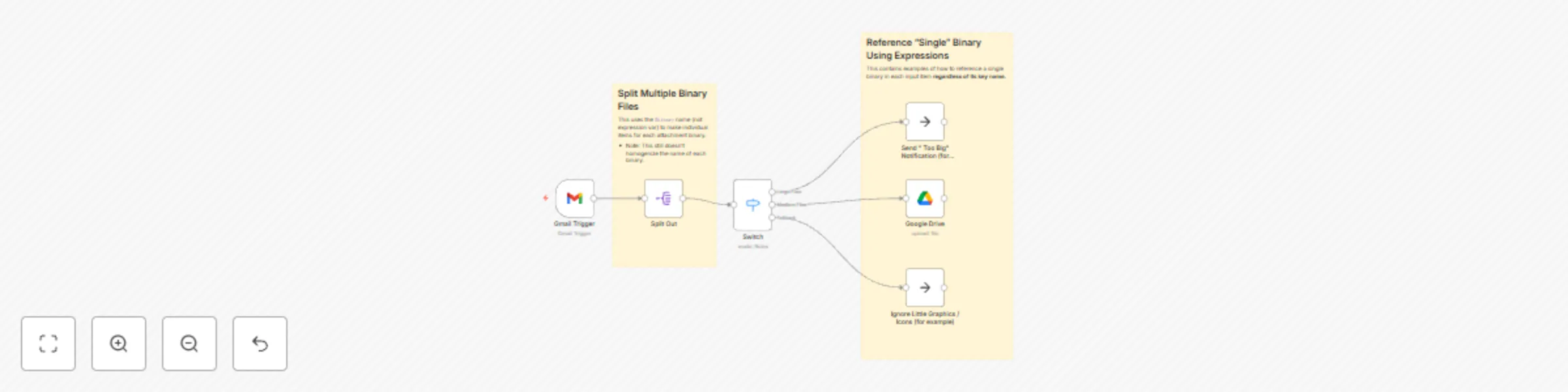
Workflow preview: Upload multiple attachments from Gmail to Google Drive - without a code node
Free intermediate

Upload multiple attachments from Gmail to Google Drive - without a code node

## Summary This template uses the item handling nodes, and expression-support in n8n, **without using a `Code` node**, to extract **multiple** attachments from a GMail (trigger input) message/event, and (conditionally) upload each of them to Google Drive. Note: There is another template titled [Get Multiple Attachments from Gmail and upload them to GDrive](<https://n8n.io/workflows/2348-get-multiple-attachments-from-gmail-and-upload-them-to-gdrive/>) that does basically the same thing, but it uses a `Code` node. ## Details ### Using `Split Out` instead of `Code` The “secret” to how this works is that n8n supports a special input field name `$binary` that references the entire set of (multiple) binary data sub-elements in a single input item. It may look like an expression, but in this case it is a “fixed” (literal) value used as the `Fields to Split Out` parameter value. ### Dealing with names that are prefixed/suffixed with an Index The next challenge with multiple attachments from a GMail message is that **each one is still assigned different name** like "attachment_0", "attachment_1", etc. This makes it tricky to reference them in a generic way. However, **once n8n splits the items out**, the binary in **each item is always the first (i.e. index-zero / `[0]`) and ONLY key/value**. So, that makes it possible get the key-name and attributes of the corresponding value indirectly with some clever expression syntax. * `Input Data Field Name` -> Expression: `{{ $binary.keys()[0] }}` - **This returns the name, regardless of whether it is "attachment_0", "attachment_1", or whatever else.** * Attachment file name: -> Expression: `{{ $binary.values()[0].fileName }}` * Attachment file name extension: -> Expression: `{{ $binary.values()[0].fileExtension }}` * Attachment file type: -> Expression: `{{ $binary.values()[0].fileType }}` * Attachment file size (e.g. string "100 kB"): -> Expression: `{{ $binary.values()[0].fileSize }}` * Attachment file size (numeric): -> Expression: `{{ $binary.values()[0].fileSize.split(' ')[0].toNumber() }}` * Attachment mime type: -> Expression: `{{ $binary.values()[0].mimeType }}` * Attachment id (storage GUID): -> Expression: `{{ $binary.values()[0].id }}` ## Flow Control Since each of the attachments becomes a single item, it is relatively straightforward to introduce other n8n nodes like `If`, `Switch`, or `Filter` and route each single attachment item into different workflow paths. The template demonstrates how each attachment binary could be routed based on its file size, as an example.

H
Hubschrauber
File Management
22 Feb 2025
3138
0

Workflow preview: Pattern for multiple triggers combined to continue workflow
Free advanced

Pattern for multiple triggers combined to continue workflow

## Overview This template describes a possible approach to handle a pseudo-callback/trigger from an independent, external process (initiated from a workflow) and combine the received input with the workflow execution that is already in progress. This requires the external system to pass through some context information (`resumeUrl`), but allows the "primary" workflow execution to continue with **BOTH** its own (previous-node) context, **AND** the input received in the "secondary" trigger/process. ### Primary Workflow Trigger/Execution The workflow path from the `primary trigger` initiates some external, independent process and provides "context" which includes the value of `$execution.resumeUrl`. This execution then reaches a `Wait` node configured with `Resume - On Webhook Call` and stops until a call to `resumeUrl` is received. ### External, Independent Process The external, independent process could be anything like a Telegram conversation, or a web-service as long as: 1. it results in a single execution of the `Secondary Workflow Trigger`, and 2. it can pass through the value of `resumeUrl` associated with the `Primary Workflow Execution` ### Secondary Workflow Trigger/Execution The `secondary workflow execution` can start with any kind of trigger as long as part of the input can include the `resumeUrl`. To combine / rejoin the `primary workflow execution`, this execution passes along whatever it receives from its trigger input to the resume-webhook endpoint on the `Wait` node. ## Notes * **IMPORTANT**: The workflow ids in the `Set` nodes marked **Update Me** have embedded references to the workflow IDs in the original system. **They will need to be CHANGED to make this demo work.** * Note: The `Resume Other Workflow Execution` node in the template uses the `$env.WEBHOOK_URL` configuration to convert to an internal "localhost" call in a Docker environment. This can be done differently. * **ALERT:** This pattern is NOT suitable for a workflow that handles multiple items because the first workflow execution will only be waiting for one callback. * The second workflow (not the second trigger in the first workflow) is just to demonstrate how the `Independent, External Process` needs to work.

H
Hubschrauber
Engineering
7 Feb 2025
1542
0
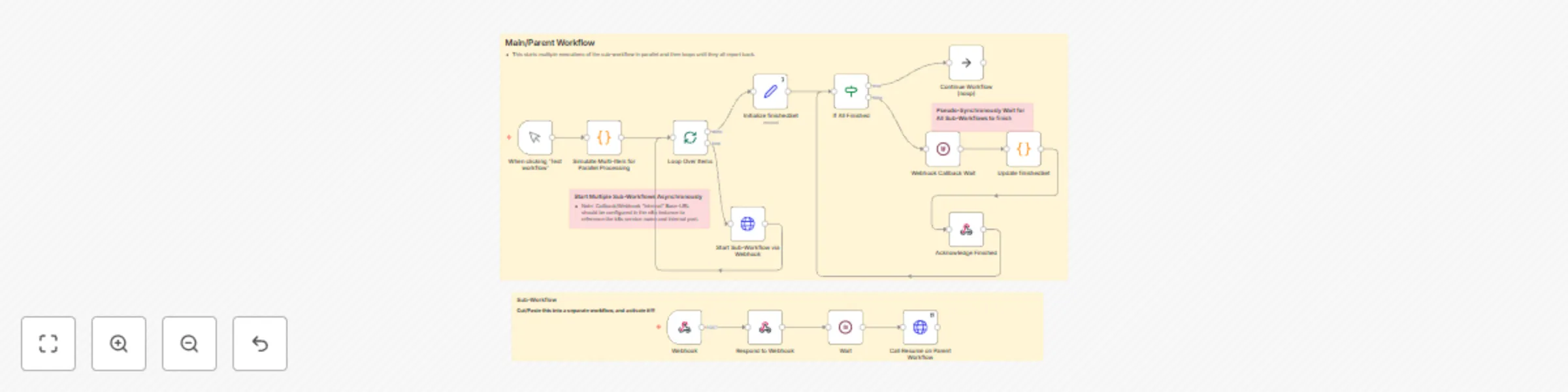
Workflow preview: Pattern for parallel sub-workflow execution followed by wait-for-all loop
Free advanced

Pattern for parallel sub-workflow execution followed by wait-for-all loop

## What this workflow does This (set of) workflow(s) shows how to start multiple sub-workflows, asynchronously, in parallel, and then wait for all of them to complete. Normally sub-workflows would need to be run synchronously, in series, or, if they are executed asynchronously (to run concurrently, in parallel), there is no easy way to merge/wait for an arbitrary number of them to complete. This is a "design pattern" template to show one approach for running multiple, data-driven instances of a sub-workflow "asynchronously," in parallel (instead of running them one at a time in series), but still prevent the later steps in the workflow from continuing until all of the sub-workflows have reported back that they are finished, via callback URL. There are other techniques involving messaging services, database tables, or other external "flow manager" helpers, but this technique accomplishes the goal fully within n8n. ## Setup To implement this pattern, examine the nodes in the template and modify the incoming data leading to: 1. A split-out loop to acynchronously execute a sub-workflow multiple times, in parallel. * For instance, each sub-workflow might process one of a list of incoming documents. * The resumeUrl for the main/parent workflow is provided to all of the sub-workflow executions, along with a unique identifier that can be counted later (e.g. a document file-name). 2. A "wait-for-all" loop that checks whether all sub-workflows have reported back (`if` node) and builds a unique list of identifiers from the callbacks received from each execution of the sub-workflow. * The sub-workflow should be designed to respond immediately (async) and later send a callback request when it has finished processing. * The callback request should include the unique identifier value received when the sub-workflow it was started. This is meant to be a possible answer to questions like [this one about running things in parallel](https://community.n8n.io/t/is-it-possible-to-run-a-part-of-the-workflow-in-parallel/60221), maybe [this one about waiting for things to finish](https://community.n8n.io/t/node-does-not-wait-for-predecessor-node-always-need-a-merge-node/60773), [this one about managing sub-batches of things by waiting for each batch](https://community.n8n.io/t/maximum-parallel-subworkflows/60052), or [this one about running things in parallel](https://community.n8n.io/t/parallel-execution-of-bat-files/49493). The topic of how to do this comes up A LOT, and this is one of the only techniques that (so far) seems to work.

H
Hubschrauber
Engineering
12 Nov 2024
11440
0

Workflow preview: IOT button remote / Spotify control integration with MQTT
Free advanced

IOT button remote / Spotify control integration with MQTT

## Overview This template integrates an IOT multi-button switch (meant for controlling a dimmable light) with Spotify playback functions, via MQTT messages. This isn't likely to work without some tinkering, but should be a good head start on receiving/routing IOT/MQTT messages and hooking up to a Spotify-like API. ## Requirements * An IOT device capable of generating events that can be delivered as MQTT messages through an MQTT Broker * e.g. [Ikea Strybar remote](https://www.ikea.com/us/en/p/styrbar-remote-control-smart-white-80488370/) * An MQTT Broker to which n8n can connect and consume messages * e.g. Zigbee2MQTT in HomeAssistant * A Spotify **developer-account** (which provides access to API functions via OAuth2 authorization) * A Spotify **user-account** (which provides access to Spotify streamed content, user settings, etc.) ## Setup 1. Create an MQTT Credential item in n8n and assign it to the MQTT Trigger node 1. Modify the MQTT trigger node to match the topic for your IOT device messages 1. Modify the switch/router nodes to map to the message text from your IOT button (e.g. arrow_left_click, brightness_up_click, etc.) 1. Create a Spotify **developer-account** (or use the login for a **user-account**) 1. Create an "App" in the **developer-account** to represent the n8n workflow * Chicken/Egg ALERT: The n8n Spotify Credentials dialog box will display the "OAuth Redirect URL" required to create the App in Spotify, but the n8n Credential item itself cannot be created until AFTER the App has been created. 1. Create a Spotify Credentials item in n8n * Open the Settings on the Spotify App to find the required Client ID and Client Secret information. * ALERT: Save this before proceeding to the Connect step. 1. Connect the n8n Spotify Credential item to the Spotify **user-account** * ALERT: Expect n8n to open a separate OAuth2 window on authorization.spotify.com here, which may require a login to the Spotify **user-account** 1. Open each of the HTTP and Spotify nodes, one by one, and re-assign to **your** Spotify Credential (try not to miss any). * (Then, probably, upvote this feature request: [https://community.n8n.io/t/select-credentials-via-expression/5150](https://community.n8n.io/t/select-credentials-via-expression/5150) 1. Modify the variable values in the Globals node to match your own environment. * target_spotify_playback_device_name - The name of a playback device available to the Spotify user-account * favorite_playlist_name - The name of a playlist to start when one of the button actions is indicated in the MQTT message. Used in example "Custom Function 2" sequence. ## Notes * You're on your own for getting the multi-button remote switch talking to MQTT, figuring out what the exact MQTT topic name is, and mapping the message parts to the workflow (actions, etc.). * The next / previous actions are wired up to **not** transfer control to the target device. This alternative routing just illustrates a different behavior than the remaining actions/functions, which include activation of the target device when required. * Some of the Spotify API interactions use the Spotify node in n8n, but many of the available Spotify API functions are limited or not implemented at all in the Spotify node. So, in other cases, a regular HTTP node is used with the Spotify OAuth2 API credential instead. By modifying one of the examples included in the template, it should be possible to call nearly anything the Spotify API has to offer. ## Spotify+n8n OAuth Mini-Tutorial ### Definitions * The **developer-account** is the Spotify login for creating a **spotify-app** which will be associated with a **client id** and **client secret**. * The **user-account** is the Spotify login that has permission to stream songs, set up playback devices, etc. * ++A **spotify-login** allows access to a Spotify **user-account**, _or_ a Spotify **developer-account**, **_OR BOTH_**++ * The **spotify-app**, which has a **client id** and **client secret**, is an object created in the **developer-account**. * The **app-implementation** (in this case, an ++n8n workflow++) uses the **spotify-app's** credentials (client id / client secret) to call Spotify API endpoints **on behalf of** a **user-account**. ### Using One Spotify Login as Both User and Developer When an n8n _Spotify-node_ or _HTTP-node_ (i.e. an **app-implementation**) calls a Spotify API endpoint, the Credentials item **may** be using the **client id and client secret** from a **spotify-app**, which was created in a **developer-account** that is ++**one and the same _spotify-login_** as the **user-account**++. However, it helps to remind yourself that from the Spotify API server's perspective, the **developer-account + spotify-app**, and the **user-account**, are ++**two independent entities**++. ### n8n Spotify-OAuth2-API Credential Authorization Process The **2** layers/steps, in the process of authorizing an n8n Spotify-OAuth2-API credential to make API calls, are: 1. n8n must identify itself to Spotify as the **app-implementation** associated with the **developer-account/spotify-app** by sending the app's credentials (client id and client secret) to Spotify. * The Client ID and Client Secret are supplied in the n8n Spotify OAuth2 Credentials UI/dialog-box 2. Separately, n8n must obtain an authorization token from Spotify to represent the **permissions granted by the user** to execute actions (call API endpoints) **on behalf of** the user (i.e. access things that belong to the **user-account**). * This authorization for the **user-account** access is obtained when the "Connect" or "Reconnect" button is clicked in the n8n Spotify Credentials UI/dialog-box (which pops up a separate authorization UI/browser-window managed by Spotify). * The Authorization for a given **spotify-app** stays "registered" in the **user-account** until revoked. * See: https://support.spotify.com/us/article/spotify-on-other-apps/ * Direct Link: https://www.spotify.com/account/apps/ * More than one **user-account** _can_ be authorized for a given **spotify-app**. A particular n8n Spotify-OAuth2-API credential item appears to cache an authorization token for the **user-account** that was **_most recently_** authorized. * Up to 25 users can be allowed access to a **spotify-app** in Developer-Mode, but any **user-account** other than the one associated with the **developer-account** must be added by email address at **https://developer.spotify.com/dashboard/**_{{app-credential-id}}_**/users** * **ALERT:** IF the browser running the n8n UI is ALSO logged into a Spotify account, and the **spotify-app** is already authorized for that Spotify account, the "reconnect" button in the Spotify-OAuth2-API credential dialog may automatically grab a token for that logged in **user-account**, offering no opportunity to select a different **user-account**. * This can be managed somewhat by using "incognito" browser windows for n8n, Spotify, or both. ### References * [n8n Spotify Credentials Docs](https://docs.n8n.io/integrations/builtin/credentials/spotify/) * [Spotify Authorization Docs](https://developer.spotify.com/documentation/web-api/concepts/authorization)

H
Hubschrauber
Miscellaneous
18 Aug 2024
4011
0
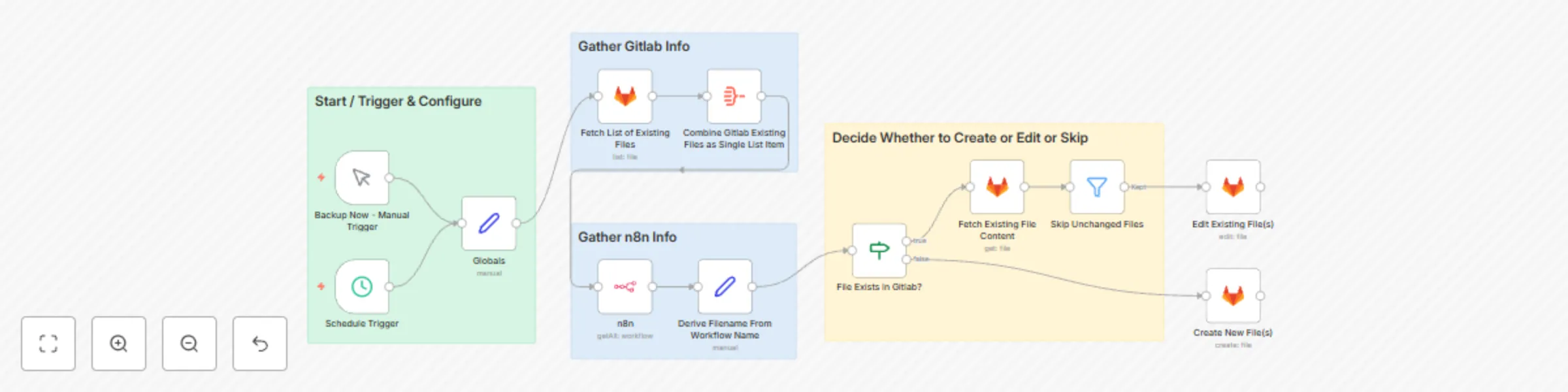
Workflow preview: Backup tag-selected workflows to Gitlab
Free advanced

Backup tag-selected workflows to Gitlab

Fetches workflow definitions from within n8n, selecting only the ones that have one or more (configurable) assigned tags and then: 1. Derives a suitable backup filename by reducing the workflow name to a string with alphanumeric characters and no-spaces * *Note: This isn't bulletproof, but works as long as workflow names aren't too crazy.* 2. Determines which workflows need to be backed up based on whether each one: * has been modified. (*Note: Even repositioning a node counts.*) ...or... * is new. (*Note: Renaming counts as this.*) 3. Commits JSON copies of each workflow, as necessary, to a Gitlab repository with a generated, date-stamped commit message. ## Setup ### Credentials * Create a Gitlab Credentials item and assign it to all Gitlab nodes. * Create an n8n Credentials item and assign it to the n8n node * Note: This was tested with **http://localhost:5678/api/v1** but should work with any reachable n8n instance and API key. ### Modify these values in the "Globals" Node * **gitlab_owner** - {{your gitlab account}} * **gitlab_project** - {{ your gitlab project name }} * **gitlab_workflow_path** - {{ subdirectory in the project where backup files should be saved/committed }} * **tags_to_match_for_backup** - {{tag(s) to match for backup selection}} * ***ALERT:** According to the **n8n** node's **Filters -> tags** field annotations, and API documentation, this supports a CSV list of multiple tags (e.g. tag1,tag2), **but** the API behavior requires workflows to have **all-of** the listed tags, not **any-of** them.* * **See:** https://github.com/n8n-io/n8n/issues/10348 * **TL/DR** - Don't expect a multiple tag list to be **more** inclusive. * **Possible workaround:** To match more than one tag value, duplicate the n8n node into multiple single-tag matches, or split and iterate multiple values, and merge the results. ## Possible Enhancements * Make the branch ("Reference") for all the gitlab nodes configurable. Fixed on all as "main" in the template. * Add an n8n node to generate an audit and store the output in gitlab along with the backups. * Extend the workflow at the end to create a Gitlab release/tag whenever any backup files are actually updated or created.

H
Hubschrauber
DevOps
11 Aug 2024
1962
0
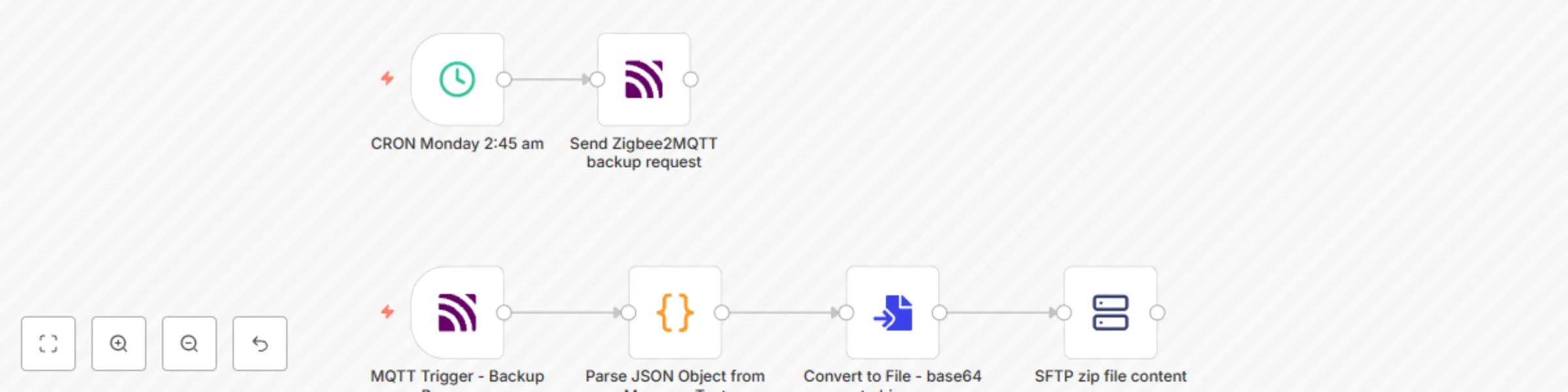
Workflow preview: Request and receive Zigbee backup from zigbee2mqtt and save it via SFTP
Free intermediate

Request and receive Zigbee backup from zigbee2mqtt and save it via SFTP

A single workflow with 2 flows/paths that combine to handle the backup sequence for Zigbee device configuration from HomeAssistant / zigbee2mqtt. This provides a way to automate a periodic capture of Zigbee coordinators and device pairings to speed the recovery process when/if the HomeAssistant instance needs to be rebuilt. Setting up similar automation without n8n (e.g. shell scripts and system timers) is consiterably more challenging. n8n makes it easy and this template should remove any other excuse not to do it. ## Flow 1 * Triggered by Cron/Timer * set whatever interval for backups * sends mqtt message to request zigbee2mqtt backup (via separate message) ## Flow 2 * Triggered by zigbee2mqtt backup message * Extracts zip file from the message and stores somewhere, with a date-stamp in the filename, via sftp ## Setup * Create a MQTT connection named **"MQTT Account"** with the appropriate protocol (mqtt), host, port (1883), username, and password * Create an sftp connection named **"SFTP Zigbee Backups"** with the appropriate host, port (22), username, and password or key. ## Reference * [This article](https://home-assistant-guide.com/changelog/zigbee2mqtt/zigbee2mqtt-1-26-0/you-can-now-back-up-your-complete-zigbee2mqtt-configuration/) describes the mqtt parts.

H
Hubschrauber
File Management
3 Aug 2024
1874
0