Automated Workflow Backup System with Google Drive, Gmail and Discord Alerts'
---
## How it works
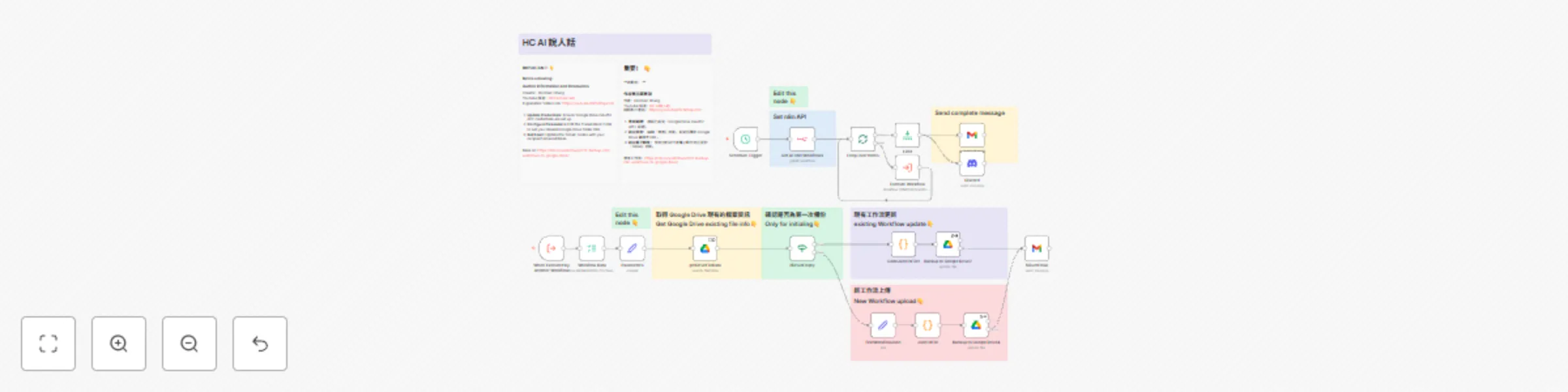
This workflow automates the backup of all your n8n workflows to a specified Google Drive folder. It operates in two main phases:
1. **Orchestration (Scheduled Task):**
* The workflow is initiated by a **Schedule Trigger** (e.g., daily at 1:30 AM by default).
* It then uses an **n8n API Node** to fetch a list of all existing workflows in your n8n instance.
* A **Loop Over Items** node processes each fetched workflow individually.
* For every workflow in the list, an **Execute Workflow** node calls the "worker" part of this same workflow, passing the individual workflow's data.
2. **Individual Workflow Backup (Worker Task):**
* This part is triggered by the **When Executed by Another Workflow** node (called by the orchestrator part).
* It first retrieves the passed workflow data.
* A **Parameters** node defines the target Google Drive directory.
* The **Get Google Drive File Data** node searches the specified Google Drive folder to see if a backup file for the current workflow (named as `WorkflowName_WorkflowID.json`) already exists.
* An **IF Node** (`ifDriveEmpty`) checks the result:
* If a backup file **exists**, the workflow data is converted to a binary JSON file using a **Code Node**, and then the existing file on Google Drive is **updated** (`Backup to Google Drive2`).
* If a backup file **does not exist**, the workflow data is first formatted as JSON, converted to a binary JSON file using another **Code Node**, and then **uploaded as a new file** to Google Drive (`Backup to Google Drive4`).
* If any Google Drive upload/update operation fails, a **Failure Email** is sent.
After the loop in the orchestration phase completes (all workflows processed), a **Limit** node ensures only one signal proceeds to send a **Success Email** and a **Discord** message indicating the overall backup process was completed.
## Setup
1. **Clone Workflow:** Clone this workflow into your n8n environment.
2. **Credentials:**
* **n8n API:** In the "Get all n8n Workflows" node, select or create n8n API credentials. This allows the workflow to list all your other workflows.
* **Google Drive:** In the "getDriveFileData", "Backup to Google Drive2", and "Backup to Google Drive4" nodes, select or create your Google Drive OAuth2 API credentials.
* **Gmail:** In the "successEmail" and "failureEmail" nodes, select or create your Gmail credentials.
* **Discord (Optional):** If you wish to use Discord notifications, configure your Discord Bot API credentials in the "Discord" node.
3. **Configuration:**
* **Schedule:** Open the "Schedule Trigger" node and adjust the trigger interval (e.g., time of day) as needed.
* **Google Drive Folder:** Open the "Parameters" node (connected after "Workflow Data"). Edit the `directory` value to the full URL of the Google Drive folder where you want to store your backups (e.g., `https://drive.google.com/drive/folders/YOUR_FOLDER_ID`).
* **Email Recipients:** Open the "successEmail" and "failureEmail" nodes and update the "Send To" field with your desired recipient email address(es).
* **Discord Channel (Optional):** If using Discord, open the "Discord" node and set the "Channel ID" for notifications.
* **Sub-Workflow ID:** The "Execute Workflow" node is pre-configured to call this workflow itself using its ID. If you import this workflow and its ID changes, you *may* need to update the `workflowId` in the "Execute Workflow" node to the new ID of this imported workflow. *However, n8n usually handles this if it's self-referential within the same imported workflow.*
## How to use
1. **Activate:** After completing the setup steps, activate the workflow. It will automatically run according to the defined schedule.
2. **Manual Execution:** You can also manually trigger the workflow by clicking the "Execute Workflow" play button on the "Schedule Trigger" node to perform an immediate backup of all workflows.
3. **Check Backups:** Your n8n workflows will be saved as `.json` files (named `WorkflowName_WorkflowID.json`) in the Google Drive folder you specified in the "Parameters" node.
4. **Notifications:** You will receive an email (and optionally a Discord message) upon successful completion of the entire backup process, or individual failure emails if a specific workflow backup to Google Drive fails.
## Author & Credits
* **Creator:** Hochien Chang
* **YouTube Channel (Chinese):** [HC AI說人話](https://www.youtube.com/channel/UCvGfUB-wBdG4i_TdDGBCwJg)
* **YouTube Channel (English):** [HC HumanizeAI](https://www.youtube.com/@HC-HumanizeAI)
* **Original Explanation Video:** [https://youtu.be/PA15H5qunC0](https://youtu.be/PA15H5qunC0)
* **Based on:** [n8n Workflow Backup to Google Drive](https://n8n.io/workflows/3112-backup-n8n-workflows-to-google-drive/)
---