Toshiki Hirao
Workflows by Toshiki Hirao
Extract and organize contract details from PDFs with Slack, GPT-4o, and Google Sheets
Managing contracts manually is time-consuming and prone to human error, especially when documents need to be shared, tracked, and stored across different tools. This workflow automates the entire process by capturing contract PDFs and Words uploaded to Slack, extracting key information with GPT, and organizing the data into a structured format inside Google Sheets. Essential fields such as client, service provider, contract value, and important dates are automatically parsed and logged, eliminating repetitive manual entry. Once the data is saved, a confirmation message is posted back to Slack so your team can quickly verify that everything has been recorded accurately. ## Who’s it for This workflow is ideal for operations teams, legal departments, or growing businesses that manage multiple contracts and want to maintain accuracy without spending hours on administration. By integrating Slack, GPT, and Google Sheets, you gain a simple but powerful contract management system that reduces risk, improves visibility, and keeps everyone aligned. Instead of scattered files and manual spreadsheets, you have a single automated pipeline that ensures your contract data is always up to date and accessible. ## How it works - The workflow is triggered when a contract in PDF or Word format is shared in the designated Slack channel. - The uploaded file is automatically retrieved for processing. - Its content is extracted and converted into plain text. - If the file is not in PDF or Word format, an error message is sent. - GPT interprets the extracted text and structures the essential fields (e.g., Client, Service Provider, Effective Date, Expiration Date, Signature Date, Contract Value). - The structured contract information is appended as a new row in the contract tracker spreadsheet on Google Sheets. - A summary of the saved data is posted back to Slack for quick validation. ## How to set up - You need to import this workflow into your n8n instance. - You must authenticate your Slack account and select the target channel for contract submissions. - You should link your Google account and specify the spreadsheet where the contract data will be stored. In this template, the required columns are Client, Service Provider, Effective Date, Expiration Date, Signature Date, and Contract Value. - You can adjust the GPT parsing prompt to match the specific fields that your organization requires. - You upload a sample contract in PDF or Word format to Slack and verify that the extracted data is correctly recorded in Google Sheets. ## Requirements - You must have an active n8n instance in the cloud. - You need a Slack account with permission to upload files and send messages. - You must use a Google Sheets account with edit access to the target spreadsheet. - You need a GPT integration (e.g., OpenAI) to enable AI-powered text parsing. ## How to customize the workflow You can modify this workflow to fit your organization’s unique contract needs. For example, you may update the GPT parsing prompt to capture additional fields, change the target Google Sheets structure, or integrate notifications into other tools. You have full flexibility to expand or simplify the steps so the workflow matches your team’s processes and compliance requirements.
Extract invoice data from Slack PDFs to Google Sheets with GPT-4o
Managing invoices manually can be time-consuming and error-prone. This workflow automates the process by extracting key invoice details from PDFs shared in Slack, structuring the information with AI, saving it to Google Sheets, and sending a confirmation back to Slack. It’s a seamless way to keep your financial records organized without manual data entry. ## How it works 1. Receive invoice in Slack – When a PDF invoice is uploaded to a designated Slack channel, the workflow is triggered. 2. Fetch the PDF – The file is downloaded automatically for processing. 3. Extract data from PDF – Basic text extraction is performed to capture invoice content. 4. AI-powered invoice parsing – An AI model interprets the extracted text and structures essential fields such as company name, invoice number, total amount, invoice date, and due date. 5. Save to Google Sheets – The structured invoice data is appended as a new row in a Google Sheet for easy tracking and reporting. 6. Slack confirmation – A summary of the saved invoice details is sent back to Slack to notify the team. ## How to use 1. Import the workflow into your n8n instance. 2. Connect Slack – Authenticate your Slack account and set up the trigger channel where invoices will be uploaded. 3. Connect Google Sheets – Authenticate with Google Sheets and specify the target spreadsheet and sheet name. 4. Configure the AI extraction – Adjust the parsing prompt or output structure to fit your preferred data fields (e.g., vendor name, invoice ID, amount, dates). 5. Test the workflow – Upload a sample invoice PDF in Slack and verify that the data is correctly extracted and saved to Google Sheets. ## Requirements - An n8n instance (cloud) - Slack account with permission to read uploaded files and post messages - Google account with access to the spreadsheet you want to update - AI integration (e.g., OpenAI GPT or another LLM with PDF parsing capabilities) - A designated Slack channel for receiving invoice PDFs
Extract business card data from Slack to Google Sheets with GPT-4o OCR
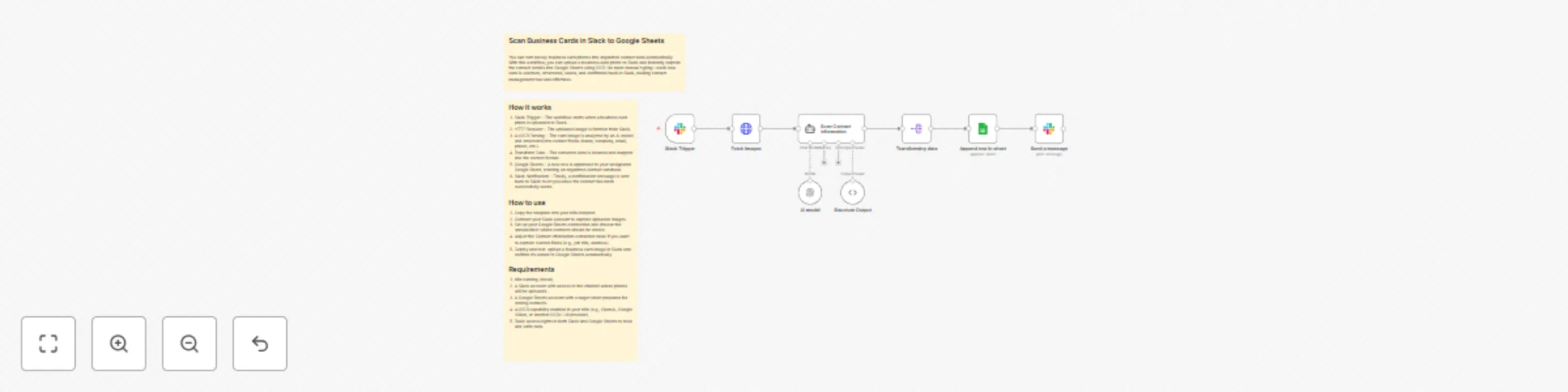
You can turn messy business card photos into organized contact data automatically. With this workflow, you can upload a business card photo to Slack and instantly capture the contact details into Google Sheets using OCR. No more manual typing—each new card is scanned, structured, saved, and confirmed back in Slack, making contact management fast and effortless. ## How it works 1. Slack Trigger – The workflow starts when a business card photo is uploaded to Slack. 2. HTTP Request – The uploaded image is fetched from Slack. 3. AI/OCR Parsing – The card image is analyzed by an AI model and structured into contact fields (name, company, email, phone, etc.). 4. Transform Data – The extracted data is cleaned and mapped into the correct format. 5. Google Sheets – A new row is appended to your designated Google Sheet, creating an organized contact database. 6. Slack Notification – Finally, a confirmation message is sent back to Slack to let you know the contact has been successfully saved. ## How to use 1. Copy the template into your n8n instance. 2. Connect your Slack account to capture uploaded images. 3. Set up your Google Sheets connection and choose the spreadsheet where contacts should be stored. 4. Adjust the Contact Information extraction node if you want to capture custom fields (e.g., job title, address). 5. Deploy and test: upload a business card image in Slack and confirm it’s added to Google Sheets automatically. ## Requirements 1. n8n running (cloud). 2. A Slack account with access to the channel where photos will be uploaded. 3. A Google Sheets account with a target sheet prepared for storing contacts. 4. AI/OCR capability enabled in your n8n (e.g., OpenAI, Google Vision, or another OCR/LLM provider). 5. Basic access rights in both Slack and Google Sheets to read and write data.