Henry
Workflows by Henry
Automated Instagram reels posting using Google Drive, Cloudinary & Sheets
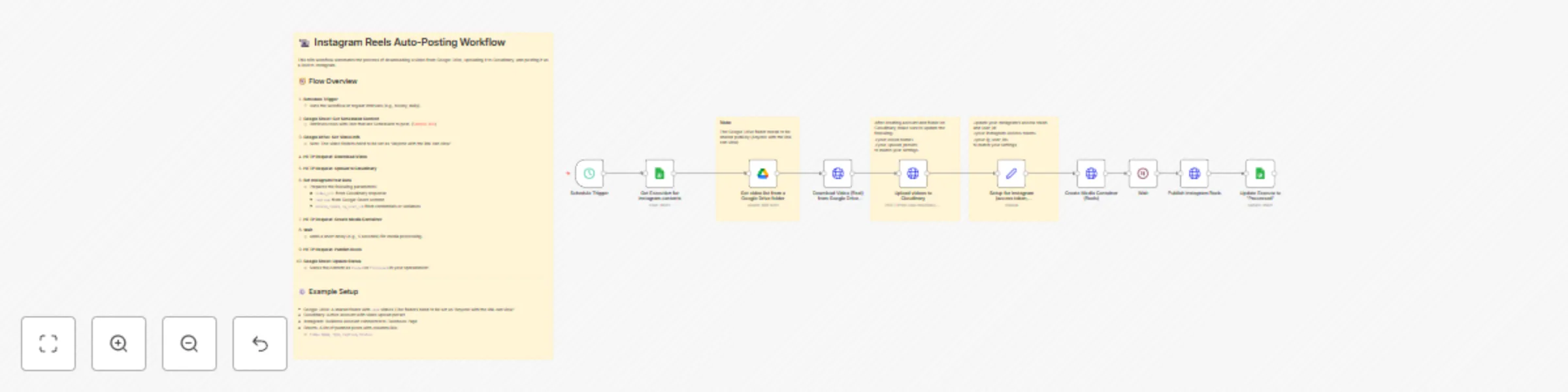
## Who is this for? This workflow is ideal for social media managers, content creators, marketing teams, and automation enthusiasts looking to streamline their Instagram Reels posting from Google Drive using n8n, Google Sheets, and Cloudinary. ## What problem is this workflow solving? / Use case Manually downloading video files, uploading to third-party platforms, and posting to Instagram Reels is time-consuming. This workflow automates the whole process, ensuring timely, consistent content delivery and reducing manual errors. ## What this workflow does - Automatically fetches scheduled Reel content from Google Sheets ([Sample link](https://docs.google.com/spreadsheets/d/1TjZL_eWbs01DdRYs8pJNDr5UMXzYe8u311o6rVUwjdg/edit?usp=sharing)) - Downloads video files from Google Drive folders - Uploads videos to Cloudinary for hosting - Posts the videos as Instagram Reels with custom captions - Updates the Google Sheet to mark content as posted ## Setup - Prepare a Google Drive folder set to public sharing for your videos - Create a Cloudinary account and configure upload presets - Connect an Instagram Business account (linked to a Facebook Page) - Set up a Google Sheet with video post details: `Video Name`, `Type`, `Caption`, `Status` - Configure the workflow schedule in n8n ## How to customize this workflow to your needs - Adjust the schedule for desired posting frequency - Add fields to your sheet for custom tags or content variations - Change the Cloudinary or Instagram settings for different media types - Integrate additional steps for error handling or approval workflows
Automate Instagram carousel posts with Google Sheets, Drive & Cloudinary
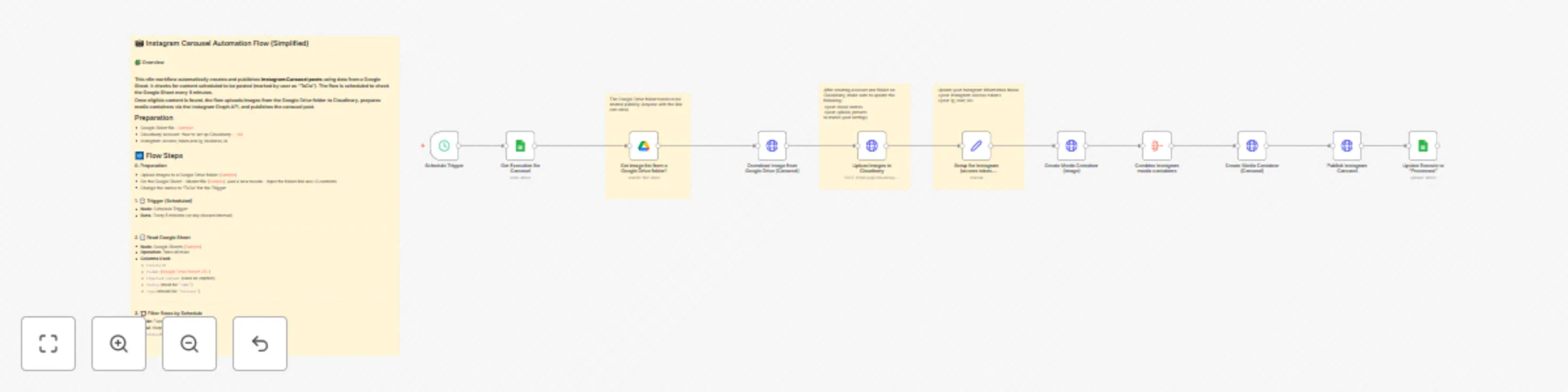
## Who is this for? This workflow is ideal for social media managers, content creators, marketers, and small businesses who want to automate Instagram Carousel posts using Google Sheets and Google Drive. It is also suitable for anyone looking to streamline repetitive Instagram publishing tasks with n8n, Cloudinary, and the Instagram Graph API. ## What problem is this workflow solving? / Use case Managing and publishing Instagram Carousel posts manually can be time-consuming, especially when handling multiple accounts or campaigns. This workflow solves that by automatically fetching scheduled posts from Google Sheets, uploading images from Google Drive to Cloudinary, and publishing them to Instagram, saving time and reducing the risk of errors. ## What this workflow does This n8n workflow checks a Google Sheet every 5 minutes for new Carousel posts marked as "ToDo." When found, it uploads images from a specified Google Drive folder to Cloudinary, prepares the media on Instagram using the Graph API, and publishes the Carousel post with the given caption. ## Setup - Prepare a Google Sheet to track posts and image folder URLs. Example : https://docs.google.com/spreadsheets/d/1WEUHeQXFMYsWVAW3DykWwpANxxD3DxH-S6c0i06dW1g/edit?usp=sharing - Upload post images to a dedicated Google Drive folder. - Set up a Cloudinary account and gather API credentials. - Obtain Instagram `access_token` and `ig_business_id` for API publishing. - Configure the n8n workflow with required credentials and your custom intervals. ## How to customize this workflow to your needs - Adjust the schedule trigger interval to fit your publishing frequency. - Expand the Google Sheet with additional metadata as required. - Modify the filter logic to support different content types or statuses. - Add extra automation steps, such as sending notifications after publishing.
Automated multilingual Gmail draft reply with OpenAI GPT-4o
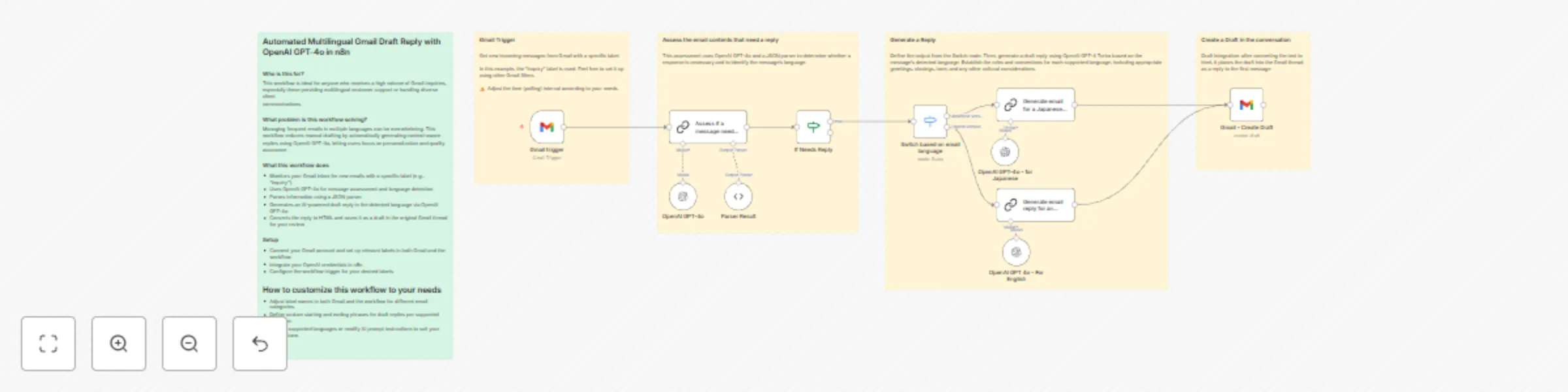
## Automated Multilingual Gmail Draft Reply with OpenAI GPT-4o in n8n ### Who is this for? This workflow is ideal for anyone who receives a high volume of Gmail inquiries, especially those providing multilingual customer support or handling diverse client communications. ### What problem is this workflow solving? Managing frequent emails in multiple languages can be overwhelming. This workflow reduces manual drafting by automatically generating context-aware replies using OpenAI GPT-4o, letting users focus on personalization and quality assurance. ### What this workflow does - Monitors your Gmail inbox for new emails with a specific label (e.g., "Inquiry"). - Uses OpenAI GPT-4o for message assessment and language detection. - Parses information using a JSON parser. - Generates an AI-powered draft reply in the detected language via OpenAI GPT-4o. - Converts the reply to HTML and saves it as a draft in the original Gmail thread for your review. ### Setup - Connect your Gmail account and set up relevant labels in both Gmail and the workflow. - Integrate your OpenAI credentials in n8n. - Configure the workflow trigger for your desired labels. ## How to customize this workflow to your needs - Adjust label names in both Gmail and the workflow for different email categories. - Define custom starting and ending phrases for draft replies per supported language. - Expand supported languages or modify AI prompt instructions to suit your brand’s tone.
Generate landing page layouts from competitor analysis with GPT-4
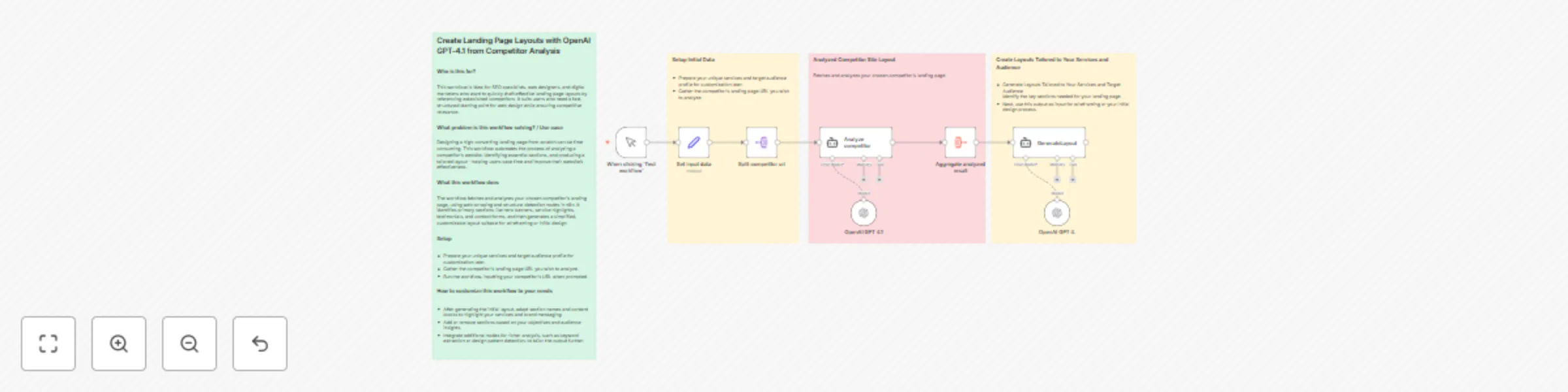
## Who is this for? This workflow is ideal for SEO specialists, web designers, and digital marketers who want to quickly draft effective landing page layouts by referencing established competitors. It suits users who need a fast, structured starting point for web design while ensuring competitive relevance. ## What problem is this workflow solving? / Use case Designing a high-converting landing page from scratch can be time-consuming. This workflow automates the process of analyzing a competitor’s website, identifying essential sections, and producing a tailored layout—helping users save time and improve their website’s effectiveness. ## What this workflow does The workflow fetches and analyzes your chosen competitor’s landing page, using web scraping and structure-detection nodes in n8n. It identifies primary sections like hero banners, service highlights, testimonials, and contact forms, and then generates a simplified, customizable layout suitable for wireframing or initial design. ## Setup - Prepare your unique services and target audience profile for customization later. - Gather the competitor’s landing page URL you wish to analyze. - Run the workflow, inputting your competitor’s URL when prompted. ## How to customize this workflow to your needs - After generating the initial layout, adapt section names and content blocks to highlight your services and brand messaging. - Add or remove sections based on your objectives and audience insights. - Integrate additional nodes for richer analysis, such as keyword extraction or design pattern detection, to tailor the output further.
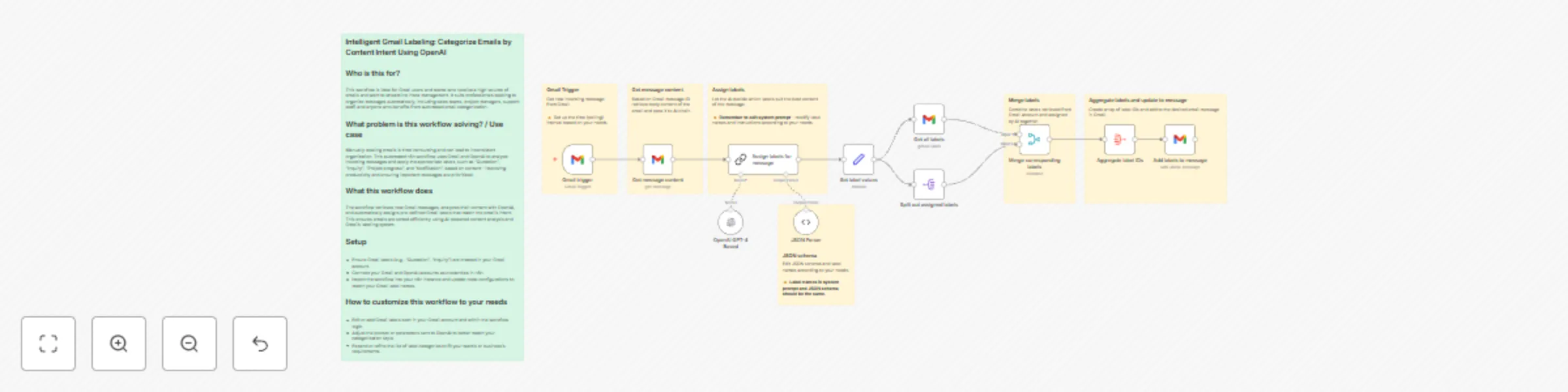
Automatic Gmail message categorization with GPT-4 content analysis & labels
## Who is this for? This workflow is ideal for Gmail users and teams who receive a high volume of emails and want to streamline inbox management. It suits professionals seeking to organize messages automatically, including sales teams, project managers, support staff, and anyone who benefits from automated email categorization. ## What problem is this workflow solving? / Use case Manually labeling emails is time-consuming and can lead to inconsistent organization. This automated n8n workflow uses Gmail and OpenAI to analyze incoming messages and apply the appropriate labels, such as "Quotation", "Inquiry", "Project progress", and "Notification", based on content—improving productivity and ensuring important messages are prioritized. ## What this workflow does The workflow retrieves new Gmail messages, analyzes their content with OpenAI, and automatically assigns pre-defined Gmail labels that match the email’s intent. This ensures emails are sorted efficiently using AI-powered content analysis and Gmail’s labeling system. ## Setup - Ensure Gmail labels (e.g., "Quotation", "Inquiry") are created in your Gmail account. - Connect your Gmail and OpenAI accounts as credentials in n8n. - Import the workflow into your n8n instance and update node configurations to match your Gmail label names. ## How to customize this workflow to your needs - Edit or add Gmail labels both in your Gmail account and within the workflow logic. - Adjust the prompt or parameters sent to OpenAI to better match your categorization style. - Expand or refine the list of label categories to fit your team’s or business’s requirements.