Saeculum Solutions
Workflows by Saeculum Solutions
Generate SEO meta tags with Gemini AI & competitor analysis using Google Sheets
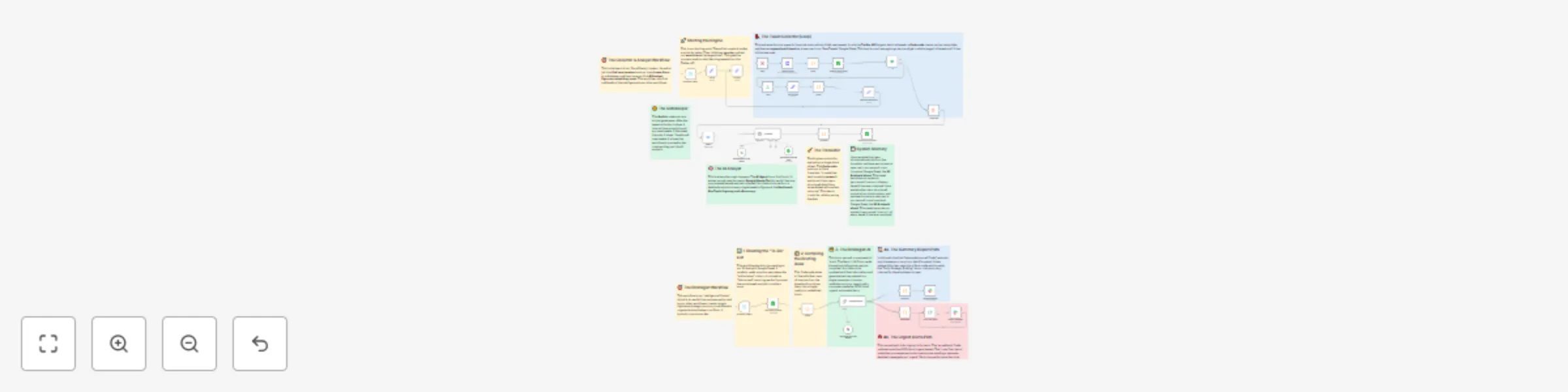
This workflow automates the entire process of creating SEO-optimized meta titles and descriptions. It analyzes your webpage, spies on top-ranking competitors for the same keywords, and then uses a multi-step AI process to generate compelling, length-constrained meta tags. **🤖 How It Works** This workflow operates in a three-phase process for each URL you provide: *Phase 1: Self-Analysis* When you add a URL to a Google Sheet with the status "New", the workflow scrapes your page's content. The first AI then performs a deep analysis to identify the page's primary keyword, semantic keyword cluster, search intent, and target audience. *Phase 2: Competitor Intelligence* The workflow takes your primary keyword and performs a live Google search. A custom code block intelligently filters the search results to identify true competitors. A second AI analyzes their meta titles and descriptions to find common patterns and successful strategies. *Phase 3: Master Generation & Update* The final AI synthesizes all gathered intelligence—your page's data and the competitor's winning patterns—to generate a new, optimized meta title and description. It then writes this new data back to your Google Sheet and updates the status to "Generated". **⚙️ Setup Instructions** You should be able to set up this workflow in about 10-15 minutes ⏱️. **🔑 Prerequisites** You will need the following accounts and API keys: A Google Account with access to Google Sheets. A Google AI / Gemini API key. A SerpApi key for Google search data. A ScrapingDog API key for reliable website scraping. **🛠️ Configuration** Google Sheet Setup: Create a new Google Sheet. The workflow requires the following columns: URL, Status, Current Meta Title, Current Meta Description, Generated Meta Title, Generated Meta Description, and Ranking Factor. **Add Credentials:** Google Sheets Nodes: Connect your Google account credentials to the Google Sheets Trigger & Google Sheets nodes. Google Gemini Nodes: Add your Google Gemini API key to the credentials for all three Google Gemini Chat Model nodes. Scrape Website Node: In this HTTP Request node, go to Query Parameters and replace <your-api-key> with your ScrapingDog API key. Googl SERP Node: In this HTTP Request node, go to Query Parameters and replace <your-api-key> with your SerpApi API key. **Configure Google Sheets Nodes:** Copy the Document ID from your Google Sheet's URL. Paste this ID into the "Document ID" field in the following nodes: Google Sheets Trigger, Get row(s) in sheet1, and Update row in sheet. In each of those nodes, select the correct sheet name from the "Sheet Name" dropdown. **✅ Activate Workflow** Save and activate the workflow. To run it, simply add a new row to your Google Sheet containing the URL you want to process and set the "Status" column to New.
X (Twitter) brand sentiment analysis with Gemini AI & Slack alerts
This workflow is the AI analysis and alerting engine for a complete social media monitoring system. It's designed to work with data scraped from X (formerly Twitter) using a tool like the **Apify Tweet Scraper**, which logs the data into a Google Sheet. The workflow then automatically analyzes new tweets with Google Gemini and sends tailored alerts to Slack. ## How it works This workflow automates the analysis and reporting part of your social media monitoring: * **tweet Hunting:** It finds tweets for the query entered in the set node and passes the data to the google sheets * **Fetches New Tweets:** It gets all new rows from your Google Sheet that haven't been processed yet (it looks for "Notmarked" in the 'action taken' column). * **Prepares for AI:** It combines the data from all new tweets into a single, clean prompt for the AI to analyze. * **AI Analysis with Gemini:** It sends the compiled data to Google Gemini, asking for a full summary report *and* a separate, machine-readable JSON list of any urgent items. * **Splits the Response:** The workflow intelligently separates the AI's text summary from the JSON data for urgent alerts. * **Sends Notifications:** * The high-level summary is sent to a general Slack channel (e.g., `#brand-alerts`). * Each urgent item is sent as a separate, detailed alert to a high-priority Slack channel (e.g., `#urgent`). ## Set up steps It should take about **5-10 minutes** to get this workflow running. 1. **Prerequisite - Data Source:** Ensure you have a Google Sheet being populated with tweet data. For a complete automation, you can set up a new google sheet with the same structure for saving the tweets data and run the Tweet Scraper on a schedule. 2. **Configure Credentials:** Make sure you have credentials set up in your n8n instance for **Google Sheets**, **Google Gemini (PaLM) API**, and **Slack**. 3. **Google Sheets Node ("Get row(s) in sheet"):** * Select your Google Sheet containing the tweet data. * Choose the specific sheet name from the dropdown. * Ensure your sheet has a column named `action taken ` so the filter works correctly. 4. **Google Gemini Chat Model Node:** Select your Google Gemini credential from the dropdown. 5. **Slack Nodes ("Send a message" & "Send a message1"):** * In the first Slack node, choose the channel for the summary report. * In the second Slack node, choose the channel for urgent alerts. 6. **Save and Activate:** Once configured, save your workflow and turn it on!