H

Halfbit 🚀

3
Workflows

Workflows by Halfbit 🚀
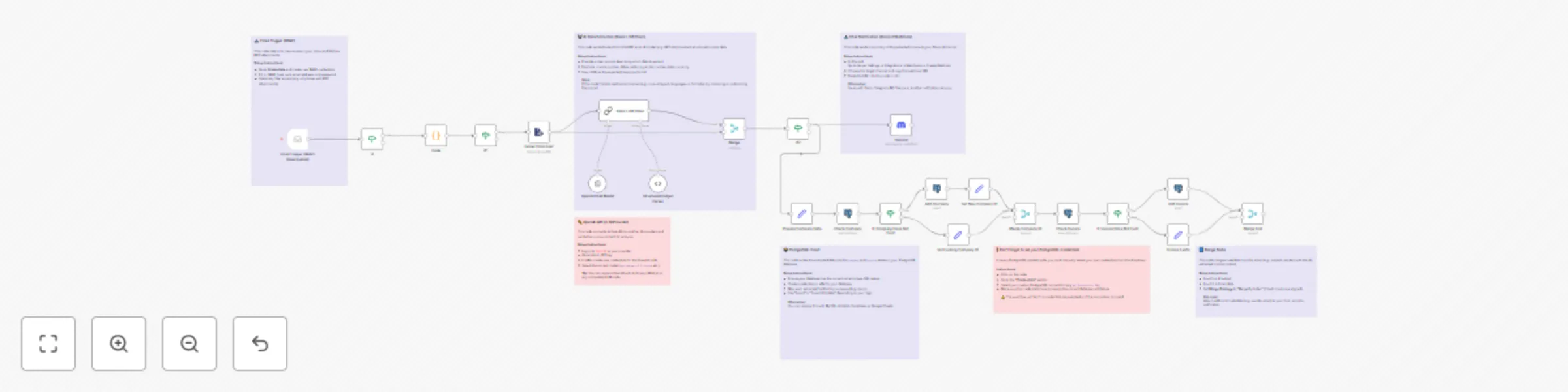
Workflow preview: Invoice processing: Email to PostgreSQL database with GPT-4o & Discord alerts
Free advanced

Invoice processing: Email to PostgreSQL database with GPT-4o & Discord alerts

# AI-Powered Invoice Processing: from Email to Database & Chat Notifications Automatically process PDF invoices directly from your email inbox. This workflow uses AI to extract key data, saves it to a PostgreSQL database, and instantly notifies you about the new document in your preferred chat application. The workflow listens for new emails, fetches PDF attachments, and then passes their content to a Large Language Model (LLM) for intelligent recognition and data extraction. Finally, the information is securely archived in the database, and a summary of the invoice is sent as a notification. > **📝 This workflow is highly customizable.** > It uses PostgreSQL, OpenAI (GPT), and Discord by default, but you can easily swap these components. > Feel free to use a different database like MySQL or Airtable, another AI model provider, or send notifications to Slack, MS Teams, or any other chat platform. > ⚠️ **Note:** If the workflow fails to extract data correctly from invoices issued by certain companies, you may need to adjust the prompt used in the **Basic LLM Chain** node to improve parsing accuracy. --- ## Use Case - Automating accounts payable for small businesses and freelancers - Centralizing financial documents without manual data entry - Creating a searchable database of all incoming invoices - Receiving real-time notifications for new financial commitments --- ## Features - **📧 Email Trigger (IMAP):** Monitors a dedicated email inbox for new messages with attachments - **📄 PDF Filtering:** Automatically identifies and processes only PDF attachments - **🤖 AI-Powered Data Extraction:** Uses an LLM (e.g., GPT-4o-mini) to extract invoice number, buyer/seller details, amounts, currency, and due dates - **⚙️ Structured Data Output:** Converts AI output to standardized JSON - **🔍 Database Write Logic:** Prevents duplicates by checking invoice/company combo - **🗄️ PostgreSQL Integration:** Stores extracted data into `company` and `invoice` tables - **💬 Chat Notifications:** Sends invoice summary as message to a designated channel --- ## Setup Instructions ### ⚠️ API Access & Costs To use the AI extraction feature, you need an API key from a provider like OpenAI. Most providers charge for access to language models. You'll likely need a billing account. --- ### 1. PostgreSQL Database Configuration Ensure your database has the following tables: ```sql -- Table for companies (invoice issuers) CREATE TABLE company ( id SERIAL PRIMARY KEY, tax_number VARCHAR(255) UNIQUE NOT NULL, name VARCHAR(255), address TEXT, created_at TIMESTAMP WITH TIME ZONE DEFAULT CURRENT_TIMESTAMP ); -- Table for invoices CREATE TABLE invoice ( id SERIAL PRIMARY KEY, company_id INTEGER REFERENCES company(id), invoice_number VARCHAR(255) NOT NULL, -- Add other fields: total_to_pay, currency, due_date created_at TIMESTAMP WITH TIME ZONE DEFAULT CURRENT_TIMESTAMP, UNIQUE(company_id, invoice_number) ); ``` ### Then, in n8n, create a credential for your PostgreSQL DB. --- ### 2. Email (IMAP) Configuration In **n8n**, add credentials for the email account that receives invoices: - IMAP host - IMAP port - Username - Password --- ### 3. AI Provider Configuration - Log in to OpenAI (or similar provider) - Generate API key - In **n8n**, create credentials and paste the key --- ### 4. Chat Notification (Discord) - Go to **Discord > Server Settings > Integrations > Webhooks > New Webhook** - Select channel - Copy Webhook URL - In **n8n**, paste URL into the Discord node --- ### Placeholders and Fields to Fill | Placeholder | Description | Example | |---------------------------|-------------------------------------------|------------------------------------------| | `YOUR_EMAIL_CREDENTIALS` | Your IMAP email account in n8n | My Invoice Mailbox | | `YOUR_OPENAI_CREDENTIALS` | API credentials for AI model | My OpenAI Key | | `YOUR_POSTGRES_CREDENTIALS`| Your PostgreSQL DB credentials in n8n | My Production DB | | `YOUR_DISCORD_WEBHOOK` | Webhook URL for your chat system | https://discord.com/api/webhooks/... | --- ### Testing the Workflow 1. **Send a test invoice** to the inbox as a PDF attachment 2. **Run the workflow** manually in **n8n** and check if the IMAP node fetches the message 3. **Verify AI Extraction** – inspect the LLM output (e.g., GPT node) and confirm structured JSON 4. **Check the DB** – ensure new rows appear in `company` and `invoice` 5. **Check the chat** – verify the invoice summary appears in the chosen channel --- ### Customization Tips - **Change the DB:** Use MySQL, Airtable, or Google Sheets instead of PostgreSQL - **Other notifications:** Swap Discord for Slack, MS Teams, Telegram, etc. - **Expand AI logic:** Extract line items, prices, etc. by customizing the prompt - **Add payment logic:** Allow marking invoices as paid via emoji or a separate webhook

H
Halfbit 🚀
Invoice Processing
28 Jul 2025
386
0

Workflow preview: Track Jura coffee machine data with webhook API and Google Sheets
Free intermediate

Track Jura coffee machine data with webhook API and Google Sheets

# Jura Coffee Counter: Webhook API & Google Sheets Logger ☕️ Track how many coffees your Jura E8 espresso machine makes — fully automated via webhook and Google Sheets. This workflow exposes a **custom API endpoint** that can be called by smart devices, such as an ESP8266 or ESP32 reading data from a Jura E8 coffee machine via Bluetooth Low Energy (BLE). The incoming data (including total coffee count) is timestamped and appended to a **Google Sheet**, making it easy to visualize or analyze your machine usage. ☕ Originally built for a Jura E8, based on [AlexxIT/Jura](https://github.com/AlexxIT/Jura) reverse-engineering project. > 📝 This workflow uses **Google Sheets** as a logging backend. You can easily switch it to Airtable, Notion, or a database of your choice. Live example available at: [https://halfbitstudio.com/o-nas/](https://halfbitstudio.com/o-nas/) > 🖥️ In our setup, this workflow is used to provide **real-time coffee consumption stats** displayed directly on our website. > 🔌 Some Jura machines require an accessory Bluetooth transmitter to enable connectivity. Communication is based on the **Bluetooth Low Energy (BLE)** protocol. --- ## Use Case * Tracking usage of a Jura coffee machine * Logging IoT sensor data into Google Sheets * Creating dashboards for daily consumption * Smart office setups with coffee stats! --- ## Features * ☁️ Two Webhook endpoints: * `POST /{{WEBHOOK_POST_PATH}}` — receives JSON from ESP (coffee machine reader) * `GET /{{WEBHOOK_GET_PATH}}` — returns latest records as JSON * 📅 Timestamping via `Date & Time` node * 🔹 Coffee counter extraction from incoming JSON * 🧾 Appends structured rows to **Google Sheets** * 📤 Webhook response for external status or dashboards --- ## Setup Instructions ### Jura Coffee Machine Integration (Hardware) 1. Use an ESP device (e.g. ESP8266 or ESP32) to connect to the Jura E8 via Bluetooth Low Energy (BLE). 2. Send POST requests with JSON payload: ```json { "total_coffees": 123 } ``` 3. Reverse-engineered protocol reference: [AlexxIT/Jura](https://github.com/AlexxIT/Jura) ### Google Sheets Configuration 1. Create a new **Google Sheet** with column headers like: ``` date | time | coffee counter ``` 2. Connect your **Google account** in n8n and authorize access to this sheet. 3. Replace the `documentId` and `sheetName` fields in the Google Sheets nodes: * Use full URL to your spreadsheet * Use the actual sheet name (e.g. `Sheet1`) --- ## Environment Variables & Placeholders | Placeholder | Description | | ------------------------ | ----------------------------------------------- | | `{{WEBHOOK_POST_PATH}}` | Endpoint to receive coffee counter data | | `{{WEBHOOK_GET_PATH}}` | Endpoint to return latest data (for dashboards) | | `{{SHEET_ID}}` | Google Spreadsheet ID | | `{{GOOGLE_CREDENTIALS}}` | OAuth2 credentials for Google Sheets | | `{{DATA_COLUMNS}}` | Column names in the target sheet | --- ## Testing the Workflow 1. **Send test request**: * Use Postman or ESP to send a POST request to `/{{WEBHOOK_POST_PATH}}` * Body should include `total_coffees` value 2. **Check Google Sheet**: * Open your sheet and verify that a new row was appended 3. **Test GET endpoint**: * Access the second webhook URL (e.g. `/{{WEBHOOK_GET_PATH}}`) in browser or fetch via API 4. **Optional**: * Use `Respond to Webhook` output in a dashboard or frontend --- ## Customization Tips * **Sheet format**: Add more columns if you want to track additional data (e.g. machine temperature, errors) * **Output format**: Replace Google Sheets with any other storage (e.g. MySQL, Notion) * **Auth layer**: Add basic auth or token verification if needed for public exposure * **Notifications**: Send alerts to Discord/Slack when reaching thresholds (e.g. 200 coffees brewed) --- Tags: `google-sheets`, `iot`, `webhook`, `jura`, `coffee`, `api`, `automation`

H
Halfbit 🚀
Engineering
8 Jul 2025
288
0

Workflow preview: Automate daily YouTrack task summaries to Discord by assignee
Free intermediate

Automate daily YouTrack task summaries to Discord by assignee

# Daily YouTrack In-Progress Tasks Summary to Discord by Assignee Keep your team in sync with a daily summary of tasks currently **In Progress** in YouTrack — automatically posted to your **Discord** channel. This workflow queries issues, filters them by status, groups them by **assignee** and **priority**, and sends a formatted message to Discord. It's perfect for teams that need a lightweight, automated stand-up report. > 📝 This workflow uses **Discord** as an example. You can easily replace the messaging integration with Slack, Mattermost, MS Teams, or any other platform that supports incoming webhooks. ## Use Case - Remote development teams using YouTrack + Discord - Replacing daily stand-up meetings with async updates - Project managers needing quick visibility into active tasks ## Features - **Scheduled** daily execution (default: weekdays at 09:00) - **Status filter**: only issues marked as `In Progress` - **Grouping** by assignee and priority - **Custom mapping** for user mentions (YouTrack → Discord) - **Clean Markdown output** for Discord, with direct task links ## Setup Instructions ### YouTrack Configuration 1. **Get a permanent token**: - Go to your YouTrack profile → Account Security → Authentication - Create a new permanent token with "Read Issue" permissions - Copy the token value 2. **Set the base API URL**: - Format: `https://yourdomain.youtrack.cloud/api/issues` - Replace `yourdomain` with your actual YouTrack instance 3. **Identify custom field IDs**: - Method 1: Go to YouTrack → Administration → Custom Fields → find your "Status" field and note its ID - Method 2: Use API call `GET /api/admin/customFieldSettings/customFields` to list all field IDs - Method 3: Inspect a task's API response and look for field IDs in the `customFields` array - Example Status field ID: `105-0` or `142-1` ### Discord Configuration - Create a **webhook URL** in your Discord server: - Server Settings → Integrations → Webhooks → New Webhook - Choose target channel and copy the webhook URL - Extract webhook ID from URL (numbers after `/webhooks/`) ## Environment Variables & Placeholders | Placeholder | Description | |-------------|-------------| | `{{API_URL}}` | Your YouTrack API base URL | | `{{TOKEN}}` | YouTrack permanent token | | `{{FIELD_ID}}` | ID of the "Status" custom field | | `{{QUERY_FIELDS}}` | Fields to fetch (e.g., summary, id) | | `{{PROJECT_LINK}}` | Link to your YouTrack project | | `{{USER_X}}` | YouTrack usernames | | `{{DISCORD_ID_X}}` | Discord mentions or usernames | | `{{NAME_X}}` | Display names | | `{{WEBHOOK_ID}}` | Discord webhook ID | | `{{DISCORD_CHANNEL}}` | Discord channel name | | `{{CREDENTIAL_ID}}` | Your credential ID in n8n | ## Testing the Workflow 1. **Test YouTrack connection**: - Execute the "HTTP Request YT" node individually - Verify that issues are returned from your YouTrack instance - Check if the Status field ID is correctly filtering tasks 2. **Verify filtering**: - Run the "Filter fields" node - Confirm only "In Progress" tasks pass through 3. **Check message formatting**: - Execute the "Discord message" node - Review the generated message content and formatting 4. **Test Discord delivery**: - Run the complete workflow manually - Verify the message appears in your Discord channel 5. **Schedule verification**: - Enable the workflow - Test weekend skip functionality by temporarily changing dates ## Customization Tips - **Language**: All labels/messages are in English — customize if needed - **User mapping**: Adjust assignee → Discord mention logic in the message builder - **Priorities**: Update the `priorityMap` to reflect your own naming structure - **Schedule**: Modify the trigger time in the `Schedule Trigger` node - **Alternative platforms**: Swap out the Discord webhook for another messaging service if preferred

H
Halfbit 🚀
Project Management
13 May 2025
620
0