Hirokazu Kawamoto
Workflows by Hirokazu Kawamoto
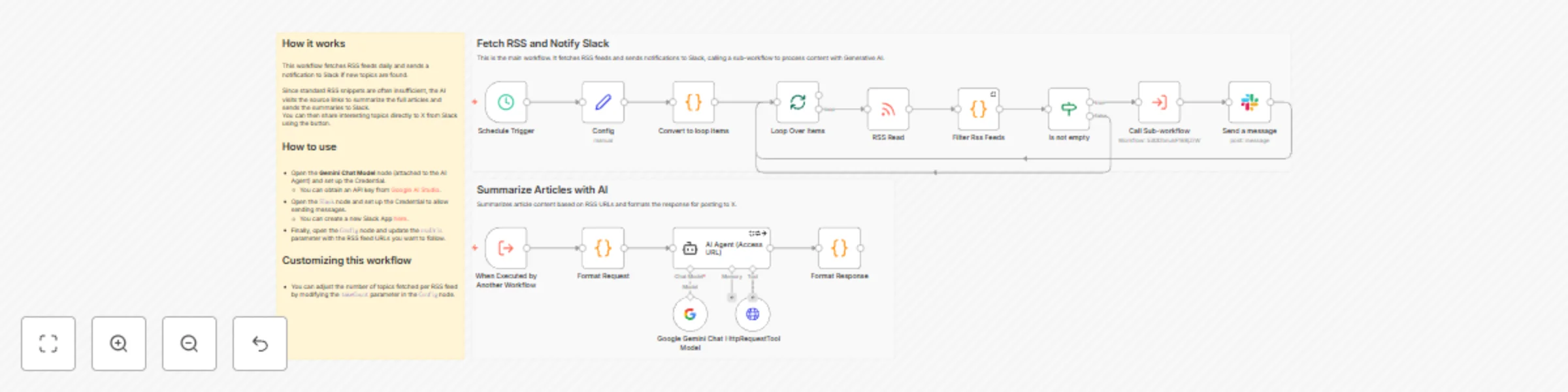
Daily RSS feed summarizer with Gemini AI to Slack with X sharing option
## How it works This workflow fetches RSS feeds daily and sends a notification to Slack if new topics are found. Since standard RSS snippets are often insufficient, the AI visits the source links to summarize the full articles and sends the summaries to Slack. You can then share interesting topics directly to X from Slack using the button. ## How to use * Open the **Gemini Chat Model** node (attached to the AI Agent) and set up the Credential. * You can obtain an API key from [Google AI Studio](https://aistudio.google.com/api-keys). * Open the `Slack` node and set up the Credential to allow sending messages. * You can create a new Slack App [here](https://api.slack.com/apps). * Finally, open the `Config` node and update the `rssUrls` parameter with the RSS feed URLs you want to follow. ## Customizing this workflow * You can adjust the number of topics fetched per RSS feed by modifying the `takeCount` parameter in the `Config` node.
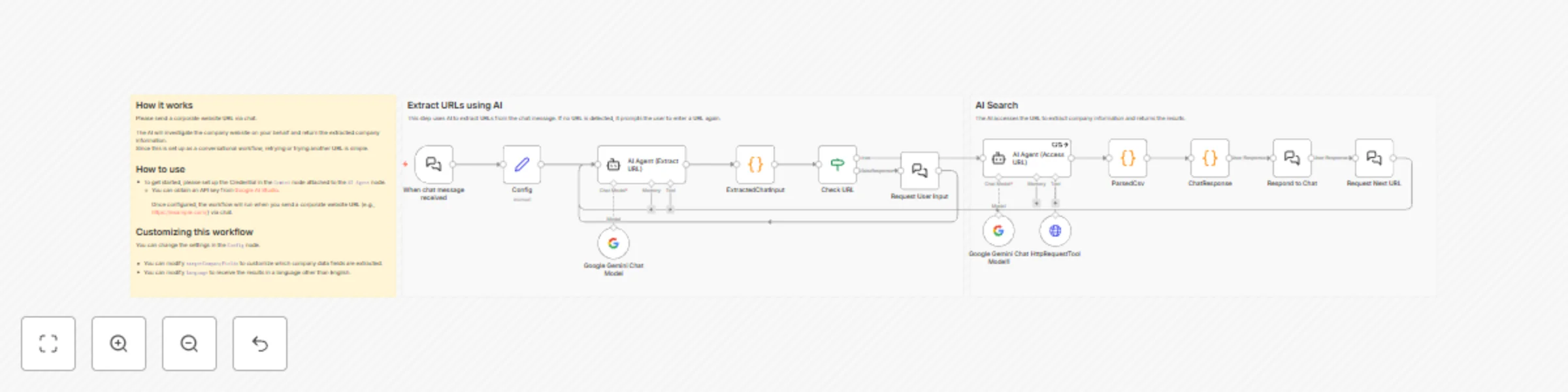
Extract company data from websites with Gemini AI through chat conversation
## How it works Please send a corporate website URL via chat. The AI will investigate the company website on your behalf and return the extracted company information. Since this is set up as a conversational workflow, retrying or trying another URL is simple. ## How to use * To get started, please set up the Credential in the `Gemini` node attached to the `AI Agent` node. * You can obtain an API key from [Google AI Studio](https://aistudio.google.com/api-keys). Once configured, the workflow will run when you send a corporate website URL (e.g., https://example.com/) via chat. ## Customizing this workflow You can change the settings in the `Config` node. * You can modify `targetCompanyFields` to customize which company data fields are extracted. * You can modify `language` to receive the results in a language other than English.
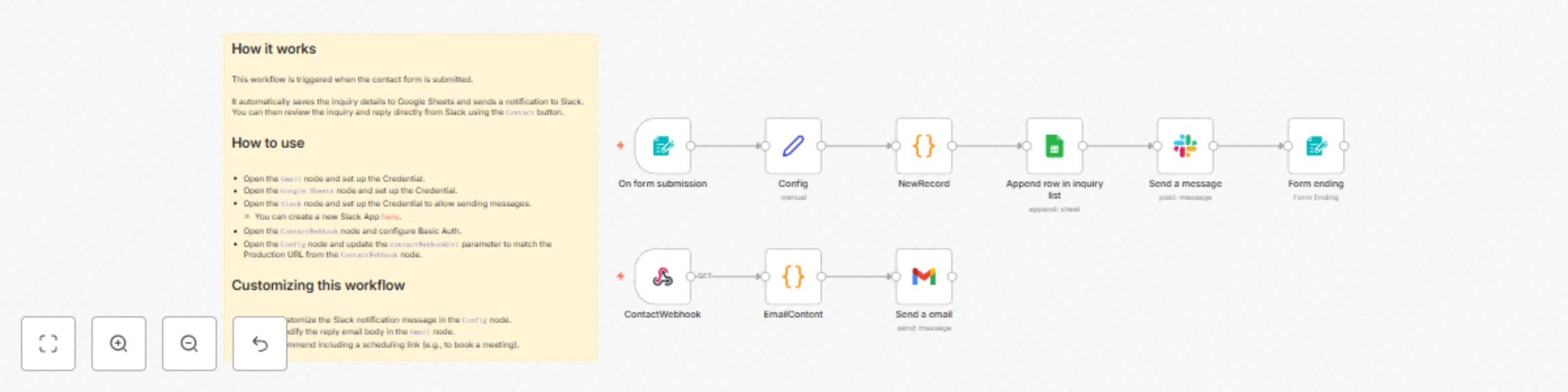
Manage contact form submissions with Google Sheets, Slack alerts & Gmail replies
## How it works This workflow is triggered when the contact form is submitted. It automatically saves the inquiry details to Google Sheets and sends a notification to Slack. You can then review the inquiry and reply directly from Slack using the `Contact` button. ## How to use * Open the `Gmail` node and set up the Credential. * Open the `Google Sheets` node and set up the Credential. * Open the `Slack` node and set up the Credential to allow sending messages. * You can create a new Slack App [here](https://api.slack.com/apps). * Open the `ContactWebhook` node and configure Basic Auth. * Open the `Config` node and update the `contactWebhookUrl` parameter to match the Production URL from the `ContactWebhook` node. ## Customizing this workflow * You can customize the Slack notification message in the `Config` node. * You can modify the reply email body in the `Gmail` node. * We recommend including a scheduling link (e.g., to book a meeting).