Jakkrapat Ampring
Workflows by Jakkrapat Ampring
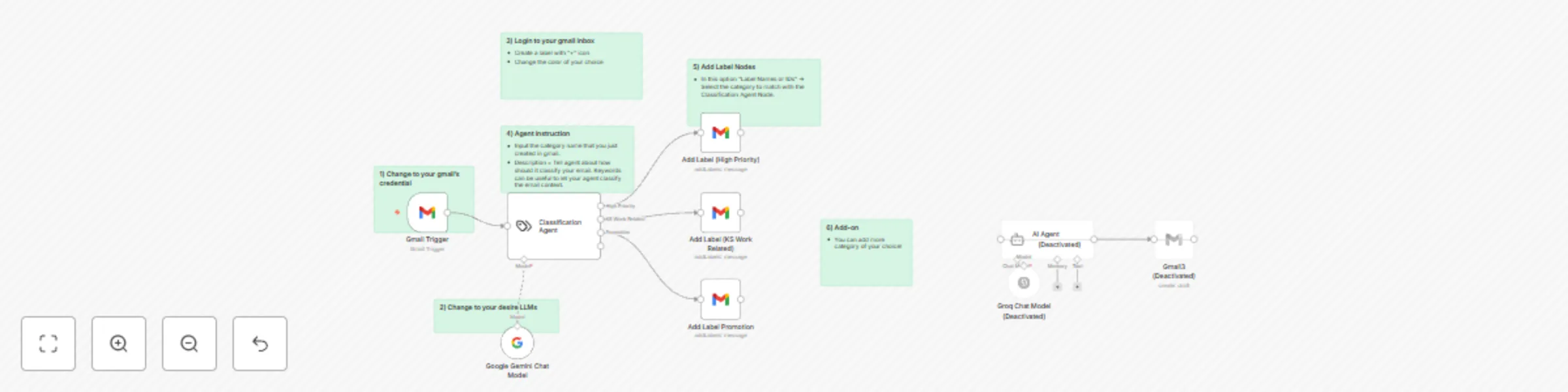
Automatically classify and label Gmail emails with Google Gemini AI
### Description Quickly organize your inbox with AI! This simple workflow automatically classifies incoming emails into different categories — like High Priority, Work Related, or Promotions — and applies Gmail labels accordingly. Setup takes less than 2 minutes, and it runs 24/7, helping you stay focused on what matters most without manual sorting. ### Tools/Services Needed * Gmail: To trigger the workflow and label emails. * Google Gemini (or any LLM Model): To intelligently classify email content. ### How It Works 1. Gmail Trigger: Detects every new incoming email. 2. Text Classifier Node: Classifies the email content into predefined categories. 3. Google Gemini Chat Model: Provides the AI-powered understanding behind the classification. 4. Conditional Labeling: - If the email is High Priority, label it accordingly. - If it’s Work Related (e.g., internal emails), apply the work label. - If it’s a Promotion, sort it into the promotions label. 5. Gmail Labeling: Automatically adds the correct label to the email. ### Setup Instructions * Connect your Gmail account to n8n. * Connect your Google Gemini (or other LLM) credentials. * Customize the categories and labels if needed. * Activate the workflow — and that's it! ### Notes * You can easily add more categories (like "Finance," "Newsletters," etc.) by adjusting the classification prompt. * Works best with a clean and minimal set of categories to avoid overlap. * Can be adapted to work with any other large language model (OpenAI, Claude, etc.) if preferred.
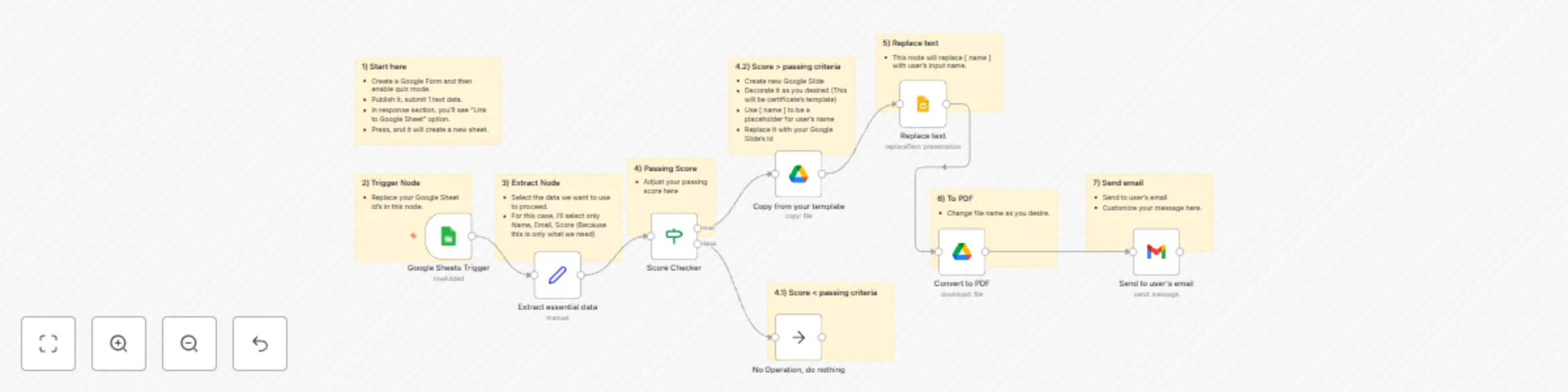
Generate & email personalized certificates from Google Forms with score threshold
### Description This workflow automatically generates personalized certificates in Google Slides and emails them to respondents only if they meet a minimum score threshold, using data submitted via Google Forms (stored in Google Sheets). ### Ideal for: * Online courses * Quizzes and workshops * Event participation certificates ### Sheet Requirements * Your connected Google Sheet (from the Google Form) must contain: * Full Name – The name to appear on the certificate. * Email – Recipient’s email address. * Score – The test/quiz score used for threshold logic. ### Setup Instructions 1. Connect Google Sheets – Make sure your Form responses are linked to a Sheet with the columns mentioned above. 2. Set Score Threshold – Modify the If node to your desired minimum score (e.g., >= 80). 3. Customize Certificate Template – Use a Google Slides file with text placeholders like {{Full Name}}. 4. Connect Gmail & Google Drive – For sending emails and saving generated certificates. 5. Update File IDs – Replace any placeholder Slide and Drive file IDs with your own. ### Services Used * Google Sheets (Form responses) * Google Slides (Certificate template) * Google Drive (Storage) * Gmail (Email delivery) ### Troubleshooting * Issue: "Cannot read property 'Score'" → Ensure your column names match exactly (Score, Full Name, etc.). * Slides not replacing placeholders → Double-check placeholder format ({{Full Name}}) and capitalization. * Emails not sending → Verify Gmail authentication and make sure the If node is correctly filtering results.
Line chatbot with Google Sheets memory and Gemini AI
### Main Use Case This workflow enables automated, AI-assisted replies to users messaging a LINE Official Account, while storing and referencing chat history from Google Sheets to maintain context. Ideal for businesses or support teams that want to provide smart, personalized customer interactions using AI with memory. ### How It Works (Step-by-Step) 1. Connect to LINE Official Account's API * A Webhook listens for incoming messages from users on LINE. * When a message is received, it triggers the workflow. 2. Prepare the Data * An Edit Fields module structures incoming data (e.g. extracts user ID, message content). * This ensures data is clean and usable downstream. 3. Retrieve Chat History * The user’s previous conversations are fetched from a Google Sheet. * This ensures the AI has memory and can continue conversations contextually. 4. Prepare Prompt * The retrieved chat history is combined with the new message to form a complete prompt for the AI. * Example format: “User previously said X. Now they said Y. How should we respond?” 5. AI Agent: Google Gemini * The formatted prompt is passed to an AI Agent (Google Gemini Chat Model). * The AI generates a response based on the message + history. * Tools used: Chat ModeMemory, ToolOutputParser for accurate replies. 6. Split & Clean History * The conversation history is split into smaller chunks for cleaning and storage. * This ensures the Google Sheet remains readable and manageable over time. 7. Save Chat History * The cleaned new message and AI reply are saved to Google Sheets. * This updates the chat history for future context. 8. Send Reply to LINE * The AI-generated reply is sent back to the user via a POST HTTP Request to the LINE Messaging API. ### How to Set Up Prerequisites: * LINE Official Account * Google Sheet to store chat history * Google Gemini API or AI agent with context memory * Automation platform (e.g., n8n, as this seems visually similar) ### Step-by-Step: 1. Create a Webhook on LINE: * Set the webhook URL to your automation service. * Enable webhook events. 2. Design Your Google Sheet: * Create a sheet with columns: User ID, Timestamp, Message, AI Reply. 3. Set Up Modules in Automation Platform: * Webhook: receives user messages. * Edit Fields: extract user ID and message. * Google Sheets Read: fetch message history. * Prompt Composer: format prompt using past history + new message. * AI Agent: connect to Google Gemini for smart replies. * Split & Clean: clean and chunk history if needed. * Google Sheets Write: save the updated conversation. * HTTP Request: send reply to LINE via Messaging API. 4. Test Your Workflow: * Send a message from LINE. * Watch the full loop: receive → process → AI → store → reply. 5. Deploy & Monitor: * Ensure error handling is in place (e.g., for blank messages or failed API calls). * Regularly check your Google Sheets for storage limits. (If limits reached, you can increase the history row.) 📦 Benefits * Maintains context in conversations * Personalized, AI-driven responses * Easy history tracking via Google Sheets * Fully automated and scalable