G

Greg Evseev

3
Workflows

Workflows by Greg Evseev
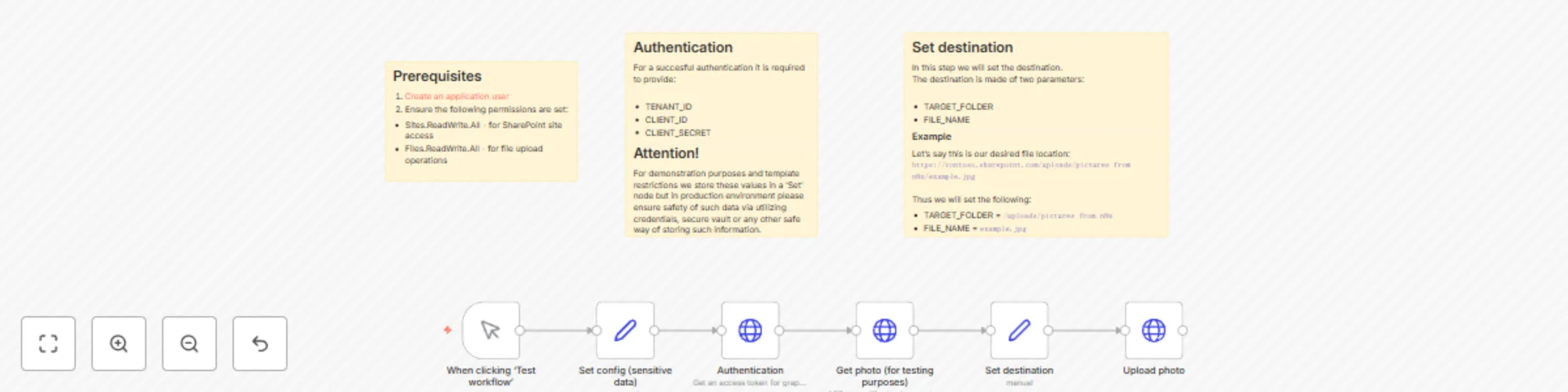
Workflow preview: Upload File to SharePoint Using Microsoft Graph API
Free intermediate

Upload File to SharePoint Using Microsoft Graph API

This n8n workflow template allows you to upload a photo to a SharePoint folder using the Microsoft Graph API. The workflow includes steps for authentication, retrieving a photo for testing purposes, setting the destination folder and file name, and uploading the photo. ## Who is this for? This workflow is ideal for users who need to automate the process of uploading images to SharePoint. It is particularly useful for developers, IT administrators, and anyone managing digital assets within a SharePoint environment. ## What problem is this workflow solving? / Use Case This workflow addresses the need to automate the uploading of photos to a specific SharePoint folder. By using the Microsoft Graph API, it ensures secure and efficient file management, reducing manual effort and potential errors. ## What this workflow does 1. **Trigger the Workflow**: The workflow starts when the user clicks the 'Test workflow' button. 2. **Set Configuration**: Sensitive data such as `TENANT_ID`, `CLIENT_ID`, and `CLIENT_SECRET` are set. 3. **Authentication**: Obtains an access token from Microsoft Graph API using the provided credentials. 4. **Get Photo**: Retrieves a sample photo from a URL for testing purposes. 5. **Set Destination**: Sets the target folder and file name for the photo upload. 6. **Upload Photo**: Uploads the photo to the specified SharePoint folder using the Microsoft Graph API. ## Setup ### Prerequisites 1. **Create an Application User**: Follow [this guide](https://learn.microsoft.com/en-us/power-platform/admin/manage-application-users) to create an application user. 2. **Set Permissions**: Ensure the following permissions are set: - `Sites.ReadWrite.All`: For SharePoint site access. - `Files.ReadWrite.All`: For file upload operations. ### Authentication For successful authentication, provide the following: - `TENANT_ID` - `CLIENT_ID` - `CLIENT_SECRET` **Note**: For demonstration purposes, these values are stored in a 'Set' node. In a production environment, ensure the safety of such data using credentials, secure vaults, or other safe methods. ### Set Destination The destination is defined by two parameters: - `TARGET_FOLDER`: The folder path in SharePoint where the photo will be uploaded. - `FILE_NAME`: The name of the file to be uploaded. **Example**: - Desired file location: `https://contoso.sharepoint.com/uploads/pictures from n8n/example.jpg` - Set the following: - `TARGET_FOLDER` = `/uploads/pictures from n8n` - `FILE_NAME` = `example.jpg` ## How to Customize This Workflow to Your Needs 1. **Update Sensitive Data**: Replace the placeholder values for `TENANT_ID`, `CLIENT_ID`, and `CLIENT_SECRET` with your actual credentials. 2. **Change Destination**: Modify the `TARGET_FOLDER` and `FILE_NAME` parameters to match your desired upload location and file name. 3. **Test with Different Photos**: Update the URL in the 'Get Photo' node to test with different images. ## Sticky Notes ### Workflow Overview This sticky note explains the overall purpose and dependencies of the workflow. ### Authentication Details This sticky note provides details on the authentication process and the importance of securing sensitive data. ### Set Destination Details This sticky note explains how to set the destination folder and file name for the photo upload. By following these guidelines, you can easily customize and use this workflow to automate photo uploads to SharePoint using the Microsoft Graph API.

G
Greg Evseev
File Management
24 Apr 2025
3465
0
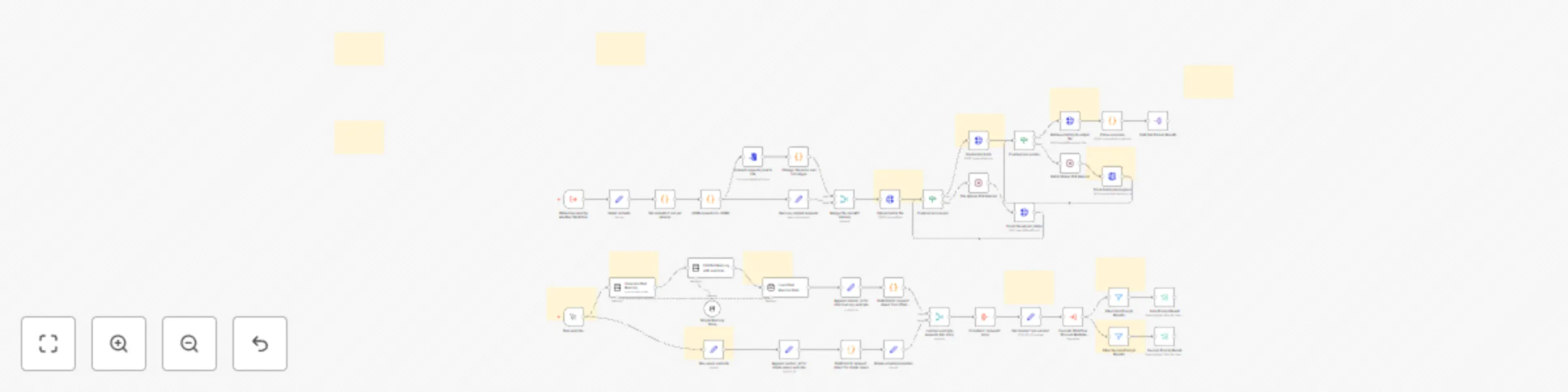
Workflow preview: Process multiple prompts in parallel with Azure OpenAI Batch API
Free advanced

Process multiple prompts in parallel with Azure OpenAI Batch API

# Process Multiple Prompts in Parallel with Azure OpenAI Batch API ## Who is this for? This workflow is designed for developers and data scientists who want to efficiently send multiple prompts to the Azure OpenAI Batch API and retrieve responses in a single batch process. It is particularly useful for applications that require processing large volumes of text data, such as chatbots, content generation, or data analysis. ## What problem is this workflow solving? Sending multiple prompts to the Azure OpenAI API can be time-consuming and inefficient if done sequentially. This workflow automates the process of batching requests, allowing users to submit multiple prompts at once and retrieve the results in a streamlined manner. This not only saves time but also optimizes resource usage. ## What this workflow does This workflow: 1. Accepts an array of requests, each containing a prompt and associated parameters. 2. Converts the requests into a JSONL format suitable for batch processing. 3. Uploads the batch file to the Azure OpenAI API. 4. Creates a batch job to process the prompts. 5. Polls for the job status and retrieves the output once processing is complete. 6. Parses the output and returns the results. ### Key Features of Azure OpenAI Batch API The Azure OpenAI Batch API is designed to handle large-scale and high-volume processing tasks efficiently. Key features include: - **Asynchronous Processing**: Handle groups of requests with separate quotas, targeting a 24-hour turnaround at 50% less cost than global standards. - **Batch Requests**: Send a large number of requests in a single file, avoiding disruption to online workloads. ### Key Use Cases - **Large-Scale Data Processing**: Quickly analyze extensive datasets in parallel. - **Content Generation**: Create large volumes of text, such as product descriptions or articles. - **Document Review and Summarization**: Automate the review and summarization of lengthy documents. - **Customer Support Automation**: Handle numerous queries simultaneously for faster responses. - **Data Extraction and Analysis**: Extract and analyze information from vast amounts of unstructured data. - **Natural Language Processing (NLP) Tasks**: Perform tasks like sentiment analysis or translation on large datasets. - **Marketing and Personalization**: Generate personalized content and recommendations at scale. ## Setup 1. **Azure OpenAI Credentials**: Ensure you have your Azure OpenAI API credentials set up in n8n. 2. **Configure the Workflow**: - Set the `az_openai_endpoint` in the "Setup defaults" node to your Azure OpenAI endpoint. - Adjust the `api-version` in the "Set desired 'api-version'" node if necessary. 3. **Run the Workflow**: Trigger the workflow using the "Run example" node to see it in action. ## How to customize this workflow to your needs - **Modify Prompts**: Change the prompts in the "One query example" node to suit your application. - **Adjust Parameters**: Update the parameters in the requests to customize the behavior of the OpenAI model. - **Add More Requests**: You can add more requests in the input array to process additional prompts. ## Example Input ```json [ { "api-version": "2025-03-01-preview", "requests": [ { "custom_id": "first-prompt-in-my-batch", "params": { "messages": [ { "content": "Hey ChatGPT, tell me a short fun fact about cats!", "role": "user" } ] } }, { "custom_id": "second-prompt-in-my-batch", "params": { "messages": [ { "content": "Hey ChatGPT, tell me a short fun fact about bees!", "role": "user" } ] } } ] } ] ``` ## Example Output ```json [ { "custom_id": "first-prompt-in-my-batch", "response": { "body": { "choices": [ { "message": { "content": "Did you know that cats can make over 100 different sounds?" } } ] } } }, { "custom_id": "second-prompt-in-my-batch", "response": { "body": { "choices": [ { "message": { "content": "Bees communicate through a unique dance called the 'waggle dance'." } } ] } } } ] ``` ## Additional Notes - **Job Management**: You can cancel a job at any time, and any remaining work will be canceled while already completed work is returned. You will be charged for any completed work. - **Data Residency**: Data stored at rest remains in the designated Azure geography, while data may be processed for inferencing in any Azure OpenAI location. - **Exponential Backoff**: If your batch jobs are large and hitting the enqueued token limit, certain regions support queuing multiple batch jobs with exponential backoff. This template provides a comprehensive solution for efficiently processing multiple prompts using the Azure OpenAI Batch API, making it a valuable tool for developers and data scientists alike.

G
Greg Evseev
Engineering
13 Apr 2025
698
0

Workflow preview: Batch process prompts with Anthropic Claude API
Free advanced

Batch process prompts with Anthropic Claude API

This workflow template provides a robust solution for efficiently sending multiple prompts to Anthropic's Claude models in a single batch request and retrieving the results. It leverages the Anthropic Batch API endpoint (`/v1/messages/batches`) for optimized processing and outputs each result as a separate item. **Core Functionality & Example Usage Included** This template includes: 1. **The Core Batch Processing Workflow:** Designed to be called by another n8n workflow. 2. **An Example Usage Workflow:** A separate branch demonstrating how to prepare data and trigger the core workflow, including examples using simple strings and n8n's [Langchain Chat Memory nodes](https://docs.n8n.io/integrations/builtin/cluster-nodes/sub-nodes/n8n-nodes-langchain.memorybufferwindow/). ## Who is this for? This template is designed for: * **Developers, data scientists, and researchers** who need to process large volumes of text prompts using Claude models via n8n. * **Content creators** looking to generate multiple pieces of content (e.g., summaries, Q&As, creative text) based on different inputs simultaneously. * **n8n users** who want to automate interactions with the Anthropic API beyond single requests, improve efficiency, and integrate batch processing into larger automation sequences. * Anyone needing to perform **bulk text generation or analysis** tasks with Claude programmatically. ## What problem does this workflow solve? Sending prompts to language models one by one can be slow and inefficient, especially when dealing with hundreds or thousands of requests. This workflow addresses that by: * **Batching:** Grouping multiple prompts into a single API call to Anthropic's dedicated batch endpoint (`/v1/messages/batches`). * **Efficiency:** Significantly reducing the time required compared to sequential processing. * **Scalability:** Handling large numbers of prompts (up to API limits) systematically. * **Automation:** Providing a ready-to-use, callable n8n structure for batch interactions with Claude. * **Structured Output:** Parsing the results and outputting each individual prompt's result as a separate n8n item. **Use Cases:** * Bulk content generation (e.g., product descriptions, summaries). * Large-scale question answering based on different contexts. * Sentiment analysis or data extraction across multiple text snippets. * Running the same prompt against many different inputs for research or testing. ## What the Core Workflow does *(Triggered by the 'When Executed by Another Workflow' node)* 1. **Receive Input:** The workflow starts when called by another workflow (e.g., using the 'Execute Workflow' node). It expects input data containing: * `anthropic-version` (string, e.g., "2023-06-01") * `requests` (JSON array, where each object represents a single prompt request conforming to the Anthropic Batch API schema). 2. **Submit Batch Job:** Sends the formatted `requests` data via `POST` to the Anthropic API `/v1/messages/batches` endpoint to create a new batch job. Requires Anthropic credentials. 3. **Wait & Poll:** Enters a loop: * Checks if the `processing_status` of the batch job is `ended`. * If not `ended`, it waits for a set interval (**10 seconds** by default in the 'Batch Status Poll Interval' node). * It then checks the batch job status again via `GET` to `/v1/messages/batches/{batch_id}`. Requires Anthropic credentials. * This loop continues until the status is `ended`. 4. **Retrieve Results:** Once the batch job is complete, it fetches the results file by making a `GET` request to the `results_url` provided in the batch status response. Requires Anthropic credentials. 5. **Parse Results:** The results are typically returned in JSON Lines (`.jsonl`) format. The 'Parse response' Code node splits the response text by newlines and parses each line into a separate JSON object, storing them in an array field (e.g., `parsed`). 6. **Split Output:** The 'Split Out Parsed Results' node takes the array of parsed results and outputs each result object as an individual item from the workflow. ## Prerequisites * An active **n8n instance** (Cloud or self-hosted). * An **Anthropic API account** with access granted to Claude models and the Batch API. * Your **Anthropic API Key**. * Basic understanding of n8n concepts (nodes, workflows, credentials, expressions, 'Execute Workflow' node). * Familiarity with JSON data structures for providing input prompts and understanding the output. * Understanding of the Anthropic Batch API request/response structure. * *(For Example Usage Branch)* Familiarity with n8n's Langchain nodes (`@n8n/n8n-nodes-langchain`) if you plan to adapt that part. ## Setup 1. **Import Template:** Add this template to your n8n instance. 2. **Configure Credentials:** * Navigate to the 'Credentials' section in your n8n instance. * Click 'Add Credential'. * Search for 'Anthropic' and select the Anthropic API credential type. * Enter your Anthropic API Key and save the credential (e.g., name it "Anthropic account"). 3. **Assign Credentials:** Open the workflow and locate the **three HTTP Request nodes** in the core workflow: * `Submit batch` * `Check batch status` * `Get results` In each of these nodes, select the Anthropic credential you just configured from the 'Credential for Anthropic API' dropdown. 4. **Review Input Format:** Understand the required input structure for the `When Executed by Another Workflow` trigger node. The primary inputs are `anthropic-version` (string) and `requests` (array). Refer to the **Sticky Notes** in the template and the [Anthropic Batch API documentation](https://docs.anthropic.com/en/api/batch) for the exact schema required within the `requests` array. 5. **Activate Workflow:** Save and activate the core workflow so it can be called by other workflows. **➡️ Quick Start & Input/Output Examples:** Look for the **Sticky Notes** within the workflow canvas! They provide crucial information, including examples of the required input JSON structure and the expected output format. ## How to customize this workflow * **Input Source:** The core workflow is designed to be called. You will build *another* workflow that prepares the `anthropic-version` and `requests` array and then uses the 'Execute Workflow' node to trigger this template. The included example branch shows how to prepare this data. * **Model Selection & Parameters:** Model (`claude-3-opus-20240229`, etc.), `max_tokens`, `temperature`, and other parameters are defined *within each object* inside the `requests` array you pass to the workflow trigger. You configure these in the workflow *calling* this template. * **Polling Interval:** Modify the 'Wait' node ('Batch Status Poll Interval') duration if you need faster or slower status checks (default is 10 seconds). Be mindful of potential rate limits. * **Parsing Logic:** If Anthropic changes the result format or you have specific needs, modify the Javascript code within the 'Parse response' Code node. * **Error Handling:** Enhance the workflow with more specific error handling for API failures (e.g., using 'Error Trigger' or checking HTTP status codes) or batch processing issues (`batch.status === 'failed'`). * **Output Processing:** In the workflow that *calls* this template, add nodes after the 'Execute Workflow' node to process the individual result items returned (e.g., save to a database, spreadsheet, send notifications). ## Example Usage Branch (Manual Trigger) This template also contains a separate branch starting with the `Run example` Manual Trigger node. * **Purpose:** This branch demonstrates how to construct the necessary `anthropic-version` and `requests` array payload. * **Methods Shown:** It includes steps for: * Creating a request object from a simple query string. * Creating a request object using data from n8n's Langchain Chat Memory nodes (`@n8n/n8n-nodes-langchain`). * **Execution:** It merges these examples, constructs the final payload, and then uses the `Execute Workflow` node to call the main batch processing logic described above. It finishes by filtering the results for demonstration. * **Note:** This branch is for demonstration and testing. You would typically build your own data preparation logic in a separate workflow. The use of Langchain nodes is optional for the core batch functionality. ## Notes * **API Limits:** According to the [Anthropic API documentation](https://docs.anthropic.com/en/api/creating-message-batches), batches can contain up to 100,000 requests and be up to 256 MB in total size. Ensure your n8n instance has sufficient resources for large batches. * **API Costs:** Using the Anthropic API, including the Batch API, incurs costs based on token usage. Monitor your usage via the Anthropic dashboard. * **Completion Time:** Batch processing time depends on the number and complexity of prompts and current API load. The polling mechanism accounts for this variability. * **Versioning:** Always include the `anthropic-version` header in your requests, as shown in the workflow and examples. Refer to [Anthropic API versioning documentation](https://docs.anthropic.com/en/api/versioning).

G
Greg Evseev
Engineering
3 Apr 2025
1787
0