Grace Gbadamosi
Workflows by Grace Gbadamosi
Comprehensive API integration suite with health, webhook, auth & rate limit monitoring
## How it works This workflow creates a complete MCPserver that provides comprehensive API integration monitoring and testing capabilities. The server exposes five specialized tools through a single MCP endpoint: API health analysis, webhook reliability testing, rate limit monitoring, authentication verification, and client report generation. External applications can connect to this MCP server to access all monitoring tools. ## Who is this for This template is designed for DevOps engineers, API developers, integration specialists, and technical teams responsible for maintaining API reliability and performance. It's particularly valuable for organizations managing multiple API integrations, SaaS providers monitoring client integrations, and development teams implementing API monitoring strategies. ## Requirements - **MCP Client**: Any MCP-compatible application (Claude Desktop, custom MCP client, or other AI tools) - **Network Access**: Outbound HTTP/HTTPS access to test API endpoints and webhooks - **Authentication**: Bearer token authentication for securing the MCP server endpoint - **Target APIs**: The APIs and webhooks you want to monitor (no special configuration required on target systems) ## How to set up 1. **Configure MCP Server Authentication** - Update the **MCP Server - API Monitor Entry** node with your desired authentication method and generate a secure bearer token for accessing your MCP server 2. **Deploy the Workflow** - Save and activate the workflow in your n8n instance, noting the MCP server endpoint URL that will be generated for external client connections 3. **Connect MCP Client** - Configure your MCP client (such as Claude Desktop) to connect to the MCP server endpoint using the authentication token you configured 4. **Test Monitoring Tools** - Use your MCP client to call the available tools: Analyze Api Health, Validate Webhook Reliability, Monitor API Limits, Verify Authentication, and Generate Client Report with your API endpoints and credentials
Sync HubSpot, Pipedrive & Salesforce to Google Sheets with OpenAI deduplication
*This workflow contains community nodes that are only compatible with the self-hosted version of n8n.* ## How it works This workflow automatically synchronizes contact data from multiple CRM systems (HubSpot, Pipedrive, and Salesforce) into a unified Google Sheets database. The system runs on a daily schedule or can be triggered manually via webhook. It uses AI-powered data processing to intelligently deduplicate records, calculate data quality scores, and merge similar contacts. The workflow generates comprehensive quality reports and sends notifications via Slack, ensuring your master database stays clean and up-to-date. ## Who is this for This template is designed for revenue operations teams, data managers, and business analysts who need to consolidate customer data from multiple CRM platforms. It's particularly valuable for organizations using multiple sales tools simultaneously or during CRM migration projects. The workflow helps maintain data integrity while providing insights into data quality across different systems. ## Requirements - **Google Sheets Account**: For storing master database and quality reports - **CRM Platform Access**: API credentials for HubSpot, Pipedrive, and/or Salesforce - **OpenAI API Key**: For AI-powered data processing and deduplication - **MCP Server**: Github:marlonluo2018/pandas-mcp-server (optional - can be replaced with Code node) - **Slack Webhook**: For receiving sync completion and error notifications ## How to set up 1. **Configure Environment Variables** - Set up secure credential storage for all API keys: HUBSPOT_API_KEY, PIPEDRIVE_API_KEY, SALESFORCE_ACCESS_TOKEN, OPENAI_API_KEY, and SLACK_WEBHOOK_URL 2. **Create Google Sheets Structure** - Create a master Google Sheet with two tabs: "Master_CRM_Data" for the unified contact database and "Quality_Reports" for tracking sync statistics and data quality metrics 3. **Set Up MCP Server** - Install and configure "marlonluo2018/pandas-mcp-server" 4. **Update Configuration Center** - Modify all placeholder values in the Configuration Center node with your actual Google Sheet IDs, quality thresholds, deduplication keys, and batch processing settings
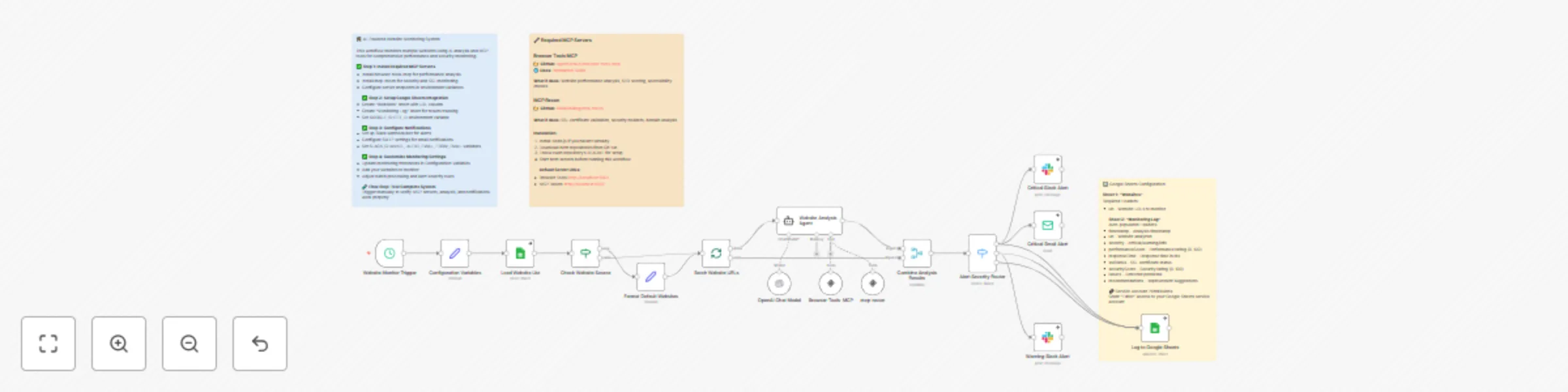
Automate website monitoring with GPT-4 Mini, MCP tools & multi-channel alerts
## How it works This workflow automatically monitors multiple websites using AI-powered analysis and MCP (Model Context Protocol) tools. The system runs scheduled checks, analyzes website performance and security using browser-tools-mcp and mcp-recon servers, categorizes issues by severity (critical, warning, info), sends appropriate alerts through Slack and email, and logs all findings to Google Sheets for historical tracking and trend analysis. ## Who is this for DevOps engineers, website administrators, system monitors, digital agencies, and technical teams responsible for maintaining multiple websites. Perfect for organizations that need automated website health monitoring with intelligent analysis, comprehensive security checks, and immediate alerting for critical issues. ## Requirements - **MCP Servers**: Browser-tools-mcp and mcp-recon servers running locally or remotely - **OpenAI API**: API key for AI-powered website analysis - **Google Sheets**: Spreadsheet with "Websites" and "Monitoring Log" sheets - **Slack Integration**: Slack workspace with webhook or bot token for alerts - **Email Configuration**: SMTP settings for critical email notifications - **Environment Variables**: Secure storage for all credentials and endpoints ## How to set up 1. **Install and Configure MCP Servers** - Set up browser-tools-mcp and mcp-recon servers, configure endpoints in environment variables (MCP_BROWSER_TOOLS_URL, MCP_RECON_URL) 2. **Prepare Google Sheets Integration** - Create spreadsheet with "Websites" sheet (URL column) and "Monitoring Log" sheet, set GOOGLE_SHEET_ID environment variable 3. **Configure Notification Systems** - Set up Slack webhook/bot and email SMTP settings, configure SLACK_CHANNEL, ALERT_EMAIL, FROM_EMAIL variables 4. **Customize Monitoring Parameters** - Update Configuration Variables node with your monitoring thresholds, batch sizes, and website lists ## How to customize the workflow Modify the Configuration Variables node to adjust monitoring thresholds (response times, performance scores), change batch processing sizes, update notification preferences, or add additional websites to monitor. Customize alert severity rules in the Alert Severity Router and modify notification templates in the Slack and Email nodes.
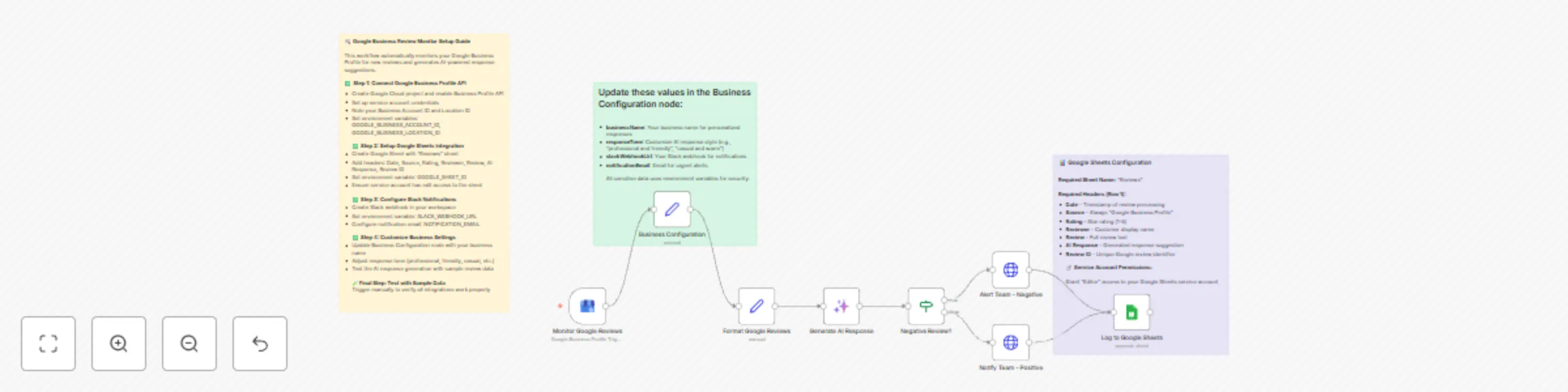
Automate Google Business reviews with AI responses, Slack alerts & sheets logging
## How it works This workflow automatically monitors your Google Business Profile for new reviews and uses AI to generate personalized response suggestions. When a review is detected, the system formats the review data, generates an appropriate AI response based on the rating and content, sends differentiated Slack notifications (urgent alerts for negative reviews, celebration messages for positive ones), and logs everything to Google Sheets for tracking and analysis. ## Who is this for Local business owners, restaurant managers, retail store operators, service providers, and reputation management teams who want to stay on top of customer feedback and respond promptly with thoughtful, AI-generated responses. Perfect for businesses that receive regular reviews and want to maintain consistent, professional customer engagement without manually monitoring multiple platforms. ## Requirements - **Google Business Profile**: Active business profile with review monitoring enabled - **Google API Credentials**: Service account with access to Business Profile API and Sheets API - **Slack Webhook**: Incoming webhook URL for team notifications - **Google Sheets**: Spreadsheet with "Reviews" sheet for logging review data - **Environment Variables**: Setup for secure credential storage - **Basic n8n Knowledge**: Understanding of triggers, expressions, and credential management ## How to set up 1. **Configure Google Business Profile API** - Create Google Cloud project, enable Business Profile API, set up service account credentials, and add your Business Account ID and Location ID to environment variables 2. **Prepare Google Sheets Integration** - Create Google Sheet with "Reviews" sheet, add required headers, set GOOGLE_SHEET_ID environment variable, and ensure service account has edit access 3. **Setup Slack Notifications** - Create Slack webhook in your workspace and set SLACK_WEBHOOK_URL environment variable 4. **Customize Business Settings** - Update Business Configuration node with your business name and adjust AI response tone preferences ## How to customize the workflow Modify the Business Configuration node to change your business name, adjust the AI response tone (professional, friendly, casual), customize Slack notification messages in the HTTP Request nodes, or add additional review sources by duplicating the trigger structure.