G

Gleb D

5
Workflows

Workflows by Gleb D

Workflow preview: Enrich Company Data from LinkedIn via Bright Data & Google Sheets
Free advanced

Enrich Company Data from LinkedIn via Bright Data & Google Sheets

This n8n workflow automates the enrichment of a company list by discovering and extracting each company’s official LinkedIn URL using Bright Data’s search capabilities and Google Gemini AI for HTML parsing and result interpretation. ![image.png](fileId:1451) ## Who is this template for? This workflow is ideal for sales, business development, and data research professionals who need to collect official LinkedIn company profiles for multiple organizations, starting from a list of company names in Google Sheets. It’s especially useful for teams who want to automate sourcing LinkedIn URLs, enrich their prospect database, or validate company data at scale. ## How it works **Manual Trigger:** The workflow is started manually (useful for controlled batch runs and testing). **Read Company Names:** Company names are loaded from a specified Google Sheets table. **Loop Over Each Company:** Each company is processed one-by-one: - A custom Google Search URL is generated for each name. - A Bright Data Web Unlocker request is sent to fetch Google search results for “site:linkedin.com [company name]”. - Parse LinkedIn Profile URL Using AI: Google Gemini (or your specified LLM) analyzes the fetched search page and extracts the most likely official LinkedIn company profile. **Result Handling:** - If a profile is found, it’s stored in the results. - If not, an empty result is created, but you can add custom logic (notifications, retries, etc.). **Batch Data Enrichment:** All found company URLs are bundled into a single request for further enrichment from a Bright Data dataset. **Export:** The workflow appends the final, structured data for each company to another sheet in your Google Sheets file. ## Setup instructions **1. Replace API Keys:** Insert your Bright Data API key in these nodes: - Bright Data Web Request - Google Search for Company LinkedIn URL - HTTP Request - Post API call to Bright Data - Snapshot Progress - HTTP Request - Getting data from Bright Data **2. Connect Google Sheets:** Set up your Google Sheets credentials and specify the sheet for reading input and writing output. **3. Customize Output Structure:** Adjust the Python code node (see sticky note in the template) if you want to include additional or fewer fields in your output. **4. Adjust for Scale or Error Handling:** - You can modify the logic for “not found” results (e.g., to notify a Slack channel or retry failed companies). **5. Run the Workflow:** Start manually, monitor the run, and check your Google Sheet for results. ## Customization guidance **Change Input/Output Sheets:** Update the sheet names or columns if your source/target spreadsheet has a different structure. **Use Another AI Model:** Replace the Google Gemini node with another LLM node if preferred. **Integrate Alerts:** Add Slack or email nodes to notify your team when a LinkedIn profile is not found or when the process is complete.

G
Gleb D
Lead Generation
5 Jun 2025
729
0
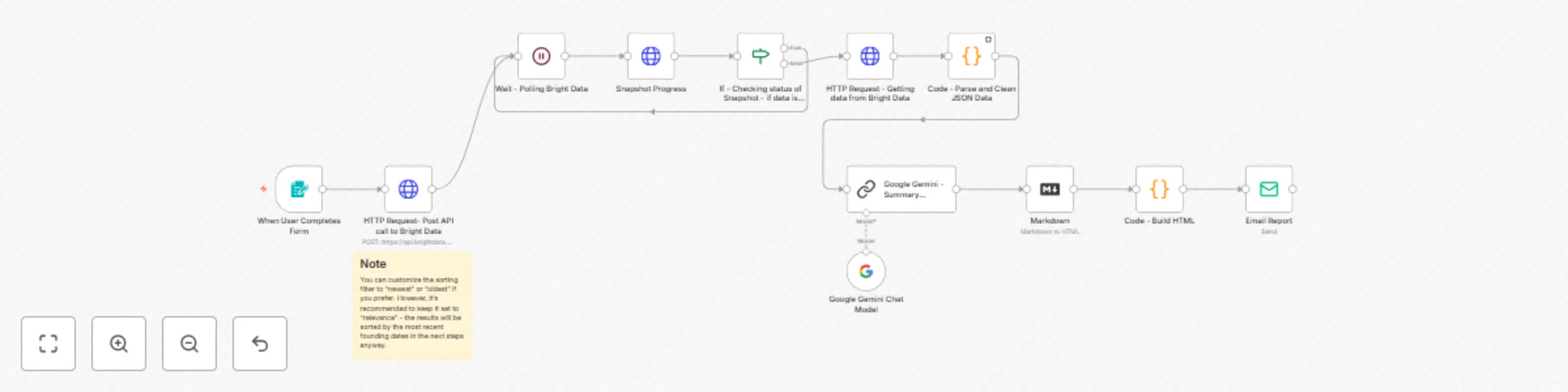
Workflow preview: Email news briefing by keyword from Bright Data with AI summary
Free intermediate

Email news briefing by keyword from Bright Data with AI summary

This n8n workflow automatically retrieves recent Reuters news articles related to a user-specified keyword, summarizes the main findings using Google Gemini, formats the output into styled HTML, and sends a clean email report to a specified address. 🚀 **What It Does** - Collects news data from Bright Data's Reuters dataset. - Sorts and filters top 10 most recent news articles by publication_date. - Sends structured news data to Gemini Flash for summarization. - Converts Gemini's response (in Markdown) into styled HTML. - Delivers a concise news briefing via email, including clickable source links and topic highlights. 🛠️ **Step-by-Step Setup** 1. User Form: Accepts a keyword from the user via an n8n form trigger. 2. Bright Data API: Posts a discover_new request to Bright Data's Reuters dataset using the keyword. 3. Snapshot Polling: Waits and checks for dataset readiness using the snapshot ID. 4. Data Retrieval: Downloads the news data once the snapshot is complete. 5. Parsing: Filters and sorts the latest 10 articles using a Python Code node. 6. AI Analysis: Google Gemini summarizes the filtered content into one briefing. 7. Markdown → HTML: Converts AI response into styled HTML using Markdown + Code node. 8. Email Delivery: Sends the briefing as an email to a predefined recipient. 🧠 **How It Works** - Polling Control: Uses Wait and If nodes to handle Bright Data snapshot readiness. - Date Sorting: Publication dates (ISO 8601 format) are parsed and used for sorting. - AI Summarization: Gemini condenses multiple articles into one cohesive summary. - Formatting: Clean HTML with readable styles is generated dynamically before sending. 📨 **Final Output** The email includes: - A brief summary of the most important developments - Date range of the collected news - Topics covered 🔐 **Credentials Used** **Bright Data API** (replace YOUR_API_KEY in the HTTP nodes) **Google Gemini** (Flash) API **Email SMTP** (configured in Email Send node) ⚠️ **Notes** - You must replace all **YOUR_API_KEY** placeholders in Bright Data request headers with your actual Bright Data API key. - You can customize the keyword prompt and output style freely. - I would recommend to keep the sort = relevance option for best chronological results - sorting by date is handled later.

G
Gleb D
Market Research
2 Jun 2025
898
0
Workflow preview: Analyze Crunchbase startups by keyword with Bright Data, Gemini AI & Google Sheets
Free intermediate

Analyze Crunchbase startups by keyword with Bright Data, Gemini AI & Google Sheets

This n8n workflow automates the discovery, enrichment, and comparative analysis of startups from the Crunchbase dataset via Bright Data, enhanced with AI, and exports structured results to Google Sheets. 🚀 **What It Does** - Receives a keyword from the user that describes the area of interest — such as an industry, sector, technology, or trend (e.g., "AI in healthcare", "carbon capture", "edtech"). - This keyword is used to filter relevant startups from the Crunchbase dataset via Bright Data. - Fetches data from Bright Data's Crunchbase snapshot API. - Extracts and cleans key fields from the JSON response. - Sorts startups by most recent founding date. - Selects the top 10 most recent companies. - Sends these 10 companies to Google Gemini AI for comparative analysis. - Embeds the AI-generated summary into the final export. - Appends results to a Google Sheet for tracking and reporting. 🛠️ **Step-by-Step Setup** 1. Get user keyword input from a form. 2. Use 3 Bright Data requests: Start snapshot. Poll snapshot status until ready. Fetch snapshot data in JSON format. 3. Use a Python Code node to: 4. Parse and sort companies by founded_date. 5. Clean and standardize data fields. 6. Pass the top 10 companies into Gemini AI for comparative insight. 7. Merge the AI output back with company data. 8. Send everything to Google Sheets. 🧠 **How It Works** - Snapshot Control: Polls every few seconds until the Bright Data snapshot is complete. - Code Cleanup: Ensures consistent structure and formatting across all records. - Comparative AI Analysis: Gemini compares all 10 companies at once and returns a unified analysis. - Merging Output: AI analysis is merged into the first company’s record (to avoid duplication), while all 10 are exported. 📤 **Google Sheet Output** Each row includes: - name, founded, about, num_employees, type, ipo_status, full_description, social_media_links, address, website, funding_total, num_investors, lead_investors, founders, products_and_services, monthly_visits, crunchbase_link, ai_analysis. - AI comparative analysis summary (only once per batch – attached to the first company). - All fields from above customizible through the python code (you can add additional ones from Bright Data output). 🔐 **Required Credentials** - **Bright Data** – Replace **YOUR_API_KEY** in 3 HTTP Request nodes. - **Google Gemini API** – For AI analysis. - **Google Sheets OAuth2** – For spreadsheet export. ⚠️ **Notes** - AI output is shared once per batch of 10 companies, attached to the first company entry. You can configure the limit of batch size in the first "Code" node.

G
Gleb D
Market Research
2 Jun 2025
346
0
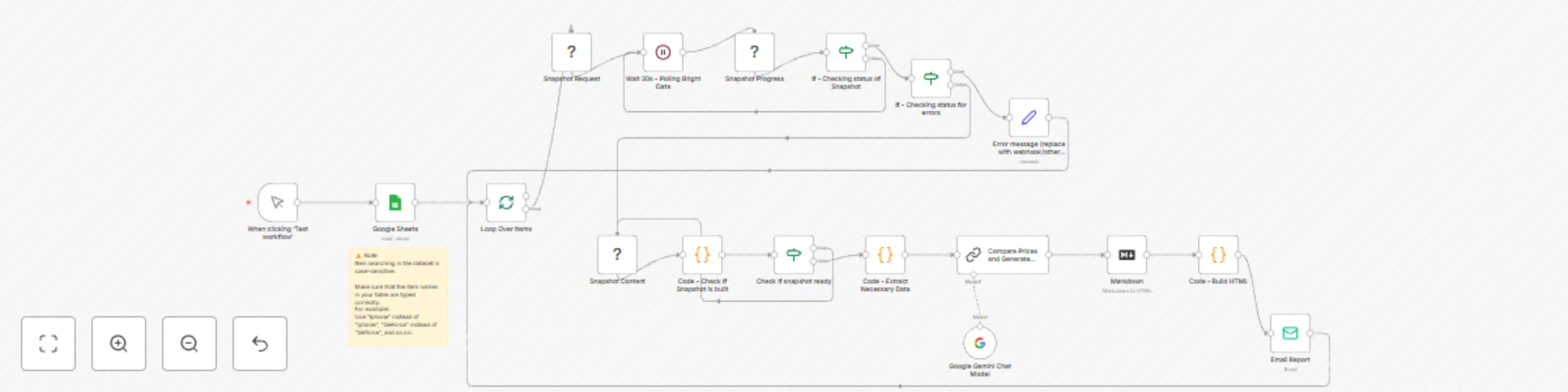
Workflow preview: Bright Data-powered competitive price lookup and report generator
Free advanced

Bright Data-powered competitive price lookup and report generator

This n8n workflow automates the collection, enrichment, and analysis of e-commerce product listings using Bright Data and AI, then delivers an HTML email report with the most competitive offers. 🚀 **What It Does** - Pulls product titles from a Google Sheet. - For each product, searches a Bright Data marketplace dataset (Google Shopping) for available listings. - Extracts relevant fields: price, title, seller name, and listing URL. - Sends this data to Google Gemini for AI-powered Markdown report generation. - Converts Markdown to HTML and styles the output for better email rendering. - Sends an email report for each product with the top 20 most affordable offers. 🛠️ **Step-by-Step Setup** - Load product list from Google Sheets. - For each product title, run a Bright Data filter request (case-sensitive match). - Poll the snapshot status until it is ready. - Retrieve snapshot content and clean the results with a Code node. - Pass the results to Gemini (PaLM/Gemini Flash) for analysis and report generation in Markdown. - Convert Markdown into styled HTML using Markdown + Code nodes. - Send formatted email to a predefined recipient. - Return to the loop and repeat for the next product. 🧠 **How It Works** - Loop Control: SplitInBatches handles product-by-product processing. - Snapshot Handling: Snapshot status is polled every 30s until success/failure. - AI Formatting: Gemini summarizes listings and formats content. - Error Handling: Failed snapshots produce a warning message and resume the loop. 📨 **Final Output** - Each email contains: - The product name - A clean HTML of up to 20 sellers with lowest prices - Links to listings - AI-generated pricing summary 🔐 **Credentials Used** - Bright Data account - Google Gemini (PaLM/Gemini Flash) - Google Sheets (OAuth2) - SMTP Email (emailSend node) ⚠️ **Important Notes** - Item title search is case-sensitive. Typos or casing mismatches may result in no results. - Requires **n8n-nodes-brightdata community node** to be installed.

G
Gleb D
Market Research
24 May 2025
537
0
Workflow preview: Find, scrape & analyze Twitter posts by name with Bright Data & Gemini
Free advanced

Find, scrape & analyze Twitter posts by name with Bright Data & Gemini

This n8n workflow template automates the process of collecting and analyzing Twitter (X) posts for any public profile, then generates a clean, AI-powered summary including key metrics, interests, and activity trends. 🚀 **What It Does** - Accepts a user's full name and date range through a public form. - Automatically finds the person’s X (formerly Twitter) profile using a Google search. - Uses Bright Data to retrieve full post data from the X.com profile. - Extracts key post metrics like views, likes, reposts, hashtags, and mentions. - Uses Google Gemini (PaLM) to generate a personalized summary: tone, themes, popularity, and sentiments. - Stores both raw data and the AI summary into a connected Google Sheet for further review or team collaboration. 🛠️ **Step-by-Step Setup** 1. Deploy the public form to collect full name and date range. 2. Build a Google search query using the name to find their X profile. 3. Scrape the search results via Bright Data (Web Unlocker zone). 4. Parse the page content using the HTML node. 5. Use Gemini AI to extract the correct X profile URL. 6. Pull full post data via Bright Data dataset snapshot API. 7. Transform post data into clean structured fields: date_posted, description, hashtags, likes, views, quoted_post.date_posted, quoted_post.description, replies, reposts, quotes, and tagged_users.profile_name. 8. Analyze all posts using Google Gemini for interest detection and persona generation. 9. Save results to a Google Sheet: structured post data + AI-written summary. 10. Show success or fallback messages depending on profile detection or scraping status. 🧠 **How It Works: Workflow Overview** - Trigger: When user submits form - Search & Match: Google search → HTML parse → Gemini filters matching X profile - Data Gathering: Bright Data → Poll for snapshot completion → Fetch post data - Transformation: Extract and restructure key fields via Code node - AI Summary: Use Gemini to analyze tone, interests, and trends - Export: Save results to Google Sheet - Fallback: Display custom error message if no X profile found 📨 **Final Output** - A record in your Google Sheet with: - Clean post-level data - Profile-level engagement summary - An AI-written overview including tone, common topics, and post popularity 🔐 **Credentials Used** - **Bright Data account** (for search & post scraping) - **Google Gemini (PaLM)** or Gemini Flash via - OpenAI/Google Vertex API - **Google Sheets (OAuth2) account** (for result storage) **⚠️Community Node Dependency** This workflow uses a custom community node: **n8n-nodes-brightdata** Install it via UI (Settings → Community Nodes → Install).

G
Gleb D
Market Research
23 May 2025
1720
0