G

Gain FLow AI

6
Workflows

Workflows by Gain FLow AI

Workflow preview: Jarvis: AI personal assistant with multi-agent network via WhatsApp
Free advanced

Jarvis: AI personal assistant with multi-agent network via WhatsApp

Think of this workflow as your very own **J.A.R.V.I.S.**, the ultimate AI personal assistant, capable of handling a vast array of tasks just like Tony Stark's legendary AI! --- ### Overview This n8n workflow creates a **highly intelligent, multi-agent AI system** designed to act as your all-in-one personal assistant. At its core is **Jarvis**, the central AI, who smartly understands your requests and delegates them to specialized "supervisor" AIs. These supervisors then activate their own "sub-agents" (smaller AI workflows) to perform specific tasks, covering everything from managing your work to helping with your personal life and getting you the information you need. --- ### Use Case This powerful workflow is perfect for anyone who wants to **automate and streamline almost any digital task**. Imagine having an assistant who can: * **Boost Productivity:** Manage your calendar, create and update documents (Google Docs, Sheets, Drive), handle tasks (ClickUp, Google Tasks), and keep your customer data organized (Zoho CRM, Airtable). * **Master Communication:** Draft and search emails, send messages on Slack, and even manage your X (Twitter) interactions. * **Handle Publishing & Content:** Create images, post on social media (Facebook, X, LinkedIn, Instagram), and manage your WordPress content. * **Provide Smart Insights:** Perform deep online research, analyze SEO trends, check financial markets, and gather website performance data from Google Analytics. * **Manage Your Lifestyle:** Keep track of your meal plans and habits in Notion, and even help you with travel planning. This system is designed to intelligently choose the best tool for each part of your request, making complex tasks simple. --- ### How It Works It all starts with your input, delivered via **WhatsApp**. Whether you send a text message, an audio note (which gets transcribed), an image, or a document (from which data like invoices can be extracted), the workflow processes it to understand your need. This input then goes to **Jarvis, the central AI**. Donna acts like a super-smart manager. It quickly figures out which "supervisor" agent is best for your request: * **Productivity Supervisor:** For anything work-related – documents, calendars, tasks, or CRM. * **Communication Supervisor:** For emails, Slack, or X (Twitter). * **Lifestyle Supervisor:** For personal organization like meals or travel. * **Insights Supervisor:** For research, SEO, financial data, or website analytics. * **Publishing Supervisor:** For social media posting, images, or WordPress. Donna then hands off your request to the chosen supervisor. Each supervisor, in turn, uses its own set of specialized "sub-agents" (individual n8n workflows) to get the job done. For example, if you ask Donna to "find me flight information," she directs it to the "Lifestyle Supervisor," which then uses the "Travel Agent" to look up flights. The results are then sent back to you directly through WhatsApp. This "Agent as a Tool" setup means complex tasks are broken down and handled by the right expert AI. --- ### How to Set It Up 1. **Individual Agent Workflows:** This system is built with many specialized AI "agents" working together. To get started, you'll need to set up a separate n8n workflow for *each* of the individual agents (like "Notion Agent," "Email Agent," "SEO Agent," etc.). 2. **Connect Agents:** Once created, these individual agent workflows must be correctly linked to their designated "call workflow" tools within the main supervisor workflows. This tells Donna and her supervisors which tools to use for each task. 3. **Credentials:** Make sure you've properly connected all necessary accounts and API keys (like Google, OpenAI, Slack, Airtable, etc.) within their respective agent workflows. 4. **Activate:** After setting up and linking all parts and adding your credentials, activate this main workflow. For more detailed setup instructions, please refer to our [**Detailed Setup Guide**](https://drive.google.com/file/d/1UqQpZv5ExTuI5IEIUTMe6NiZ89bVCI9J/view?usp=sharing). If you need any further help, don't hesitate to email us at `[email protected]`.

G
Gain FLow AI
Personal Productivity
20 Jul 2025
785
0

Workflow preview: AI-powered lead generation with Apollo, LinkedIn research & 4-step personalized emails
Free advanced

AI-powered lead generation with Apollo, LinkedIn research & 4-step personalized emails

## Overview This workflow finds potential customers, gathers detailed info about them and their companies, and then uses AI to research them in detail and write personalized messages for LinkedIn and a series of four cold emails. All this data is organized in Google Sheets for easy tracking and use. ## Use Case This tool is perfect for **salespeople, marketers, and business owners**. It saves you a lot of time by automating lead finding, research, and email writing. This helps you send many personalized messages quickly, leading to more replies and better sales. ## How It Works You start by telling the workflow who you want to reach (e.g., "Marketing Agencies," "New York," "COOs"). The workflow then uses **scrapers** (from Apify) to find these people on Apollo.io and LinkedIn, collecting their contact details and company information. Next, an **AI analyzes all this data**. It creates a detailed report on each company, including what they do, their strengths, recent news, and possible challenges they face. This report helps the AI then write a friendly **LinkedIn message opener** and a **4-part hyper-personalised cold email series** specifically for each person. These emails cover problems you can solve, success stories, and a clear next step. Finally, all the prospect details and generated messages are saved neatly in your Google Sheets. ## How to Set It Up 1. **Scrapers:** Go to **Apify**, get your API Token from "API & Integrations," and put it into the scraper nodes in the workflow. 2. **Google Sheets:** Copy the provided **Google Sheet template**. Then, add your email addresses to the "Assign Sender Email" node so the workflow can choose who sends the emails. 3. **AI (OpenAI):** Add your **OpenAI API Key**. In the "About You" node, fill in information about *your company* and *your skills* so the AI can write super relevant messages. 4. **Test:** Run the workflow using the "Enter Target Audience" form. You can set how often it runs. If you need help, check the [detailed guide](https://drive.google.com/file/d/1m76gYhNqPUdRMBtlXlDgMrF1z2T3rf8u/view) or email `[email protected]`.

G
Gain FLow AI
Lead Generation
18 Jul 2025
193
0
Workflow preview: Automated bulk cold email sender using Gmail, SMTP and Google Sheets
Free intermediate

Automated bulk cold email sender using Gmail, SMTP and Google Sheets

## Overview This workflow automates the process of sending personalized cold email sequences to your prospects. It fetches un-emailed leads from your Google Sheet, validates their email addresses, and then dispatches tailored emails according to a predefined schedule. It updates your CRM (Google Sheet) with the status of each sent email, ensuring your outreach efforts are tracked and efficient. ## Use Case This workflow is perfect for: * **Sales Teams**: Automate the delivery of multi-stage cold email campaigns to a large volume of leads. * **Business Development**: Nurture prospects over time with a structured email sequence. * **Recruiters**: Send out introductory emails to potential candidates for open positions. * **Marketers**: Distribute personalized outreach for events, content, or product launches. * **Anyone doing cold outreach**: Ensure consistent follow-up and track email performance without manual effort. --- ## How It Works 1. **Scheduled Trigger**: The workflow is set to run automatically at a defined interval (e.g., every 6 hours, as currently configured by the "Set Timer" node). This ensures regular outreach without manual intervention. 2. **Fetch Unsent Emails**: The "Get Emails" node queries your Google Sheet to identify prospects who haven't yet received the current email in the sequence (i.e., "Email Sent " is "No"). 3. **Control Volume**: A "Limit" node can be used to control the number of emails sent in each batch, preventing you from sending too many emails at once and potentially hitting sending limits. 4. **Loop Through Prospects**: The "Loop Over Items" node processes each selected prospect individually. 5. **Email Validation (Conditional Send)**: An "If" node checks if the prospect's "Email Address" is valid and exists. This prevents sending emails to invalid addresses, improving deliverability. 6. **Send Email**: * **"Send Email" Node**: For valid email addresses, this node dispatches the personalized email to the prospect. It retrieves the recipient's email, subject, and body from your Google Sheet. * **"connect" Node**: (Note: The provided JSON uses a generic `emailSend` node named "connect" that links to an SMTP credential. This represents the actual email sending mechanism, whether it's Gmail or a custom SMTP server.) 7. **Update CRM**: After successfully sending an email, the "Update Records" node updates your Google Sheet. It marks the "Email Sent " column as "Yes" and records the "Sent on" timestamp and a "Message Id" for tracking. 8. **Delay Between Sends**: A "Wait" node introduces a delay between sending emails to individual prospects. This helps mimic human sending behavior and can improve deliverability. --- ## How to Set It Up To set up your Automated Cold Email Sender, follow these steps: 1. **Google Sheet Setup**: * **Duplicate the Provided Template**: Make a copy of the Google Sheet Template (`1TjXelyGPg5G8lbPDI9_XOReTzmU1o52z2R3v8dYaoQM`) into your own Google Drive. This sheet should contain columns for "Name", "Email Address ", "Sender Email", "Email Subject", "Email Body", "Email Sent ", "Sent on", and "Message Id". * **Connect Google Sheets**: Ensure your Google Sheets OAuth2 API credentials are set up in n8n and linked to the "Get Emails" and "Update Records" nodes. * **Update Sheet IDs**: In both "Get Emails" and "Update Records" nodes, update the `documentId` with the ID of *your copied template*. 2. **Email Sending Service Credentials**: * **Gmail**: If using Gmail, ensure your Gmail OAuth2 credentials are configured and connected to the "Send Email" node (or the "connect" node, if that's your chosen sender). * **Other Email Services (SMTP)**: If you use a different email service, you'll need to set up an SMTP credential in n8n and connect it to the "connect" node. Refer to the "Sticky Note4" for guidance on non-Google email services. 3. **Configure Timer**: * In the "Set Timer" node, adjust the `hoursInterval` or other time settings to define how frequently you want the email sending process to run (e.g., every 6 hours, once a day, etc.). 4. **Control Volume (Optional)**: * In the "Limit" node, you can set the `maxItems` to control how many emails are processed and sent in each batch. This is useful for managing email sending limits or gradual outreach. 5. **Import the Workflow**: Import the provided workflow JSON into your n8n instance. 6. **Populate Your Sheet**: Fill your copied Google Sheet with prospect data, including the email subject and body for each email you wish to send. Ensure the "Email Sent " column is initially "No". 7. **Activate and Monitor**: Activate the workflow. It will begin fetching and sending emails based on your configured schedule. Monitor your Google Sheet to track the "Email Sent " status. This workflow provides a robust and automated solution for managing your cold email campaigns, saving you time and increasing your outreach efficiency.

G
Gain FLow AI
Lead Nurturing
15 Jul 2025
5390
0
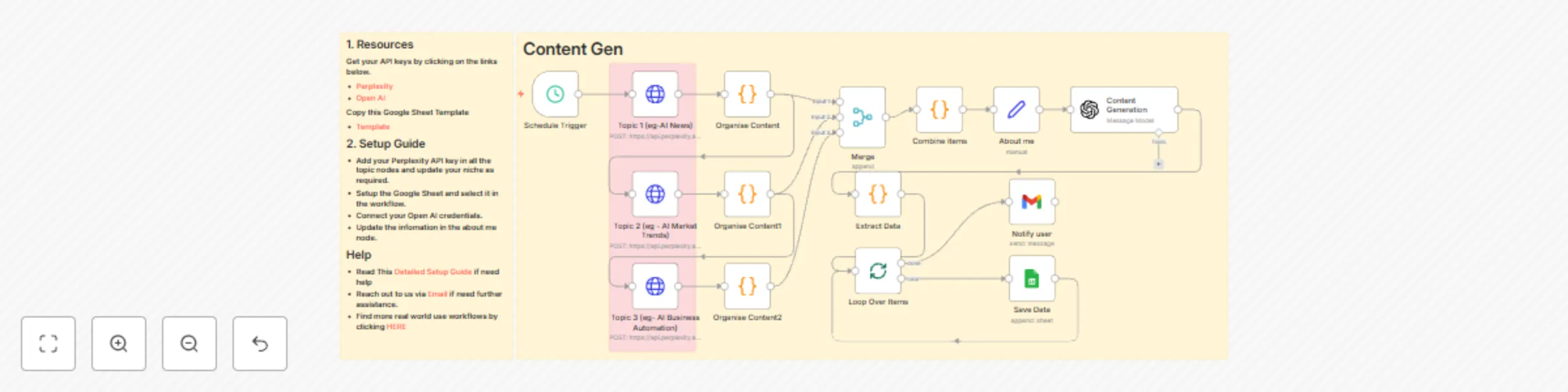
Workflow preview: Create AI news video content ideas for social media with Perplexity & OpenAI
Free advanced

Create AI news video content ideas for social media with Perplexity & OpenAI

--- ## AI Latest News Content Script Writer ### Overview This workflow automates the daily generation of viral short-form video content ideas tailored for founders and business leaders. It scrapes fresh AI-related news and trends from various topics, synthesizes the information, and then uses AI to craft complete content packages—including video scripts, captivating captions, and punchy text overlays. All generated content is saved to a Google Sheet, ready for your review and use. ### Use Case This workflow is perfect for: * **Founders & Entrepreneurs**: Consistently produce engaging content to build authority and attract inbound leads without a dedicated content team. * **AI Thought Leaders**: Stay on top of the latest AI news and effortlessly create shareable insights. * **Content Marketing Teams**: Automate the ideation and initial drafting phases for short-form video strategies. * **Agencies**: Offer a unique AI-powered content generation service to your clients. --- ### How It Works 1. **Scheduled Daily Trigger**: The workflow runs automatically every day at 6 AM IST, ensuring you always have fresh content ideas to start your day. 2. **AI-Powered News Gathering**: It uses **Perplexity AI** to fetch the latest, most interesting, and relevant stories across three key AI topics: * **Topic 1**: General AI News * **Topic 2**: AI Market and Industry Trends * **Topic 3**: AI Business Automation 3. **Organize and Combine Content**: The information from each topic is organized, and then all content and their respective citations are combined into a single, comprehensive input. 4. **Personalize "About Me"**: Crucially, a configurable "About me" node allows you to define the personal brand of the founder (e.g., Name, Niche, Business Name, Business Type). This context is fed to the AI to ensure generated content aligns perfectly with your persona and business objectives. 5. **Generate Content Packages**: Leveraging **OpenAI (acting as "CreatorAI")**, the workflow takes the combined news and your "About me" information to: * **Identify a Unique Angle**: Finds a distinct, engaging angle from the input that aligns with key content pillars (e.g., AI solving business pain points, future of work with AI). * **Craft Video Scripts**: Generates concise video scripts (under 700 characters) with powerful hooks, mini-narratives (problem → AI solution → impact), and a focus on tangible business benefits. It subtly references your business as a thought leader, not a direct pitch. * **Write Captions**: Creates friendly, expert-toned captions with engaging hooks, more context, a clear call to action (e.g., "Comment 'Workflow' for more"), and relevant hashtags. * **Design Text Overlays**: Produces short, punchy text overlays (3-7 words, ALL CAPS or Title Case) perfect for video thumbnails or initial screens. 6. **Save to Google Sheet**: Each generated content package (Text Overlay, Video Script, Caption) is appended as a new row in your designated Google Sheet ("Content Idea" sheet within "Video Automation (Vansh)"). 7. **Notify User**: Finally, you'll receive an email notification confirming that new content ideas have been generated and saved to your Google Sheet. --- ### How to Set It Up To set up this AI Viral Content Generator, follow these steps: 1. **API Keys & Credentials**: * **Perplexity AI API Key**: Obtain your API key from Perplexity AI and replace the `Bearer` token in the "Topic 1", "Topic 2", and "Topic 3" HTTP Request nodes. * **OpenAI API Key**: Connect your OpenAI API key in n8n and link it to the "Content Generation" node. * **Google Sheets Account**: Ensure your Google Sheets OAuth2 API credentials are set up and connected to the "Save Data" node. * **Gmail Account**: Connect your Gmail OAuth2 credentials to the "Notify user" node. 2. **Google Sheet Setup**: * **Copy the Google Sheet Template** provided. This template has predefined columns for "Text Overlay", "Video Script", "Caption", "Approval", and "Published". * Update the `documentId` in the "Save Data" Google Sheets node with the ID of *your copied template*. 3. **Personalize "About me"**: * Open the **"About me" node**. * Fill in your **Name**, **Niche**, **Business Name**, **Business Type**, **Website**, and detailed **Key Services & Products**. This is crucial for the AI to generate relevant and personalized content. 4. **Configure Notification Email**: * In the "Notify user" node, update the `sendTo` field with your email address where you want to receive notifications. 5. **Set Schedule**: * The "Schedule Trigger" is set to run daily at 6 AM IST. You can adjust the time to your preference. 6. **Activate and Monitor**: * Activate the workflow. It will now automatically generate content ideas daily. * Check your Google Sheet regularly to review the new content, mark it for approval, and track its publication status. This workflow is your secret weapon for consistently creating engaging, AI-driven short-form video content!

G
Gain FLow AI
Content Creation
14 Jul 2025
2060
0
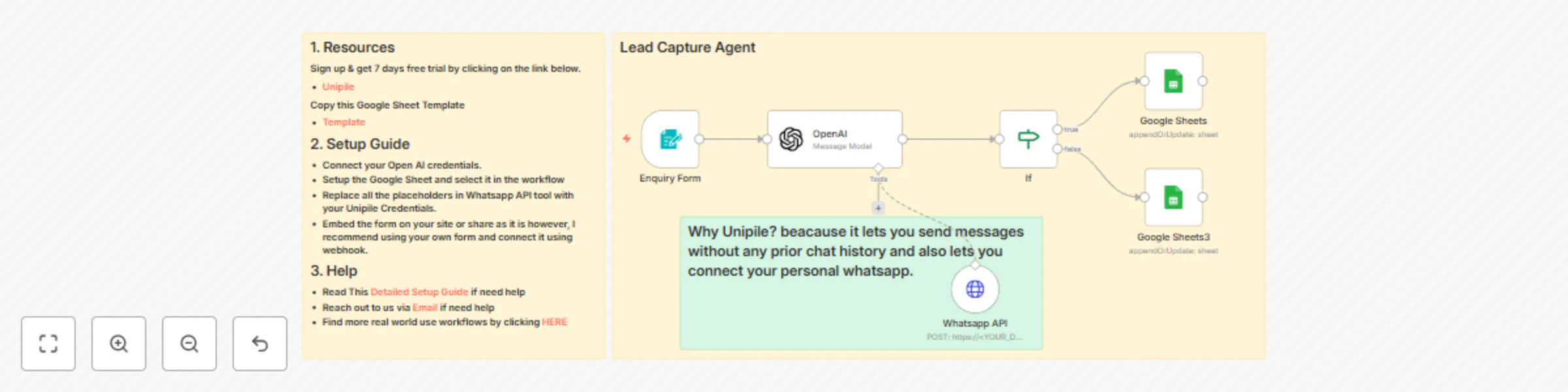
Workflow preview: Automate lead capture with AI personalized WhatsApp messages via Unipile & Google Sheets CRM
Free intermediate

Automate lead capture with AI personalized WhatsApp messages via Unipile & Google Sheets CRM

## Inquiry Form to Personalised WhatsApp Message ### Overview This workflow creates a smart, automated system for capturing leads from an inquiry form, initiating personalized WhatsApp message via Unipile API, and updating your Google Sheet CRM. It uses AI to craft initial outreach messages and logs the success or failure of each message sent, ensuring you track every lead effectively. This automation helps you engage leads quickly and efficiently, without manual effort. ### Use Case This workflow is ideal for: * **Sales Teams**: Automate the first touchpoint with new leads, qualifying them and initiating conversations. * **Small Businesses**: Provide immediate, personalized responses to inquiries, enhancing customer experience. * **Customer Support**: Quickly gather more context from users after they fill out a help form. * **Lead Generation**: Streamline the process from form submission to active lead engagement and CRM tracking. --- ### How It Works 1. **Form Submission Trigger**: The workflow is activated when someone submits an "Inquiry Form." This form collects essential lead details such as: * Full Name * Email * WhatsApp number * Company Name * "How can we help you?" (a notes field) 2. **AI Crafts Personalized Message**: An **OpenAI** node, acting as "Alex" (a friendly, approachable human assistant), generates a short, personalized, and engaging opening message for the lead. This message directly addresses the lead by their first name and includes an open-ended question to encourage them to share more details about their needs. 3. **WhatsApp Outreach**: The AI then uses the **WhatsApp API (via Unipile)** to send this personalized message directly to the lead's WhatsApp number. **Unipile is key here, as it allows sending messages without prior chat history and can connect to your personal WhatsApp.** 4. **Log Success or Failure**: * The AI checks the response from the WhatsApp API. * **If the WhatsApp message is sent successfully**: The lead's details, along with the personalized message, WhatsApp chat ID, and message ID, are logged into a "Successful" sheet in your Google Sheet CRM. * **If the WhatsApp message fails to send**: The lead's information, the attempted message, and the reason for failure are logged into a "Failed" sheet in your Google Sheet CRM. This helps you identify and follow up on problematic leads. --- ### How to Set It Up To set up your Lead Capture Agent, follow these steps: 1. **Google Sheet Setup**: * **Copy the Template**: Make a copy of the provided Google Sheet Template ("Sales Agent" with "Successful" and "Failed" sheets) into your own Google Drive. * **Connect Google Sheets**: Ensure your Google Sheets OAuth2 API credentials are set up in n8n and linked to the "Google Sheets" and "Google Sheets3" nodes. * **Update Sheet IDs**: In both "Google Sheets" and "Google Sheets3" nodes, update the `documentId` with the ID of *your copied "Sales Agent"* Google Sheet. 2. **Unipile (WhatsApp API) Credentials**: * **Sign up for Unipile**: Get your DSN and API key from Unipile (they offer a 7-day free trial). * **Replace Placeholders**: In the "Whatsapp API" node, replace `<YOUR_DSN>`, `<YOUR_API_KEY>`, and `<YOUR_ACCOUNT_ID>` with your actual Unipile credentials. 3. **OpenAI API Key**: * Connect your **OpenAI API key** as an API credential in n8n and link it to the "OpenAI" node. 4. **Inquiry Form Setup**: * The "Enquiry Form" node generates a public webhook URL. You can embed this form on your website or share the URL directly. * **Alternatively, if you use your own form solution**, configure it to send data via a webhook to the URL provided by the "Enquiry Form" node. 5. **Import the Workflow**: Import the provided workflow JSON into your n8n instance. 6. **Activate and Test**: * Once all settings are complete, activate the workflow. * Test it by submitting a new entry through the "Inquiry Form." Check your Google Sheet to see the lead captured and the message status. This workflow is designed to ensure no lead falls through the cracks, giving your sales or support team a powerful edge!

G
Gain FLow AI
Lead Nurturing
12 Jul 2025
1748
0
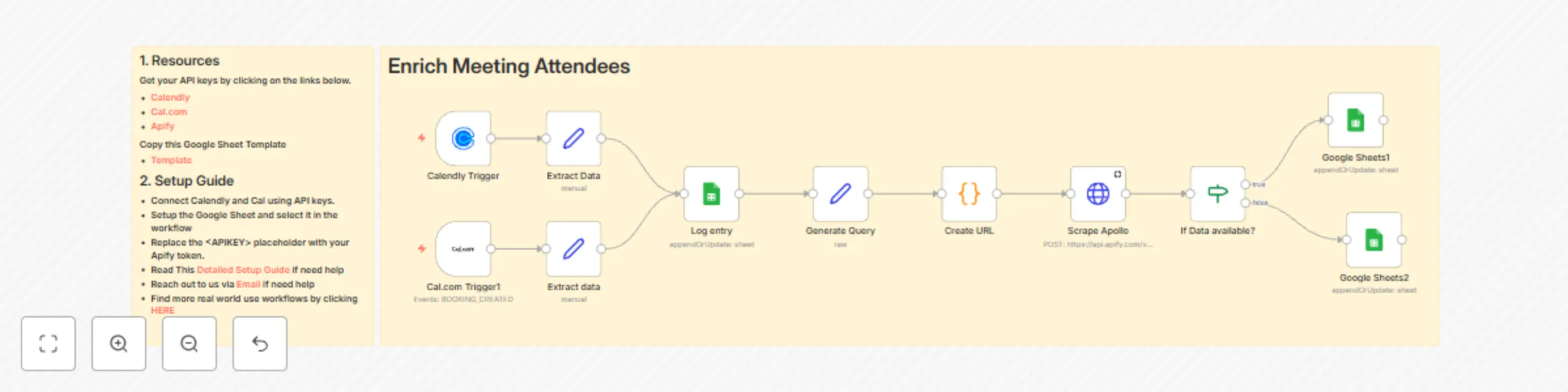
Workflow preview: Automated meeting attendee enrichment with Apollo.io and Google Sheets
Free intermediate

Automated meeting attendee enrichment with Apollo.io and Google Sheets

## Meeting Prep: Automated Meeting Attendee Enrichment ### Overview This workflow automates the process of gathering critical information about your meeting attendees right after they book a meeting. Whether they book through Calendly or Cal.com, this workflow extracts key details, uses Apollo.io to enrich their profiles with company and contact data, and logs everything into a Google Sheet for easy access. This ensures you're always prepared with relevant insights before every meeting. ### Use Case This workflow is perfect for: * **Sales Professionals**: Get instant insights into prospects' companies, roles, and social presence before calls. * **Customer Success Teams**: Understand your clients' business context to provide more tailored support. * **Recruiters**: Gather comprehensive candidate information ahead of interviews. * **Consultants**: Prepare for client meetings with a deeper understanding of their organization and industry. * **Anyone who takes meetings**: Save time on manual research and ensure you always have the data you need to make a great impression. --- ### How It Works 1. **Meeting Booking Trigger**: The workflow springs into action the moment a new meeting is booked. It supports two popular scheduling platforms: * **Calendly**: Triggers when an `invitee.created` event occurs. * **Cal.com**: Triggers on a `BOOKING_CREATED` event. 2. **Extract Initial Data**: From the booking event, the workflow extracts essential information like the attendee's name, email, company, and any notes provided during scheduling. 3. **Log Initial Entry**: It immediately logs these initial details into your designated Google Sheet ("Meeting Prep" spreadsheet). This ensures a record exists, even if further enrichment isn't possible. 4. **Generate Apollo Query**: Using the extracted name and company, the workflow dynamically builds a search URL for **Apollo.io**. This query is designed to find the most relevant person and company profiles on Apollo. 5. **Enrich with Apollo.io**: * The generated Apollo URL is then used to **scrape Apollo.io** via an Apify Scraper. This step attempts to pull extensive data, including job title, location, phone numbers, company size, industry, website URL, and social media profiles (LinkedIn, Twitter, Facebook, Github) for both the person and their company. * A conditional check verifies if data was successfully retrieved from Apollo. 6. **Update Google Sheet**: * **If data is available from Apollo**: The Google Sheet entry is updated with all the rich, newly found information, changing the status to "Enriched". * **If data is not available**: The Google Sheet entry's status is updated to "Info Not Available," clearly indicating that manual research might be needed. --- ### How to Set It Up To set up this powerful meeting prep workflow, follow these steps: 1. **Get Your API Keys**: * **Calendly**: Obtain your Calendly API key for the "Calendly Trigger" node. * **Cal.com**: Get your Cal.com API key for the "Cal.com Trigger1" node. * **Apify**: You'll need an Apify API token. Replace `<YOURAPIKEY>` in the "Scrape Apollo" node's URL with your actual Apify token. 2. **Google Sheet Setup**: * **Copy the Template**: Make a copy of the provided Google Sheet Template ("Meeting Prep") into your own Google Drive. This template has the necessary columns for enriched data. * **Connect Google Sheets**: Ensure your Google Sheets OAuth2 API credentials are set up in n8n and linked to the "Google Sheets1" and "Google Sheets2" nodes. * **Update Sheet IDs**: In both "Google Sheets1" and "Google Sheets2" nodes, update the `documentId` with the ID of *your copied "Meeting Prep"* Google Sheet. 3. **Import the Workflow**: Import the provided workflow JSON into your n8n instance. 4. **Activate and Test**: * Once all credentials and sheet IDs are configured, activate the workflow. * Test it by booking a new meeting through your connected Calendly or Cal.com account. Watch as your Google Sheet automatically populates with detailed attendee information! This workflow will dramatically cut down on your meeting preparation time, allowing you to focus on more strategic conversations.

G
Gain FLow AI
Lead Generation
12 Jul 2025
465
0