Evozard
Workflows by Evozard

Real-time sales quote creation in Odoo via Telegram with Google Gemini AI
Overview This template connects Telegram with Odoo to let your sales team create sales quotes and check product availability in real-time — just by sending chat messages. It’s designed for sales representatives, distributors, and small business owners who want to manage quotes and product information quickly without logging into Odoo. ⚙️ How It Works Once configured, this workflow listens to your Telegram bot for incoming messages. Based on the message text, it performs different actions in Odoo: 1. Product Queries Sales reps can ask about products directly in Telegram: “What’s the price of Product B?” “How many units of Product A are available?” The workflow fetches real-time data from Odoo and replies instantly. 2. Sales Quote Creation Sales reps can also create new sales quotes by typing messages like: “My customer Amazon, his email address is [email protected] wants to buy 10 pcs of Product A and 15 pcs of Product B.” The workflow extracts relevant details, creates a sales quote in Odoo, and sends confirmation back in Telegram. 🧰 Setup Instructions Create a Telegram Bot Go to @BotFather on Telegram. Create a new bot and copy the API Token. Prepare Odoo Enable the Sales and Product modules. Generate an API Key from your Odoo user account. Note your Odoo URL (e.g., https://yourcompany.odoo.com). Import Workflow Open your n8n instance (self-hosted or cloud). Click Import Workflow and upload the provided JSON file. Add Credentials Configure your Telegram credentials (Bot Token). Configure your Odoo credentials (Base URL + API Key). Activate the Workflow Set the workflow to active to start listening for Telegram messages. Send a sample message to your bot to test. 🧠 Use Cases Sales reps capturing orders in the field SMEs managing customer inquiries directly from Telegram Real-time price and stock lookups without opening Odoo Automation of repetitive sales quote tasks 🎛️ Customization Options This workflow can be easily adapted to your business needs: Change trigger platform: Replace Telegram with WhatsApp, Slack, or Discord using the respective n8n nodes. Extend data fields: Add fields like delivery date, salesperson, or payment terms. Auto-confirm orders: Add a node to automatically confirm a Sales Quote once approved. ✅ Requirements Odoo v14 or later (with Sales module enabled) Telegram Bot Token n8n instance (Cloud or self-hosted) 💬 Example Prompts Product Query: “What’s the price of Product B?” “How many units of Product A are available?” Order Entry: “My customer Amazon, his email address is [email protected] wants to buy 10 pcs of Product A and 15 pcs of Product B.”
Complete WooCommerce to Odoo integration: Sync orders, products & customers
📖 Description (WooCommerce Version) This workflow functions like the integration of WooCommerce products with Odoo products, WooCommerce customers with Odoo customers, and WooCommerce orders with Odoo sales orders containing multiple products. 🔔 Trigger (WooCommerce – Order Created) The workflow starts when a new order is created in WooCommerce. 🔄 Loop Through Each Line Item in the Order For each product in the WooCommerce order: Check if Product Exists in Odoo (via Internal Reference/Default Code): If the product exists, proceed. If the product does not exist, create it in Odoo with: Product Name Description Price Internal Reference (Default Code) 👤 Check if Customer Contact Exists in Odoo (via Email) If the contact exists, proceed. If the contact does not exist, create a new contact in Odoo with: Full Name Email Address Phone Number Shipping or Billing Address (as available) 📝 Create a Sale Order in Odoo Create a new Sale Order in Odoo using: The matched or newly created Customer Contact All the matched or newly created Products from the WooCommerce order (with correct quantities and pricing) Each WooCommerce product in the order is matched to the corresponding Odoo product using the Internal Reference field. 👉 This ensures a seamless sync between WooCommerce and Odoo, keeping your orders, products, and customers aligned automatically. Setup referecence: https://docs.n8n.io/integrations/builtin/credentials/woocommerce/ https://docs.n8n.io/integrations/builtin/credentials/odoo/
Capture and structure web form leads for Odoo CRM (v15-v18 compatible)
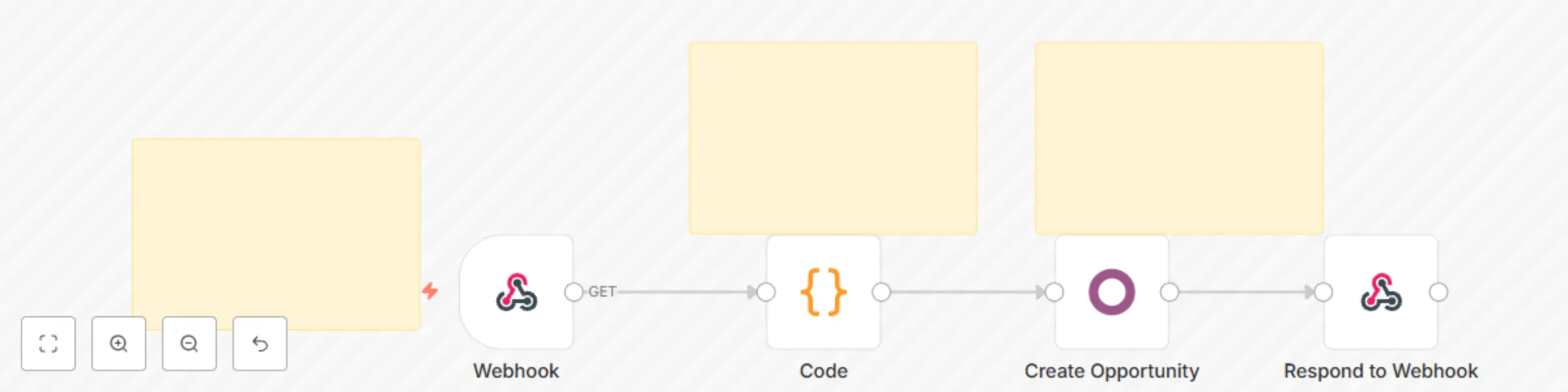
This workflow captures raw lead data from a Webhook and formats it into a clean, structured object — perfectly tailored for Odoo CRM and create lead. It supports Odoo versions 15, 16, 17, and 18, both Community and Enterprise editions. 🔧 How It Works: Captures POST data from any web form or lead tool using Webhook. Extracts fields like: email phone name company company_name contact_name description 🔐 Credentials Required: Odoo credentials https://docs.n8n.io/integrations/builtin/credentials/odoo/ Optionally, connect to Odoo's /crm.lead endpoint via an HTTP Request node. 🎯 Use Cases: Standardize messy input from lead forms Prepare API-ready data for direct CRM insert Connect web campaigns to Odoo CRM Automate follow-up, lead scoring, or notifications 🧰 Compatibility: ✅ Odoo v15, v16, v17, v18 ✅ Odoo Community & Enterprise ✅ API or custom model compatible ✅ All n8n versions 1.0+ 🚀 Setup Instructions: Open n8n and import the workflow file. Configure the Webhook URL in your form or tool. Test the Webhook with sample data. Review the structured JSON output. (Optional) Add an HTTP node to push to Odoo CRM API.
Migrate customer data from Odoo v15 to v18
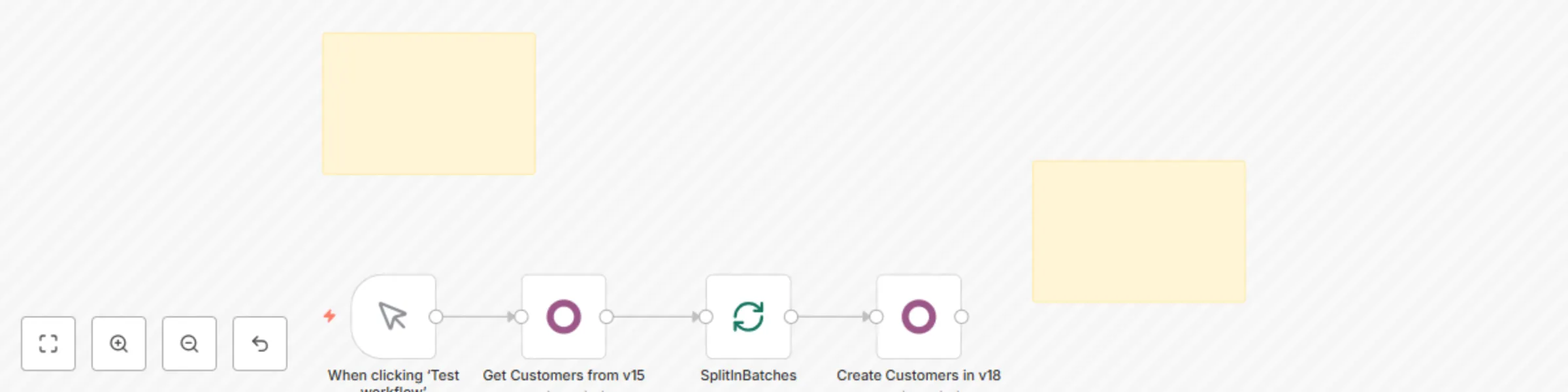
📄 Description: This workflow helps you migrate customer records directly from Odoo v15 to Odoo v18 without the need for manual exports or intermediate files. 🔹 It connects to your v15 instance, retrieves customer (res.partner) records, and pushes them directly into your v18 database. 🔹 The workflow uses pagination (SplitInBatches) for efficient handling of large datasets. 🔹 Ideal for teams upgrading their Odoo infrastructure and looking to automate data replication between environments. ⚡️ Note: Country and state ID mapping is excluded in this version for faster migration. If needed, logic can be added to map based on name lookup. 🛠 Setup Instructions: Configure Odoo API credentials for both v15 and v18. (https://docs.n8n.io/integrations/builtin/credentials/odoo/) Adjust domain filters in the “Get Customers” node if needed. Run the workflow to begin real-time customer syncing. 📌 Compatibility: Works with Odoo Community & Enterprise Tested on n8n v1.17+ Requires access to Odoo’s JSON-RPC API
Complete Shopify to Odoo integration: Sync orders, products & customers
This workflow functions like the integration of Shopify products with Odoo products, Shopify customers with Odoo customers, and paid Shopify orders with Odoo sales orders containing multiple products. 1. Trigger (Shopify – Order Created & Paid): The workflow starts when a new order is created in Shopify and its status is marked as paid. 2. Loop Through Each Line Item in the Order: For each product in the order: Check if Product Exists in Odoo (via Internal Reference/Default Code) If the product exists, proceed. If the product does not exist, create it in Odoo with the following details: Product Name Description Price Internal Reference (Default Code) 3. Check if Customer Contact Exists in Odoo (via Email): If the contact exists, proceed. If the contact does not exist, create a new contact in Odoo with: Full Name Email Address Phone Number Shipping or Billing Address (as available) 4. Create a Sale Order in Odoo: Create a new Sale Order in Odoo using: The matched or newly created Customer Contact The matched or newly created All the Products in the Shopify order (with correct quantities and pricing) Each Shopify product in the order is matched to the corresponding Odoo product using the Internal Reference field Integration Setup References: Shopify Integration Setup: https://docs.n8n.io/integrations/builtin/credentials/shopify/ Odoo Integration Setup: https://docs.n8n.io/integrations/builtin/credentials/odoo/
Sync new Shopify products to Odoo products
Seamlessly sync newly created Shopify products into Odoo with this smart, no-code n8n workflow. Automatically checks for duplicates and creates new products only when needed – fully compatible with standard Odoo setup. 🚀 Key Features: Trigger-based Automation: Starts instantly when a new product is created in Shopify Duplicate Check: Searches for an existing product in Odoo using Shopify’s product SKU as the Internal Reference (Default Code) Smart Condition Logic: If a matching product is found, the workflow stops – preventing duplicates If not found, a new product is created in Odoo Auto-Creation of Odoo Product using Shopify data: Product Name Description Price Internal Reference (SKU) Works with both Odoo Community and Enterprise editions Fully customizable and extendable in n8n No coding, no custom modules required 🛠 Requirements: n8n (self-hosted or cloud) Shopify API access Odoo instance with standard API access 💡 A perfect solution for businesses that regularly add new products to Shopify and want them mirrored in Odoo – automatically and without manual effort. +++++++++++++++++++++++++++++++++++++++++ Workflow functions like the integration of a Shopify product with an Odoo product. 1. Trigger: The workflow starts when a new product is created in Shopify. 2. Check Existing Products: It searches in Odoo to check if any product already exists with the same Internal Reference or Default Code (taken from the Shopify product data). 3. Condition: If a matching product is found: The workflow stops (no duplicates are created). If no matching product is found: It proceeds to create a new product in Odoo. 4. Create Product in Odoo: A new product is created in Odoo using the following fields from Shopify: Product Name Description Price Internal Reference (or Default Code)
Sync new Shopify customers to Odoo contacts
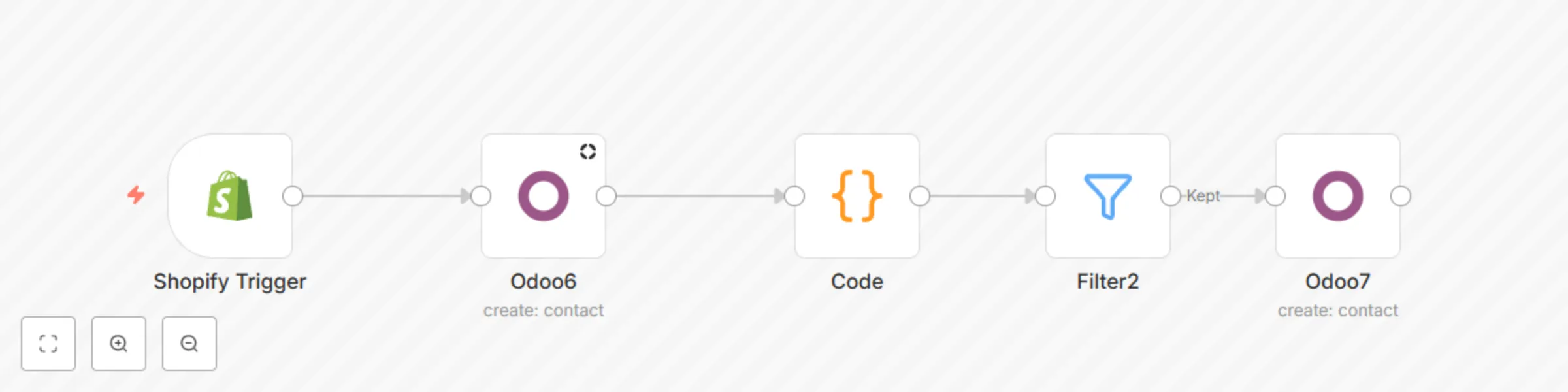
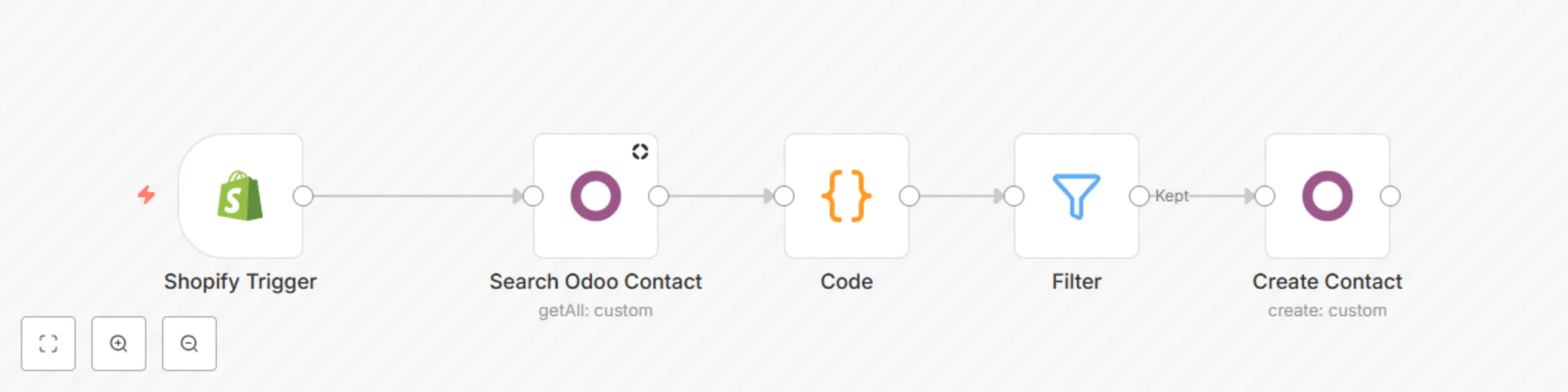
This workflow functions by integrating Shopify customers into Odoo customers. 1. Trigger: Shopify – New Customer Created The workflow starts when a new customer is added in Shopify. 2. Action: Odoo – Search Contact by Email It checks in Odoo to see if a contact already exists with the same email address as the Shopify customer. 3. Condition: Email Match Check If a contact with the same email is found, the workflow ends (no duplicate contact is created). If no match is found, the workflow proceeds to the next step. 4. Action: Odoo – Create New Contact A new contact is created in Odoo using the customer's: Full name Email address Phone number Full Address (whichever is available)