E

Eumentis

2
Workflows

Workflows by Eumentis

Workflow preview: Auto-detect actionable emails with OpenAI & get alert message on Teams via flow
Free intermediate

Auto-detect actionable emails with OpenAI & get alert message on Teams via flow

## What It Does This workflow automatically runs when a new email is received in the user's Gmail account. It sends the email content to OpenAI (GPT-4.1-mini), which intelligently determines whether the message requires action. If the email is identified as actionable, the workflow sends a structured alert message to the user in Microsoft Teams. This keeps the user informed of high-priority emails in real time without the need to manually check every message. The workflow does not log any execution data, ensuring that email content remains secure and unreadable by others. ## How It Works - **Trigger on New Email**: The workflow is triggered automatically when a new email is received in the user's Gmail account.  - **Email Evaluation with OpenAI**: The email content is sent to GPT-4.1-MINI, which evaluates whether the message requires user action.  - **Filter Actionable Emails**: Only emails identified as actionable by the AI are allowed to proceed through the rest of the workflow.  - **Send Notification to Teams**: For actionable emails, the workflow sends a structured alert message to the user in Microsoft Teams chat via a Power Automate webhook. ## Prerequisites - Gmail IMAP Credentials  - OpenAI API Key  - Microsoft Teams Webhook URL  - Power Automate Flow to send message to Teams chat  ## How to Set It Up ### 1. **Set Up Power Automate Workflow** #### 1.1 Open Workflow Power Automate in Microsoft Teams - Open the **Workflow** app from Microsoft Teams.  - If it's not already added, go to **Apps → search "Workflow" → click Add → open it**. #### 1.2 Create a New Flow - Click **New Flow** → select **Create from blank**. #### 1.3 Add a Trigger: When a Teams webhook request is received - In the trigger setup, set **Who can trigger the flow?** to **Anyone**.  - After saving the flow, a **webhook URL will be generated** — this URL will be used in n8n workflow. ![image20250808061517.png](fileId:1995) #### 1.4 Add Action: Parse JSON - Set **Content** to: `Body`  - Use the following schema: ```json { "type": "object", "properties": {    "from": {      "type": "string"    },    "receivedAt": {      "type": "string"    },    "subject": {      "type": "string"    },    "message": {      "type": "string"    } } } ``` ![image20250808062225.png](fileId:1996) #### 1.5 Add Action: Get an @mention token for a user - Set the **User** field to the Microsoft Teams email address of the person to notify (e.g. [email protected]). ![image20250808090125.png](fileId:1994) #### 1.6 Add Action: Post message in a chat or channel - In this action, configure the following: - **Post as**: Flow bot  - **Post in**: Chat with Flow bot  - **Recipient**: Your Microsoft Teams email address (e.g., [email protected]) - Paste the following code into the Message (in code view): ```html <p>Hello @{outputs('Get_an_@mention_token_for_a_user')?['body/atMention']},</p> <p><br> You have received a new email at your email address <span>@{body('Parse_JSON')?['recipientEmail']}</span> that requires your attention:<br> </p> <p><br> <strong>From: </strong>@{body('Parse_JSON')?['sender']}<strong><br> Received On: </strong>@{body('Parse_JSON')?['date']}<strong><br> Subject:</strong> &nbsp;@{body('Parse_JSON')?['subject']}</p> <p><br> Please review the message at your earliest convenience.<br> Click <a href>here</a> to search this mail in your mailbox</p> </p>  ``` ![image20250808090218.png](fileId:1997) #### 1.7 **Save and Enable the Flow** - Click **Save**. - Turn the flow **On**. - The **webhook URL** is now active and available in the first trigger step, copy it to use in n8n. --- Need help with the setup? Feel free to *[contact us](https://eumentis.com/writetous)* ### 2. Configure IMAP Email Trigger - First, enable **2‑Step Verification** in your Google Account and generate an **App Password** for n8n. - Then, in the **IMAP node** → **Create Credential** to connect using the following details:  • **User**: your Gmail address  • **Password**: the App Password  • **Host**: imap.gmail.com  • **Port**: 993  • **SSL/TLS**: Enabled Follow the n8n *[documentation](https://docs.n8n.io/integrations/builtin/credentials/imap/)* to complete the setup. ### 3. Configure OpenAI Integration - Add your OpenAI API key as a credential in n8n. Follow the n8n *[documentation](https://docs.n8n.io/integrations/builtin/credentials/openai/?utm_source=n8n_app&utm_medium=credential_settings&utm_campaign=create_new_credentials_modal)* to complete the setup. ### 4. Set Up HTTP Request to Trigger Power Automate Workflow - Paste generated **Webhook URL** from the Power Automate workflow into the **URL** field of the HTTP Request node. ### 5. Disable Execution Logging for Privacy - To ensure that email content is not stored in logs and remains fully secure, you can disable execution logging in n8n: 1. In the n8n **Workflow Editor**, click on the **three dots (•••)** in the top right corner and select **Settings**. 2. In the settings panel: - Set **Save manual executions** to: `Do not save` - Set S**ave successful production executions to**: `Do not save` - Set **Save failed production executions to**: `Do not save` if you also want to avoid logging errors 3. Save the changes. Refer to the official *[n8n documentation](https://docs.n8n.io/workflows/settings/)* for more details: ### 6. Activate the Workflow - Set the workflow status to **Active** in n8n so it runs automatically when a new mail is received in Gmail. --- Need Help? *[Contact us](https://eumentis.com/writetous)* for support and custom workflow development.

E
Eumentis
Personal Productivity
8 Aug 2025
317
0
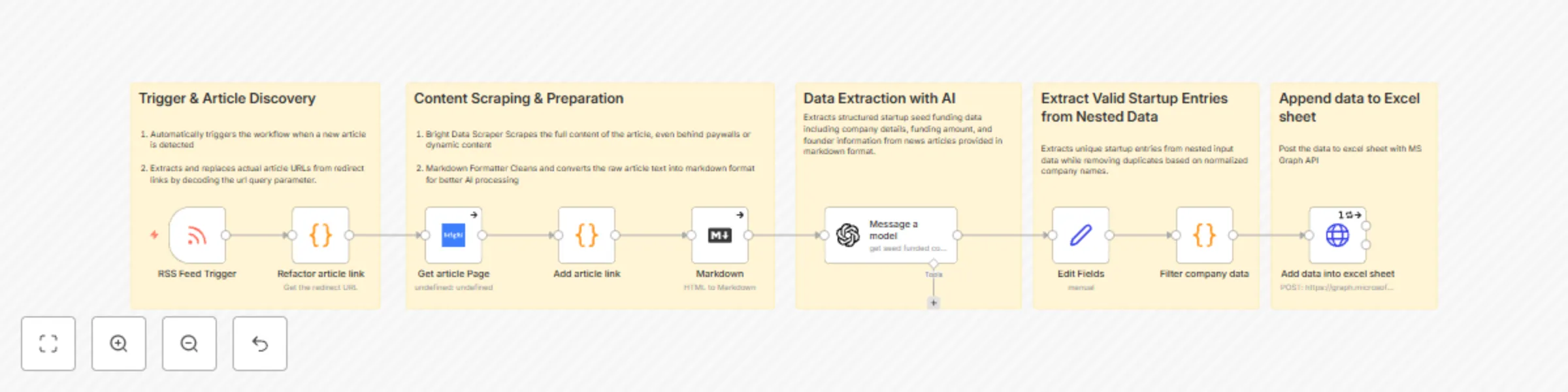
Workflow preview: Extract seed-funded startup data with RSS, GPT-4.1-MINI & BrightData to Excel
Free intermediate

Extract seed-funded startup data with RSS, GPT-4.1-MINI & BrightData to Excel

*This workflow contains community nodes that are only compatible with the self-hosted version of n8n.* ## What It Does This workflow automatically discovers recently seed-funded startups by monitoring RSS feeds for funding announcements. It uses Bright Data to scrape full article content, then extracts structured company information using OpenAI (GPT). The data is exported to an Excel sheet on OneDrive, providing sales teams with a real-time list of qualified leads without any manual effort. ## How It Works 1. **Trigger & Article Discovery**: Monitors curated RSS feeds for articles mentioning seed funding and triggers the workflow on new article detection. 2. **Content Scraping & Preparation**: Scrapes full article content and converts it into clean markdown format for AI processing. 3. **Data Extraction with AI**: Uses OpenAI to extract structured details like company name, website, LinkedIn profile, founders, and funding amount. 4. **Structured Data Output & Storage**: Appends extracted data to an Excel sheet on OneDrive via Microsoft Graph API. ## Prerequisites - **RSS Feed URL**: A valid RSS feed source that provides seed funding articles for startups. - **Bright Data Credentials**: Active Bright Data account with access credentials (API token ) to enable article scraping. - **OpenAI API Key**: An OpenAI account with an API key and access to GPT-4.1-MINI models for data extraction. - **Microsoft OAuth2 API Credentials**: OAuth2 credentials (Client ID, Secret, Tenant ID) with access scopes to use Microsoft Graph API for Excel integration. - **Excel Sheet in SharePoint**: A pre-created Excel file hosted on OneDrive or SharePoint with the following column headers: `createdAt`, `companyName`, `companyWebsite`, `companyLinkedIn`, `fundingAmount`, `founderName`, `founderLinkedIn`, `articleLink` - **Excel File & Sheet Identifiers**: The Drive ID, File ID and Sheet ID of your Excel sheet stored on OneDrive or SharePoint, required by the Microsoft Graph API for appending rows using the HTTP node in n8n. Need help with the setup? Feel free to [contact us](https://eumentis.com/writetous) ## How to Set It Up Follow these steps to configure and run the workflow: 1. **Import the Workflow** - Copy the provided n8n workflow template. - In your n8n instance, go to Editor UI &gt; paste this workflow. 2. **Configure the RSS Feed Node** - Open the RSS trigger node. - Replace the default URL with your RSS feed URL. - Ensure the polling interval matches your desired frequency (e.g., every 15 minutes or 1 hour). 3. **Set Up Bright Data Node** - Add your Bright Data credentials. - Follow the [documentation](https://docs.brightdata.com/api-reference/introduction) to complete the setup. 4. **Configure OpenAI Integration** - Add your OpenAI API key as a credential in n8n. - Ensure the model is set to gpt-4.1-MINI. - Follow the [documentation](https://docs.n8n.io/integrations/builtin/credentials/openai/?utm_source=n8n_app&utm_medium=credential_settings&utm_campaign=create_new_credentials_modal) to complete the setup. 5. **Configure Excel File Integration** - Open the HTTP node responsible for sending data to the Excel sheet via Microsoft Graph API. - Replace the placeholder values in the API endpoint URL with your actual File ID and Sheet ID from the Excel file stored on OneDrive or SharePoint. `https://graph.microsoft.com/v1.0/drives/{{drive-id}}/items/{{file-id}}/workbook/tables/{ {{ sheet-id }} }/rows` This URL is used to append data to the specified Excel sheet range. - Next, set up Microsoft OAuth2 credentials in n8n: - Go to n8n &gt; Credentials &gt; Microsoft OAuth2 API. - Provide the required values: - Client ID - Client Secret - Tenant ID - Scope - Follow the [documentation](https://docs.n8n.io/integrations/builtin/credentials/httprequest/?utm_source=n8n_app&utm_medium=credential_settings&utm_campaign=create_new_credentials_modal) to complete the setup. - Once the credential is saved, connect it to the HTTP node making the Graph API call. 6. **Activate the Workflow** - Set the workflow status to Active in n8n so it runs automatically when a new article appears in the RSS feed. --- Need Help? [Contact us](https://eumentis.com/writetous) for support and custom workflow development.

E
Eumentis
Lead Generation
1 Aug 2025
567
0