D

Daniel Nolde

5
Workflows

Workflows by Daniel Nolde
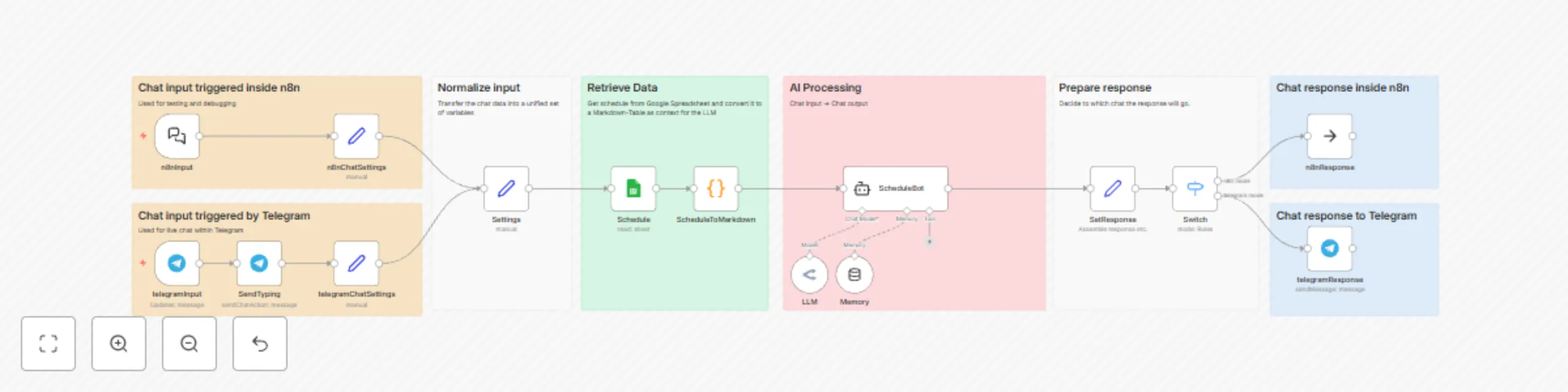
Workflow preview: Chat with your event schedule from Google Sheets in Telegram
Free advanced

Chat with your event schedule from Google Sheets in Telegram

## What it is Chat with your event schedule from Google Sheets in Telegram: * "When is the next meetup?" * "How many events are there next month?" * "Who presented most often?" * "Which future meetups have no presenters yet?" This workflow lets you chat with a telegram bot about past, present and future events that are scheduled in a Google Spreadsheet. (Info: This proof-of-concept was created as a demo for a hackathon of an AI & Developer Meetup in Da Nang (Vietnam) that uses a telegram group to organize) ## Who it is for If you want an easy way for your audience to get information about your events, you can us this workflow for the same purpose, or easily adapt it to your needs and different use-cases where you want to query smaller amounts of tabular data in natural language. ## How it works Upon getting triggered by a chat message to a telegram bot, the schedule of meetups is retrieved from Google Spreadsheets, converted into a markdown table syntax and fed into the system prompt of an LLM (we're using OpenRouter in this example), whose output is posted back as answer into the same telegram chat. ## Setup steps ### TO REVIEWING IN ACTION As the reviewer of this workflow, you can temporarily use it via an existing telegram bot, simply point your telegram client to https://t.me/AiDaNangBot and start to ask questions like: * "When is the next meetup?" * "What future meetings do not have presenters?" * "Who presented on Future of Human Relationships?" ## To build upon this workflow: * Import the workflow * Customize the Google Docs credentials for your individual access * [Create a telegram bot](https://core.telegram.org/bots#how-do-i-create-a-bot) and connect it to the workflow by entering its API token into the credentials used in the telegram trigger node * In the "Settings" node, replace the "scheduleURL" with the URL of your own copy of the [Google Spreadsheet](https://docs.google.com/spreadsheets/d/1BJFS9feEy94_WgIgzWZttBwzjp09siOw1xuUgq4yuI4) or a copy of the [Event Schedule Template Sheet](https://docs.google.com/spreadsheets/d/1fAxGcdOZzQZpsvhiB-ULEDndb4AVKOA_B-sKoTfKvyE/edit?usp=sharing) to spin off your own – whereby the structure of the spreadsheet doesn't matter, it's just important that you semantically structure your information in dedicated columns clearly labeled in the header row.

D
Daniel Nolde
Support Chatbot
18 Feb 2025
4563
0
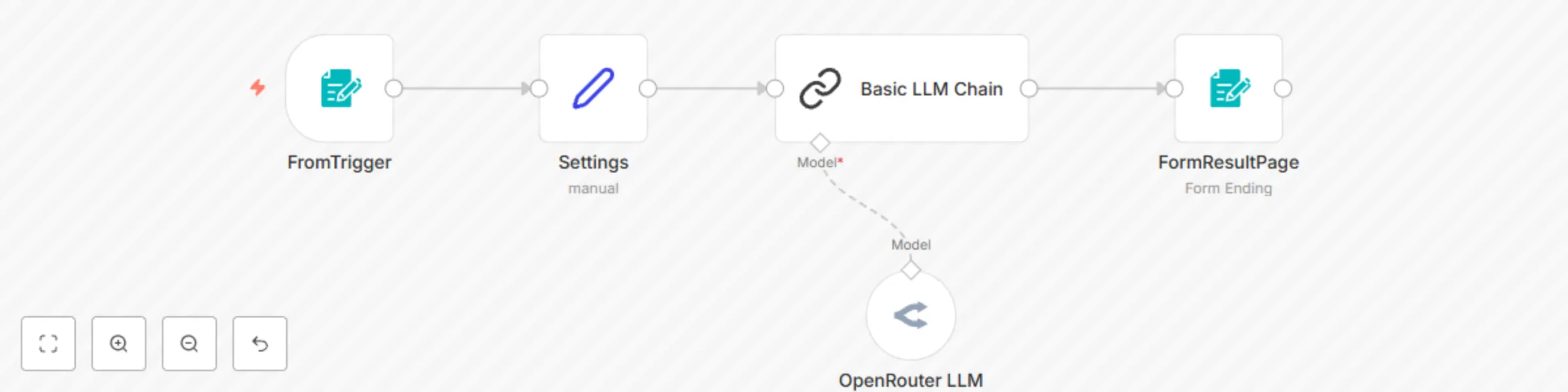
Workflow preview: Extract license plate number from image uploaded via an n8n form
Free intermediate

Extract license plate number from image uploaded via an n8n form

## What it does This is a simplistic demo workflow showing how to extract a license plate number from an image of a car submitted via a form – or in more general terms showcasing how you can: * use a form trigger to upload files and feed it into an LLM * use a changeable LLM model for image-to-text analysis ## Set up steps * Import the workflow * Ensure you have registered and account, purchased some credits and created and API key for [OpenRouter.ai](https://openrouter.ai) * Create/adapt the OpenRouter credential with your indivial API key for OpenRouter * "Test workflow" and submit an image of a car with license plate to extract its number ## How to adapt By changing the "prompt" in th "Settings" node you can quickly adapt this exemplatory workflow to other image-to-text use cases, such as: * summarization: "summarize what's seen in the image" * location finding: "identify the location where the image was taken" * text extraction: "extract all text from the image and return it as markdown" Thanks to using OpenRouter, you also can quickly experiment with finding good model choices by simply changing the "model" in the "Settings" node. The following models gave good results for this demo use-case: * google/gemini-2.0-flash-001 * meta-llama/llama-3.2-90b-vision-instruct * openai/gpt-4o The llama-3.2-11b and even claude-3.5-sonnet didn't recognize all characters in all test images. Using a generic LLM-model offers a quick way of prototyping an image-to-text application. For specific use cases in serious and scalable production deployments, consider using an API based service specifically made to that purpose, such as: * Google Cloud Vision API * Microsoft Azure Computer Vision * Azure AI Document Intelligence * Amazon Textract

D
Daniel Nolde
Document Extraction
15 Feb 2025
2637
0
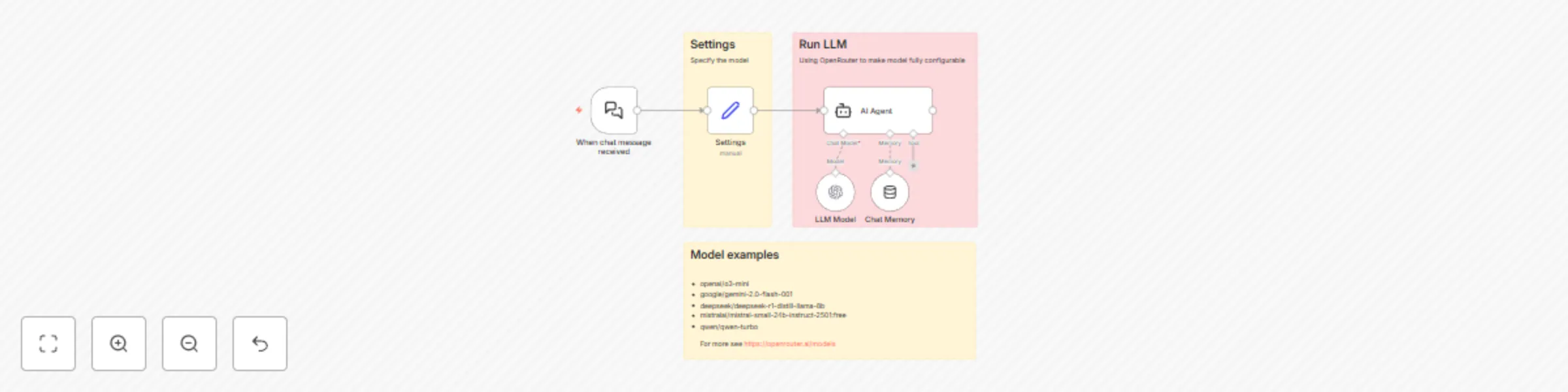
Workflow preview: Use OpenRouter in n8n versions <1.78
Free intermediate

Use OpenRouter in n8n versions <1.78

## What it is: In version 1.78, n8n introduced a dedicated node to use the OpenRouter service, which lets you to use a lot of different LLM models and providers and change models on the fly in an agentic workflow. For prior n8n versions, there's a workaround to make OpenRouter accessible, by using the OpenAI node with a OpenRouter-specific BaseURL. This trivial workflow demonstrates this for version before 1.78, so that you can use different LLM model dynamically with the available n8n nodes for OpenAI LLM and OpenAI credentials. ## What you can do: * Use any of the [OpenRouter models](https://openrouter.ai/models) * Have the model even dynamically configured or changing (by some external config, some rule, or some specific chat message) ## Setup steps: * Import the workflow * Ensure you have registered and account, purchased some credits and created and API key for [OpenRouter.ai](https://openrouter.ai) * Configure the "OpenRouter" credentials with your own credentials, using an _OpenAI type_ credential, but making sure in the credential's config form its "Base URL" is set to _https://openrouter.ai/api/v1_ so OpenRouter is used instead of OpenAI. * Open the "Settings" node and change the model value to any valid model id from the [OpenRouter models list](https://openrouter.ai/models) or even have the model property set dynamically

D
Daniel Nolde
Engineering
13 Feb 2025
3418
0
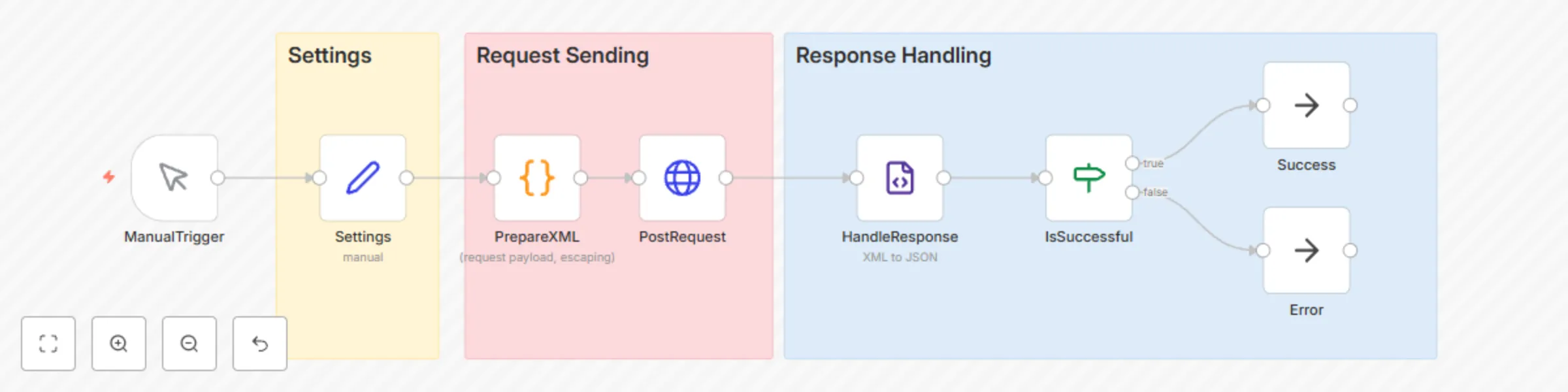
Workflow preview: Post to an XMLRPC API via the HTTP Request node
Free intermediate

Post to an XMLRPC API via the HTTP Request node

## What this does * Show you how to us XMLRPC APIs via the generic HTTP-Request-node, by the example of posting to a wordpress blog * This is also a feasible workaround if a specific n8n integration does not work or stops working (which happens e.g. with the Wordpress node) ## How it works * First, the XML payload for the request is being prepared (in a code node, which also properly escapes special character in the values that you want to send to the XMLRPC endpoint) * Then, the HTTP Request node sends the request using the HTTP post method * Last, the returned XML response is converted to JSON which a conditional node uses to determine whether th operation was successful or not ## Setup steps: * Import workflow * Ensure you have a wordpress blog with a user that has an [_app_-Password](https://wordpress.com/support/security/two-step-authentication/application-specific-passwords/) * Edit the "Settings"-node and enter your individual values for url/user/app-pw

D
Daniel Nolde
Social Media
12 Feb 2025
926
0

Workflow preview: Author and publish blog posts from Google Sheets
Free advanced

Author and publish blog posts from Google Sheets

### What it is: * An automation to plan→draft→finalize and publish your textual blog post ideas to your wordpress blog * Works in stages and hand back control to you in between those * You can use a Google Spreadsheet for planning topics and configuring LLM models and prompts ### What it does: * plans→drafts→finalizes blog post topics you specify in a Google Spreadsheet using an LLM with prompts that also ar configured in that spreadsheet (even which model to use) * savs the results in the corresponding columns of the "Schedule" sheet in the spreadsheet * hands control back to the user for inspecting or changing the results and for setting the next "Action" for th workflow * Finally publishes the blog post to your Wordpress instance ### Limitations * Probably _slightly_ over-engineered ;-) * No media generation yet * some LLM models don't work because of their output format ### How it works: * The Workflow is triggered manually or scheduled every hour * It ingests a [Google Spreadsheet](https://docs.google.com/spreadsheets/d/1Kg1-U6mJF4bahH1jCw8kT48MiKz1UMC5n-9q77BHM3Q/edit?usp=sharing) to get * Config for prompts/context tc * Blog-Topics and their status and next action * Depending on each blog topics "Status" and "Action" it then either uses an LLM for th next action ("plan"→"draft"→"final" actions) or publishes the written content to your Wordpress instance ("publish" actions) ### Set up steps: * Import the workflow * Make your own copy of the [Google Spreadsheet](https://docs.google.com/spreadsheets/d/1Kg1-U6mJF4bahH1jCw8kT48MiKz1UMC5n-9q77BHM3Q/edit?usp=sharing) * Update the credentials using your individual credentials for: * Google Spreadsheets * OpenRouter * Edit the "Settings" node and enter your individual values for * Your spreadsheet copy URL * Your wordpress blog URL * Your wordpress blog username * Your wordpress blog _app_ password (a 4x4 alphanumeric sequence), that you probably have to create first, for which your wordpress user has to have 2-factor-authentication enabled. * In your own copy of the spreadsheet: * individualize the "Config" sheet's "Value" column for the prompts/context/etc * Populate the "Schedule" sheet with at least one line in which you specify * a "Topic" * a "Schedulded" date (YYYY-MM-DD HH:mm:ss) * a "Status" of "idea" * an "Action" of "plan" (to kick off that action)

D
Daniel Nolde
Content Creation
10 Feb 2025
7138
0